

Trace, recall and export genealogy
Answer, in minutes, what went into a part and where a lot went: for a customer complaint, a supplier alert or an audit. Everything here only reads; anyone with genealogy.read (every signed-in role by default) can do it, and exports need a Process_Supervisor or above.
Before you start
Section titled “Before you start”- Records captured from the PLC or entered by hand (Capture genealogy from a PLC).
- Names of operators and signers show as (name hidden) unless you have
genealogy.read_personal; values of tags you may not read show hidden (no read right).
1. Find the unit
Section titled “1. Find the unit”Open Genealogy > Search.
- Type the Unit ID: the whole serial or lot number, or its beginning. Optionally pick a Type and a Status.
- Choose Search.
- An exact match lists that unit (every generation of the ID).
- Without an exact match, the units whose ID starts with what you typed are listed, at most 500; a chip says so, for example “No exact match: 5 IDs start with “GB-10”“.
- With the ID empty, every unit is listed, newest first, a page at a time.
- Choose Open on a row for its unit page, or Trace to trace it directly.
The grid has column filters and Export CSV. A row whose status is QUARANTINED or whose last result is not PASS is coloured.
2. Read the unit page
Section titled “2. Read the unit page”The unit page shows a properties card (ID, type, status, created, last station with its last result, batch or lot, last record, flags) and five tabs:
| Tab | Shows |
|---|---|
| Components | What the unit consumed: component, type, kind, generation, quantity, when linked, by which operation, voided or not |
| Used in | The units this one went into |
| Operations | Station, step, attempt, start, end, result; select an operation for its measured values with their quality and limits |
| Timeline | The operations on a time axis, with the history of their tags |
| Events | The unit’s records, newest first, a page at a time (Older loads the next page) |
A result recorded with Bad or Uncertain quality is marked in its row, never shown as good. A corrected or voided record keeps its original; the header says when the unit was corrected.
With genealogy.write you can also act from the page: Set status (to QUARANTINED and back needs your e-signature), Add components, Record operation, and Correct or Void on a record. Each signed dialog shows you as the signer, read only, and asks for a reason and your password.
3. Trace backward or forward
Section titled “3. Trace backward or forward”On the unit page choose Trace backward or Trace forward, or open the Trace tab:
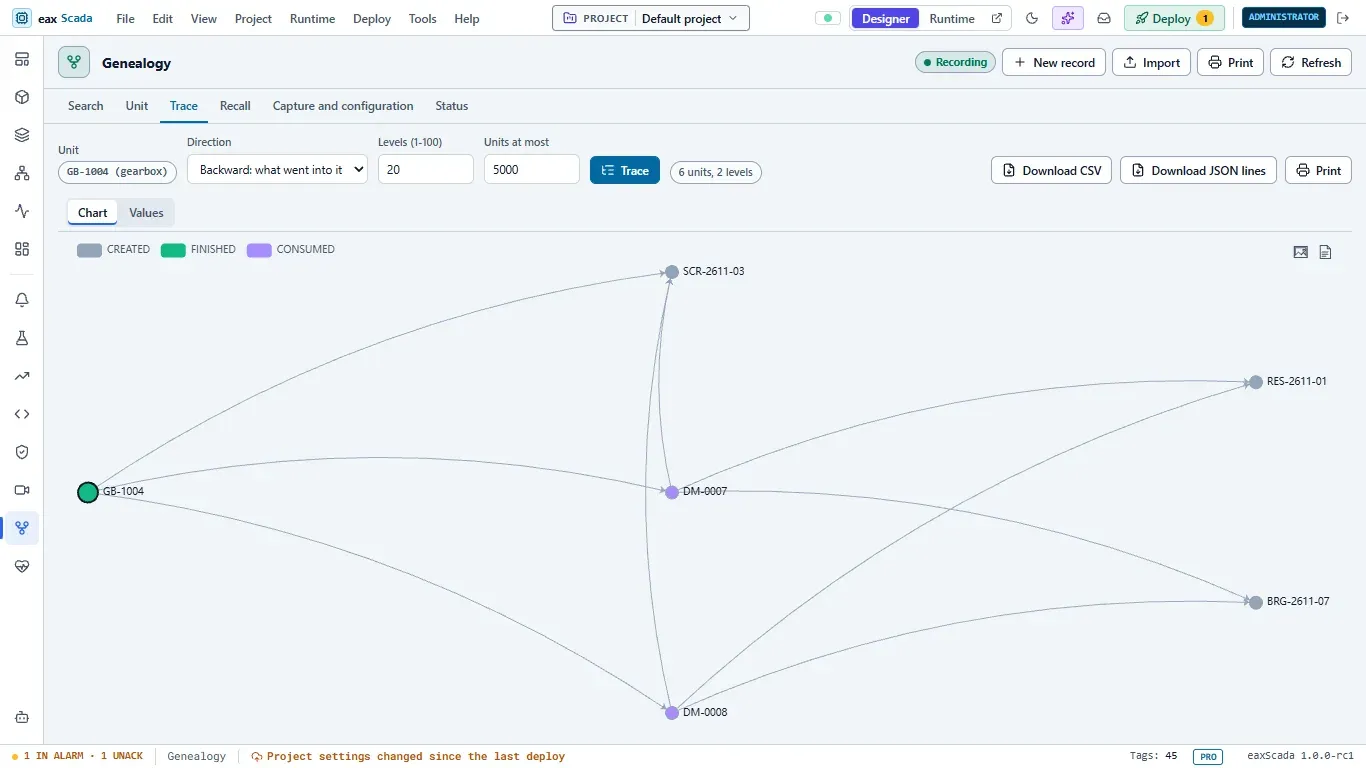
- Direction: Backward: what went into it (components, their components, down to the lots), or Forward: where it went (the units it was built into, up to the finished product).
- Levels (1 to 100, default 20) and Units at most (default 5,000).
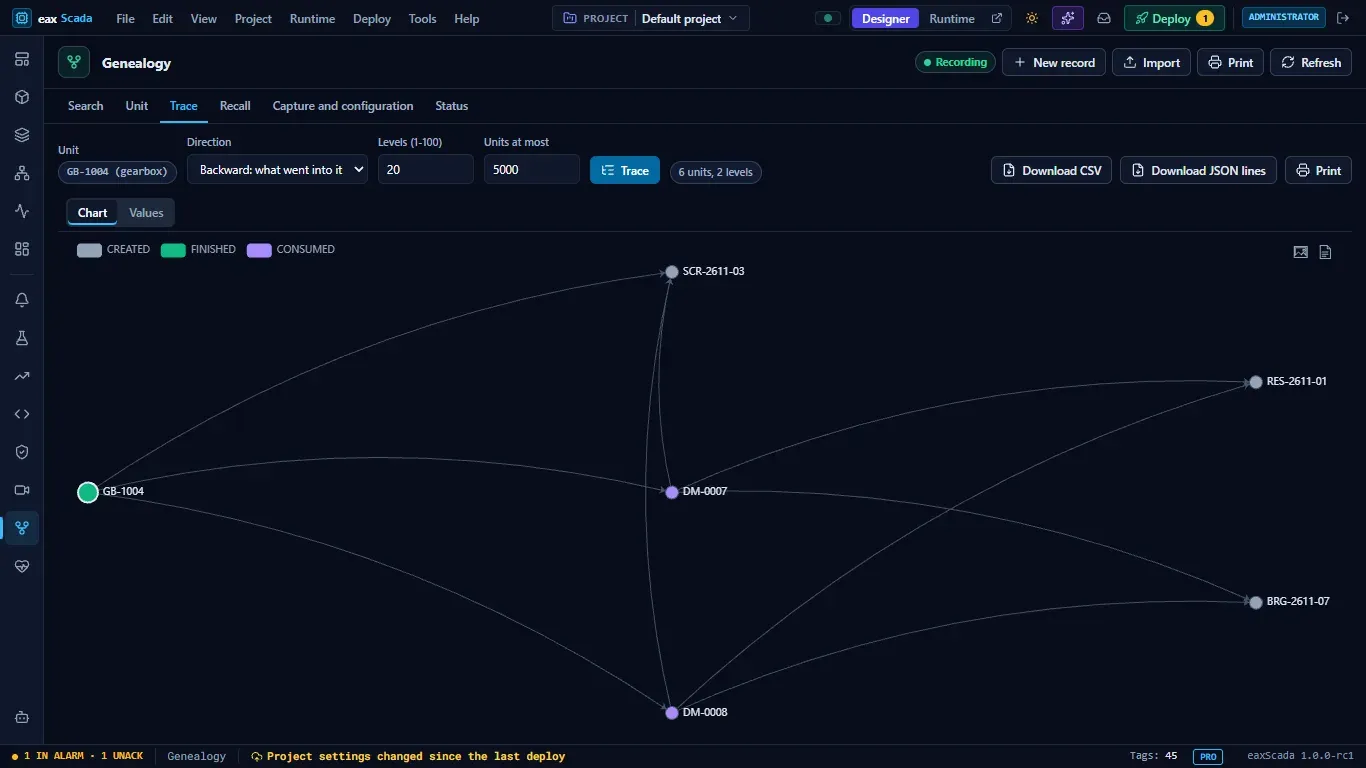
Choose Trace. The chip says how many units and levels were reached, and whether the trace was cut at a limit. Chart draws the units and links, coloured by status; Values lists them with their depth. The chart’s icons save it as an image or the plotted data as CSV.
4. Recall from a lot
Section titled “4. Recall from a lot”When a material lot is suspect, find every unit it reached. Open Genealogy > Recall:
- Pick the Lot type and type the Lot ID, such as
resinandRES-2611-01. - Optionally set the Generation (0: the latest), Levels at most (default 50), and tick Finished units only to list only finished, shipped and top-level units.
- Choose Find affected units.
The units arrive as they are found; when it is done the chip says “Done: N units affected”, with a count per status (IN_PROCESS, CONSUMED, FINISHED, SHIPPED, QUARANTINED…). The grid has a filter box and column filters. Each user runs one recall at a time; a second one is refused until the first ends.
The recall lists units; deciding what to quarantine or whom to notify is yours. To quarantine a unit, open it and use Set status.
5. Export and print
Section titled “5. Export and print”| What | Where | Formats |
|---|---|---|
| A trace | Trace tab: Download CSV, Download JSON lines | CSV, JSON lines |
| A recall | Recall tab: Download CSV, Download JSON lines | CSV, JSON lines |
| The records of a time range | Status tab, Export the records of a time range: From, To (local time), optionally a Record kind, then Download CSV or Download JSON lines | CSV, JSON lines |
| A grid as shown | Export CSV above any grid | CSV |
The time-range file holds each record as stored, with its hashes (prev_hash, record_hash), so it can be checked outside eaxScada; names and values you may not read are hidden. Every export is recorded in the audit trail (GENEALOGY_EXPORT).
Print on the unit page, the Trace tab and the Recall tab opens a print layout of that report; use your browser’s print dialog, which can also save it as PDF.
The same exports are available from the API: GET /api/genealogy/export?what=trace&key=<unit_key>&dir=backward, what=recall&lot_type=…&lot_id=…, or what=range&from=…&to=…, each with format=csv or format=jsonl (Genealogy API).
Verify
Section titled “Verify”Trace a finished part backward and check that every component and lot you expect is there; then trace one of its lots forward and check that the part is in the list.
Troubleshooting
Section titled “Troubleshooting”| Symptom | Cause and fix |
|---|---|
| “The store is behind (busy; retry)” | A record was acknowledged but not yet in the database; it is applied within seconds. Retry. |
| The trace says it was cut | Raise Levels or Units at most, or trace from a unit nearer the root. |
| A recall is refused | You already run one: wait for it to finish. |
| Names show “(name hidden)” | You do not have genealogy.read_personal. |