

Set up shift logs
Give each production line or area its own shift log, decide who may write, sign and review in it, and have a signed shift report produced after each handover.
You need:
- to change the shift log settings: the engineer level (Lead_Engineer or Administrator);
- to grant the rights: security administration (Administrator);
- to add the shift report: the rights
datasets_editandreports_designand the engineer level.
What the shift log is and how it records: The signed shift log.
1. Check what the shift log needs
Section titled “1. Check what the shift log needs”-
eaxScada Enterprise. Not Pro, Starter or Free (not even Free’s evaluation sessions). The server decides at start: a licence installed while it runs takes effect at the next restart (When the licence changes).
-
A build with the columnar (DuckDB) engine and a recording audit trail. Every entry is an audit record: without a trail that records, nothing of the shift log is written (When the audit trail is down).
-
Sign-in on. With security off, every shift log route answers
403 SHIFTLOG_SECURITY_OFF. -
A shift calendar. A log follows a calendar of
reports.shiftsinconfig.yaml, the same calendars Analytics and Reports uses, so the shift log and the reports always agree on what a shift is. Define it on every server (each HA node) and restart:reports:shifts:default:- early 06:00- late 14:00- night 22:00Each line is a shift name and the time it starts on the site’s clock; a shift ends where the next one starts. Lines with their own pattern get their own calendar (
packaging: ...). See Shift calendars.
2. Grant the rights
Section titled “2. Grant the rights”Each right is a feature rule in Security > Permissions with the right’s name as its pattern (shiftlog_view, or feature:shiftlog_view):
| Right | Lets a person |
|---|---|
shiftlog_view |
Read the logs, the entries and the handovers, verify a log |
shiftlog_write |
Write entries, corrections and closures |
shiftlog_sign |
Sign entries and handovers (out and in) |
shiftlog_review |
Review entries, correct another person’s entry, record an instruction |
shiftlog_admin |
Change the shift log settings (with the Lead_Engineer or Administrator level); verify every log at once, with the audit trail’s own chain; see the index problems and rebuild the index |
For a person, in this order:
- The AI co-pilot (an account holding
AI_CoPilot, whatever its other roles) can only ever holdshiftlog_view. Every other right is refused, whatever a rule says. - A DENY rule that names the right, or whose pattern is the catch-all
*(feature:*) or a prefix ending in*(shiftlog_*), refuses it, the Administrator’s too. The Analytics and Reports rights follow the same rule. - An ALLOW rule that names it grants it.
- No rule names it: only the Administrator holds it.
The catch-all pattern * and prefixes such as shiftlog_* never grant these rights: in an ALLOW rule they open nothing, in a DENY rule they refuse.
A new installation starts with these rules:
| Role | Rights |
|---|---|
| Administrator, Lead_Engineer | All five |
| Process_Supervisor | shiftlog_view, shiftlog_write, shiftlog_sign, shiftlog_review |
| Shift_Operator | shiftlog_view, shiftlog_write, shiftlog_sign |
| Compliance_Auditor, AI_CoPilot | None (you may grant shiftlog_view) |
An upgraded installation gets no rules: until you add them, only the Administrator holds the rights. Add the rules of the table above, or your own.
Changing the settings needs shiftlog_admin and the Lead_Engineer or Administrator level, both. On an upgraded installation a Lead_Engineer without a shiftlog_admin rule can open Project > Shift log… but cannot save it. Grant shiftlog_admin to the engineers who set up the logs: a feature rule with the pattern shiftlog_admin, effect ALLOW, on the Lead_Engineer role.
Signing also needs a level: on each log, the people who sign (entries and handovers, out and in) need at least the log’s minimum level, Shift_Operator (40) by default. API tokens may read with shiftlog_view but never write or sign.
3. Add a log
Section titled “3. Add a log”- In the Studio, open Project > Shift log….
- Click Add log.
- Id: a lower-case letter, then up to 31 lower-case letters, digits,
_or-(for exampleline2). The id names the log in its records and cannot be changed once saved. - Name: one line of 1 to 80 characters, for example “Line 2 - Filling”.
- Shift calendar (Analytics and Reports): one of the
reports.shiftscalendars. A calendar that is not defined is refused. Several lines on one calendar is normal. - Area (optional): tag path prefixes and alarm areas, one per line (up to 64 each). They describe the line or area the log is for.
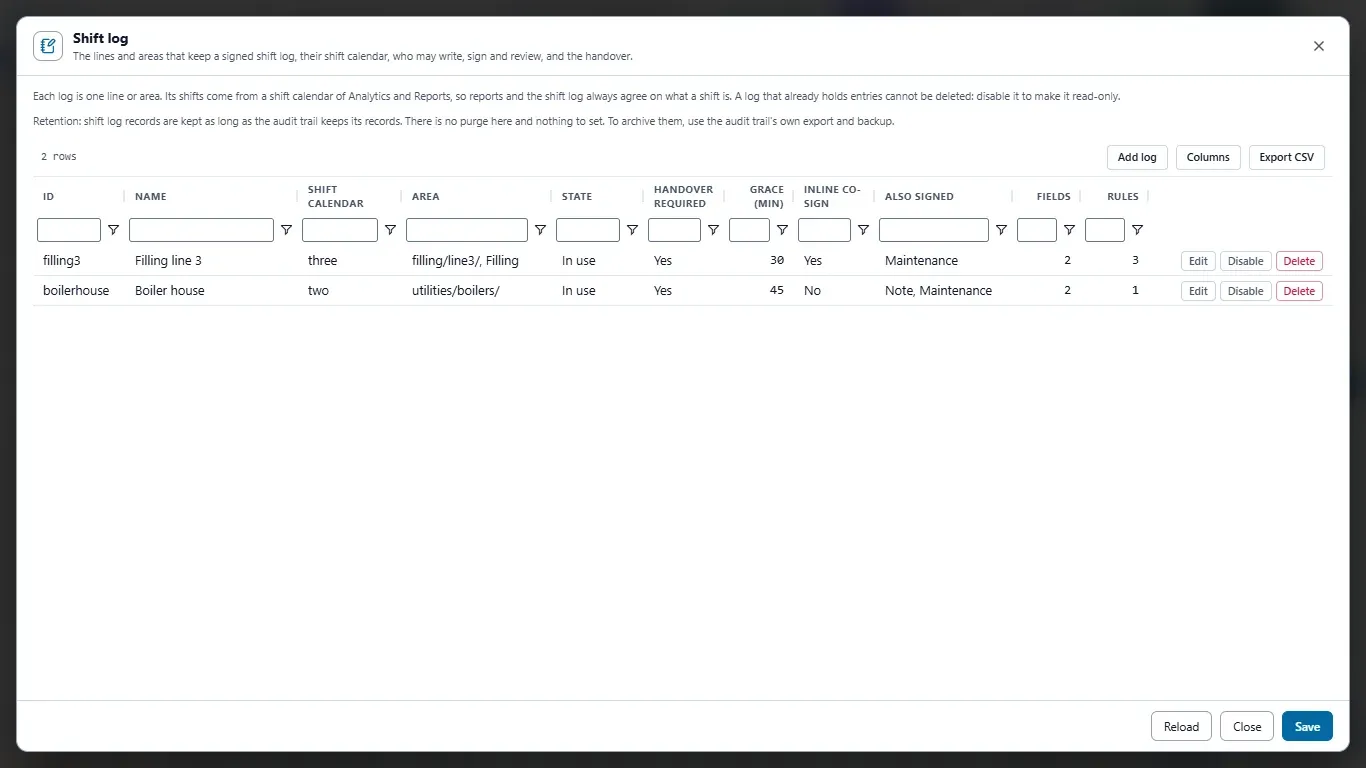
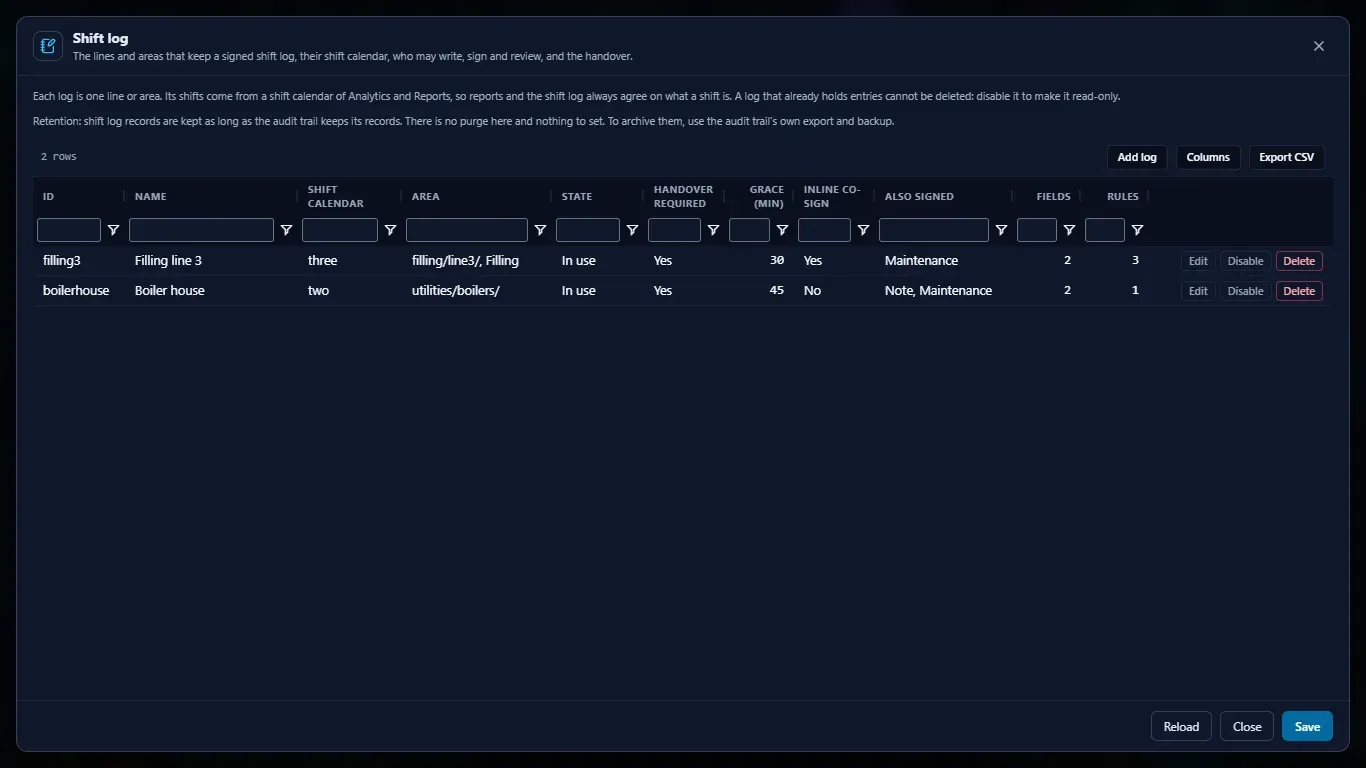
The dialog takes the window’s width up to 1440 pixels. In a window 1280 pixels wide or wider, every column of the logs grid shows without scrolling sideways, beside the pinned Edit, Disable and Delete; a value cut short shows whole in its tooltip. In a window narrower than 1100 pixels, Grace (min) and Inline co-sign start hidden, so the other columns fit at 1024; Columns above the grid shows them again (Choose the columns). On a phone the dialog shows its notice instead of the form.
The Project > Shift log… menu item is shown only when the server’s licence has the shift log (Enterprise), as the Genealogy and Analytics and Reports items wait for theirs. Opened another way outside Enterprise, the page shows one locked card (“The shift log is part of eaxScada Enterprise: signed shift entries, signed handovers and the shift report.”) with a link to the licence page, and no form.
4. Choose who may read, write, sign and review the log
Section titled “4. Choose who may read, write, sign and review the log”Under Who may read, write, sign and review this log, each list (Read, Write, Sign, Review) narrows the right of the same name for this log only. Add a Role, a Group or a User (stored as role:<name>, group:<name> or user:<username>).
- An empty list adds no rule: every holder of the right (section 2) may act on this log.
- A list with names admits only the people it names. A list never grants a right the person does not hold.
- A person named in the Write, Sign or Review list may also read the log.
shiftlog_adminhas no list: it is node-wide.
5. Choose the entry types, their signatures and their fields
Section titled “5. Choose the entry types, their signatures and their fields”Under Entry types, untick the types this log does not use. The handover cannot be turned off.
Signatures per type
Section titled “Signatures per type”Deviations, safety items, instructions and handovers are always password-signed. Notes and maintenance entries are attributed to the signed-in user without a password, unless you switch their signature on. Each type has its own switch:
- Require a password signature for notes
- Require a password signature for maintenance
Tick one when your procedures want a password on every entry of that type. In the logs grid, the column Also signed shows which of the two types a log signs (“Notes”, “Maintenance”, both, or “No”).
A change applies to new entries only. Recorded entries keep what they were recorded with. An entry that an operator was already asked to sign when you switch its type’s signing off still needs that signature: without it the server refuses it and records nothing. See Signatures and settings changes.
Earlier builds had one switch for both types. A log that signed only its notes, or only its maintenance entries, lost that signature setting the next time the Studio saved the settings.
Fields per type
Section titled “Fields per type”Under Fields of each entry type, add the fields an operator fills in, for example the equipment of a maintenance entry or a deviation number. The grid lists every field of the log with its Entry type, Order, Name, Label, Kind, Required and Choices. In the logs grid, the column Fields counts them.
- Click Add field.
- Entry type: note, deviation, maintenance, safety or instruction. The handover has no fields. A saved field keeps its type: to move it to another type, delete it and add it again.
- Kind: Text, Number, Choice or Date.
- Name: a lower-case letter, then up to 31 lower-case letters, digits or
_(for exampleequipment). The name keys the value in each record, so keep it once entries use it.voidis reserved for corrections. Two fields of one type cannot have the same name. - Label shown to the operator (optional): one line of at most 80 characters. Without a label the operator sees the name.
- Required: tick it when an entry of this type must not be recorded without the field.
- Choices, one per line (Choice only): 1 to 50 choices, each at most 80 characters, no two the same.
- Click Apply. A problem is listed in the dialog, and nothing is applied until you fix it.
A type has at most 20 fields. In the grid, Up and Down set the order in which the operator’s dialog shows them. Edit (or a double click) changes a field. Delete removes one after asking: new entries no longer show it, and recorded entries keep their values. The field changes become part of the log when you click Apply in the log dialog, and reach the server when you click Save.
The server checks every entry against its log’s fields, whichever client sends it. An entry without a required field is refused (400 SHIFTLOG_INVALID, with the field named in fields). A void or a closure does not repeat the required fields. In the settings document the fields are entry_types.<type>.fields (Shift log API).
How far back an entry may be dated
Section titled “How far back an entry may be dated”Entries may be dated back (hours): how far in the past an operator may set Occurred at, 1 to 168 hours (24 by default).
6. Set the handover
Section titled “6. Set the handover”Under Handover:
| Setting | Default | What it does |
|---|---|---|
| A handover is required at every shift end | On | When off (an area staffed on day shift only), a shift without a handover gets no “Handover missing” record and no marker |
| Inline co-sign at this console | On | The incoming operator may co-sign at the outgoing operator’s console with their own user name and password. Never through eaxCloud remote access. Off: the incoming operator takes over in their own session |
| Grace after the shift end (minutes) | 30 | After the end plus the grace, a shift without a completed handover gets the record HANDOVER_MISSING (a notice, not an alarm). 1 to 480 |
| Sign-out window before the end (minutes) | 60 | How early before the shift end the outgoing operator may sign out. 1 to 480 |
| Minimum co-signer level | 40 (Shift_Operator) | The lowest level that may sign in this log, the incoming operator included. 1 to 1000 |
Click Apply, then Save.
7. Save, disable and delete
Section titled “7. Save, disable and delete”Save sends the whole document. What happens:
- The change is recorded first in the audit trail (category
SHIFTLOG_SETTINGS, actionUPDATE, with the old and new document). If the record cannot be written, nothing changes: “Not saved: the audit trail could not record the change. Nothing changed.” - Someone else saved since you loaded the page: “Not saved: someone else changed the shift log settings since you loaded them.” Your changes stay on the page; reload, then make your change again.
- The server lists any problem (
400); fix them and save again. A field namedvoidin the document (one written through the API, for example) is refused with the shift log service’s own message: “a unique field name of letters, digits and ‘_’ is required (not ‘void’)”. - You lack
shiftlog_adminor the engineer level: the save is refused (403) and nothing changes. See Grant the rights. - The settings are a project document: they are part of project checkpoints and, on HA, are committed to the cluster before they are written.
A log that holds entries cannot be deleted: the save is refused (“Not saved: these logs already hold entries and cannot be deleted. Disable them instead.”). Disable makes it read-only: its entries stay readable, and every write answers 409 SHIFTLOG_READ_ONLY. A log whose calendar disappears from config.yaml is read-only in the same way until the calendar is back.
Records have no retention setting: they are kept as long as the audit trail keeps its records, and there is no purge.
8. Add the shift report
Section titled “8. Add the shift report”A signed PDF per log and shift, made by Analytics and Reports after each handover:
- In Analytics and Reports > Schedules, click Add shift log report. It adds the report
rep_shift_log(“Shift log report”) and its six datasets (ds_shiftlog_*) to the project. Nothing is replaced: an id that is taken gets a new one (_2,_3…). Nothing is added until you click it. - Open the report in the designer if you want to change it, then deploy the project.
- Click New schedule, choose the report, and as the trigger After each shift handover with the log.
- To have the reports signed, give the report a signature plan (Sign a report), and set deliveries if you want them (Schedule a report).
The schedule runs once per shift of the log: when the handover is completed (both signatures), or when the grace ends without one, whichever comes first. On HA a failover never runs it twice. The run reads as the schedule’s owner, who must hold shiftlog_view on the log. The report shows the handover with both signatures (or that it is missing), the entries with their signatures and references, corrections next to the entries they correct, the open items with their status lines, and whether each entry passed verification: an entry that fails is never shown as valid.
The datasets read the family shiftlog (relations shiftlog_entries, shiftlog_refs, shiftlog_signatures, shiftlog_open_items and shiftlog_handover), refused outside Enterprise.