

Project settings
Migrated page, not yet verified against the current code. Treat values, paths and examples as indicative until this notice is removed.
A project is the set of screens, pages and settings that the operator runtime shows. This page lists every project setting and every per-screen setting, where to find it, its default, who may change it and what it protects.
Open the Project manager (titled Projects and project settings): Project → Project settings… opens it at the Safety section; Project → Open / Switch Project…, or a click on the PROJECT name in the studio’s top bar, opens it at the project list. The settings’ Save buttons stay disabled until the project’s own values are in the form, so a save can never write empty fields over the stored settings. The bar under the dialog’s title jumps to each section: Projects, Pages & routes, Safety, Operator runtime, Review before deploy, New project. The on-screen keyboard section sits between Safety and Operator runtime. Three more project settings have their own dialogs: Project → Fonts & Text Styles…, Project → Translations… and State styles… (in the Operator runtime section).
Who may change what
Section titled “Who may change what”| Setting | Read | Change | Saved | Journaled as |
|---|---|---|---|---|
| Pages & routes, safety, keyboard, operator runtime (the Save buttons) | every signed-in role | Lead_Engineer or Administrator (PUT /api/dev/projects/{id}) |
the project document | project save (operations audit) |
| Live editing | every signed-in role | Lead_Engineer or Administrator, with the project’s revision (If-Match) | at once | PROJECT_LIVE_EDITING_CHANGED |
| Require e-signature to deploy | every signed-in role | on: Lead_Engineer or Administrator; off: the same, with their e-signature | at once | PROJECT_DEPLOY_ESIGN_CHANGED |
| Review before deploy | every signed-in role | stricter: Lead_Engineer; weaker or off: Administrator only | at once | REVIEW_POLICY_CHANGED |
State styles, text styles, style classes, languages (/api/dev/styles) |
every signed-in role (the runtime draws with them) | Lead_Engineer or Administrator, with If-Match | at once | category STYLES, I18N |
Project fonts (/api/dev/fonts) |
every signed-in role | Lead_Engineer or Administrator | at once | category FONT, with the file’s SHA-256 |
| Display Settings of a screen | every role that may open the screen | an engineer who may edit the screen | with the screen | screen save |
In a high-availability pair every setting is engineering configuration: it is changed on the primary and replicated; a standby refuses changes.
When operators get a change. Settings that the runtime reads from the deploy manifest (pages, docks, the quality style, home screens, external addresses, the keyboard) reach operators with the next deploy (or the next automatic deploy, when live editing is on). The studio says so after a save: “Saved. Deploy the project for the operators to get it.” Live editing, the deploy e-signature, the review policy and the deploy gate apply at once, because the server checks them. Styles, fonts and translations are read by every open screen and apply at once.
Projects
Section titled “Projects”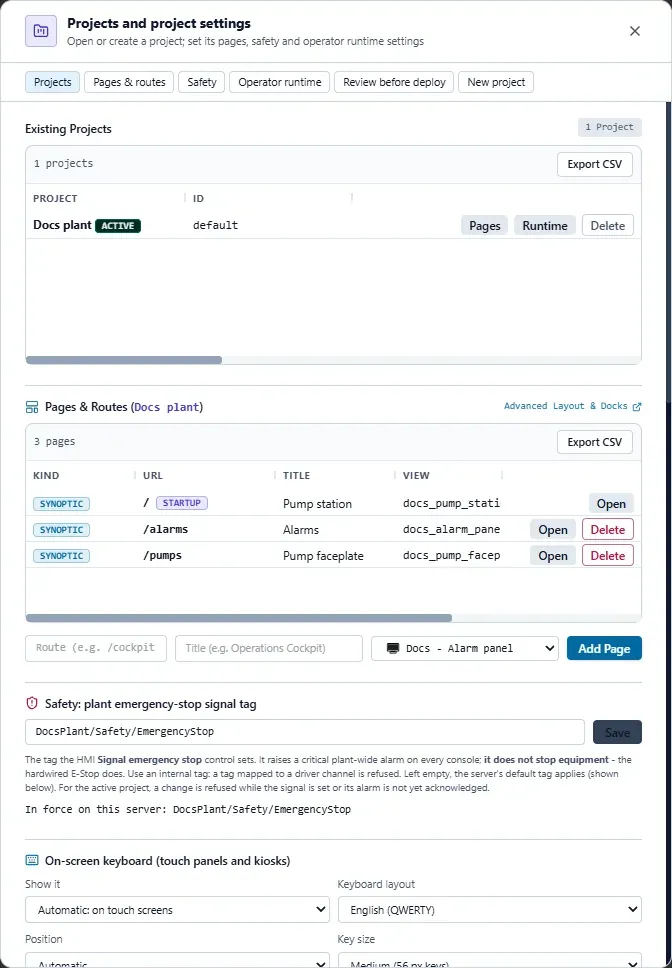
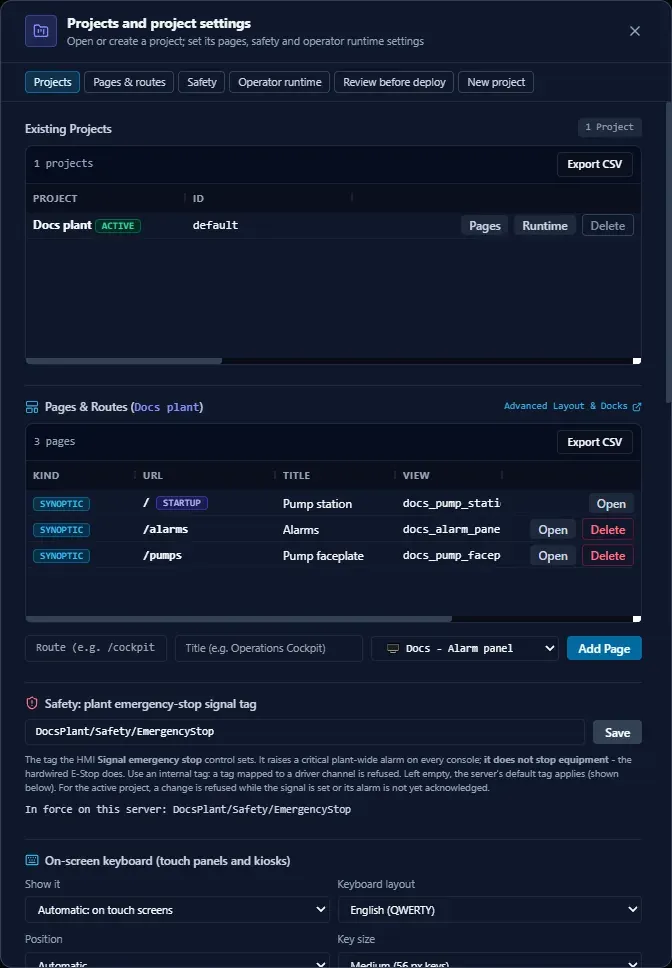
The grid lists the projects of this server with their id, number of pages and startup page. Set Active makes a project the active one (the one the studio edits and the operator runtime shows by default); this moves the plant e-stop signal to that project’s tag first, and is refused while the current signal is set or its alarm is not acknowledged (see Safety). Runtime opens the project in the operator runtime. Delete asks first. The project with the id default cannot be deleted (the server keeps it as the fallback project): its Delete is disabled, and its tooltip says why.
New project (or Project → New Project…) creates a project with one blank screen. A new project gets the safe defaults of this version: live editing off, Require e-signature to deploy on, and the e-stop signal tag Plant/Safety/EmergencyStop written explicitly.
Pages & routes
Section titled “Pages & routes”A page is a URL of the operator runtime (/, /alarms, /pumps) that shows one screen or dashboard as its primary view, with docks around it. The grid has the kind (synoptic or dashboard), the URL, the title and the view, with Open (in the runtime) and Delete (not for /). The project’s startup page cannot be deleted, whatever its URL: the server refuses it (409, "status": "startup_page") and nothing changes. Choose another startup page first. The line under it adds a page: route, title and view.
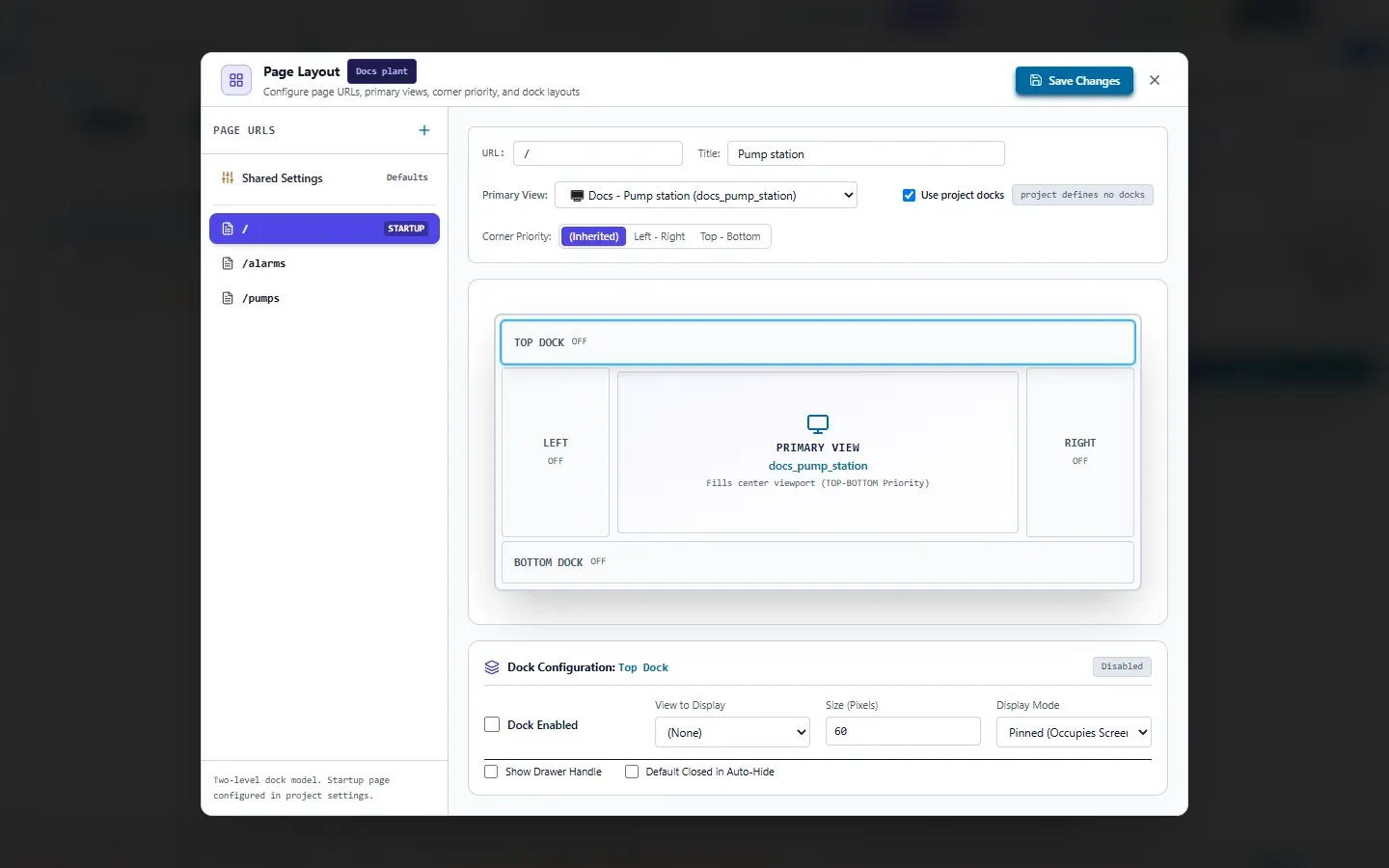
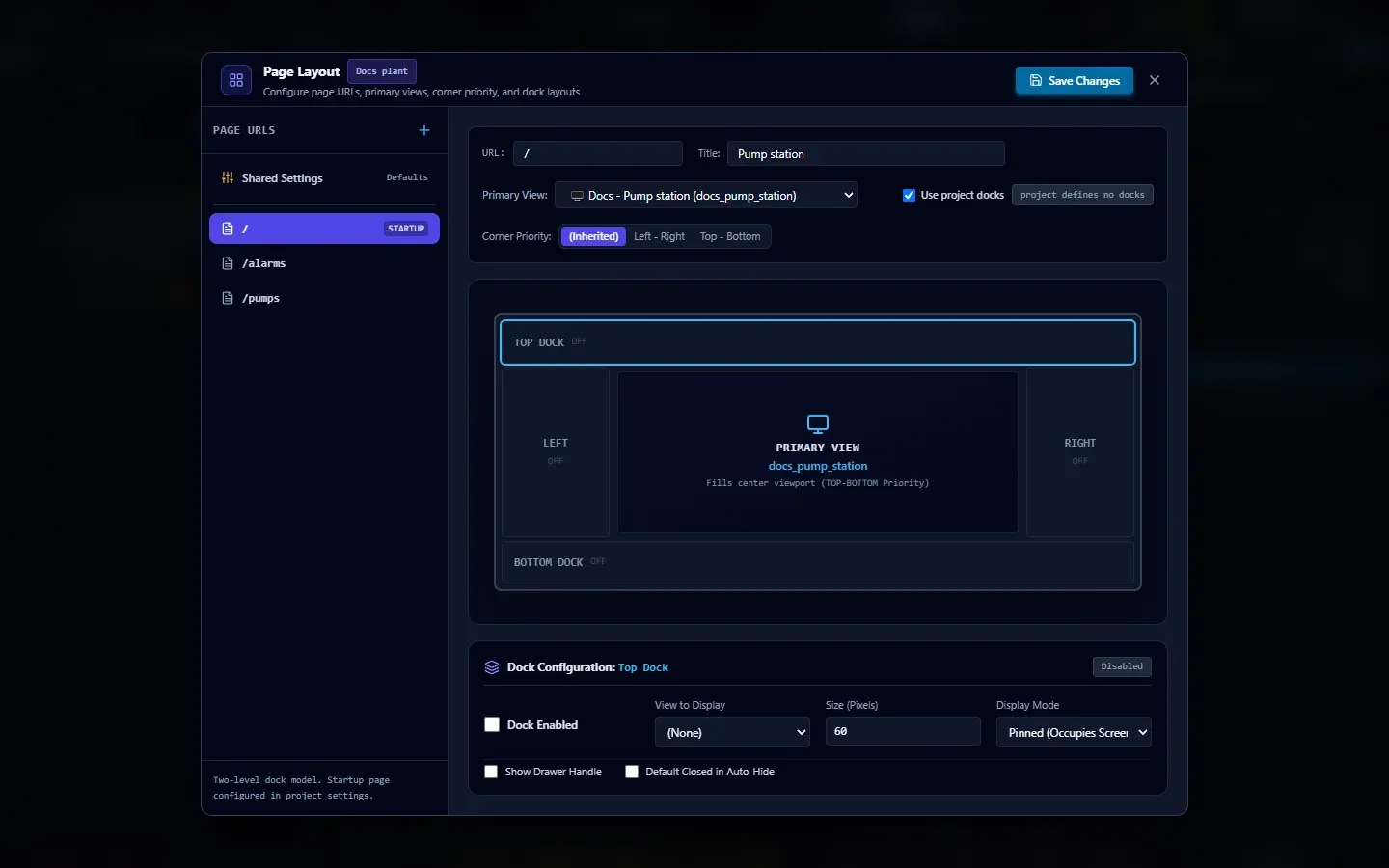
Advanced Layout & Docks (or Project → Page Layout…) opens the page layout editor:
| Setting | Values | Default |
|---|---|---|
| Startup page | a page URL | / |
| Shared docks (Shared Defaults) | top, bottom, left, right: a screen, a size, pinned / auto-hide / off, a handle, start closed | none |
| A page’s docks | the same, or inherit the shared docks | inherit |
| Corner priority | top-bottom (the top and bottom docks span the width), left-right, or inherited from the project |
project: top-bottom; page: inherited |
| Breadcrumb | the runtime shows Home, the screen’s folders and the screen above the page | off |
Save Changes stays disabled until the editor has loaded the project, the lists of screens and dashboards, and the page. Each page’s Primary View and dock views show the page’s own values; a view that is not in the lists (a deleted or renamed screen) is shown as “(not in this project’s screens or dashboards)” and saved unchanged, never replaced by another screen.
The runtime draws only screens that are deployed: a page or dock whose screen is not deployed shows “This screen is not deployed.” See Popups, docks and navigation.
Safety: plant emergency-stop signal tag
Section titled “Safety: plant emergency-stop signal tag”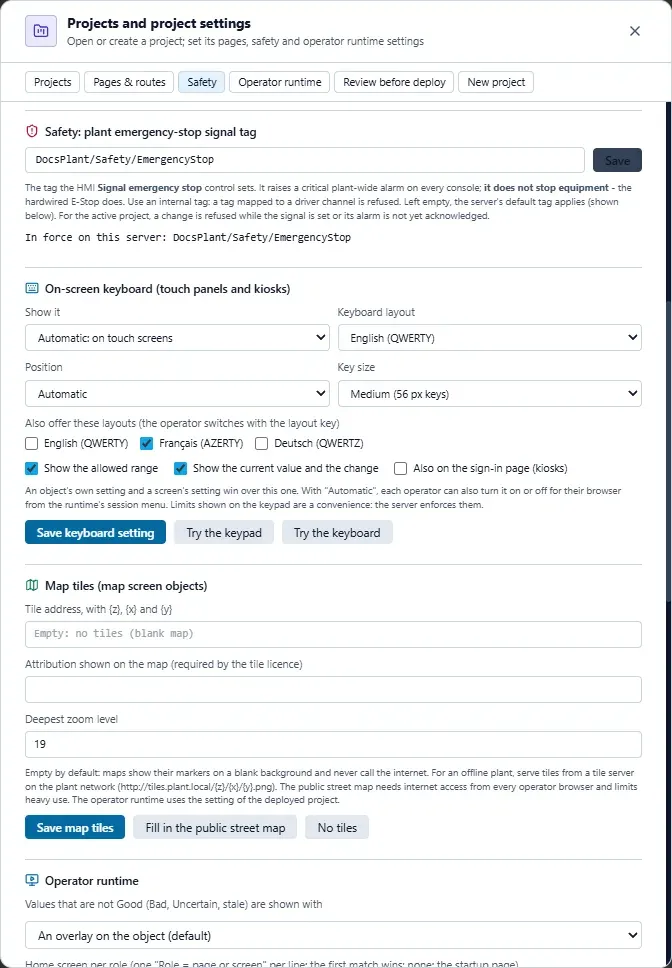
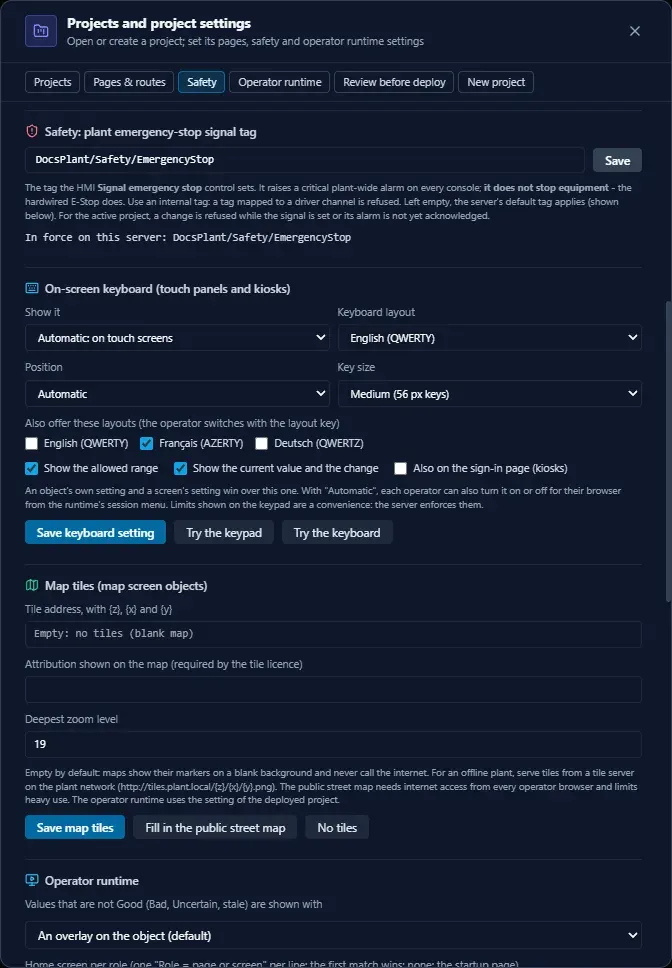
The tag that the HMI’s Signal emergency stop control sets (system.emergencyStop). Setting it raises the built-in critical alarm ALM-PLANT-ESTOP-SIGNAL on every console.
| Default, new project | Plant/Safety/EmergencyStop, written into the project when it is created. |
| Default, existing project | Projects created before the setting have none and keep the earlier signal path; the status line shows the tag in force (“server default”). An empty field means the same. |
| Who | Lead_Engineer or Administrator. |
| Checks | The tag must be an internal memory tag: a tag mapped to a driver channel is refused (422), so the signal can never write to a device. For the active project, a change is refused (409) while the current signal is set or its alarm is not acknowledged. Every deploy checks the setting again. |
| Server rules | Raising the signal is never refused by a write limit, an interlock or the unknown-tag check: it is checked first. |
| Audit | Recorded first, with the signed-in user: PROJECT PLANT_ESTOP_TAG, with the old and new tag (see below). |
| Remote access | A request through an eaxCloud remote session never changes it (403, remote_never). |
| Edition | Every edition. |
Recorded before it changes. Every change of the setting, and every move of the live signal, is written to the audit trail before it is made, as PROJECT PLANT_ESTOP_TAG with the old and new tag and whether the live signal moves. It is recorded on every path that can change it:
- saving a project whose setting changes;
- making a project active, or deleting the active project, when that moves the signal;
- a deploy that moves the live signal: an explicit deploy is recorded as the deployer, an automatic deploy (live editing) as
Auto Deployer; - a checkpoint revert and a server backup restore (records written first).
The record is written once the change’s checks pass. When it cannot be written, the change is refused with 503 and the code AUDIT_NOT_WRITTEN: the setting is not stored and the signal does not move. An automatic deploy is refused as any failed check is (AUTO_DEPLOY_REFUSED): operators keep the previous screens, and the deploy is tried again at the next load. A change that fails after its record is followed by PLANT_ESTOP_TAG_FAILED. Before this release these changes were not recorded with the user who made them.
A deploy moves the signal last. A deploy’s checks only check the move (the tag, and that the current signal is not set). The signal moves once every check has passed (in this order: the review gate, the deploy preview acknowledgement of an explicit deploy, the e-signature, the e-stop check, the lint gate) and, for an explicit deploy, after the DEPLOY record, immediately before the screens go live. A deploy refused by any check leaves the signal where it was.
- Product
- Service or process
- Data store
- Person or role
- Data or telemetry
- Configuration or deploy
- Refusal
Read as text
An engineer deploys the active project, whose emergency-stop signal tag is not the tag in force. The checks of the eaxScada server only check the move; when all pass, the server records DEPLOY, checks the move again, records PROJECT PLANT_ESTOP_TAG, moves the signal and only then publishes the screens. A refused deploy leaves the signal where it was, and a deploy that fails after the move moves it back.
Participants
- Engineer (person or role)
- eaxScada (product): server
- Audit trail (data store)
- E-stop signal (service or process): tag in force
- Screens (service or process): operator runtime
Steps, in order
- Engineer → eaxScada (configuration or deploy): Deploys the active project. its e-stop tag is not the tag in force
- eaxScada: Checks, in order: 0 a remote session never moves the signal; 1 review gate; 2 deploy preview acknowledgement; 3 e-signature; 4 e-stop: the tag is valid, the signal is not set; 5 lint gate; 6 the reviewed or signed project is unchanged
- A check refuses:
- eaxScada → Engineer (refusal): Refused, with the reason. signal not moved, screens unchanged
- eaxScada → Audit trail (data or telemetry): Records DEPLOY first. not written: refused (503), nothing deployed
- eaxScada: Checks the move again: the signal may have been set since the checks
- Signal is now set:
- eaxScada → Audit trail (data or telemetry): Records the failure. DEPLOY_FAILED, or the review gate's failure record
- eaxScada → Engineer (refusal): Refused (409). signal not moved, previous screens stay live
- eaxScada → Audit trail (data or telemetry): Records PROJECT PLANT_ESTOP_TAG. old and new tag; not written: refused (503)
- eaxScada → E-stop signal (configuration or deploy): Moves the signal to the new tag
- eaxScada → Screens (configuration or deploy): Publishes the screens. the new manifest goes live
- Publishing fails:
- eaxScada → E-stop signal (configuration or deploy): Moves the signal back. unless it was set meanwhile: then it stays
- eaxScada → Audit trail (data or telemetry): Records PLANT_ESTOP_TAG_FAILED. then the failure record of the deploy
- eaxScada → Engineer (reply): Reports the failure. previous screens stay live
- eaxScada → Audit trail (data or telemetry): Records DEPLOY_DONE. with the manifest that went live
- Record order:
DEPLOY,PROJECT PLANT_ESTOP_TAG,DEPLOY_DONEfor an explicit deploy (with a lint override:DEPLOY_LINT_OVERRIDDEN,DEPLOY, [DEPLOY_REVIEW_SATISFIED],PROJECT PLANT_ESTOP_TAG,DEPLOY_DONE); for an automatic deploy: [DEPLOY_REVIEW_SATISFIED],PROJECT PLANT_ESTOP_TAG, thenDEPLOY_AUTO_DONEwhen the project has no review gate. Before this release the e-stop record came first, ahead ofDEPLOY. - Set in the meantime: when the current signal is set between the checks and the move, the deploy fails with
409(recordsDEPLOY,DEPLOY_FAILED; with a review gateDEPLOY,DEPLOY_REVIEW_SATISFIED,DEPLOY_REVIEW_SATISFIED_FAILED), the signal is not moved and the previous screens stay live. - Moved back: a deploy that fails after the move moves the signal back to the tag it had and records
PLANT_ESTOP_TAG_FAILED(explicit:DEPLOY,PROJECT PLANT_ESTOP_TAG,PLANT_ESTOP_TAG_FAILED,DEPLOY_FAILED; automatic:PROJECT PLANT_ESTOP_TAG,PLANT_ESTOP_TAG_FAILED,DEPLOY_AUTO_FAILED; for a project with a review gate,DEPLOY_REVIEW_SATISFIED_FAILEDtakes the place ofDEPLOY_FAILEDandDEPLOY_AUTO_FAILED). A signal that was set in the meantime is never dropped: it stays on the new tag, and the failure record says so.
Every sequence is in Record sequence of a deploy.
On-screen keyboard (touch panels and kiosks)
Section titled “On-screen keyboard (touch panels and kiosks)”The project’s default for the numeric keypad and the full keyboard that open when an operator taps a field. See Set up touch panels and kiosks.
| Setting | Values | Default |
|---|---|---|
| Show it | Automatic: on touch screens / Always / Never | Automatic |
| Keyboard layout | English (QWERTY), Français (AZERTY), Deutsch (QWERTZ) | English (QWERTY) |
| Also offer these layouts | the others; the operator switches with the layout key | none |
| Position | Automatic (next to the field from 1024 px wide, docked below that) / Docked at the bottom / Next to the field / Centre of the screen | Automatic |
| Key size | Small 44 px / Medium 56 px / Large 72 px | Medium |
| Show the allowed range | on the keypad | on |
| Show the current value and the change | the current value, its quality and the change in % | on |
| Also on the sign-in page (kiosks) | the keyboard on /login |
off |
Try the keypad and Try the keyboard preview the form’s values; they write nothing. An object’s own keyboard setting and a screen’s setting win over the project’s. With Automatic, each operator can turn the keyboard on or off for their browser from the runtime’s session menu; a project or screen set to Never is never turned on.
Safety. The keypad refuses an out-of-range, off-step or malformed number before anything is sent, but this is a convenience: the server enforces the limits. The keypad has no write path of its own (it writes through the same guarded write as every input), never writes on each key or on leaving the field, and never fills in a password or a signer. Every edition.
Operator runtime
Section titled “Operator runtime”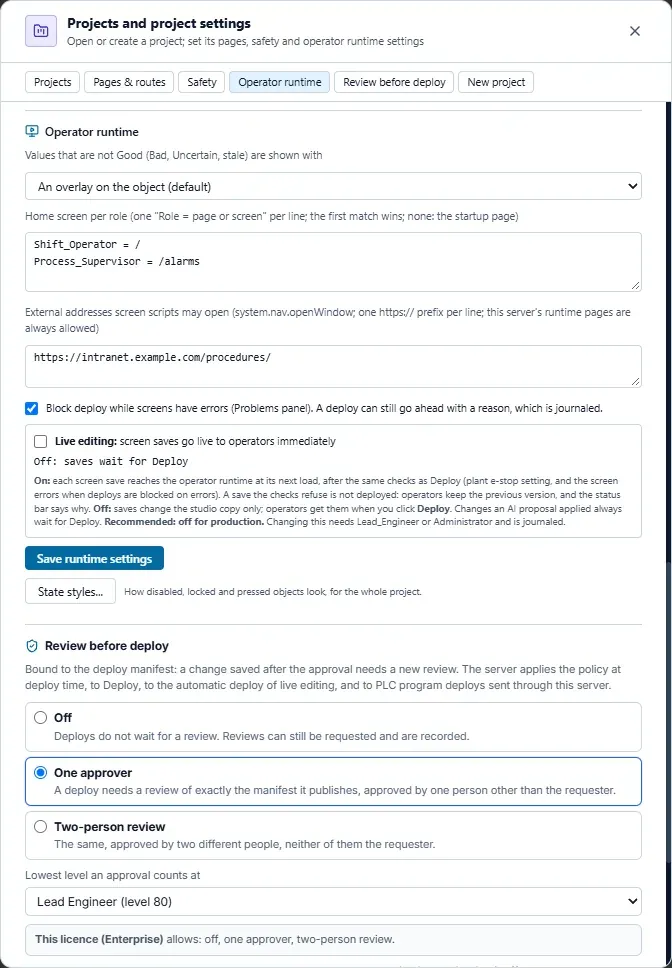
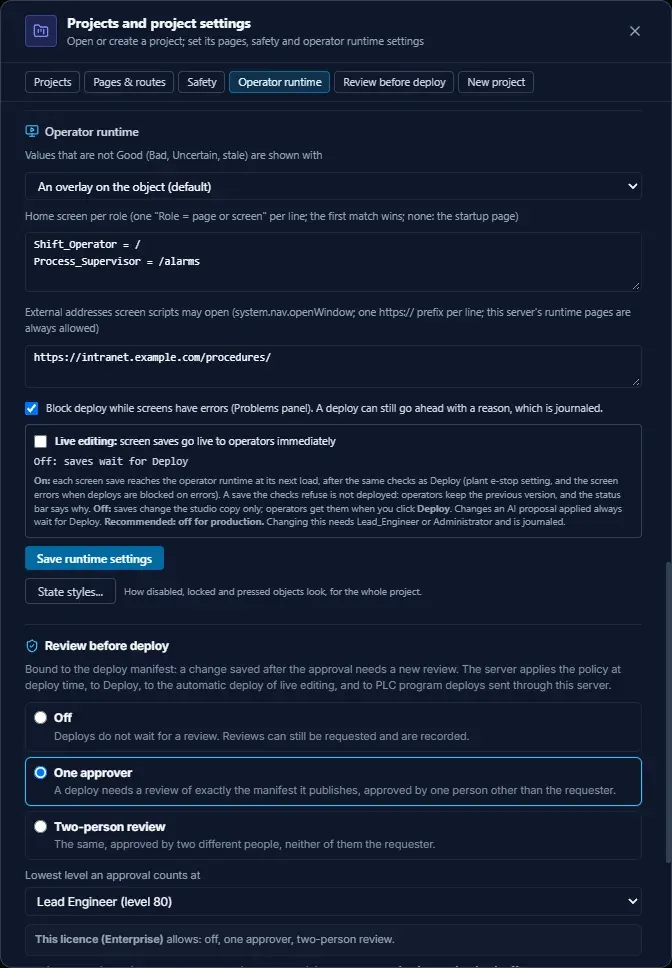
Save runtime settings saves the quality style, the home screens, the external addresses and the deploy gate together. Live editing and Require e-signature to deploy are each saved on their own, at once. All are in every edition.
Values that are not Good are shown with
Section titled “Values that are not Good are shown with”How an object shows a value whose quality is Bad, Uncertain or stale. See Show bad and stale values.
| Value | Bad value | Uncertain | Stale (no update, link down) |
|---|---|---|---|
| An overlay on the object (default) | the object veiled grey, a red ✕ marker | amber ? marker |
dashed outline, clock |
| A corner marker | the red ✕ marker only | amber ? |
dashed outline |
| Hatching over the object | the object hatched, the red ✕ | amber ? |
dashed outline |
Default for new and existing projects: overlay. The style only changes how much the object is covered. In every style no object shows a Bad, Uncertain or stale value as good.
Home screen per role
Section titled “Home screen per role”One Role = page or screen per line, for example Shift_Operator = / or Maintenance = maintenance_overview. The runtime’s Home button (and system.nav.home()) opens the first line that matches one of the signed-in user’s roles; with no match, the project’s startup page. A line that is not Role = target is refused and nothing is saved. Default: none.
External addresses screen scripts may open
Section titled “External addresses screen scripts may open”One https:// prefix per line. system.nav.openWindow opens an external address only when it starts with one of them; this server’s runtime pages are always allowed. Anything other than https:// is refused when you save. Default: none, so scripts can open runtime pages only.
Block deploy while screens have errors
Section titled “Block deploy while screens have errors”When ticked, a deploy is refused (409 lint_errors) while the Problems panel finds errors in any screen or component. A person who clicks Deploy may still go ahead by giving a reason of at least 10 characters, journaled as DEPLOY_LINT_OVERRIDDEN; an automatic deploy never overrides. Default: off (new and existing projects). See Check screens before deploying.
Live editing
Section titled “Live editing”Whether a screen save reaches the operators without Deploy. See Deploy screens to operators, and live editing.
| Default, new project | Off: saves change the studio copy only; operators get them at Deploy. |
| Default, existing project | On, shown as “On (default for projects created before this version)”, so an upgrade changes nothing. |
| Recommended | Off for production. |
| Who | Lead_Engineer or Administrator. Saved at once with the project’s revision: if the project changed meanwhile, the change is refused and you reopen the Project manager. A project save never changes it. |
| Safety | With live editing on, the automatic deploy runs the same checks as Deploy (the e-stop setting, the deploy gate, the review gate) and fails closed when the checks are not ready. Screens changed by an applied AI proposal always wait for an explicit Deploy. The automatic deploy cannot sign: with Require e-signature to deploy on, saves wait for a signed Deploy. |
Require e-signature to deploy
Section titled “Require e-signature to deploy”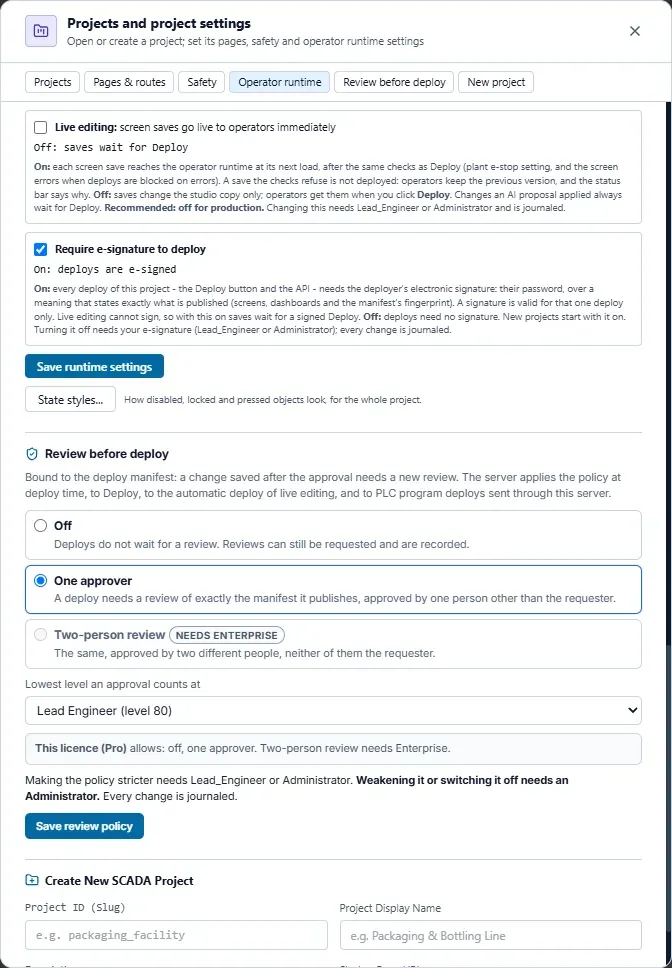
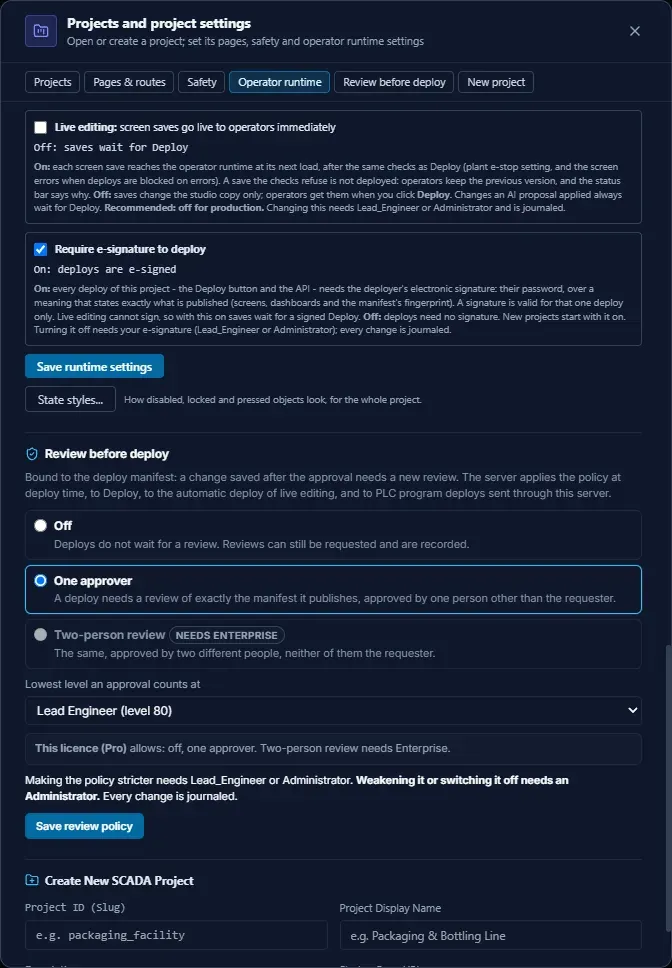
Whether every deploy of the project needs the deployer’s electronic signature. See Require an e-signature to deploy.
| Default, new project | On (a new project, and the project of a new installation). |
| Default, existing project | Off, shown as “Off (default for projects created before this version)”, so an upgrade changes nothing. |
| On | The Deploy dialog asks the deployer’s password over a meaning that states what is published (“Deploy project <name>: N screens, M dashboards (manifest <hash>)”). One signature per deploy, bound to that manifest: a change saved after the signature refuses the deploy. The deployer signs their own deploy; API tokens and the AI co-pilot account never sign. The automatic deploy of live editing cannot sign, so saves wait for a signed Deploy. |
| Who | Turning it on: Lead_Engineer or Administrator. Turning it off: the same, with their e-signature over the project revision. Every change is journaled (PROJECT_DEPLOY_ESIGN_CHANGED). A project save never changes it. |
| Edition | Every edition. |
Legacy screen scripts (unsandboxed)
Section titled “Legacy screen scripts (unsandboxed)”Whether the project’s screen scripts run as in earlier versions, in the operator’s page, instead of in the sandbox. See Migrate screen scripts to the sandbox.
| Default | Off, for every project, new and existing (an upgrade turns no project on). |
| Recommended | Off. Use it only while you rewrite scripts the Problems panel lists (script-not-sandboxed, startup-script-not-sandboxed). |
| On | Scripts run in the page with system and player, with everything the page can do under the operator’s session. system.nav.navigate still opens only this server’s pages. |
| Who | Turning it on: an Administrator, with a reason (never the AI co-pilot). Turning it off: Lead_Engineer or Administrator. Saved at once, on its own (Save runtime settings does not carry it), with the project’s revision. Every change is journaled first (PROJECT_LEGACY_SCRIPTS_CHANGED, old and new value, reason). A project save never changes it; a checkpoint revert that would turn it on needs an Administrator. Never changed through eaxCloud remote access. |
| Takes effect | For the active project; open operator pages read it again within 30 seconds. |
| Edition | Every edition. |
State styles…
Section titled “State styles…”Opens the project’s state styles editor.
State styles
Section titled “State styles”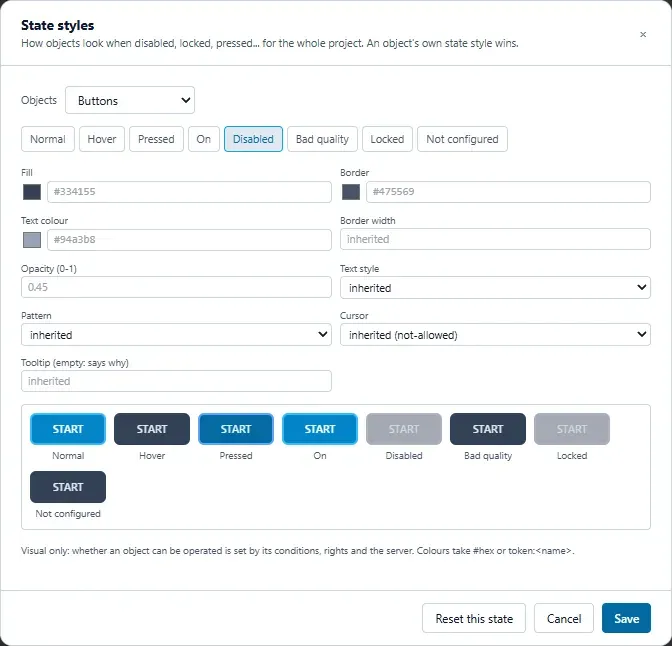
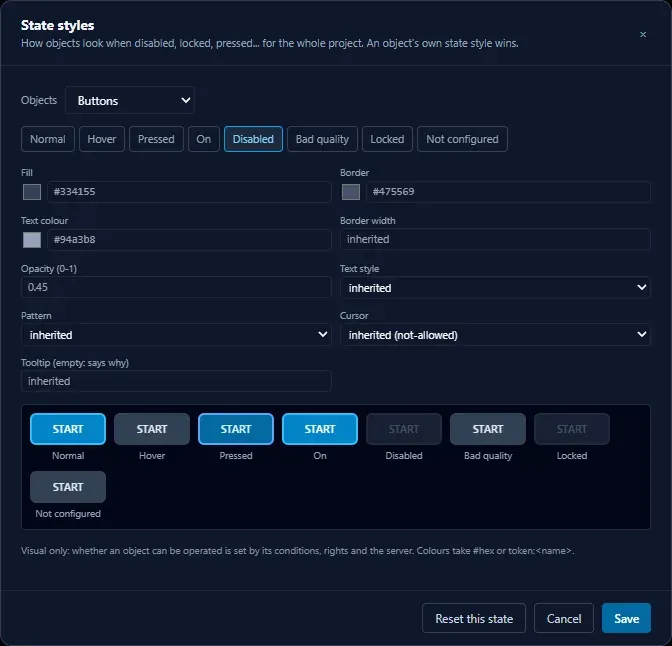
How objects look in each state, for the whole project, per object family: Buttons, Inputs, Toggles, Selectors, Faceplate buttons and All other objects. The states are Normal, Hover, Pressed, On, Disabled, Bad quality, Locked and Not configured. Each state can set the fill, border, border width, text colour, text style, opacity, pattern (hatched), cursor and, for Disabled and Locked, the tooltip (empty: the tooltip says why).
| Default | No project style: objects look as drawn, a disabled or locked one dimmed to 0.45 with its own disabled colours and a not-allowed cursor. |
| Order | theme → project (All other objects, then the family) → the object’s own colours → the object’s own state style. An object’s own state style wins. |
| Who | Lead_Engineer or Administrator; saved with If-Match (a conflicting save is reloaded, nothing is overwritten). |
| Safety | Visual only. Whether an object can be operated is decided by its conditions, the user’s rights and the server, never by a style. The lint rule state-disabled-indistinguishable warns when the disabled look is the same as the normal look. |
| Edition | Every edition. |
See Style object states.
Review before deploy
Section titled “Review before deploy”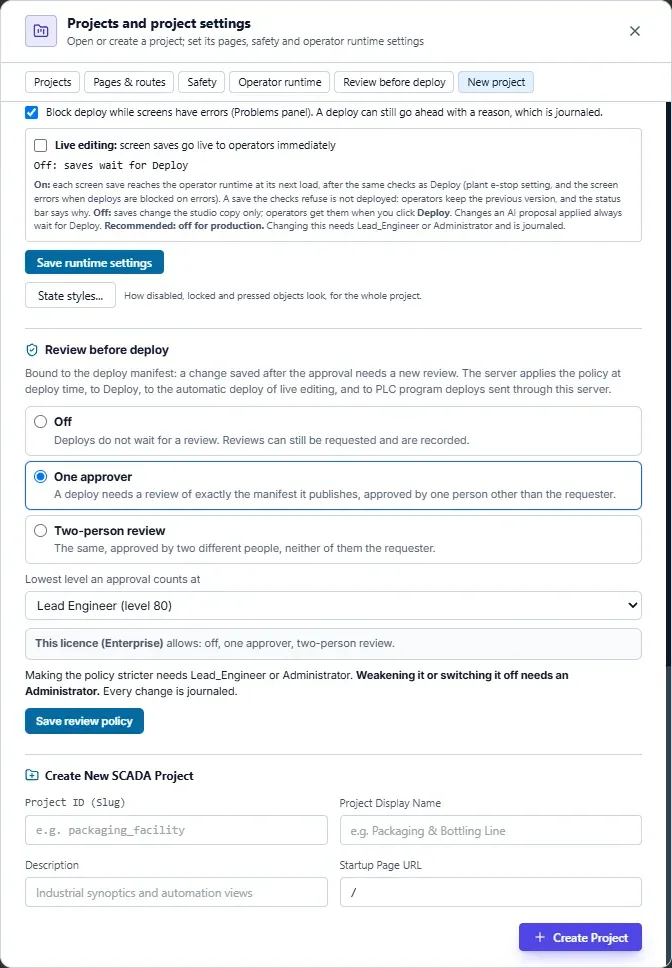
| Setting | Values | Default |
|---|---|---|
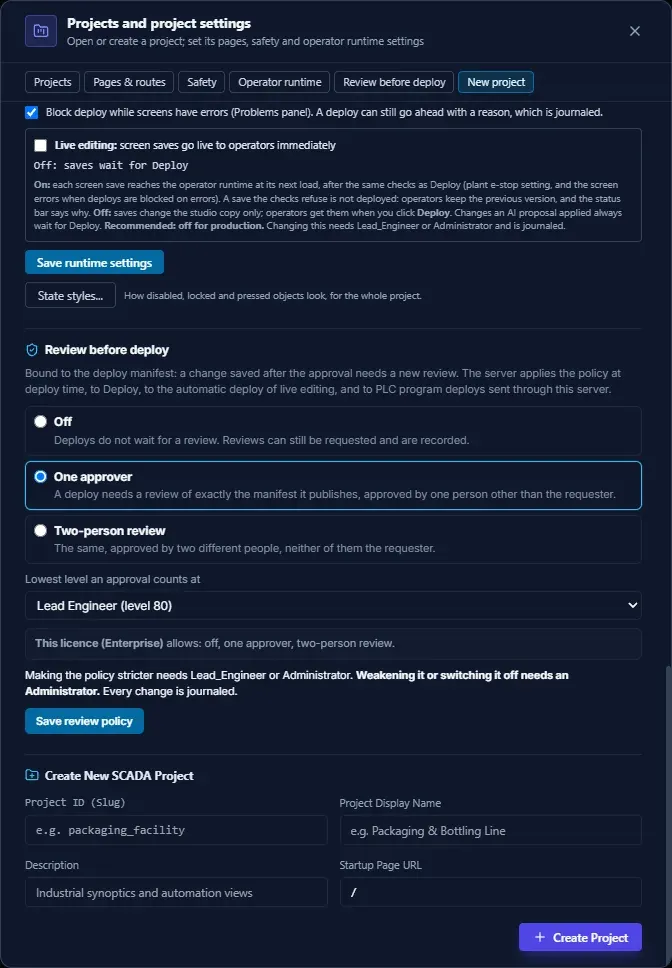
| Policy | Off: deploys do not wait; reviews can still be requested and are recorded. One approver: a deploy needs a review of exactly the manifest it publishes, approved by one person other than the requester. Two-person review: two different approvers, neither the requester. | Off |
| Lowest level an approval counts at | Lead Engineer (80) or Administrator (100) | 80 |
| Who | Making the policy stricter: Lead_Engineer or Administrator. Weakening it or switching it off: Administrator only (the choices are disabled for others). Saved with the project’s revision. |
| Applies to | Every deploy through this server: Deploy, the automatic deploy of live editing, and PLC program deploys sent through eaxScada. An approval is bound to the manifest hash: a change saved after it needs a re-review. |
| Edition | Comments in every edition; One approver: Pro and Enterprise; Two-person review: Enterprise. The section says what the licence allows. |
See Review screens and PLC programs before deploy.
Fonts and text styles
Section titled “Fonts and text styles”Project → Fonts & Text Styles…
| Setting | Default | |
|---|---|---|
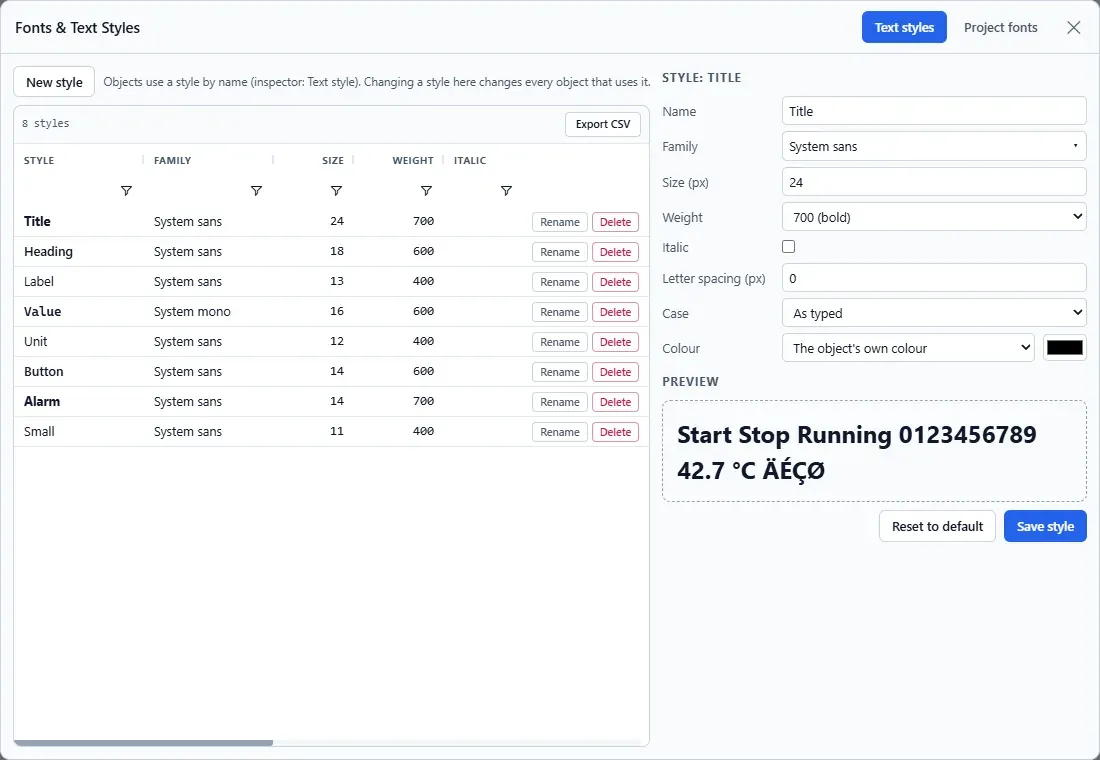
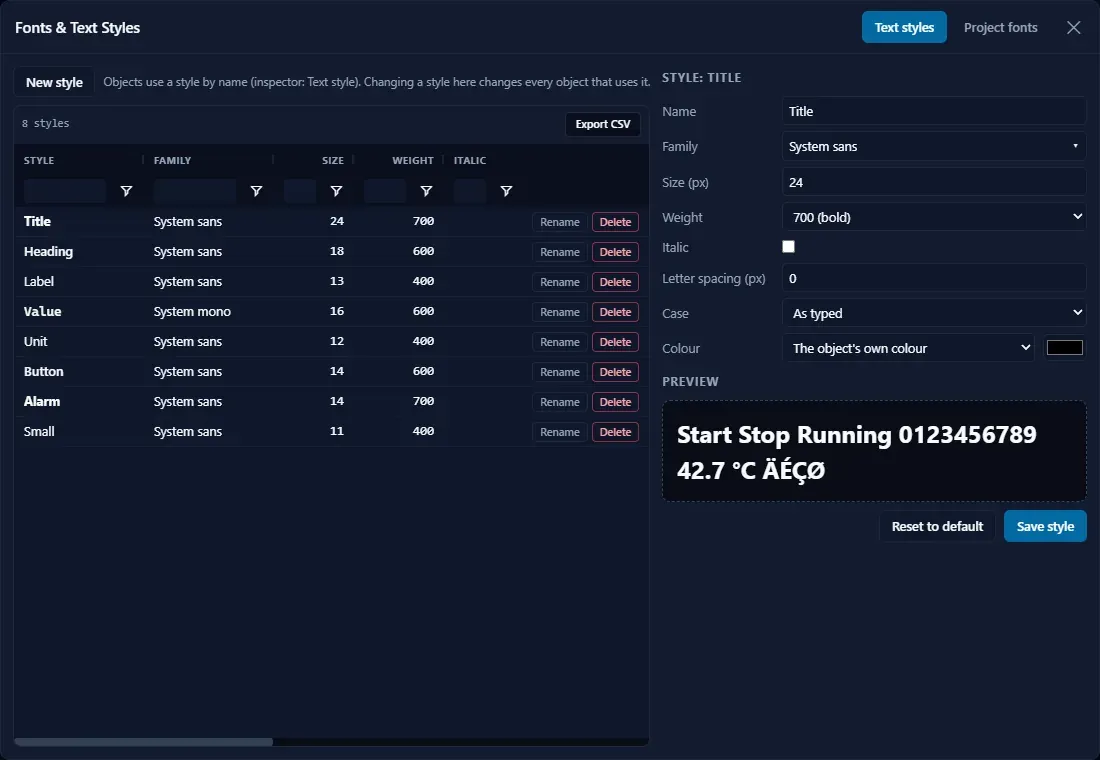
| Text styles | Title, Heading, Label, Value, Unit, Button, Alarm, Small, and your own: family, size, weight, italic, letter spacing, case, colour (the object’s own, a theme token or a fixed colour) | the eight product styles on system font stacks |
| Project fonts | WOFF2, WOFF, TTF or OTF files uploaded to the project: at most 5 MB a file, 30 MB a project | none |
A style or font family in use cannot be renamed or deleted (409, with where it is used). Lead_Engineer or Administrator; every edition. See Fonts and text styles.
Languages
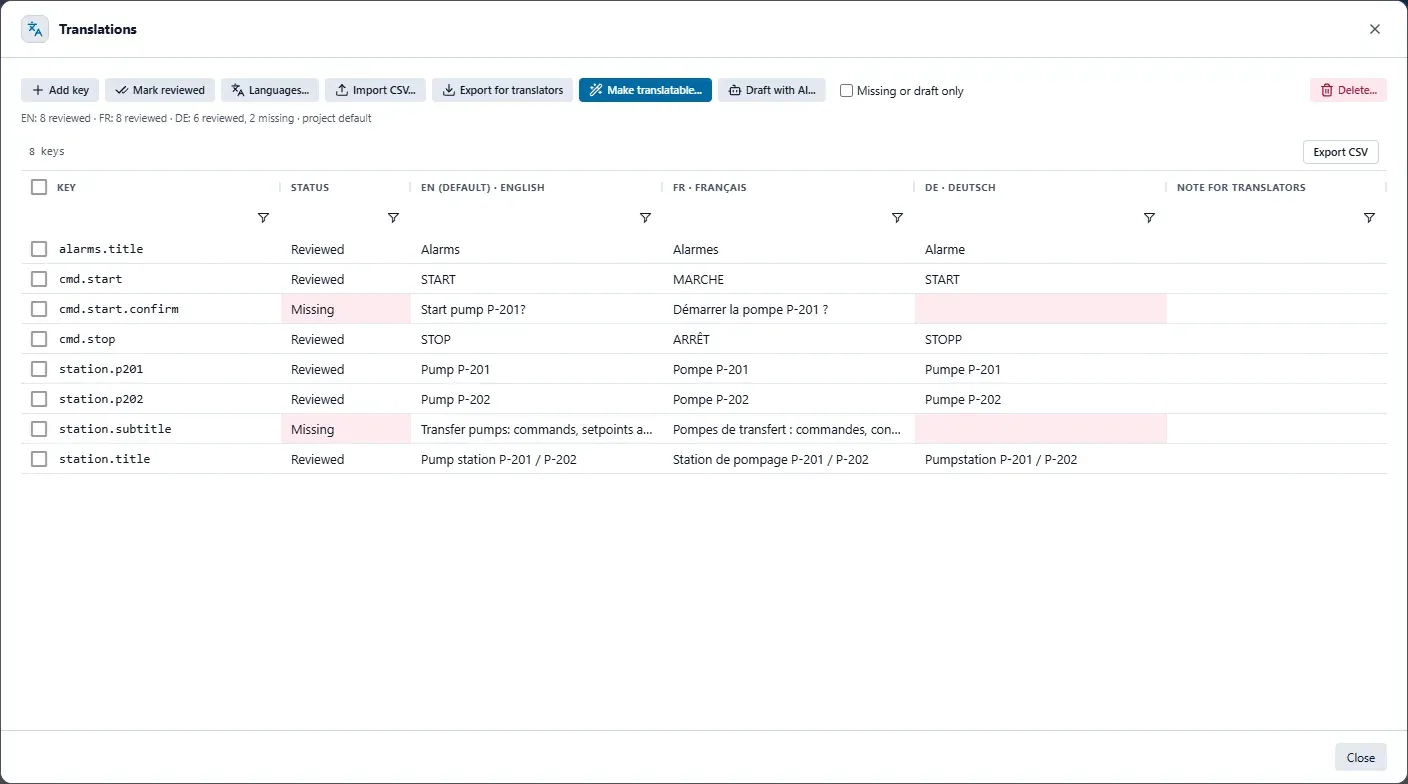
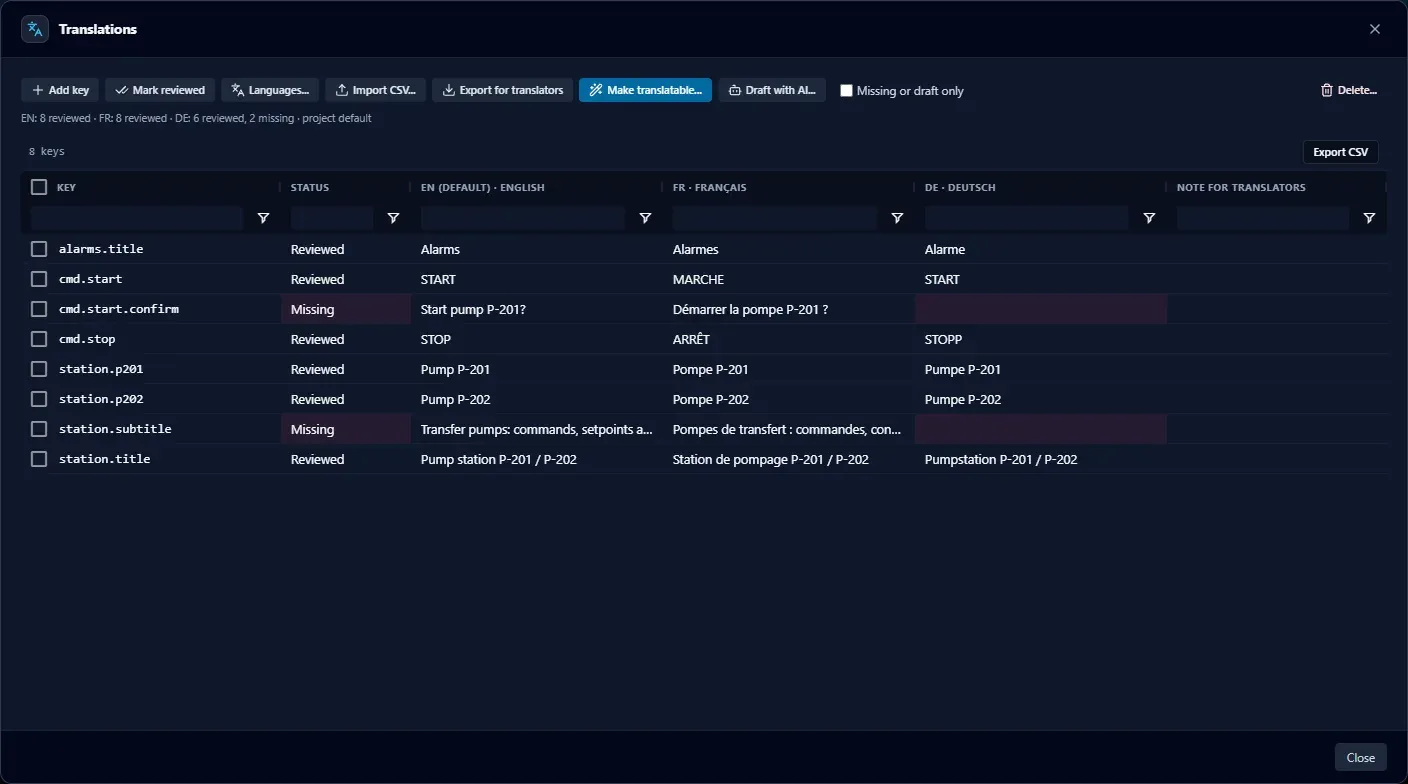
Section titled “Languages”Project → Translations… → Languages…
| Setting | Default | |
|---|---|---|
| Languages | the languages operators may choose; any code (pt-BR) |
English only |
| Default language | the language the screens are written in; a missing text falls back to it | en |
Removing a language keeps its texts. Lead_Engineer or Administrator; every edition (drafting with AI needs the assistant: Pro and Enterprise). See Translate your project.
Display Settings (per screen)
Section titled “Display Settings (per screen)”Project → Display Size & Properties… for the open screen, or the settings icon next to a screen in the display tree. The dialog has four tabs.
Navigation & Roles
Section titled “Navigation & Roles”| Setting | Default | |
|---|---|---|
| Display name, identifier | the screen’s name and id | |
| Set as Project Entry Point | the screen a plain /runtime opens |
off |
| Display Architecture Role | Standard Synoptic, Navigation Shell (a frame that embeds other screens in an inner container), Popup Faceplate | Standard Synoptic |
| Inner container | for a navigation shell: the default inner screen and the container id | none |
| On-startup action and launch script | a script run when the screen opens, in the shared code editor | none |
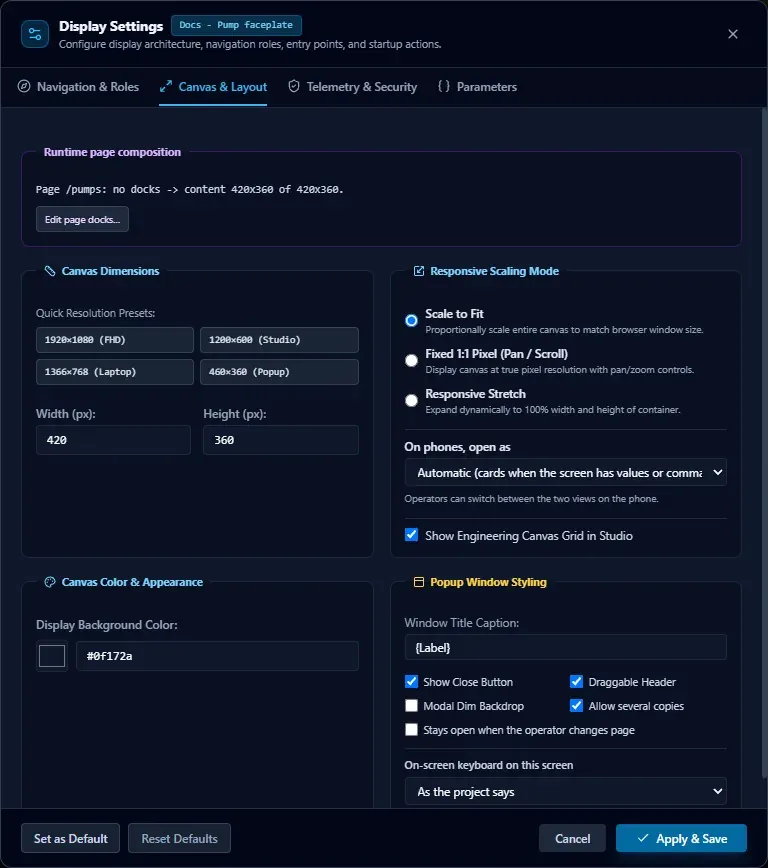
Canvas & Layout
Section titled “Canvas & Layout”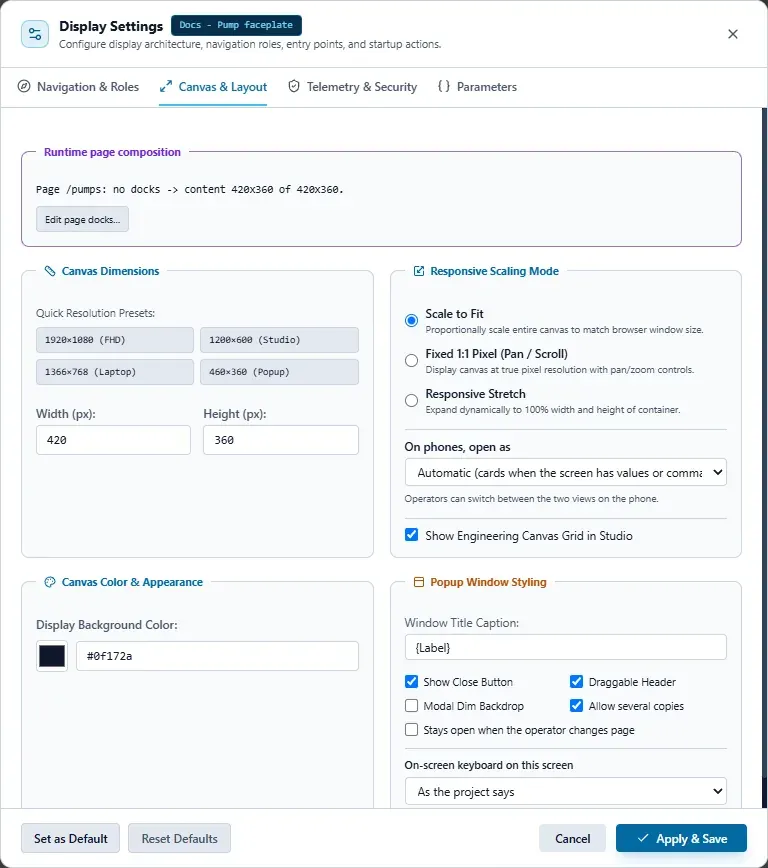
| Setting | Default | |
|---|---|---|
| Width, height | the canvas, with presets (1920 × 1080, 1280 × 800, 1366 × 768, 460 × 360 popup) | from the new-project resolution |
| Responsive scaling | Scale to Fit, Fixed 1:1 pixel (pan and zoom), Responsive Stretch | Scale to Fit |
| On phones, open as | Automatic (cards when the screen has values or commands to list), the screen as cards, or the designed screen with pinch-zoom | Automatic |
| Background colour | ||
| Popup window: title caption | {Name} parameters work |
the screen name |
| Show close button, Draggable header, Modal dim backdrop | the popup’s window; an Open popup action can override modal and draggable | |
| Allow several copies | the popup can be open more than once | off: a second open brings the first to the front |
| Stays open when the operator changes page | off: a page change closes popups | |
| On-screen keyboard on this screen | As the project says, Automatic (on touch), Always, Never | As the project says |
Telemetry & Security
Section titled “Telemetry & Security”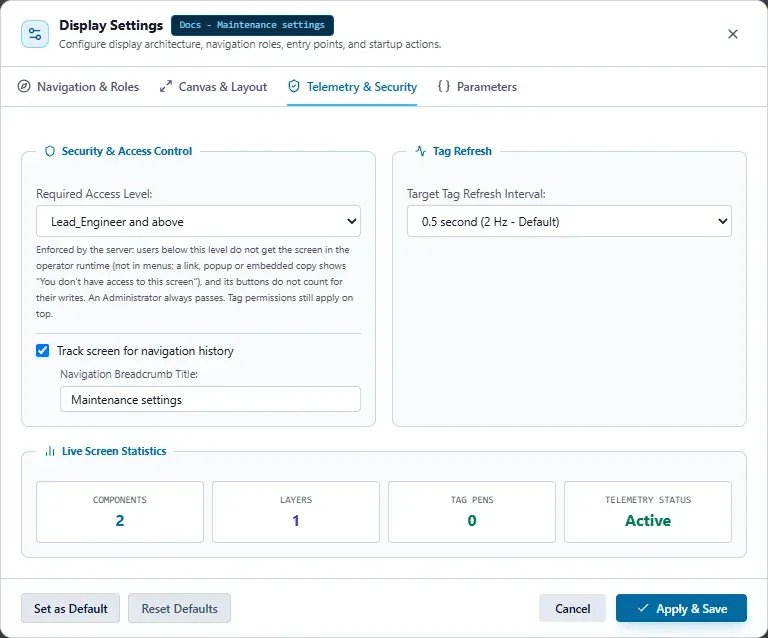
| Setting | Default | |
|---|---|---|
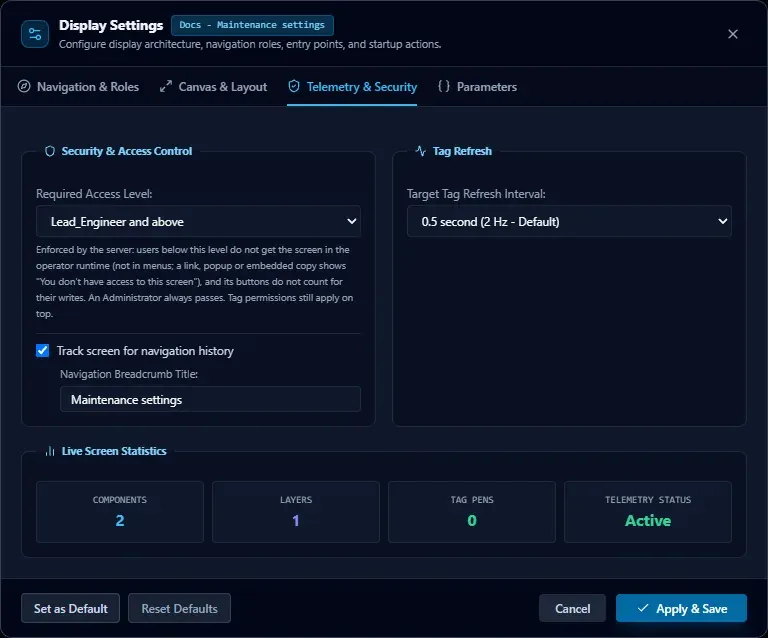
| Track screen for navigation history, breadcrumb title | off | |
| Target tag refresh interval | the screen’s update rate; a stored value that is not one of the choices is shown and kept | 0.5 s |
| Required Access Level | No restriction (anyone signed in), Shift_Operator and above, Process_Supervisor and above, Lead_Engineer and above, Administrator only | No restriction |
| Required Access Level | security_code |
Role level needed |
|---|---|---|
| No restriction (anyone signed in) | * or empty |
0 |
| Shift_Operator and above | operator |
40 |
| Process_Supervisor and above | supervisor |
60 |
| Lead_Engineer and above | engineer |
80 |
| Administrator only | admin |
100 |
| any other value | Administrator only |
Required Access Level is enforced by the server. A user’s level is their highest role’s (directly or through a group); an Administrator always passes. For a user below the screen’s level:
- the operator runtime does not get the screen: it is not in the screen list or the menus, and a page that shows it is left out;
- a link, an address, a popup, a dock or an embedded copy of it shows You don’t have access to this screen instead of the screen;
- reading the screen in the studio is refused (403
screen_access_denied), except for users who may edit screens (Lead_Engineer and above); - its buttons and inputs do not count for that user’s writes: a write that names the screen is refused (403
screen_access_denied, codeWRITE_DENIED_SCREEN_ACCESS), and a command on it never lets that user’s value past another object’s interlock.
The AI assistant’s screen tools follow the same levels, for the account that calls them; the AI co-pilot account (level 10) reads only screens with no restriction. A stored value that is not one of the levels is treated as Administrator only (lint screen-access-unknown). The Problems panel warns when a screen links to a screen with a higher level (nav-target-restricted), and a deploy lists those links. See Restrict a screen to a role level.
The earlier Telemetry Streaming Mode (stream_mode) did nothing and is removed from the dialog and the save; a stored value is ignored.
Parameters
Section titled “Parameters”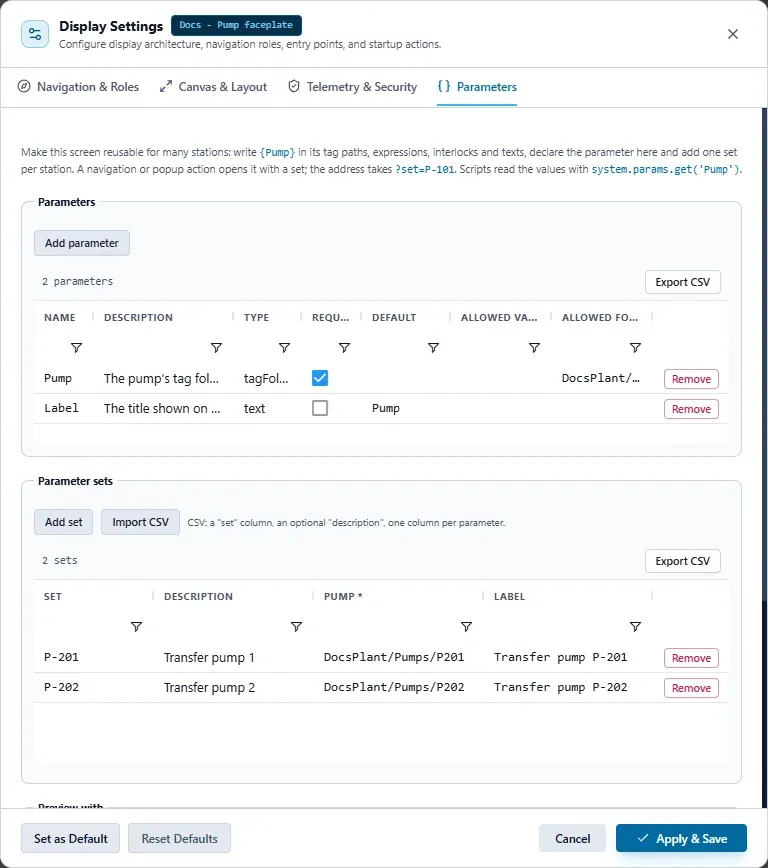
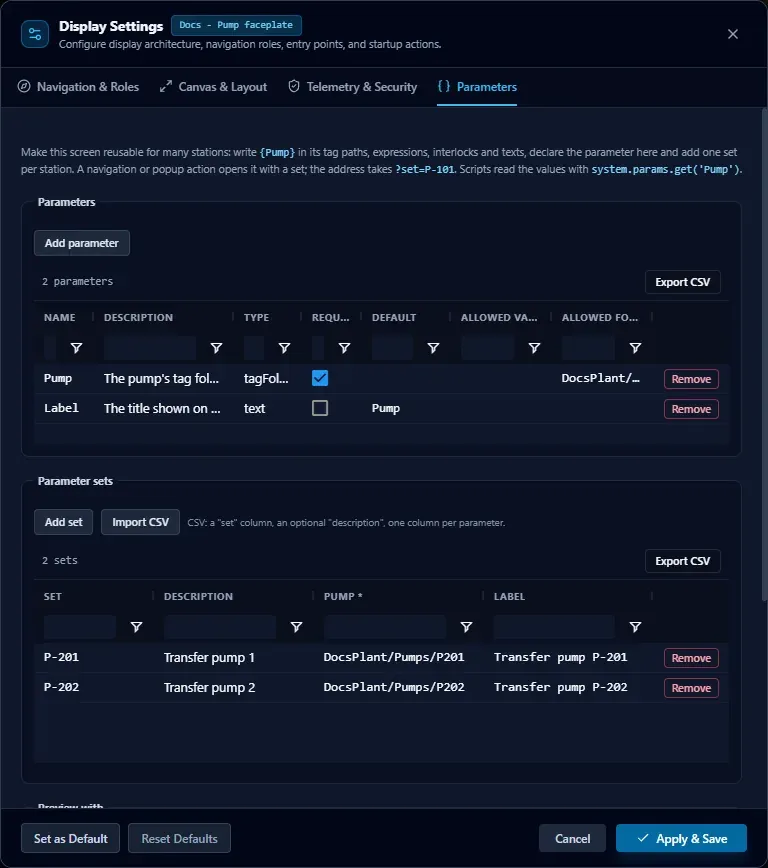
The screen’s declared parameters (name, description, type, required, default, allowed values, allowed folders) and its parameter sets, with CSV import and export and Preview with. The server derives each set’s write policy. Every edition. See Reusable screens with parameters and the Screen parameters reference.
In the project document
Section titled “In the project document”For scripts and reviews: the members of /api/dev/projects/{id} that hold these settings.
| Member | Setting |
|---|---|
startup_page_url, pages, corner_priority, shared_settings.top/bottom/left/right |
pages, routes and docks |
safety.plant_estop_tag |
the e-stop signal tag |
shared_settings.touch_keyboard |
mode, layouts, size, position, show_range, show_old_value, login |
shared_settings.quality_style |
overlay (or empty), marker, hatched |
navigation.home_screens, navigation.allowed_external_urls, navigation.console_layouts |
home screens, external addresses, consoles |
deploy_gate.block_on_lint_errors |
the deploy gate |
live_editing |
absent: on (a project from before the setting); false / true (PUT .../live-editing only) |
require_deploy_esign |
absent: off (a project from before the setting); true / false (PUT .../deploy-esign only) |
legacy_scripts |
absent or false: off (scripts sandboxed); true (PUT .../legacy-scripts only) |
collab.deploy.require_review |
the review policy (/api/collab/policy only) |
A save that leaves out safety, navigation, touch_keyboard, deploy_gate or a member the server does not know keeps the stored value: an older editor can never reset them. State styles, text styles, style classes (shapeClasses) and languages are in the project styles document (/api/dev/styles), fonts in /api/dev/fonts, translations in /api/i18n.