

Popups, docks and navigation
Migrated page, not yet verified against the current code. Treat values, paths and examples as indicative until this notice is removed.
An operator clicks pump P-201 on the station screen and its faceplate opens as a popup, bound to P-201’s tags. A button opens the alarm list in the right dock. Back returns to the previous page with its docks as they were, and Home opens the screen of the operator’s role.
1. Make the faceplate a popup screen
Section titled “1. Make the faceplate a popup screen”-
Draw the faceplate once with
{Pump}in its tag paths and{Label}in its title, and add a parameter set per pump: see Reusable screens with parameters. -
Open its Display Settings → Navigation & Roles and choose Popup Faceplate.
-
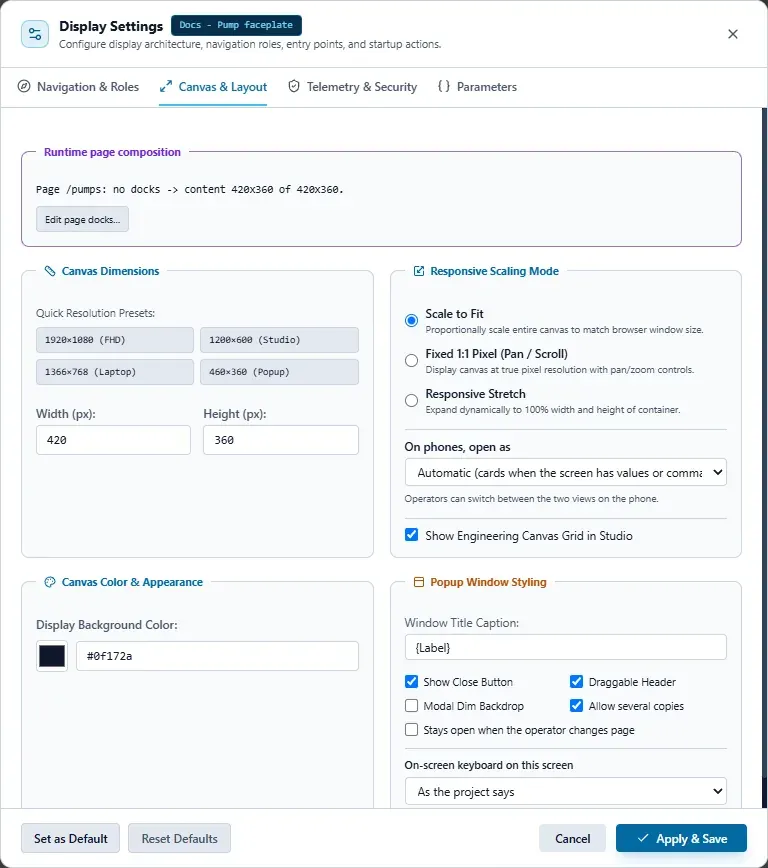
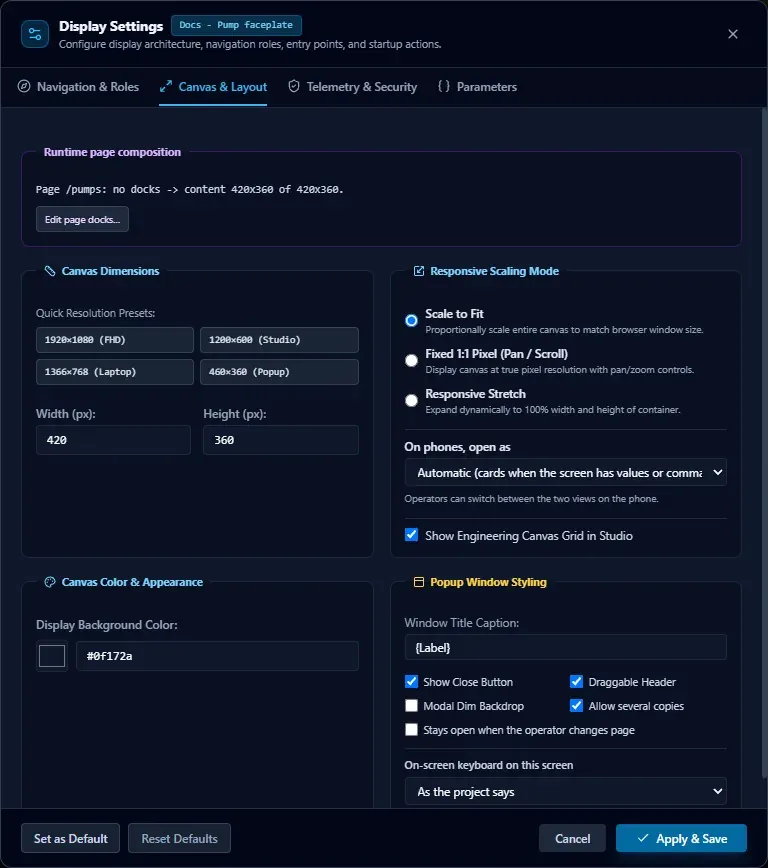
On Canvas & Layout, set the size and the popup window:
Setting For a faceplate Window Title Caption {Label}Show Close Button on Draggable Header on: the operator moves it; its last position is remembered in that browser Modal Dim Backdrop off: the operator can keep working on the page Allow several copies on, to compare two pumps side by side Stays open when the operator changes page off
2. Open it from the station screen
Section titled “2. Open it from the station screen”On the pump symbol (or a button), set the action Open popup screen:
| Field | Value |
|---|---|
| Screen | docs_pump_faceplate |
| Parameter set of the target screen | P-201 |
| Window | as the screen says, modal or modeless |
| Position | centre, next to the object pressed, or a fixed x and y |
| The operator cannot move it / May cover the alarm banner | as needed |
A modal popup takes every tap outside it, over the whole screen, until it closes: nothing on the page under it can be operated. The dim leaves the visible alarm banners readable. A popup is placed clear of the alarm banners the operator can see, unless May cover the alarm banner is set; a banner hidden under something else (the phone’s cards view, a sheet) does not move it.
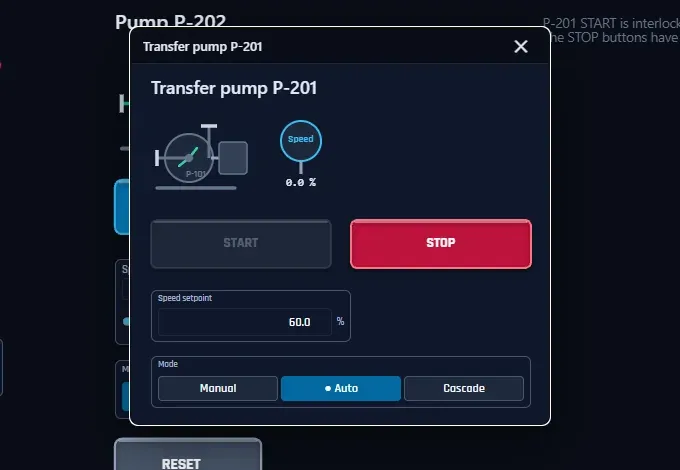
A popup is kept clear of every alarm banner unless the action allows covering it. Escape closes the topmost popup (not while a dialog or the keypad is open). A screen opens once unless it allows several copies; opening it again brings it to the front. The charts, tables, web content and alarm objects of a popup are placed from the popup’s own canvas.
What is refused. A parameter value with a wildcard (* # + >), a brace, a control character or a . / .. folder, a value outside the screen’s allowed folders, or an unknown set: the popup does not open and the action says why. A popup of a screen that is not deployed does not open. A command in a popup runs exactly like the same button on a page: its confirmation or signature, then the guarded write, checked by the server for the popup’s own parameter values.
3. Docks
Section titled “3. Docks”Use the actions Open dock, Close dock and Open or close dock with an edge (top, bottom, left, right) and, to open, the screen to show there. A dock the operator or a script opens or closes stays so across pages until it is changed again. The page layout (Project → Page Layout…) sets each page’s docks: pinned, auto-hide or off, their size and handle.
Charts, tables and web content in a dock. A dock shows its screen at its design scale. Its charts, data tables, web content, gauges and alarm objects are drawn in the dock’s own layer, inside the dock: a dock longer than the window (a navigation bar on a phone) scrolls along its length and its objects scroll with it; after a dock or window resize, or a phone turned, they are placed again, a table keeping its filters and scroll; they take taps; an auto-hide dock slides them away with its drawer. When the dock shows another screen, the previous screen’s objects go with it. A dock may show the page’s own screen without taking the page’s place.
A dock waits for its tags. The tags its objects name, the Tags lists of web content included, are answered before the dock is shown, for at most 2 seconds; a value still missing then shows Bad. They are subscribed with the page. Meanwhile the dock’s drawing, its HTML objects and an isometric map in it are hidden and take no tap, click or key (17 November); a very large answer that keeps coming in parts holds it up to 30 seconds, with “Loading values… N% (n/m)”. The same holds for a popup and an inner screen.
4. Back, Forward, Home
Section titled “4. Back, Forward, Home”The operator runtime’s toolbar has Back, Forward and Home; the browser’s own keys do the same, and the actions Back, Forward and Home screen put them on a screen. Each history entry keeps the page’s parameters and its docks, so Back returns to the previous page as the operator left it.
Home screen per role: Project → Open / Switch Project… → Operator runtime, one Role = page or screen per line; the first that matches the user’s roles wins, otherwise the startup page.
Breadcrumbs: a page with Breadcrumb on shows Home, the screen’s folders in the display tree, and the screen.
5. Consoles and other windows
Section titled “5. Consoles and other windows”A project can define consoles (navigation.console_layouts): named sets of windows, each with a page and a position. The runtime’s Screens menu offers Open console: name, which opens one window per entry, for a multi-monitor desk. Browsers may ask to allow pop-ups and treat positions as hints.
system.nav.openWindow opens this server’s runtime pages, and external https:// addresses only when they start with one of the project’s External addresses screen scripts may open.
Related
Section titled “Related”- Screen scripting API: navigation and popups
- Project settings
- Operator runtime
- Isometric blocks use the same actions (popup, dock, navigation); a 3D scene is reached by navigating to it or shown in a 2D screen with a 3D scene view: Choose an editor: 2D, 3D or isometric.