

Analytics and Reports
Analytics and Reports turns what eaxScada has recorded into documents: a daily production report, a shift summary of the alarms, a weekly table of averages. You describe the data once as a dataset, lay out the pages once as a report template in the screen designer, and anyone allowed to can run the report for a day or a period and download it as a PDF or an Excel workbook.
Analytics and Reports is in Pro and Enterprise. It is not in Starter, and unlike the other Pro data features it is not part of the Free evaluation either. It also needs the columnar historian, which the release server has in every edition.
This release holds datasets, report templates, on-demand runs, the PDF and Excel files, the PDF draft in the designer, the archive of every run, schedules, delivery by e-mail or to a folder, Part 11 signatures of archived reports, the archive’s verification and purge, and the analytics workspace (your own SQL queries, results and charts), with the export of a whole result or a dataset as CSV, Excel or Parquet, extracts that join several sources, and Pivot on the server.
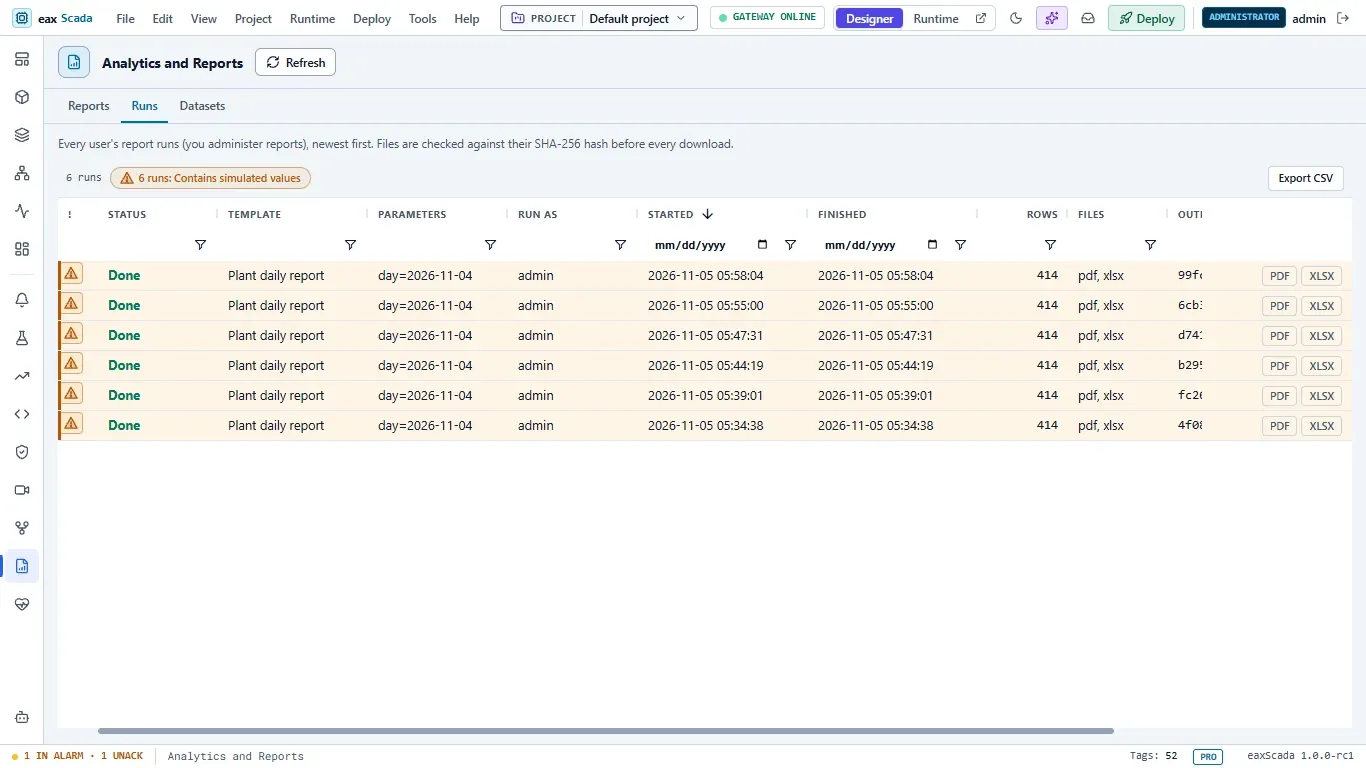
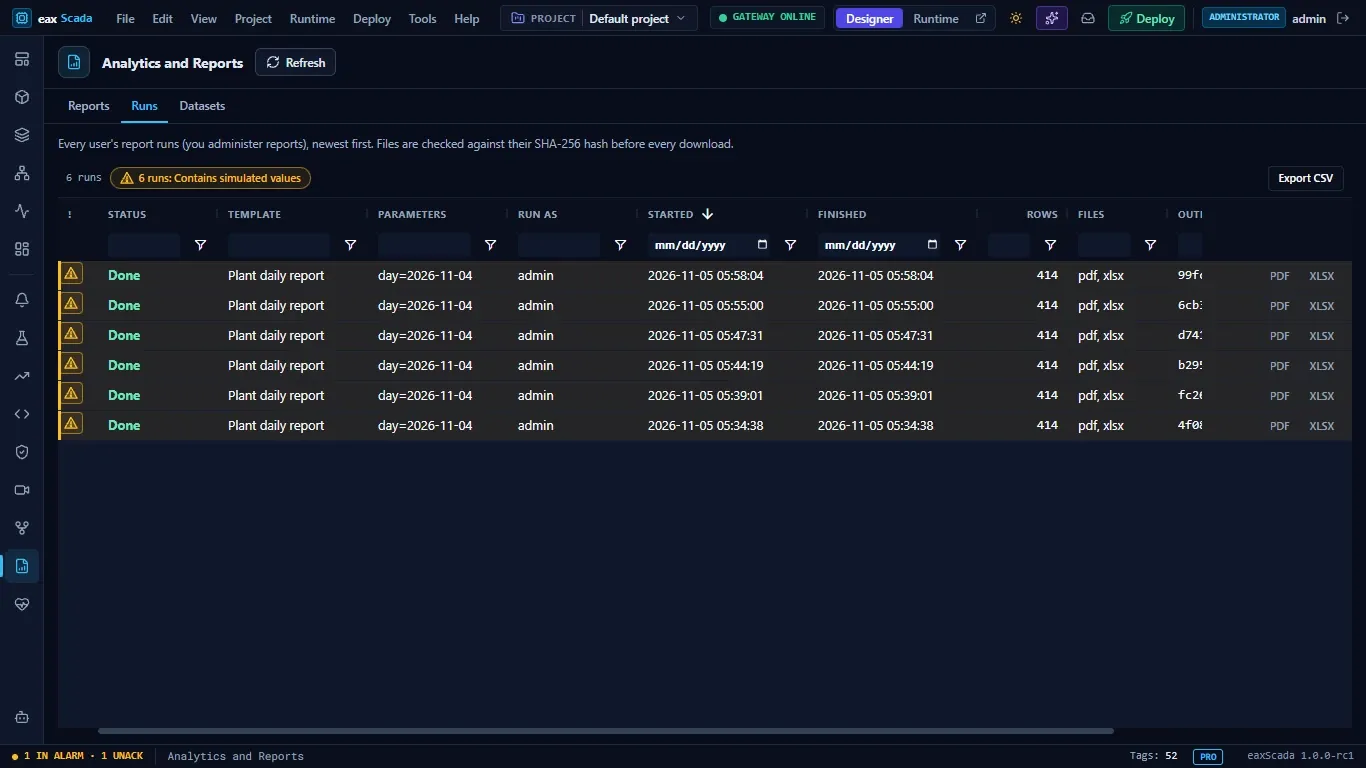
Datasets, templates and runs
Section titled “Datasets, templates and runs”| Item | What it is | Where it lives |
|---|---|---|
| Dataset | A named, read-only SQL query over one source family: the historian (the relation samples) or the alarms (alarm_events, alarm_definitions). It declares its parameters (always a time window from and to), a tag scope (the tag patterns it may read) and records the columns it returns. |
data/reports/datasets, part of the project: in checkpoints, replicated to the HA standby, with a revision per save. |
| Report template | A screen of kind report: pages with a header and footer, and a body of text, KPI tiles, tables, charts, repeat groups and page breaks, each reading a dataset under an alias. It declares the parameters a run asks for (often a day). | The project’s screens. It is saved, versioned, compared and deployed like any screen, and has no page in the operator runtime. |
| Run | One execution of a deployed template with parameter values, by one user. It reads each dataset, writes the PDF and the workbook, and keeps a record. | Run records in data/reports/runs; files in the archive (reports.archive.dir). |
Only the deployed copy runs. A run uses the template as it was at the last deploy and records that copy’s revision. A template that is only saved does not run, and a change takes effect at the next deploy. In the designer, PDF draft renders the working copy instead: the file has DRAFT on every page and is never archived (Design a report).
- Service or process
- Data store
- File or document
- Check or decision
- Data or telemetry
- Refusal
Read as text
A run takes the deployed copy of a report template and the datasets it names. It starts only after its checks pass and its start is recorded in the audit trail. It reads each dataset as the person who runs it, renders the PDF and the workbook, writes the files once to the archive with their SHA-256 hashes and a copy of the record, and keeps a run record. A PDF draft renders the working copy and is never archived.
Parts
- Dataset (file or document): SQL over historian or alarms
- Report template (file or document): saved, then deployed
- Can it start? (check or decision): licence, deployed template, datasets; run.start recorded
- Refused (outcome): the run does not start
- Reads and renders (service or process): each dataset as the runner, then the PDF and the workbook asked for
- Archive (data store): files written once, read back, SHA-256, with a copy of the record
- Run record (data store): data/reports/runs; a failed run keeps no file
- Then (service or process): signatures, delivery, Verify, purge
- PDF draft (outcome): DRAFT on every page, never archived
Connections
- Dataset → Can it start? (data or telemetry). The run reads every dataset the template names; a dataset that does not exist refuses the run.
- Report template → Can it start? (data or telemetry). Only the deployed copy of the template runs; a template that is only saved does not.
- Can it start? → Refused (refusal): no. No licence, no runner, a template that is not deployed, a missing dataset or bad parameters, a full queue, or a start record that cannot be written: the run does not start.
- Can it start? → Reads and renders (next step). The start is recorded in the audit trail (run.start) and the run is queued.
- Reads and renders → Archive (data or telemetry): files. Each file is written once under a temporary name, never replacing a file, read back and hashed; a copy of the run record goes with them.
- Archive → Run record (data or telemetry). The run record keeps each file's size and SHA-256. A run that failed or could not be archived keeps no file.
- Run record → Then (next step)
- Report template → PDF draft (data or telemetry): working copy. In the designer, PDF draft renders the working copy. It is recorded as run.preview, has no run record and is never archived.
The workspace Analytics and Reports has these tabs, each shown to the users who may use it:
- Reports: the deployed templates and the Run button;
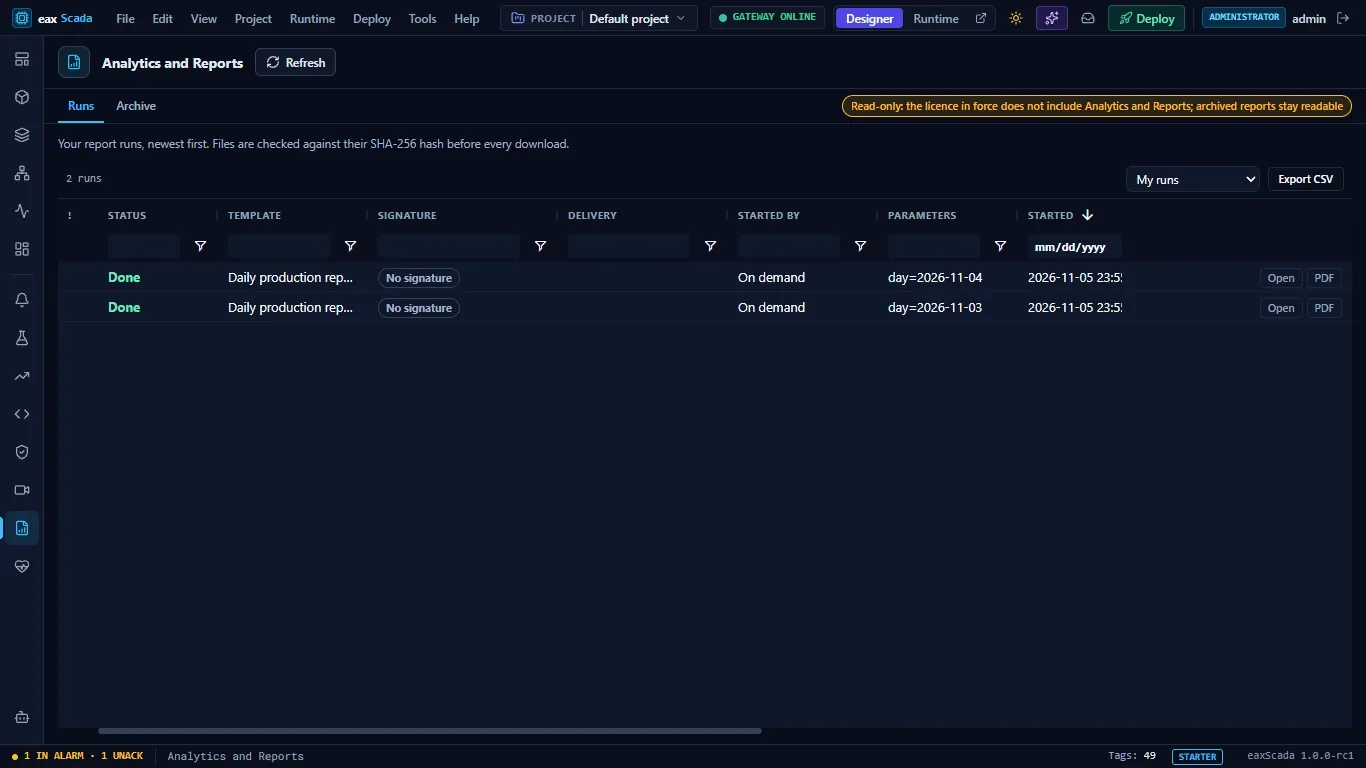
- Runs: your runs, their files, signatures and deliveries (All runs I may open adds other users’ runs you may open; a reports administrator sees everyone’s);
- Datasets: for the people who edit datasets or design reports;
- Analytics: your own queries over the historian or the alarms (
analytics; The analytics workspace); - Schedules: your schedules (
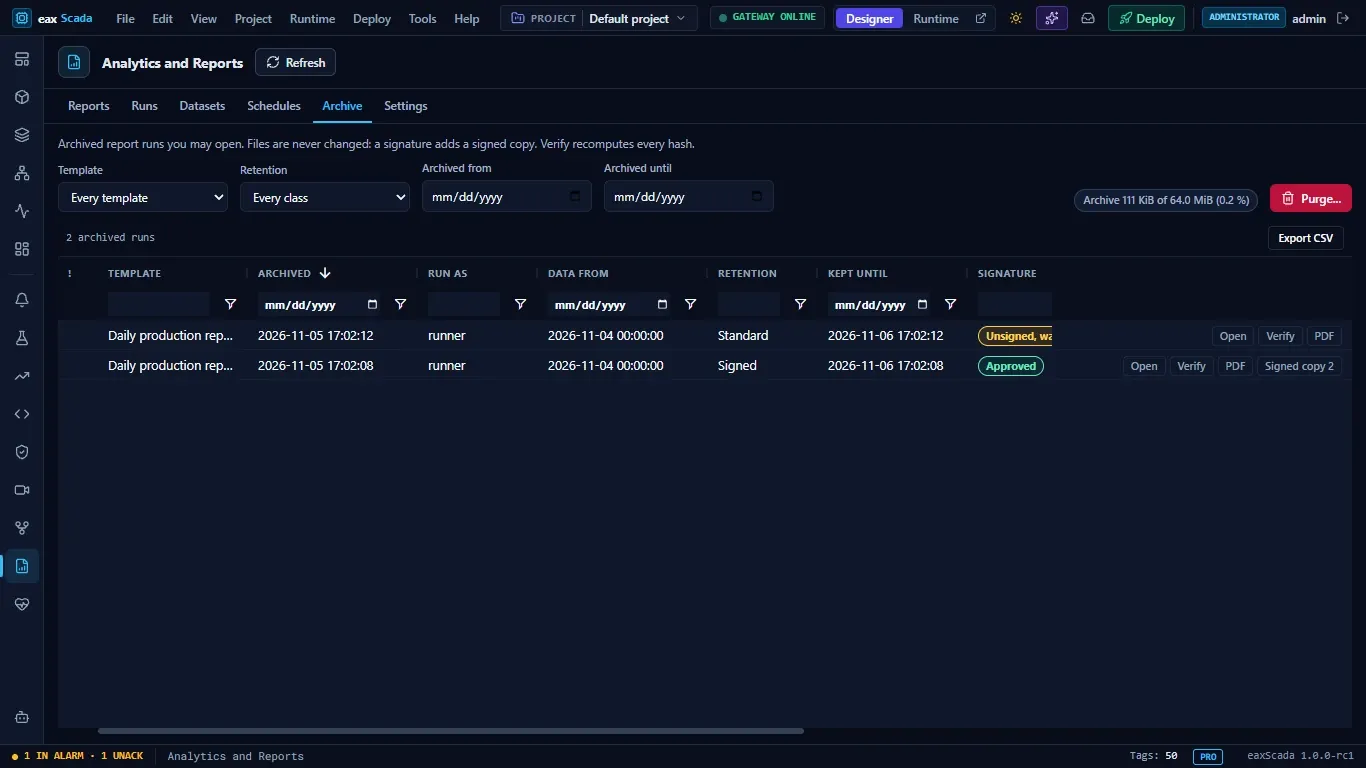
reports_schedule; a reports administrator sees everyone’s); - Archive: the archived runs you may open, their retention, signature state and integrity, with Verify;
- Settings: the report settings, read only, and the SMTP password (
reports_admin).
The workspace is shown to users who hold the right reports_view. A link /studio/?workspace=reports&run=<run id> opens a run directly (the e-mails of a schedule use it). After a downgrade or a licence expiry the workspace shows the Runs and Archive tabs only, read-only (After a downgrade or a licence expiry).
A report shows only what you may read
Section titled “A report shows only what you may read”A report reads as the person who runs it. Every dataset of a run or a preview runs with the signed-in user’s tag read rights: the same rights that decide what the user sees in the live views, the trends and the API.
The filter is not applied by reading or rewriting the dataset’s SQL. The server puts the user’s readable tags below the query: the relations the SQL may name (samples, alarm_events, alarm_definitions) are built by the server from the stored history, joined to the list of tags this user may read, inside the dataset’s tag scope and the run’s time window. The SQL cannot name the stored tables, a table in another schema, a file or a table function; the server refuses such a query on save and on run. So:
- a user allowed only
Plant/A/>gets area A’s samples in the preview, the PDF and the workbook, never another area’s, whatever the SQL says; - an average, a count or a total can never include a hidden tag: its rows are not in the relation at all;
- a
tagortag_listparameter that names a tag the user may not read is refused before the query runs.
- Service or process
- Data store
- Check or decision
- Data or telemetry
- Refusal
Read as text
A dataset's SQL sits on top of three layers the server builds below it. The stored history and alarms are cut to the tags the user may read inside the dataset's tag scope, then to the run's time window, and offered as the only relations the SQL may name. A query that names anything else is refused; the rest runs as one SELECT in a transaction that is always rolled back.
Parts
- The query (layer 1): One SELECT, in a transaction that is always rolled back.
- The relations (layer 2): Built by the server below the query.
- Readable tags (layer 3): The tag scope and the user's read rights.
- Stored history (layer 4): Read by the server, never named by the SQL.
- SQL guard (check or decision): names only samples, alarm_events, alarm_definitions
- Secured relations (service or process): inside the time window (definitions: no window); alarms: routing rule
- Allowed tags (check or decision): tag scope and read rights; hidden tags counted, never named
- History and alarms (data store): columnar store, older CSV rows, alarm journal and definitions
- Refused (outcome): stored tables, files, table functions, a hidden tag
- Report output (service or process): preview, PDF, workbook
Connections
- History and alarms → Allowed tags (data or telemetry). The stored history is read for the allowed tags only: the columnar store, and for each tag the CSV rows older than its first point in the columnar store.
- Allowed tags → Secured relations (data or telemetry). The allowed tags are the tags of the current tag list inside the dataset's tag scope that the user may read. Tags the scope covers but the user may not read are counted on the report, never named. An empty tag scope is refused.
- Secured relations → SQL guard (data or telemetry). samples and alarm_events hold only rows of the run's time window; alarm_definitions has no window. Alarm rows also follow the routing rule of the live alarm views.
- SQL guard → Refused (refusal). A query that names a stored table, a table in another schema, a file or a table function is refused, and so is a tag parameter the user may not read, an empty window or one longer than reports.max_window.
- SQL guard → Report output (data or telemetry). The result goes to the preview, the PDF and the workbook.
Hidden tags are counted, never named. When the dataset’s tag scope covers tags of the current tag list that the user may not read, the report says so on its first page (“3 tags of this report are hidden by your read rights”), and the run record keeps the count. In the workspace the run and the dataset preview carry the same warning. A report never silently shows less than its title promises.
Tags that no longer exist. A user with partial read rights reads only tags of the current tag list: a tag deleted or renamed since its history was written is not readable to them, because no read rule has decided that they may see the old name. A user who may read every tag (the Administrator, or a role with an allow-everything rule and no deny rule) also gets the history of such tags inside the tag scope, so a report over a period before a rename still shows the old rows.
Alarms follow the live alarm views. A row of alarm_events or alarm_definitions is in the relation when its tag is readable to the user and the user sees that alarm under the alarm routing rule of the live alarm views. Alarms without a tag (system alarms) are shown only to users who may read every tag. The built-in safety alarms are shown to everyone, inside the dataset’s tag scope and time window, exactly as the live alarm views always show them.
History kept only in the file store is included. The historian keeps its history in the columnar store; it writes no CSV day files next to it any more, but CSV history written earlier stays on disk and is read. History that exists only in the CSV files (an installation upgraded from a build without the columnar store, history from before a columnar store was reset) is part of samples too, with the trend charts’ rule: for each tag, the CSV rows older than the tag’s first point in the columnar store, and from that point on the columnar store alone, so no sample is counted twice. The same read rights, tag scope and time window apply to both parts. A store with no CSV history from before it is read from the columnar store alone. A partition file that cannot be read makes the run fail (“the historian’s CSV history could not be read”): a report is never silently incomplete. Reading a long CSV-only period takes time: a week for hundreds of tags can pass the 15-second preview limit, and the message then says to shorten the window.
Opening another user’s run. A run record, its files, its verification and its signatures open for the user who ran it, for a reports administrator, and for any user who may read today every tag the runner could read in that run (the run records its read scope; a tag deleted or renamed since counts as unreadable). Anyone else gets the same 404 as for a run that does not exist, so the answer never reveals a tag. A run with an alarms dataset, or one recorded before the read scope was recorded, opens only for its runner and the reports administrators. Opening another user’s run is recorded (file.view). The same rule decides which internal e-mail recipients of a schedule receive a report.
The rights to use the module itself (open the workspace, edit datasets, design reports, schedule, sign) are separate from the tag read rights: see Grant report rights.
Data quality: never shown better than it is
Section titled “Data quality: never shown better than it is”Every historian sample keeps its quality class: good, uncertain or bad (the same classes as the trends, see Historian).
- A dataset over the historian must return its quality. A query that returns sample values without
quality_class(orquality), without filtering or grouping on it (WHERE quality_class = 'good'), and without the quality helpers, is refused on save with a one-click fix, Add quality column. One quality column covers the result. The PDF, the workbook, the designer’s preview and the dataset grid find it by one rule: the column namedquality_class, elsequality, in any case (AS Quality_Classcounts), and a row whose quality cannot be read counts as bad. - Printed values carry their quality. In a PDF table a bad value is on a rose background, in parentheses, with the mark †; an uncertain one amber, in parentheses, with ‡; a legend explains the marks. Colour is never the only signal, so the report also reads in black and white.
- Figures computed from several rows take the worst quality. A subtotal, a total or a KPI tile is good only if every input is good, uncertain if any input is uncertain and none is bad, and bad otherwise. An unknown or missing quality counts as bad. The SQL helper
agg_qualityapplies the same rule inside a dataset (Reference). - KPI tiles use the good samples only and say how many: “255 of 259 samples good”. With no good sample a tile shows No good data, never 0.
- Excel: each value column has a quality column next to it and a simulated column; bad and uncertain cells are styled; an About sheet states the rule. Values are never dropped or replaced by blanks.
- Simulated values. When any row of a report is simulated, page 1 (and the workbook’s About sheet) says Contains simulated values, and each simulated value carries SIM. No setting turns this off.
No write path
Section titled “No write path”Reports read; they never act on the plant. The report engine writes no tag, sends no command, changes no recipe and acknowledges no alarm. It writes only its own datasets, run records and archived files.
- A dataset is one read-only
SELECT, run in a transaction that is always rolled back. - A report template can hold the report elements only. The server refuses to save or deploy a report that holds anything able to write: an input field, a button with a command, a setpoint, a click action, a script, a component that writes. The same objects on an ordinary screen save as before.
- Text in a report reads parameters and dataset columns. A live tag reference such as
{Area/Tag}is refused: a report reads its datasets, never live tags. - A schedule started by a tag only reads that tag: it never resets or acknowledges it.
- No
/api/reportsor/api/analyticsroute is a command path.
Run records, the archive and SHA-256
Section titled “Run records, the archive and SHA-256”Every run keeps a record: who ran it, when, what started it (on demand, or a schedule and its slot), the instant its relative dates were resolved at, the template revision, the parameter values, each dataset’s revision, row count and result hash, the read scope (the tags the runner could read), the warnings, each file’s size and SHA-256 hash, and later its retention, signatures and delivery.
The files are written once to the archive folder (data/reports/archive/<yyyy>/<mm>/<run>.pdf and .xlsx, with a .json copy of the record, the sidecar), read back and hashed. Before every download the server checks the file against the hash in the record; a file that no longer matches is not served (500 REPORTS_INTEGRITY), and the workspace asks you to tell your administrator. A download carries the hash as its ETag.
A run with archived files stays. You can cancel a queued or running run, and remove the record of a run that made no file (failed, refused or cancelled); the audit trail keeps every run either way. Archived files leave only through the archive purge: a reports administrator’s action with an e-signature, and never for a signed report.
The states of a run, from queued to archived and signed, are drawn in the reference: Run record and statuses.
Every dataset change, run, schedule change, signature, delivery, verification and purge is in the audit trail under the category reports. The record is written first: if it cannot be written, the change is refused, the run does not start, nothing is signed, sent or deleted. The record of a run’s end (succeeded, failed, cancelled, refused) is written after the run.
The archive
Section titled “The archive”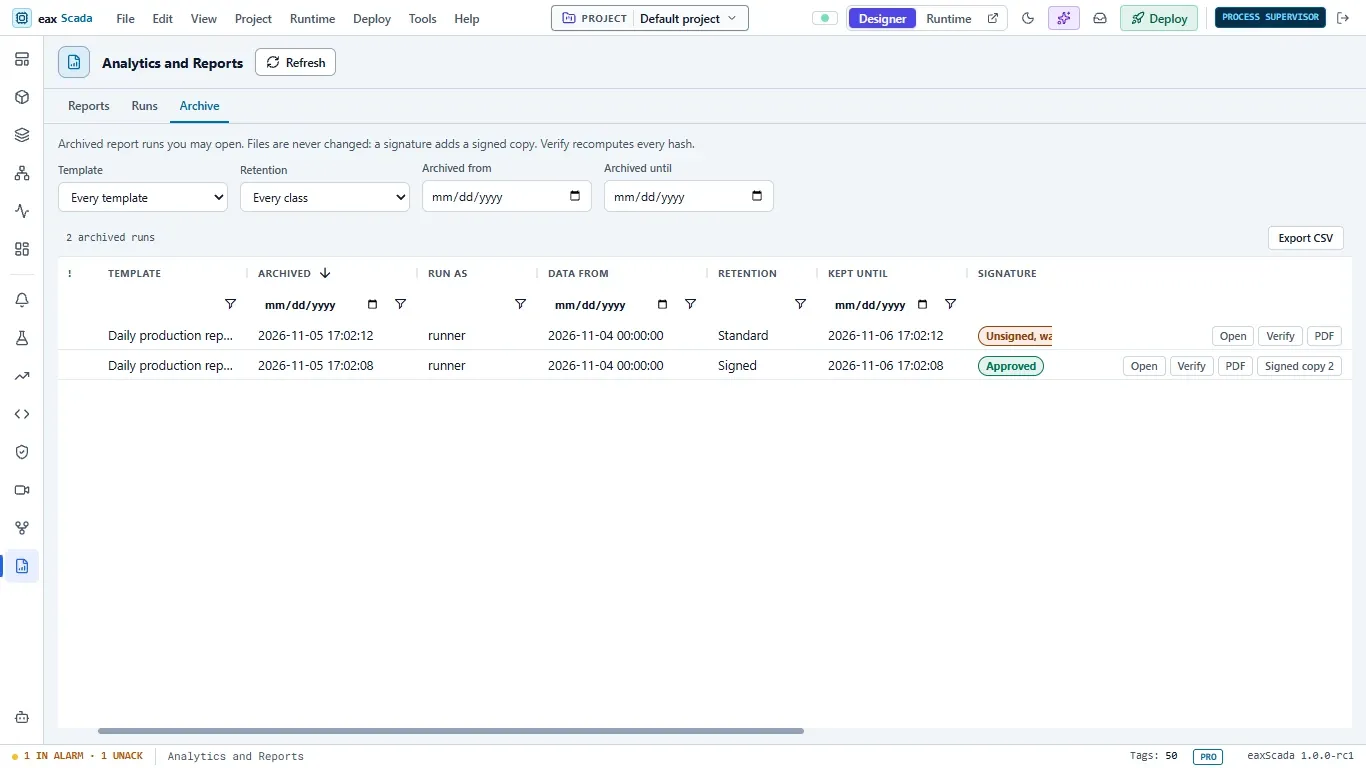
PDF/A with the data inside
Section titled “PDF/A with the data inside”With reports.archive.pdfa on (the default), an archived PDF is written to the PDF/A-3b structure for long-term archiving: fonts embedded, colours defined, the document’s metadata, and one CSV file per dataset embedded in the PDF with the rows the report was made from (marked when the rows were cut at the limit). The run record says which part the file was written as (pdfa: "3b"). The archived PDFs and the signed copies are validated with an independent PDF/A validator, PDF/A-3B profile: a sample report with KPI tiles, every chart type, a multi-page table with quality marking, French and German text, an administrator’s extra font, characters no font has, landscape pages and the embedded data CSVs, and its signed copies. All were compliant. A PDF draft from the designer is never archived.
A signed copy of a PDF/A-3b original is PDF/A-3b too (its record says pdfa: "3b"): the same colour profile, document metadata (title “Signed rendition n of run …”, the signing time) and file identifier, in PDF 1.7. The data CSVs stay embedded in the original only, which every page of the signed copy names by its SHA-256. A run archived without PDF/A gives a plain signed copy. Signed copies made by an earlier version stay plain PDF: signed records are never rewritten.
Quota and disk floor
Section titled “Quota and disk floor”The archive has a budget, reports.archive.quota (20 GiB by default), and leaves free space on its disk: the floor is the larger of reports.archive.min_free (2 GiB) and the historian’s historian.disk.critical_free on that disk, since the historian usually shares it.
- At 80 % of the quota the system alarm ALM-SYS-REPORTS is active and the Archive tab says so.
- A run whose files would pass the quota, or bring the disk under the floor, is not archived and fails with the reason (“the report archive is full”, “not enough free disk space for the report archive”). Nothing is written.
- Nothing is ever deleted to make room. An administrator purges old reports or raises the quota.
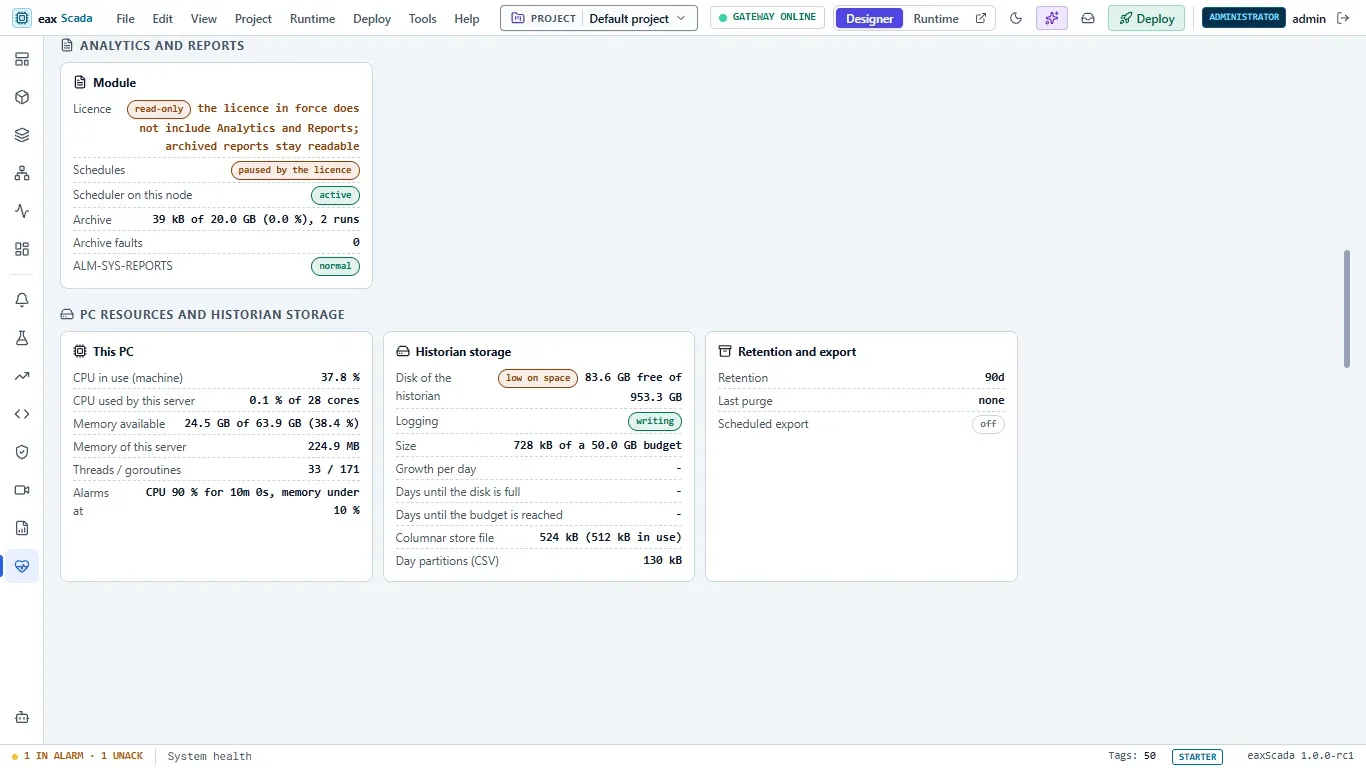
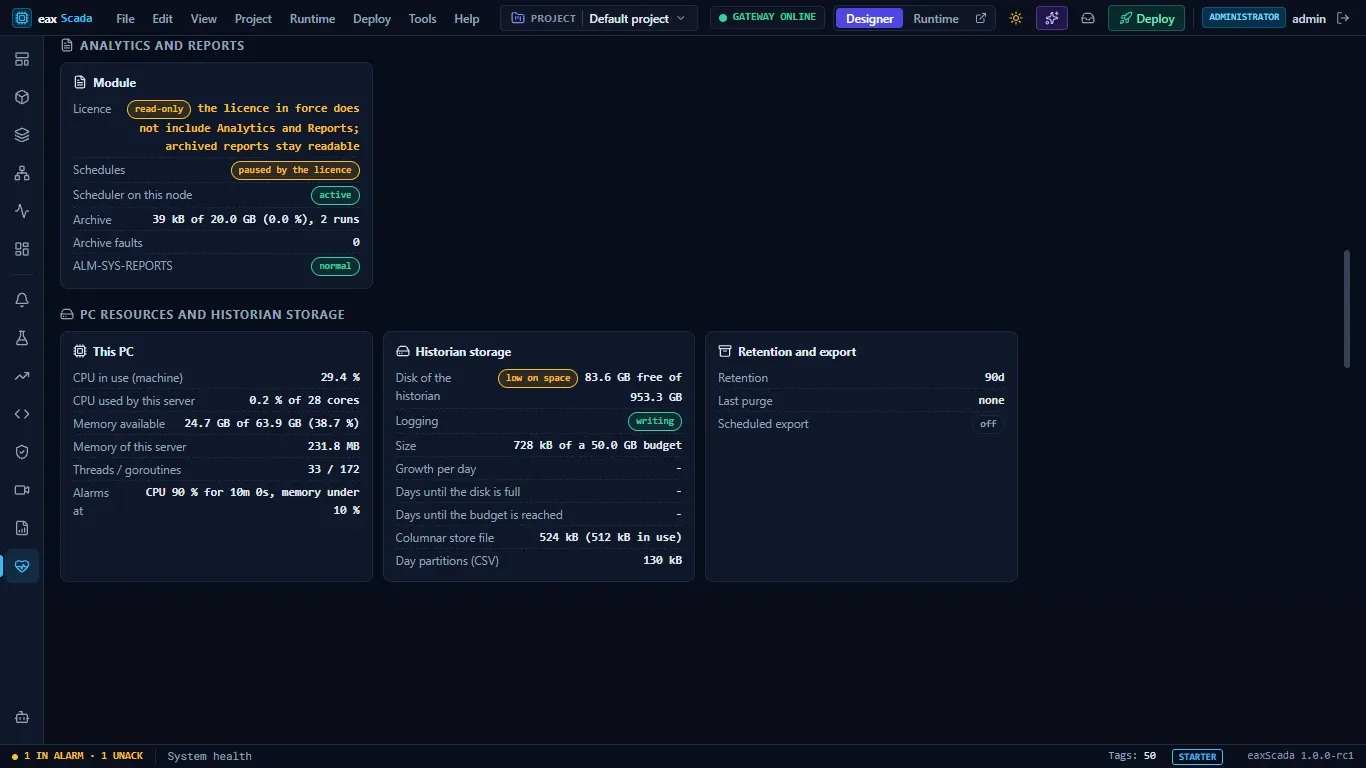
System Health has an Analytics and Reports section: the licence (included, or read-only), the schedules paused by the licence, the scheduler on this node, the archive’s use, the quota, the floor and its faults, ALM-SYS-REPORTS with its reasons (also in the attention banner), and on an HA cluster the archive replication (High availability: run records and the archive).
Verify
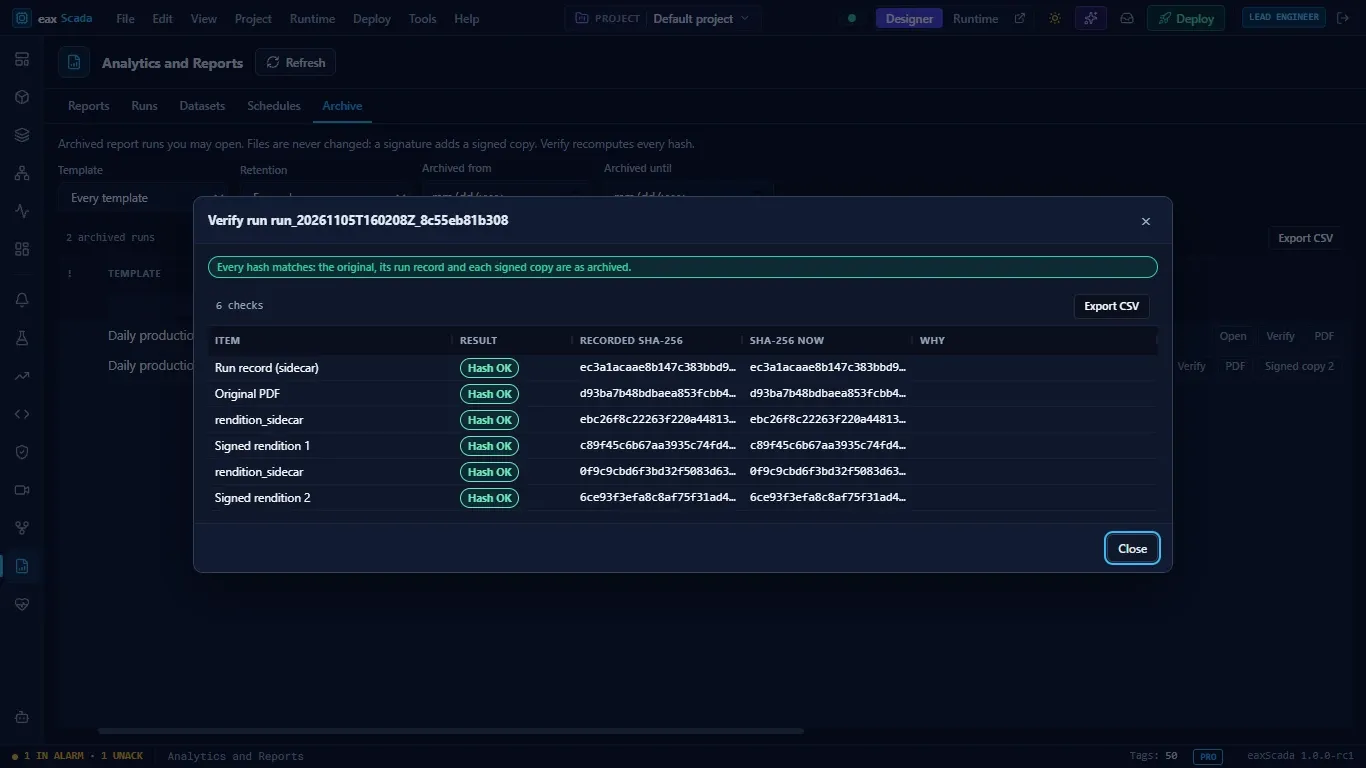
Section titled “Verify”Verify (on a run, in the Runs or Archive tab) recomputes the SHA-256 of every file of the run and compares it with what was recorded: the sidecar, against the server’s own copy of the run record; each original (PDF, workbook), against the sidecar and the run record; and, for a signed run, the chain: each signature’s link record, and each signed copy against its link, each one following the previous one. The result is one of:
| Status | Means |
|---|---|
Verified (ok) |
Every hash matches: the original, its run record and each signed copy are as archived. |
Hash mismatch (mismatch) |
A file, the sidecar or a link record differs from what was recorded, or the chain does not follow. |
File missing (missing) |
A recorded file is not on disk. |
Broken chain (broken) |
A file cannot be read, or a signed copy or link record is in the folder that is not part of the chain. |
Nothing is repaired or changed by Verify. The last result is kept as the run’s integrity (Not verified yet until the first one), and each verification is recorded (archive.verify). Downloads check their file at every request anyway.
Retention and the purge
Section titled “Retention and the purge”Each archived run has a retention class:
| Class | Which runs | Kept |
|---|---|---|
| Standard | A run without a signature | At least reports.archive.retention.standard (3 years by default) after it was archived. The date is recorded when the run is archived (Kept until): a later, shorter setting never purges a run earlier than that. |
| Signed | A run that holds a signature | Never purged. |
| Draft | A PDF draft | Never archived. |
Nothing is purged automatically. A purge is a reports administrator’s action, by a person, in three steps:
- Dry run (the Purge… button): the server lists the runs and files a purge would delete, the bytes, the runs it keeps and why, and the plan’s SHA-256. Nothing is deleted.
- E-signature over the plan: the administrator signs with their password exactly that plan (its hash). This signature can only execute that purge, and no other signature (a report review, a deploy) can execute a purge.
- Purge: the server computes the plan again. If it changed since the administrator saw it, the purge is refused and the new plan is shown to sign. Otherwise it deletes the files, writing one audit record (
archive.purge) before each file.
A purge only removes standard runs past their retention, and only the archive’s own files (the originals and the sidecar) that still have their recorded hash. It keeps: every signed run, every run whose signature plan still waits for a step, a run with a missing or changed file (evidence: Verify shows it), and a run whose record is not on this server. The run record stays, marked as purged.
Signed reports (Part 11)
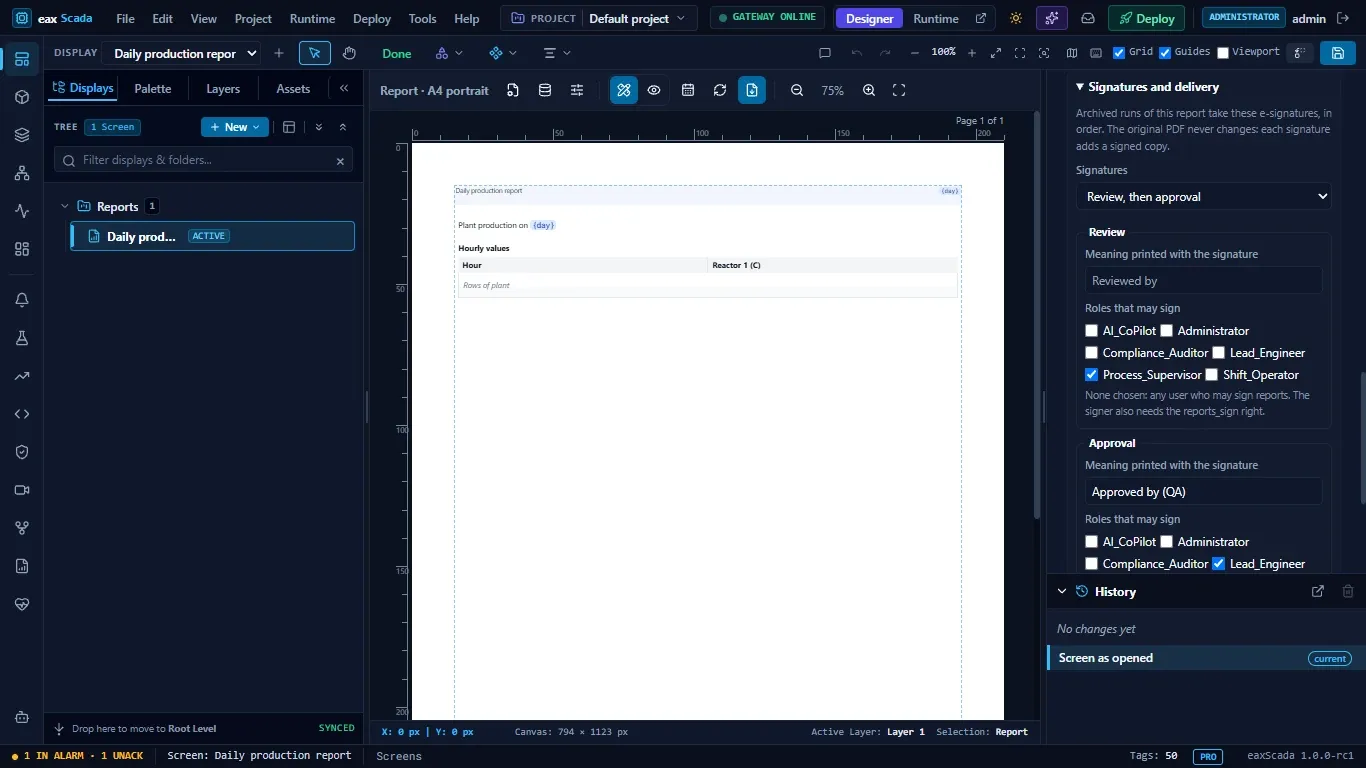
Section titled “Signed reports (Part 11)”A report template can carry a signature plan: the electronic signatures its archived runs take, in order.
| Plan | Steps |
|---|---|
| None | No signature (the default). |
| Review | One signature, meaning Reviewed by unless you write another. |
| Review, then approval | A review, then an approval (Approved by). |
For each step the plan names the roles that may sign it (none: anyone who holds reports_sign) and the meaning printed with the signature (“Approved by (QA)”). For the approval, two separation-of-duties rules apply unless the plan turns one off explicitly: the approver is not the person who reviewed, and not the person who ran or requested the run. The run keeps the plan in force when it was made, so changing the template later never changes what an existing run needs.
What a signature is. A signature is given with the signer’s password, as every e-signature in eaxScada: a wrong password is refused (403 signature_refused), the dialog stays open and you stay signed in, and it counts toward the lockout (the fifth locks the account for 15 minutes). It is a record over the archived PDF’s SHA-256: who signed (printed name and user id), when (UTC and site time), the meaning, and the step. Before anything is decided the server checks that the archived PDF still has its recorded hash. The audit record (sign.review or sign.approve) is written first; then the signature is appended to the run record.
The original never changes. Each signature adds a signed copy next to it (<run>.signed-<n>.pdf): the original pages, imported exactly as archived (never rendered again, since the history may have changed since the run), then a signature manifestation page listing every signature given so far (printed name, user id, date and time in UTC and in the site’s time, meaning), and on every page the footer “Signed rendition n of run …, original SHA-256 …”. Each signed copy has its own hash and a link record that names the hash before it, so Verify can check the chain from the original to the last signature. The signed copy downloads as Signed copy n. It is about the size of the original plus the signature page (each page of the original is copied once); signed copies made by an earlier version, which could be many times larger, stay as they are. Two signed copies of the same signature are not byte-identical, so each one’s hash is recorded after it is written.
Who may sign. The signer holds reports_sign and may open the run; holds one of the step’s roles; passes the separation-of-duties rules; is an active account and a person (never an API token, never the AI co-pilot). The step must be the one the run waits for, and only a finished, archived, non-draft run is signed. Reports are signed on the HA primary only, and of two people signing the same step at the same moment (in two browsers, or on two nodes) exactly one signature is recorded; the other is told someone signed first. A signature is committed to the cluster before it is recorded: a node that cannot commit it (a standby, a primary without quorum or replaced by a newer one) records nothing. Signing is part of the module: after a downgrade or a licence expiry it is refused, while the signatures already given stay checkable (After a downgrade or a licence expiry).
A signed report is the retention class signed: it is never purged.
- Authentication
- Refusal
Read as text
A run of a report without a signature plan has no signature. A run with a plan waits for review; the review signature makes it reviewed, and with a review-only plan it is then fully signed. With an approval step it waits for approval, and the approval signature, by another person than the reviewer and the person who ran it, makes it approved. Each signature adds a signed copy beside the archived original, which never changes. A refused signature leaves the run as it was.
States
- Unsigned (state): waits for review
- No signature (state): the report has no plan
- Reviewed (state): then approval, if any
- Approved (state): fully signed
Transitions
- Start → Unsigned (transition). A finished run of a report with a signature plan.
- Start → No signature (transition). A run of a report without a signature plan: nothing to sign.
- Unsigned → Reviewed (authentication): Review. Signature 1: reports_sign, one of the step's roles, the password. Recorded as sign.review in the audit trail before the signed copy is written.
- Reviewed → Approved (authentication): Approve. Signature 2: one of the step's roles, and with the default rules neither the reviewer nor the person who ran or requested the run. Recorded as sign.approve first.
- Unsigned → Unsigned (refusal): refused: nothing signed. A wrong password, no reports_sign right, none of the step's roles, an API token or the AI co-pilot, an HA standby, a changed PDF, or an audit record that cannot be written.
- Reviewed → Reviewed (refusal): refused: the reviewer or who ran it. Separation of duties at the approval, and every refusal of the review step.
- Reviewed → End (transition): plan: review only
- Approved → End (transition)
Schedules
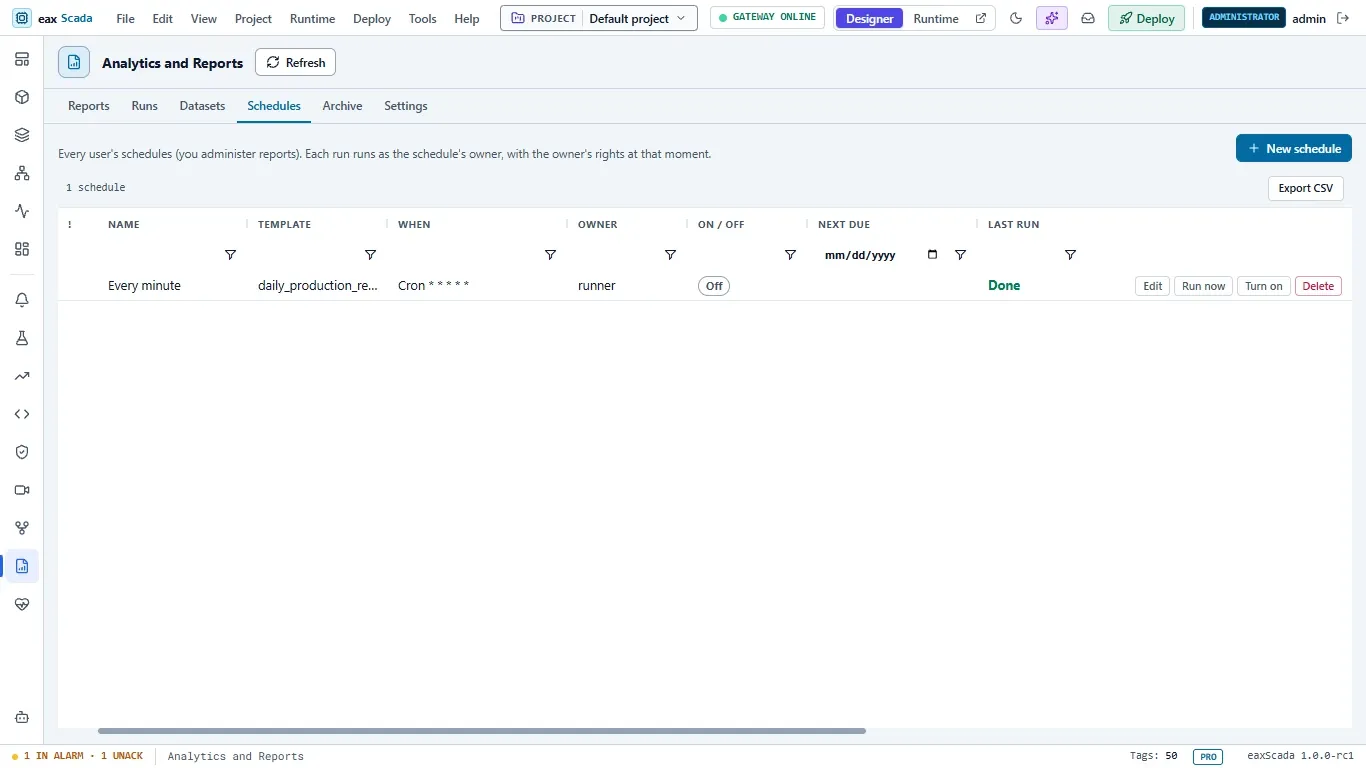
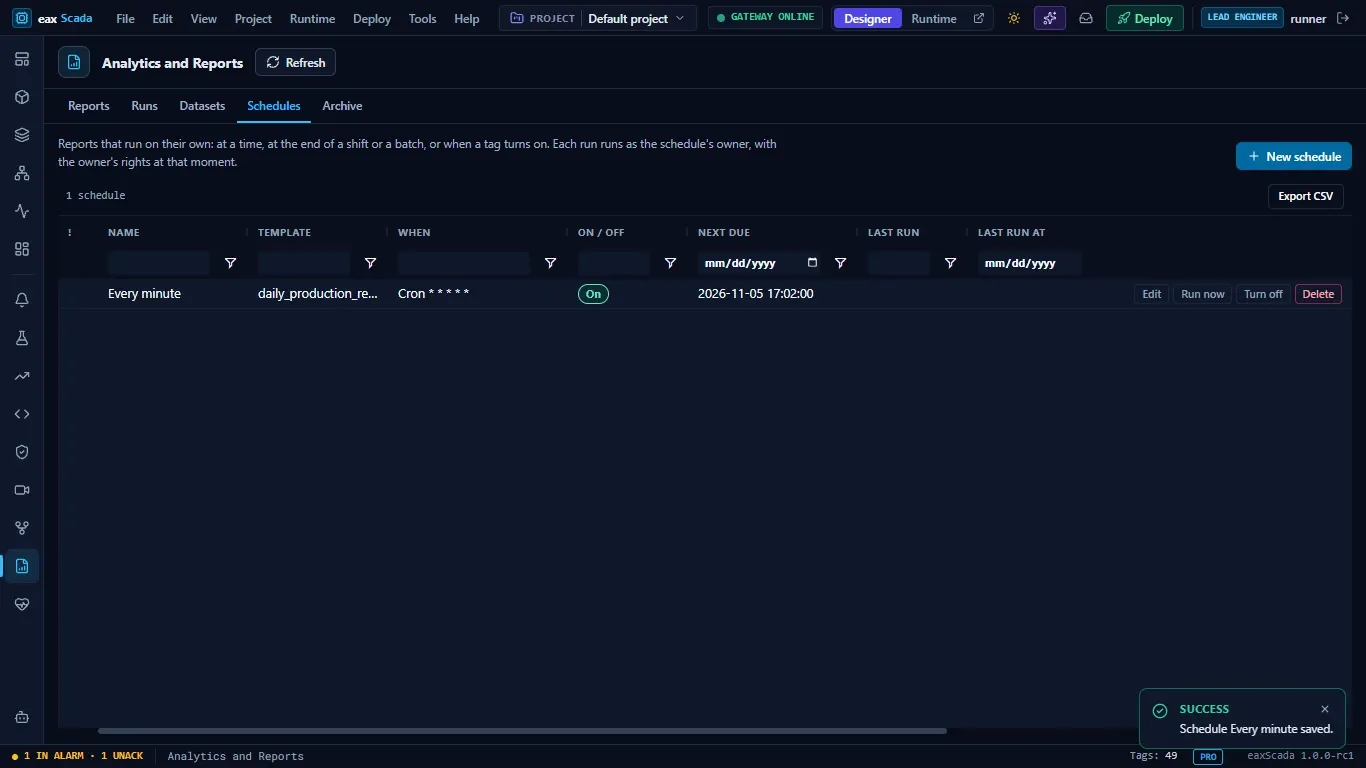
Section titled “Schedules”A schedule runs a deployed report on its own and can deliver the files. It names the report, a trigger, the run’s parameters and files, an owner, the deliveries, and what to do after the server was down.
Triggers
Section titled “Triggers”| Trigger | Runs | Notes |
|---|---|---|
| At a time | At each slot of a cron expression (daily, weekly, monthly, hourly, or any five-field expression), on the clock of the site or of a time zone you name. | See the daylight-saving rules below. |
| At the end of a shift | When each shift of a shift calendar ends (reports.shifts in the server configuration). |
The run gets the shift’s name, start and end if the report declares parameters for them. |
| When a batch ends | When a batch record of the recipe engine closes, for one master recipe or any. | The report must declare a batch_id parameter; it gets the batch’s id, start and end. |
| When a tag turns on | On the rising edge of a boolean tag (a good off followed by a good on), at most once per minimum interval (default 1 minute). | The tag is only read. The first reading after a start, a bad reading and the reading after a bad one are not edges. |
Run now runs a schedule once, at once, as its owner.
Who a scheduled run runs as
Section titled “Who a scheduled run runs as”A scheduled run runs as the schedule’s owner, with the owner’s rights at the time of the run: their tag read rights decide what the report shows, as for an on-demand run. The owner is the user who creates the schedule; only a reports administrator names another owner or changes it, and the owner must hold reports_view and reports_schedule. At every run the server checks the owner again: an owner who was deleted or disabled, or who lost one of those rights, gets no run. The run is refused, recorded (run.refuse), and the system alarm ALM-SYS-REPORTS says why. A report that is no longer deployed, or fails its check, is refused the same way.
A scheduled run uses the scheduled query timeout (reports.scheduled_query_timeout, 300 s) for its datasets.
Daylight-saving changes and relative dates
Section titled “Daylight-saving changes and relative dates”Slots are wall-clock times in the schedule’s zone, and each slot runs once:
- a time the clock skips in spring (02:30 on the night Europe/Paris moves to summer time) runs once, at the first instant after the gap (03:00);
- a time the clock repeats in autumn (02:30 on the night it moves back) runs once, at its first occurrence;
- a shift that spans the change is 23 or 25 hours long.
A schedule’s relative dates (yesterday, last_shift, the dataset defaults) are resolved at the slot, not when the run happens to start: a run that starts late still reports on its own slot’s period. The run records that instant (as_of). An on-demand run resolves them at the moment it is asked for.
After the server was down
Section titled “After the server was down”When the server was stopped, or no HA node was primary, some slots were missed:
- the newest missed slot runs, marked late, if it is still within its grace time (1 hour by default, 1 minute to 7 days);
- every older slot counts as missed, even one still within its grace, and follows the schedule’s catch-up rule: Run the last missed slot (the default), Run every missed slot (at most the 10 newest), or Skip missed slots. The catch-up runs come first, oldest first, and carry the note “catch-up of a slot missed while no primary was running”; a skipped slot is only logged, with no run record.
A schedule counts its slots from the moment it was enabled on this server, so enabling it does not run the past.
Schedule a report draws the slots of such a time, with the grace and the three catch-up rules.
High availability
Section titled “High availability”Schedules run on the HA primary only (a single server is its own primary), and each slot runs once across the cluster. Before a slot runs, the node claims it in a replicated store (three copies on a cluster of three nodes or more, one on a smaller one), under its fencing term: of two nodes claiming one slot, one wins, and a primary that was replaced cannot claim once its successor has. If the primary dies while a slot it claimed is running, its successor re-runs that slot once, marked “late, re-run after failover”, when the claim is older than reports.run_timeout (10 minutes) and the slot is still within its grace time: with a grace shorter than the run time-out, the slot is not re-run. A node that restarts re-runs its own unfinished slot at once, within the grace. On a cluster, schedules are enabled under the cluster’s identity (nats.cluster.name, the same on every node), so a failover keeps them running.
Step 1 of 4 Claim and run
Node A is primary. Before a slot runs, it claims the slot in the claim store under its HA term, then runs it. Node B runs no schedule; the run records are replicated to it.
Step 2 of 4 Primary lost
Node A is lost while the slot's run is running. The claim stays in the store, unfinished.
Step 3 of 4 Re-run once
Node B is primary with a newer term. It closes the run node A left as failed. Once the claim is older than reports.run_timeout (10 minutes by default) and the slot is still within its grace, it takes the slot over and runs it again, once, marked "late, re-run after failover". With a grace shorter than the run time-out, the slot is not re-run.
Step 4 of 4 Old primary back
Node A comes back and still acts on its old term. Its claims and state changes are refused by the store, and its scheduler stops: it cannot run the slot a second time. The outcome of a run it finishes is still stored: an outcome is a fact.
- Product
- Service or process
- Data store
- Data or telemetry
- Replication
- Refusal
Read as text
The primary claims each slot in the replicated claim store under its HA term, then runs it. If the primary is lost while the run is running, the new primary closes that run as failed and re-runs the slot once, as a late re-run, when the claim is older than the run time-out and still within the grace. A replaced primary that comes back is fenced: it can no longer claim.
Parts
- eaxScada node A (product, primary): runs the schedules
- eaxScada node B (product, standby): runs no schedule
- Slot claims (data store): one claim per slot; the term floor
- The slot's run (service or process): attempt 1, on node A
Connections
- eaxScada node A → Slot claims (data or telemetry): claims the slot. The claim is created once for the slot; of two claims, one wins and the other node runs nothing.
- eaxScada node A ↔ eaxScada node B (replication): run records
- eaxScada node A → The slot's run (next step)
Step 1 of 4: Claim and run
Node A is primary. Before a slot runs, it claims the slot in the claim store under its HA term, then runs it. Node B runs no schedule; the run records are replicated to it.
Step 2 of 4: Primary lost
Node A is lost while the slot's run is running. The claim stays in the store, unfinished.
- eaxScada node A: lost, down, not reachable
- The slot's run: down, stopped with node A
- eaxScada node A → Slot claims (data or telemetry, not active): claims the slot. The claim is created once for the slot; of two claims, one wins and the other node runs nothing.
- eaxScada node A ↔ eaxScada node B (replication, not active): run records
- eaxScada node A → The slot's run (next step, not active)
Step 3 of 4: Re-run once
Node B is primary with a newer term. It closes the run node A left as failed. Once the claim is older than reports.run_timeout (10 minutes by default) and the slot is still within its grace, it takes the slot over and runs it again, once, marked "late, re-run after failover". With a grace shorter than the run time-out, the slot is not re-run.
- eaxScada node A: lost, down, not reachable
- eaxScada node B: primary, newer HA term
- The slot's run: down, closed as failed
- The re-run: attempt 2, late
- eaxScada node A → Slot claims (data or telemetry, not active): claims the slot. The claim is created once for the slot; of two claims, one wins and the other node runs nothing.
- eaxScada node B → Slot claims (data or telemetry): takes it over
- eaxScada node B → The re-run (next step)
- eaxScada node A ↔ eaxScada node B (replication, not active): run records
- eaxScada node A → The slot's run (next step, not active)
Step 4 of 4: Old primary back
Node A comes back and still acts on its old term. Its claims and state changes are refused by the store, and its scheduler stops: it cannot run the slot a second time. The outcome of a run it finishes is still stored: an outcome is a fact.
- eaxScada node A: fenced, older term
- eaxScada node B: primary, newer HA term
- The slot's run: down, closed as failed
- The re-run: attempt 2, late, done
- eaxScada node A → Slot claims (data or telemetry, not active): claims the slot. The claim is created once for the slot; of two claims, one wins and the other node runs nothing.
- Slot claims → eaxScada node A (refusal): fenced. A claim or a state change under an older term than the store's floor is refused; the replaced primary's scheduler stops.
- eaxScada node B → Slot claims (data or telemetry): takes it over
- eaxScada node B → The re-run (next step)
- eaxScada node A ↔ eaxScada node B (replication, not active): run records
- eaxScada node A → The slot's run (next step, not active)
Restored schedules stay off
Section titled “Restored schedules stay off”Schedules are part of the project: they are in checkpoints and project archives and are replicated to the standby. A schedule that comes from another server (a checkpoint, a project archive, a test bench) is loaded off, marked Off (restored), until a reports administrator turns it on on this server: its owner cannot. A restored project never starts mailing reports from a test bench by itself.
The schedules’ alarm
Section titled “The schedules’ alarm”ALM-SYS-REPORTS (“Scheduled report failed, refused or overdue”) is active while a schedule’s last attempt failed or was refused, while a slot is overdue (more than half a period late), while the archive holds 80 % or more of its quota, while schedules are paused by the licence (“paused by the licence”, one reason per schedule), and on an HA cluster while a standby has not confirmed an archived file for more than an hour or refused a file of the primary. The Schedules tab and System Health show the reasons. It clears with the schedule’s next run that succeeds.
Delivery
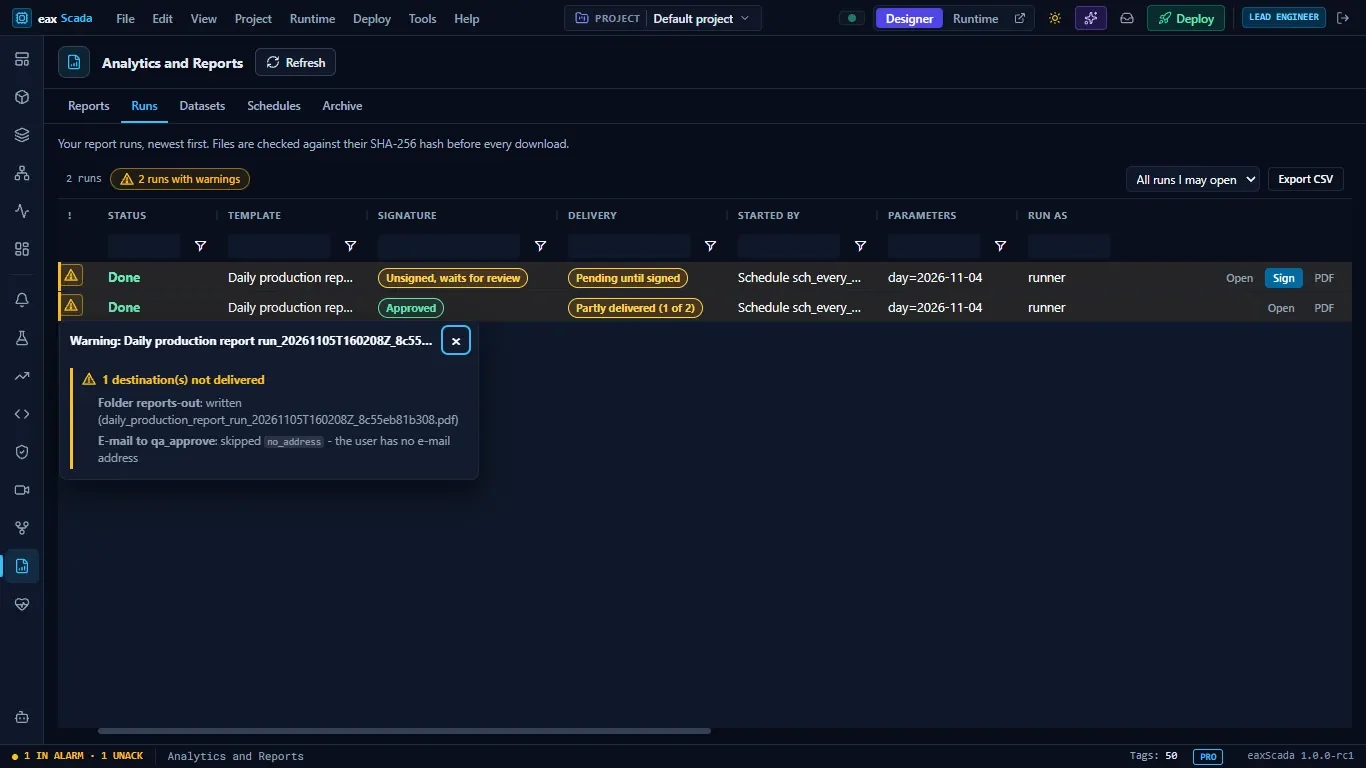
Section titled “Delivery”A schedule can deliver the files of each run that succeeds: by e-mail sent by eaxScada itself, and to folders on the server. Every rule is checked at each delivery, with the rights and settings of that moment, and fails closed. Each recipient or folder gets its own outcome in the run record (sent, written, skipped, refused or failed), and the run sums them up (Delivered, Partly delivered, Not delivered), and every message and file is recorded in the audit trail before it leaves (deliver.email, deliver.folder): one that cannot be recorded is not sent.
- Data store
- Check or decision
- Refusal
Read as text
After a scheduled run succeeds, its delivery passes gates that fail closed. The run must be archived and deliverable; a report with a signature plan waits until it is fully signed and is then sent as its last signed copy only. Each e-mail recipient and folder is checked with the rights and settings of that moment, recorded in the audit trail, and only then sent or written.
Parts
- Deliverable? (check or decision): run succeeded, archived, not purged
- Signature plan? (check or decision): waiting for a signature
- Pending until signed (outcome): nothing sent
- Rules per destination (check or decision): e-mail: STARTTLS; a link needs the base URL; attachments allowed and within the maximum; users who may open the run; outside: owner's right, report marked, domain folder: an allowed folder name
- Refused or skipped (outcome): per destination, with the rule
- Audit trail (data store): deliver.email or deliver.folder first
- Sent or written (outcome): a file never replaces another
Connections
- Start → Deliverable? (next step). Delivery starts after a scheduled run that succeeded. A schedule without destinations delivers nothing; a server without delivery answers not configured.
- Deliverable? → Signature plan? (next step): yes
- Deliverable? → Refused or skipped (refusal): no. A run that is not archived, was purged or is a draft is refused for every destination.
- Signature plan? → Pending until signed (next step): waits. The run shows Pending until signed; this survives a restart. Nothing is sent.
- Signature plan? → Rules per destination (next step): no plan, or fully signed
- Pending until signed → Rules per destination (next step): last signature: signed copy only. When the last signature lands, the primary takes the pending delivery once and sends the last signed copy only, never the unsigned original or the workbook.
- Rules per destination → Refused or skipped (refusal): a rule fails. An outside address without the owner's right, the report mark or an allowed domain, a missing base URL, attachments not allowed or too large, or a folder that is not allowed: refused. An eaxScada user who is inactive, has no address or may not open the run, or a repeated address: skipped.
- Rules per destination → Audit trail (next step): passes
- Audit trail → Sent or written (next step): then. A message or file whose audit record cannot be written is not sent or written: that destination fails.
E-mail.
- A link by default. The message holds the report’s title, the run time, the run id and a link to the run in the workspace, which needs sign-in. The link starts with
reports.email.base_url; without it, link messages are not sent. - Attachments only when the administrator allows them (
reports.email.attachments) and withinreports.email.max_attachment(10 MiB); otherwise the delivery is refused, never sent another way. - The subject and body are fixed texts in the recipient’s language (English, French, German, Spanish or Italian); nothing a template author or recipient writes reaches a message. One message per recipient: no recipient sees another’s address.
- eaxScada users (by user name) receive a report only if they may open it under the rule above: they may read every tag the run could read. An inactive user, a user without an e-mail address, or one with narrower read rights is skipped, and the run says why, never which tags.
- Addresses outside eaxScada need three things: the schedule’s owner holds
reports_distribute_external, the address’s domain is inreports.email.allowed_domains(or a subdomain of one), and the report is marked May be sent outside, which only a reports administrator can turn on. - The connection always uses STARTTLS; a server that does not offer it gets nothing. Plain SMTP is allowed only to a relay on the same machine, explicitly, and never with a sign-in. The SMTP password is stored sealed in the server’s secret store and is never shown again.
Folders. A schedule names a folder of reports.folders.allowed (the configured absolute folders) by its name, optionally with sub-folders: never a path. The server refuses names with .., links and junctions below the allowed folder. A file is written under a temporary name and appears complete; it never replaces another file (a number is added).
Signed reports wait. A report whose template has a signature plan is delivered only once fully signed, and then as its last signed copy, never the unsigned original (the workbook is not sent). Until then the run shows Pending until signed; this survives a restart, and the delivery is made on the primary when the last signature lands. A delivery interrupted by a restart is closed as failed and never sent again on its own (some messages may already have left).
High availability: run records and the archive
Section titled “High availability: run records and the archive”On an HA cluster every node knows every report, and a failover loses none.
- Run records are replicated. Every change of a run record (queued, finished, each signature, each delivery outcome, the purge) is written on the node first, then committed to the cluster (and retried while the cluster cannot take it). A signature and the taking of a pending delivery go the other way: committed to the cluster first, and if the cluster refuses them, nothing is recorded. The primary’s term wins: a record never loses a signature to an older copy, and a record that holds archived files or signatures is never removed by replication. Run records are server state, never part of a checkpoint.
- Archived files are replicated. The standby pulls the primary’s archived PDFs, workbooks and run records, then each signed copy and its link record once its signature is in the replicated run record. Each file is fetched by its hash, checked against the primary’s list, written once, and kept within the standby’s own quota and disk floor. A purge on the primary removes the purged run’s files on the standby too, with the same checks and one
archive.purgerecord per file (replicated: true). - After a failover the new primary lists every run, serves the files (checked against their hash), verifies the archive and takes the next signature. A run another node left queued or running is closed as failed (a scheduled slot is re-run once, as High availability under Schedules says). A delivery another node had started is closed as failed and never sent again: some recipients may have received it. A fully signed run whose delivery was still pending is delivered once by the new primary.
- Watch it in System Health: the archive replication (the role, “archive replication behind by N files”, the last pass, the files replicated and purged, the run records not yet committed, the last error), each standby’s last report (on the primary) and the files a standby refused, in grids. ALM-SYS-REPORTS is active when a standby has not confirmed an archived file for more than an hour, or refused a file of the primary (another hash).
At the first start of this version on a cluster, the existing run records are copied to the cluster from the primary; the standby then pulls the existing archive. Watch System Health until it is no longer behind.
After a downgrade or a licence expiry
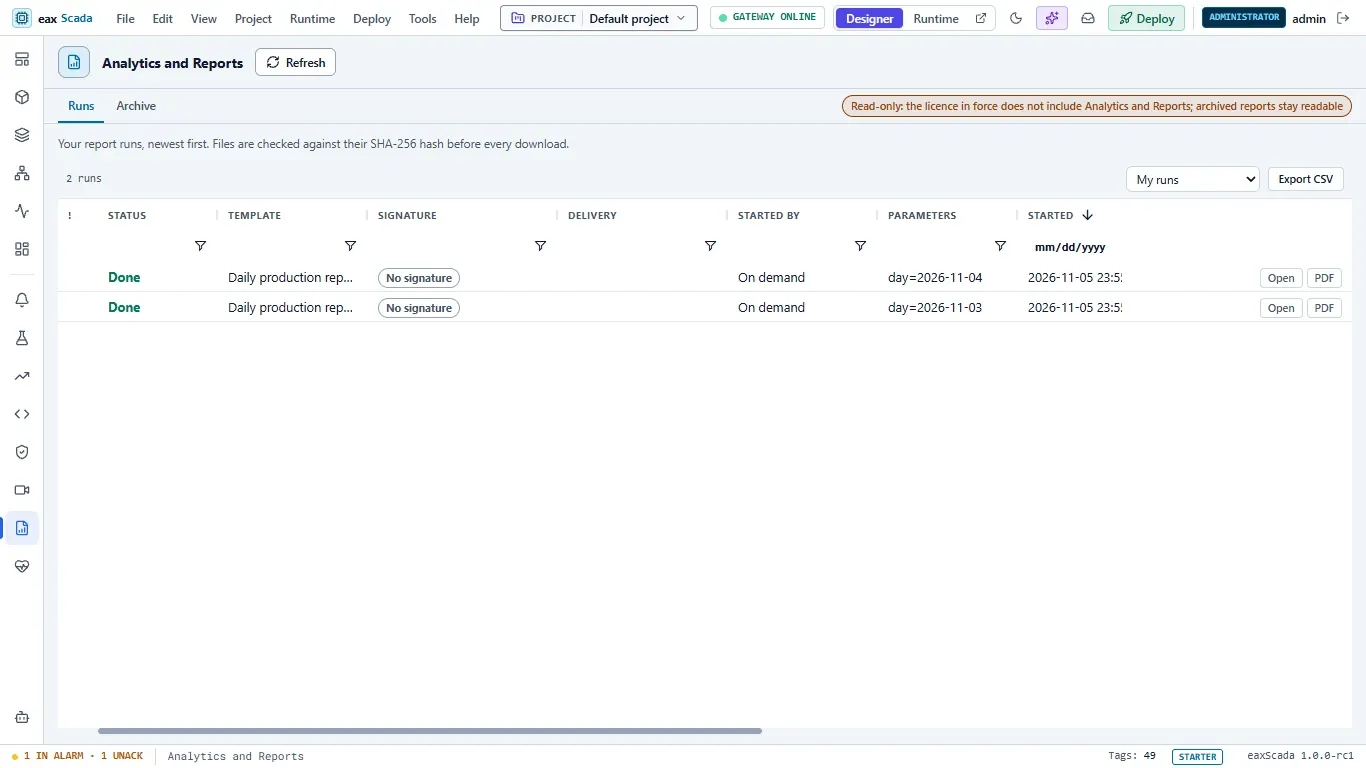
Section titled “After a downgrade or a licence expiry”When the licence in force no longer includes Analytics and Reports (Starter, Free, or an expired licence), archived reports stay readable. The engine starts read-only when report data exists (run records or the archive folder), and the licence is checked at every change, so an expiry while the server runs takes effect at once.
| Stays open (with every other check: sign-in, the right, which runs you may open) | Refused with 403 EDITION |
|---|---|
| The list of your runs and a run’s record; its files (originals and signed copies, checked against their hash); Verify; a run’s signature status; the Archive list; your own rights. | New runs and previews, datasets, templates, schedules and Run now, signing, the purge, the settings, the analytics workspace. |
- The workspace is read-only: the Runs and Archive tabs only, without Cancel or Remove on a run, with the chip “Read-only: the licence in force does not include Analytics and Reports; archived reports stay readable”.
- Signing is refused after a downgrade: signing is part of the module. The signatures already given stay checkable, and a licence with the module lets the next step be signed again.
- Schedules pause. No slot is claimed, Run now is refused, event and batch-end triggers are skipped, and ALM-SYS-REPORTS says “paused by the licence” for each schedule. A licence with the module resumes them without a burst: the slots missed meanwhile follow each schedule’s catch-up rule (the newest one, none, or the newest 10), as after downtime. Pending deliveries wait and are delivered once the licence is back.
The analytics workspace
Section titled “The analytics workspace”The Analytics tab answers questions no report answers yet: you write SQL over the historian or the alarms, set a time window, read the rows in a grid and draw them (Analyse data in the Analytics workspace).
- The same read path as a report. A query runs as an unsaved dataset of its own kind, through the dataset engine: the same guard on the SQL, your tag read rights below the relations, the time window always bound (
alarm_definitionshas none: they are configuration, not history), the transaction always rolled back. A user allowed onlyPlant/A/>gets area A’s rows in counts, aggregates and joins, never another area’s. The stored tables, files and table functions are refused; atagparameter you may not read is refused before the query runs. Hidden tags are counted, never named. - Quality is marked, never guessed. With a quality column, each row carries the class the server gave it. A historian query that reads values without their quality (“ignores quality”, the rule that refuses such a dataset on save) still runs here, but the answer says so, with the rule’s reason and fix, and marks the rows that may hold bad or uncertain samples: with a
tag_pathcolumn, the rows of the tags that have non-good samples in the window; without one, every row. The grid marks those rows, and the chart draws them as non-good. - Bounded. At most
analytics.max_rowsrows (100,000) andanalytics.query_timeout(60 s) per query, a result of at most 64 MiB, one running query per user (analytics.per_user) and two per server (analytics.workers): one more is refused, never queued. Your last result is kept on the server for 10 minutes and read in pages. - People only. The
analyticsright; never an API token, never the AI co-pilot (it keeps its own SQL tool in the MCP gateway). Every query, refused or cancelled ones too, is recorded asanalytics.query(categoryanalytics) with the SQL’s SHA-256, the parameters, the rows, the result’s hash and the duration; a result whose record cannot be written is not given. - Personal saved queries. They are kept per user (
data/analytics/saved_queries.json), never project content. A query to share becomes a dataset (Save as dataset), with the dataset save check, quality rule included.
Export, extracts and the server pivot
Section titled “Export, extracts and the server pivot”The browser shows at most analytics.max_rows rows of a result, and a query reads one source. Three tools go further: the export and the extracts read their source on the same read path as a query (a query over your extracts runs inside your session, with its own guard), and all are for people with analytics only (a dataset’s export: reports_view).
- Service or process
- Data store
- Person or role
- File or document
- Check or decision
- Trust boundary
- Data or telemetry
- Refusal
Read as text
An analytics query, an export job and an extract all read through the same read path of the eaxScada server: the SQL guard, the read rights below the relations, the bound time window and a transaction that is always rolled back. An export writes its file on the server; an extract fills the user's own in-memory session, which a query over extracts then reads with its own guard. Every entry is for a signed-in person with the analytics right.
Parts
- eaxScada server (trust boundary)
- Analyst (person or role): signed in, with the analytics right
- Route checks (check or decision, inside eaxScada server): a person: no API token, no AI account
- Query (service or process, inside eaxScada server): 1 per user, 2 per server
- Export job (service or process, inside eaxScada server): one per user
- Extract (service or process, inside eaxScada server): one relation, a time window
- The read path (check or decision, inside eaxScada server): SQL guard, read rights below the relations, bound time window, always rolled back
- Export file (file or document, inside eaxScada server): written by the server, owner only
- Historian (data store, inside eaxScada server): and the alarms
- Your session (data store, inside eaxScada server): in memory; no file, network, extension
Connections
- Analyst → Route checks (data or telemetry). The analyst calls the analytics routes of the server.
- Route checks → Analyst (refusal). Refused when not signed in, with user security off, in an edition without analytics, for an API token, for the AI co-pilot account, without the analytics right, or with the engine off. A second query of the same user, a third on the server, a second export of the same user and a new extract session past the server-wide cap are refused too.
- Route checks → Query (data or telemetry)
- Route checks → Export job (data or telemetry). An export reads the whole result again on the server and writes a CSV, Excel or Parquet file.
- Route checks → Extract (data or telemetry)
- Route checks → Your session (data or telemetry). A query over Extracts (this session) does not take the read path: it runs in the user's session with its own guard, which names the user's extracts only, as one SELECT in a transaction that is always rolled back.
- Query → The read path (data or telemetry)
- Export job → The read path (data or telemetry)
- Extract → The read path (data or telemetry)
- Historian → The read path (data or telemetry). The read path reads the historian and the alarms for the user's readable tags only.
- The read path → Export file (data or telemetry). The server writes the export file from the secured rows; the SQL never writes a file. It is kept for analytics.export.keep and then deleted.
- The read path → Your session (data or telemetry). An extract's rows are read as the user into the user's own in-memory session.
The pivot is written in the browser as a GROUP BY query and runs as a normal query.
- Export (Export analytics results). The whole result of a query, or a saved dataset, read again on the server as you and written to a CSV, Excel or Parquet file you download. The server writes the file, never your SQL: it takes the secured rows and writes them itself (CSV with formula-looking cells defused, Excel with an About sheet holding the export id, the parameters and the data’s hash, Parquet with the result’s column types);
COPY,ATTACHand the file-reading functions stay refused in user SQL. A user allowed onlyPlant/A/>gets area A’s rows in the file, in every format. An export is a job: one per user,analytics.export.workers(1) on the server at once, the others waiting their turn; the file is its owner’s only (another user’s export answers as one that does not exist) and is deleted at the first sweep (every 10 minutes) afteranalytics.export.keep(24 h). - Extracts (Combine sources with extracts). One relation of a source (the historian’s
samples, the alarms’alarm_eventsoralarm_definitions) over a time window, read as you into your own in-memory session on the server, under a name you choose. A query with the source “Extracts (this session)” joins them, for example the samples of each alarm’s tag against its setpoint, and the quality travels through the join. The session has no file, network or extension access, and its configuration is locked; your SQL may name only your extracts. Sessions are kept by user: another user’s extracts, list and results do not exist for them. A session left unused foranalytics.extract_idle(30 min) is dropped. - Pivot on the server. When a result is cut at the browser’s limit, the page writes a
GROUP BYquery with one column per value of a pivot column (at most 50) over your query, and runs it through the normal query route: the same guard and read rights, the worst quality of each group kept asquality_class. The query goes into the editor, so you see exactly what ran.
Limits refuse, they never cut. An export or an extract over its limit is refused whole, with nothing kept: a file or an extract is never silently shorter than the query’s answer. The export and the extracts are held in the server’s memory, in the same process that serves the operators’ screens, so their memory is bounded, and the configuration is checked at start-up:
| Limit | Default | Key | Ceiling checked at start-up |
|---|---|---|---|
| Rows of one export | 1,000,000 | analytics.export.max_rows |
|
| Size of one export (held in memory while the file is written) | 512 MiB | analytics.export.max_bytes |
4 GiB |
| Exports running on the server | 1 (others wait) | analytics.export.workers |
|
| Exports per user | 1 | ||
| Export files kept | 24 h | analytics.export.keep |
|
| Rows in one user’s extracts | 2,000,000 | analytics.extract_rows |
|
| Size of one user’s extracts | 512 MiB | analytics.extract_bytes |
4 GiB |
| Extracts per user | 8 | analytics.extract_per_user |
1 to 32 |
| Unused session dropped after | 30 min | analytics.extract_idle |
5 min to 24 h |
| Users holding extracts at once, server-wide | 4 | analytics.extract_sessions |
1 to 64 |
| Extracts’ memory, worst case | 5 GiB | extract_sessions × (2 × extract_bytes + 256 MiB) |
16 GiB |
| Queries running (over a source or over extracts) | 1 per user, 2 on the server | analytics.per_user, analytics.workers |
The server-wide cap of sessions. Each user’s session is an in-memory database that may take up to twice extract_bytes plus 256 MiB while it works. At most analytics.extract_sessions users hold extracts at once: a new user’s first extract beyond the cap is refused (429 EXTRACT_SERVER_FULL), never queued, and recorded as a refused create; the users who hold a session keep working, and a dropped or idle session frees its place. With the defaults the worst case is 4 × (2 × 512 MiB + 256 MiB) = 5 GiB; a configuration whose worst case exceeds 16 GiB does not start. Size the cap to the memory the server has to spare beside the runtime.
Everything is recorded. analytics.export for each export, done or refused (format, rows, bytes, the file’s SHA-256, the SQL’s SHA-256, window, parameters, scope, the dataset and its revision); analytics.extract.create for each extract, made or refused; analytics.query for each query over extracts; analytics.extract.drop with its reason (user, idle, shutdown). An export or an extract whose record cannot be written is not kept.
Limits per kind of run
Section titled “Limits per kind of run”Each kind of run has its own row and time ceiling. A dataset may set lower limits of its own, never higher ones.
| Run | Rows per dataset | Time per query |
|---|---|---|
| Preview (dataset editor, designer preview, PDF draft) | 10,000 (reports.preview.max_rows) |
15 s |
| PDF report | 100,000 (reports.pdf.max_rows) |
60 s (reports.query_timeout) |
| Excel report | 1,000,000 (reports.xlsx.max_rows) |
60 s (reports.query_timeout) |
| Analytics query | 100,000 (analytics.max_rows) |
60 s (analytics.query_timeout) |
| Analytics export | 1,000,000 (analytics.export.max_rows), refused above, never cut |
5 min per export |
Rows beyond the ceiling are cut, never hidden: the report prints “<dataset>: the rows were cut at N”, and the run gets the warning Rows cut at the limit. Narrow the time window or the tag scope.
Other limits: one dataset result holds at most 256 MiB, a run’s time window spans at most 400 days, a PDF has at most 2,000 pages, a whole run takes at most 10 minutes, two runs render at a time, and 20 wait in the queue (a user may have 2 waiting or running; more answer 429). The reference lists them with their configuration keys.
Time zones and daylight-saving changes
Section titled “Time zones and daylight-saving changes”Reports print times in the site’s time zone, set by site.time_zone in the server configuration (an IANA name such as Europe/Paris, or UTC; empty: the server’s own zone). A template can use another zone, or UTC.
- Every printed time carries the zone abbreviation (
2026-10-25 02:30:00 CEST, then2026-10-25 02:30:00 CET), so the hour repeated at the autumn change is never ambiguous. - Days are the site’s days. “today”, “yesterday” and a date such as
2026-11-04mean the site’s calendar day, from its first instant. On a day with a clock change that day has 23 or 25 hours. - Elapsed and calendar offsets differ on purpose. In a default or a binding,
h,mandsare elapsed time anddandware calendar days and weeks on the site’s clock:now-24his 24 hours ago,now-1dis the same clock time yesterday. They differ only on a day with a clock change. - A relative date is resolved once, in the report’s zone: for an on-demand run at the moment it is asked for (a run that waits in the queue past midnight still reports on the day you meant), for a scheduled run at its slot. The run record keeps that instant (
as_of), and the page fields and the dataset bindings all see the same day. - Schedules follow the same clock: a slot skipped or repeated by a clock change runs once (Daylight-saving changes).
- Excel has no time zone: each time column is written as the site’s wall-clock time, with a UTC column next to it.
- Columns labelled UTC are in UTC in the workspace, whatever the browser’s zone: the signatures’ Signed (UTC), the run’s Finished (UTC), the “Signed: …” confirmation, and the Archive’s Archived (UTC), Data from (UTC), Data to (UTC) and Kept until (UTC) (also in the CSV export and the column filters); the Archive’s Archived from / until (UTC) filters take UTC days. A signature’s Site time is the time the server recorded with it, in the site’s zone (
site.time_zone; when it is not set, the server’s own zone, UTC in the container images).
Related
Section titled “Related”- Create a report dataset
- Design a report
- Run a report and download the files
- Schedule a report
- Sign a report (review and approve)
- Verify and purge the report archive
- Set up e-mail and folder delivery
- Analyse data in the Analytics workspace
- Export analytics results (CSV, Excel, Parquet)
- Combine sources with extracts and pivot on the server
- Grant report rights
- Analytics and Reports reference