

Gauge
A live gauge drawn at any size: radial dial, progress arc, ring, zoned dial, multi-pointer (PV, SP, OUT), bar or level, bullet with a target, or sparkline trend. ISA-101 by default: grey while the value is normal, the alarm colour only when the value is in an alarm band, and a Bad, Uncertain or stale value hatched and labelled, never drawn as good. The gauge reads its tags itself, with their quality; the alarm bands come from the tag’s alarm limits or from manual limits.
| Palette | Not in the palette |
JSON type |
IndustrialGauge |
| Name in the inspector | Gauge |
| Size | drawn from width and height; a resize changes them |
Properties
Section titled “Properties”| Shown as | Key | Type | Unit | Default | Allowed values | What it does |
|---|---|---|---|---|---|---|
| Gauge | gaugeKind |
Choice | "radial" |
radial Radial dialarc Progress arcring Ringzoned Zoned / grade dialmulti Multi-pointer (PV, SP, OUT)linear Bar / levelbullet Bullet with targetsparkline Sparkline trend |
The drawing (see Gauge kinds below). | |
| Value tag (PV) | tagPath |
Tag path (read) | — | The value shown. Until a first value arrives the gauge shows a dash and NO DATA, never a default reading. Inspector hint: Read with its quality: Bad or Uncertain is hatched and labelled, never shown as good. | ||
| Setpoint tag (multi-pointer) | spTag |
Tag path (read) | — | Multi-pointer only: the setpoint, drawn as a marker on the scale. | ||
| Output tag (multi-pointer inner ring) | outTag |
Tag path (read) | — | Multi-pointer only: the controller output, drawn as an inner ring. | ||
| Output minimum | outMin |
Number | — | Value of the output ring at its start. Empty = 0. Inspector hint: Empty = 0 | ||
| Output maximum | outMax |
Number | — | Value of the output ring at its end. Empty = 100. Inspector hint: Empty = 100 | ||
| Target tag (bullet) | targetTag |
Tag path (read) | — | Bullet only: the target, read from a tag. | ||
| Fixed target (bullet, no target tag) | target |
Number | — | Bullet only: a fixed target, used when no target tag is set. | ||
| Range minimum | minVal |
Number | 0 |
Value at the start of the scale. Empty = 0. Inspector hint: Empty = 0 | ||
| Range maximum | maxVal |
Number | 100 |
Value at the end of the scale. Empty = 100. Inspector hint: Empty = 100 | ||
| Decimals shown | decimals |
Number | — | min 0, max 6, step 1 | Decimals of the value shown. | |
| Unit | unit |
Text | — | Unit shown under the value. | ||
| Bands | bandsSource |
Choice | "alarms" |
alarms From the tag’s alarm limits (LL / L / H / HH)manual Manual limits belownone None |
Where the alarm bands come from: the tag’s alarm definitions (LOW_LOW, LOW, HIGH, HIGH_HIGH setpoints), the manual limits below, or none. Display only: the alarm engine decides alarms. | |
| Band display | bandStyle |
Choice | — | zones Zones: coloured bands to the scale endsmarks Limit marks: grey scale, colour only beyond a limittrack Band track: thin coloured track outside the scaleauto Auto: limit marks when the bands cover over 40 % of the scale |
How the bands are drawn (see Band display below). Gauges placed from the palette use auto; a gauge saved without it keeps zones. Inspector hint: ISA-101: with a tight alarm window, limit marks keep a normal screen grey. Sparklines always draw limit lines. | |
| Manual LL (low-low) | limitLL |
Number | — | Manual low-low limit (Bands: manual). | ||
| Manual L (low) | limitL |
Number | — | Manual low limit. | ||
| Manual H (high) | limitH |
Number | — | Manual high limit. | ||
| Manual HH (high-high) | limitHH |
Number | — | Manual high-high limit. | ||
| Pointer (radial) | pointerStyle |
Choice | "needle" |
needle Needleprogress Progress arcboth Needle and arc |
Radial dial only: a needle, a progress arc from the start of the scale, or both. | |
| Needle / bar colour | needleColor |
Colour | — | Colour of the needle or bar. Empty: the theme grey. In an alarm band the needle takes the band’s colour. Inspector hint: Empty = theme grey. Alarm bands colour the needle when the value is in one. | ||
| Dial face colour | faceColor |
Text | — | Colour of the dial face. Empty: the theme’s; none: transparent (for a gauge drawn on a picture). Inspector hint: Empty = theme; none = transparent. | ||
| Start angle (deg) | startAngle |
Number | ° | — | Dials: where the scale starts, in degrees (0 = 3 o’clock, counter-clockwise positive). Empty: the kind’s own. Inspector hint: Dials: 0 = 3 o’clock, counter-clockwise positive. Empty = per gauge. | |
| End angle (deg) | endAngle |
Number | ° | — | Dials: where the scale ends. | |
| Major divisions | majorTicks |
Number | — | min 1, max 20, step 1 | Number of major divisions of the scale. | |
| Minor ticks per division | minorTicks |
Number | — | min 0, max 10, step 1 | Minor ticks per major division. | |
| Bar orientation | orientation |
Choice | — | vertical Verticalhorizontal Horizontal |
Bar / level only: vertical or horizontal. | |
| Sparkline window (min) | historyMinutes |
Number | min | — | min 1, max 1440, step 1 | Sparkline only: the time window, filled from the historian when the gauge opens. Empty = 15. Inspector hint: Empty = 15 |
| Minimum redraw interval (ms) | updateMs |
Number | ms | — | min 50, max 10000, step 50 | Shortest time between two redraws. Empty = 250. Inspector hint: Empty = 250 |
| Animate value changes (off when the system asks for reduced motion) | animate |
Yes / no | true |
Animates the pointer between values. Off anyway when the system asks for reduced motion, and on screens with more than 24 live gauges. | ||
| — | width |
Number | 160 |
Width of the gauge; the drawing and its text scale with it. | ||
| — | height |
Number | 160 |
Height of the gauge. | ||
| — | label |
Text | "GAUGE" |
The caption drawn in the gauge (TI-R1). | ||
| X | x |
Number | px | — | Horizontal position of the object’s top-left corner on the screen, in screen pixels from the left edge. | |
| Y | y |
Number | px | — | Vertical position of the object’s top-left corner, in screen pixels from the top edge. | |
| Rotation | rotation |
Number | ° | — | Rotation of the object, clockwise, in degrees. | |
| Opacity | opacity |
Number | — | 0 (invisible) to 1 (opaque). An object disabled by an interlock is drawn at 0.45 whatever this says. | ||
| States | states |
Object | — | This object’s own state styles (normal, hover, pressed, on, disabled, bad, locked, unconfigured), edited in the inspector’s States section. Visual only. Empty: the project’s state styles. | ||
| State family | styleFamily |
Text | — | The state family whose project styles apply (button, input, toggle, selector, faceplateButton, default). Empty: the family of the object’s type. |
Gauge kinds
Section titled “Gauge kinds”The gaugeKind property selects the drawing. Default size when placed (width × height):
gaugeKind |
Default size | What it shows |
|---|---|---|
radial |
160 × 160 | Dial with a needle and/or progress arc, major and minor ticks, scale labels and alarm bands. Start and end angles are configurable. |
arc |
180 × 130 | Progress arc (KPI style) with the value in the middle and the range ends labelled. |
ring |
140 × 140 | Full ring progress (KPI style) with the value in the middle. |
zoned |
180 × 160 | Grade dial: wide bands from the alarm limits (or manual limits) and a triangle pointer at the rim. |
multi |
180 × 180 | One dial for a loop: PV needle, SP marker on the rim (spTag) and the controller output as an inner ring (outTag, outMin..outMax). |
linear |
70 × 200 | Bar gauge (tank level or thermometer), vertical or horizontal, with alarm bands and limit lines. |
bullet |
260 × 70 | Horizontal bar with a target marker (targetTag, or the fixed target). |
sparkline |
220 × 80 | Mini trend of the last historyMinutes with the current value; filled from the historian when it opens. |
Band display
Section titled “Band display”A band runs from the range end to its limit, so a tight alarm window (55 to 75 °C on a 0 to 100 °C scale) would paint most of a zoned dial in the warning colour in normal operation; ISA-101 asks for a grey display while the process is normal. LL and HH bands use the high-priority alarm colour, L and H the warning colour.
bandStyle |
Drawing |
|---|---|
zones |
Coloured bands from each range end to its limit (LL and L from the minimum, H and HH to the maximum), on the scale itself. Bar gauges tint the band areas; a level bar also draws a dashed line at each limit. |
marks |
A grey scale with a thin mark at each limit (LL and HH marks longer). Only when the value is beyond a limit do that band and its mark take the alarm colour. Bar gauges draw a grey line at each limit and tint only the band the value is in. |
track |
A thin band track outside the scale (a strip beside a bar), always in the band colours; the scale itself stays grey. |
auto |
Limit marks when the bands would cover more than 40 % of the range, zones otherwise. Decided at every draw, from the limits in force. |
Small sizes
Section titled “Small sizes”Text follows the size the gauge is drawn at (a screen fitted to a phone draws a gauge at a quarter of its authored size). The value, its unit, the label and the scale labels scale with the gauge, from 6 px for the value and 6 px for the label; the value is always drawn, inside the gauge (down to 4 px on a gauge too small for 6 px). Below a size the detail goes, in this order: the unit, the minor ticks (dial under 120 px across), the scale labels (under 90 px), the major ticks (under 60 px) and the label (under 40 px). Quality labels shorten on a narrow gauge (BAD, UNCERT, STALE, and NO ACCESS with its padlock).
Data and quality
Section titled “Data and quality”The gauge shows the value the server already holds as soon as it opens, then every update, redrawn at most every updateMs. A value that is Bad or Uncertain, or held while the link to the server is down, is dimmed, hatched and labelled BAD QUALITY, UNCERTAIN or NO LINK - STALE. Until a first value arrives (or with no tag) the gauge shows a dash, no pointer and NO DATA. A value computed by a binding expression (binding value or gauge_value) is drawn with the quality of the tags it reads, never as a plain good number: if one of them is Bad, the gauge shows a dash and BAD QUALITY; if one is Uncertain or stale, it shows the value dimmed and labelled UNCERTAIN or NO LINK - STALE. A result that is not a number is shown as Bad; the last good value is not kept. When the tag cannot be read by the signed-in user, the gauge shows a dash, no pointer and NOT READABLE with a padlock on blue (NO ACCESS on a narrow gauge) instead of BAD QUALITY. The same holds when every Bad tag the gauge reads (the tags of an expression, or the PV, SP, OUT and target tags) is one the user cannot read; a device Bad on any of them keeps BAD QUALITY. A Bad, Uncertain or stale value colours no band.
Bindings and conditions
Section titled “Bindings and conditions”The object reads these tags through its own properties, with their quality: tagPath, spTag, outTag, targetTag. A Bad or Uncertain value is marked on the object (see Quality below), never drawn as good.
The Bind tab ties a property to a tag or an expression: a tag binding takes the tag’s value, an expression binding computes one (see the expression language), optionally through a map, format or script transform. The targets the Bind tab offers for this object:
| Bind tab target | Key | What the bound value does |
|---|---|---|
| Gauge Reading (Numeric) | value |
Shows the value as the object’s readout (with the unit and decimals). A Bad value shows a dash. |
| Needle Rotation Angle (-135° to 135°) | needle_angle |
Turns the needle of a classic dial to the value, in degrees (-135 to 135). |
| Dial Border Color | stroke |
Sets the outline colour from the value. |
| Gauge Face Color | fill |
Sets the fill colour from the value (a colour text such as #22c55e, or a colour mapped by a map transform). |
| Engineering Unit / Tag | label |
Replaces the caption with the value (on a Text object a number gets the unit and decimals). |
| Opacity (0.0 - 1.0) | opacity |
Sets the opacity from the value (0 to 1). |
| Visibility (Boolean) | visible |
Shows the object when the value is true or non-zero, hides it otherwise. |
| Rotation (°) | rotation |
Rotates the object by the value, in degrees. |
| Scale / Pulse | scale |
Scales the object by the value (1 = drawn size). |
| Text / Label | text |
Replaces the text drawn with the value, formatted by the binding’s format. On a Text object a number is followed by the object’s unit, as with the Value target (never a word). A Bad value shows a dash. |
The Cond tab adds rules evaluated on every value change: Visibility (show or hide, by condition or role), Color & Fill (colour bands, alarm blinking), Position and Size & Fill (motion and level mapped from a value), Rotation (angle or continuous spin; an empty input range is 0 to 100 and empty angles are -135° to 135°, while 0 is a value), Security & Touch (the interlock: a disable condition, the role required, what happens when the interlock reads a Bad value) and Text & Value (formatted text). A condition that reads a Bad value is never applied as if the value were good: visibility shows the object marked Bad, colours go neutral grey, motion stays where it is, text shows a dash.
Actions
Section titled “Actions”Any object can carry a click or tap action (the Action tab, or Full Dialog…). A write action whose tag, value or target is missing is not configured: the inspector says so and the operator’s press does nothing (unconfigured means disabled). Navigation actions write nothing and ask no confirmation. On touch screens only a deliberate tap runs an action: a swipe or a pinch that ends on the object never does. Action types:
| Action | Key (action.type) |
What it does |
|---|---|---|
| Set tag to 1 | set_1 |
Writes 1 to the action’s tag. |
| Set tag to 0 | set_0 |
Writes 0 to the action’s tag. |
| Toggle tag value | toggle |
Writes the opposite of the tag’s LIVE value: 0 when it is not 0, 1 when it is 0. When the live value is unknown, not Good or not a number, nothing is written and the operator is told why; when it changes while the operator confirms or signs, nothing is written either. |
| Set tag to 1 on press and to 0 on release | momentary_1_0 |
Writes 1 while pressed and 0 on release (hold to run). On touch, the press counts only after the finger is held still; the release is always sent. A held press is also released when the browser window loses focus or the page is hidden, and in the designer when a drag or a resize of the object starts. |
| Set tag to 0 on press and to 1 on release | momentary_0_1 |
Writes 0 while pressed and 1 on release. Released in the same cases as the 1/0 momentary. |
| Write custom value | write_val |
Writes the number in write_value. |
| Run script | run_command |
Runs a client script with the scripting API (system.tag.write, system.nav.openPopup…). Ctrl+Space completes the API. |
| Navigate to page / screen | navigate |
Opens another screen, optionally with parameters or a parameter set. |
| Open popup screen | open_popup |
Opens a screen in a popup window: modal or not, centred, next to the object or at a fixed position, with parameters. |
| Close popup | close_popup |
Closes the popup the object is in, or the popup with the given id. |
| Open dock | open_dock |
Opens a screen docked to an edge of the runtime (top, bottom, left, right). |
| Close dock | close_dock |
Closes the dock on that edge. |
| Open or close dock | toggle_dock |
Opens or closes the dock on that edge. |
| Back | nav_back |
Goes back to the previous screen. |
| Forward | nav_forward |
Goes forward again after Back. |
| Home screen | nav_home |
Opens the project’s home screen. |
| Open downtime panel | open_downtime |
Opens the operator runtime’s Downtime panel (OEE and downtime, Pro and Enterprise), optionally on one machine (its machine id). Navigation only: nothing is written to a tag or a machine. A machine the operator may not read is not shown; where the panel is not available, a notice says so. Offered in the designer only when the licence includes OEE and downtime. |
States, text and parameters
Section titled “States, text and parameters”States. An object’s look follows its state: normal, hover, pressed, on, disabled, bad (quality), locked (role) and unconfigured. The project’s state styles (opened from an object’s States section, or from the Project manager’s Operator runtime section) give each family of objects its colours per state, and the inspector’s States section overrides them for one object (stored in props.states). States are visual only: whether an object can be operated is decided by its interlock, the user’s rights and the server.
This object belongs to the state family default (all other objects): disabled (an interlock dims it to 0.45 opacity), bad (a tag it reads is Bad) and locked (missing role) apply when the object has conditions or an action; the other states apply to objects that are operated.
Screen parameters. On a screen with parameters, {Name} in any text of the object (tag paths of bindings and actions, expressions, conditions, interlocks, the confirmation tag, texts) is replaced by the parameter’s value when the screen opens, so one screen serves many pieces of equipment ({Pump}/Running). See screen parameters.
Quality. The gauge shows the quality of its value on its own face (see Data and quality above), not with the red x, blue lock and amber ? markers of other objects: a Bad, Uncertain or stale value is dimmed, hatched and labelled BAD QUALITY, UNCERTAIN or NO LINK - STALE, and before a first value the gauge shows a dash and NO DATA. When every Bad tag the gauge reads is not readable for the signed-in account, the face shows a dash, a padlock and NOT READABLE on a blue label (NO ACCESS on a narrow gauge), with no number, needle, bar or trend. A device Bad on any of its tags keeps BAD QUALITY: a device fault is never hidden behind the padlock. A setpoint, output or target tag the account may not read draws no marker and no number. A gauge bound to an expression shows the quality of the tags the expression reads: a Bad input gives a dash and BAD QUALITY, never the last good number, every Bad input refused gives NOT READABLE with the padlock, and an Uncertain or stale input keeps the value, dimmed, with its label. A value from a simulated PLC gets the SIM badge. Only a rule on the Cond tab that reads a Bad, not readable, Uncertain or stale tag marks the gauge the way other objects are marked. See show bad and stale values.
Comments. In the studio, right-click the object and choose Add comment to start a design-review thread on it; a numbered pin marks objects with open threads (Starter, Pro and Enterprise). Pins are shown in the designer only, never in the runtime. See review screens before deploy.
Examples
Section titled “Examples”Six kinds on the same kind of data
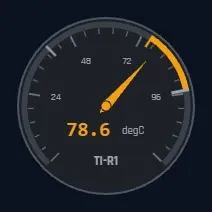
Section titled “Six kinds on the same kind of data”A radial dial on the reactor temperature (bands from its alarm limits: the value is in the high band), a progress arc on line 1’s OEE, a multi-pointer for loop TIC101 (PV, SP, OUT), a level bar on tank TK101, a bullet of line 1’s throughput against its target tag, and a sparkline of the compressed-air pressure.
- Place each gauge from Industrial Gauges in the palette.
- Set Value tag (PV):
Plant/Processing/Reactors/R1/Temperature(0 to 120, unit degC),Plant/Processing/Lines/L1/OEE(0 to 100, %),Plant/Processing/Loops/TIC101/PVwith Setpoint tagPlant/Processing/Loops/TIC101/Setpointand Output tagPlant/Processing/Loops/TIC101/Output,Plant/Processing/Tanks/TK101/Level,Plant/Processing/Lines/L1/Throughputwith Target tagPlant/Processing/Lines/L1/Target(0 to 2000),Plant/Processing/Utilities/Air/Pressure(0 to 10, bar). - Keep Bands on From the tag’s alarm limits: only the reactor temperature has alarm limits here.

The gauge as saved in the screen (JSON)
{ "type": "IndustrialGauge", "props": { "gaugeKind": "radial", "tagPath": "Plant/Processing/Reactors/R1/Temperature", "minVal": 0, "maxVal": 120, "unit": "degC", "decimals": 1, "bandsSource": "alarms", "bandStyle": "auto", "label": "TI-R1" }}A dial with manual limits shown as marks
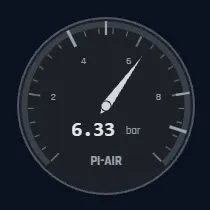
Section titled “A dial with manual limits shown as marks”Compressed-air pressure on a 0 to 10 bar dial with manual limits L 5 and LL 4 bar, H 8 and HH 9 bar, drawn as limit marks so the dial stays grey while the pressure is normal.
- Place a Radial Dial; Value tag
Plant/Processing/Utilities/Air/Pressure; range 0 to 10; unit bar. - Bands Manual limits below; Manual LL 4, L 5, H 8, HH 9.
- Band display Limit marks.
The gauge as saved in the screen (JSON)
{ "type": "IndustrialGauge", "props": { "gaugeKind": "radial", "tagPath": "Plant/Processing/Utilities/Air/Pressure", "minVal": 0, "maxVal": 10, "unit": "bar", "decimals": 2, "bandsSource": "manual", "limitLL": 4, "limitL": 5, "limitH": 8, "limitHH": 9, "bandStyle": "marks", "label": "PI-AIR" }}