

Find and replace across screens
Migrated page, not yet verified against the current code. Treat values, paths and examples as indicative until this notice is removed.
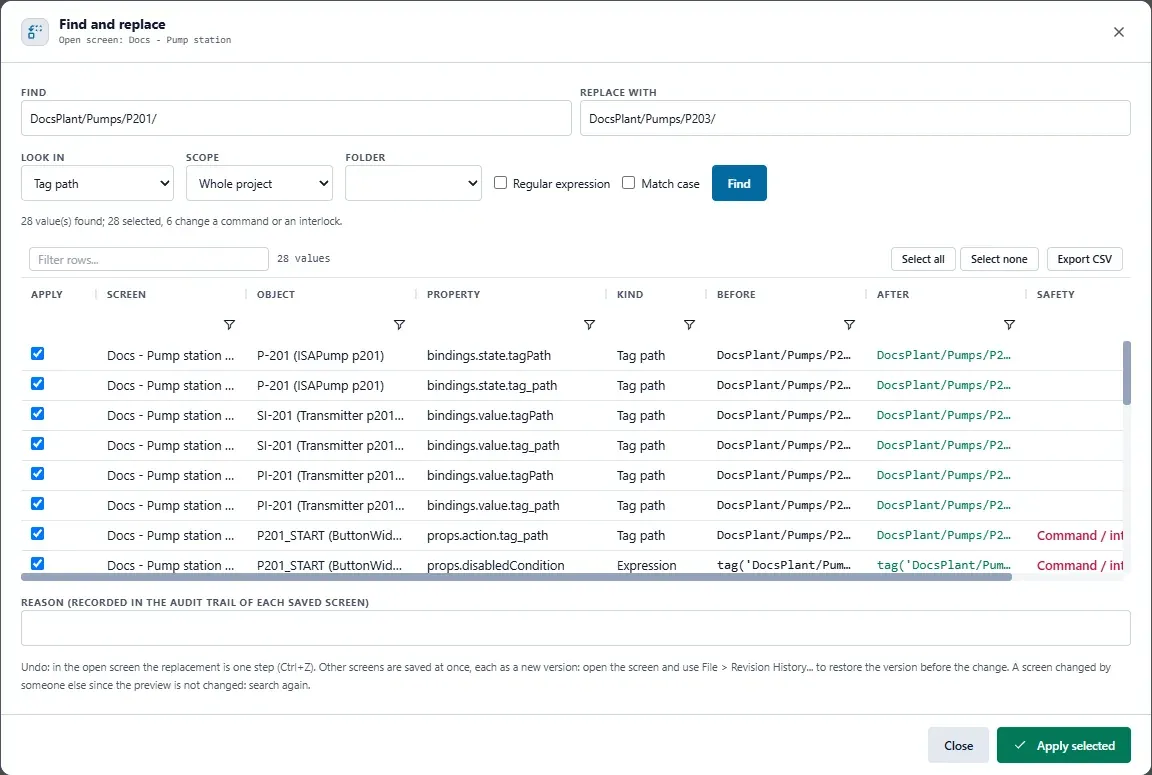
Pump P-201 is moved to a new folder, or a third pump P-203 gets a copy of P-201’s screen objects. You change every reference to DocsPlant/Pumps/P201/ in one step, see each change before it is made, and the server makes sure no command or interlock changes without your explicit confirmation.
1. Open Find and replace
Section titled “1. Open Find and replace”Press Ctrl+Shift+H in the designer, or click Replace next to Live preview. You can also start it from a screen’s context menu in the display tree, or from a tag’s Where used panel.
2. Describe the change
Section titled “2. Describe the change”| Field | Choice |
|---|---|
| Find / Replace with | the text; with Regular expression, $1…$9, $& and $$ work in the replacement |
| Look in | Tag path: the tag fields and the tag paths inside expressions (never the code around them); Text: labels, titles, captions, tooltips, units, messages; Expression: bindings and conditions; Any property |
| Scope | the selection, the open screen, a folder of the display tree (with its sub-folders), or the whole project |
| Match case |
Click Find.
3. Check the preview
Section titled “3. Check the preview”Each row is one value: the screen, the object, the property, the kind, the value before and after, and Safety. Untick the rows you do not want (Select all, Select none). The grid has filters, sorting and Export CSV, to keep with a change request.
A row marked Command / interlock changes what a command writes or what disables it: a write action’s tag, value or confirmation, an e-signature button, a setpoint or target tag, a disable condition, an action’s type, or a component instance’s parameters. Applying it needs a second confirmation that lists those rows.
A value that reaches a screen through a parameter set is listed as “through set P-201” and cannot be ticked: change it in the set.
4. Apply
Section titled “4. Apply”Give a Reason (it goes into the audit trail of every screen saved) and click Apply selected.
- The open screen is changed in the editor itself, as one step: Ctrl+Z undoes it. Save it to keep the change.
- Other screens are saved on the server at once, each as a new version made from the revision the preview showed, with your reason. A screen that someone changed since the preview is not touched: the dialog lists it, and you search again. The others are saved.
To undo a change to another screen, open it and use File → Revision History… to restore the version before the change.
What the server checks
Section titled “What the server checks”The replace route (POST /api/dev/screens/bulk-replace, Lead_Engineer or Administrator) saves each screen through the normal screen save: the same checks, one audit record and one version per screen. A change to commands or interlocks is refused unless it was confirmed; nothing is written then. After the save the write policy is rebuilt as after any screen save: if you moved a command to a new tag, its confirmation and signature now protect the new tag, and no longer the old one.
Related
Section titled “Related”- Find where a tag, screen or alarm is used
- Edit screens: groups, clipboard and undo: paste special replaces tag prefixes while pasting.