

Write in the shift log and hand over a shift
Write down what happened during your shift so the next shift knows it, sign what needs a signature, and hand the shift over with two signatures: yours and the incoming operator’s.
You need:
- eaxScada Enterprise and a shift log set up for your line or area (Set up shift logs);
- to read:
shiftlog_view; to write:shiftlog_write; to sign entries and handovers:shiftlog_sign. On a new installation Shift_Operator holds all three. Reviewing entries and recording instructions needsshiftlog_review(Process_Supervisor and above on a new installation).
How the records and signatures work: The signed shift log.
1. Open the shift log
Section titled “1. Open the shift log”Click Shift log in the runtime toolbar. On a narrow screen it is in the More menu. The badge shows the number of open items, and an amber dot when a handover is due. The button is shown only when the shift log is part of this server’s licence, or when the server keeps past entries read-only.
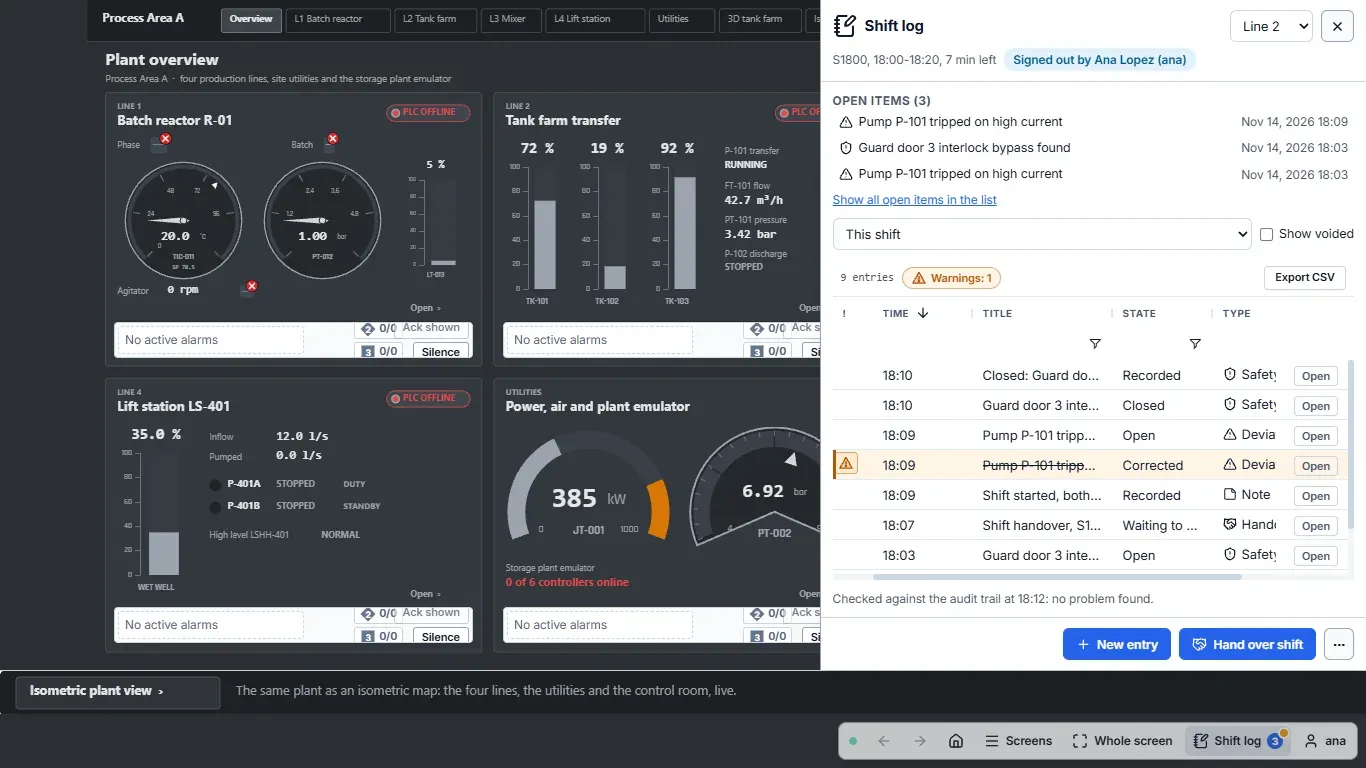
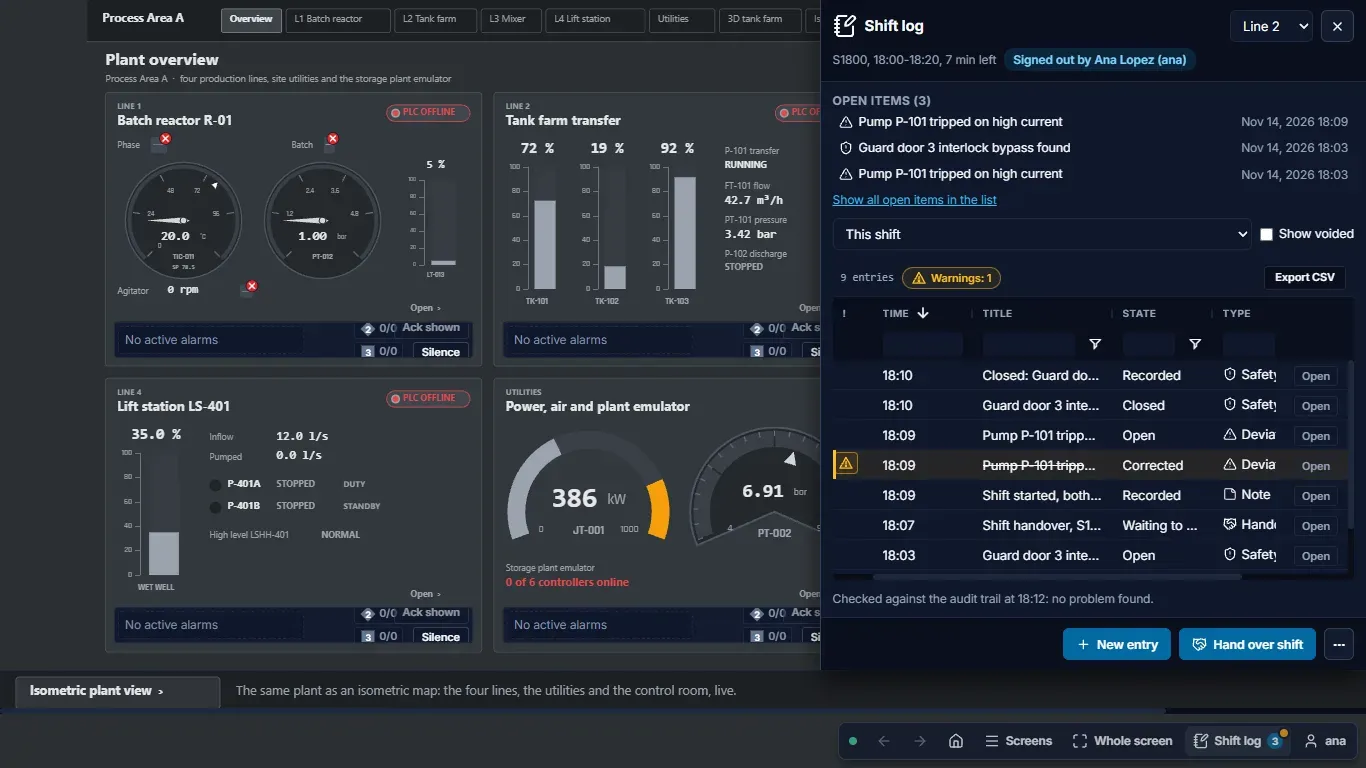
The panel shows, from top to bottom:
- the log (choose another with Log if you may read several), the current shift and the time left, and the handover state: Shift open, Handover due, Signed out by <name>, Handed over or Handover missing;
- Open items: what earlier shifts left open. Show all open items in the list filters the grid to them;
- the entries of This shift, or of a date range. Filter and sort each column, Export CSV, and tick Show voided to see voided entries. A row with an amber marker has a warning (a late entry, a corrected entry, an item open for more than three shifts): click the marker for the explanation, or the Warnings chip to show only those rows. A rose marker, Failed verification, means the record does not match the audit trail: do not rely on it and tell your shift log administrator;
- New entry, Hand over shift, and under More (⋯): Export CSV, Export period… (shift log administrators only, see 6. Export a period), Verify against the audit trail and Refresh.
Click Open on a row for the full entry: the text, the fields, the references with what they showed when the entry was written, the signatures (name, date and time, meaning) and the chain of corrections and closures.
2. Write an entry
Section titled “2. Write an entry”- Click New entry.
- Choose the type: Note, Deviation, Maintenance, Safety or Instruction. Only the types your log uses are offered, and Instruction only if you may review in this log.
- Type a Title (required, one line, at most 120 characters) and the Text (plain text, at most 8,000 characters).
- Occurred at is now; change it if the event happened earlier. It can be at most 24 hours back (your log may allow up to 7 days) and never in the future.
- Set the Priority (Information, Normal, High).
- For a deviation, maintenance, safety item or instruction: Open item (carried to the next shift) keeps it in every following shift until someone closes it. Deviations and safety items are open unless you untick it. An instruction always needs a Due date: its valid-until.
- Fill in the fields your log adds for the type (marked * when required).
- Add reference attaches the tag, alarm, batch, screen or earlier entry the entry is about. The server records what it showed at that moment (a tag’s value, unit and quality, an alarm’s state and message): a value of bad or uncertain quality stays marked as such. You can only attach what you may read.
- Click Sign and record (for a signed type) or Record.
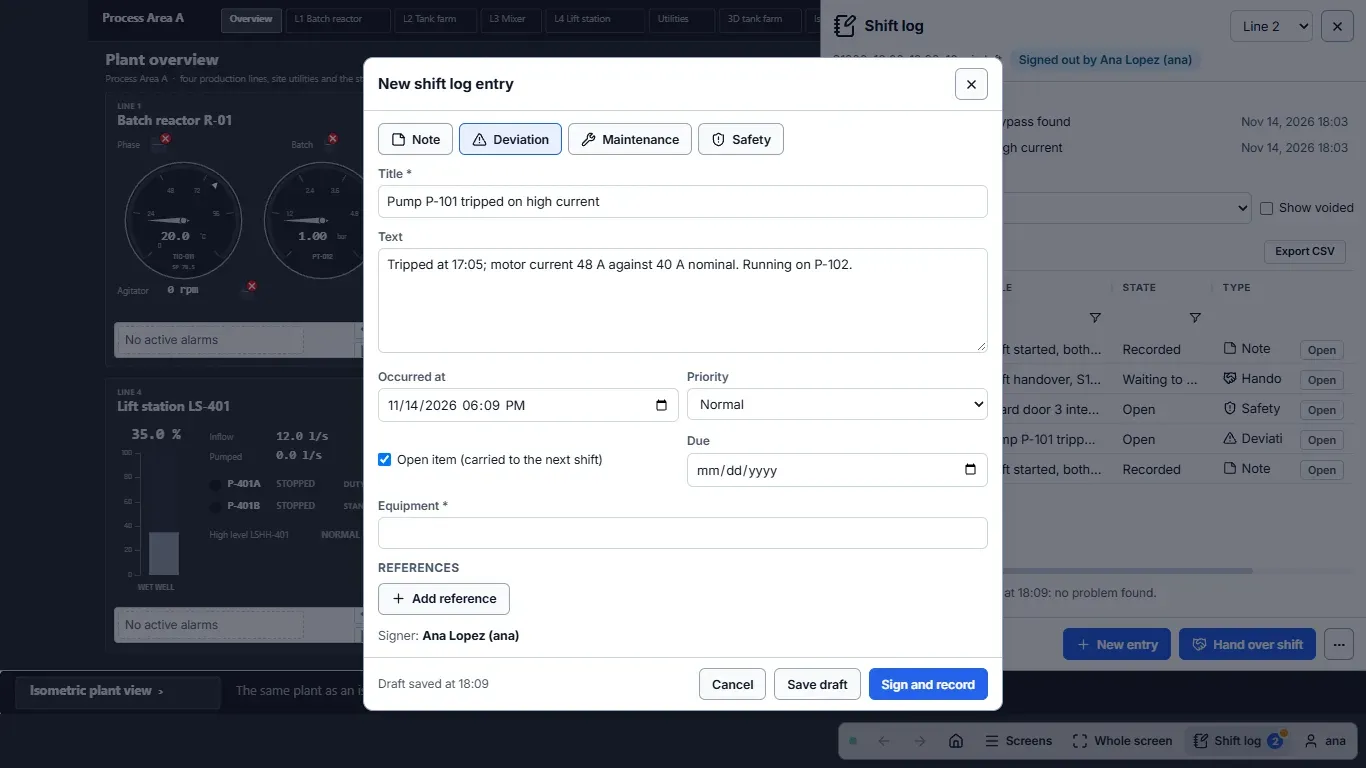
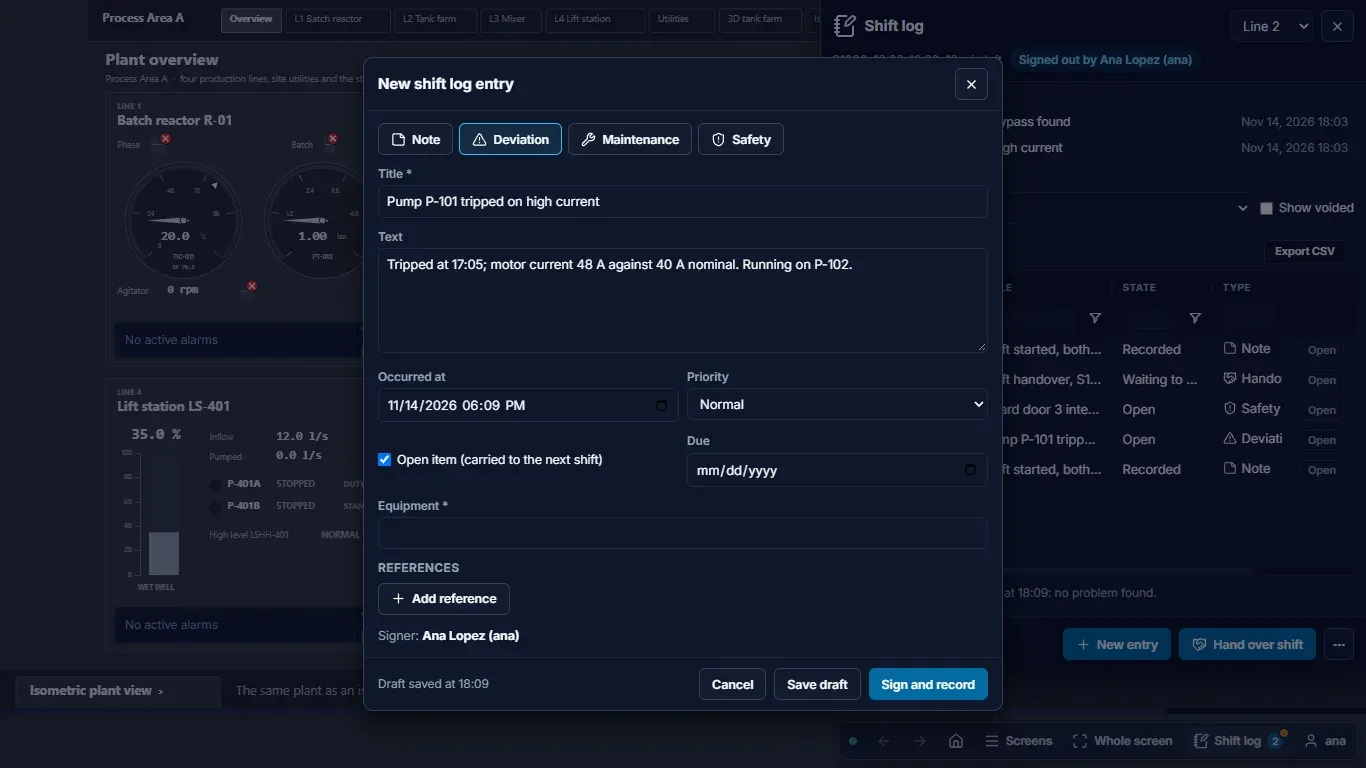
Signed entries. Deviations, safety items and instructions are always signed; notes and maintenance only if your log asks for it. After Sign and record, the Electronic signature dialog shows you as the signer (read-only) and the meaning, for example “Recorded by: Line 2, Day 13 Nov 2026 06:00-14:00, Pump P-101 tripped on high current”. Type your password and click Sign. The password field is always empty when it opens and is cleared after each try.
Drafts. What you type is saved as your own draft while you work (Draft saved at …), and Save draft saves it at once. Nobody else sees your drafts. If the dialog closes, the next New entry restores the draft (“Your draft from … is restored.”), or click Discard it. Drafts expire after 14 days and are never records.
Add to shift log from an alarm or a faceplate
Section titled “Add to shift log from an alarm or a faceplate”You can start an entry from the object it is about:
- An alarm: in an alarm summary, click Shift log in the row’s actions (“Add to shift log: attaches this alarm (acknowledges nothing)”), or Add to shift log in the alarm’s detail card. The entry refers to that occurrence of the alarm.
- A tag: in the operator faceplate dialog, click Add to shift log (“attaches <tag> (writes nothing)”).
The New entry dialog opens with the reference attached and nothing else filled in: choose the type, write the title and the text, then Record or Sign and record as in steps 2 to 9. No draft is restored. If you close the dialog, nothing is recorded. The entry goes to the log whose area holds the tag or the alarm, else to the log you used last.
Add to shift log never acknowledges, shelves or silences an alarm, and never writes a tag. It only opens the dialog. The action is shown only when this server’s licence includes the shift log. An alarm without its occurrence cannot be attached (“This alarm has no occurrence to attach.”). When it cannot open the dialog, it says “Not added to the shift log:” and why, for example “You may not write to a shift log.” or “The shift log is not available here.”. One shift log dialog is open at a time: while an entry, a signature, a co-signature or a handover dialog is open, or a signature is being sent, Add to shift log opens nothing (“A shift log dialog is already open: finish or close it first.”).
A screen script can do the same with system.shiftlog.add.
3. Correct, void, close or review an entry
Section titled “3. Correct, void, close or review an entry”Entries are never edited or deleted. Open the entry (or use the actions at the right of its row):
- Correct: change the title, text, fields or references, and type the Reason for the correction. The old entry stays, struck through, with “Corrected by <name>, <time>: <reason>”. You may correct your own entries; a reviewer of the log may correct anyone’s. A correction of a signed entry is signed (“Corrected by”).
- Void: in the correction dialog, tick Void this entry (made in error, for example in the wrong log) and give the reason. The entry stays in the record, hidden from the list until you tick Show voided.
- Close (open items only): say How it was closed. The closure is a new entry titled “Closed: <title>”. Closing a signed item is signed (Sign and close, meaning “Closed by”). If the item was corrected, close the latest correction.
- Review (reviewers): you sign that you reviewed the entry as recorded, with an optional Comment. Nobody reviews their own entry, and you review an entry once (“You already reviewed this entry.”).
Instructions are closed or corrected by a reviewer of the log or by the person who wrote them. Only a reviewer changes the Due date; if you wrote the instruction without being a reviewer, your correction keeps its date. A correction of an instruction always keeps a Due date. To end an instruction early, close it or void it.
A handover is never corrected: write a note that refers to it.
4. Hand over your shift
Section titled “4. Hand over your shift”From 60 minutes before the shift end (your log may set another window):
- Click Hand over shift.
- On the left, check Entries of this shift. Under Open items, write a Status for the next shift for each item, one line of at most 200 characters (for example “Still open: spare part ordered”). Every open item needs one.
- On the right, write the Summary for the next shift (required).
- Check the signer (you, read-only) and click Sign and hand over, then sign with your password. You sign the summary, the status lines and the list of this shift’s entries; the incoming operator signs the same content.
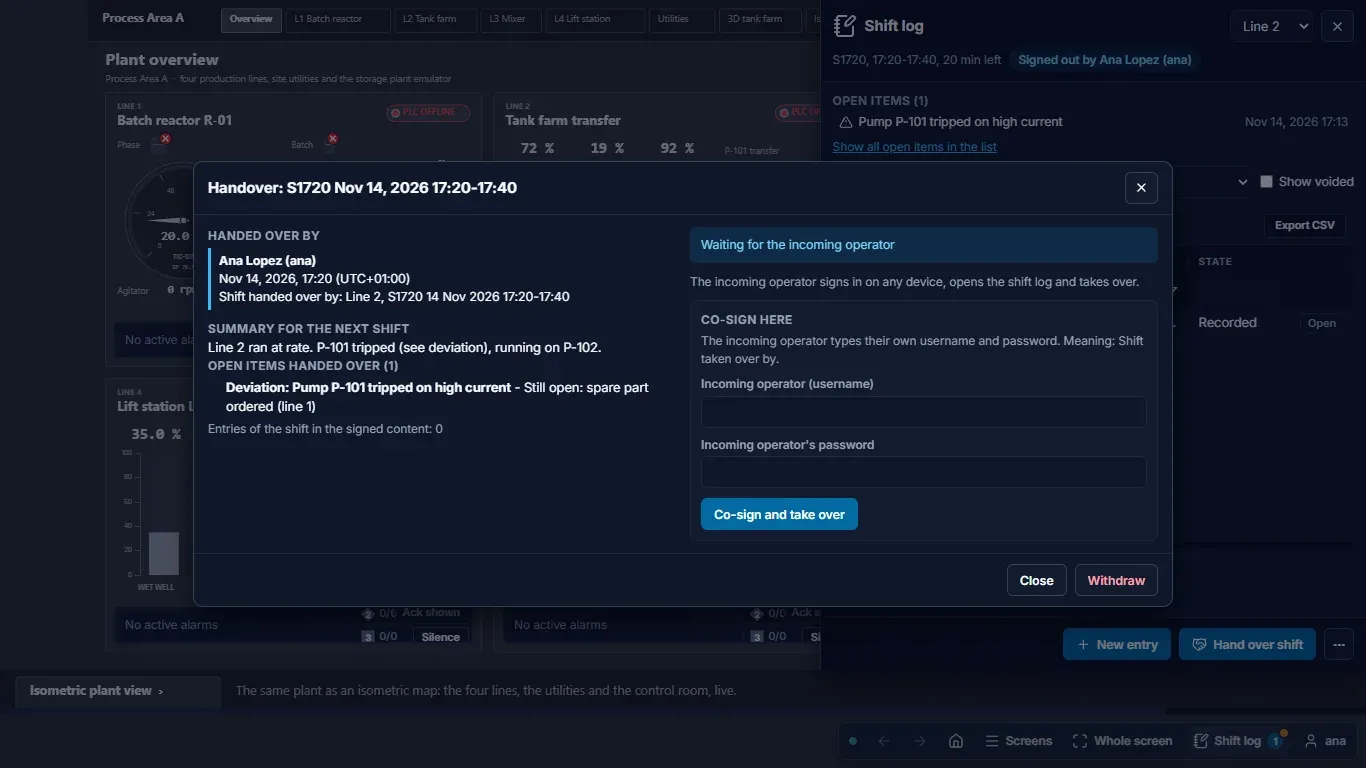
The panel then shows Signed out by <you> and the dialog shows “Waiting for the incoming operator”. If you need to change something, Withdraw it with a reason and sign out again.
If the shift ended and nobody signed out, the panel shows Handover due, then Handover missing after the grace (30 minutes by default). You can still hand over late, until the next shift’s sign-out window opens: “This handover is late: the shift ended without one. It is recorded as late.” A missing handover is a notice in the shift log, not an alarm.
5. Take over a shift
Section titled “5. Take over a shift”The incoming operator must be another person than the outgoing one, may sign in this log, and has at least the log’s minimum level (Shift_Operator by default).
In your own session (on any device). Sign in, open the shift log: the panel says “Handover from <name> waiting for you”. Click Review and take over, read the summary, the open items with their status lines and the number of entries in the signed content, then Sign and take over with your own password (meaning “Shift taken over by”). If you do not accept it, click Decline and give a reason: the shift goes back to due and the outgoing operator signs out again.
At the same console (co-sign here). When the log allows it (it does by default) and the console is on site, the outgoing operator’s dialog shows Co-sign here. The incoming operator types their own user name and password there, then clicks Co-sign and take over. Both fields are always empty: nobody fills them in for you, nothing is remembered, and a password the browser fills in by itself is cleared when the fields open (the same in the Electronic signature dialog). The record names the incoming operator as the signer, “co-signed at the console of” the outgoing operator.
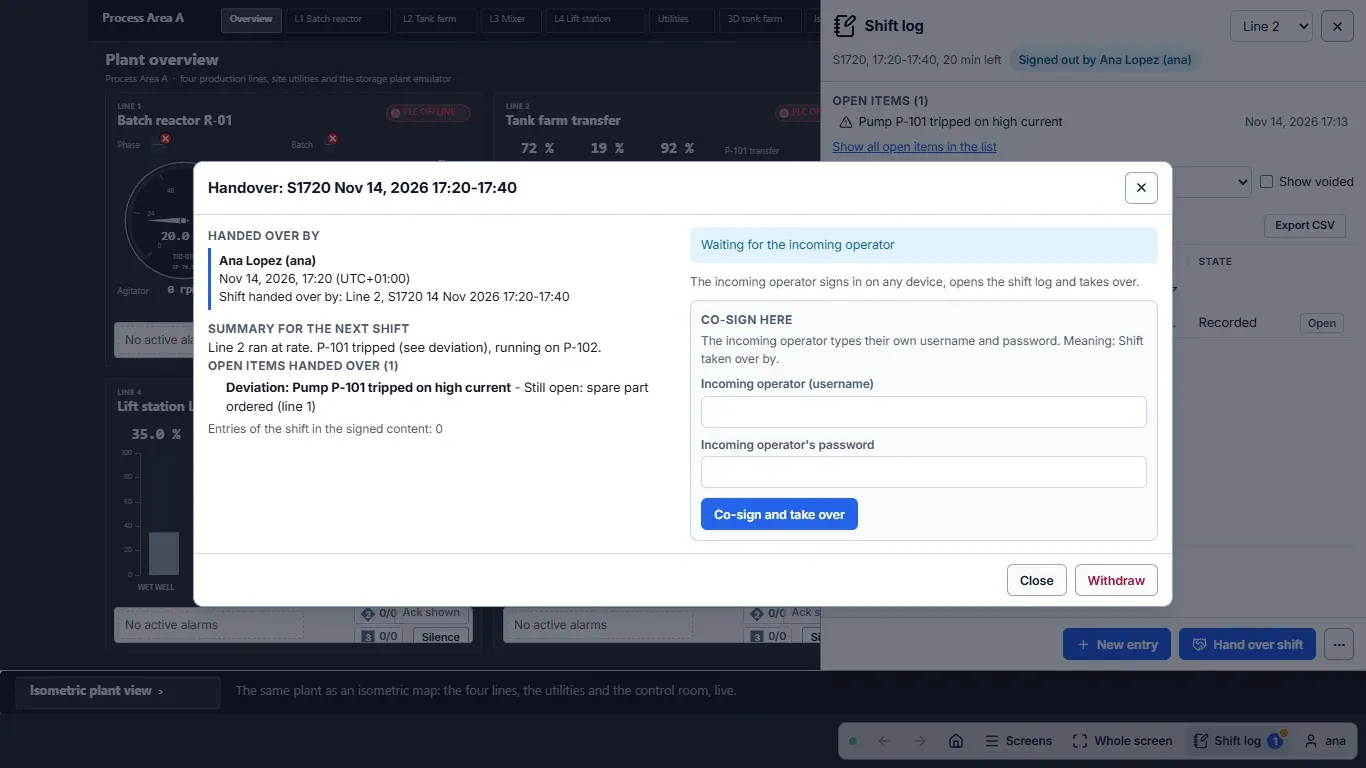
Through eaxCloud remote access you can read the shift log and write entries, but a handover is done at the plant: hand over, take over, decline and withdraw are not offered remotely, and co-signing at a remote console never is.
6. Export a period (shift log administrators)
Section titled “6. Export a period (shift log administrators)”More (⋯) > Export period… is shown to the people who administer the log (the right shiftlog_admin, with shiftlog_view), also on a server that keeps past entries read-only after a licence change. It writes one ZIP file of the log’s records for a period: the entries, the audit record of each, and a manifest with the SHA-256 of every file. The export itself is recorded in the audit trail before the file is sent.
- Open the shift log and choose the log.
- Click More (⋯) > Export period….
- Choose the Period: This shift, Previous shift, Today, Last 7 days or Custom. A shift preset is not offered when the log has no shift calendar or no earlier shift. With Custom, set From and To (not included). The times are in the time zone of this console, and a period is at most 366 days: a longer one is refused at the field (“The period is longer than 366 days: export it in parts.”).
- Click Export, once: the button waits for the answer. The ZIP is downloaded under the name the server gives it,
shiftlog-<log>-<from>-<to>.zip. - The dialog shows “Exported: <file> was downloaded.”, the Export id and the Manifest SHA-256, each with a Copy button. Keep the manifest SHA-256 with the file: it is recorded in the audit trail and shows later that the file is unchanged.
| Message | What it means |
|---|---|
| Not exported: the audit trail could not be written. | The export could not be recorded, so no file was sent (503 AUDIT_NOT_WRITTEN) |
| You may not export this log: the period export needs the shift log administration right. | 403 SHIFTLOG_RIGHT |
| The period export is not available with the licence of this server. | 403 EDITION |
| Not exported: check the marked field. | A field the server refused (400 SHIFTLOG_INVALID) |
| The export was interrupted before the file was complete: nothing was saved. Try again. | The download stopped part way |
| This server is the standby. Open the shift log on … | Exports are written on the primary only (409 ha_standby) |
What the ZIP holds, file by file: Period export.
7. Verify an export
Section titled “7. Verify an export”More (⋯) > Verify an export… is shown to everyone who may read the log. It sends an export file to the server, which compares it with its audit trail and shows each check. The file is not changed. The verification itself is recorded in the audit trail.
- Open the shift log and click More (⋯) > Verify an export….
- Under Export file, choose the ZIP file of a period export, as downloaded, or its
manifest.jsonalone (for a ZIP larger than 512 MiB, or when only the manifest was kept). - Click Verify, once: the button shows “Verifying…” until the answer is in.
- The dialog shows the verdict, “The export is unchanged and matches the audit trail.” or “The export does not verify: <checks>.”, a card with the file, the Export id, the Shift log, the Period, when and by whom it was Exported (or “Not recorded by this server”) and the Manifest SHA-256, then the Checks, each Passed, Failed or Not checked with the server’s detail. Verify another file starts again.
| Check | Passed means |
|---|---|
| Recorded by this server | This server’s audit trail holds the record of this export |
| Manifest unchanged | manifest.json is the one recorded at the export |
| Manifest matches the record | The period, counts and file hashes in the manifest are the recorded ones |
| Entries file unchanged, Records file unchanged | Each file has the hash, size and line count recorded at the export (not the ones the manifest says) |
| Records match the audit trail | Every record in the file is the trail’s own, and none of the period is missing |
| Audit trail gives the same export | Read again, the audit trail still gives both files as exported |
With the manifest alone, the file checks and Records match the audit trail are Not checked. A check that was not run is never shown as passed.
Verify on the server that made the export: on the other server of an HA pair the record is there, but the checks against the trail can fail, because each server numbers its trail positions itself.
| Message | What it means |
|---|---|
| You may not verify exports of this log: it needs the right to read the shift log. | No shiftlog_view (403 SHIFTLOG_RIGHT) |
| The export names a shift log you may not read, or one this server does not have. | 404 SHIFTLOG_NOT_FOUND |
| The file is larger than 512 MiB: verify its manifest.json instead. | Over the size limit |
| A verification of yours is still running: try again when it ends. | One verification per person at a time (429 SHIFTLOG_BUSY) |
| Not a shift log export. | The file is not an export’s ZIP or manifest, or the ZIP holds other files (400 SHIFTLOG_INVALID); the server’s reason follows |
| This verification is not recorded in the audit trail: … | The result stands; the server could not record the verification (a standby, or the audit trail down) |
The checks and the report in detail: Export verification.
Messages and what to do
Section titled “Messages and what to do”| Message | What it means | What to do |
|---|---|---|
| Not saved: the audit trail could not be written. Your text is kept as a draft. | Nothing was recorded (503 AUDIT_NOT_WRITTEN) |
Try again later; your text is still in the draft. Tell the administrator (When the audit trail is down) |
| Not saved: the audit trail is not recording on this server. | The server has no recording audit trail (503 SHIFTLOG_NO_TRAIL) |
Tell the administrator |
| The content changed since it was prepared. Check it and sign again. | What you signed is no longer what would be recorded: you waited more than 30 minutes, or for a handover an entry was added or an item closed (409 SHIFTLOG_STALE) |
Check the content and sign again; for a take-over, the outgoing operator signs a new handover |
| The content changed since it was prepared. Check it and sign again. (right after a double click, or with the same entry open in two tabs) | The same draft was sent twice and the first request is recording it (409 SHIFTLOG_STALE, “being recorded”). It is recorded once |
Reload the panel before you sign again: the entry is probably there |
| You already reviewed this entry. | You reviewed it before, or your review is being recorded (409 SHIFTLOG_ALREADY_REVIEWED) |
Nothing: your review stands |
| A verification ran a moment ago. Try again in half a minute. | Verify against the audit trail runs at most once every 30 seconds per person (429 SHIFTLOG_BUSY) |
Wait and verify again |
| A shift log dialog is already open: finish or close it first. | Add to shift log while another shift log dialog is open | Finish or close that dialog |
| The signature was rejected (wrong password). Type it again. | Wrong password (403 signature_rejected) |
Type it again |
| Signing is locked for this account for a while (too many wrong passwords). | 429 signature_locked |
Wait, or ask the administrator |
| This needs a different person: … | The author does not review their own entry; the outgoing operator does not take over their own shift (403 SHIFTLOG_SAME_PERSON) |
Ask another person |
| You may not do this in this log. | A missing right on this log, or a level below the log’s minimum (403 SHIFTLOG_RIGHT) |
Ask your administrator |
| The handover is not in a state that allows this step. | For example, nothing is waiting to be taken over, or it is too early to sign out (409 SHIFTLOG_HANDOVER_STATE) |
Refresh the panel |
| The outgoing signature is still being copied from the other server. … | High availability: this server does not hold the outgoing record yet (409 SHIFTLOG_HANDOVER_SYNCING) |
Wait a moment, or the outgoing operator signs again |
| This server is the standby. Open the shift log on … | Writes go to the primary only (409 ha_standby) |
Open the shift log on the server named |
| Read-only: the shift log needs an Enterprise licence | This server keeps past entries but does not write the shift log | Read only; ask the administrator |
| Read-only from the next restart | The licence no longer includes the shift log; writing works until the server restarts | Finish the handover; tell the administrator |
| Not completed: the licence changed | A handover was signed out but not taken over when the server became read-only | It can be taken over once the server runs with Enterprise again |