

Deploy screens to operators, and live editing
Migrated page, not yet verified against the current code. Treat values, paths and examples as indicative until this notice is removed.
Control when a screen you save in the Studio reaches the operators. Each project has a Live editing setting:
| Live editing | A screen save | Operators get the change |
|---|---|---|
| Off (every project created from this version on) | changes the Studio copy only | when you click Deploy |
| On | is deployed at the runtime’s next load, after the deploy checks | at once, unless a check refuses it |
Recommended: off for production. With live editing off, a half-finished screen, or a button wired to the wrong tag, never reaches an operator before you deploy on purpose.
Before you start
Section titled “Before you start”- Changing the setting needs Lead_Engineer or Administrator. An operator is refused (403).
- A project created before this version has no setting stored. It counts as on, so nothing changes on upgrade; the Studio shows On (default for projects created before this version).
1. Choose the mode
Section titled “1. Choose the mode”- Open Project → Open / Switch Project… (the Project manager) and its Operator runtime section.
- Tick or clear Live editing: screen saves go live to operators immediately. The change is saved at once.
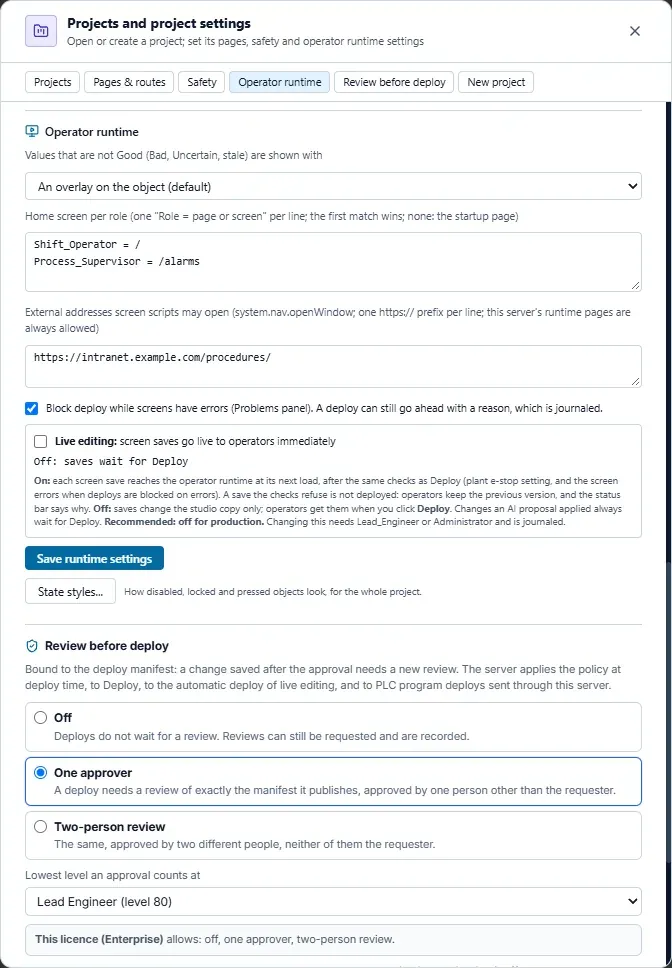
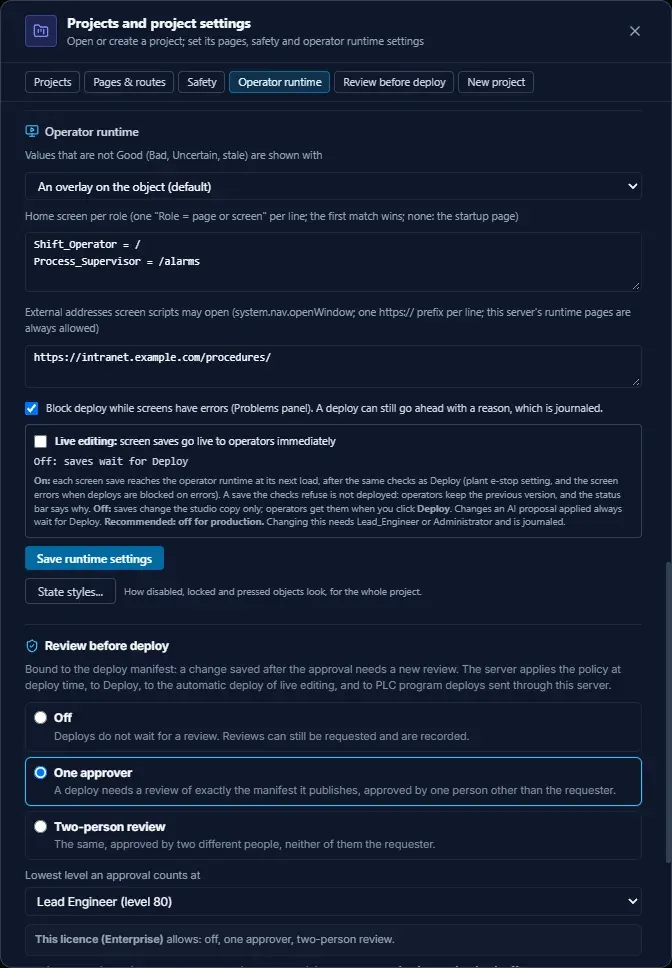
The change is journaled as PROJECT_LIVE_EDITING_CHANGED, with the old and new values, in the security audit and the operations audit. It is saved against the project’s revision: if someone else changed the project meanwhile, the change is refused and you reopen the project manager. In an HA pair the setting is replicated with the rest of the project; a standby refuses the change.
A project save (pages, docks, runtime settings) never changes live editing.
2. See what operators do not have yet
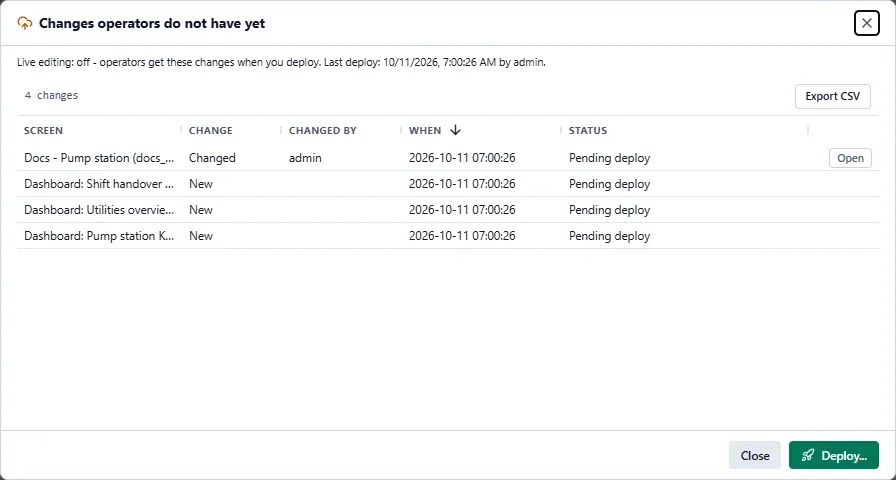
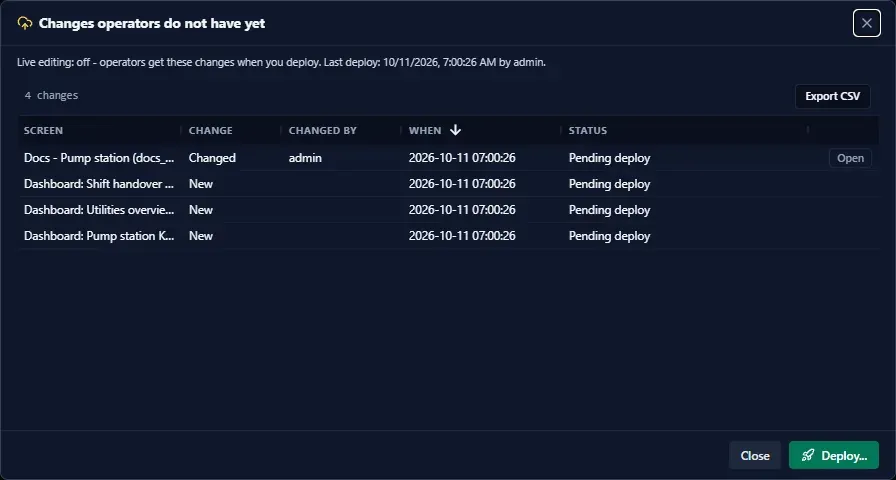
Section titled “2. See what operators do not have yet”Whenever some changes are not deployed, the Studio status bar shows, for example, 3 screens changed since the last deploy, and the Deploy button carries the count. Click the status bar text to list them:
| Column | Meaning |
|---|---|
| Screen | The screen, or Project settings (pages, docks, navigation) |
| Change | New, Changed or Deleted |
| Changed by / When | The last save |
| Status | Pending deploy (live editing off), Held: AI proposal, or Auto-deploy refused: and the reason |
The list has column filters, sorting and Export CSV. Deploy… opens the deploy dialog.
3. Deploy
Section titled “3. Deploy”Click Deploy and confirm. Every deploy, whether you click Deploy or live editing makes it, runs the same checks first, in this order:
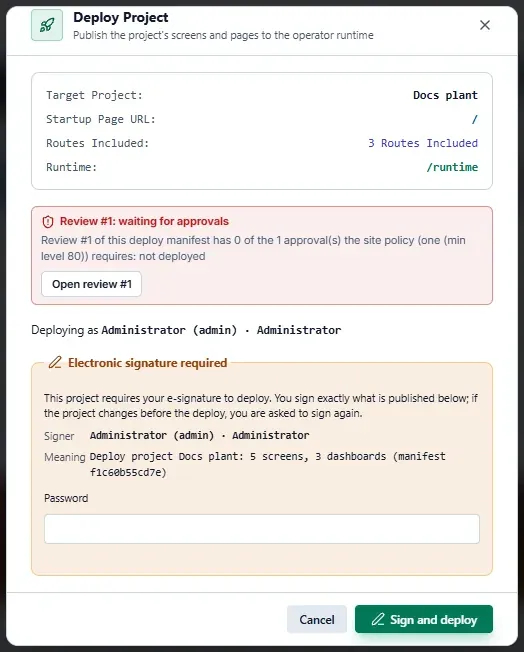
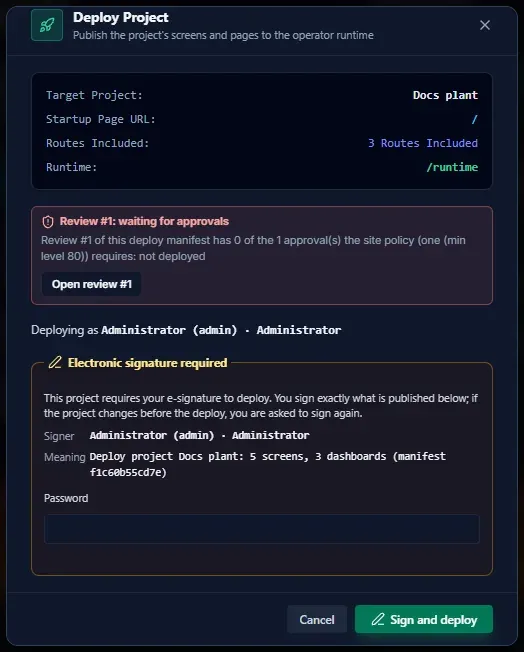
- Review before deploy, when the project’s policy asks for one: an approved review of exactly the manifest the deploy publishes. The Deploy dialog shows what the server would decide before you press it. See Review screens and PLC programs before deploy.
- The acknowledgement of what the deploy changes, for a deploy you click (never an automatic one): when the deploy adds, removes or changes a command target, a screen script or the write policy (the first deploy of a project with buttons included), the Deploy dialog lists the changes and asks for a reason. The server checks that you acknowledged exactly the changes it computes now; otherwise nothing is deployed (
409 deploy_preview_ack_requiredordeploy_preview_stale). See Review what a deploy changes. - The deployer’s e-signature, when the project has Require e-signature to deploy on (new projects: on): your password over the meaning the dialog shows, bound to exactly the manifest published. It is checked after the review gate and the acknowledgement and before the e-stop step, so an unsigned deploy changes nothing. See Require an e-signature to deploy.
- Plant emergency-stop setting. The project’s e-stop signal tag is validated again (a tag mapped to a driver channel is refused). For the active project whose tag differs from the signal in force, the move of the signal to that tag is checked: it is refused while the current signal is set or its alarm is not acknowledged. The check does not move the signal (see below).
- Screen errors, when the project has Block deploy while screens have errors ticked. Errors in the Problems panel refuse the deploy. When you click Deploy you may go ahead by giving a reason (at least 10 characters; journaled
DEPLOY_LINT_OVERRIDDEN). An automatic deploy never overrides. See Check screens before deploying.
A deploy you click publishes exactly the manifest its preview compared: a change saved after the checks refuses it (409 deploy_preview_stale, DEPLOY_FAILED), and operators keep the previous version.
- Service or process
- Check or decision
- Refusal
Read as text
A Deploy you click runs five checks in order: the review before deploy, the acknowledgement of what the deploy changes, the deployer's e-signature, the plant emergency-stop setting and the screen errors. When all pass, the DEPLOY record is written to the audit trail first, then the plant e-stop signal is moved if the project names another tag, then the manifest is written and the screens are live; a refusal or a failure at any of these stages ends the same way: nothing is deployed and operators keep the previous version. Through remote access, a deploy that would move the e-stop signal is refused before the checks.
Parts
- Deploy (service or process): in the Studio
- Deploy checks, in order (check or decision): 1 review before deploy 2 acknowledgement of changes 3 deployer's e-signature 4 plant e-stop setting 5 screen errors. Checks 1, 3 and 5 apply when the project asks for them; check 2 when the deploy changes command targets, scripts or the write policy. No check moves the e-stop signal.
- DEPLOY record (check or decision): audit trail, written first
- E-stop signal move (check or decision): only to another tag: checked again, recorded first
- Manifest written (check or decision): built again: the one checked?
- Screens live (outcome): DEPLOY_DONE
- Not deployed (outcome): operators keep the previous version
Connections
- Start → Deploy (next step)
- Deploy → Deploy checks, in order (next step)
- Deploy checks, in order → Not deployed (refusal): a check refuses. The first check that fails refuses the deploy with its reason (409, 403 or 422), and so does a project saved while the checks ran (409 deploy_preview_stale). No DEPLOY record is written and the e-stop signal is not moved. A refusal by check 1, 2 or 3 is journaled: DEPLOY_GATED, DEPLOY_PREVIEW_REFUSED, DEPLOY_SIGNATURE_REFUSED.
- Deploy checks, in order → DEPLOY record (next step): all pass
- DEPLOY record → Not deployed (refusal): not written. When the DEPLOY record cannot be written the deploy is refused with 503 AUDIT_NOT_WRITTEN and nothing is deployed.
- DEPLOY record → E-stop signal move (next step): written. Under a review gate DEPLOY_REVIEW_SATISFIED is recorded next, and the deploy is refused without it. A checkpoint of the project is taken before the deploy.
- E-stop signal move → Not deployed (refusal): signal set: 409. The signal was set since the checks, or the record PROJECT PLANT_ESTOP_TAG cannot be written (503): the signal stays where it was, and DEPLOY is followed by its failure record, DEPLOY_FAILED or, under a review gate, DEPLOY_REVIEW_SATISFIED_FAILED.
- E-stop signal move → Manifest written (next step): moved, or no move. The move is recorded first as PROJECT PLANT_ESTOP_TAG. A deploy of a project that is not the active one, or whose tag is already the signal, moves nothing.
- Manifest written → Not deployed (refusal): changed, or not written. The project was saved after the checks, or the manifest cannot be written: a signal this deploy moved is moved back (PLANT_ESTOP_TAG_FAILED), then the failure record follows DEPLOY: DEPLOY_FAILED, DEPLOY_REVIEW_SATISFIED_FAILED under a review gate, DEPLOY_SIGNATURE_REFUSED or DEPLOY_GATED when the signed or approved manifest changed.
- Manifest written → Screens live (next step): yes. The manifest is the one checked and is written: the screens are live. A signed deploy records DEPLOY_SIGNED, then DEPLOY_DONE closes the DEPLOY record with the new manifest hash.
Every Deploy is recorded first. Before anything is deployed, the operations audit gets a DEPLOY record (the project, you, the project revision, the previous manifest, the manifest bound by the review or the e-signature). When that record cannot be written, the deploy is refused (503 AUDIT_NOT_WRITTEN), nothing is deployed and operators keep the previous version. When the deploy went live, DEPLOY_DONE follows with the new manifest’s hash; when it failed, DEPLOY_FAILED, or DEPLOY_REVIEW_SATISFIED_FAILED under a review gate. The full record sequence is in Security and Part 11.
The e-stop signal moves last. When the deploy moves the plant e-stop signal, it does so after every check above and after the DEPLOY record, immediately before the screens go live, recorded first as PROJECT PLANT_ESTOP_TAG: DEPLOY, PROJECT PLANT_ESTOP_TAG, DEPLOY_DONE. A deploy refused by a check never moves it.
- If the signal is set between the checks and the move, the deploy fails with
409(DEPLOY, thenDEPLOY_FAILED): the signal stays where it was and operators keep the previous screens. - If the deploy fails after the move, the signal is moved back to the tag it had and
PLANT_ESTOP_TAG_FAILEDis recorded beforeDEPLOY_FAILED. A signal that was set in the meantime is never dropped: it stays, and the record says so.
An automatic deploy follows the same rule: the move is the last step of its checks (PROJECT PLANT_ESTOP_TAG, then DEPLOY_AUTO_DONE), a refused move is an AUTO_DEPLOY_REFUSED, and a failure after the move moves the signal back (PLANT_ESTOP_TAG_FAILED, DEPLOY_AUTO_FAILED). See Plant emergency-stop signal tag.
A deploy whose manifest cannot be written fails (for example on a full disk) instead of reporting success. The manifest is written in one step: the previous manifest stays whole, and it is what operators keep running. The Deploy answers its error; free the disk and deploy again.
4. With live editing on: a refused automatic deploy
Section titled “4. With live editing on: a refused automatic deploy”If a check refuses an automatic deploy:
- operators keep the previous deployed version;
- the refusal is journaled once per change as
AUTO_DEPLOY_REFUSED, with the reason, in the security audit and the operations audit; - the status bar turns rose (auto-deploy refused) and the list gives the reason.
If deploys are blocked on errors and the screen checks are not ready within 5 seconds (just after the server starts), the automatic deploy is refused for now, and the next load tries again. A Deploy you click is not affected.
With Require e-signature to deploy on, every automatic deploy is refused (it cannot sign), and the status bar says signature required: publish the saves with a signed Deploy.
An automatic deploy is never asked for an acknowledgement of its command changes (nobody is there to give it). When it adds, removes or changes a command target, a screen script or the write policy, DEPLOY_AUTO_PREVIEW records the summary of its changes, once per change, before it goes live. To have every command change acknowledged by a person, turn live editing off. See Live editing is recorded, not blocked.
Fix the cause (the e-stop setting, or the screen errors). The next runtime load, or the Studio’s next status check (every 15 seconds), deploys the change. A Deploy that goes through also clears the refusal.
An open Studio counts as a runtime load. With live editing on, its status check deploys a save within about 15 seconds, even if no operator runtime is open.
A failed automatic deploy keeps the last good version
Section titled “A failed automatic deploy keeps the last good version”When the automatic deploy passes its checks but then fails (for example its manifest cannot be written because the disk is full), the runtime is served the last good deploy, as after a refused check: operators keep the screens they were running instead of getting an error. The failure is in the server log and in the audit trail (below). Only a project that was never deployed still answers the error, since there is nothing to serve.
What the audit trail records for an automatic deploy
Section titled “What the audit trail records for an automatic deploy”- Under a review gate, the automatic deploy writes
DEPLOY_REVIEW_SATISFIEDfirst, once per approved manifest, and is refused without it (AUTO_DEPLOY_REFUSED, the previous deploy stays live). When it fails after that record,DEPLOY_REVIEW_SATISFIED_FAILEDfollows once, and that manifest’s automatic deploy stays refused until the project changes or is deployed explicitly. - Without a review gate, each automatic deploy is recorded after the fact, once per manifest, in the operations audit and the security audit:
DEPLOY_AUTO_DONE(the project, the manifest now live, the previous one, and who saved the changes) orDEPLOY_AUTO_FAILED(nothing deployed, the previous deploy stays live, with the error). These records change nothing in what is deployed or when. A record that cannot be written is logged and does not stop the deploy. Repeated loads of the same manifest and an HA standby write no record; after a failover the new primary may repeat the record for the same manifest.
What operators can see and do before a deploy
Section titled “What operators can see and do before a deploy”- The operator runtime shows deployed screens only. A page, dock or embedded screen that is not deployed shows This screen is not deployed., and a popup of one does not open. This holds for a new screen saved with live editing off and for a screen held for review. The designer’s live preview, shown as Preview (not deployed), is the Studio copy.
- Tag write protection is the strictest of the deployed screens and your saved copy.
- A signature or confirmation is required if either version asks for one.
- Every limit of both versions applies.
- A value is refused while either version’s commands for it are all interlocked.
- A write sent from a screen with parameters must be admitted by both versions.
- Saving an undeployed change can therefore only add protection. Removing an interlock, a signature or a limit takes effect when you deploy.
Changes an AI proposal applied
Section titled “Changes an AI proposal applied”In both modes, a screen changed by an applied AI proposal waits for an explicit Deploy. Live editing does not release it, and nor does editing the screen yourself. See Connect an MCP client.
Result
Section titled “Result”Operators run what you deployed. With live editing off, a save is visible in the Studio only, and the status bar counts it until you deploy. With live editing on, a save goes live only when the deploy checks pass.
Troubleshooting
Section titled “Troubleshooting”| Symptom | Cause and fix |
|---|---|
| The runtime says the operator screens could not be loaded (HTTP 404) | Live editing is off and the project was never deployed. Deploy it from the Studio. |
| A save does not appear in the runtime | Live editing is off: deploy. Or it is on and the status bar says auto-deploy refused: open the list for the reason. |
A Deploy is refused with 503 AUDIT_NOT_WRITTEN |
The audit trail could not be written; nothing was deployed. Check the audit folder’s free space and access, then deploy again. |
| A Deploy fails and operators still see the old screens | The deploy failed after its checks, for example its manifest could not be written (full disk). The previous deploy stays live. Free disk space and deploy again. |
| The live editing tick box goes back after you click it | You are not Lead_Engineer or Administrator, or the project changed meanwhile. The message under the tick box says which. |
Related
Section titled “Related”- Review what a deploy changes
- Operator runtime
- Connect an MCP client
- A first deploy, step by step: Build your first 2D screen. Isometric maps and 3D scenes are deployed the same way, with the rest of the project.