

Import the CSV history into the store
The history of an upgraded install lives in one place: the historian’s columnar store. CSV day partitions written by earlier releases, or by a build without the embedded database, are imported into the store. Each day is verified there, then its CSV files are deleted.
You need this when the historian folder still holds CSV partitions (data/historian/year=YYYY/month=MM/day=DD/tag=.../data.csv):
- after an upgrade from a build without the embedded database;
- after an upgrade from an earlier release, which wrote a CSV copy next to the columnar store.
Until you import it, that CSV history is still read, by the rule in Upgrading, and history written as CSV. The current release writes no new CSV partitions.
There are two ways to run the import, with the same checks:
- From System Health in the studio, while the server runs: an administrator reviews the plan and signs it. This is the recommended way.
- From the command line, with the server stopped: the offline way, also for a phone-only site or a server without the studio.
From System Health (recommended)
Section titled “From System Health (recommended)”Before you start
Section titled “Before you start”- You must be an administrator, signed in to the studio. The import is signed with your password. An API token, the AI co-pilot or an eaxCloud remote session cannot run it.
- Use a desktop or a tablet. On a phone the studio does not show System Health, so the dialog is not offered there. Use a larger screen, or the command line.
- The import cannot be undone. After a day is verified in the store, its CSV files are deleted, and eaxScada cannot restore them. Take a historian backup first, for example
eaxscada historian-backup --from <first day> --to <last day> --out <file.eaxhistory>(see Before you start for the command line). - The server keeps running. Trends, reports and exports stay complete while the import runs.
1. Open the review
Section titled “1. Open the review”- Open System Health and find the Historian storage card.
- The row CSV history (before the columnar store) shows the size of the CSV history. When there is some, administrators see Review import… next to it.
- Click Review import…. The dialog Import the CSV history opens.
2. Read the plan
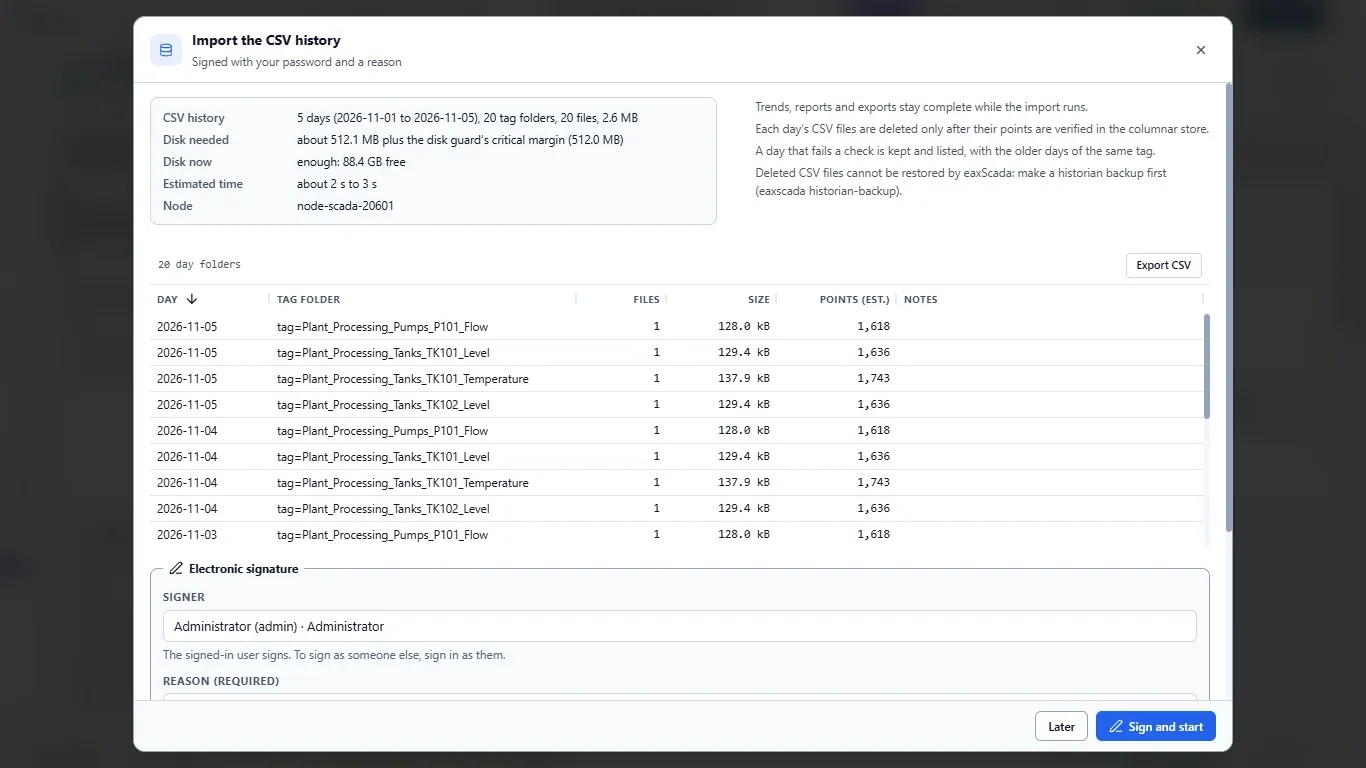
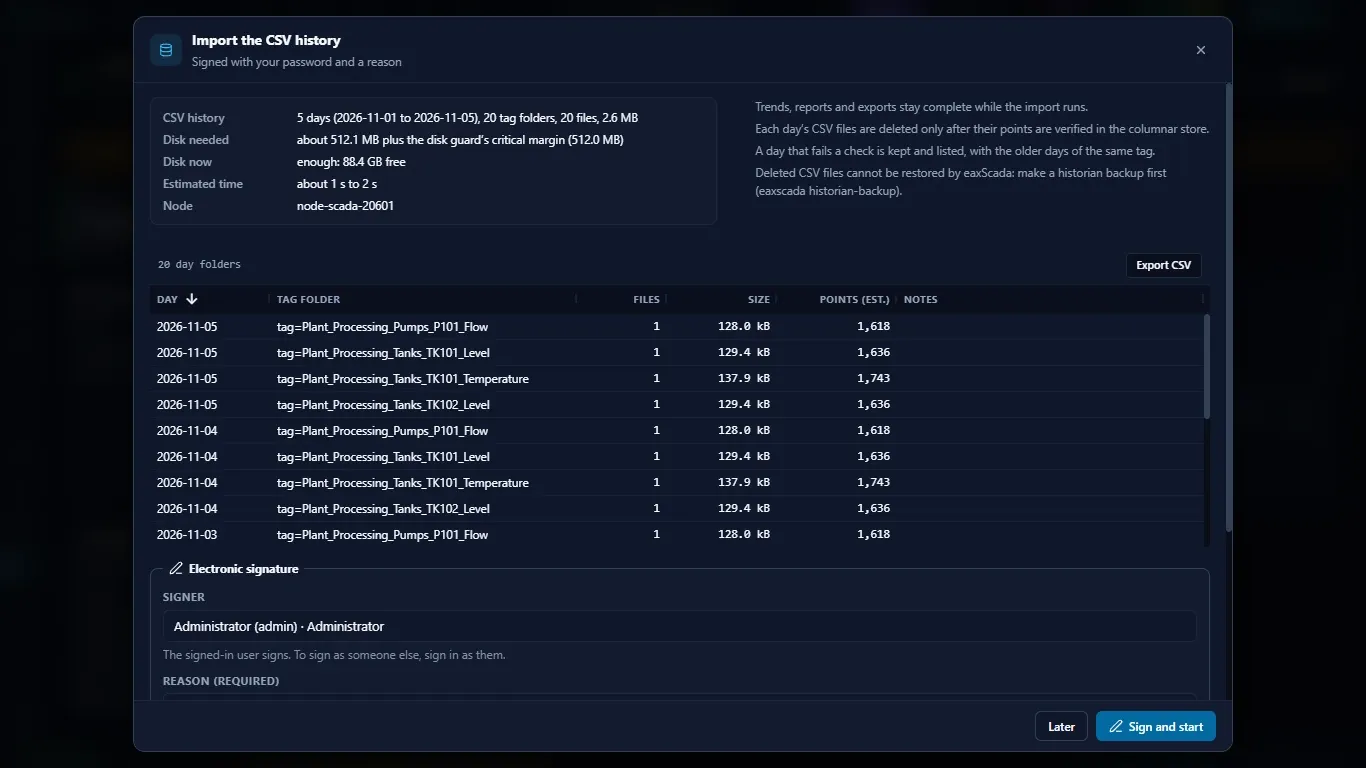
Section titled “2. Read the plan”The dialog shows what the import will do before anything is written:
- CSV history: the number of days, from the first to the last, the tag folders, the files and the size.
- Disk needed: about how much the store grows, plus the disk guard’s critical margin (
historian.disk.critical_free). - Disk now: “enough”, with the free space, or “not enough” and how much to free first. Without enough disk, Sign and start stays disabled.
- Estimated time: a range, such as “about 2 to 4 min”. One day folder is read to measure it; nothing is written.
- Node: the server whose historian is imported.
- The rules: trends, reports and exports stay complete; each day’s CSV files are deleted only after their points are verified in the store; a day that fails a check is kept and listed, with the older days of the same tag; deleted CSV files cannot be restored, so make a historian backup first.
- The plan by day, in a grid: day, tag folder, files, size, estimated points (with thousands separators), and notes (other files in a folder are kept). It has column filters, sorting and CSV export.
The dialog opens at its top, on the summary and the rules; scroll down to the signature.
3. Sign and start
Section titled “3. Sign and start”- Check the signer: it is you, the signed-in administrator, shown read-only.
- Read You sign: it names the days, the size, the folders, the node and the plan, and ends with your reason.
- Type a reason and your password. Neither is filled in for you.
- Click Sign and start.
- The audit trail comes first.
HISTORIAN_MIGRATION_STARTis written with your signature, your reason and the source (studio) before anything is imported. If it cannot be written, nothing starts. - The signature names the plan. If the CSV history changed since the dialog showed it (a restore, the retention, a folder written meanwhile), the start is refused: the dialog shows the new plan, and you sign again.
4. Follow the progress
Section titled “4. Follow the progress”The same dialog then shows the import:
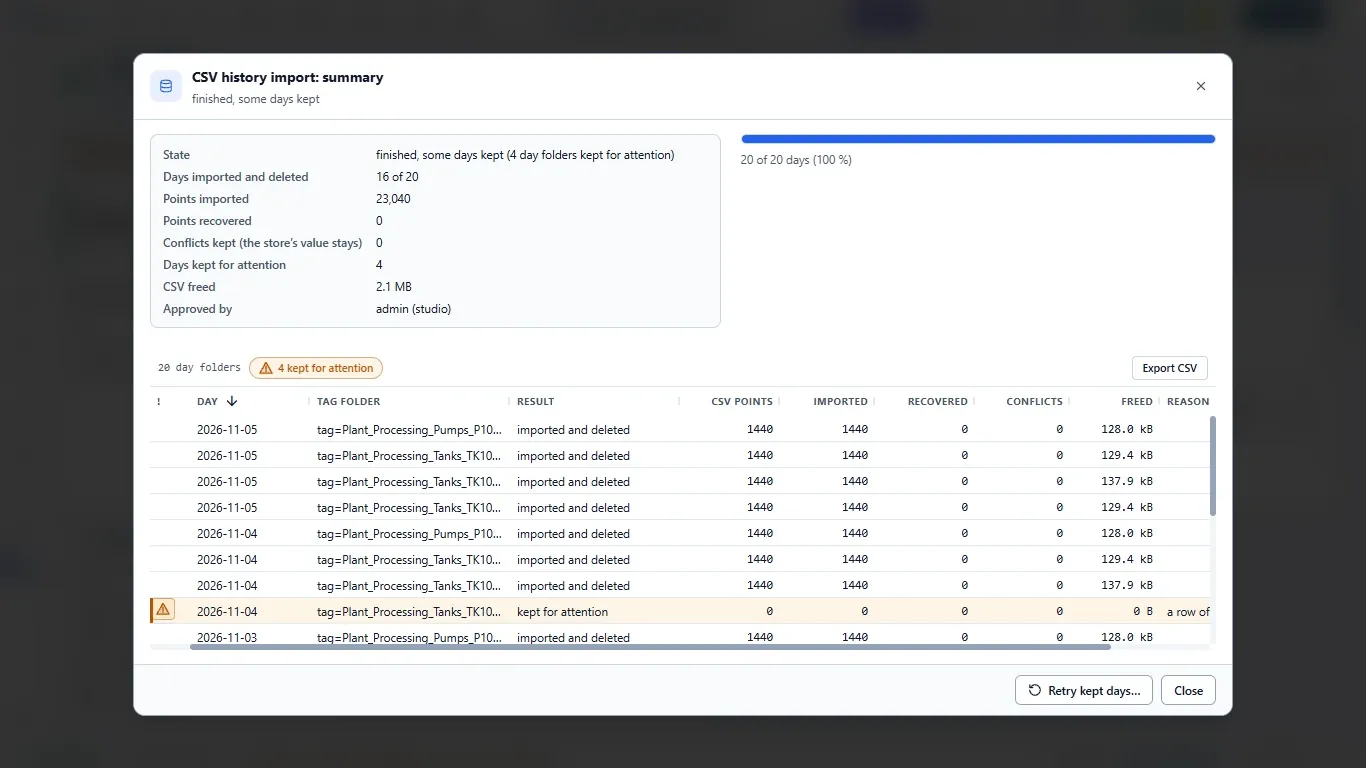
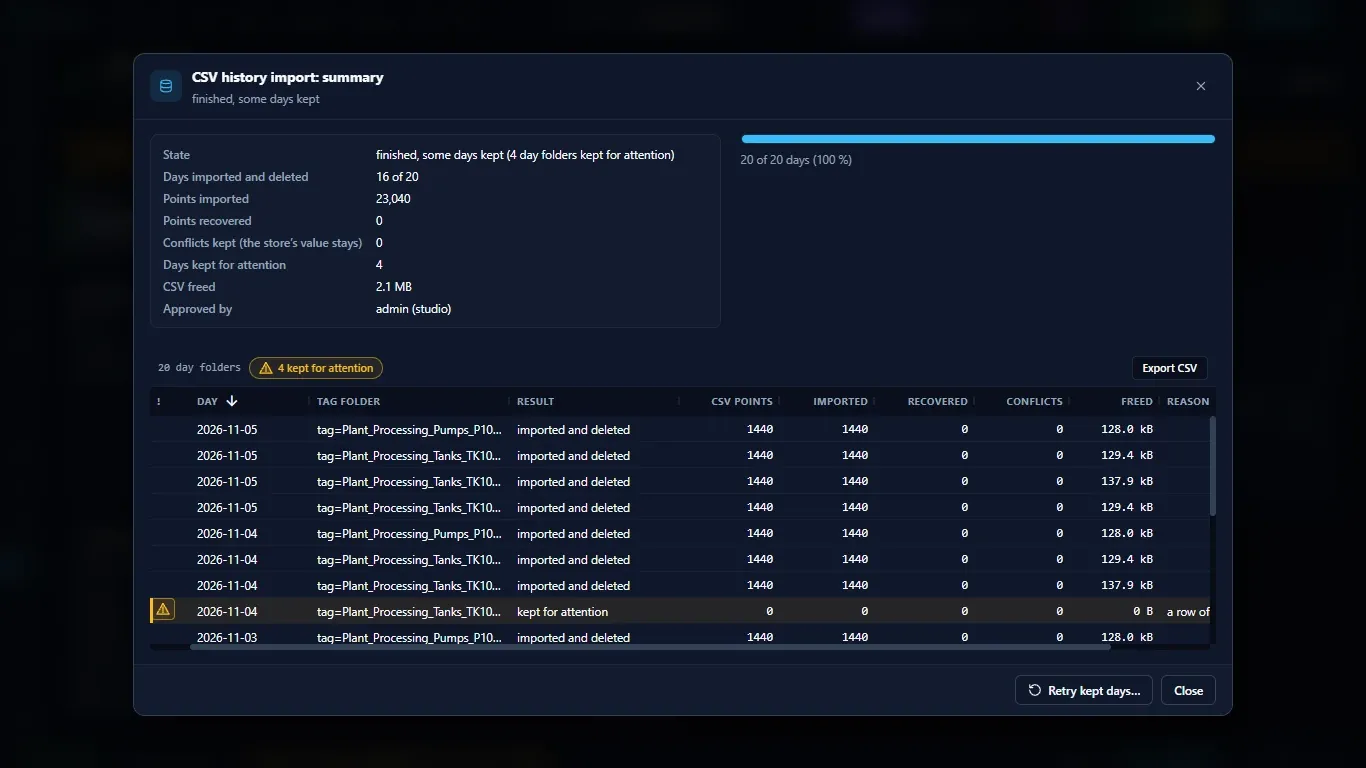
- the state, the days imported and deleted, the points imported and recovered, the conflicts kept (the store’s value stays), the days kept for attention and the CSV freed, with a progress bar;
- the per-day grid: day, tag folder, result (waiting, imported, imported and deleted, kept for attention), CSV points, imported, recovered, conflicts, freed, and the reason. A day kept for attention is marked in its row; click the marker to read the reason. The chip above the grid (“4 kept for attention”) filters to those rows.
- Pause stops after the day in progress, and Resume goes on. Both are recorded in the audit trail (
HISTORIAN_MIGRATION_PAUSED,HISTORIAN_MIGRATION_RESUMED) and need no new signature.
Closing the dialog does not stop the import. Open Review import… again to see where it is. Stopping the server finishes the day in progress, then the import stops; the next start resumes it. A paused or stopped run has not ended: no end record is written until it does.
- Authentication
- Refusal
Read as text
An import starts as a reviewed plan. A signed start sets it running; a signed start that does not start is recorded as refused, and nothing is imported. A running import can be paused, by an administrator or by low disk, and stays paused until an administrator resumes it. A server shutdown stops it after the day in progress, and the next start of the server goes on. The run ends with every day imported and deleted, or with days kept for attention. Kept days can be retried with a new signature, which sets the import running again. In the grid each day is waiting, imported, imported and deleted, or kept for attention.
States
- Plan reviewed (state): nothing written yet
- Server stopped (state): the run has not ended
- Running (state): day by day, newest first
- Paused (state): stays until Resume
- Ended: all imported (state): HISTORIAN_MIGRATION_DONE
- Ended: days kept (state): HISTORIAN_MIGRATION_HELD
Transitions
- Start → Plan reviewed (transition)
- Plan reviewed → Running (authentication): signed start: HISTORIAN_MIGRATION_START. The audit record is written with the signature before anything is imported. If it cannot be written, nothing starts.
- Plan reviewed → Plan reviewed (refusal): signed, not started: HISTORIAN_MIGRATION_REFUSED. The disk is too full, or another start, retry or run is in progress. Nothing is imported. The start record HISTORIAN_MIGRATION_START is already written at that point, and HISTORIAN_MIGRATION_REFUSED follows it. A plan that changed since the dialog showed it, or no CSV history to import, is refused before the signature is used: the dialog shows the new plan.
- Running → Paused (transition): Pause, low disk. Pause stops after the day in progress and is recorded as HISTORIAN_MIGRATION_PAUSED. The import pauses by itself before a day that does not fit on the disk, and when the disk is critically full.
- Paused → Running (transition): Resume. An administrator resumes, with no new signature. It is recorded as HISTORIAN_MIGRATION_RESUMED.
- Running → Server stopped (transition): server stops. The day in progress is finished first.
- Server stopped → Running (transition): next start. The server goes on by itself. A paused import stays paused.
- Running → Ended: all imported (transition): every day imported and deleted
- Running → Ended: days kept (transition): days kept
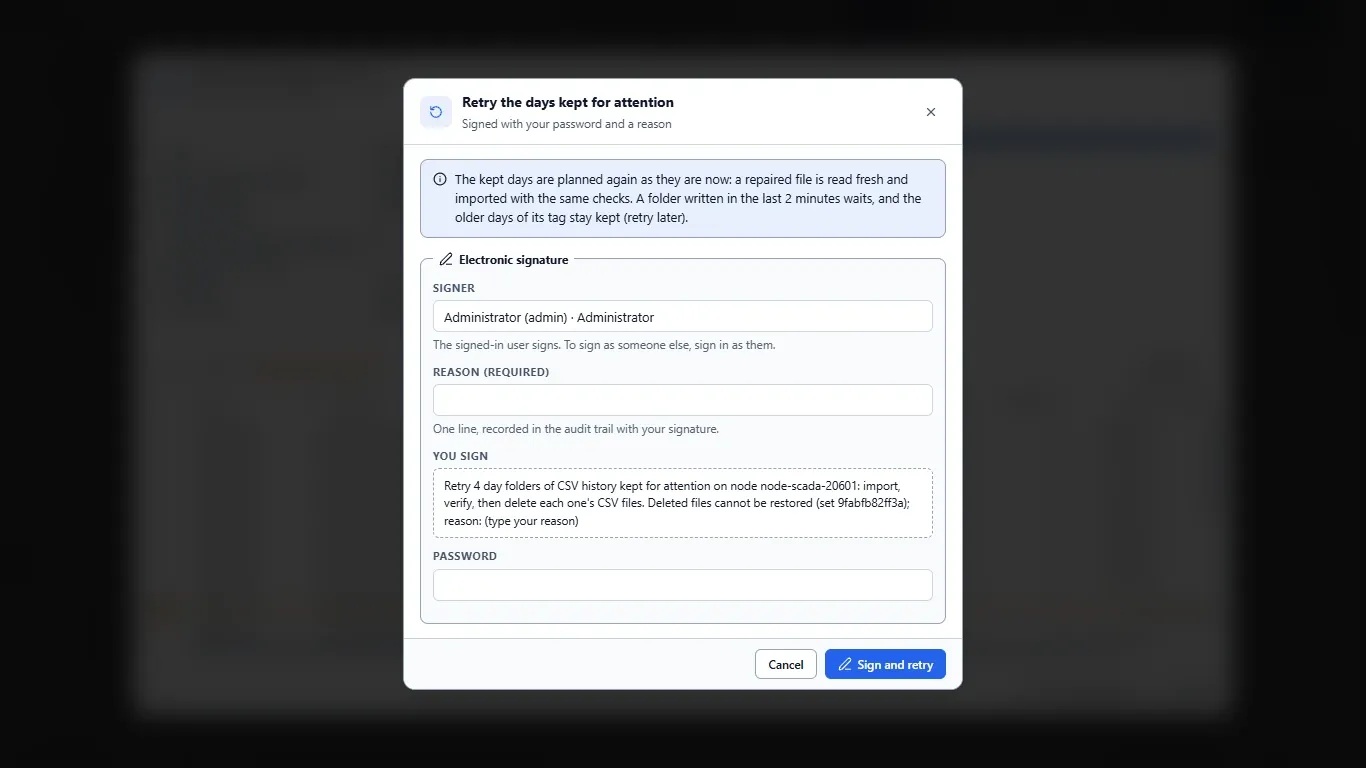
- Ended: days kept → Running (authentication): Retry kept days, signed: HISTORIAN_MIGRATION_RETRY. The record is written before anything changes. The kept days are planned again as they are now.
- Ended: days kept → Ended: days kept (refusal): signed, not started: HISTORIAN_MIGRATION_REFUSED. Every kept day is still being written, the disk is too full, or another start, retry or run is in progress. Nothing changes.
- Ended: all imported → End (transition)
5. Read the summary
Section titled “5. Read the summary”When the import ends, the dialog shows CSV history import: summary, with the totals (with thousands separators, such as “23,040”), who approved it, and the per-day grid. The end is recorded in the audit trail, as for the command line: HISTORIAN_MIGRATION_DONE when every day is imported and deleted, HISTORIAN_MIGRATION_HELD when days are kept, with the totals.
Then check the result as for the command line: open the trends of a few tags over the imported days, and Security > Operations audit filtered on HISTORIAN_MIGRATION.
Retry kept days
Section titled “Retry kept days”A day kept for attention stays CSV and readable. After you fix the cause (for example a damaged file rewritten from a backup), click Retry kept days…. It is signed like the start, with your password and a reason, and recorded as HISTORIAN_MIGRATION_RETRY before anything changes.
The retry plans the kept days again, as they are now:
- A repaired file is read fresh, with its new size and modification time, and imported with the same checks.
- A folder now gone (the retention, or removed by hand) is marked gone.
- A folder written in the last 2 minutes waits. It stays out, and the older days of its tag stay kept with their reason, so trends stay complete. Retry later.
- A folder the start left out because it was being written becomes a day to import once it is no longer written.
The audit record lists each retried day folder with its files (name, size, modification time). A retry without the disk the retried days need is refused. If the audit record cannot be written, nothing changes.
One import at a time
Section titled “One import at a time”A start or a retry while another start, retry or run is in progress is refused. Two administrators clicking at once get one import.
When the server refuses
Section titled “When the server refuses”| Answer | Why | What to do |
|---|---|---|
401 or 403 |
You are not signed in as an administrator, or the call came from an API token or the AI co-pilot. A wrong password is refused too (“signature refused”). | Sign in as an administrator, and type your own password. |
409 busy |
Another start, retry or run is in progress, or an import is already approved. | Wait, and open Review import… again to follow it. |
409 plan changed (or “the days kept for attention changed”) |
The CSV history, or the set of kept days, changed since the dialog showed it. | Check the new plan and sign again. |
409 low_disk |
Free space is under what the import (or the retried days) needs plus the disk guard’s critical margin. | Free space on the historian’s disk, then sign again. |
409 retry_later |
Retry only: every kept day is still kept, because a folder of its tag was written in the last 2 minutes. Nothing changed. | Wait a few minutes, then retry. |
409 nothing_kept, not_approved |
Retry only: no day is kept for attention any more, or no import was approved. | Open Review import… again: it shows where the import stands. |
503 AUDIT_NOT_WRITTEN |
The audit record could not be written. Nothing changed. | Check the audit folder’s disk and access, then try again. |
Every signed start or retry that did not start is recorded as HISTORIAN_MIGRATION_REFUSED, with the cause. The e-signature decision of the import is historian_migrate. The routes are in the Historian CSV import API.
From the command line (offline)
Section titled “From the command line (offline)”The import also runs as a command, with the server stopped.
Before you start
Section titled “Before you start”- The import cannot be undone. After a day is verified in the store, its CSV files are deleted, and eaxScada cannot restore them. If you may want the files back, take a historian backup first:
- with the server stopped, copy the historian folder’s
year=...folders to another disk; or - write a historian archive of the CSV days:
eaxscada historian-backup --from <first day> --to <last day> --out <file.eaxhistory>. A restored archive goes into the columnar store, not back into CSV files.
- with the server stopped, copy the historian folder’s
- Stop the server. The command refuses to run while the server answers on its port or holds its data folder’s lock. It also refuses when an earlier historian restore was cut short; start eaxScada once so that restore completes.
- Run it as the user that runs the server, from the server’s working folder, or pass
--workdir,--config,--dataor--historianas for the otherhistorian-commands. The command-line reference lists every flag. - Check the disk. The dry run prints the disk space the import needs.
1. Run a dry run
Section titled “1. Run a dry run”eaxscada historian-migrate-csvWithout --yes, the command prints the plan and writes nothing:
- the number of days, from the first to the last, and the folders, files and size of the CSV history;
- “Disk needed: about …, plus the disk guard’s critical margin”;
- “Not in this import: …” for each folder left out, for example one written in the last 2 minutes;
- “Nothing was written.”
When the folder holds no CSV history, it says “No CSV history to import” and stops.
2. Run the import
Section titled “2. Run the import”eaxscada historian-migrate-csv --yes --reason "CSV history import after the upgrade"- The audit trail comes first. Before anything is imported, the command writes
HISTORIAN_MIGRATION_STARTto the server’s audit trail, with the plan, your reason, the source (command line) and your operating-system user name. When the trail cannot be written, it stops: “the audit trail cannot be written, nothing was imported”. Without--reason, a default reason is recorded. - Newest day first. Each tag’s folder of a day is imported in its own step, and the command prints one line per step:
deletedwith the points, imported, recovered and conflicts, and the disk freed; orheldand the reason. - At the end it prints the total, lists every day kept and why, and writes
HISTORIAN_MIGRATION_DONE(orHISTORIAN_MIGRATION_HELDwhen days were kept) to the audit trail.
The command’s exit code is 0 only when every day was imported. When days were kept, or the import paused, the exit code is 1.
3. Check the result
Section titled “3. Check the result”- Start the server.
- Open the trends of a few tags over the imported days: the history reads as before, now from the columnar store.
- Open Security > Operations audit and filter on
HISTORIAN_MIGRATION.
What the import does
Section titled “What the import does”Each day is verified before its files are deleted
Section titled “Each day is verified before its files are deleted”- Every row of every file is read. A row that cannot be read keeps the day. Where the trends’ faster CSV reader can read the folder too, both readers must read it the same way, or the day is kept.
- The day goes into the store in one transaction. Inside it, the store’s rows of the day’s tags and time span are read back. They must be what they were before, plus the imported points, value for value. Otherwise nothing of the day is imported and the day is kept.
- After the commit, every CSV point is read back from the store once more.
- Only then are the day’s files deleted, one by one, each only if its size and time are unchanged since it was read. A folder that holds other files is kept with those files.
- Data store
- File or document
- Check or decision
- Data or telemetry
- Refusal
Read as text
A day folder of CSV history passes four checks in order. Every row of every file is read. The day is written to the columnar store in one transaction, and the rows are read back inside it. After the commit every CSV point is read back from the store once more. Then the files are deleted one by one, each only if it is unchanged. A day that fails any check is kept for attention as CSV.
Parts
- Day folder (file or document): the CSV files of one tag, one day
- Every row read (check or decision): both CSV readers agree?. A row that cannot be read keeps the day. Where the faster CSV reader of the trends can read the folder too, both readers must give the same points.
- One transaction (check or decision): rows read back inside it: as before, plus the import?
- Kept for attention (outcome): the day stays CSV. The files are kept and stay readable on trends. The older days of the same tag folder are kept with it.
- Columnar store (data store): holds the day's points
- After the commit (check or decision): every CSV point read back from the store?
- File by file (check or decision): size and time unchanged?
- Imported and deleted (outcome): the CSV files are gone. A file that cannot be deleted yet leaves the day as imported; the next run checks it again and deletes it.
Connections
- Start → Day folder (next step)
- Day folder → Every row read (next step)
- Every row read → One transaction (next step): yes
- Every row read → Kept for attention (refusal): no. Nothing of the day is imported.
- One transaction → Kept for attention (refusal): no. The transaction is rolled back: nothing of the day is imported.
- One transaction → Columnar store (data or telemetry): commit
- Columnar store → After the commit (data or telemetry): read back
- After the commit → Kept for attention (refusal): no. The imported rows stay in the store; the files are kept.
- After the commit → File by file (next step): yes
- File by file → Kept for attention (refusal): changed. A file whose size or time changed since it was read is kept, and the day with it.
- File by file → Imported and deleted (next step): yes
Where the store and the CSV disagree
Section titled “Where the store and the CSV disagree”- Where the store already has a value for a tag and timestamp, the store keeps its value. A different CSV value is recorded as a conflict in the store, never dropped silently, and counted in the step’s line.
- Of two CSV writes of one tag and timestamp, the later wins (
late.csvafterdata.csv, then the later row), as trends showed them.
Points that become visible
Section titled “Points that become visible”- Recovered points. Earlier releases kept a CSV copy of every point. When the store refused a batch, the copy held its points, but trends did not show them. The import brings these points into the store, counts them as “recovered”, and they now show on trends, reports and exports.
- A torn last line is not imported. A write cut short at the end of a file (a power cut, a killed process) can leave a last line without its end. The built-in CSV reader never showed it. The trends’ faster CSV reader could show it when it could still read it, so such a point can disappear from a trend after the import.
Days kept for attention
Section titled “Days kept for attention”- A day that fails a check stays as CSV. Its files are kept, and it stays readable on trends as before. The reason is printed and recorded, for example “the two CSV readers disagree” or a verification that failed.
- The older days of the same tag are kept with it, with the reason “a newer day of the same tag folder … is kept for attention”. Importing an older day under a kept newer day would hide the newer day from the trends. The same holds under a folder left out because it was written in the last 2 minutes.
- After you fix the cause, retry. In System Health, use Retry kept days. On the command line, run the command again: a new dry run lists what is still CSV.
Low disk
Section titled “Low disk”- The import does not start when the historian’s disk has less free space than the import needs plus the disk guard’s critical line (
historian.disk.critical_free). - A running import pauses before a day that does not fit, or when the disk becomes critically full, and says why (“low disk: … free, the next day needs about …”). Free some space, then click Resume in System Health, or run
eaxscada historian-migrate-csv --yesagain: it resumes.
A stop in the middle
Section titled “A stop in the middle”- The import resumes and never imports a day twice. A stop at any point (Ctrl+C, a killed process) is safe. A day cut short before its commit is redone whole. A day imported but not yet deleted is verified and then deleted.
- A server shutdown finishes the day in progress while the import runs in the server, then the import stops, and it resumes at the next start. The day is not kept for attention. (Before eaxScada a55d6af, a shutdown in the middle of a day rolled it back and kept it, with the older days of its tag, until an administrator retried them.)
- To resume, run
eaxscada historian-migrate-csv --yesagain: without--yesit says where the import stands and writes nothing. Or start the server: it resumes a running import in the background by itself. A paused import stays paused until you resume it, with the command or with Resume in System Health. - A resume with the command or with Resume is recorded as
HISTORIAN_MIGRATION_RESUMEDin the audit trail. The server going on by itself at its start writes a line in the server log, not an audit record.
Encryption at rest
Section titled “Encryption at rest”With encryption at rest, the import writes into the encrypted store. It writes no temporary file in the clear: its staging table is inside the store.
A notice file in the historian folder
Section titled “A notice file in the historian folder”After an import, the historian folder may hold scada_history.bulk-notice.json: the time ranges the import wrote, with no values (and no tag names under encryption at rest). It is expected; the server reads and removes it itself at a later start. Do not delete it. See The notice file after a restore or an import.
Troubleshooting
Section titled “Troubleshooting”- “eaxScada is running: stop it before a restore or an offline backup”. The server, or another
historian-command, still runs or holds the data folder’s lock. Stop it, then run the import again. - “the audit trail cannot be written, nothing was imported”. Check the audit folder’s disk and access. Nothing changed.
- “some days of CSV history were kept for attention (their files are kept)”. Read the
kept:lines at the end of the output. Those days stay readable as CSV. - “the import paused: low disk …”. Free space on the historian’s disk, then run the command with
--yesagain.