

Set up a view-only station
Migrated page, not yet verified against the current code. Treat values, paths and examples as indicative until this notice is removed.
A screen in the control room or on the line shows the live process with nobody signed in. It shows only the screens you choose. It never sends a command. When an operator needs to act, they sign in on the same screen, operate, and the screen goes back to viewing only when they sign out or stop using it.
This works in every edition, Free included (inside Free’s 60-minute runtime sessions).
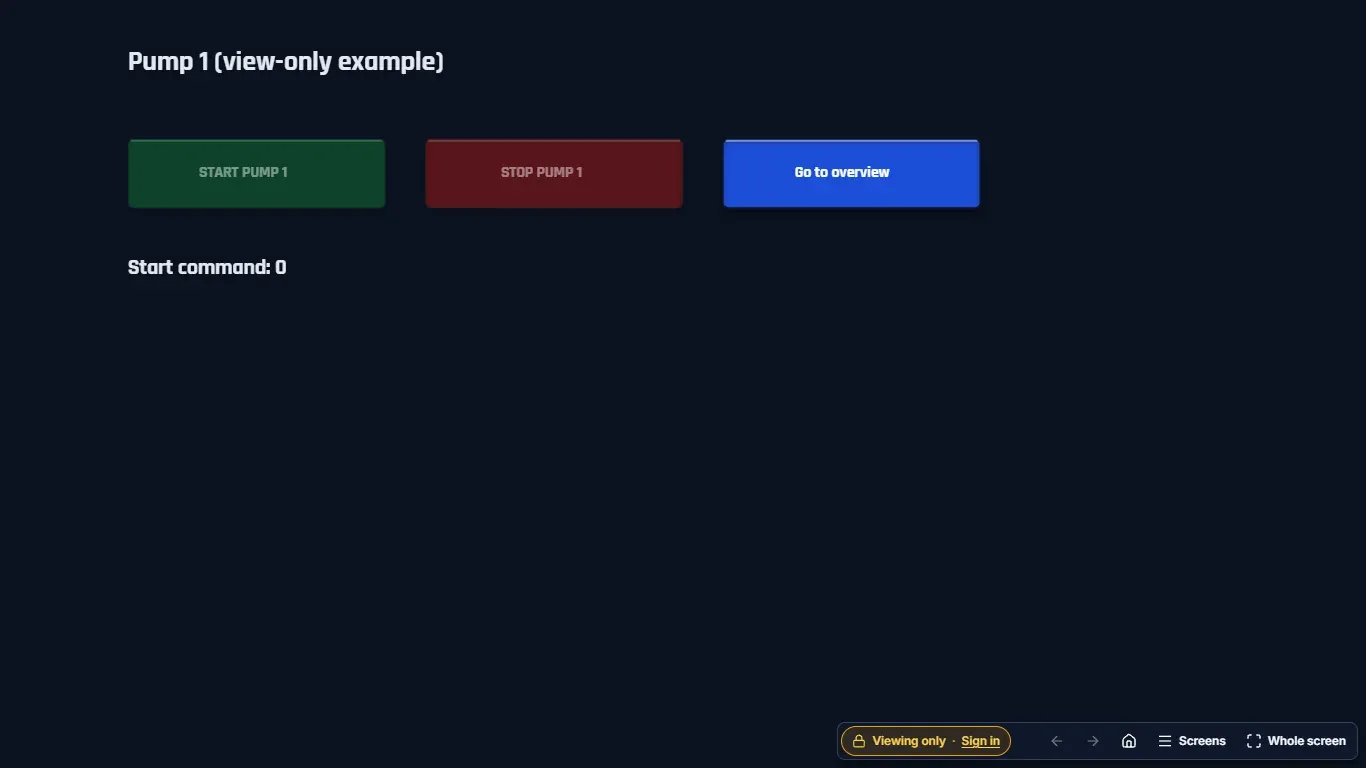
What a station is
Section titled “What a station is”- A station is one browser on one device. You register it in the Studio and pair it once with a one-time code. The browser then keeps a station credential in its own cookie. Clearing that browser’s cookies unpairs it.
- A station views as a viewer identity. A viewer identity is an account of its own kind. It has no password, never signs in, is never an Administrator and never writes. Several stations can share one viewer identity, so their read rights are kept in one place.
- An address is never an identity. You can add address ranges to a station, but they only narrow it: the paired browser is refused from any other address. No browser becomes a station because of its address.
- A station never signs and never acts. Every command, acknowledgement and e-signature needs a signed-in person. See Viewing only for what this means for IEC 62443 and 21 CFR Part 11.
Before you start
Section titled “Before you start”- You are a security administrator (the Administrator role). Stations are set up on site only, never through eaxCloud remote access.
- The project is deployed, and you know which screens the station shows.
- Plan which tags the station may read. A new viewer identity reads nothing until it has read rules.
1. Create the station
Section titled “1. Create the station”-
Open Security > Stations and select New station.
-
Fill in the form:
Field What to enter Name What the screen is, for example Control room wall. At most 64 characters.Viewer identity A new viewer identity, with a name such as control_room(empty:viewer), or An existing viewer identity to share one with other stations.Screens it may show Tick the screens. Pick the start screen: it opens first. At least one screen. Address ranges (optional) For example 10.1.2.0/24, 10.1.3.15. Empty: any address.Idle cap (minutes) Optional. A person who signs in on this screen is signed out after this long without input, when their groups allow longer. 1 to 720; empty: no cap. Show alarms On by default: the alarm banner and list, read only. Allow Studio Off by default: a person signed in on this screen may not open the Studio. -
Select Save. The Pair station dialog opens with a pairing code.
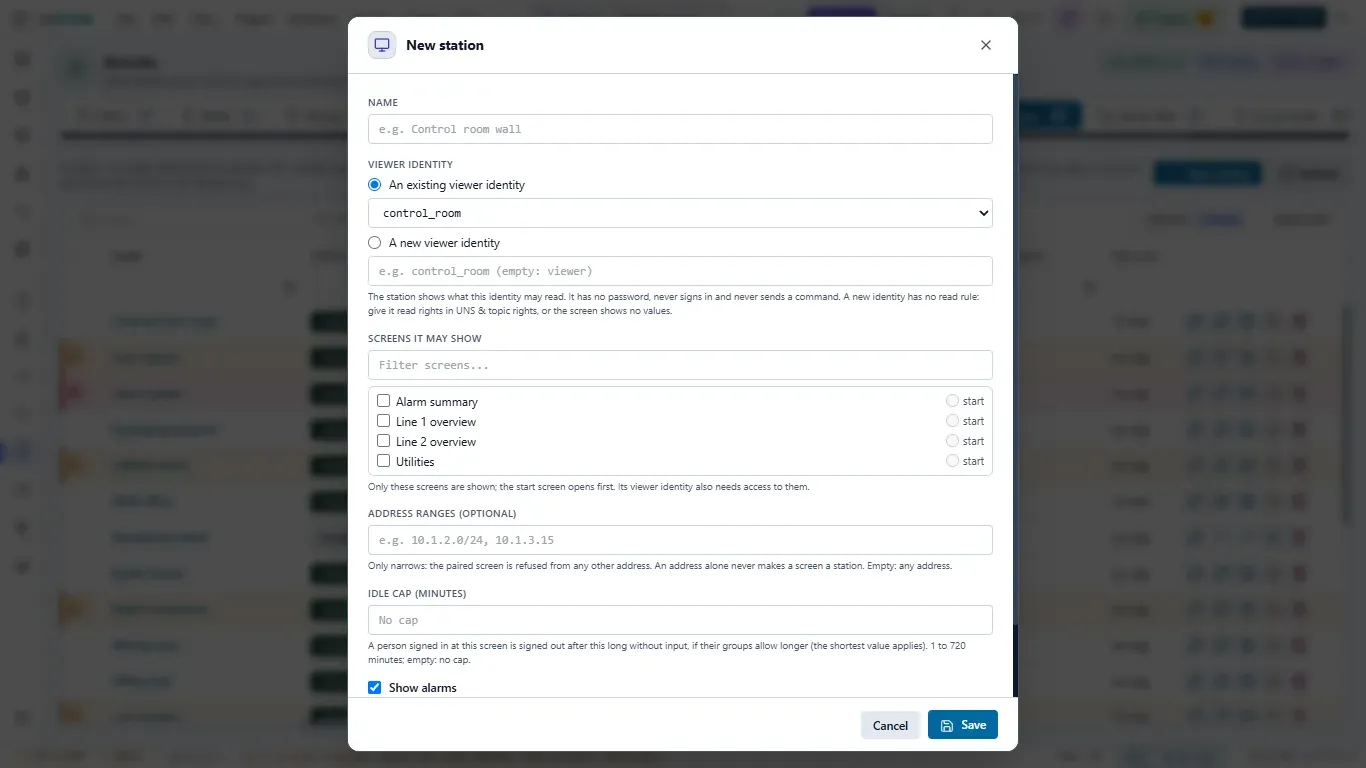
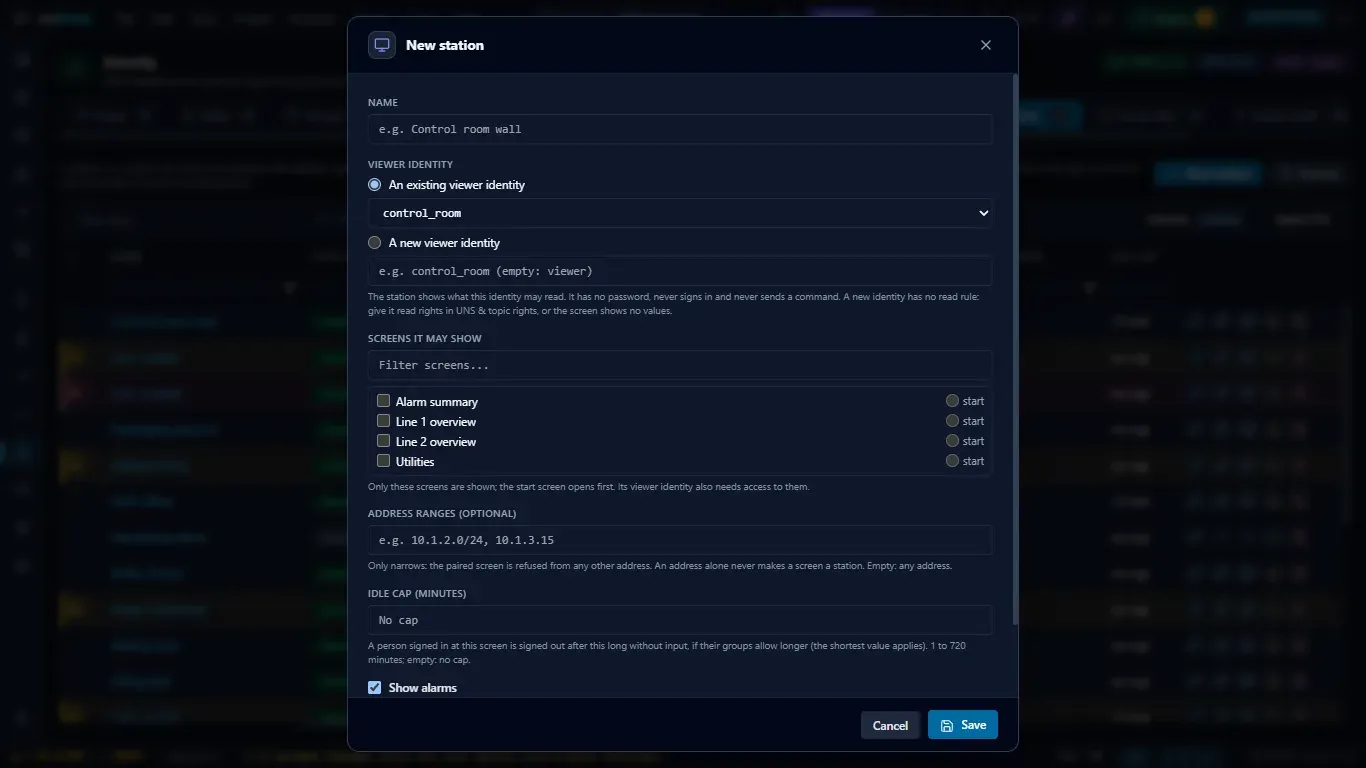
Creating a station is recorded first in the Access audit (STATION_CREATED, and VIEWER_CREATED for a new viewer identity). When the record cannot be written, nothing is created.
2. Give the viewer identity its read rights
Section titled “2. Give the viewer identity its read rights”A new viewer identity has no read rule, so its screens show no values. Until it has one, its station’s row in Security > Stations carries the warning No read rule. Give it read rules for the tags its screens show, and nothing more.
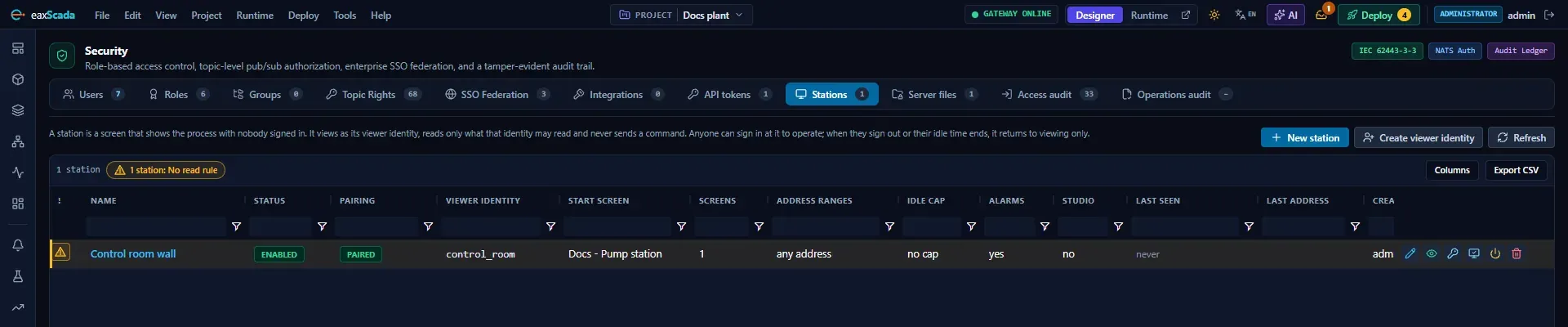
- In the station’s row, select the eye button, Read rights for the viewer identity (or Give read rights in the row’s warning card). The Add permission rule dialog opens with Grant to set to User or viewer and the station’s viewer identity chosen. You can also open it from Topic Rights: set Grant to to User or viewer and pick the identity under View-only station identities.
- Keep Target Type UNS Topic, Action subscribe and Effect ALLOW.
- In Target Subject / Pattern, enter the tag path prefix its screens show, for example
Area/Line1/>. - Select Add Rule. Add one rule per prefix.
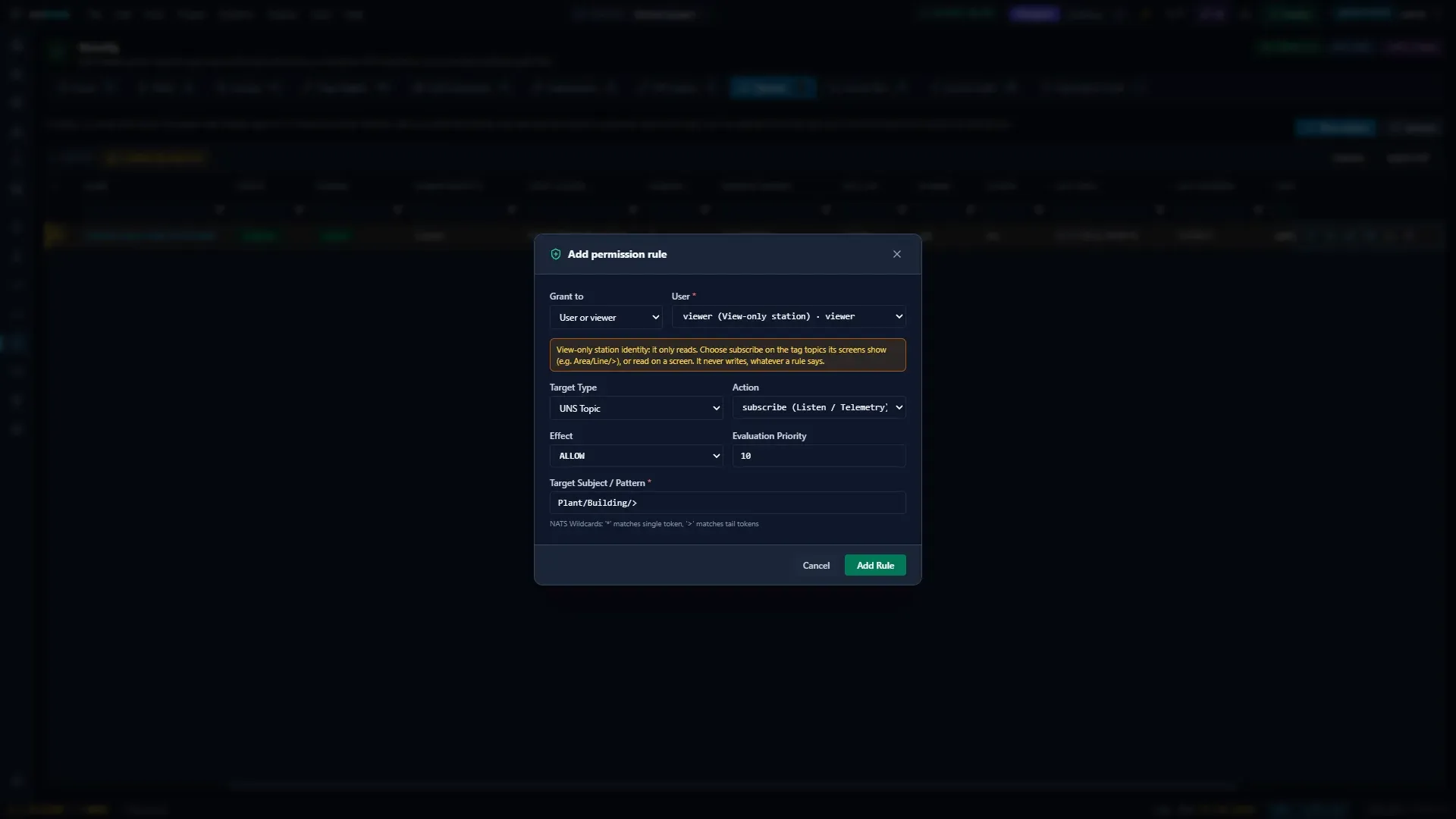
For a viewer identity the dialog offers only reads: subscribe on a topic, or read on a screen. The server holds to the same rule: any other rule for a viewer identity (another action, or a DENY) is refused with 400, code viewer_identity, and recorded as PERMISSION_CHANGE_REFUSED.
Write rules have no effect on a viewer identity. The refusal goes by the kind of account: even an Administrator role, a write rule or a group with writes changes nothing.
A screen that has a Required Access Level is shown only when the viewer identity passes that level. See Restrict a screen to a role level.
3. Pair the screen
Section titled “3. Pair the screen”The code has 8 characters, works once and expires after 10 minutes. It is shown only in this dialog and is not kept.
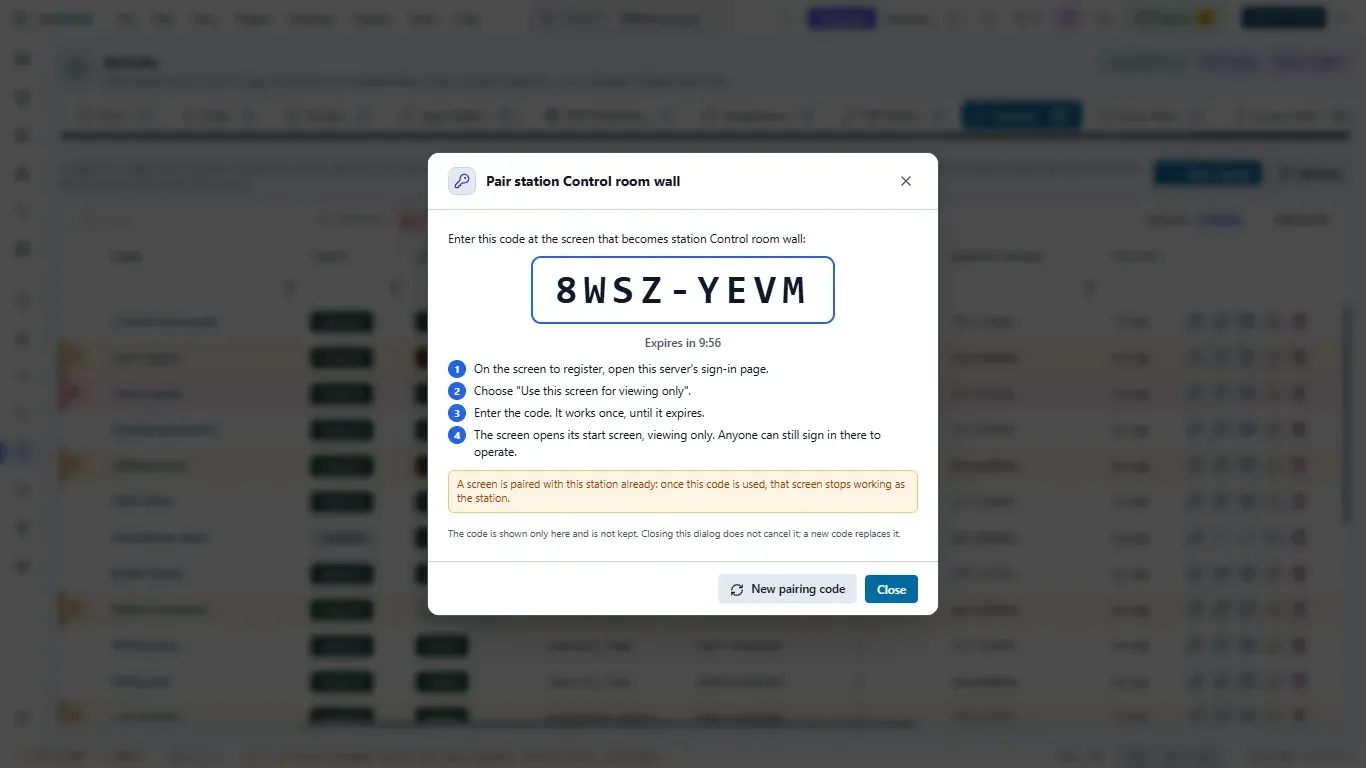
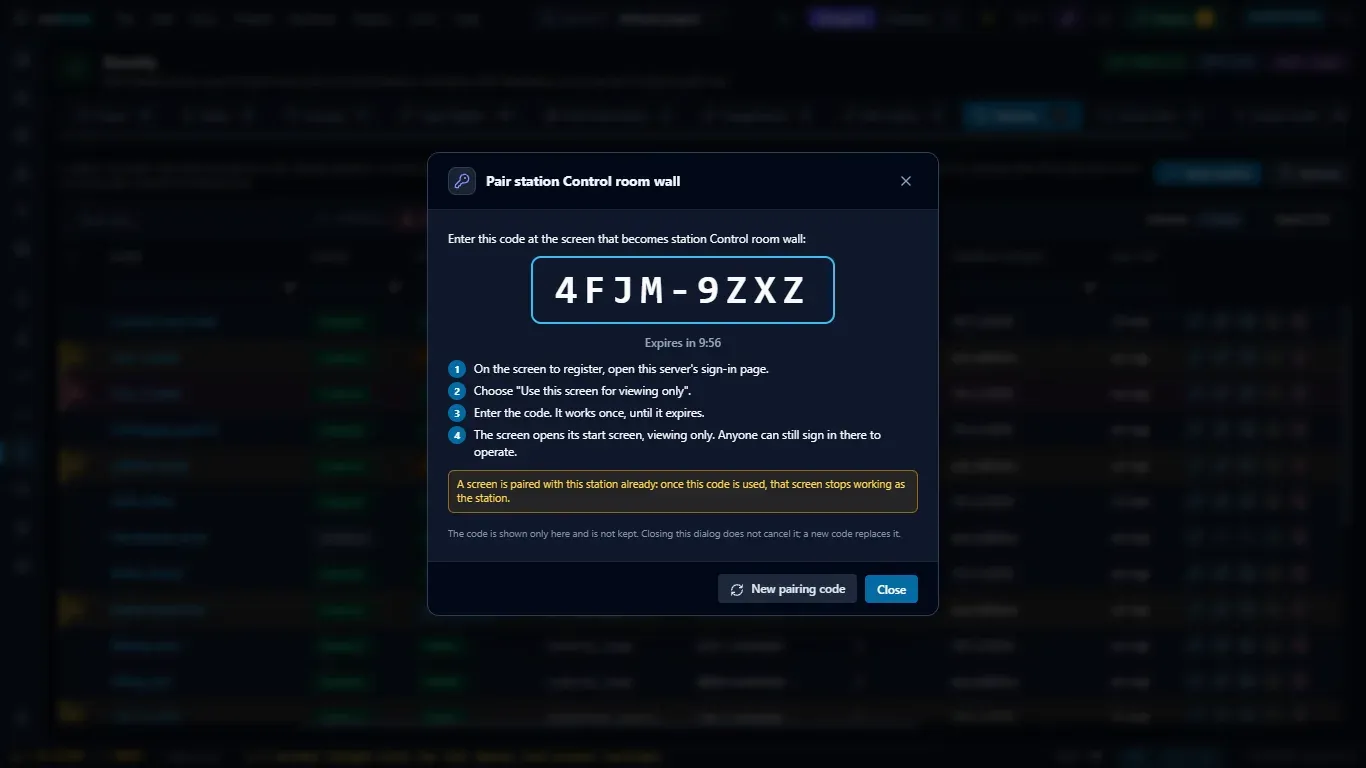
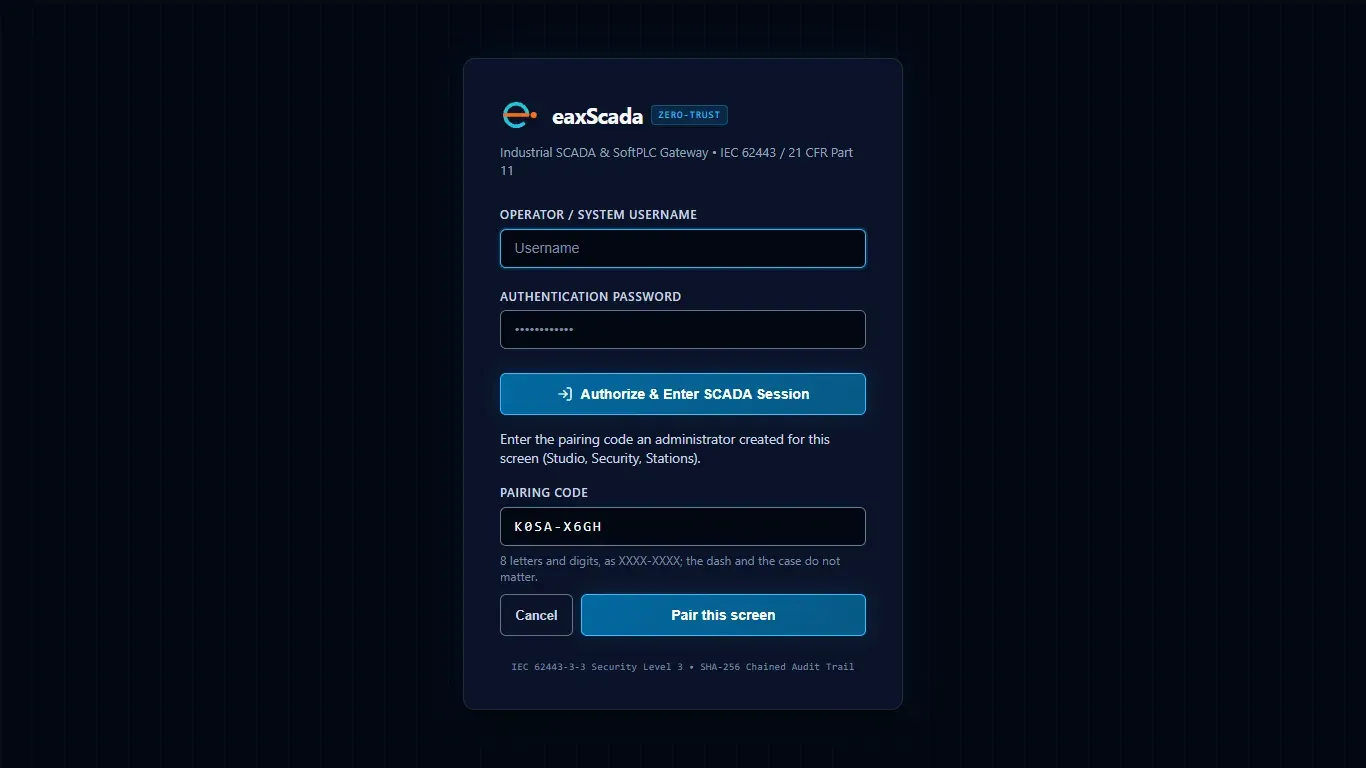
At the screen you register:
- Open this server’s sign-in page.
- Choose Use this screen for viewing only.
- Enter the code. The dash and the case do not matter.
- Select Pair this screen. The screen opens its start screen, viewing only.
To pair the browser you are using, select Pair this browser on the station’s row instead. You stay signed in as yourself; once you sign out, this browser shows the station’s screens. When the station does not allow Studio, the Studio is refused in this browser from then on, to you too: pair this way only on the screen that becomes the station.
Pairing is refused when:
| Message | Why |
|---|---|
| The code is wrong or has expired | Ask for a new code. |
| Too many attempts: wait 10 minutes | 5 attempts per address in 10 minutes, the successful ones included. After 50 wrong codes from all addresses together, every pairing at a screen is refused for the rest of the 10 minutes. Pair this browser still works. |
| Pairing refused: open the sign-in page of this server directly | The request came from another site. |
| A screen is paired on site, never through remote access | The request came through eaxCloud remote access. |
4. What the station shows, and what it refuses
Section titled “4. What the station shows, and what it refuses”- Only its screens. The screen list shows the station’s screens only. Any other screen is refused, and the runtime goes back to the start screen.
- Only the tags its viewer identity may read, live.
- Alarms, read only, filtered by the viewer identity’s rights. With Show alarms off, the station gets no alarms at all.
- Every command control is disabled. Buttons, setpoint fields, toggles, faceplate commands and alarm acknowledgement look disabled and say “Sign in to operate”. A tap shows a short hint with a Sign in button. It never opens the sign-in dialog by itself, and it never sends the tapped command after sign-in.
- No control status. The health indicator shows VIEWING, “Control status is not shown while viewing only”, and no STATUS UNKNOWN banner: a station operates nothing, so this is not a fault.
- No Studio, no configuration, no records. The Studio, the engineering and security pages, the assistant, the shift log, Analytics and Reports, audit trails, logs, recipes, batch records and genealogy records are refused.
The server refuses all of this, not only the screen. A write from a station is refused with “sign in to operate”. A request other than a read is answered 401, never run as the viewer identity. Refusals are recorded as VIEWONLY_REFUSED (at most one a minute per station and route).
5. Sign in on the station, and back to viewing only
Section titled “5. Sign in on the station, and back to viewing only”- Select the chip Viewing only · Sign in. The sign-in dialog opens over the running screen. The screen stays as it is.
- Sign in. The screen now has the person’s own rights, and only theirs: the station’s screen list and read rules no longer apply. Controls work again.
- When the person signs out, their idle time ends, their session reaches its maximum or an administrator ends it, the screen returns to viewing only. It does not show the sign-in page. Every open command dialog closes without sending.
A person signed in on a station gets the station’s Idle cap when it is shorter than their own idle time. With Allow Studio off, the Studio is refused to them on this screen (403, “Studio is not opened from this station”); they can open it from an engineering station. See Session limits.
The Access audit records VIEWONLY_START when the station starts viewing, VIEWONLY_SIGNIN when a person signs in on it and VIEWONLY_RETURN (with the reason) when the screen returns to viewing only.
6. Change, pair again, disable or delete
Section titled “6. Change, pair again, disable or delete”All of these are in the station’s row in Security > Stations. Each change is recorded first in the Access audit (STATION_CHANGED, STATION_PAIRING_CODE, STATION_PAIRED, STATION_DISABLED, STATION_DELETED); without the record nothing changes.
- Change screens, address ranges, idle cap, alarms or Studio with Edit station. A change applies to the screen’s next requests.
- Pair again (a new device, or a browser whose cookies were cleared): select New pairing code and enter it at the new screen. Once the code is used, the screen paired before stops working as the station within 3 seconds, and a person signed in there is signed out.
- Disable the station: its screen stops showing the process within 3 seconds, a person signed in there is signed out, and a waiting pairing code stops working. Enable it again to pair it.
- Delete the station: its screen stops at once and must be paired again. Its viewer identity is kept.
- Disable the viewer identity (in Security > Users) to stop every station bound to it. In the users API a viewer identity can only be disabled, enabled or deleted. It is created with a station, or on its own with
POST /api/security/stations/viewers(On an HA cluster).
7. On an HA cluster
Section titled “7. On an HA cluster”On an HA cluster the stations are replicated between the nodes (since eaxScada df57e95a). A single node works as described above, unchanged.
-
One set of stations for the cluster. A station paired, changed, disabled or deleted on one node is the same on every node. Paired screens keep working after a failover: they do not need to be paired again.
-
A disable or a delete applies on every node. The screen stops on every node within moments, and its sessions there end.
-
The viewer identities must exist on every node. Users are each node’s own, and so are viewer identities: like users, create them on every node, with the same username. A node binds a station to its own viewer identity of the same username, and only if that account is of the viewer kind. Without one, that node refuses the station’s credential:
VIEWONLY_REFUSEDwith “viewer identity missing, disabled or not of the viewer kind”. Give the viewer identity the same read rules on every node too. -
Create a viewer identity on another node in the Studio of that node, signed in there as an administrator:
- Open Security > Stations and select Create viewer identity in the toolbar. When the window is narrow, it is in the More menu.
- Enter the name, the same as on the other nodes, for example
control_room. It has 1 to 64 characters, with no spaces or slashes. - Select Create.
The dialog creates only a viewer identity. It creates no station, gives no role and sets no password, and the viewer identity never signs in.
VIEWER_CREATEDis recorded first. The stations whose cluster copy names that username, and that have no viewer identity on this node, are bound to it at once: the message lists them, and each is recorded asSTATION_REPLICATED. When the viewer identity is there already, the dialog says so and creates nothing. A name that belongs to a person’s account is refused: pick another name. -
Then give it its read rights. A new viewer identity has no read rule, so its screens show no values. Give it the same read rules as on the other nodes: select Read rights for on its station’s row, or open Topic Rights (see step 2).
-
Or use the API.
POST /api/security/stations/viewerswith{"name": "control_room"}does the same, signed in on that node as a security administrator (same origin, JSON body, never through eaxCloud remote access). The answer is201with"created": trueandrebound(the stations bound to it on this node), or200with"created": falsewhen the viewer identity is there already. An account of that name that is a person is refused with409 viewer_unusable. See Station routes. -
A node without the viewer identity refuses station changes. On an HA cluster, changing a station, asking for a new pairing code or Pair this browser, on a node where the station has no usable viewer identity (missing, disabled or not of the viewer kind), is refused with
409 viewer_unusable: “the station’s viewer identity is not usable on this node: create the viewer identity control_room on this node, or make the change on a node where the station works”. Nothing changes on any node. A change that picks a viewer identity this node has is allowed. -
The station dialog shows the way out. When the Studio gets this refusal, the station dialog explains it in plain words and offers Create viewer identity with the name filled in. Once it is created, the station dialog selects it: save again. When the account of that name is a person, or when a single server has the viewer identity missing or disabled, the dialog explains it without that button.
-
A change the cluster does not confirm is refused. Creating, changing, pairing, disabling or deleting a station is answered
503 store_unavailable, and nothing changes, when the cluster does not confirm it, while the node is not yet synchronized with the cluster, or while it has lost the cluster’s change feed. Try again once the cluster answers. -
Fail closed until synchronized. A node uses no station credential until it holds the cluster’s stations: a few seconds after it starts, and for as long as its change feed is lost. During that time the wall screens show the sign-in page, and
VIEWONLY_REFUSEDsays “stations not synchronized with the HA cluster”. They go back to viewing only once the node is synchronized. -
Recorded. Each change a node applies from the cluster is recorded in that node’s Access audit as
STATION_REPLICATED, with the node it came from. -
Pairing codes stay on their node. A pairing code works only on the node that issued it: enter it on that node’s sign-in page. The pairing it makes is replicated. The last address and the time a station was last seen are each node’s own.
-
Upgrading. The first time a node runs this build, it adds the stations it already had to the cluster’s copy. From then on the cluster’s copy is the reference: a station deleted while a node was stopped does not come back from that node.
Sign-in lockouts are shared by the nodes since eaxScada 528843ae: 5 wrong passwords from a station’s address lock the account from that address on every node, and an administrator’s unlock on one node clears it on all. While the shared lockout store does not answer, each node uses its own counts and locks. See Lockout parameters.
Verify
Section titled “Verify”- The station shows the chip Viewing only · Sign in, its start screen and live values.
- A button on it is disabled and says “Sign in to operate”.
- A person can sign in on it, operate, sign out, and the screen returns to viewing only.
- Security > Stations shows the station as paired, with its last address and the time it was last seen.
Troubleshooting
Section titled “Troubleshooting”| Symptom | Cause | Fix |
|---|---|---|
| The station shows its screens but no values | The viewer identity has no read rule for these tags (the row says No read rule when it has none at all) | Select Read rights for (the eye button) on its row and add read rules (step 2). |
| A screen is missing from the station | It is not in the station’s list, or the viewer identity does not pass its access level | Edit the station, or check the screen’s Required Access Level. |
| The station shows the sign-in page again | It was disabled, deleted or paired on another screen, its viewer identity is disabled, or the browser’s cookies were cleared | Check the station’s row, then pair the screen again. |
| The station works from one desk but not another | Its address ranges do not include that address | Edit the address ranges. Only addresses seen through server.trusted_proxies count. |
| A row in Security > Stations has a warning | The viewer identity has no read rule, no screen is paired yet, a screen is no longer in the project, the viewer identity is missing or disabled, or Studio is allowed | Open the row’s warning card and follow it. |
| On an HA cluster, the station works on one node but shows the sign-in page on another | That node has no viewer identity of the same username, of the viewer kind, or it is not yet synchronized with the cluster | On that node, create the viewer identity with the same username: Security > Stations > Create viewer identity, or POST /api/security/stations/viewers (see On an HA cluster). The VIEWONLY_REFUSED record on that node gives the reason. |
On an HA cluster, a station change, a new pairing code or Pair this browser is refused with 409 viewer_unusable |
The station’s viewer identity is missing, disabled or not of the viewer kind on this node | Select Create viewer identity in the station dialog (the name is filled in), give it read rights, then save again. Or create it with POST /api/security/stations/viewers, or make the change on a node where the station works. |
| A screen in kiosk mode shows the sign-in page after some minutes | Idle time is on and the screen is not a station | Register it as a station. |
Related
Section titled “Related”- Session limits: idle time and session maximum per group, the countdown, the station routes.
- Security and 21 CFR Part 11: viewing only, IEC 62443 and Part 11.
- Set up touch panels and kiosks.
- Keep accounts and audit trails in order.