

Set the deploy settings
Decide what this PLC requires before it loads a program, and deploy with the deploy dialog. The PLC enforces the settings itself, for every client; the Web Studio only shows and changes them. The full rules are in the Deploy settings reference.
Before you start
Section titled “Before you start”- Reading the settings: any signed-in user. Changing them: Lead_Engineer or Administrator, with your e-signature (your password again), whether you turn a setting on or off.
- Require a signed review approval to deploy works with eaxScada’s design reviews: the PLC must trust eaxScada’s approval key, which it does once it has pinned eaxScada’s sign-in key (not in standalone or development mode).
1. Open Project Settings
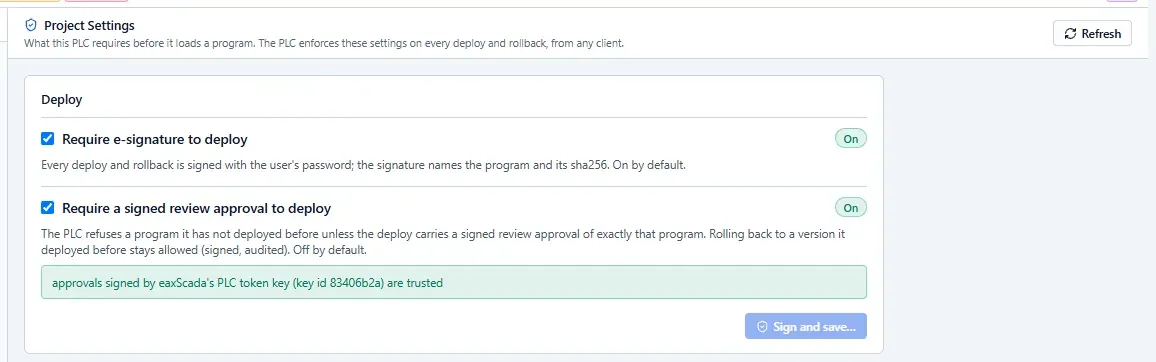
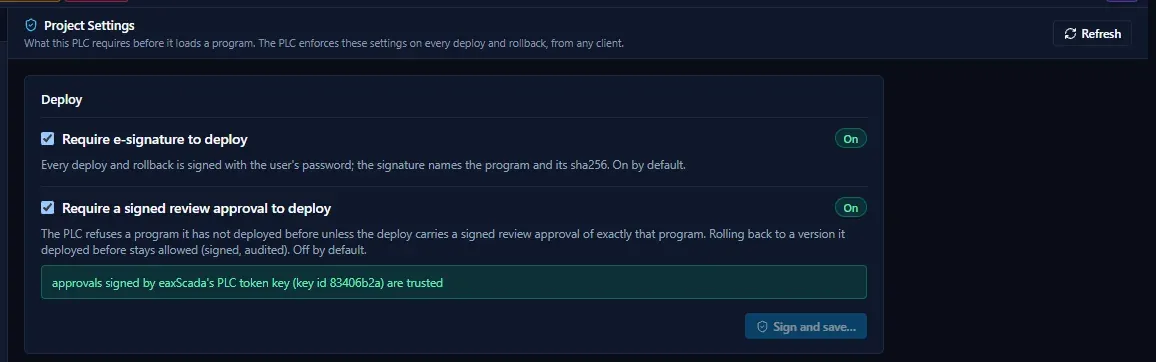
Section titled “1. Open Project Settings”Choose File → Project Settings. The Deploy card shows the settings as the PLC reports them:
| Setting | Default | Meaning |
|---|---|---|
| Require e-signature to deploy | On, for new and existing projects | every deploy and rollback is signed with the user’s password; the signature names the program and its sha256 |
| Require a signed review approval to deploy | Off | the PLC refuses a program it has not deployed before unless the deploy carries a signed review approval of exactly that program; rolling back to a version it deployed before stays allowed (signed, audited) |
| Require e-signature to untest an online edit | Off | an untest (the accepted program put back while an online edit is tested) is signed with the engineer’s password; off, the engineer and the reason are still recorded. A PLC that does not report this setting shows it as Not available (Make online edits) |
Under the review setting, a line says which approval key the PLC trusts. No trusted approval key is configured on this PLC means every approval is refused: with the setting on, only versions the PLC deployed before can be loaded.
2. Change a setting
Section titled “2. Change a setting”- Tick or clear the setting.
- Click Sign and save….
- In Change the deploy settings, give a reason (recorded with the change), enter your password and click Sign and save.
The PLC records the change in its audit trail (CONFIG / DEPLOY_POLICY). For users below Lead_Engineer the settings are read-only and the card says who may change them.
3. Deploy through the deploy dialog
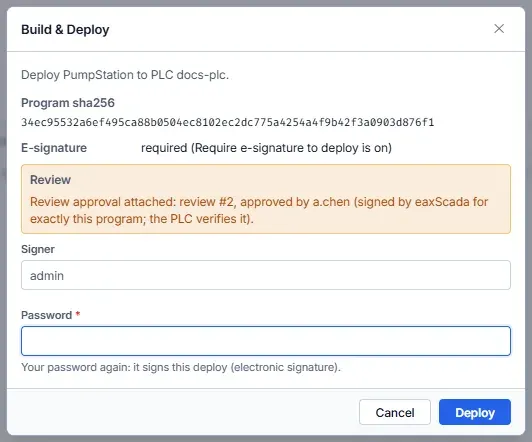
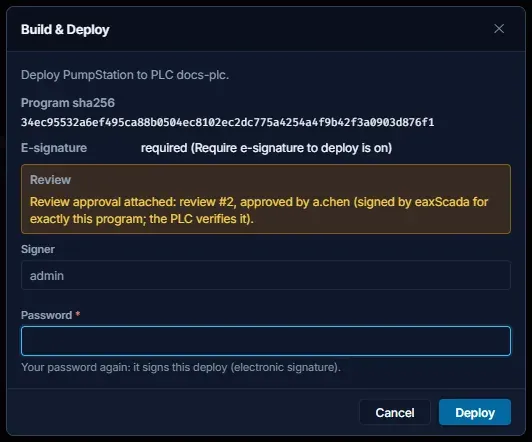
Section titled “3. Deploy through the deploy dialog”Build & Deploy, the ladder editor’s Deploy LD and Roll back open the deploy dialog. It says, before anything is sent:
- the program’s sha256 (what an approval must name);
- whether the PLC requires the e-signature;
- with the review setting on, the review approval it attaches (for a rollback, the approval of that stored version);
- the Signer (you, read-only) and an empty Password field, when the e-signature is required.
If the settings cannot be read, the dialog asks for the signature anyway and says that the PLC applies its settings when it receives the deploy.
Reviewed programs
Section titled “Reviewed programs”With Require a signed review approval to deploy on, the deploy dialog asks eaxScada for the approval of exactly the program you are deploying and attaches it. eaxScada issues one only when a review of this exact source (sha256) has been approved under the site’s review policy, and only to a Lead_Engineer or Administrator. If there is none, the dialog says No approved review for this program and nothing is sent: request a review in eaxScada and deploy once it is approved. A program this PLC has deployed before needs no new approval. An approval is valid for 5 minutes; the PLC verifies it on every deploy.
- Product
- Service or process
- Data or telemetry
- Configuration or deploy
- Refusal
Read as text
With the review setting on, the deploy dialog asks the PLC for the review approval of exactly the program it deploys. The PLC asks eaxScada with your own credential. eaxScada issues a signed approval, valid 5 minutes, only for an approved review of that sha256; without one the dialog sends nothing and offers to request a review, which the PLC forwards to eaxScada. The deploy carries the approval and your e-signature, and the PLC checks both itself before it loads anything.
Participants
- eaxScada (product)
- eaxPLC (product)
- Web Studio (service or process)
Steps, in order
- Web Studio → eaxPLC (data or telemetry): POST /api/deploy/review-approval. the program, or the stored version of a rollback
- eaxPLC → eaxScada (data or telemetry): POST /api/collab/plc-approval. PLC id and sha256, with your credential
- eaxScada: Approved review?: this sha256, this PLC; site review policy; Lead_Engineer or above
- eaxScada has one:
- eaxScada → eaxPLC (reply): Signed approval. valid 5 minutes
- eaxPLC → Web Studio (reply): The approval, as eaxScada signed it
- eaxScada has none:
- eaxScada → eaxPLC (refusal): no_approved_review
- eaxPLC → Web Studio (refusal): No approved review for this program. nothing is sent
- Web Studio → eaxPLC (data or telemetry): POST /api/deploy/review-request. revision or stored version, never program text
- eaxPLC → eaxScada (data or telemetry): POST /api/collab/reviews. with the PLC id and your credential
- Web Studio → eaxPLC (configuration or deploy): POST /api/deploy. program, approval, e-signature
- eaxPLC: Checks, in order: engineer, e-signature unless waived; no online edit open; AI guard, then the review gate; MQTT inputs and safety targets
- A check fails:
- eaxPLC → Web Studio (refusal): Refused: nothing is loaded. e.g. review_approval_invalid, online_edit_active
- Every check passes:
- eaxPLC: Compiles and loads: at a cycle boundary
- eaxPLC → Web Studio (reply): Deployed
Roll back does the same for the stored version you roll back to. The approval names that version (POST /api/deploy/review-approval with {rollback_commit}), and the PLC reads the program from its own version store, never from the request. In eaxScada, the review must target that Stored version. If a deploy, online test or rollback is refused for want of a review, the IDE offers to request one in eaxScada.
The dialog shows the approval it attaches: Review approval attached: review #N, approved by …. A dialog left open for more than 4 minutes fetches the approval again when you confirm. See Review screens and PLC programs before deploy.
Request the review from the Web Studio
Section titled “Request the review from the Web Studio”When a project deploy, an online test or a rollback is refused for want of an approved review (eaxScada’s review gate, or this PLC’s own review setting), the Web Studio opens No approved review for this program with a Request review button instead of a plain error. The dialog says what the review will cover:
- Project revision N for a project deploy or an online test;
- Stored version <commit> for a rollback;
- the program’s sha256 when it is known.
Give a Title, an optional Note for the reviewers and optional Reviewers (usernames, separated by commas: named reviewers alone may decide; none means anyone at the level the site’s review policy asks for). Nothing is pre-filled. You cannot review your own request.
Request review sends POST /api/deploy/review-request to this PLC with {project_revision} or {rollback_commit}, the title, the note and the reviewers. The request never carries program text: a body with source, or any other field, is refused. The PLC adds its own id and forwards the request to eaxScada (POST /api/collab/reviews) with your own credential. eaxScada reads the program of that revision or version from this PLC as you, so the review covers exactly what the change will load, decides again who may request, and records REVIEW_REQUESTED. Nothing on the PLC changes. Deploy again once the review is approved.
- Who: a Lead Engineer or above, from this PLC’s own pages. Never the AI co-pilot, never an eaxCloud remote session.
- When the PLC cannot send it (an older eaxPLC without the route, or an eaxScada that does not yet accept the PLC token for review requests and answers
403), the dialog says so and gives the exact steps in eaxScada instead: Deploy > Request review… > A PLC program version, this PLC, and the same target.
Result
Section titled “Result”The PLC loads a program only with what its settings require. A refused deploy leaves the running program untouched and is in the PLC’s audit trail.
Troubleshooting
Section titled “Troubleshooting”| Message | Cause and fix |
|---|---|
| No approved review for this program | No review of exactly this source is approved in eaxScada (a change since the review counts), or you are below Lead_Engineer. Request a review in eaxScada and deploy once it is approved. Nothing was sent. |
| No approved review for this program: … eaxScada could not be reached | The PLC asks its eaxScada for the approval: check that eaxScada is up and reachable from the PLC. |
review_approval_required |
The deploy reached the PLC without an approval (another client). Deploy from the Web Studio or through eaxScada, which attach it. |
review_approval_invalid … expired or issued in the future |
The approval is valid for 5 minutes; the PLC’s and eaxScada’s clocks differ by more than about 2 minutes. Synchronise the clocks (NTP) and deploy again. |
review_approval_invalid … not trust / no trusted approval key |
The PLC has not pinned eaxScada’s key (standalone, development mode, or not connected yet), or eaxScada’s key changed. To accept a new eaxScada key, delete the pin file (--token-pin, default data/security/scada_plc_token.pub) and restart the PLC. |
| Sign and save… stays disabled | Nothing changed, or you are below Lead_Engineer. |
| electronic signature required for …: … under the password | eaxScada refused the signature: a wrong password, an account that is not active, or a locked account (the fifth wrong password locks it for 15 minutes). You stay signed in and the dialog stays open. Type the password again, or wait for the lockout to end. |
| The Studio asks you to sign in again while you sign | eaxScada no longer has your session (it ended, or eaxScada restarted): the PLC answers “not signed in to eaxScada: sign in again to sign …”. Sign in; the Studio then sends the deploy or the change once more. |