

Review screens and PLC programs before deploy
Migrated page, not yet verified against the current code. Treat values, paths and examples as indicative until this notice is removed.
Discuss a change where it is (on a screen element, a tag or a line of a PLC program), have other people review exactly what a deploy would publish, and make the deploy wait for their signed approval.
Before you start
Section titled “Before you start”| What | Who | Edition |
|---|---|---|
| Read comments | anyone who may read the screen or the tag | every edition |
| Write, reply, resolve | Lead_Engineer or Administrator | every edition |
| Request a review | Lead_Engineer or Administrator | Pro, Enterprise (Free for evaluation) |
| Approve or reject | a signed-in person at the policy’s level, never the requester | Pro, Enterprise |
| The two-person policy | Enterprise | |
| Make the policy stricter | Lead_Engineer or Administrator | |
| Weaken it or switch it off | Administrator |
The server decides every one of these. The studio shows its answers: a button the server would refuse is disabled with the reason, or not shown.
1. Comment on a screen element
Section titled “1. Comment on a screen element”- Open the screen in the designer.
- Right-click the element and choose Add comment (or select it and press Comments in the toolbar, then Add comment).
- Write the comment and press Comment (Ctrl+Enter). Type
@and a name to mention a person.
The element gets a numbered pin on the canvas. Pins follow the element when it moves, and the canvas zoom. They are shown in the designer only, never in the operator runtime, and never in an exported picture of the screen.
The Comments tab of the right column lists the screen’s threads in three groups:
- Open: Show selects the element; Reply and Resolve answer it.
- Outdated: the element was removed from the saved screen. Show in version shows the element as it was in the version the comment was written against.
- Resolved: Reopen opens it again. A reply to a resolved thread reopens it too.
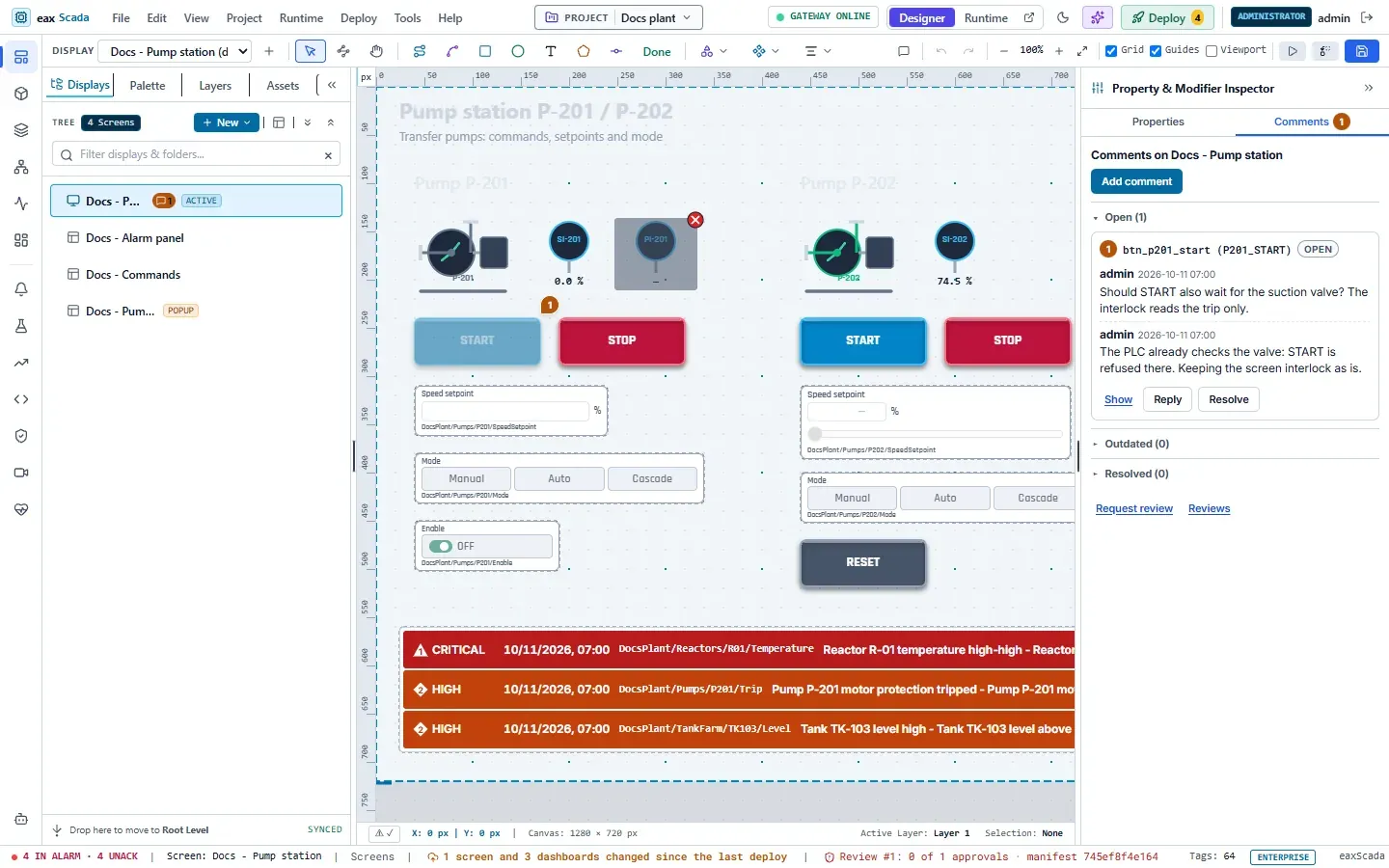
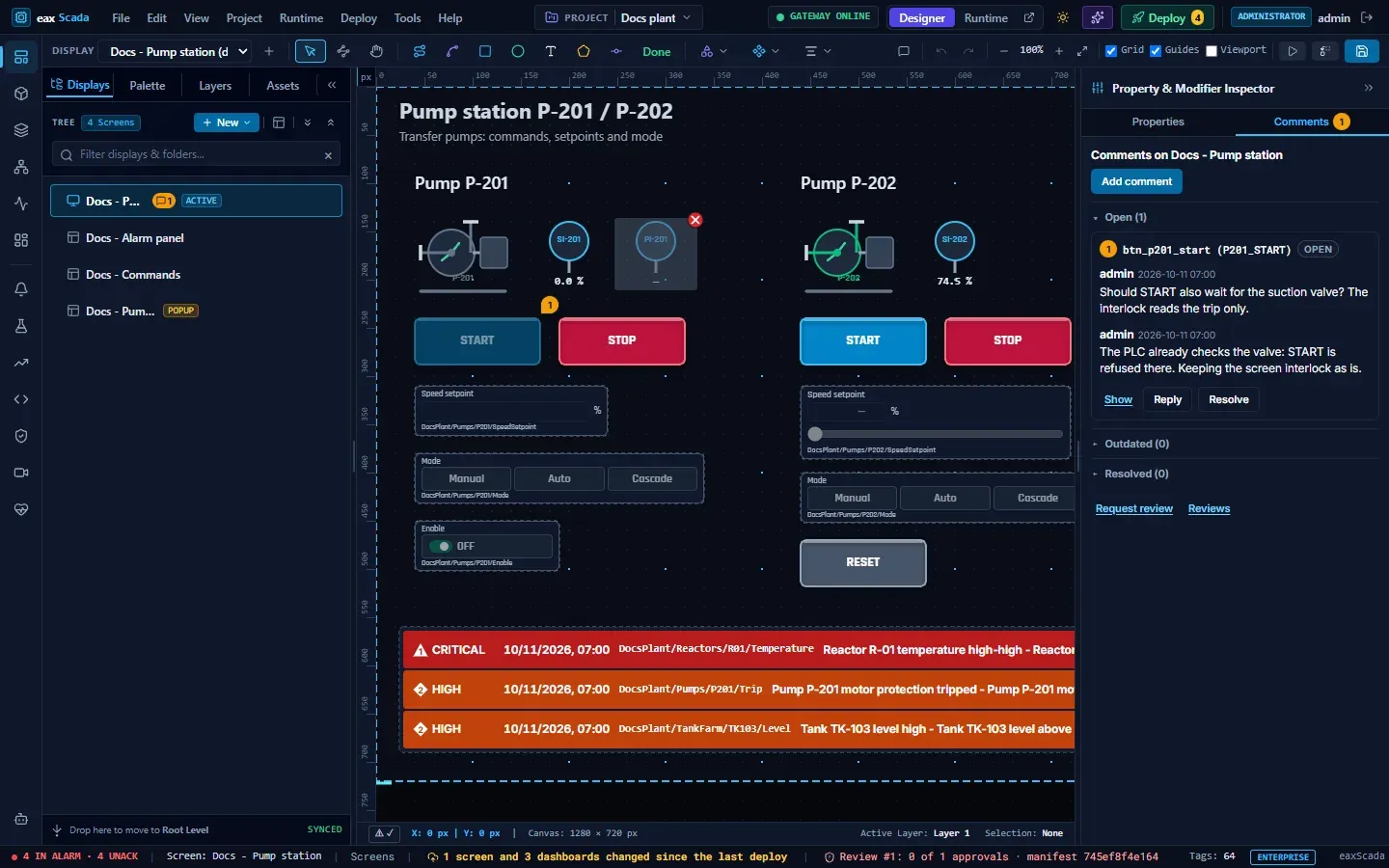
A comment pins an element of the saved screen. Save first if you just added the element.
The display tree shows the number of open comments next to each screen. The inspector of a selected element shows its open comments and the comments on the tags it is bound to.
2. Comment on a tag
Section titled “2. Comment on a tag”In Drivers → Local tags, the comments action of a tag opens its thread panel, with the number of open comments as a badge. The inspector’s Bound tags list opens the same panel.
3. Comment on a line of a PLC program
Section titled “3. Comment on a line of a PLC program”- Choose Deploy → PLC program comments and review….
- Pick the PLC. The program it runs now is shown, read only.
- Put the cursor on a line and press Comment on this line.
A marker at the end of the line shows the number of threads and opens them under the line. A comment follows its line into new versions of the program (by the line and its neighbours). When the line cannot be found any more, the comment is listed under Outdated comments.
The PLC’s own Web Studio does not show these comments yet: it has no connection to this server’s comments.
4. Request a review
Section titled “4. Request a review”- Choose Deploy → Request review… (or Request review in the Comments tab, or in the Deploy dialog).
- Choose what to review:
-
Project: the deploy manifest a Deploy would publish now (every screen as saved, the pages, docks, dashboards and navigation);
-
A PLC program, by one of three targets:
- Program text: the exact source to deploy. Use the program the PLC runs fills it in (read from the PLC, exact bytes), or Load an ST file…;
- Project revision: a revision of the PLC’s project, for a project deploy or an online test;
- Stored version: a version stored on the PLC, for a rollback. Pick it from the list of the PLC’s stored versions, read from the PLC with your own rights.
The current project revision is shown read-only. The review page says what it covers in What this review covers, and a re-review starts with the same target selected. An approved review of a stored version lets a Roll back from the eaxPLC IDE through: the IDE fetches the approval and attaches it. A review request made from the eaxPLC IDE (after a refused deploy, online test or rollback) arrives here too, marked “via the eaxPLC IDE”.
-
- Give a title and, if you like, a note.
- Tick the reviewers. Only people at the policy’s level are listed. When you name reviewers, only they may decide; with none ticked, anyone at the level may.
- Press Request review.
The review page opens. It shows:
- the state (pending, approved, rejected, withdrawn) as the server reports it;
- who must approve: the site policy now, and the approvals that count;
- every signed decision, with the person, the level, the time, the comment and the exact meaning signed;
- the changes: one row per changed file (
project.jsonfor the project’s settings,screens/<id>.jsonper screen,program.stfor a PLC program), and the selected file’s diff. A program diff opens in the code editor, read only.
- Configuration or deploy
- Refusal
Read as text
A review of a project or of a PLC program starts as pending. Signed approvals move it to approved once the site policy has the approvals it needs: one, or two by different people under the two-person policy. One signed rejection moves it to rejected, also after it was approved. The requester can withdraw it. A deploy is let through only by an approved review of exactly the manifest being deployed; when the manifest changed since the request, the deploy is refused and a new review is needed.
States
- pending (state): waits for approvals
- approved (state): the policy is met
- withdrawn (state): lets no deploy through
- rejected (state): blocks this manifest
- Not deployed (outcome): request a re-review
- Deploy let through (outcome): by the review gate
Transitions
- Start → pending (transition). A review is requested, of the manifest a project deploy would publish now or of one PLC program.
- pending → pending (transition): 1 of 2 approvals. Under the two-person policy the first signed approval leaves the review pending: one more is needed.
- pending → approved (transition): the approvals the policy needs, signed. One approver: one signed approval. Two-person review: two, by two different people. An approval by the requester, or by someone below the policy's level, is refused.
- pending → withdrawn (transition): requester withdraws
- approved → withdrawn (transition): requester withdraws. The Studio offers Withdraw on a pending review; the server also accepts the requester's withdrawal of an approved one.
- pending → rejected (transition): a signed rejection
- approved → rejected (transition): a signed rejection. A reviewer who has not decided yet can still reject an approved review. A rejected review of a manifest refuses every deploy of that manifest.
- approved → Not deployed (refusal): deploy of a changed manifest. Something was saved after the review was requested: the review approved a different manifest. A decision on a pending review is refused for the same reason.
- approved → Deploy let through (configuration or deploy): deploy of exactly this manifest. Where the site policy also requires the AI assistant's check, a project deploy needs that check too.
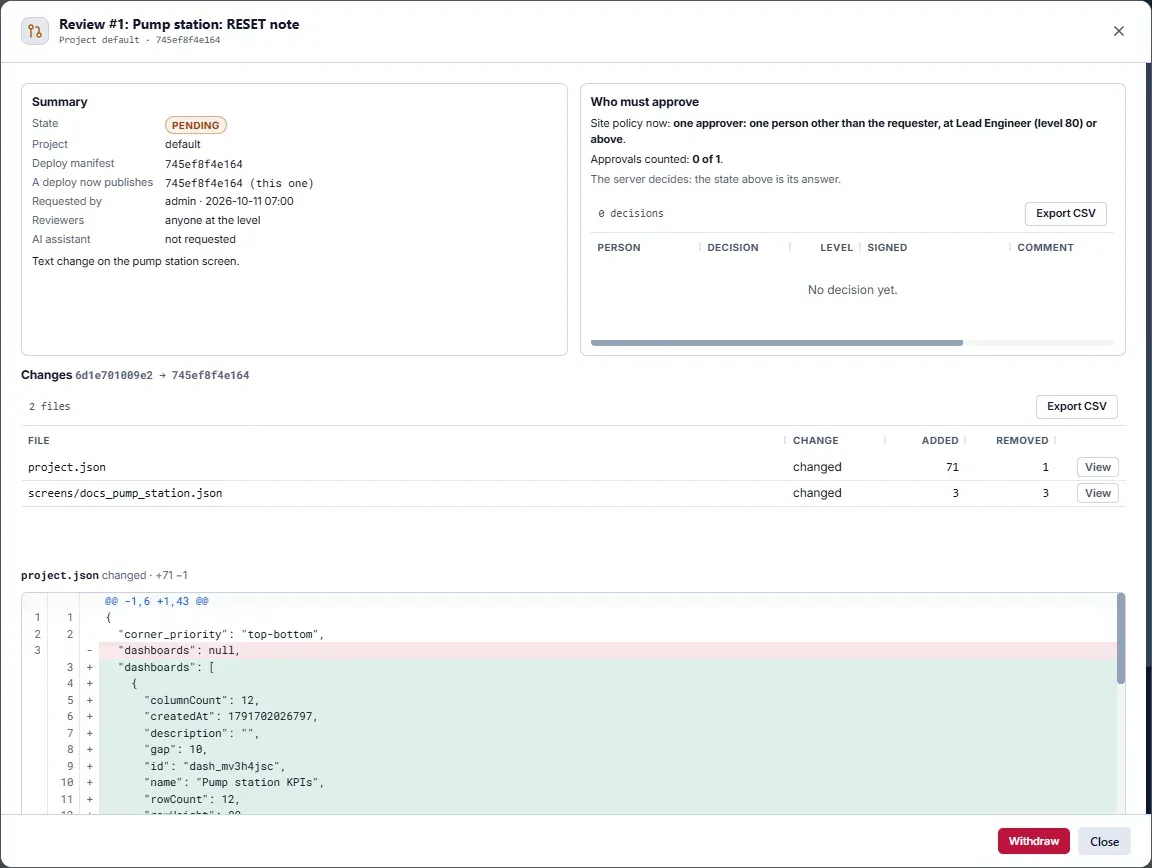
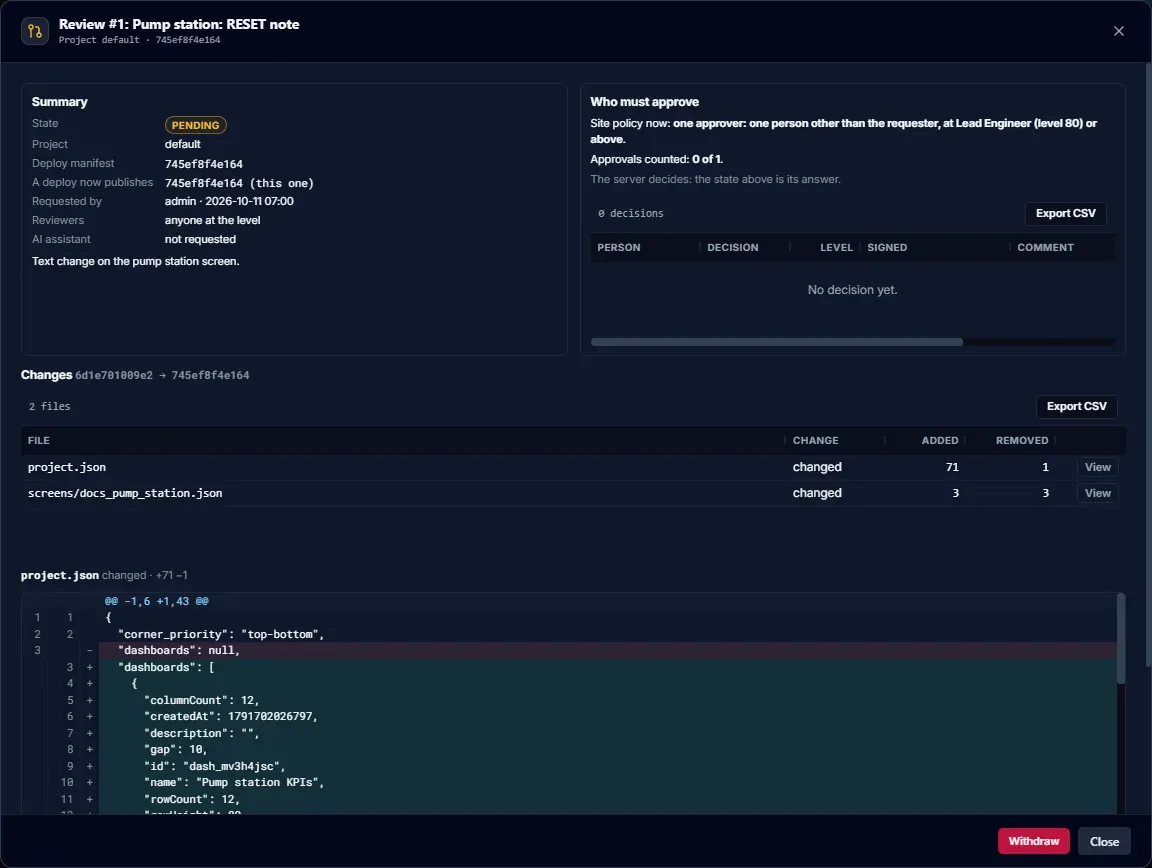
The requester can Withdraw a pending review. A withdrawn review lets no deploy through.
Deploy → Reviews… lists all the reviews of the project and its PLCs, and My reviews (the ones you requested, review or decided), with filters and Export CSV.
5. Approve or reject
Section titled “5. Approve or reject”- Open the review (from Reviews…, the Deploy dialog or the status bar).
- Press Approve… or Reject…. The requester never sees these buttons.
- Check the meaning you sign (for example
Approve review #12 of project plant1 deploy manifest a91f0c2d7e44). The signer is you, shown read only. - Enter your password (and, to reject, the reason) and press Sign and approve or Sign and reject.
A wrong password approves nothing: the dialog stays open with its message and an empty password field, and you stay signed in (the server answers 403 signature_refused, never the 401 of an ended session). It counts toward the account lockout, as every electronic signature does. The approval is bound to the review’s manifest: if the project changed since the review was requested, it is refused and the page asks for a re-review.
6. Deploy
Section titled “6. Deploy”Open Deploy. Before you press it, the dialog shows what the server would decide now:
| The dialog says | Meaning |
|---|---|
| Review before deploy: off (site policy) | deploys do not wait for a review |
| Review #12: approved by mkhan (level 80), jdoe (level 80) and the manifest | the review approves exactly this manifest |
| Review required: none requested | press Request review |
| Review #12: waiting for approvals | the review needs more approvals |
| Review #12 approved a different manifest | something was saved after the approval: press Request re-review |
| Review status unknown | the status could not be read; the server still checks when you deploy |
If the open screen has unsaved changes, Deploy saves them first, which changes the manifest: the dialog warns that the server will then refuse the deploy.
If the server refuses the deploy, nothing is deployed and the dialog shows Not deployed: the server refused (review required) with the server’s reason.
The status bar shows the review the next deploy needs (for example Review #12: 1 of 2 approvals · manifest a91f0c2d7e44). With live editing on, an automatic deploy that the review gate refuses shows auto-deploy refused: review required.
7. Set the policy
Section titled “7. Set the policy”- Open Project → Open / Switch Project… (the Project manager) and its Review before deploy section.
- Choose Off, One approver or Two-person review, and the lowest level an approval counts at.
- Press Save review policy.
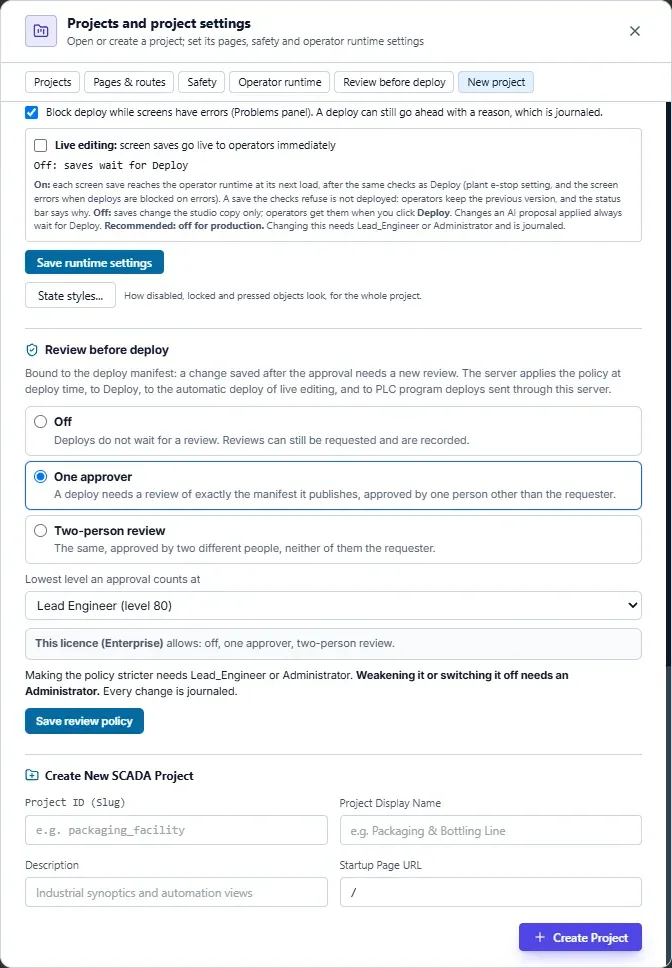
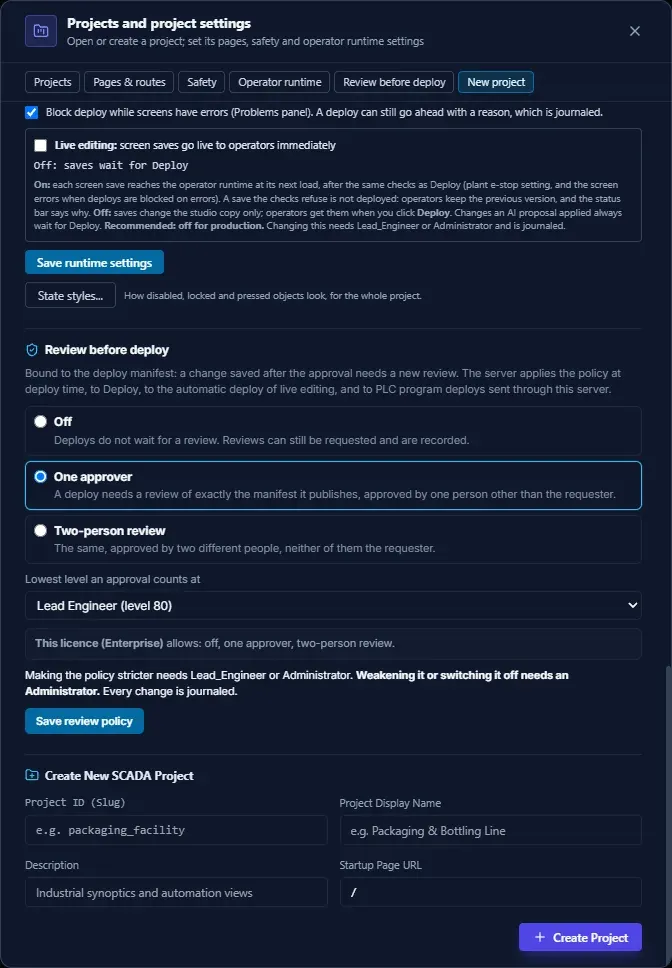
The section says what this licence allows. Making the policy stricter needs Lead_Engineer; weakening it or switching it off needs an Administrator (the choices are disabled for others). The change is saved against the project’s revision: if the project changed meanwhile, it is read again and you choose again. Every change is journaled as REVIEW_POLICY_CHANGED.
Deploy a reviewed PLC program
Section titled “Deploy a reviewed PLC program”eaxPLC has its own deploy settings, which the PLC enforces itself: Require e-signature to deploy (on) and Require a signed review approval to deploy (off by default). With the second one on, the PLC loads a program it has not deployed before only with a signed approval of exactly that program. See eaxPLC deploy settings.
The review page of a PLC program shows the PLC’s own settings in its Deploy gate on PLC card, as the PLC reports them:
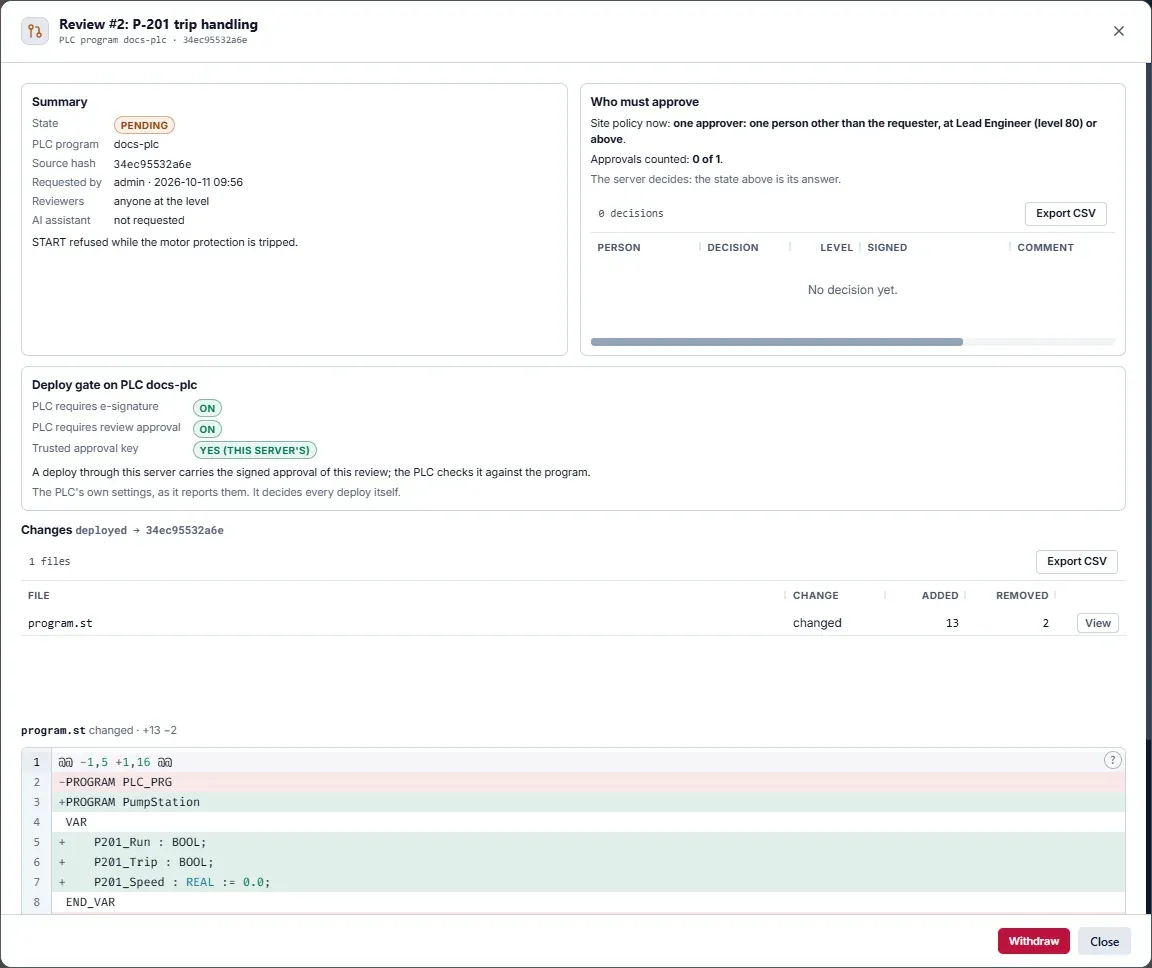
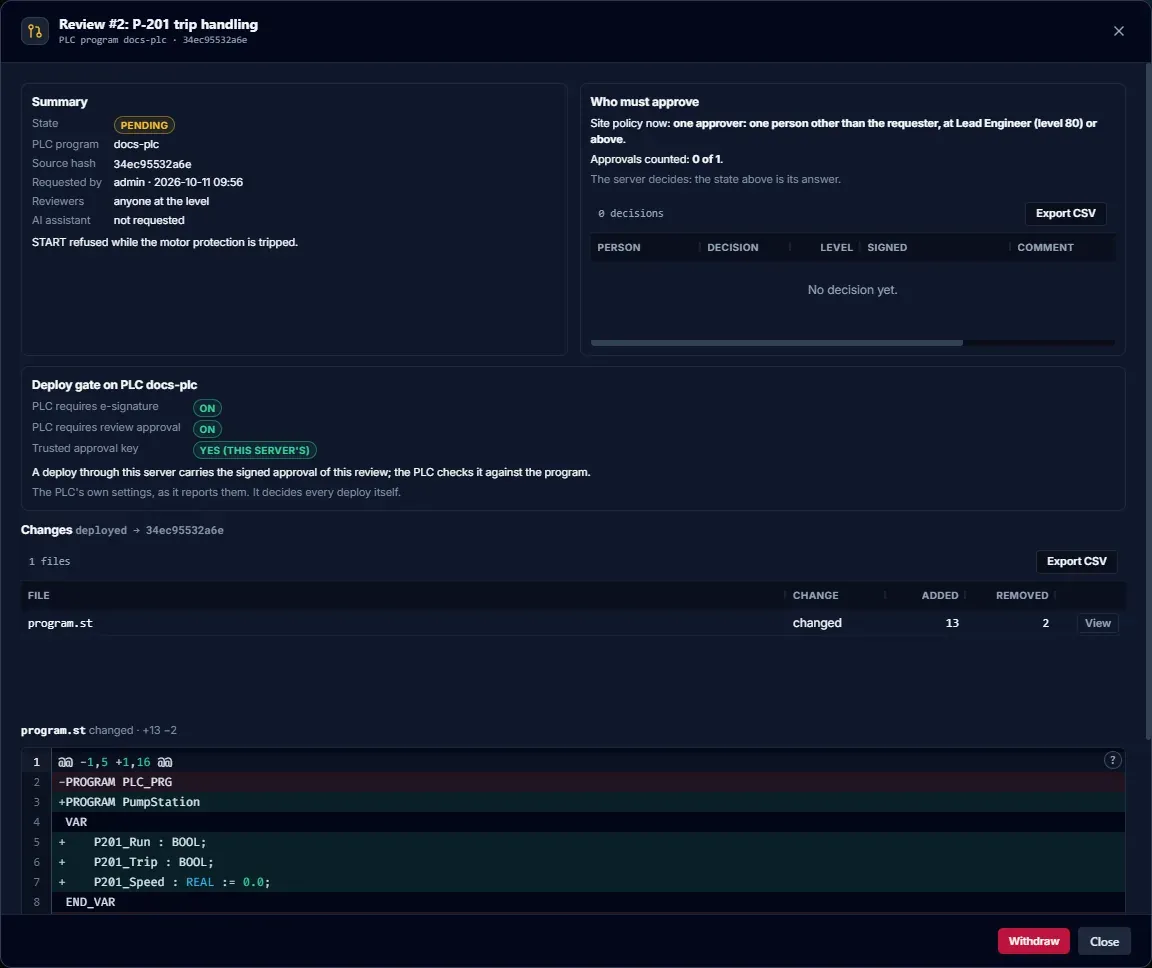
| Line | Values |
|---|---|
| PLC requires e-signature | on / off |
| PLC requires review approval | on / off |
| Trusted approval key | yes (this server’s), yes (not this server’s) (an approval from this server will be refused), no (the PLC refuses every program it has not deployed before, even after this review is approved) |
When the PLC cannot be read, the card says so and shows no value: unknown is never shown as off. The card only reads (GET /api/collab/deploy-gate?plc=<id>, with your own rights on the PLC); the PLC decides every deploy itself.
- Product
- Service or process
- Data or telemetry
- Configuration or deploy
- Refusal
Read as text
A PLC with the setting "Require a signed review approval to deploy" on loads a program it has not deployed before only with an approval signed by eaxScada. The diagram shows the two ways a deploy gets one. From the eaxPLC Web Studio, the PLC asks eaxScada for the approval of exactly the program being deployed, and the deploy carries it. A deploy that goes through eaxScada passes the review gate there, in force when the site review policy is on, which adds the approval. In both cases the PLC verifies the approval itself and refuses the deploy when it is missing or invalid.
Participants
- Web Studio (service or process): of eaxPLC
- eaxPLC (product): the PLC
- eaxScada (product): server
- Other deploys (service or process): through eaxScada
Steps, in order
- eaxScada: A review of the program is approved: bound to the sha256 of its source
- From the Web Studio:
- Web Studio → eaxPLC (data or telemetry): Asks for the approval. POST /api/deploy/review-approval
- eaxPLC → eaxScada (data or telemetry): Forwards, as the engineer. POST /api/collab/plc-approval this PLC, the sha256 it computed
- eaxScada: Issues an approval only: to Lead_Engineer or Administrator; for a review the site policy needs; approved for this PLC and sha256
- Refused:
- eaxScada → eaxPLC (refusal): 409 no_approved_review. PLC_APPROVAL_REFUSED recorded; 403 to a token or another role
- eaxPLC → Web Studio (refusal): No approved review. the dialog sends no deploy
- Approved:
- eaxScada → eaxPLC (reply): Signed approval, valid 5 minutes. PLC_APPROVAL_ISSUED recorded first
- eaxPLC → Web Studio (reply): The approval, as signed
- Web Studio → eaxPLC (configuration or deploy): Deploys, with the approval
- Through eaxScada:
- Other deploys → eaxScada (configuration or deploy): Deploys a program. forwarded deploy, AI assistant, MCP client
- eaxScada: Review gate (site policy on): an approved review of this sha256
- No such review:
- eaxScada → Other deploys (refusal): REVIEW_REQUIRED. DEPLOY_GATED recorded, nothing is forwarded
- Approved:
- eaxScada → eaxPLC (configuration or deploy): Forwards the deploy. DEPLOY_REVIEW_SATISFIED recorded first; adds the approval if the deploy has none
- eaxPLC: Checks every deploy itself: a program it deployed before needs no approval; the approval names this PLC and this sha256; it is not expired, and signed with the pinned key
- Missing or invalid:
- eaxPLC → Web Studio (refusal): Refuses the deploy. review_approval_required, review_approval_invalid
- eaxPLC → eaxScada (refusal): The same answer. to a deploy through eaxScada
- Valid:
- eaxPLC: Loads the program
How the approval reaches the PLC:
- The review of the program is approved (bound to the program’s sha256, the same hash the PLC computes).
- The deploy of exactly that program carries a signed approval: the PLC, the program’s sha256, the review and its approvers, valid for 5 minutes, signed with the key the PLC already pins for eaxScada’s sign-ins.
- From the eaxPLC Web Studio: with Require a signed review approval to deploy on, the deploy dialog asks eaxScada for the approval of exactly the program you are deploying and attaches it. eaxScada issues one only when a review of this exact source (sha256) has been approved under the site’s review policy, and only to a Lead_Engineer or Administrator. If there is none, the dialog says No approved review for this program and nothing is sent: request a review in eaxScada and deploy once it is approved. A program this PLC has deployed before needs no new approval. An approval is valid for 5 minutes; the PLC verifies it on every deploy. See Set the deploy settings.
- Through eaxScada (deploys eaxScada forwards, the AI assistant, MCP clients): eaxScada’s review gate lets the program through and adds the approval. The assistant and MCP keep PLC source byte for byte (no whitespace trimming), so the deployed text is exactly the reviewed text.
- The PLC checks the approval and loads the program, or refuses it (
review_approval_required,review_approval_invalid) and keeps the running program.
eaxScada adds an approval only when the deploy carries none: an approval sent by the client is forwarded as sent, and the PLC judges it. The PLC’s and eaxScada’s clocks must agree within about 2 minutes. Every approval eaxScada issues or refuses to the Web Studio is journaled (PLC_APPROVAL_ISSUED, PLC_APPROVAL_REFUSED).
See also
Section titled “See also”- Design reviews API: the routes, the anchors, the gate and the audit events.
- Let the AI assistant check a deploy: an advisory second look before people approve.
- Search reviews and comments: find past reviews, decisions and comments.
- Deploy screens to operators, and live editing.
- Require an e-signature to deploy.
- eaxPLC deploy settings.