

Restrict a screen to a role level
Keep a screen (a maintenance page, a tuning faceplate, a recipe editor) away from users below a role level. The server enforces the level: a lower user never receives the screen, and its buttons and inputs never count for that user’s writes.
Before you start
Section titled “Before you start”- Setting the level is part of the screen’s Display Settings: an engineer who may edit the screen (Lead_Engineer or Administrator) changes it, and operators get it with the next Deploy.
- The level is compared with the user’s role level: the highest level of the roles the user holds, directly or through a group. Custom roles have levels from 1 to 99.
- The level hides a screen; it does not grant anything. Tag permissions (Security → Topic Rights) still apply to every read and write, whatever screen it comes from.
1. Choose the level
Section titled “1. Choose the level”- In the display tree, click the settings icon next to the screen (or open the screen and choose Project → Display Size & Properties…).
- Open the Telemetry & Security tab.
- Choose Required Access Level, then Apply & Save.
- Deploy the project.
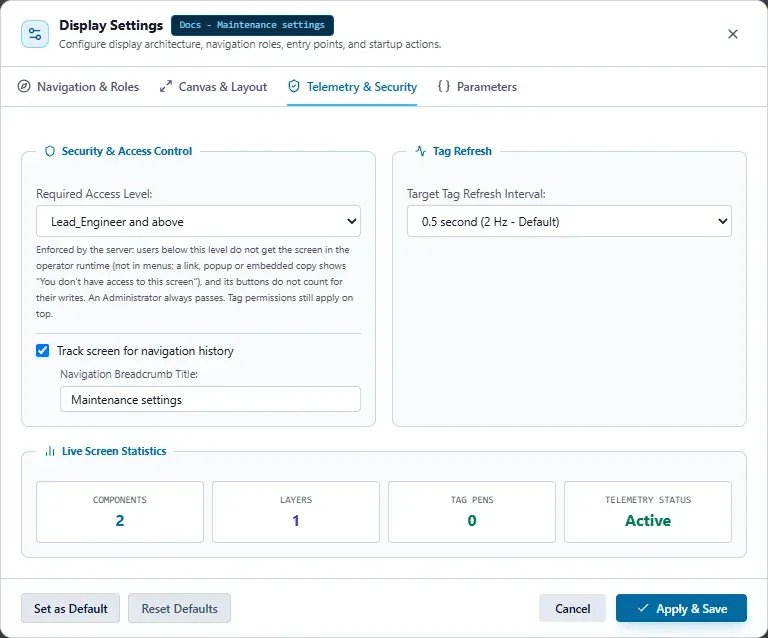
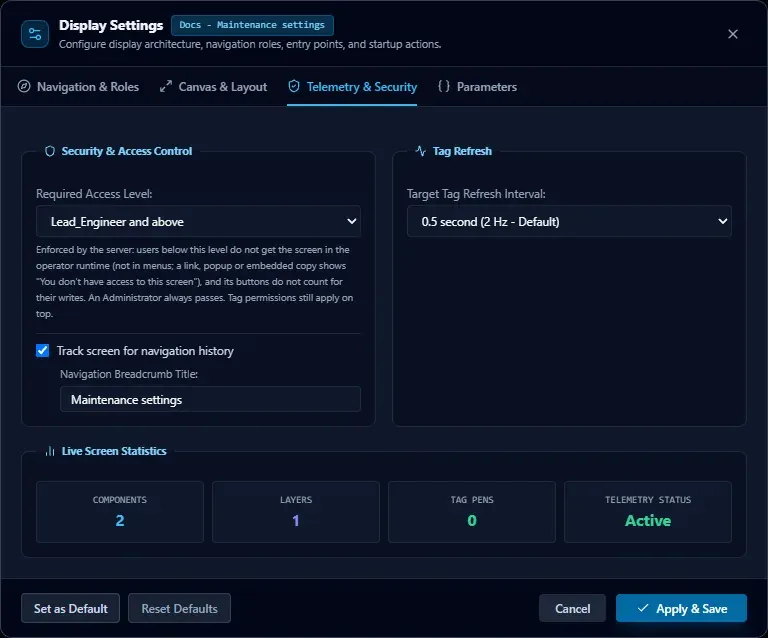
| Required Access Level | Stored as | Who opens the screen | Level |
|---|---|---|---|
| No restriction (anyone signed in) | * (or empty) |
every signed-in user | 0 |
| Shift_Operator and above | operator |
Shift_Operator, Process_Supervisor, Lead_Engineer, Administrator | 40 |
| Process_Supervisor and above | supervisor |
Process_Supervisor, Lead_Engineer, Administrator | 60 |
| Lead_Engineer and above | engineer |
Lead_Engineer, Administrator | 80 |
| Administrator only | admin |
Administrator | 100 |
| any other stored value | Administrator only (fail closed) | 100 |
An Administrator always passes. A Compliance_Auditor (level 20) is below Shift_Operator and above. The AI co-pilot account (level 10) opens only screens with no restriction.
2. What a user below the level sees
Section titled “2. What a user below the level sees”The server leaves the screen out of what it sends that user, so the operator runtime never has it:
- it is not in the Screens list, the menus or a page’s docks;
- a link, an address (
/runtime?screen=...), a page route, a dock or an embedded copy of it shows You don’t have access to this screen, with the screen id; - a popup of it (an Open popup action,
system.nav.openPopup,system.popup.open) is refused with You don’t have access to this screen: <id>.
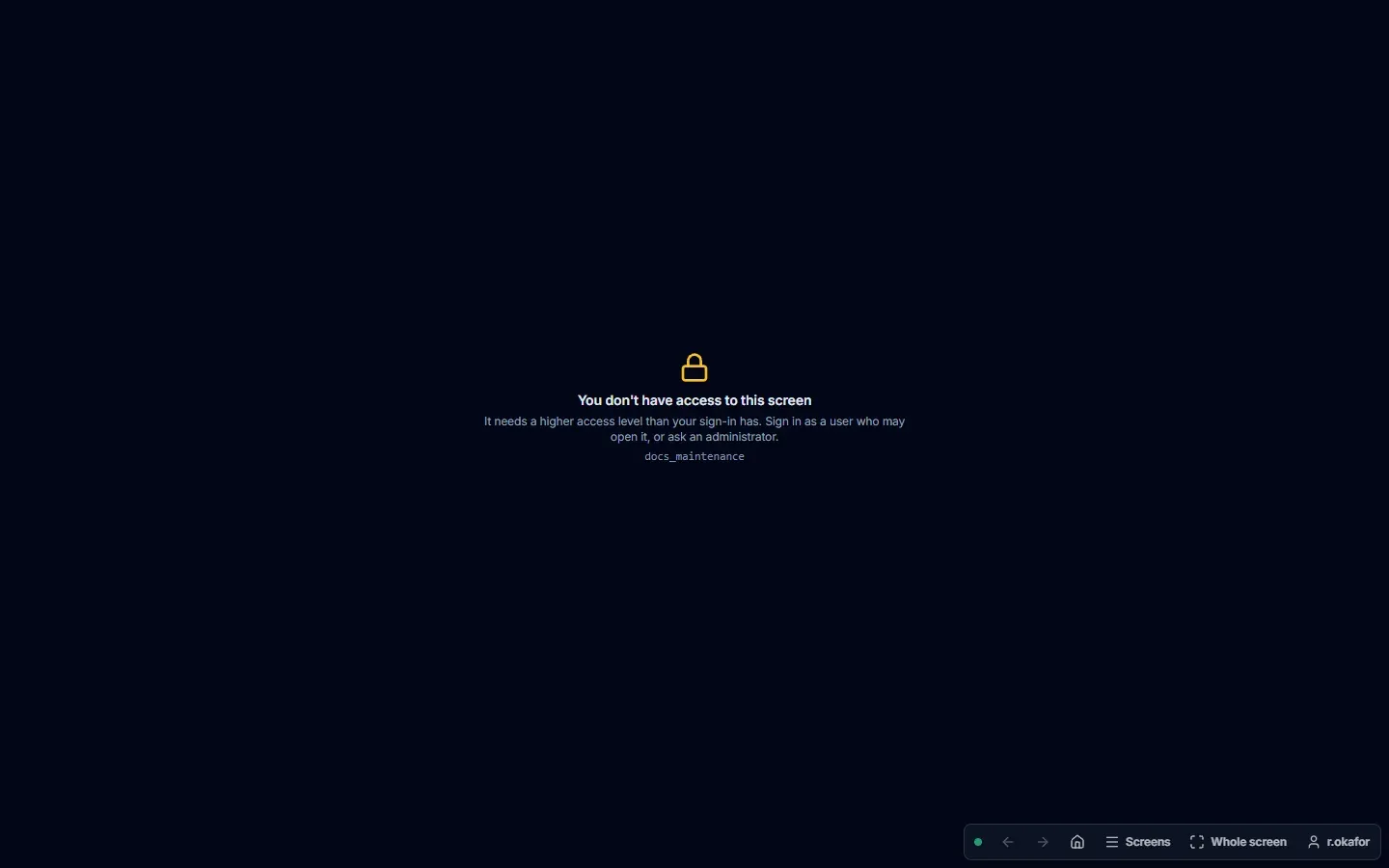
A screen that is missing or not deployed still says This screen is not deployed.: only a screen the user may not open says You don’t have access.
3. What the level does to writes
Section titled “3. What the level does to writes”A restricted screen’s buttons and inputs count only for users at or above its level:
- a write that names the restricted screen as its source, from a user below the level, is refused: HTTP
403, statusscreen_access_denied, codeWRITE_DENIED_SCREEN_ACCESS; - a command on a restricted screen never lets a lower user’s value past another object’s interlock on the same tag. The server’s interlock check counts, for that user, only the commands of the screens the user may open, so a restriction can only narrow what is allowed, never widen it;
- writes over the broker (NATS) carry no user screen: they count only the commands of screens with no restriction.
4. In the Studio
Section titled “4. In the Studio”- Users who may edit screens (Lead_Engineer and above) read every screen in the Studio, whatever its level.
- A user below Lead_Engineer who reads a screen above their level through the Studio API is refused (
403 screen_access_denied). - The project tree and the cross-reference search still list restricted screen names (not their content).
5. The AI assistant and MCP clients
Section titled “5. The AI assistant and MCP clients”The assistant’s screen tools apply the same levels as the Studio, for the account that calls them:
- reading a screen (
scada_get_screen) above the caller’s level is refused with thescreen_access_deniedwording, and listing (scada_list_screens) leaves it out; - proposing a change to or the deletion of such a screen (
scada_propose_screen) is refused, because the proposal would carry its current design; - the AI co-pilot account (level 10) reads only screens with no restriction; a call without a signed-in identity reads no screen;
- an authoring account that holds Lead_Engineer as well as AI_CoPilot keeps the engineer’s reads, as in the Studio. Such an account still never signs or approves.
6. Check the links to restricted screens
Section titled “6. Check the links to restricted screens”The Problems panel has two warnings for screen access:
| Rule | Warns when |
|---|---|
nav-target-restricted |
a link, an Open popup action, a page or a dock opens a screen with a higher Required Access Level than the screen (or page) it is on. Users who can open the first screen but not the second see You don’t have access to this screen. |
screen-access-unknown |
the stored level is not one of *, operator, supervisor, engineer, admin: the server treats the screen as Administrator only. Choose a level in Display Settings. |
After a deploy, the Studio also lists such links in a warning (“N link(s) open a screen with a higher Required Access Level…”). See Check screens before deploying.
Result
Section titled “Result”Users below the level never get the screen or its design; a link to it says why; its commands never count for their writes. Users at or above the level work as before.
Troubleshooting
Section titled “Troubleshooting”| Symptom | Cause and fix |
|---|---|
| An operator sees You don’t have access to this screen on the start page | The startup page or a dock shows a restricted screen. Lower the screen’s level, or give that role another home screen (Project manager, Operator runtime, Home screen per role). |
A supervisor’s START button on a shared faceplate is refused with WRITE_DENIED_SCREEN_ACCESS |
The write names a screen above the supervisor’s level. Put the command on a screen the supervisor may open. |
| A screen is for administrators only though nobody chose that | Its stored level is not a known value (screen-access-unknown). Choose a level and deploy. |
Upgrading
Section titled “Upgrading”Before this version the level was stored with the screen and read nowhere: every signed-in user could open every screen. After the upgrade, a screen whose level was set at some point is enforced. Check each screen’s Required Access Level before upgrading a production server.
The Telemetry Streaming Mode setting of the same tab did nothing and is removed; a stored value is ignored.