

Keep accounts and audit trails in order
Migrated page, not yet verified against the current code. Treat values, paths and examples as indicative until this notice is removed.
The Security workspace (the shield in the left bar) holds the accounts, roles, groups, permission rules (Topic Rights), sign-in providers, integrations, API tokens, server-file roots and the two audit trails. Administrators see every tab. Lead_Engineer and Process_Supervisor see Operations audit only, read only. Compliance_Auditor sees both audit trails. Operators have no Security workspace.
1. Act on the warnings
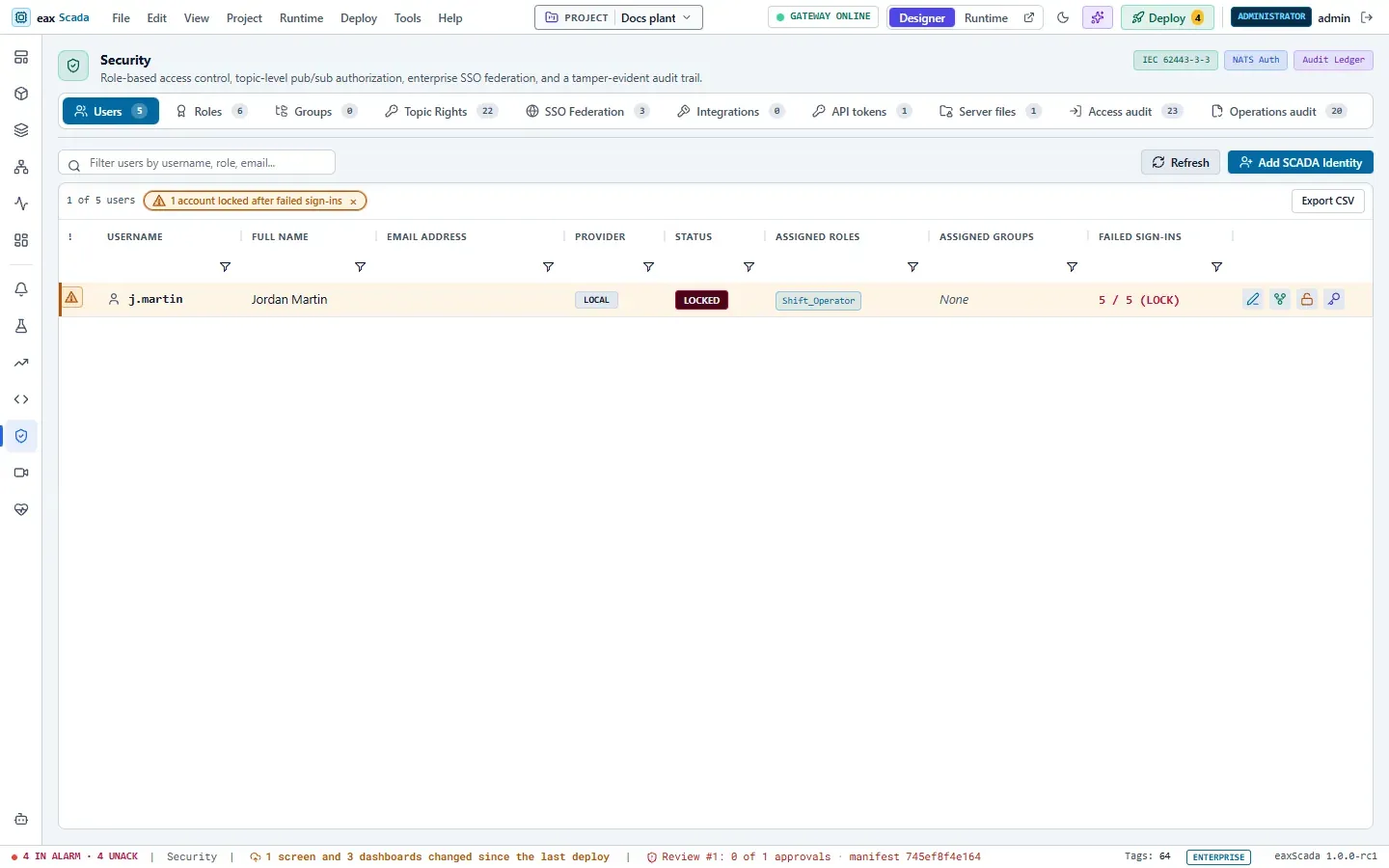
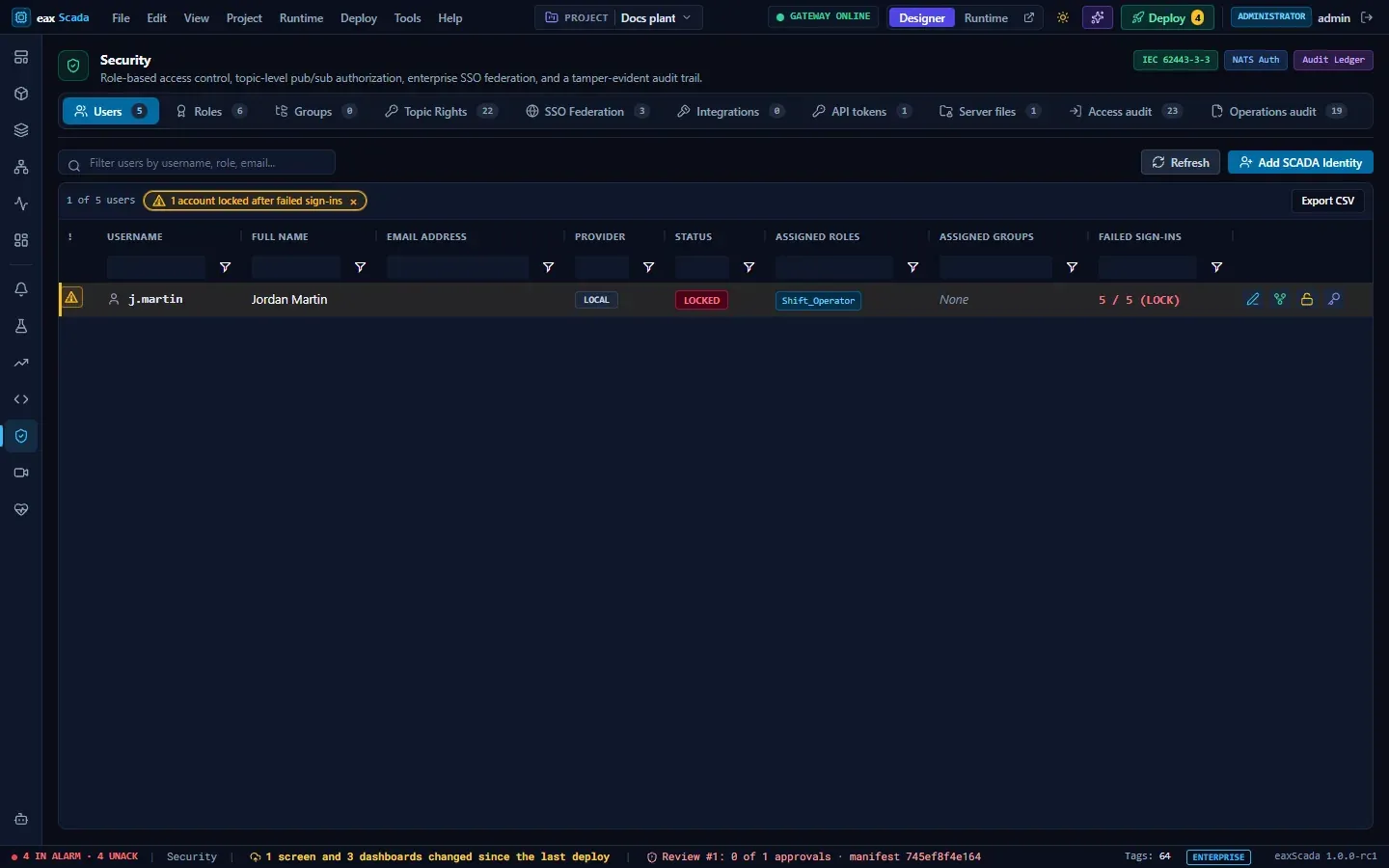
Section titled “1. Act on the warnings”A problem with an account or a role is shown on its row: a ! marker in the first column, an amber or rose row, and one chip in the grid’s toolbar that counts the rows (“1 account locked after failed sign-ins”). Click the chip to show only those rows, and again to show all. Click a marker to open its card: what is wrong, and the action that fixes it.
| Warning | Where | Action in the card |
|---|---|---|
| The account uses a published default password | Users (rose) | Set a new password, Disable… |
| Several accounts hold the same username | Users | Delete… per account (asks first) |
| Locked after 5 failed sign-ins | Users | Unlock… (asks first) |
The role’s topic rules cover only Site1/, the example area that earlier versions seeded (a legacy system rule), so it reads no tag of your plant |
Roles | Open this role’s topic rules, Add a topic rule… |
The marker’s label is in the grid’s quick filter and in its CSV export.
2. Read and verify the audit trails
Section titled “2. Read and verify the audit trails”There are two trails, each a SHA-256 hash chain that Verify checks on the server:
| Tab | What it records | Who reads it |
|---|---|---|
| Access audit | sign-ins and refused sign-ins, lockouts, refused access, password and account changes, API token changes, AI provider and policy changes | Administrator, Compliance_Auditor |
| Operations audit | screen saves and deploys, configuration changes, tag writes and refused writes, alarm changes, translations, dashboards, server files, comments and reviews | Administrator, Compliance_Auditor; Lead_Engineer and Process_Supervisor read only |
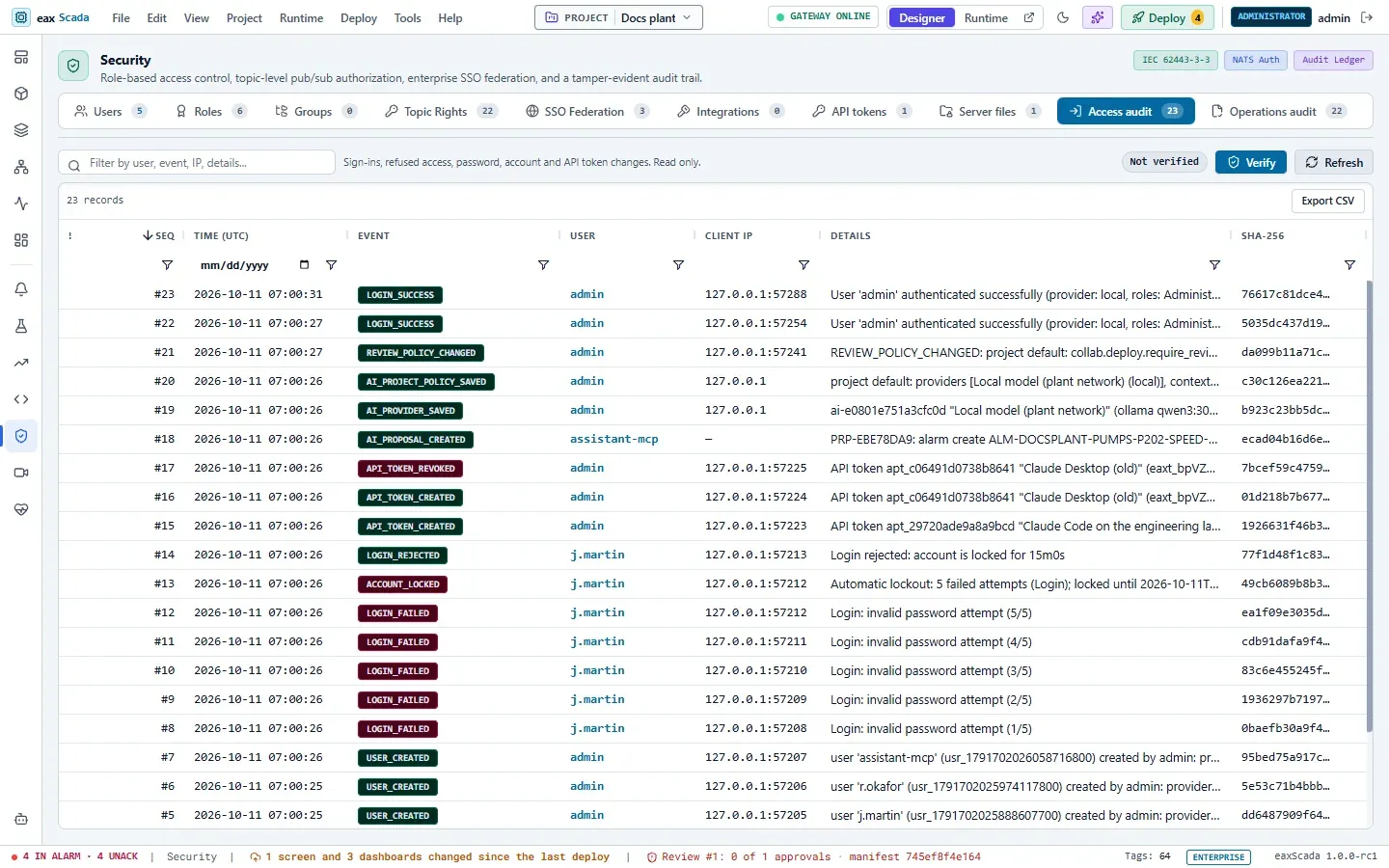
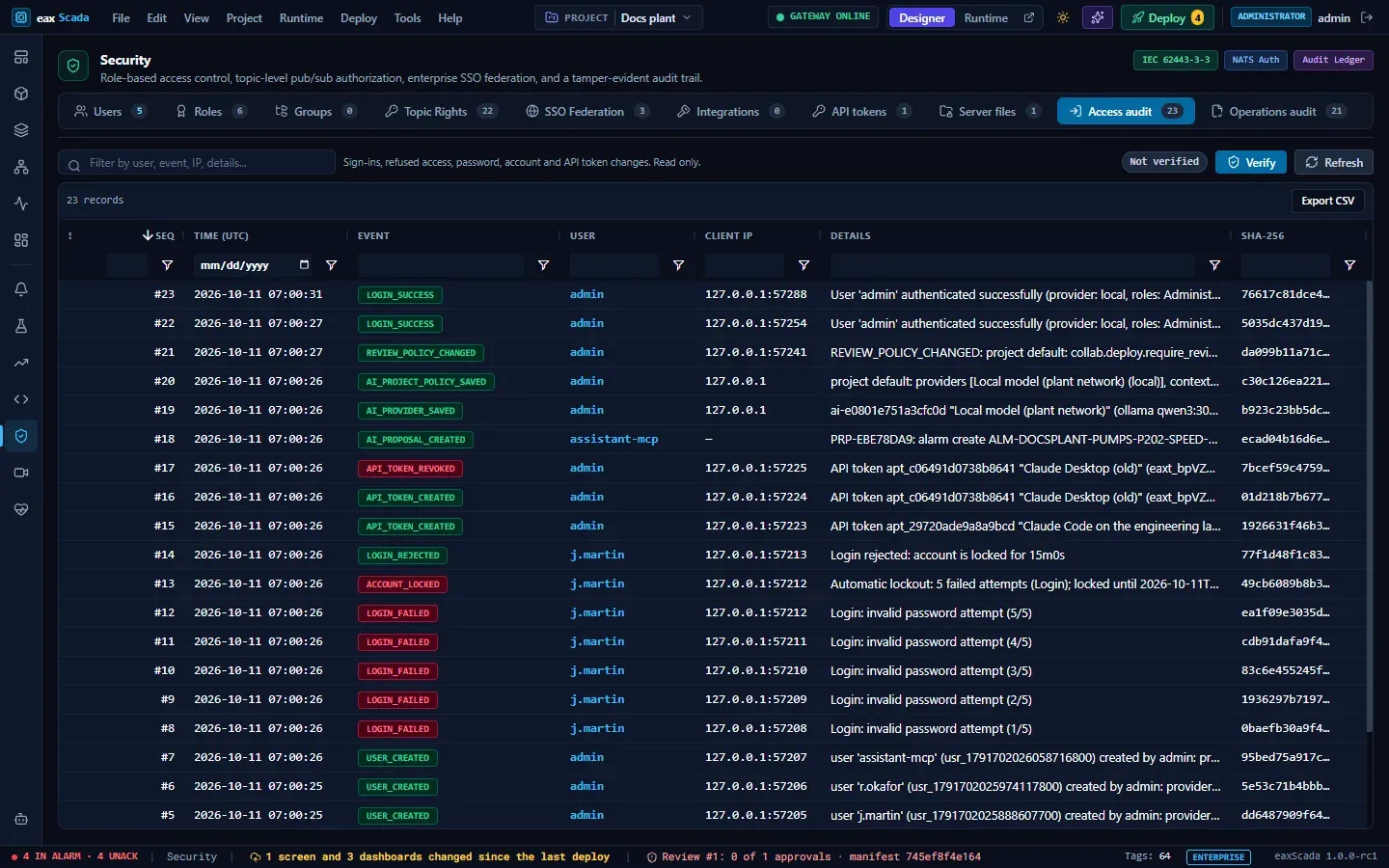
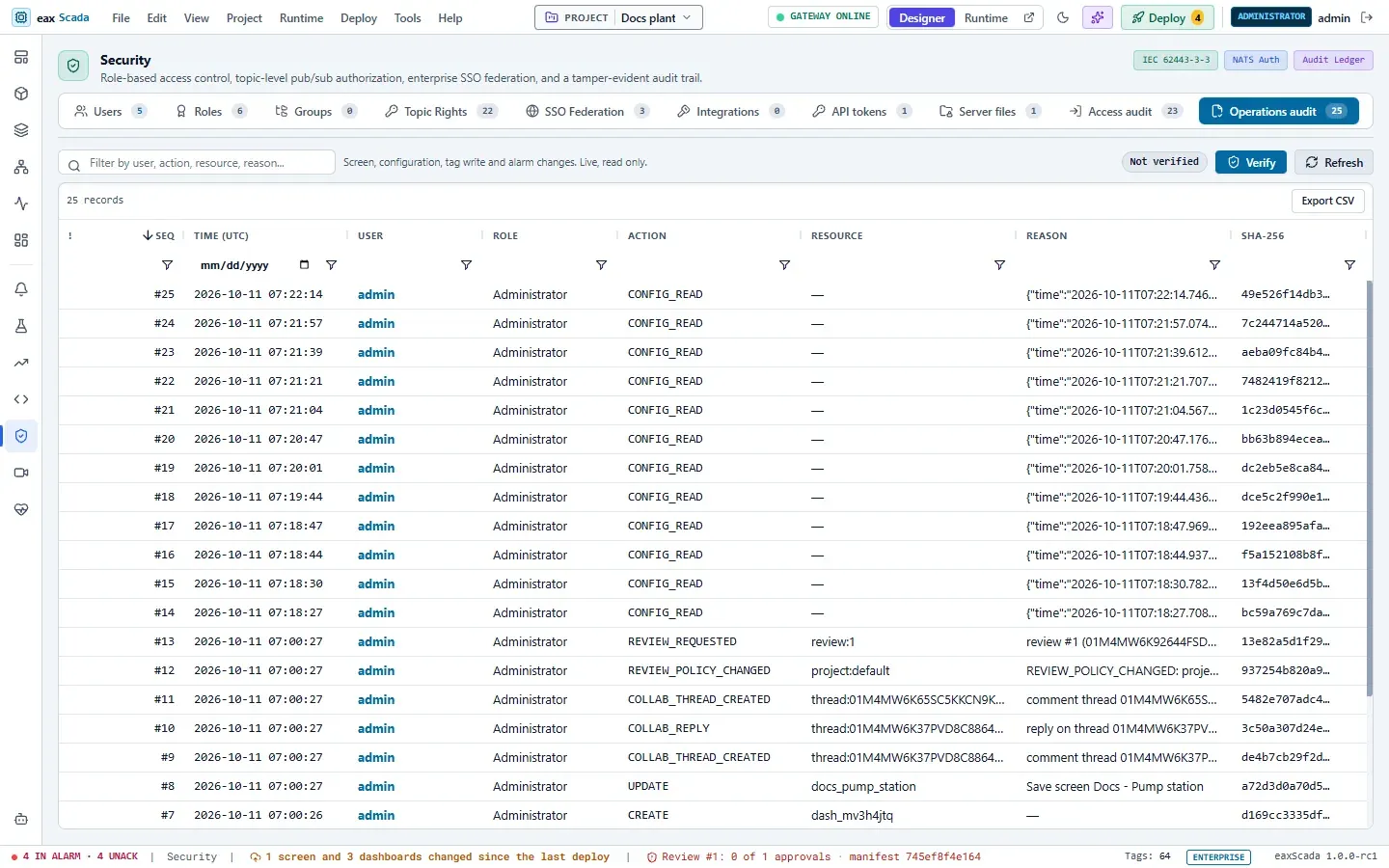
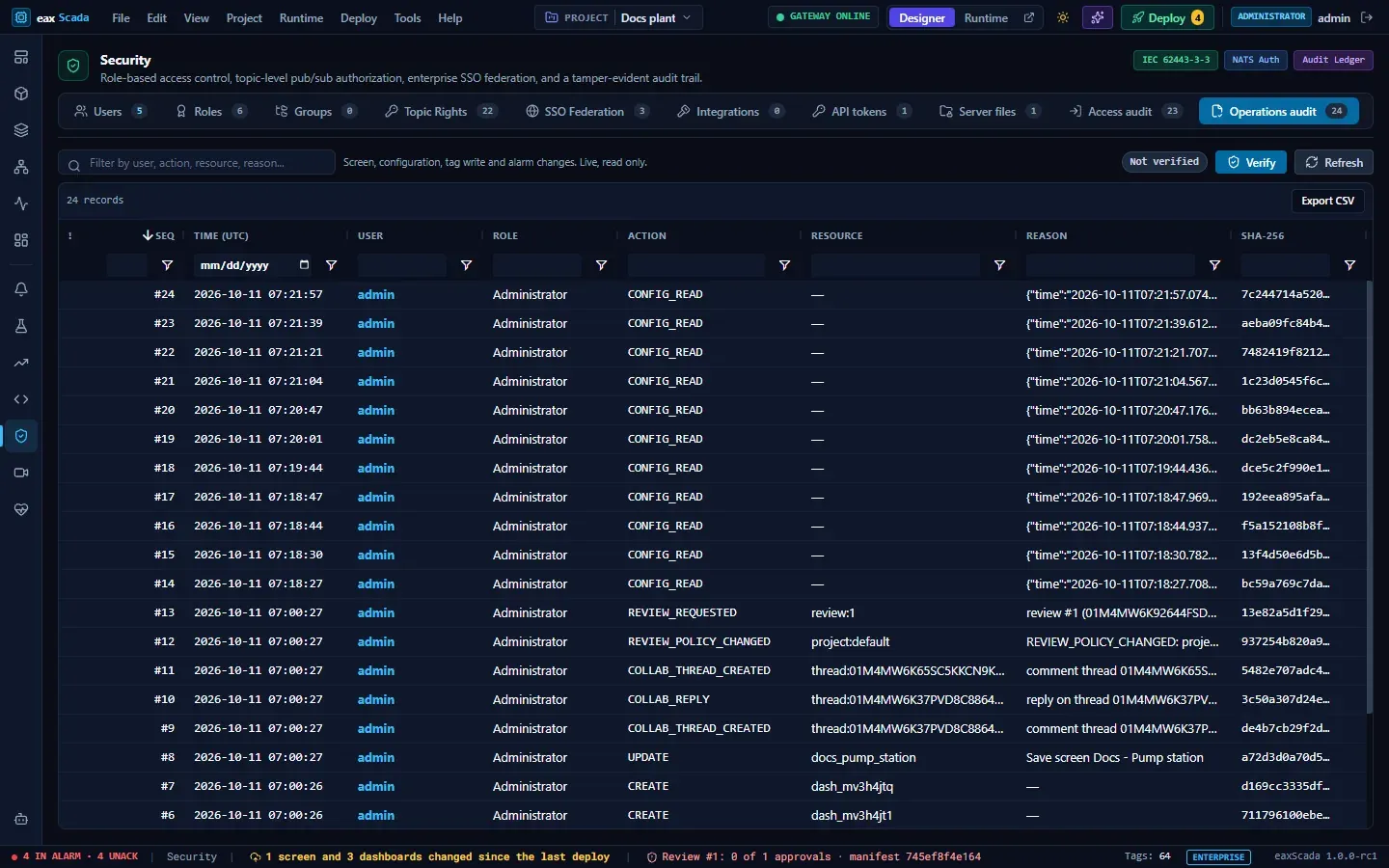
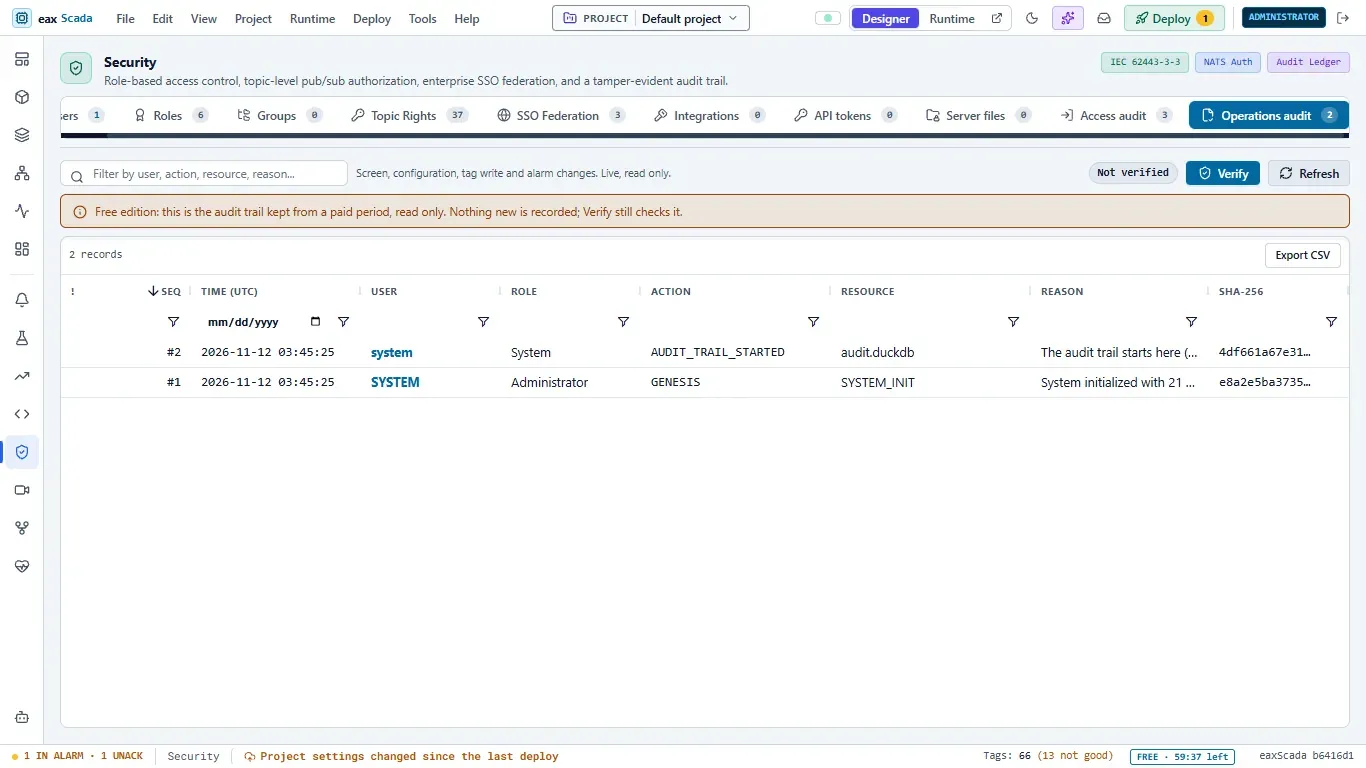
Each grid has column filters, a search box and Export CSV. Verify checks that tab’s own chain and the chip next to it shows the result: Not verified, Verified - N records, or Broken at #N. A broken record is marked on its row; its card names the chain and shows the expected and the stored hash. A break means a record was changed or removed outside eaxScada: keep the export and investigate.
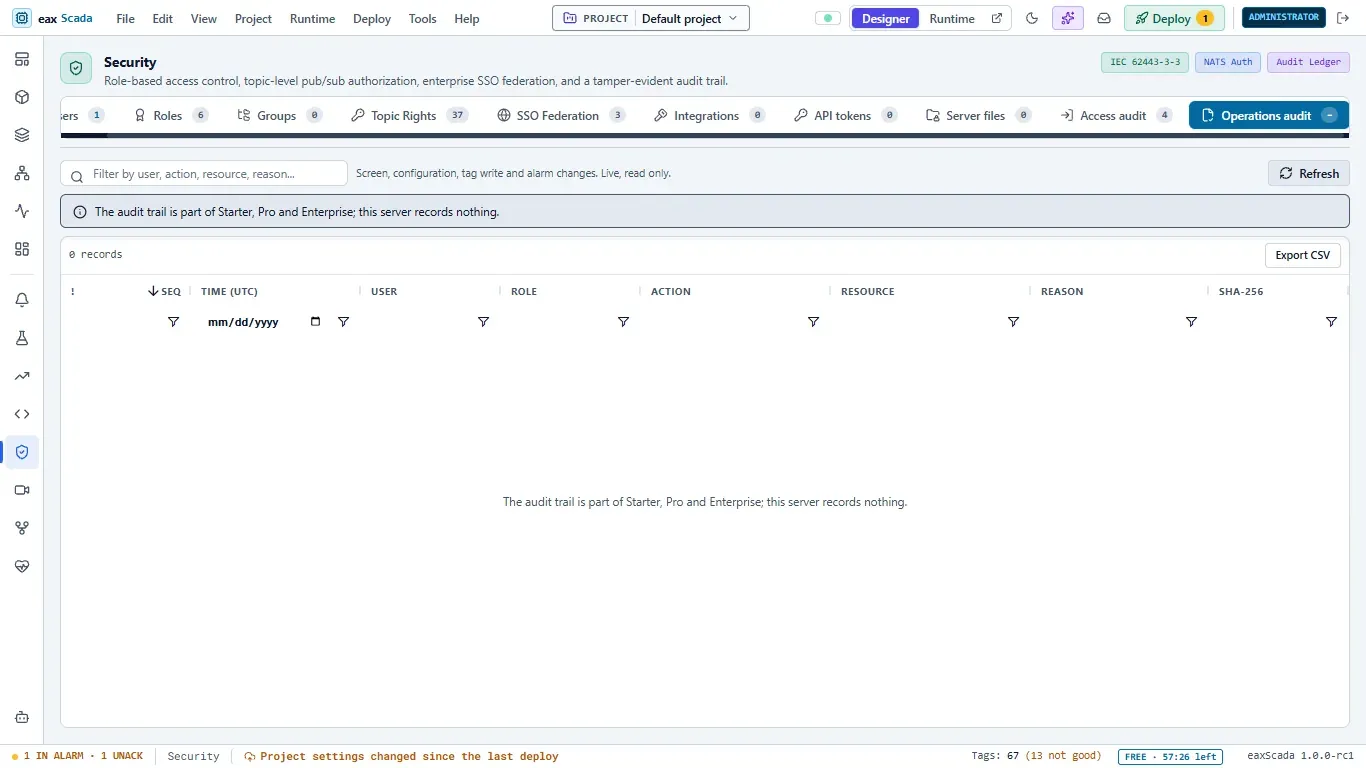
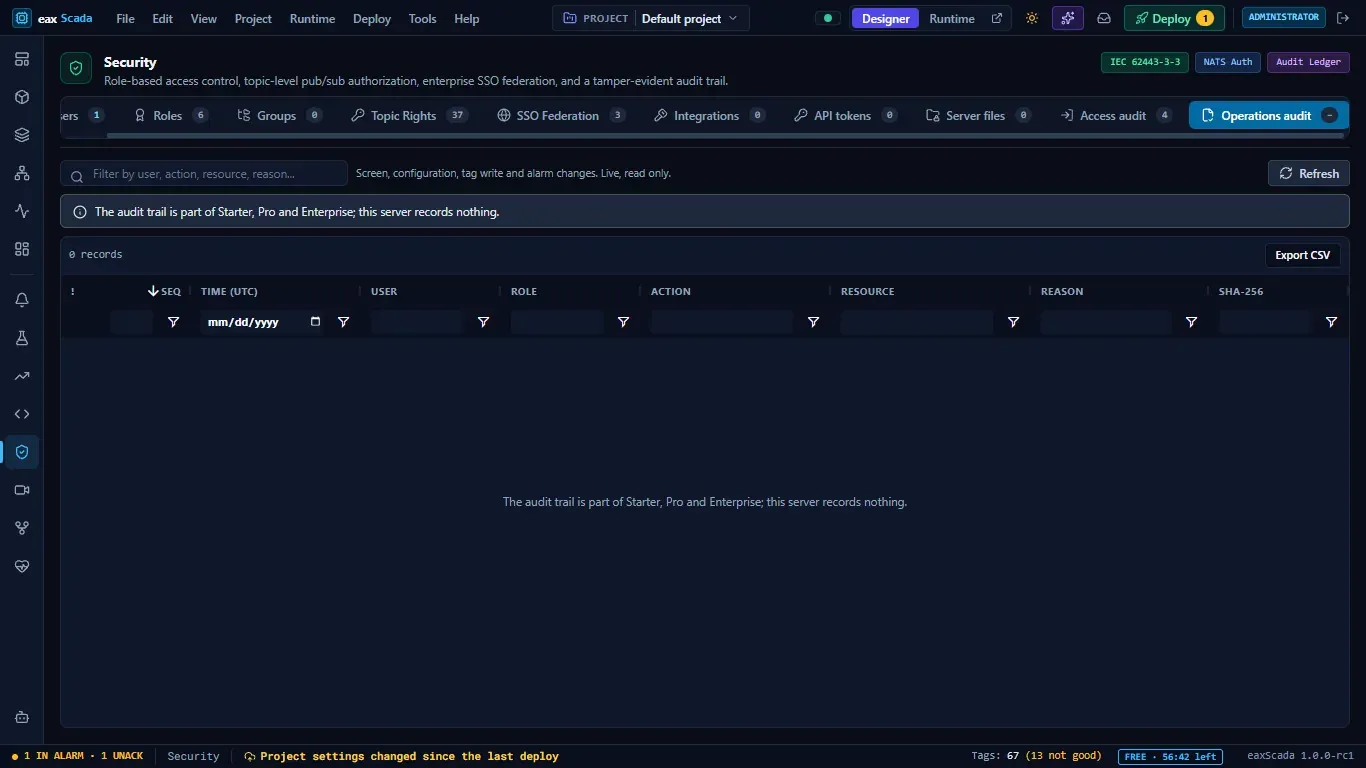
Which editions. The Operations audit is the audit trail, its own database (audit.duckdb), kept in Starter, Pro and Enterprise. The Free edition has no audit trail. The Operations audit says so in a note above an empty grid: “The audit trail is part of Starter, Pro and Enterprise; this server records nothing.” It has no chain chip and no Verify: there is no trail to check. The Access audit is kept in every edition. See Which editions record.
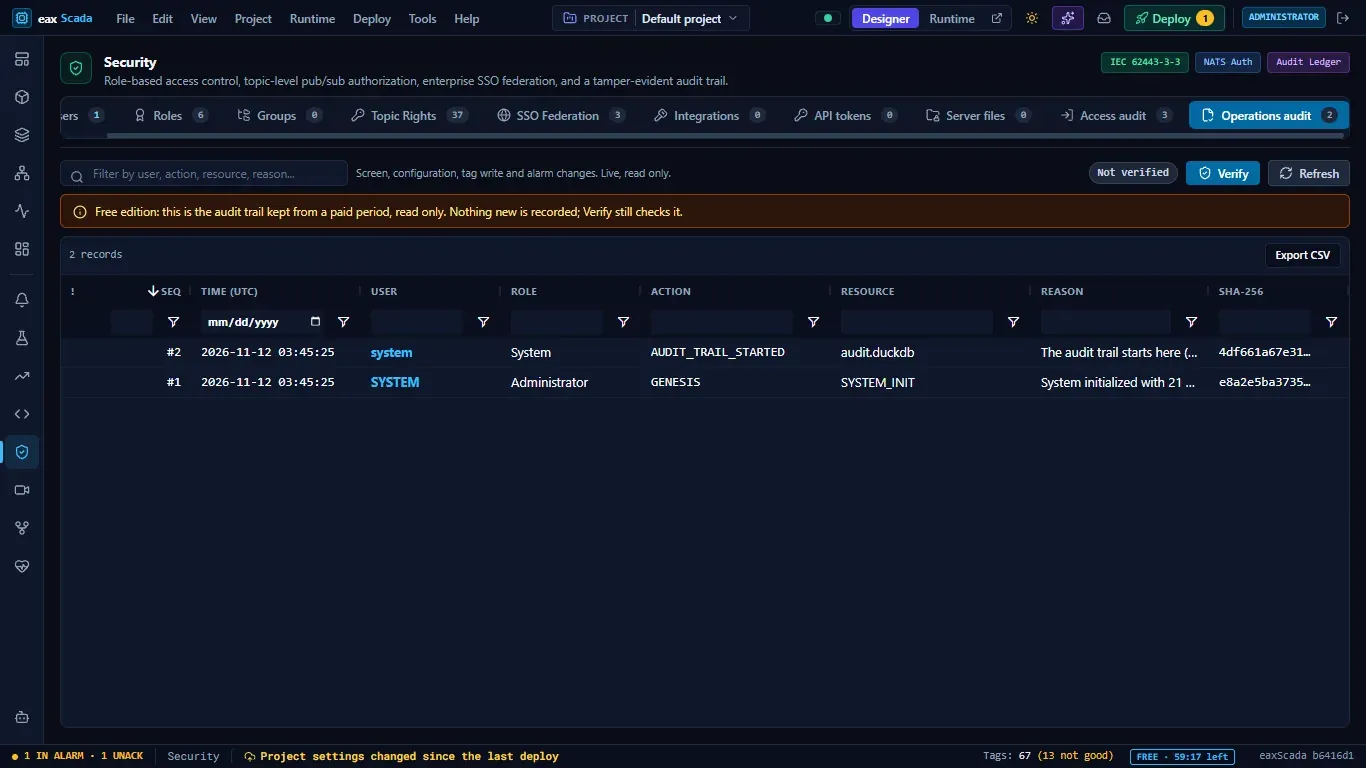
A trail kept from a paid period stays readable on a Free server: an amber note says “Free edition: this is the audit trail kept from a paid period, read only. Nothing new is recorded; Verify still checks it.” Verify checks it as before.
When the Operations audit is down (system alarm ALM-SYS-AUDIT-DOWN), a rose note above the grid says so, and actions that must be recorded first are refused until it records again: see When the audit trail is down. The trail’s state is also in System Health’s Audit trail card and in the licence dialog (The trail’s state).
3. Manage API tokens
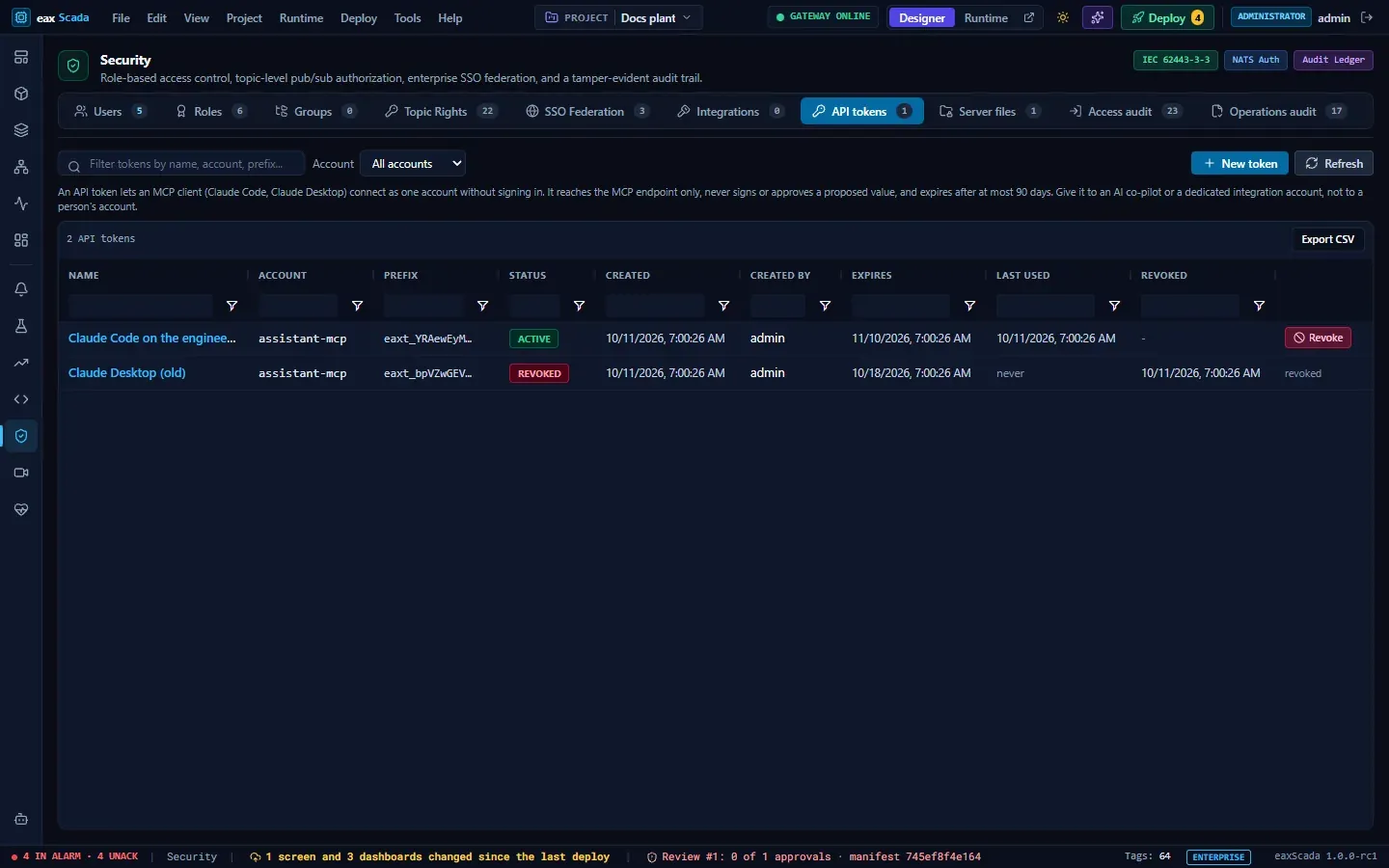
Section titled “3. Manage API tokens”Security → API tokens (administrators) lists every token: name, account, prefix, status (active, expired, revoked, or blocked while the account is locked or disabled), created, expires, last used. Revoke (rose) asks first and works at once. New token creates one for an MCP client: see Connect Claude or another MCP client.
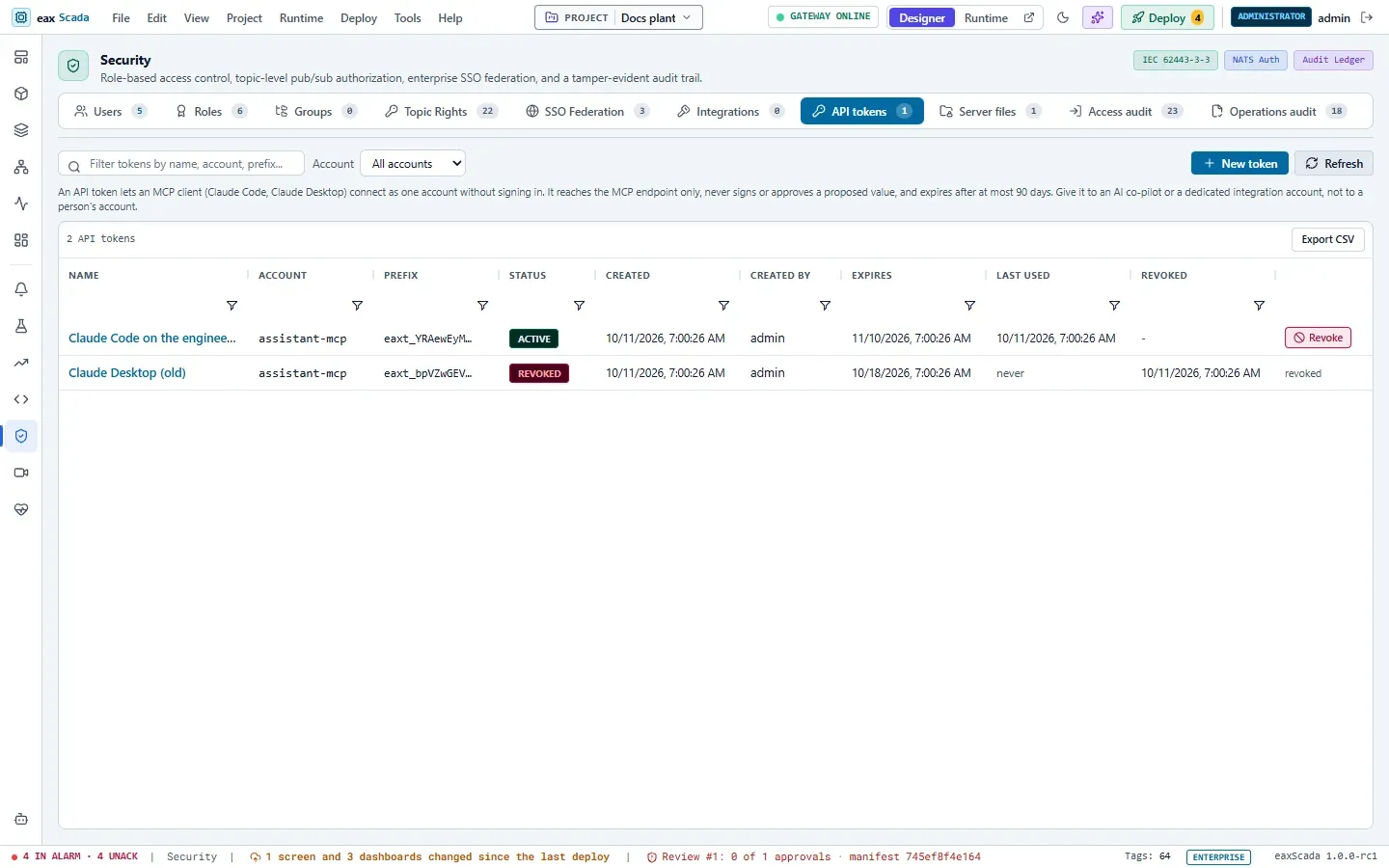
A token reaches the MCP endpoint only, never signs and expires after at most 90 days. Disabling or deleting the account revokes its tokens; a lock blocks them while it lasts; a password change does not revoke them. In a high-availability pair tokens are per node: create one on each node the client may use.
4. If nobody can sign in as administrator
Section titled “4. If nobody can sign in as administrator”Recovery runs from the server’s command line, with eaxScada stopped: eaxscada --reset-admin-password. It writes a new one-time password into a file only the server’s account can read, clears locks and enables the account, and records ADMIN_PASSWORD_RECOVERY. See Recover the administrator account.
5. If sign-in says the security store is unavailable
Section titled “5. If sign-in says the security store is unavailable”“sign-in refused: the security store is unavailable; try again in a moment” is not a wrong password and not a lockout. A write to the security store failed (often a full disk) and the store is reopening its file; meanwhile every permission check refuses, the Administrator included, and open sessions are refused on each request.
- Wait a few seconds and sign in again. The store usually reopens at once.
- If it keeps refusing, read the server log: “security store unavailable: refused” lines, and the store’s own lines for
store=securitywith their cause (“DuckDB store invalidated by a failed write”, “DuckDB store did not reopen: down, writes held, tried again”, then “DuckDB store reopened after an invalidation” and “security store: users, roles and rules loaded again from the file”). No session works while the store is down, so System Health cannot be opened meanwhile; once the store is open, itssecurityrow under Database stores shows how often it reopened and the last cause. - Free disk space on the volume of
data/security/, and check that the server’s account may write there and that no other program holdsscada_security.duckdb. The store retries by itself (1 s, up to 1 min); no restart is needed.
Do not run the administrator recovery for this: the password is not the problem. See When the security store reopens after a failed write.
Related
Section titled “Related”- Security and 21 CFR Part 11
- Add a feature permission rule: pick a right from the list, and what a catch-all or DENY affects.
- Find where a tag, screen or alarm is used: what a user can reach and what they changed.