

Check screens before deploying (Problems panel)
Migrated page, not yet verified against the current code. Treat values, paths and examples as indicative until this notice is removed.
Before operators get a screen, you know what would not work on it: an input that writes nowhere, a limit that refuses every value, a tag that does not exist, an interlock only the screen enforces. With the deploy gate on, a deploy is refused while errors remain.
1. Open the Problems panel
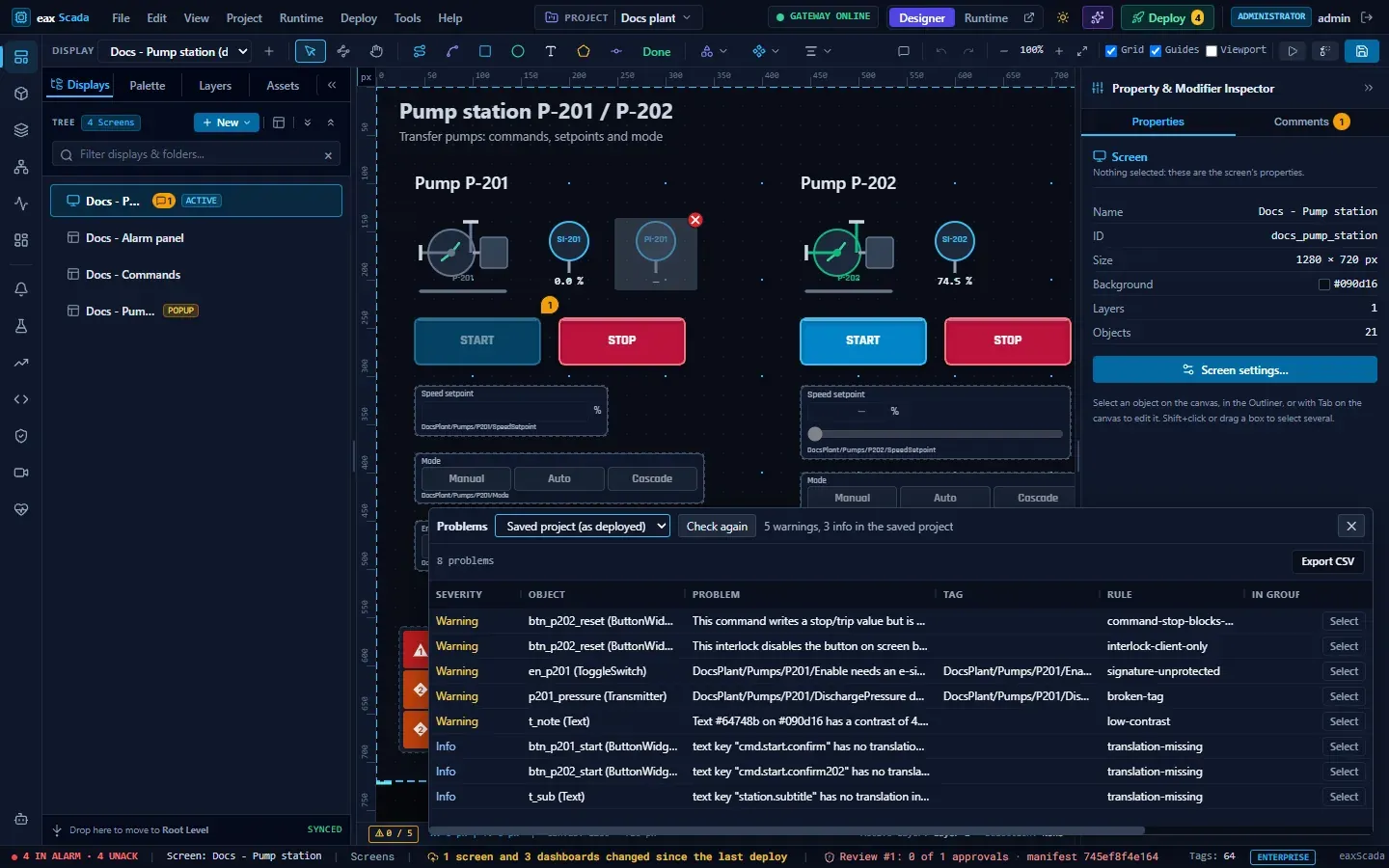
Section titled “1. Open the Problems panel”The designer’s status bar shows the number of problems on the screen you edit (⚠ errors / warnings). Click it, or press Ctrl+Shift+M.
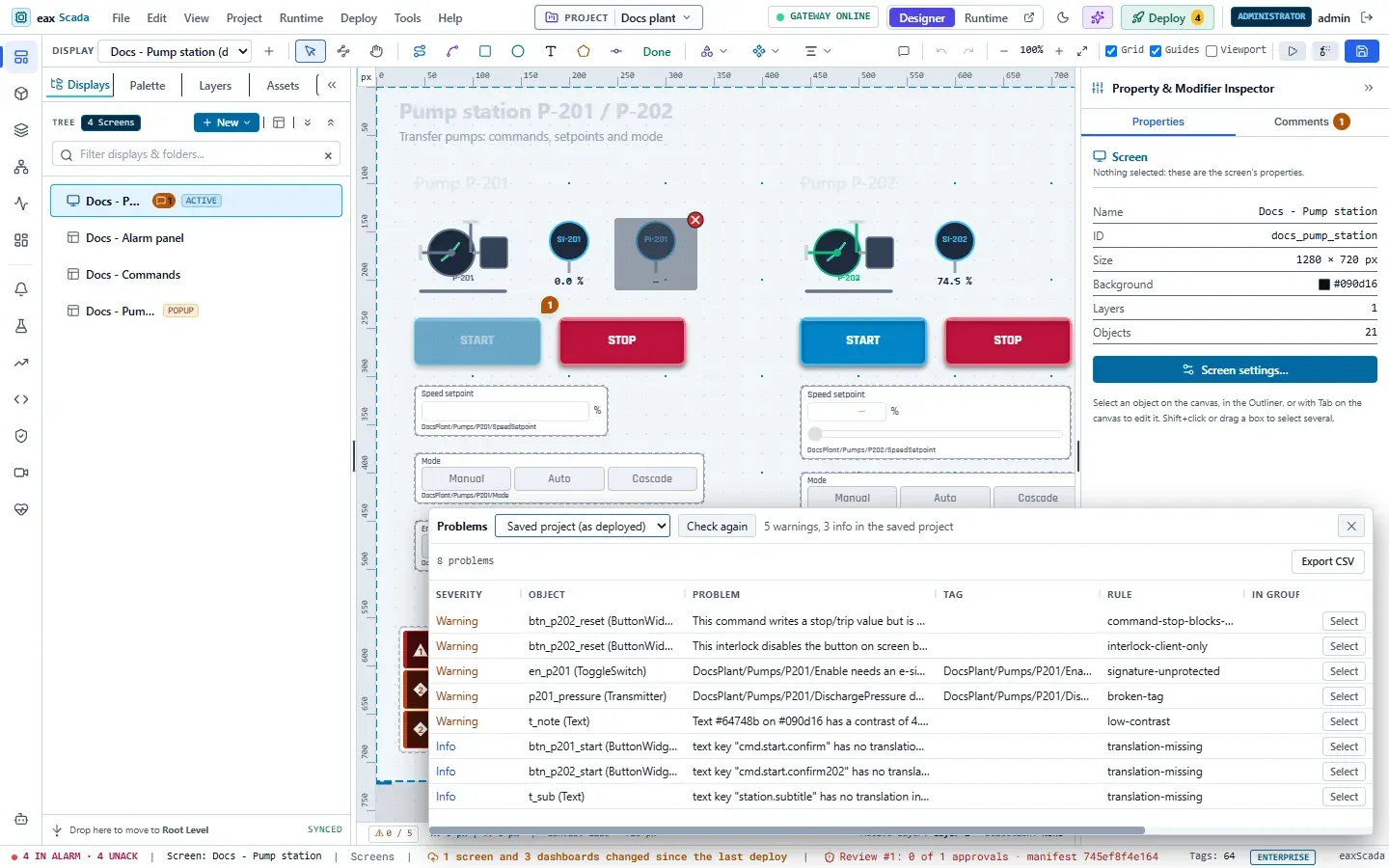
| Check | What it reads |
|---|---|
| This screen | the screen as it is in the editor, unsaved changes included; checked again a few seconds after each change |
| Saved project (as deployed) | every saved screen and component |
Click a row (or Select) to select the object on the canvas, inside its group if needed; a problem on another screen opens that screen first. The grid has column filters, sorting and Export CSV. Check again runs the check at once.
2. Fix what it finds
Section titled “2. Fix what it finds”| Rule | Severity | What it means, and the fix |
|---|---|---|
unbound-input |
Error | An input has no tag: it is disabled on the operator’s screen. Set Tag written. |
unbound-command |
Error | A button or action that writes has no tag. |
limits-conflict |
Error | Minimum above maximum (every write is refused), a step of 0 or less, or a limit that is not a number. |
no-options |
Error | A selector without options, or a toggle whose two values are the same. |
duplicate-id |
Error | Two objects have the same id. |
nav-target-missing |
Error | A navigation or popup opens a screen that does not exist. |
component-missing |
Error | An instance of a component that does not exist. |
text-type-mismatch |
Error | A text entry on a numeric tag, or a numeric input on a String tag: the server refuses the write. |
param-set-missing-required |
Error | A parameter set has no value for a required parameter. |
param-set-value-not-allowed |
Error | A parameter set value is outside the allowed values or folders, of the wrong type, or for an undeclared parameter. |
broken-tag |
Warning | A tag that no eaxTag, driver mapping or live tag has. The object shows a Bad value; a write to it is refused (404); a missing limit tag refuses every write. |
plc-spelling |
Warning | A binding names an eaxPLC variable in the PLC’s own spelling (Plant/Line1/plc-01/Recipes[1].Temp_SP, or another upper/lower case) instead of its tag path (Plant/Line1/plc-01/Recipes/1/Temp_SP). The object shows no value through it. Save the screen again: the save stores the tag path, for the same variable. Or pick the tag from the tag tree. See PLC spellings are stored as tag paths. |
input-no-limits |
Warning | A numeric input without a minimum or a maximum. |
write-no-confirmation |
Warning | A command writes a critical tag (watched by a CRITICAL or HIGH alarm, or the e-stop signal) without confirmation. |
command-stop-blocks-on-bad-quality |
Warning | A stop or trip command is disabled when its interlock reads a Bad value: a failed sensor would stop the operator from stopping. Set If the interlock reads a Bad value to Allow. |
interlock-client-only |
Warning | An interlock the server does not enforce (not a simple tag comparison): a direct API write is not blocked. See Enforce interlocks on the server. |
interlock-parameter |
Warning | An interlock with a {...} that the command’s tag path cannot fill in: a tag path interlock refuses every write of the command (fail closed), or never blocks with Allow; an expression is enforced on the screen only. Use only the parameters of the command’s tag path. See Interlocks with a parameter. To list them for a whole project before an upgrade, run eaxscada interlock-audit --workdir <project folder> (List the affected objects before upgrading). |
interlock-per-parameter |
Info | An interlock of a command with parameters: for a value in no parameter set, the server evaluates it with the values read from the written tag path. |
nav-target-restricted |
Warning | The screen links to, opens or embeds a screen (or a page) with a higher Required Access Level: users between the two levels follow the link to “You don’t have access to this screen”. Raise this screen’s level, lower the target’s, or remove the link. See Restrict a screen to a role level. |
screen-access-unknown |
Warning | The screen’s stored Required Access Level is not one of *, operator, supervisor, engineer, admin: the server treats the screen as Administrator only. Choose a level in Display Settings. |
signature-unprotected |
Warning | The tag needs an electronic signature (another object asks for one) but this object does not say so. |
script-not-sandboxed |
Warning | An object’s script (a Run script action, or another script of the object) uses something a sandboxed script does not have (window, document, fetch, player, this…): it fails on the operator’s screen, marked Script refused. Rewrite it with system.*. See Migrate screen scripts to the sandbox. |
startup-script-not-sandboxed |
Warning | The same for the screen’s startup script. |
hidden-with-action |
Warning | A hidden object with an action, or one with opacity 0 that a click still operates. |
state-disabled-indistinguishable |
Warning | The disabled look is the same as the normal look. See Style object states. |
font-not-portable |
Warning | A font installed only on some computers. See Fonts and text styles. |
style-class-missing |
Warning | The object names a style class the project does not define (renamed or deleted, or the screen came from another project). It draws with its own values. Pick a class in the inspector’s Style section, or create the class again. |
low-contrast |
Warning | Text below 4.5:1 contrast on its background (3:1 for large text). |
out-of-bounds |
Warning | An object outside the screen. |
param-undeclared |
Warning | {Name} is used but not declared. |
param-target-unbounded |
Warning | A write target uses a parameter without allowed values or folders. |
param-unused |
Info | A declared parameter no object uses. |
translation-missing |
Info | A text key has no text in one of the project’s languages; the runtime shows the default language’s text. |
alarm-tag-write |
Info | An object writes a tag an alarm watches. |
empty-group |
Info | A group with no objects. |
placeholder-text |
Info | Text that looks like a placeholder left from an example. |
A broken-tag warning that says “no channel brings the PLC’s values in” names a real eaxPLC variable, but no channel of this server reads that PLC. Add the PLC’s channel (or its NATS bridge) to show the value.
Isometric screens
Section titled “Isometric screens”An isometric screen gets the rules above for its blocks’ bindings and commands, and these rules for its map. Clicking a row selects the block or the connector on the map; for an open connector end, the tile is outlined and centred.
| Rule | Severity | What it means, and the fix |
|---|---|---|
iso-block-missing |
Error | The block is not in the block catalog, or its reference is not <catalog id>@<version>. The operator’s screen draws a plain box with no states. Delete it and place a block from the Blocks palette. |
iso-block-version-unknown |
Warning | The block is pinned to a version the catalog does not have (a newer one, from another server). It is drawn as the catalog’s version. Place the block again from the palette. |
iso-block-off-map |
Warning | Part of the block’s footprint, in its facing, is off the map. Move it, turn it (R), or make the map bigger (nothing selected: Map). |
iso-block-overlap |
Warning | Two blocks share tiles at heights that overlap: they are drawn inside each other. Move one, or raise it (PgUp). Reported once, on the later block. |
iso-connector-open-end |
Warning | A pipe or cable tray tile connects on at most one side: no tile of its line at its level and no block port faces it. Extend the line to a port, or erase the tile. Fences and walkways are never reported. |
iso-block-hidden |
Warning | A block with bindings, a command or alarm sources is completely behind other blocks in the default view: operators cannot see or click it. Move it, raise it, or choose another default view. |
iso-block-outdated |
Info | The catalog has a newer version of the block. The placed block keeps its version until you update it in the inspector (Catalog block). |
iso-port-unconnected |
Info | Some of a block’s ports are connected and one is not (a pump piped on one side only). Draw the line to the named tile, or use a block without that port. A block with no connection at all is not reported. |
PLC spellings are stored as tag paths
Section titled “PLC spellings are stored as tag paths”The operator’s screen looks a value up by the exact tag path a binding holds. An eaxPLC variable has one tag path: the PLC’s prefix, then the variable’s path with / between its parts (Plant/Line1/plc-01/Recipes/1/Temp_SP). A binding typed in the PLC’s spelling (Recipes[1].Temp_SP, Line.Mixer.Speed, another case) used to show no value, while a write through it still reached the variable.
Every save now stores the tag path in each tag field that names an eaxPLC variable in another spelling: saving in the editor, the assistant’s screen tools (scada_create_screen, scada_update_screen, which list what they changed in bindings_stored_canonical), Find and replace, Make translatable and applying a starter template. The variable is found exactly as a write finds it, so the binding still writes the same variable. Nothing else is changed. These stay as typed:
- a path that names no variable of the PLC (an index or member it does not have, a PLC that does not answer);
- a path that a driver mapping, an eaxTag or a simulator owns, in any spelling;
- a path with a parameter (
{Prefix}/...); - a text with no
/, and any path inside an expression or a script.
A screen restored from its history keeps the bindings it had then: plc-spelling lists them, and saving it again stores the tag paths.
3. Block deploys while errors remain
Section titled “3. Block deploys while errors remain”- Open Project → Open / Switch Project… → Operator runtime.
- Tick Block deploy while screens have errors (Problems panel) and Save runtime settings.
From then on, a deploy with errors is refused: 409 {"status": "lint_errors"} with the counts and the problems, and the Problems panel opens with them. Warnings and information never block.
When you click Deploy you may still go ahead: the studio asks for a reason of at least 10 characters (?lint_override_reason= on the deploy request). The deploy goes through and is journaled as DEPLOY_LINT_OVERRIDDEN in the access and operations audits, with your name, the project and the number of errors.
An automatic deploy (live editing on) never overrides. If the checks are not ready within 5 seconds (just after the server starts), the automatic deploy is refused for now and tried again at the next load.
The Deploy dialog also lists the errors and warnings under Screen checks, with what the deploy changes (screens, command targets, scripts, write policy). The Problems panel catches what would not work; the deploy preview shows what will be different for the operators, and asks for a reason when command targets, scripts or the write policy change. See Review what a deploy changes.
Through the API
Section titled “Through the API”GET /api/xref/lint checks the saved project, ?doc=<screen id> or ?doc=component:<id> one document; POST /api/xref/lint with {"screen": ...} checks a screen that is not saved. Both are for Lead_Engineer and Administrator and change nothing. The answer has problems (rule, severity, message, document, object, field, tag), counts and the list of rules.
GET /api/plc/canonical?path=<text> answers which tag path a save stores for a tag field typed as <text>. The editor’s inspector uses it. Any signed-in user may call it, and it changes nothing.
| Answer | When |
|---|---|
200 {"path": "<text>", "canonical": "<tag path>", "plc": "<PLC id>", "symbol": "<PLC symbol>"} |
<text> names an eaxPLC variable in another spelling: a save stores canonical. |
200 {"path": "<text>", "canonical": ""} |
A save stores <text> as typed: it is the tag path already, it names no variable, another producer owns it, or you may not read that variable. |
400 {"error": "path is too long"} |
path is longer than 1024 characters. |
401 |
No session. |
405 |
A method other than GET. |