Display card
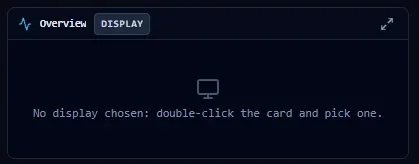
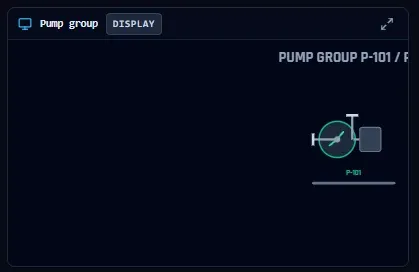
One of your screens, running live inside a card and scaled to fit it: put a small overview screen, a pump faceplate screen or a P&ID next to the KPIs of a dashboard. Without a display chosen the card says so. Change a card into a display card in its settings.
| Card palette | Not a palette item: chosen in a card’s settings. |
| Card kind | display (body.widget) |
| Default size | — |
Settings
Section titled “Settings”Double-click the card (or select it and press Enter) to open its settings. The settings are stored in the card’s body.params.
| Shown as | Key (body.params) |
Type | Unit | Default | Allowed values | What it does |
|---|---|---|---|---|---|---|
| Display | screenId |
Screen id | — | The screen shown, one of your displays. Settings hint: One of your displays; it runs live inside the card. |
Quality and parameters
Section titled “Quality and parameters”Values come with their quality: a Bad or Uncertain value is marked on the card, and a value not yet received shows a dash, never an invented number. A card on a screen with parameters takes {Name} in its tag paths.
Examples
Section titled “Examples”A display card before a screen is chosen
Section titled “A display card before a screen is chosen”A new display card shows what to do instead of an empty frame.
- Double-click a card and choose the display kind.
- Pick the screen in Display: until then the card says No display chosen.