

Run a report and download the files
Get the report of a day (or of any parameters the report asks for) as a PDF, an Excel workbook, or both. Running a report only reads: it shows the data you may read, and nothing in it acts on the plant.
You need the right reports_view, which new installations give to operators, supervisors and engineers (Grant report rights). The report must have been deployed (Design a report).
1. Start the run
Section titled “1. Start the run”- Open Analytics and Reports on the activity rail (or Tools > Analytics and Reports). The Reports tab lists the deployed reports with their revision, outputs, datasets and parameters (a
*marks a required one). - Click Run on the report’s row.
- In the dialog, give the parameters. A date is Today, Yesterday or A date picked in the calendar; Today and Yesterday are the site’s days, in its time zone, taken at the moment you click Run (a run that waits in the queue past midnight still reports on the day you meant). An empty value takes the parameter’s default.
- Under Files, keep PDF, XLSX or both.
- Click Run.
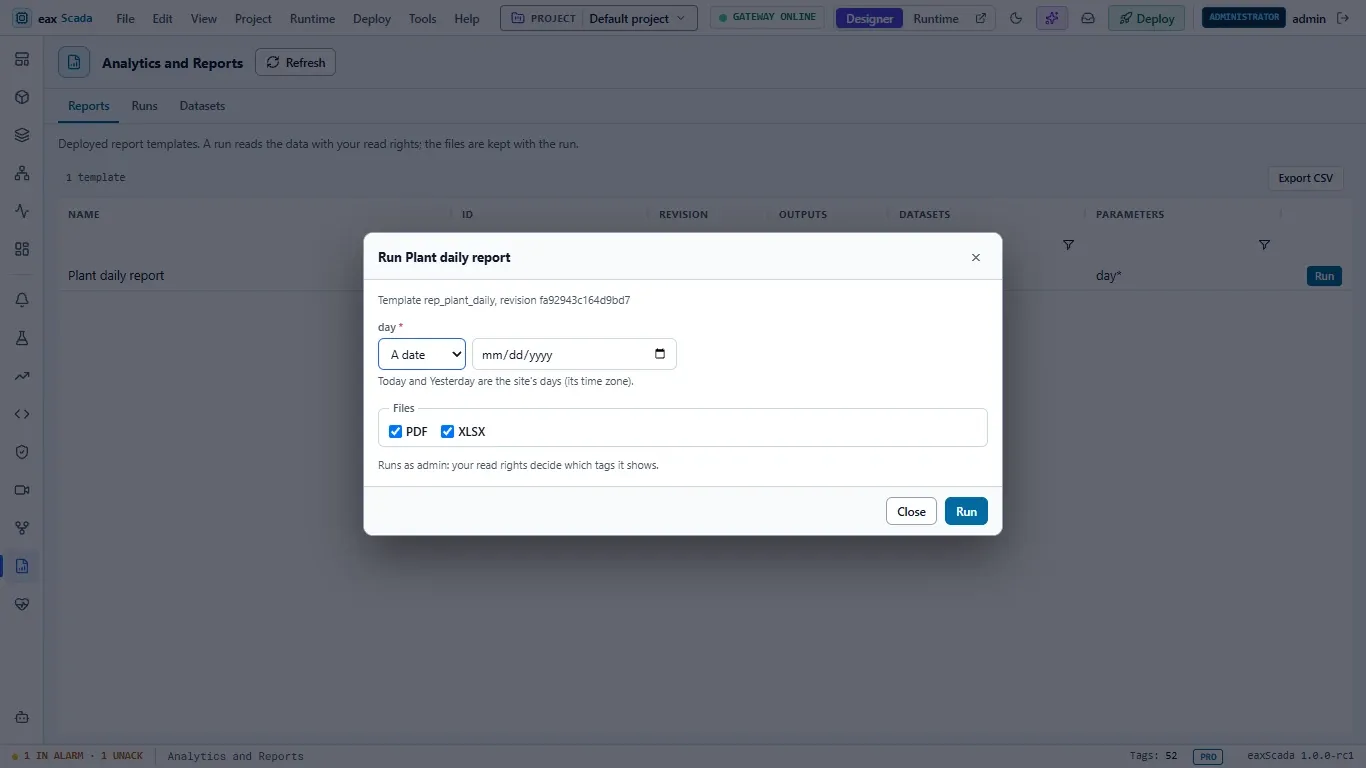
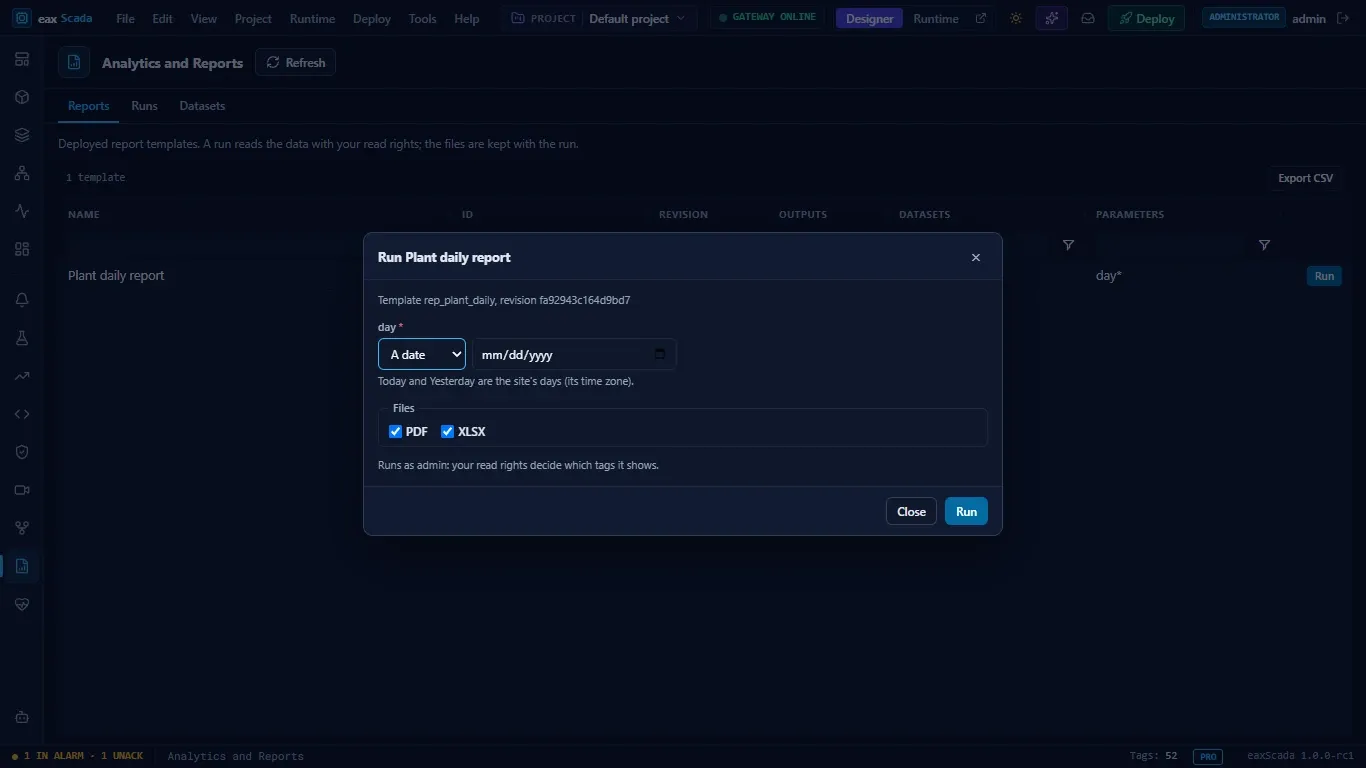
The dialog follows the run (queued, running) and shows the download buttons when it is done, or the reason when it was refused or failed. You can close it: the run goes on, and the Runs tab has it.
Two runs render at a time; the others wait. You may have two runs waiting or running at once; a third is refused (429) until one ends. The server queue holds 20 runs.
2. Download the files
Section titled “2. Download the files”Open the Runs tab. It lists your runs, newest first (a reports administrator sees every user’s runs): status, signature state, delivery, template, parameters, who ran it, start and end, rows, files and the files’ hash. Choose All runs I may open to add other users’ runs whose tags you may all read (Opening another user’s run). Click PDF or XLSX in the row’s actions, or Open for the run’s dialog: its files, its signed copies, signatures, delivery outcomes and Verify. The dialog’s Finished (UTC) is in UTC, whatever your browser’s zone.
After a downgrade or a licence expiry the Runs tab stays, read-only (no Cancel or Remove, no Reports tab to start new runs): your archived reports still open, download and verify (After a downgrade or a licence expiry).
Before every download the server checks the file against the SHA-256 hash in the run’s record. A file that no longer matches is not served: the workspace says so, and you should tell your administrator (the archive may have been changed on disk).
What the PDF holds: the template’s pages; on page 1, “Contains simulated values” when any row was simulated, and “N tags of this report are hidden by your read rights” when the datasets cover tags you may not read; bad and uncertain values marked by colour, parentheses and a mark (†, ‡), with a legend; times with their zone abbreviation.
What the workbook holds:
- one data sheet per dataset, with a frozen header row and filter buttons;
- next to each value column, its quality column; a simulated column;
- each time twice: the site’s wall-clock time, and UTC (Excel has no time zones);
- bad and uncertain cells styled; nothing dropped or blanked;
- an About sheet: the run, when it was generated, the time zone, the parameters, the data SHA-256, the quality rule, and the simulated note when it applies;
- a dataset with more rows than an Excel sheet holds is split over numbered sheets.
3. Read the warnings
Section titled “3. Read the warnings”A run that needs your attention has a marker in its row. Click the marker for the explanation. The chip above the grid counts them and filters the grid to those runs.
| Warning | Means | Do |
|---|---|---|
| N tags hidden by read rights | The datasets’ tag scope covers tags your account may not read: the report leaves them out (it counts them, never names them). | Nothing, if that is expected. Otherwise ask for read rights on those tags, or have someone with them run the report. |
| Contains simulated values | Some samples came from a simulation, not from the plant. The report says so on page 1 and marks them SIM. | Do not use the report as a record of the plant. |
| Rows cut at the limit | A dataset returned more rows than the report’s limit (100,000 for a PDF, 1,000,000 for Excel). The rest is not in the report. | Narrow the window or the scope, or choose Excel. |
| The run failed / The run was refused | The reason is in the card: a parameter out of range, a dataset that no longer returns its columns, a query that took too long… | Fix the cause, then run again. |
4. Cancel or remove a run
Section titled “4. Cancel or remove a run”- Cancel run (rose, asks first) stops a queued or running run; it makes no file.
- Remove (rose, asks first) takes the record of a run that made no file (failed, refused, cancelled) out of the list. The audit trail keeps the run.
- A run with files stays in the list: archived reports are not deleted from here, only by the archive purge after their retention (Verify and purge the report archive).
You can cancel your own runs; a reports administrator can cancel anyone’s.
Run a report over the HTTP API
Section titled “Run a report over the HTTP API”The same steps, as the signed-in user (a browser session):
POST /api/reports/runsContent-Type: application/json
{"template": "rep_plant_daily", "parameters": {"day": "2026-11-04"}, "formats": ["pdf", "xlsx"]}
The answer is 202 Accepted with the run record and a Location: /api/reports/runs/<run id> header. Read GET /api/reports/runs/<run id> until status is succeeded (or failed, refused, cancelled), then download GET /api/reports/runs/<run id>/files/pdf or .../files/xlsx. The file comes as an attachment, with its SHA-256 as the ETag and Cache-Control: no-store. DELETE /api/reports/runs/<run id> cancels or removes a run as above (a run with files answers 409). GET /api/reports/runs lists your runs; GET /api/reports/runs?scope=all adds the other users’ runs you may open.
The run record holds the template id and revision, the parameters, each dataset’s revision, row count, quality counts, result hash and number of hidden tags, the warnings, and each file’s format, size, page count and SHA-256. Every route is listed in the HTTP API.