

Translate your project
Migrated page, not yet verified against the current code. Treat values, paths and examples as indicative until this notice is removed.
An operator reads the screens in the language they choose. The runtime’s own texts (menus, dialogs, the keypad, the alarm objects) are translated by eaxScada in English, French, German, Italian and Spanish. The texts of your screens and alarms are translated by you, in as many languages as the project needs.
Languages are in every edition. Drafting translations with the AI assistant needs the assistant (Pro and Enterprise).
How a text becomes translatable
Section titled “How a text becomes translatable”A text on a screen is either a literal (Start pump), shown as written in every language, or a key:
t:pump.start|Start pumppump.startis the key. The project’s translations give it a text per language.Start pump, after the|, is the fallback: it is shown when no language has a text for the key.
You rarely type keys by hand: Make translatable turns the literal texts of your screens into keys for you (see below).
1. Choose the project’s languages
Section titled “1. Choose the project’s languages”- In the studio, open Project > Translations….
- Select Languages….
- Tick the languages the operators may choose. For a language not in the list, type its code in Other language code (for example
pt-BR). - Choose the Default language: the language your screens are written in. A text missing in the operator’s language is shown in this one.
- Select Save.
The table now has one column per language. Removing a language hides its column; its texts are kept, and come back if you add the language again.
2. Make your screens translatable
Section titled “2. Make your screens translatable”-
Open Project > Translations… and select Make translatable….
-
Choose what to look through:
- the screen open in the editor;
- a folder of the display tree;
- every screen of the project.
-
Select Preview. The preview lists every literal text that can become a key:
- the
text,labelandtitleof an object, and a button’s texts; - a command’s confirmation question and the meaning of its electronic signature.
Texts that are already keys, texts with fewer than two letters (
°C,%) and texts with a{(a placeholder) are left out. - the
-
Check the keys. Each key is made from the screen id, the object id and the property (
overview.pump1.label), and you can change it by double-clicking it. When the default language already has a key with the same text, that key is offered. -
Untick the texts to leave as they are.
-
Select Apply and give a reason.
What happens then:
- Rows marked Safety are what a person confirms or signs. You are asked to confirm them before anything is saved.
- The keys are added to the translations first, with the text itself in the default language.
- Each saved screen is changed on the server in one save, made from the version the preview showed. A screen that someone changed since the preview is not touched: preview again.
- Each screen saved is recorded in its version history and in the audit trail, with your reason.
- The screen open in the editor is changed in the editor itself, as one step you can undo with Ctrl+Z. Save it to keep the change.
Your screens look exactly as before: the default language holds the same texts.
3. Translate
Section titled “3. Translate”Translate in the table, or give the texts to translators.
In the Translations table
Section titled “In the Translations table”Each row is a key, with one column per language. Double-click a cell to edit it; the change is saved at once.
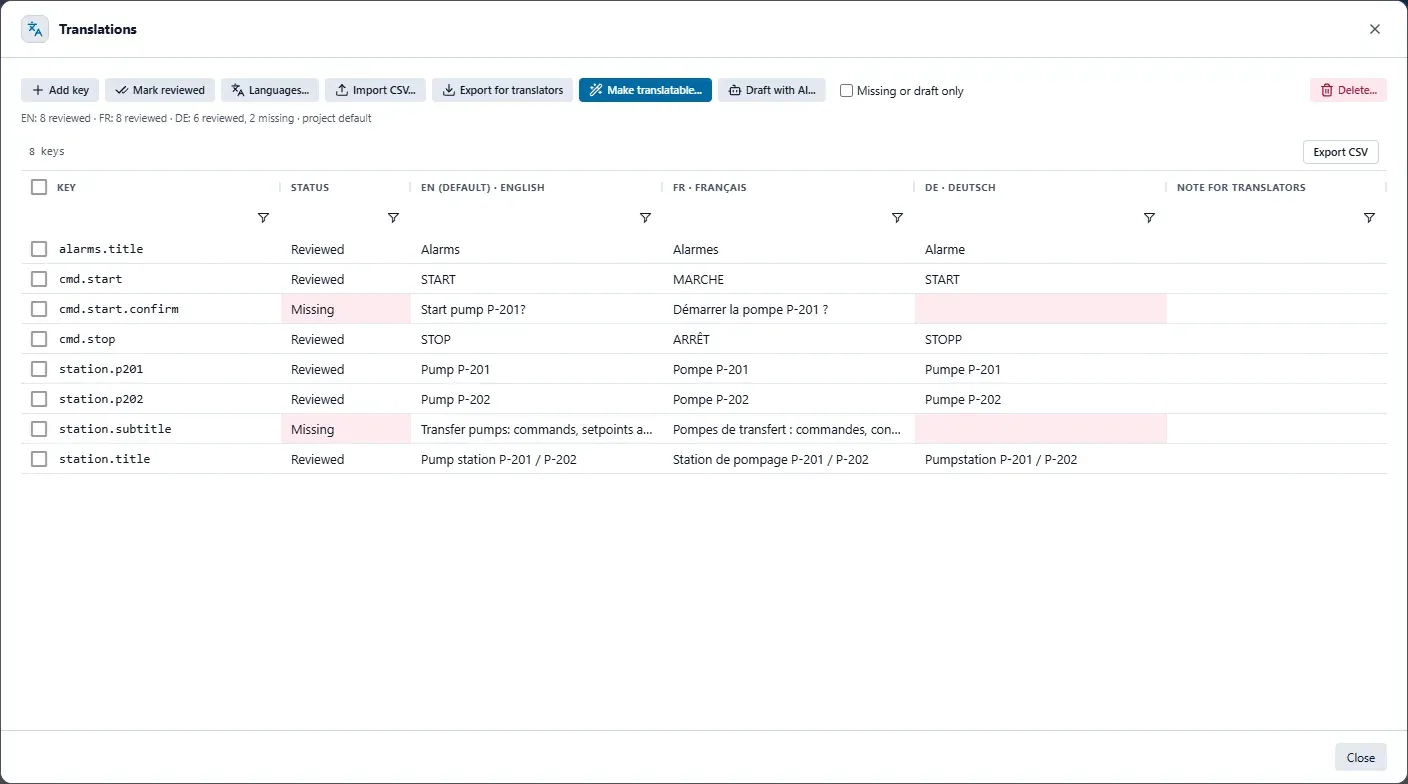
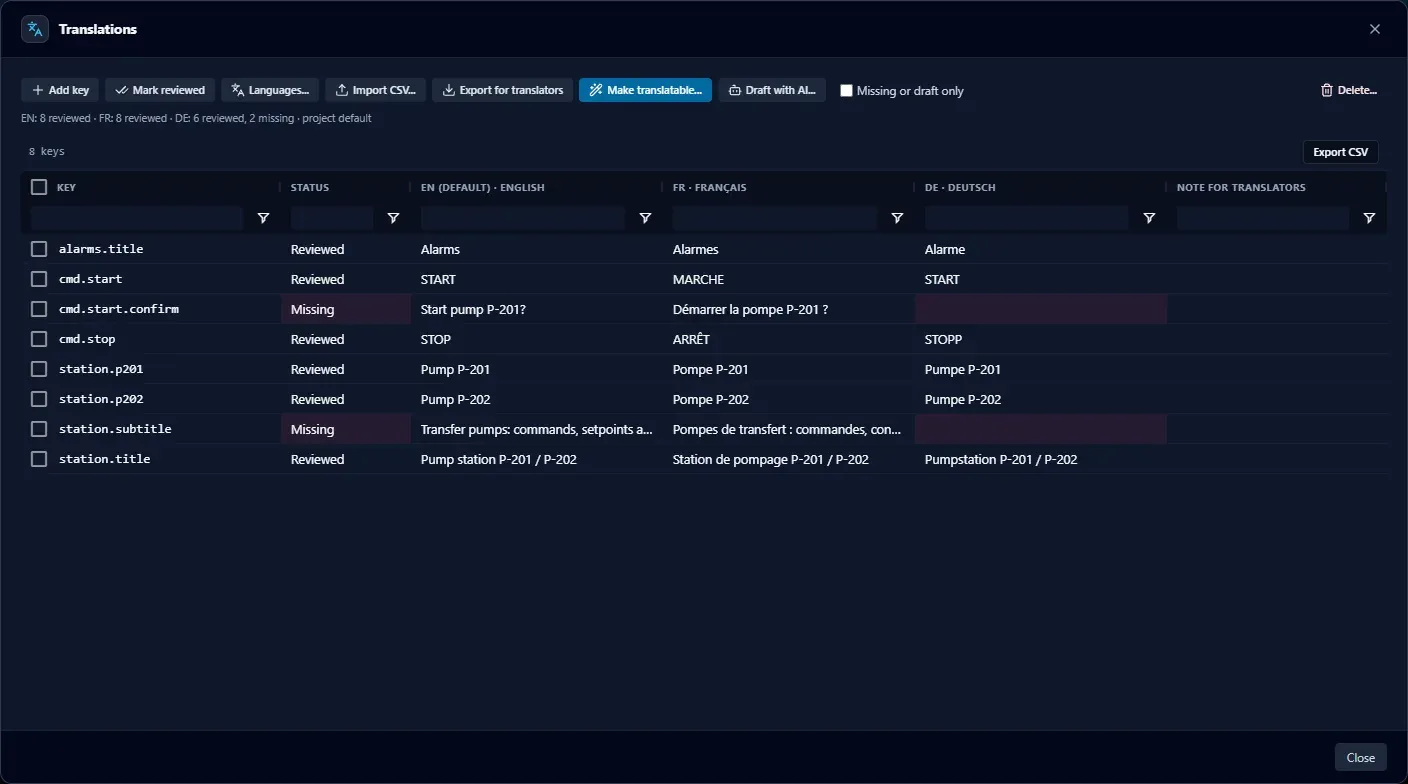
| Column | What it shows |
|---|---|
| Key | The key. Tick the box to select the row. |
| Status | Missing when a language has no text, Machine draft when a text was drafted by the AI assistant and nobody has reviewed it yet, Reviewed otherwise. |
| One column per language | The texts. A missing text is tinted; a machine draft is in italics. |
| Note for translators | Where the text is shown, to help translators. |
Tick Missing or draft only to see what is left to do. Every column has a filter, and Export CSV downloads the rows as shown.
A text you type is Reviewed. To approve machine drafts without changing them, select their rows and choose Mark reviewed.
With your translators
Section titled “With your translators”- Select Export for translators. You get a CSV file with one row per key:
key,note, then one column per language. With Missing or draft only ticked, only the keys still to translate are exported. - The translator fills in the columns of their language, in any spreadsheet program, and saves the file as CSV. A comma or a semicolon as the separator are both read.
- Select Import CSV… and choose the file.
On import:
- a filled cell sets that text, marked Reviewed;
- an empty cell leaves the text as it is;
- a key that does not exist yet is added;
- a column for a language the project does not have yet is kept, and the import names it: add the language to the project to show it.
Draft with AI
Section titled “Draft with AI”When the project allows an AI provider (the project’s assistant settings), Draft with AI… drafts the missing texts of one language from the default language, at most 200 per run.
- Only the texts are sent to the provider: no tag value, no screen.
- A draft that changes a placeholder (
{value}, a plural) is not kept. - Every draft is marked Machine draft. Review it before the operators rely on it.
4. Translate alarm messages
Section titled “4. Translate alarm messages”An alarm definition’s name and description can be keys too, for example:
t:alarm.tank1.high|Tank 1 level high: {value} %{value}is the alarm’s value,{tag}its tag path,{setpoint}its setpoint.- The alarm journal keeps the key and these arguments next to the text in the default language.
- Each operator sees the message in their own language: in the alarm banner, the alarm summary and the history.
- The history’s CSV export is written in the language of the person who exports it.
5. Check what is missing
Section titled “5. Check what is missing”The editor’s Problems panel lists every key a screen uses that has no text in one of the project’s languages (rule translation-missing, information only). The runtime then shows the default language’s text there, so the screen still works.
6. Choose a language in the runtime
Section titled “6. Choose a language in the runtime”In the operator runtime, open the session menu (the user button at the bottom right), select Language, and choose one. On a phone, the language list is in the Account sheet.
- The screens, alarms and dialogs change at once, without reloading the page.
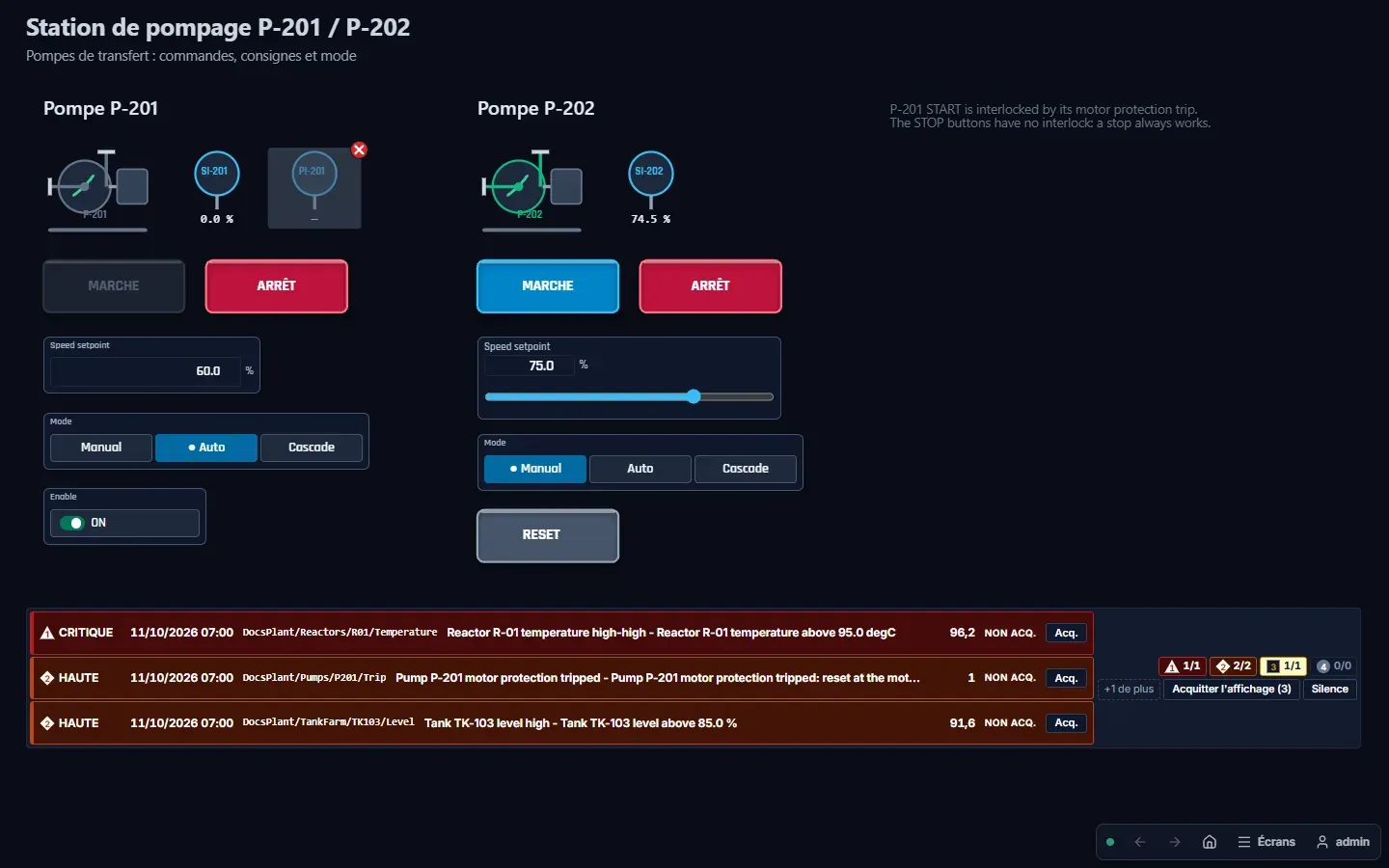
- The choice is remembered in the browser and saved for the signed-in user. It follows the operator to another panel.
- Numbers and dates are written as in the chosen language:
91,5in French,91.5in English. The on-screen keypad uses the same decimal separator.
The studio itself stays in English for now.
Confirmations and electronic signatures
Section titled “Confirmations and electronic signatures”A command’s confirmation question and the meaning of its electronic signature can be keys. The operator reads them in their language. The audit trail then records exactly what was read: the text as shown, its key and the language. For example:
meaning: Démarrer la pompe [i18n pump.start fr]A literal text is recorded as written, as before. Translate these texts so that their meaning is the same in every language.
Who can do what
Section titled “Who can do what”- Every signed-in role can read the translations: the runtime needs them.
- Changing translations, the project’s languages, Make translatable and Draft with AI require the Lead_Engineer or Administrator role.
- Every change is recorded in the audit trail (category I18N). A change made from an older copy of the table is refused: reload and make it again.
- On a high-availability pair, translations are engineering configuration: they are changed on the primary and copied to the standby.
See Runtime languages for the key syntax, the order in which a text is chosen, and the API.