

When the historian store file does not open
The historian’s columnar store is one file, scada_history.duckdb in the historian folder. When it does not open at start, eaxScada does not stop and loses nothing: the new points wait in the spool, and the store is tried again every minute. The file is never touched by itself.
This guide tells you what to do next:
- Find out why the file does not open. A file that is only in use by another process is not damaged, and opens again once that process lets go.
- If a checkpoint was cut short, repair it (through the API for now): a verified copy takes the file’s place, the original is kept, and the history stays complete.
- If it is damaged otherwise, set it aside from System Health: the file is renamed and kept, a new empty store opens, and the points waiting are written to it.
- Restore the history from before it from the nightly snapshot, offline, keeping the points written since.
Nothing in this guide deletes a file, and nothing is ever repaired or set aside automatically. It applies to stores without encryption at rest: an encrypted store that does not open stops the server (it fails closed), and it is never repaired or set aside.
Before you start
Section titled “Before you start”- You must be an administrator, signed in to the studio, on a desktop or a tablet. On a phone the studio does not show System Health. An API token, the AI co-pilot or an eaxCloud remote session cannot set the store aside.
- Check that the store did not open at start. The system alarm
ALM-SYS-HISTORIAN-STORE-DOWNis active, and System Health’s Logging row says “store not taking writes - points kept in the spool”. The set-aside is offered only in this case. A store that opened and later fails writes is handled by the spool and the retry: there is nothing to set aside. - Find the newest snapshot made before the store stopped opening. The nightly snapshot is in
./data/backup/historianby default (historian-<UTC time>.duckdb). It is what brings the old history back. The snapshot runs once a day: restarting the server while you work on this does not take new snapshots, nor prune the ones of the days before.
1. Open the check of the file
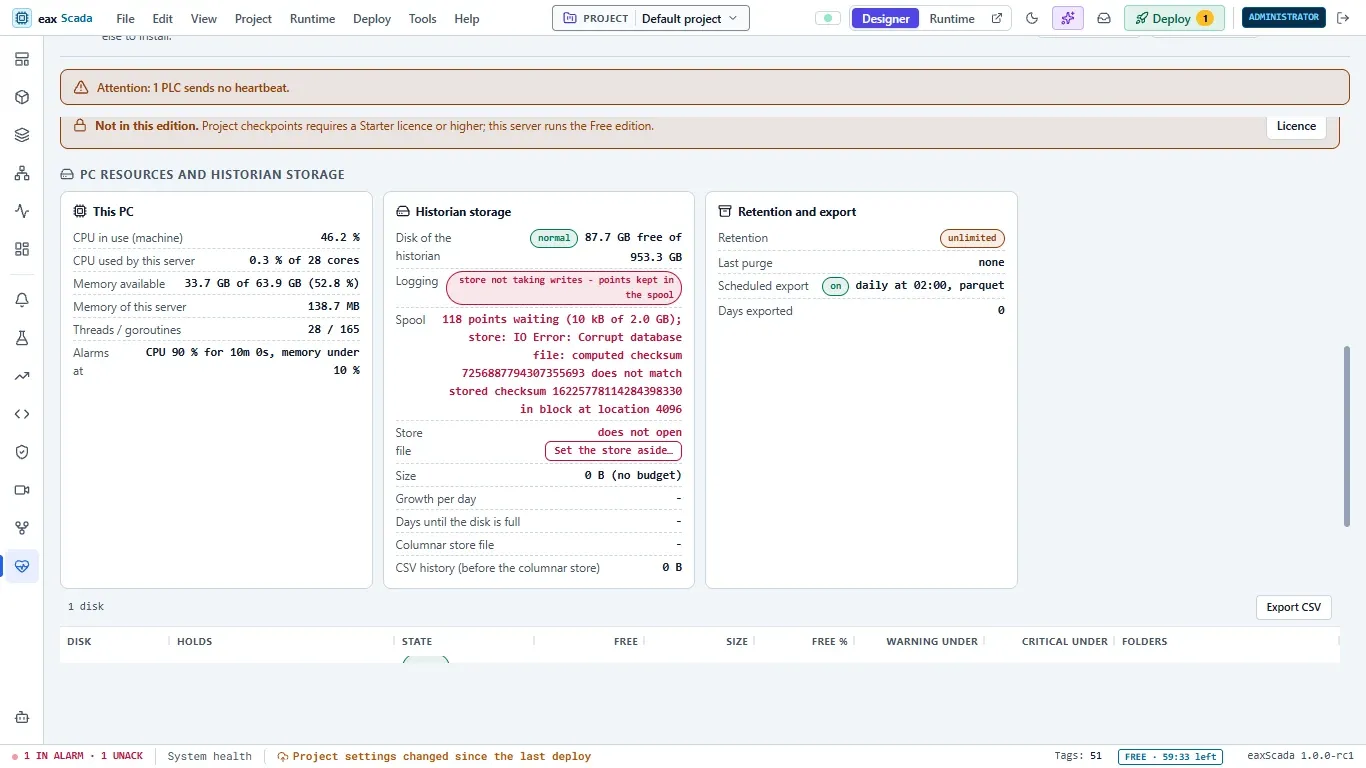
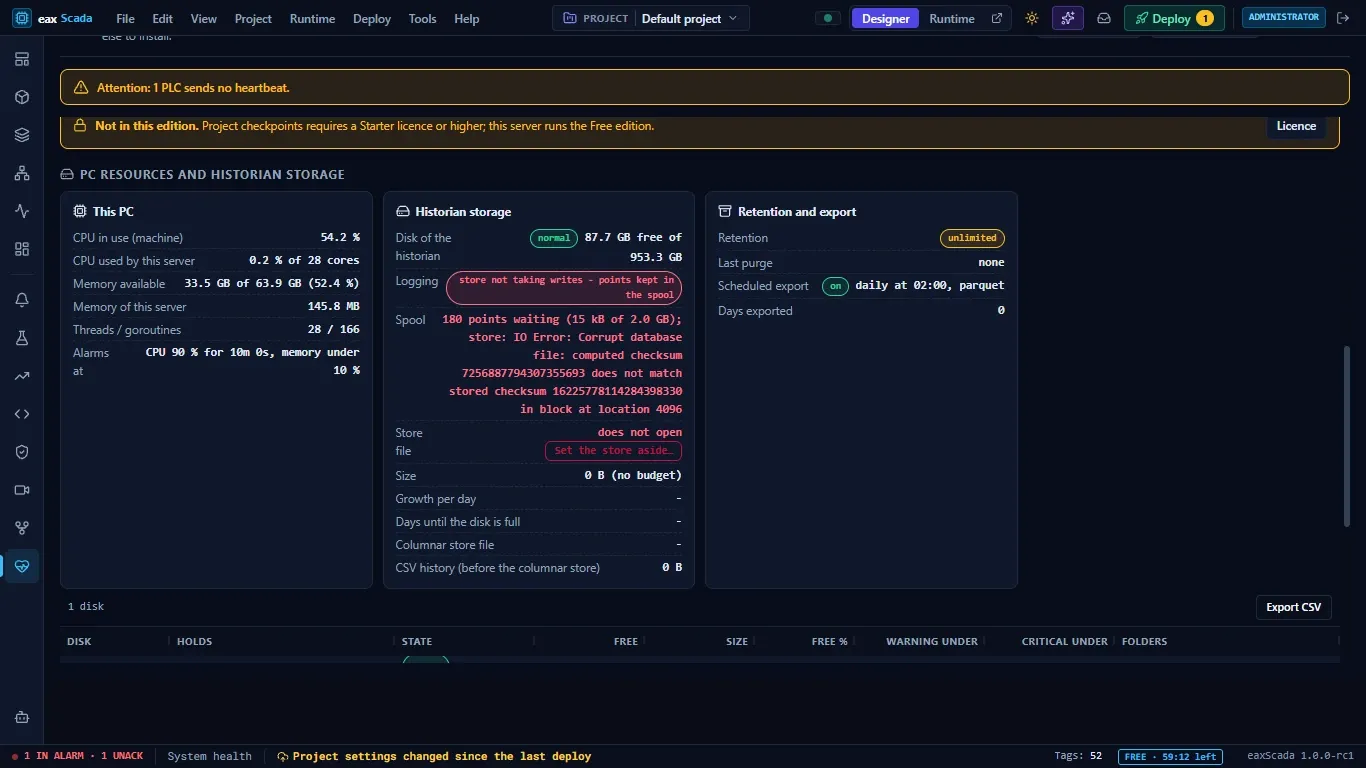
Section titled “1. Open the check of the file”- Open System Health and find the Historian storage card.
- While the store did not open at start, the row Store file says “does not open”. Administrators see Set the store aside… next to it.
- Click it. The dialog checks the file before it offers anything.
2. Read what the check found
Section titled “2. Read what the check found”The check looks at the file itself, then at the store’s own open error:
| Check | What it means | What happens |
|---|---|---|
| in use by another process (not damaged) | Another process holds the file: a second eaxScada on the same folder, a backup tool, an antivirus scan. On Windows the file is open without sharing; on Linux it is locked, and the dialog names the process’s PID. | Refused. Stop that process or wait for the scan. The store is taken back at the next retry, within a minute. |
| cannot be read by eaxScada (a permission) | eaxScada’s own account may not open the file for reading and writing. That is not damage. | Refused. Give the service account access to the file. |
| opens now: taken back | The file opened when it was checked. | Nothing to set aside: the store is used again and the points waiting are written to it. |
| no store file | The path is missing or is not a file. | Refused. The cause is elsewhere (the folder, the disk). |
| this eaxScada does not open the store file and leaves it as it is | The file is in a newer format than this eaxScada opens: a newer eaxScada wrote it. That is not damage. System Health’s Database stores shows the store refused. | Refused. Start the newer eaxScada again, or restore the backup taken before the upgrade. Do not delete the file. |
| damaged: it does not open | The file is not locked, eaxScada can read it, and it still does not open. The Header line says whether it is “a store file (its blocks are damaged)” or “not a store file”. | The set-aside is offered. The diagnosis also says whether the file can be repaired instead. |
Why a locked file is never set aside: it is not damaged. Setting it aside would hand the other process a renamed file, and give the server an empty store while the real history is fine.
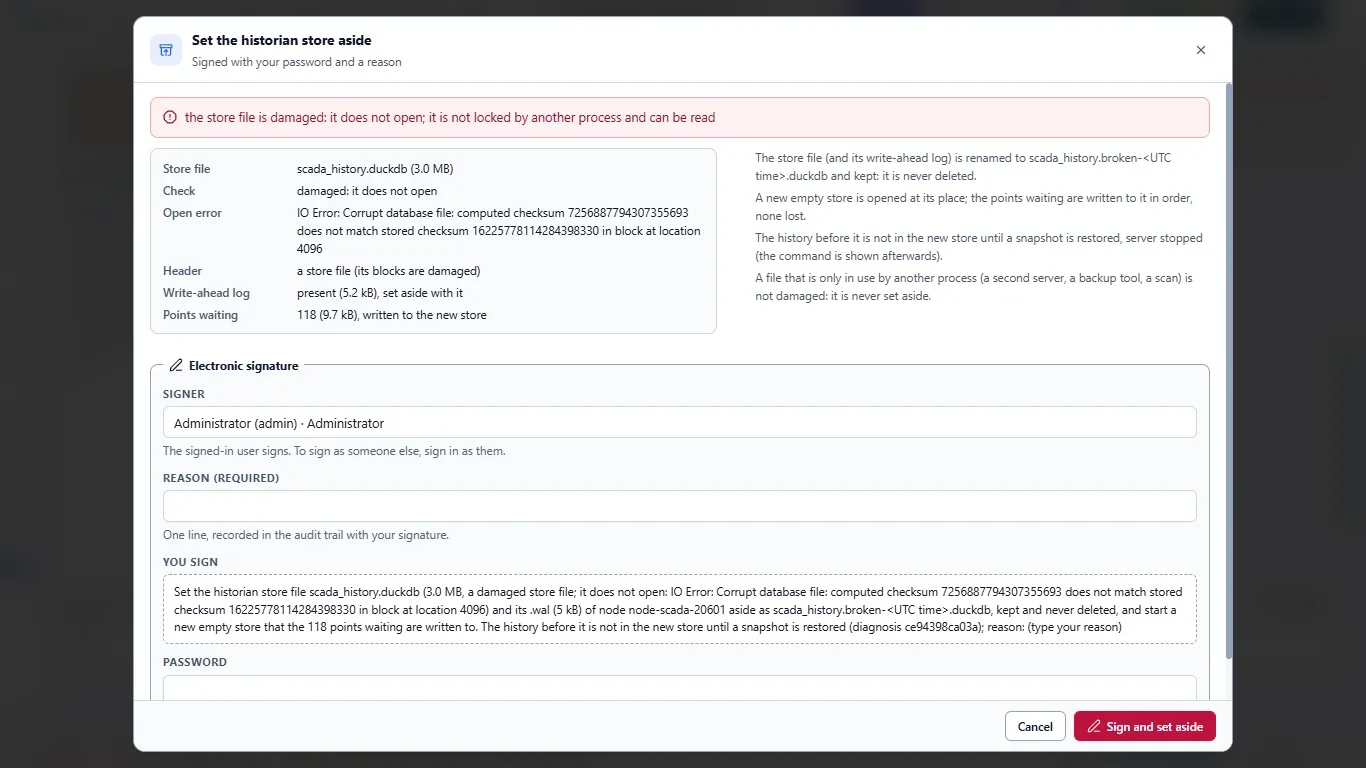
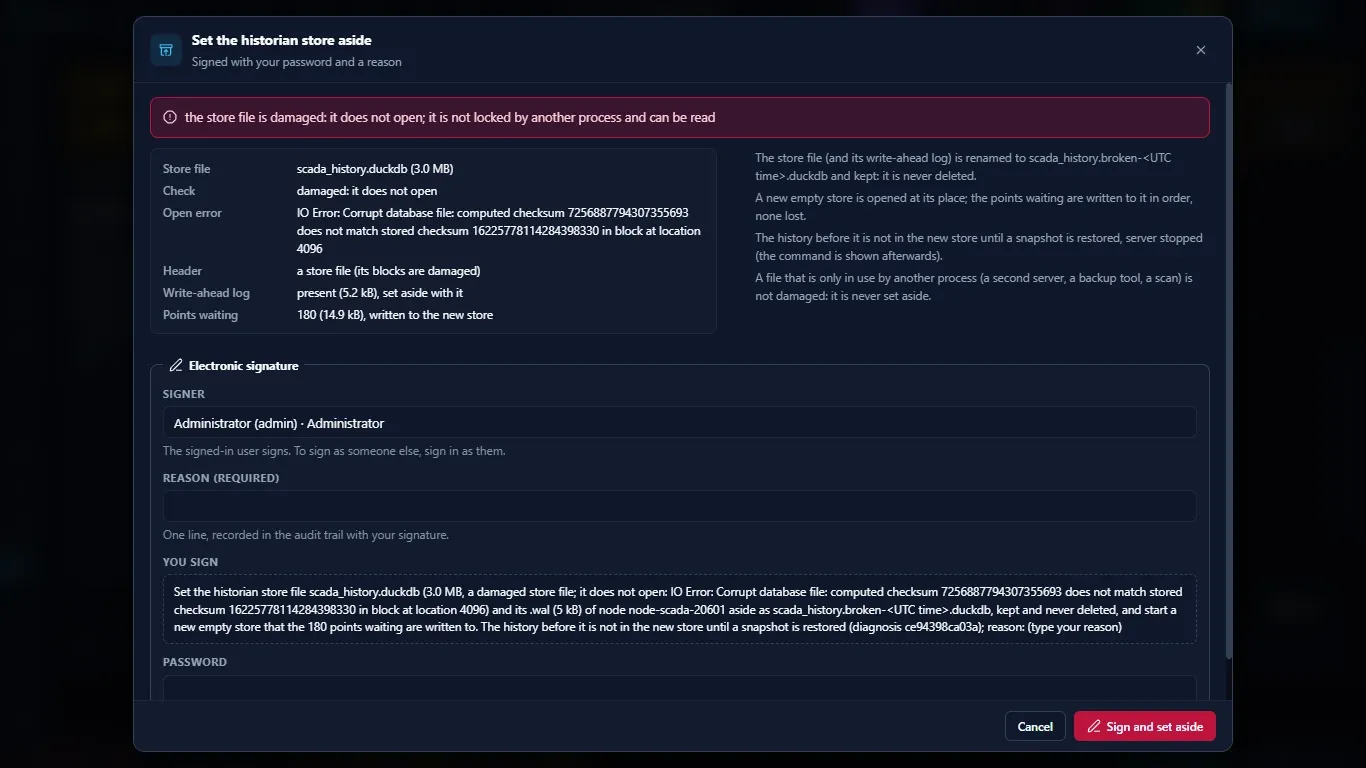
For a damaged file, the dialog shows:
- the store file with its size, the check, the open error, the header, and the write-ahead log (
.wal) when there is one: it is set aside with the file; - the points waiting in the spool, and that they are written to the new store;
- the rules: the file (and its write-ahead log) is renamed to
scada_history.broken-<UTC time>.duckdband kept, never deleted; a new empty store opens in its place and the points waiting are written to it in order, none lost; the history before it is not in the new store until a snapshot is restored; a file only in use by another process is never set aside; - the signature: the signer (you, read-only), the text you sign, an empty reason and an empty password.
2a. Repair a file a checkpoint cut short
Section titled “2a. Repair a file a checkpoint cut short”A power loss or a killed process during a checkpoint can leave a store file that does not open although its data is intact: one block’s checksum is wrong. The open error then reads “computed checksum … does not match stored checksum … in block at location …”. Such a file can be repaired instead of set aside, and no snapshot restore is needed afterwards.
If the store does not open because a checkpoint was cut short, eaxScada checks a copy block by block, recomputes the one wrong checksum, reads every table of the copy and compares its daily row counts with your latest snapshot. Only a copy that passes is offered. An administrator repairs it with an electronic signature. The original file is kept as scada_history.torn-<UTC time>.duckdb, a journal is written next to it, and the audit trail records both files’ SHA-256. Your history stays complete. Nothing is ever repaired automatically, and an encrypted store is never repaired.
Read whether a repair is possible
Section titled “Read whether a repair is possible”The server log says it first. When the store does not open at start, the server reads the file’s headers and metadata blocks (only reads them) and logs at once one of two lines: a warning “historian store at start: may be repairable (a checkpoint cut short)”, with the block and the three API routes to use, or an information line “historian store at start: not a checkpoint cut short, so not repairable (the set-aside is offered in System Health)”. The start does not wait for this.
GET /api/historian/store carries diagnosis.repair while the store is broken. Its state:
| State | What it means | What next |
|---|---|---|
candidate |
The file’s headers and the chains of metadata blocks hold, and exactly one metadata block has a wrong checksum: the trace of a checkpoint cut short. evidence names the block and its location. Only the file was read. |
Start the check of a copy. |
checking |
A copy of the file and its write-ahead log is being made next to it (scada_history.repair-<UTC time>.duckdb), checked block by block, patched and verified. |
Wait, and read the diagnosis again. |
verified |
The patched copy opened read-only, every table read to its end, and no day of the latest snapshot holds more rows than the copy. The answer adds repair_meaning, the text you sign. |
Repair, e-signed. |
refused |
The copy did not pass a rule or did not verify; why says which. The copy is removed. |
Only the set-aside. |
not_repairable |
The file is not a checkpoint cut short: another kind of damage, or not a store file. | Only the set-aside. |
The comparison with the snapshot. Days older than the copy’s first day (a retention purge since the snapshot) and that first day itself are not compared. With no snapshot to compare with, the check says so in its verification, and the other checks still apply.
A file that changes, a set-aside or the store opening drops the check and its copy.
The check runs apart from the server. The copy and the snapshot are read in a separate process of the eaxScada program that the server starts for the check, read only, one file at a time, each for at most 6 hours (a large store takes time). If that process crashes, hangs, stops with an error or gives no valid answer, the repair is refused with the reason, and the server keeps running.
A restart during a check leaves no copy behind. At the next start the server deletes the copies a check left in the store’s folder (scada_history.repair-<UTC time>.duckdb and its .wal, those names only) and logs each deletion. Such a copy was never put in place; start a new check. The kept originals (scada_history.torn-*) and every other file stay.
Repair
Section titled “Repair”- Start the check:
POST /api/historian/store/repair/checkwith the diagnosis’shash. The answer is202with the statechecking. It needs free space for a copy of the file and its write-ahead log, plus 256 MB, above the disk guard’s critical line. - Read the diagnosis again until
repair.stateisverified, then readrepair_meaning. - Sign:
POST /api/historian/store/repair/signwith your password, a reason and the verified repair’shash. The answer is a one-time ticket, bound to this repair and signed under the decisionhistorian_store_repair(GET /api/historian/storenames it inrepair_decision): a set-aside ticket does not repair, and a repair ticket does not set aside. - Repair:
POST /api/historian/store/repairwith thehash, the reason and the ticket.
What happens, in this order:
- The original and the copy are checked again: the same size and time, still the same wrong block. If either changed, nothing happens (
409 changed): check again. - A journal is written next to the file:
scada_history.torn-<UTC time>.duckdb.repair.json, with both SHA-256, the block and the verification. - The audit record comes first:
HISTORIAN_STORE_REPAIRED, with your signature, the file, its open error, the block, the verification, and both files’ SHA-256. If it cannot be written, the journal is removed and nothing changes (503 AUDIT_NOT_WRITTEN). - The original is renamed, never deleted:
scada_history.duckdbbecomesscada_history.torn-<UTC time>.duckdb, with its.wal. The verified copy and its.waltake its place. No file is overwritten. - The store opens (if not at once, at the next retry within a minute), its write-ahead log replays the commits acknowledged before the crash, and the points waiting in the spool are written to it in order.
ALM-SYS-HISTORIAN-STORE-DOWNclears once the store takes writes.
Trends show the whole history again: there is nothing to restore. Keep the original (scada_history.torn-<UTC time>.duckdb, its .wal and its .repair.json) as evidence until the repaired history checks out; eaxScada never deletes it.
A signed repair that did not go ahead after its ticket was redeemed is recorded as HISTORIAN_STORE_REPAIR_REFUSED, with the cause. The refusals are in the Historian store API.
3. Sign and set the file aside
Section titled “3. Sign and set the file aside”When the diagnosis’s repair is not_repairable or refused, or you do not repair, set the file aside:
- Type a reason and your password. Neither is filled in for you.
- Click Sign and set aside.
What happens, in this order:
- The file is checked again. If it changed since the dialog showed it (another size or time, another error), or is now locked or opens, nothing happens: the dialog says why, and you review it again.
- The audit record comes first.
HISTORIAN_STORE_SET_ASIDEis written with your signature: the file, its size and time, the open error and the new name. If it cannot be written, nothing changes. - The file is renamed, never deleted:
scada_history.duckdbbecomesscada_history.broken-<UTC time>.duckdb, and its write-ahead log becomesscada_history.broken-<UTC time>.duckdb.wal. No file is overwritten. If the write-ahead log cannot be renamed, the store file is put back: nothing changed. - A new empty store opens at the old place, and the points waiting in the spool are written to it in order. None is lost.
ALM-SYS-HISTORIAN-STORE-DOWNclears once the store takes writes. - A record of the set-aside,
scada_history.set-aside.json, is written in the historian folder. It stays until a snapshot restore removes it.
From now on, trends show the points written since the set-aside. The history before it shows again after the restore (step 5). CSV history from before the columnar store reads as before.
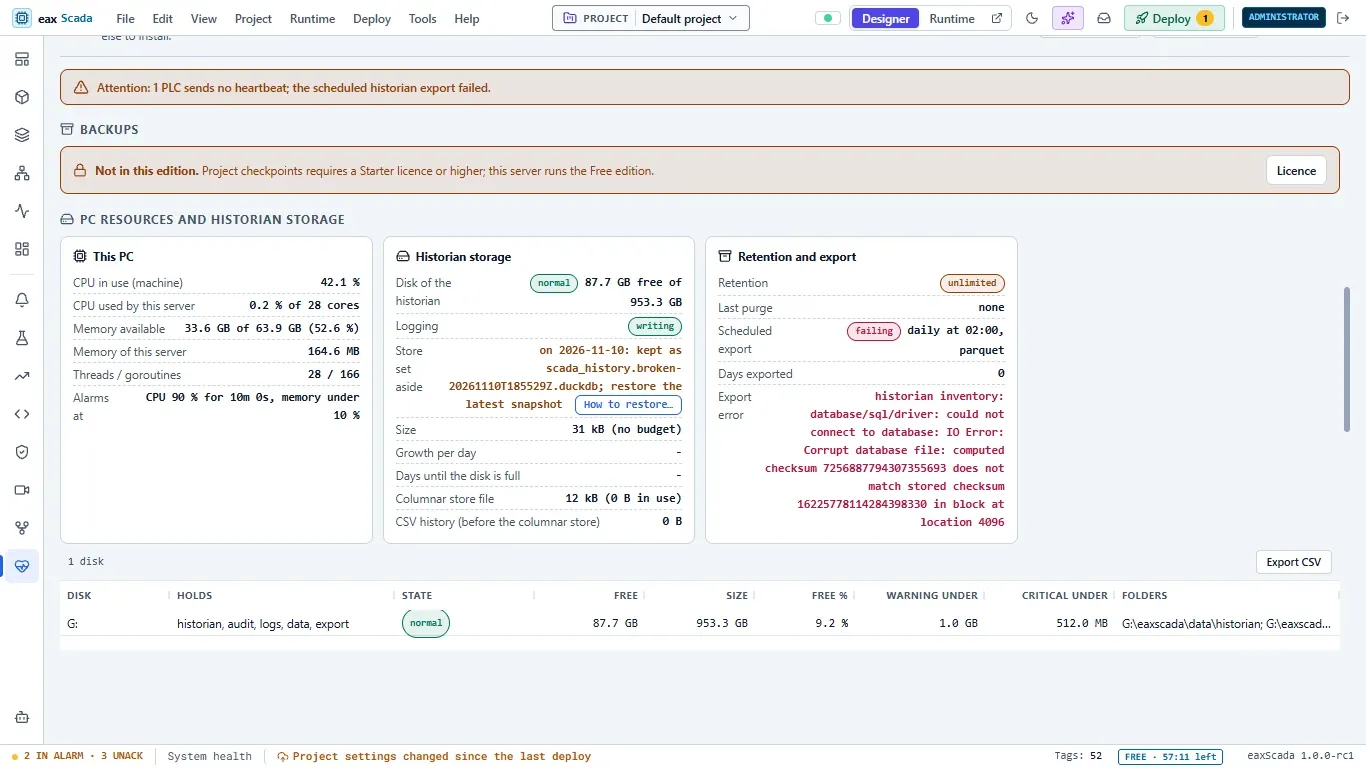
The scheduled export and the nightly snapshot start afresh on the new store. The errors they recorded while the store did not open (for example “historian inventory: … Corrupt database file …”) are cleared, and both run again at the next minute’s check, against the new store. Before, System Health showed “Scheduled export: failing” until the next hourly retry.
System Health’s “Export error” row shows the short cause: the store file’s name, without its folder or the database driver’s prefix, as the Spool row does. The full error stays in the server log and in GET /api/historian/storage (last_error, with last_error_short beside it).
4. See what is left to do
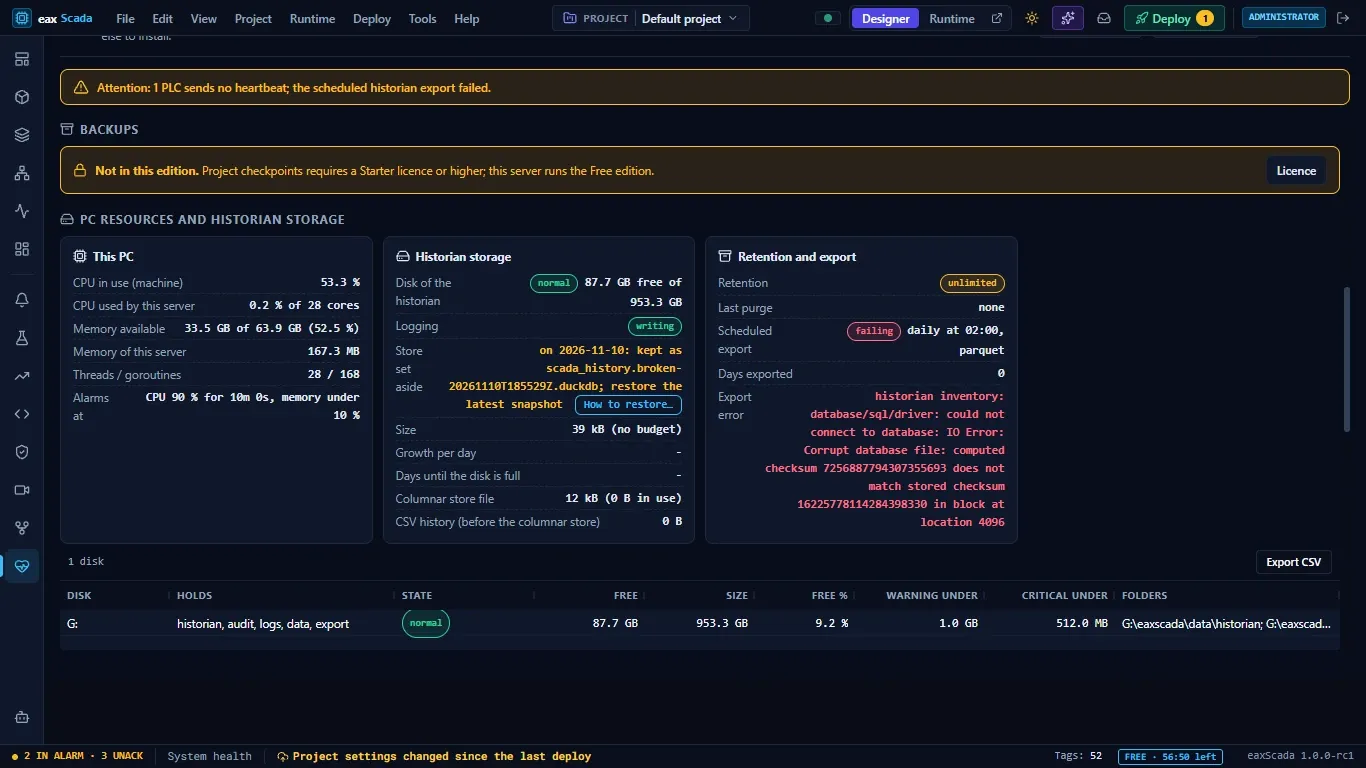
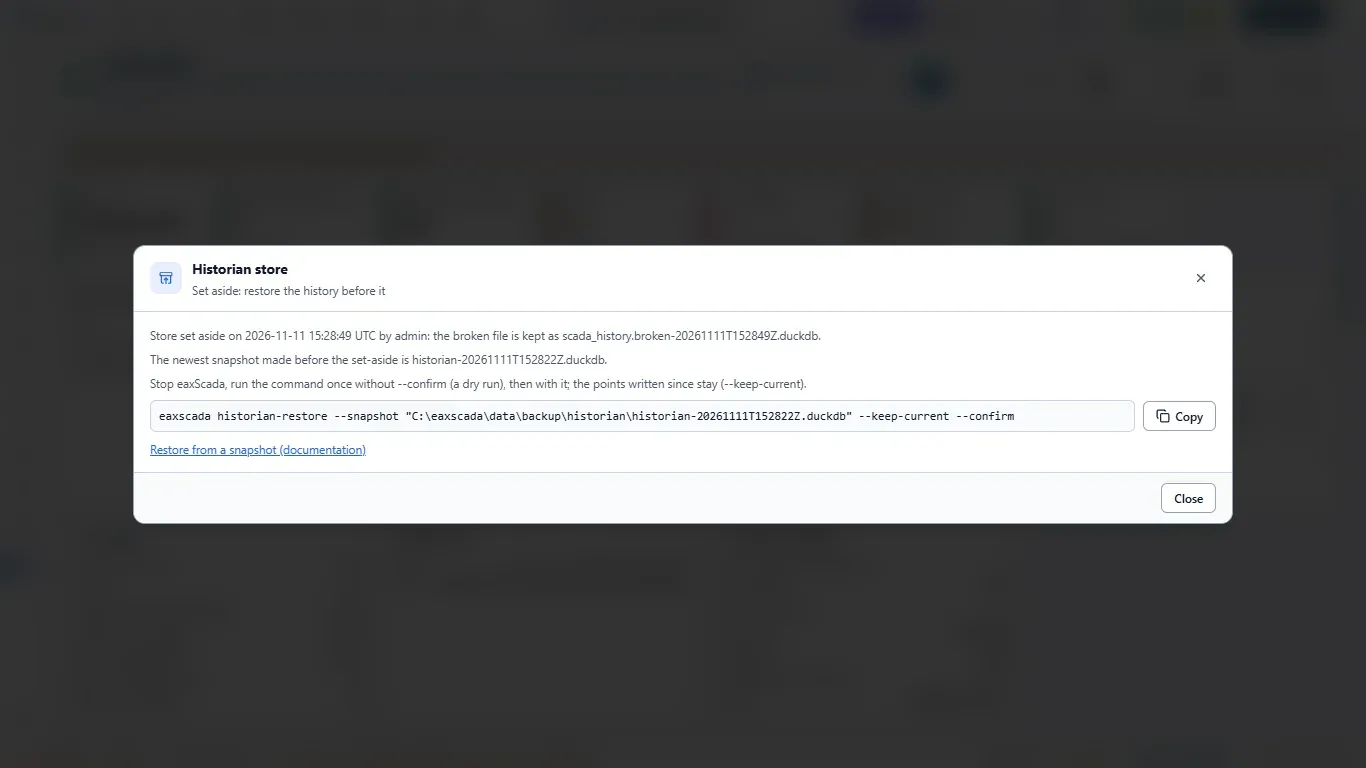
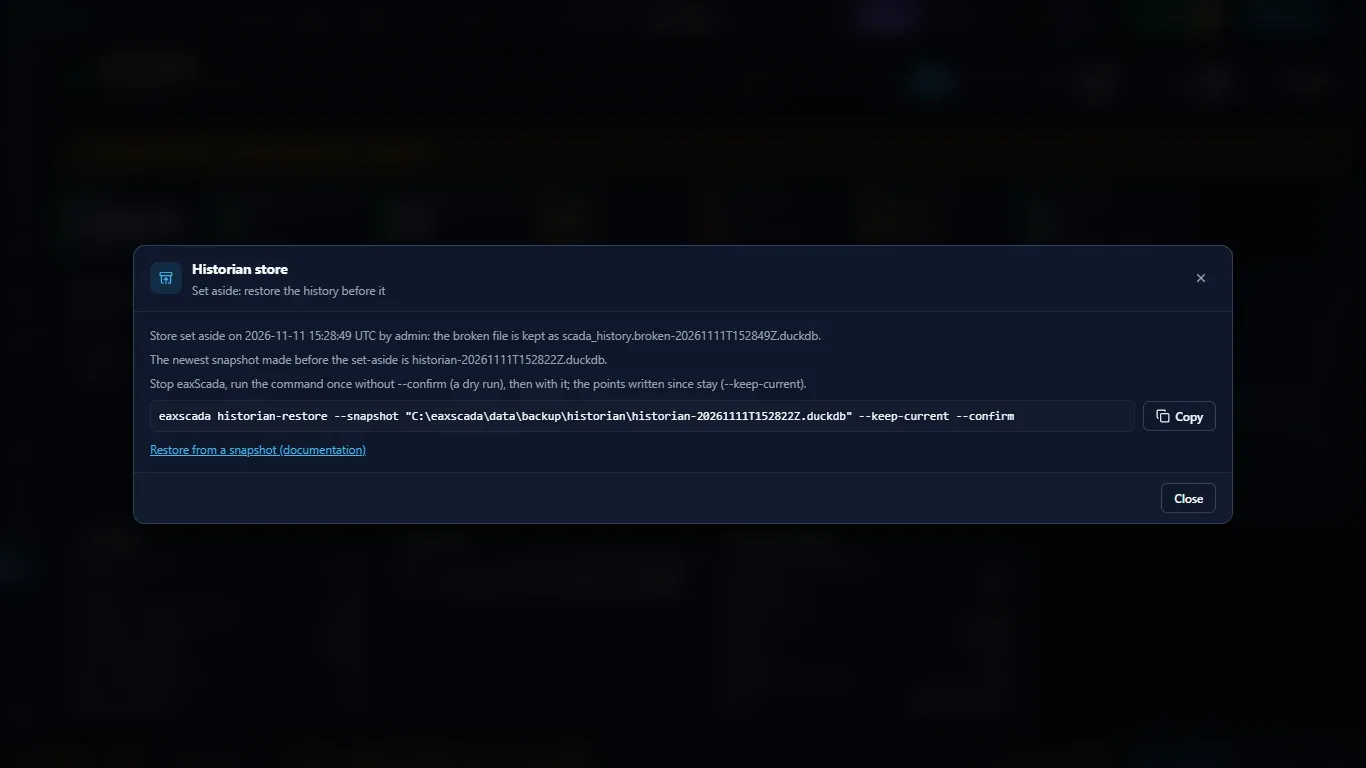
Section titled “4. See what is left to do”After the set-aside, System Health’s Historian storage card shows Store set aside with the date and the name of the kept file: “restore the latest snapshot”. Administrators get How to restore…:
- the newest snapshot made before the set-aside (a later nightly snapshot holds only the new store). The dialog says “The newest snapshot made before the set-aside is historian-<UTC time>.duckdb.”, or, when there is none, “No snapshot of this historian made before the set-aside was found: restore one from your backups.”;
- the exact command, with a Copy button;
- a link to the restore in the documentation.
The snapshots made before the set-aside are kept. While the set-aside record is there, the nightly snapshot never deletes them, and they do not count towards historian.snapshot.keep. The new store’s snapshots are pruned as usual.
5. Restore the history before the set-aside
Section titled “5. Restore the history before the set-aside”With the server stopped, as the user that runs it, from its working folder:
-
Run a dry run. It writes nothing:
Terminal window eaxscada historian-restore --snapshot "./data/backup/historian/historian-<UTC time>.duckdb" --keep-currentIt checks the snapshot, says that the store was set aside, and prints what it would do. For example:
Historian snapshot historian-20261110T185348Z.duckdb verified: 29536 rows, made 2026-11-10T18:53:48Z.The store was set aside (scada_history.broken-20261110T185529Z.duckdb, 2026-11-10T18:55:29Z): this restore brings the history before it back.Dry run. A restore with --confirm would:copy <historian folder> to <historian folder>.restore-<time> and put the snapshot in place of its columnar storeappend the 682 rows of the current store after the snapshot's, in their write order (they are later writes: they win where both hold a tag and timestamp), checked by count and checksumhistory written between the snapshot and the current store's first row is not in eitherkeep the current historian, unchanged, as <historian folder>-before-restore-<time>, and record the restore in the audit trailNothing was written. Run again with --confirm to restore. -
Run the restore:
Terminal window eaxscada historian-restore --snapshot "./data/backup/historian/historian-<UTC time>.duckdb" --keep-current --confirm -
Start the server, and open the trends of a few tags over the days before the set-aside.
What --keep-current does:
- The snapshot’s history takes the store’s place, and the rows of the current store (the points written since the set-aside) are appended after it, in their write order. They are later writes: where both hold a tag and timestamp, the current store’s value wins.
- They are checked before the swap, by count and by checksum. If they do not match, the restore stops and the live history is unchanged.
- The previous historian folder is kept beside the restored one, unchanged (
<historian folder>-before-restore-<time>), as for every restore. The recordHISTORIAN_SNAPSHOT_RESTOREDnames the rows kept. The broken file stays in the historian folder. - The set-aside record is removed: System Health no longer shows “Store set aside”, and the nightly snapshot prunes as usual again.
Without --keep-current the restore replaces the whole store with the snapshot’s, as before, and the points written since the set-aside are dropped. The dry run says so: “the current store holds 682 rows; –keep-current keeps it”.
Keep the broken file (scada_history.broken-<UTC time>.duckdb and its .wal) until the restored history checks out. eaxScada never deletes it.
When the server refuses
Section titled “When the server refuses”| Answer | Why | What to do |
|---|---|---|
401 or 403 |
Not a signed-in administrator, an API token, the AI co-pilot; a wrong password (“signature refused”). | Sign in as an administrator, and type your own password. |
409 locked |
The file is in use by another process: not damaged. | Stop that process or wait; the store is taken back at the next retry. |
409 unreadable |
eaxScada cannot open the file for reading and writing (a permission), or could not check it. | Give the service account access to the file. |
409 opens_now |
The file opened when it was checked: it is used again. | Nothing to do. |
409 missing |
There is no store file at the path. | Look at the folder and the disk. |
409 not_offered |
The store did not fail to open at start (or is open). | Nothing to set aside. |
409 changed |
The file or its check changed since the dialog showed it. | Review it again and sign again. |
409 busy |
A CSV history import call or a historian snapshot is in progress. | Try again in a moment. |
409 low_disk |
Free space is under about twice the spool’s size plus 256 MB, above the disk guard’s critical line. | Free space on the historian’s disk. |
503 AUDIT_NOT_WRITTEN |
The audit record could not be written. Nothing changed. | Check the audit folder’s disk and access. |
A signed set-aside that did not go ahead is recorded as HISTORIAN_STORE_SET_ASIDE_REFUSED, with the cause. The e-signature decision is historian_store_set_aside. The routes are in the Historian store API.
The CSV history import after a set-aside
Section titled “The CSV history import after a set-aside”The CSV history import kept its state in the store that was set aside. The new store shows it “not started”, and a new plan lists the CSV history still on disk. The CSV days already imported and deleted are in the broken file and in the snapshot: the restore brings them back.