

Operator runtime
Migrated page, not yet verified against the current code. Treat values, paths and examples as indicative until this notice is removed.
Control-room operators need an uncluttered, responsive and secure interface. The standalone operator runtime (web/templates/runtime.html and web/static/js/runtime_player.js) is a clean visualisation player with dual-dock layouts and corner priority, discrete kiosk controls, operator tag writes and a client-side scripting API.
1. Runtime and Dev Studio
Section titled “1. Runtime and Dev Studio”Dev Studio (/) has the full engineering tools: layer palettes, property inspectors and so on. The operator runtime (/runtime, /runtime/ or /app/) removes all authoring chrome: it shows the screen in the primary view, with up to four docks around it (top, bottom, left and right; section 2) that the project fills, for example with navigation or an alarm summary.
- No design overhead. No selection handles, transform gizmos or palette scripts are loaded.
- GPU acceleration. Canvas drawing uses the browser’s hardware acceleration.
- Only the tags on screen. The server sends the runtime the values of the tags its open views show, batched every 100 ms. See How live values reach screens.
- A new screen shows live values from the start. The runtime subscribes the tags a page’s screens (and a popup’s) name from their documents before drawing them, and holds a new page, dock, popup or inner screen hidden until those values are in, for at most 2 seconds; a value still missing then shows Bad. While held, the drawing, the HTML objects and an isometric map are all hidden and take no input, and an isometric block refuses every command; a very large answer sent in parts holds the screen up to 30 seconds, with “Loading values… N% (n/m)”. Inner screens show live values like the page, isometric inner screens included. See How live values reach screens.
- Only what a change touches. A tag update touches only the multi-state indicators of that tag, not every object of the screen. Once per display frame, a tag update evaluates the objects that read that tag, plus those whose reads are not plain tag paths, and redraws once. See Reactive dependency index.
- Operator sandboxing. Operators cannot change layouts or tag bindings.
A 3D digital twin scene is a display like any other: the runtime opens it by its id (/runtime?screen=<display id>) and shows it read-only, with live values and alarms. The runtime loads the 3D engine only when a 3D view opens: the view says “Loading the 3D view…” until the scene is drawn, and “The 3D engine could not be loaded. Check the connection, then open the screen again.” when the engine cannot load.
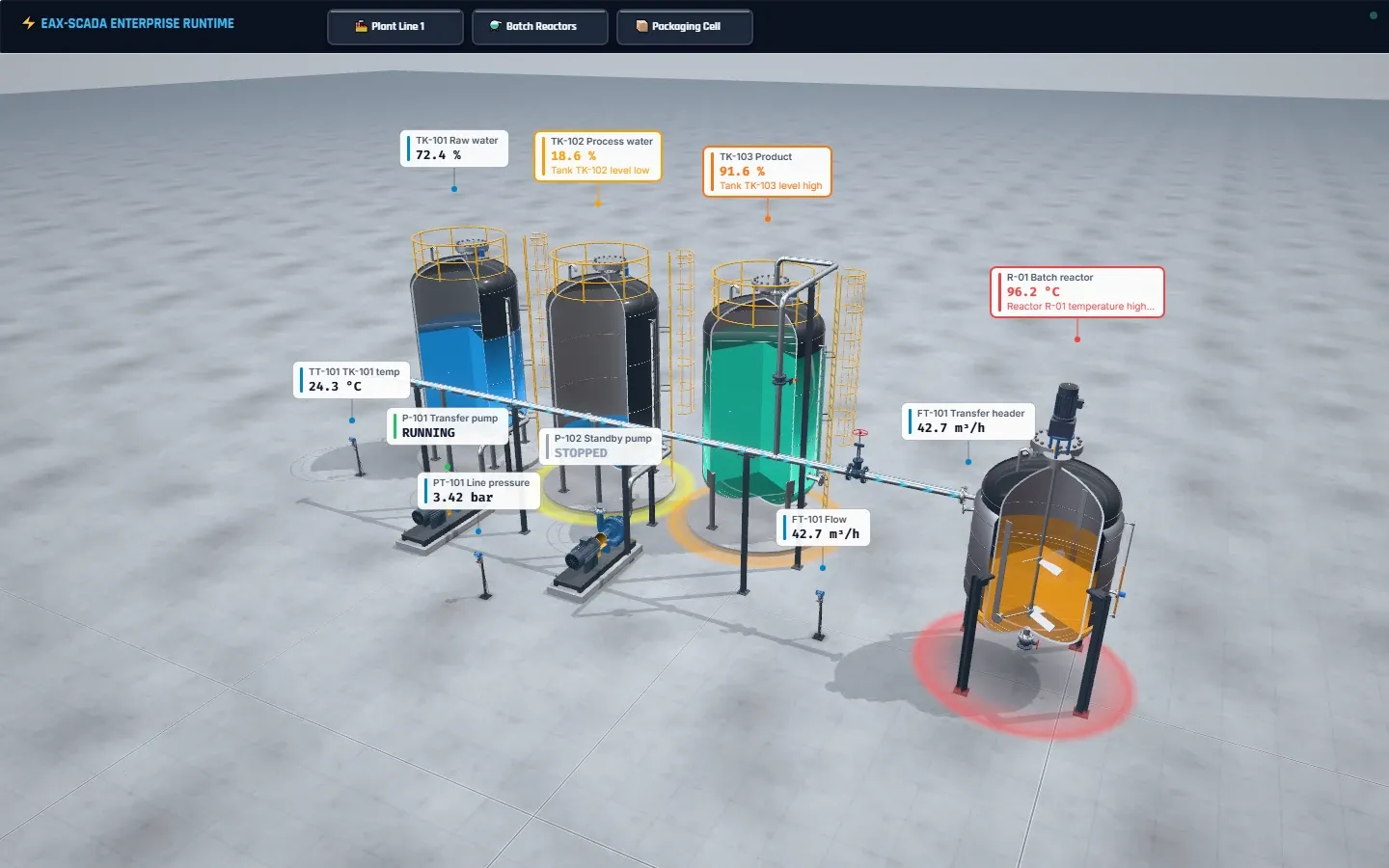
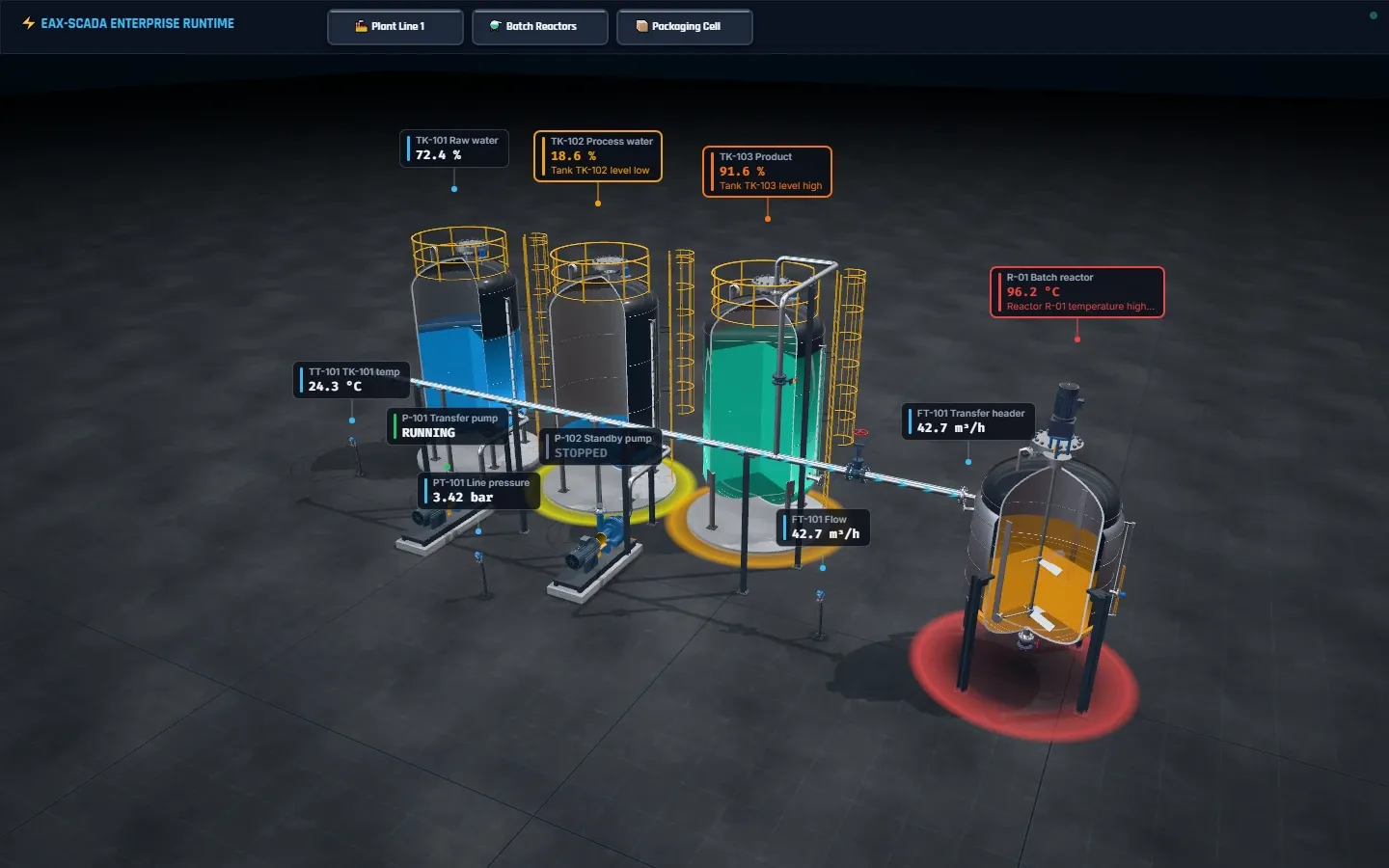
2. Dual-dock layout engine
Section titled “2. Dual-dock layout engine”The layout engine (runtime_player.js) manages four configurable docks around the primary view: top, bottom, left and right.
2.1 Dock modes
Section titled “2.1 Dock modes”| Mode | Behaviour | Use |
|---|---|---|
pinned |
Permanently occupies a fixed width or height. | Plant headers, alarm summary bars, fixed navigation. |
auto-hide |
Hidden by default with a grab handle (show_handle: true); slides in when the operator hovers or clicks the handle. |
Diagnostics, setpoint drawers, recipe parameter sheets. |
cover |
A drawer that slides over the primary view without resizing it. | Faceplates, mobile menus, temporary event logs. |
off |
Unmounted for the current route. | Full-screen synoptics and video wall feeds. |
2.2 Corner priority
Section titled “2.2 Corner priority”When horizontal (top/bottom) and vertical (left/right) docks are both active, the corners must belong to one of them. Two priorities are supported:
| Corner priority | Span the whole screen | Sit between them |
|---|---|---|
top-bottom (the default) |
The top and bottom docks, across the full width. | The left and right docks, between the top and the bottom dock, on each side of the primary view. |
left-right |
The left and right docks, down the full height. | The top and bottom docks, between the left and the right dock, above and below the primary view. |
A pinned dock with no size of its own is 60 px high at the top, 40 px at the bottom and 240 px wide on the left and the right.
The priority is set in the deployment manifest (/api/runtime/manifest), per page (corner_priority): inherited takes the project’s priority, and a page without one uses top-bottom.
3. Kiosk mode and the operator HUD
Section titled “3. Kiosk mode and the operator HUD”Control-room PCs usually run the runtime in a locked-down kiosk.
3.1 Touch-friendly layout
Section titled “3.1 Touch-friendly layout”The runtime container fills the screen, hides scrollbars and disables text selection, so operators on touchscreens do not select text by accident. 3D screens add on-screen thumb sticks to move, orbit and zoom on touch devices (see Joystick navigation).
3.2 Heartbeat LED
Section titled “3.2 Heartbeat LED”A discrete 8 px LED sits in the top-right corner of the runtime (runtime_player.js):
- Pulsing green (1 Hz): WebSocket connected, heartbeat healthy.
- Amber blink: WebSocket lost; reconnecting with exponential backoff.
- Solid red: server unreachable.
3.3 Developer status pill (#runtime-status-pill)
Section titled “3.3 Developer status pill (#runtime-status-pill)”Engineers can diagnose problems without leaving the operator interface by revealing the hidden status pill:
- Open it with
Ctrl + Shift + D, by adding?debug=1to the URL, or by clicking the heartbeat LED three times. - It shows the WebSocket round-trip time, the active route and primary view, a quick screen switcher, the light/dark theme toggle and the number of UNS tag subscriptions.
3.4 SIMULATED chip
Section titled “3.4 SIMULATED chip”When every value on the screen is simulated, one SIMULATED chip shows in the operator controls at the bottom right, and each simulated object carries a small violet dot instead of the full SIM badge; one real value brings the full badges back at once (Accept or refuse simulated PLCs).
4. URL routing and the deployment manifest
Section titled “4. URL routing and the deployment manifest”The runtime supports ordinary URL routing:
http://scada-host:8080/runtime?project=MainPlant&page=/processing/reactor1&debug=14.1 Route resolution
Section titled “4.1 Route resolution”On load, the runtime picks the view in this order:
?page=<route>: a page path inmanifest.pages(for example/packaging/line1).?screen=<displayId>: a screen by ID (for exampledsp_reactor_overview).#<hash>: client-side hash routing.- Default route:
manifest.default_page, or the first available screen.
4.2 Deployment manifest (/api/runtime/manifest)
Section titled “4.2 Deployment manifest (/api/runtime/manifest)”{ "project_id": "Chemical_Processing_Unit", "name": "Unit 101 Production HMI", "version": "1.4.2", "corner_priority": "top-bottom", "default_page": "/overview", "pages": [ { "url": "/overview", "title": "Plant Synoptic Overview", "primary_view": "dsp_reactor_overview", "docks": { "top": { "view": "view_header", "mode": "pinned", "size": 64 }, "left": { "view": "view_nav_menu", "mode": "auto-hide", "size": 240, "show_handle": true }, "bottom": { "view": "view_alarm_summary", "mode": "pinned", "size": 48 }, "right": { "mode": "off" } } }, { "url": "/alarms", "title": "Active Alarm Journal", "primary_view": "dsp_alarm_table", "docks": { "top": { "view": "view_header", "mode": "pinned", "size": 64 }, "left": { "mode": "off" }, "bottom": { "mode": "off" }, "right": { "mode": "off" } } } ]}4.3 What the manifest serves, and hot reload over WebSocket
Section titled “4.3 What the manifest serves, and hot reload over WebSocket”The manifest is the project’s last deploy. Whether a screen save changes it depends on the project’s Live editing setting (Deploy screens to operators):
- Off (projects created from this version on): only Deploy changes it. A project that was never deployed has no manifest (HTTP 404).
- On (and projects created before the setting): a manifest older than a saved screen or the project is redeployed when it is loaded, after the same checks as Deploy (plant e-stop setting, and the lint gate when deploys are blocked on errors). A refused check leaves the previous manifest in place and is journaled
AUTO_DEPLOY_REFUSED. An automatic deploy that fails after its checks (for example its manifest cannot be written) also leaves the last good manifest served, and the failure is logged and recorded (DEPLOY_AUTO_FAILED, orDEPLOY_REVIEW_SATISFIED_FAILEDunder a review gate). - A deploy whose manifest cannot be written fails instead of reporting success. The manifest is written in one step, so the previous one stays whole and is what operators keep running.
- In both modes, a screen changed by an applied AI proposal stays as last deployed until a person deploys.
- The runtime draws only the screens of the manifest it loaded. A page, dock or embedded screen that is not in it shows “This screen is not deployed.”, and a popup of one is refused. It never asks the Studio for a screen.
When an engineer saves a screen or deploys a new manifest:
- The server broadcasts a WebSocket event (
SCREEN_SAVEDorPROJECT_DEPLOYED). - On
PROJECT_DEPLOYEDthe runtime loads the manifest again and redraws the page in place. OnSCREEN_SAVED, if it is showing that screen, it redraws it from the manifest it holds. - The operator console does not reload the page, keeps its WebSocket session and keeps its state.
5. Operator tag writes and field commands
Section titled “5. Operator tag writes and field commands”Authorised operators can operate equipment (pumps, valves, motors, setpoints) directly. Every write is checked by the server, whatever sent it: the overview of the checks and their order is in How eaxScada protects tag writes, and the tasks in Limit tag writes and Enforce interlocks on the server.
- Product
- Service or process
- Data store
- Device or controller
- Person or role
- Data or telemetry
- Command to equipment
Read as text
The screen asks for the confirmation and the e-signature a control needs, then posts the write. The eaxScada server runs its checks in order; a write that fails one is refused and nothing is sent. A write that passes is recorded in the audit trail first, then written to the controller.
Participants
- Operator (person or role)
- Screen (service or process): operator runtime
- eaxScada (product): server
- Audit trail (data store)
- Controller (device or controller): PLC or device
Steps, in order
- Operator → Screen (data or telemetry): Presses a command control
- Screen: Asks first: confirmation dialog, when the control asks for one; e-signature dialog: the signed-in user, own password
- Screen → eaxScada (command to equipment): POST /api/tags/write. tag path, value, reason, confirmation, signature
- eaxScada: Checks, in order: 0 permission on the tag path; 1 the tag exists; 2 the screen: access level, parameters; 3 the limits; 4 the engineering range; 5 screen interlocks; 6 confirmation and e-signature
- A check fails:
- eaxScada → Screen (reply): Refused, with the reason. nothing is sent to the controller
- Every check passes:
- eaxScada → Audit trail (data or telemetry): Records the write first. refused if the record cannot be written
- eaxScada → Controller (command to equipment): Writes the value. through the driver
- eaxScada → Screen (reply): Answers with the result
5.1 Tag write API (POST /api/tags/write)
Section titled “5.1 Tag write API (POST /api/tags/write)”Writes from the runtime are sent as an HTTP POST:
{ "path": "Plant/Reactors/R1/AgitatorSpeed", "value": 1400.0, "reason": "write 1400 to Plant/Reactors/R1/AgitatorSpeed", "signature_password": "<the signed-in user's password, when a signature is required>", "signature_meaning": "write 1400 to Plant/Reactors/R1/AgitatorSpeed", "confirmed": true}The meaning signed is the engineer’s Signature meaning of the object, or, when it has none, what is sent (“write 1400 to …”). It is shown read-only in the dialog and is never pre-filled with a stock text; the operator enters only their password. A confirmation asks before anything is sent:
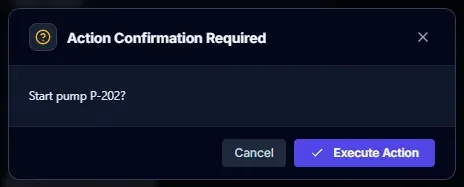
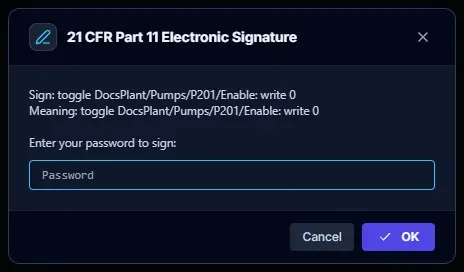
valueis required. A request without a value, or withnull, is refused (400); it is never written as 0.valueis a number. Text (a JSON string) is accepted only for a String driver tag (see 5.3).- The writer is the signed-in user. A name sent by the client is never recorded.
The server checks the operator’s session and permissions before it dispatches the command to the driver. In Starter, Pro and Enterprise the write is recorded in the audit trail before it is sent, and refused when its record cannot be written; the Free edition has no audit trail. In Enterprise, critical writes require the two-factor e-signature dialog, and the signature is recorded with the write. See Security and 21 CFR Part 11.
5.2 Write limits
Section titled “5.2 Write limits”The server refuses a value outside the limits set on its tag. This applies to every writer: the runtime, a script’s system.tag.write, an API client, a NATS command (uns.command.write) and an approved AI setpoint. A signature does not lift a limit.
Limits come from two places, and every one of them applies (the strictest wins: the highest minimum and the lowest maximum):
- The screens. A faceplate’s Setpoint minimum / Setpoint maximum (
spMin/spMax) limit the faceplate’s setpoint tag, and the target of an override or faceplate action on that shape. Shapes inside groups and component instances count. - The tag’s write range.
write_rangeon a driver tag mapping or an eaxTag:min,max,step(a written value must beminplus a whole number of steps) andvalues(the only values allowed, for example a mode selector[0, 1, 2]). The write range is checked again by the driver just before the device, so a recipe download is held to it too.
A limit bound to a tag is read when the write arrives. If that tag is missing or its quality is not Good, the write is refused.
A refused write answers 400:
{ "status": "out_of_range", "error": "...", "path": "Plant/Line1/.../SP", "min": 20, "max": 80 }It is recorded in the audit trail as WRITE_DENIED_OUT_OF_RANGE, with the user and the value that was attempted. The tag keeps its value.
The runtime’s own check of spMin / spMax only saves the operator a round trip. The server’s check is the one that counts.
5.3 Text writes to String tags
Section titled “5.3 Text writes to String tags”A driver tag mapping whose data type is String takes text, never a number. Every other tag takes numbers, never text. A text write is checked as follows:
- Form. It must be valid UTF-8 with no control characters (no line breaks, tabs or NUL).
- Length. At most
write_range.max_lengthcharacters (default 256, at most 4096). - Allowed texts. When
write_range.textsis set, only one of those texts is accepted.
Only drivers whose protocol carries text write it: OPC UA (a String value), MQTT with a JSON payload, and the NATS bridge. Other drivers refuse a text write with a clear error, and nothing is sent. Text writes go through POST /api/tags/write only; NATS commands and AI setpoints carry numbers.
eaxScada’s tag values are numbers, so a written text is sent to the device and recorded in the audit trail. It is not shown as the tag’s value.
5.4 Screen interlocks
Section titled “5.4 Screen interlocks”An interlock disables a command on the operator’s screen while a condition is true. It is set on the object in one of these places:
- a button’s Disabled condition (
props.disabledCondition); - a button’s Disabled interlock on the Bind tab (
bindings.disabled): a tag binding disables the button while the tag is not 0, an expression binding while the expression is true; - the Disable condition of the object’s interaction condition (
conditions.interaction.disableCondition, when the interaction condition is enabled); - a Faceplate’s Interlock tag (active when not 0) (
props.ilkTag): while the tag is not 0 (any non-zero value, or true) the operator faceplate a click opens disables its setpoint field and Write button, and the canvas shows INTERLOCK ACTIVE.
Any one of them disables the object. If a tag the interlock reads is missing or Bad, the object is disabled, unless its If the interlock reads a Bad value setting is Allow.
There are three levels of protection, and they are not the same:
| Where | What it stops | What it does not stop |
|---|---|---|
| Screen (every interlock) | The button or input is dimmed and does not respond. | A write sent another way: an API client, a script, a NATS command. |
| Server (simple interlocks only) | The write is refused from every writer of eaxScada’s API: the runtime, POST /api/tags/write, a NATS command (uns.command.write), an AI setpoint when it is staged and when it is approved. |
Drivers, recipes, server scripts, eaxTags and the simulator, which write tags directly. Anything that reaches the device without eaxScada. |
| PLC | Everything, whoever sends the command. | Nothing: this is where a real safety interlock belongs. |
- Service or process
- Device or controller
- Field equipment
- External system
- Check or decision
- Data or telemetry
- Command to equipment
- Refusal
Read as text
Any writer that goes through eaxScada sends a write of 1 (START) or 0 (STOP) to the start tag. The eaxScada server reads the trip tag and refuses the write of 1 while the interlock is active; a trip tag that is missing, Bad or simulated counts as active (simulated, unless the interlock is allowed in commissioning). The write of 0 always passes, because STOP has no interlock. A write that passes goes to the PLC, whose own interlock is the real protection. Writers inside the server that write tags directly, and tools that reach the PLC without eaxScada, are not checked.
Parts
- Any writer (service or process): another screen, a script, an API client, a NATS command, an assistant
- Interlock check (check or decision): in the eaxScada server, for this tag and value. It comes after the limits and the engineering range, and before the confirmation and the signature a command asks for, which are still checked for a write that passes. The rule is applied per copy of the screens: the value is refused when a command sending it is blocked and no command sending it is clear; a clear command of a screen above the writer's Required Access Level does not count.
- PLC (device or controller): its own interlock: the real protection
- Trip tag (service or process): 1, missing, Bad or simulated: active. A missing or Bad value does not count as active on a command whose "If the interlock reads a Bad value" is Allow. A simulated value counts as active even then, unless the interlock is ticked "Allowed in commissioning".
- Refused (outcome): 409 interlocked WRITE_DENIED_INTERLOCK
- Pump P-201 (field equipment)
- Outside eaxScada (external system): a PLC or an engineering tool on the network
Connections
- Any writer → Interlock check (command to equipment). A write of 1 (START) or of 0 (STOP) to the start tag, through POST /api/tags/write, a NATS command or an assistant setpoint.
- Trip tag → Interlock check (data or telemetry). The server reads the trip tag when the write arrives.
- Interlock check → Refused (refusal): 1 while the trip is active. START is the only command that sends 1, and its interlock is active: nothing is sent to the PLC.
- Interlock check → PLC (command to equipment): 0 always, 1 if clear. STOP sends 0 and has no interlock, so a write of 0 is never refused by this check. A write of 1 passes while the interlock is not active.
- PLC → Pump P-201 (command to equipment)
- Outside eaxScada → PLC (command to equipment): not through eaxScada. The server never sees these writes: only the PLC can stop them.
The server enforces an interlock only when it is a simple tag comparison. A simple interlock compares a tag with a number or true / false:
tag('Plant/Pump1/Trip') == 1{Plant/Tank1/Level} > 95 || {Plant/Tank1/Door} != 0!(tag('Plant/Line/Permissive') == 1)- The tag is written
tag('path'),{path},[path]or as a plainArea/Tagpath. - The comparison is
==,!=,>,>=,<or<=, with the tag on the left and a number ortrue/falseon the right. - Comparisons combine with
&&,||,!(before parentheses) and parentheses, at most 8 of them.
Anything else (===, arithmetic, functions, two tags compared with each other, scripts) disables the button on screen only. The designer shows a badge next to the interlock field: Enforced by the server or Screen only, and the Problems panel lists every screen-only interlock (interlock-client-only).
The server refuses only what the screen would refuse. It looks at every object on every saved screen that writes the tag (buttons, inputs, faceplates, interaction actions, inside groups and component instances) and the value each one sends:
- Set to 1 sends 1, Set to 0 sends 0, Toggle sends 0 or 1, Write value its value, a momentary button its press value, an input or a faceplate action any value, an interaction Write value to tag its value.
- The operator faceplate a click opens on an object without an action (its setpoint tag) counts only when the object has an interlock. A faceplate without an interlock never lets a value through another object’s interlock on the same tag.
- A dashboard command card counts like a button when it has an Interlock tag (active when not 0); a card without one is not counted.
- A momentary button’s release is always sent: it is never refused by the interlock.
- A held momentary (hold-to-run) button is released as soon as the browser window loses focus or the page is hidden (another tab, a minimised window), in the runtime and in the designer; in the designer also when a drag or a resize of the button starts. The release value is written once, and only for a press the button sent: a later mouse release writes nothing more.
A write of a value is refused only when every object that sends that value to that tag is disabled by a simple interlock that is active now. A START button (sends 1, interlocked) and a STOP button (sends 0, no interlock) on the same tag: a write of 1 is refused while the interlock is active, a write of 0 always goes through. If any object can send the value without an interlock, or only with screen-only interlocks, the write goes through. A tag no screen object writes is not affected.
A refused write answers 409:
{ "status": "interlocked", "error": "...", "path": "Plant/Pump1/Cmd", "reason": "tag('Plant/Pump1/Trip') == 1", "sources": [{ "screen_id": "pumps", "shape_id": "btn_start", "action_type": "set_1" }] }It is recorded in the audit trail as WRITE_DENIED_INTERLOCK. A signature or a confirmation does not override an interlock: the interlock is checked before any signature. Raising the plant emergency-stop signal is never refused.
GET /api/security/write-policy (Lead_Engineer or Administrator) lists every interlocked tag (interlocked) with the objects that write it, their values, their interlocks and whether the server evaluates each one.
Behaviour changes
- A write that a screen interlock would have refused on screen is now refused by the server (
409 interlocked,WRITE_DENIED_INTERLOCK) from every writer, when the interlock is a simple tag comparison. - New lint rule
interlock-client-only(warning). - The designer shows whether each interlock is enforced by the server.
6. DVR replay of the eaxPLC cycle recorder
Section titled “6. DVR replay of the eaxPLC cycle recorder”Post-incident investigation is usually hampered by scattered logs, missing context and lost intermediate machine states.
DVR replay plays back what an eaxPLC program did, cycle by cycle, in the Studio’s PLC recorder workspace. The flight recorder is part of eaxPLC Performance; eaxScada needs no particular edition for it.
- Product
- Service or process
- Data store
- File or document
- Check or decision
- Data or telemetry
- Command to equipment
- Refusal
Read as text
The eaxPLC flight recorder keeps the changes of every scan cycle for a limited time. On eaxPLC Performance, eaxScada fetches them over NATS and the Studio's PLC recorder workspace plays them back cycle by cycle, and exports them as CSV or JSON. Recorded values never reach operator screens, and the workspace sends no command.
Parts
- eaxPLC scan cycle (product)
- Flight recorder (data store): changed words, a keyframe every 1,000 cycles, 600 s or 256 MB
- Performance edition? (check or decision): on the PLC
- Refused (outcome): 403, nothing played
- eaxScada server (product): /api/plc/audit/*
- PLC recorder (service or process): Studio workspace: step, play, pause, live
- Recording export (file or document): CSV or JSON
- Operator screens (service or process): always live values
Connections
- eaxPLC scan cycle → Flight recorder (data or telemetry): each cycle. When the recorder's queue is full, the scan thread drops the cycle rather than wait; the gap shows in the cycle numbers.
- Flight recorder → Performance edition? (next step)
- Performance edition? → Refused (refusal): no. The PLC's recorder routes answer 403 unless the PLC runs the eaxPLC Performance edition.
- Performance edition? → eaxScada server (data or telemetry): NATS plc.<id>.api. eaxScada asks the PLC over NATS request and reply.
- eaxScada server → PLC recorder (data or telemetry): cycles. The recording routes are open to any role; changing the recorder's settings needs an engineer.
- PLC recorder → Recording export (data or telemetry): export
- PLC recorder → eaxPLC scan cycle (command to equipment, not active): sends no command. The workspace has no control that writes to the PLC or to equipment.
- PLC recorder → Operator screens (data or telemetry, not active): never shown on screens. The operator runtime does not load the recorder: recorded values never enter its tag values.
- Cycle-by-cycle recording. The eaxPLC flight recorder stores the words that changed in each scan cycle and a full keyframe every 1,000 cycles, for the last 600 seconds and at most 256 MB by default. When its queue is full the scan does not wait: that cycle is dropped and the gap shows in the cycle numbers. eaxScada fetches the recording over NATS (
plc.<id>.api). - Playback in the Studio. Engineers, reliability engineers and auditors step through an emergency stop, a trip or a quality deviation one cycle at a time, or play and pause it, and see every variable of the program as it was. The workspace shows PLAYBACK while it is not live.
- Operator screens stay live. The operator runtime does not load the recorder: recorded values never appear on synoptics, and the workspace sends no command to the PLC or to equipment.
- Export. The recording of the variables chosen can be downloaded as CSV or JSON.
In eaxScada, the PLC recorder workspace has a PLC selector that lists the local PLC and the edge PLCs.
7. Screen scripts (system)
Section titled “7. Screen scripts (system)”Screens can carry scripts: a Run script action on a button, a screen’s or a popup’s startup script. They get one object, system, and act on the plant only through it:
// Read a value with its quality, then write through the guarded pathconst level = await system.tag.read('Plant/Line1/Tank101/Level');if (level.good && level.value < 20) {  const sent = await system.tag.write('Plant/Line1/Tank101/InletValve', 1);  if (!sent) await system.notify.toast('Valve command not sent', 'warning');}
// Navigate, or swap an embedded display without reloading the docksawait system.nav.navigate('/processing/reactor1');await system.nav.loadInnerDisplay('dsp_reactor_detail', 'center-container');
Writes from scripts go through the same permission, e-signature, write-limit and audit checks as a faceplate write (see 5.2). The full list of functions: Screen scripting API.
7.1 Why screen scripts run in a sandbox
Section titled “7.1 Why screen scripts run in a sandbox”A screen script runs in the operator’s browser, under the operator’s session. In earlier versions it ran in the operator’s page itself: it could read the page and the session, and call any server API the page could, with the operator’s rights. Whoever could save a screen could therefore make every operator who pressed a button do something on their behalf, out of sight of the checks a button gets. For a control system that is a path around the safety model, whether by mistake, by a copied snippet or on purpose.
Since this release, two things close that path:
- A capability boundary in the browser. Each screen’s scripts run in a sandboxed frame that has no access to the page (an opaque origin: no cookies, no storage, no network), and inside it in a worker, so a script that loops never freezes the screen. The only way out is
system.*: each call is checked by the page (the frame it comes from, plain data only, a random channel token per frame, the message type and call number, an allow-list of functions, the kinds and sizes of the arguments, at most 64 waiting calls), then run by the page’s own scripting API under the operator’s session. A tag write from a script is sent to the server as the button’s is, with the path, the value and a reason only: the server checks the permission, the write policy, the limits and the interlocks as for any write, and a write they refuse is refused before any dialog. Only when the tag needs a confirmation or an e-signature does the server say so, and the page then asks the operator, as for the button. Texts a script asks the page to show are shown as text, never as markup, andsystem.nav.navigateopens only this server’s pages. A script that keeps its sandbox busy for 5 seconds is stopped and the screen stays usable. - A right to write scripts. Because a script acts as every operator who runs it, writing one is a right of its own,
screens.script, checked by the server on every path that saves a screen, popup, display, report or component: the Studio, version restores, duplicates, find and replace, AI proposals applied by a person, the MCP screen tools, starter templates and checkpoint reverts. It belongs to Lead_Engineer, the Administrator and roles of engineer level (the people who could save screens before), can be taken away by a DENY rule (from the Administrator too), and is never held by the AI co-pilot. Moving or restyling objects of a screen with scripts needs no right; adding or changing script text does.
- Product
- Service or process
- Device or controller
- Check or decision
- Trust boundary
- Data or telemetry
- Command to equipment
- Refusal
Read as text
A screen script runs in a worker inside a sandboxed frame of the operator's page: it has no network, no page and no session. Its only way out is a system call, which the page checks before its own scripting API runs it as the operator. A tag write then goes to the eaxScada server, which checks it as any write and asks for a confirmation or a signature when the tag needs one.
Parts
- Operator's page (trust boundary)
- Script frame (trust boundary)
- Worker (service or process, inside Script frame): runs the script
- Page checks (check or decision, inside Operator's page): source frame, token, type, call id, allow-list, kinds, sizes, 64 waiting calls
- Scripting API (service or process, inside Operator's page): the page's system.*, as the operator
- eaxScada server (product): permission, policy, limits, interlocks, then record first
- Equipment (device or controller)
Connections
- Worker → Page checks (data or telemetry): system.* call. The only way out of the frame is a call message to the page.
- Page checks → Worker (refusal): refused. A call from another frame, with a wrong token, of an unknown type or with a bad id is dropped. A function not on the allow-list, wrong arguments, markup or too much data answers "invalid"; more than 64 waiting calls answers "unavailable". A sandbox silent for 5 seconds is stopped.
- Page checks → Scripting API (next step): admitted
- Scripting API → eaxScada server (command to equipment): POST /api/tags/write. The script sends the path, the value and a reason only; it cannot send a confirmation or a signature. After the operator confirms or signs, the write is sent again.
- eaxScada server → Scripting API (refusal): refused, or: confirm or sign first. A write refused by the permission, the limits, the range or an interlock is refused before any dialog. A tag that needs a confirmation or a signature is answered so, and only then does the page ask the operator.
- eaxScada server → Equipment (command to equipment): written after the record. The server records the write in the audit trail first; a write it cannot record is refused.
- Worker → Equipment (command to equipment, not active): no network, no page. The frame has no network and the page's objects throw in the worker: a script cannot write past the page's checks.
Legacy screen scripts run in the page itself: off unless an Administrator turns them on for the project, with a reason, journaled first.
What stays the same: the server remains the security boundary. The sandbox does not replace any server check; it stops a script from going around them through the operator’s page. Expressions (bindings, conditions, chart options, text templates) are evaluated by the runtime and are not scripts.
Legacy screen scripts is a project setting that runs the project’s scripts in the page as before. It exists so that an upgrade cannot leave a plant without its screens: it is off for every project, only an Administrator turns it on, with a reason, and every change is journaled. Plan to turn it off again.
See Migrate screen scripts to the sandbox and Grant the right to write screen scripts.
8. Multi-monitor video walls
Section titled “8. Multi-monitor video walls”In utilities, energy and chemical plants, one operator console often drives 2 to 6 monitors. Each monitor opens its own runtime URL with the screen it shows, for example on a workstation with three monitors:
-
monitor 1:
http://<server>:8080/runtime?page=/overview -
monitor 2:
http://<server>:8080/runtime?page=/<detail screen> -
monitor 3:
http://<server>:8080/runtime?page=/alarms -
Independent routing. Each window keeps its own dock state and route.
-
Shared session. The operator’s sign-in is shared across windows through a secure HTTP cookie.
-
Fit to screen (
fit_to_screen). The runtime scales uniformly:scale = min(viewportWidth / authoredWidth, viewportHeight / authoredHeight), so a synoptic authored for 1080p scales to 4K without distortion.
9. See also
Section titled “9. See also”- Alarms: the alarm summary in the bottom dock.
- Security and 21 CFR Part 11: e-signatures on tag writes.
- MCP AI gateway: how AI assistants observe runtime state.
- 3D digital twin: 3D scenes, opened in the runtime like any other display.
- Popups, docks and navigation, Show bad and stale values, Set up touch panels and kiosks.
- Screen scripting API: the full
system.*API, and the sandbox screen scripts run in.