

Export analytics results (CSV, Excel, Parquet)
Take the whole result of a query out of eaxScada as a file, for a spreadsheet, a data tool or a colleague: not only the rows the browser shows. For example, the two-minute samples of both reactors over three days, as one Parquet file for a data tool, or a saved dataset as an Excel workbook.
The Analytics tab shows at most analytics.max_rows rows (100,000 by default). An export reads the whole result again on the server, as you, and writes it to a file you download. Pro and Enterprise.
You need:
- for a query’s export, the right
analytics(see Analyse data in the Analytics workspace); - for a dataset’s export, the right
reports_view; - a browser session: an API token and the AI co-pilot cannot export.
An export reads as you. It runs through the same secured path as a query: your tag read rights decide which rows exist, the time window is required, and a tag scope can only narrow. A user allowed only Plant/A/> gets area A’s rows in the file and nothing of area B, in every format. Your SQL never writes the file: the server writes the secured rows itself, and COPY, ATTACH and the file-reading functions stay refused in your SQL. An export writes no tag and sends no command.
1. Export a query’s whole result
Section titled “1. Export a query’s whole result”-
Open Analytics and Reports > Analytics, write the query and set the time window (Analyse data in the Analytics workspace). Running it first is not required, but it shows you what the file will hold.
-
Click the arrow of the Export split button and choose the format:
- CSV: text, any tool (UTF-8);
- Excel: a workbook with the rows and an About sheet;
- Parquet: columnar, for data tools.
Export itself repeats the last format you used. When the result was cut, the notice “Only the first N rows are shown (the limit for the browser). Export the whole result as a file.” has the same Export the whole result button.
-
On a short toolbar (a narrow window or a tablet), Export moves into the toolbar’s More menu.
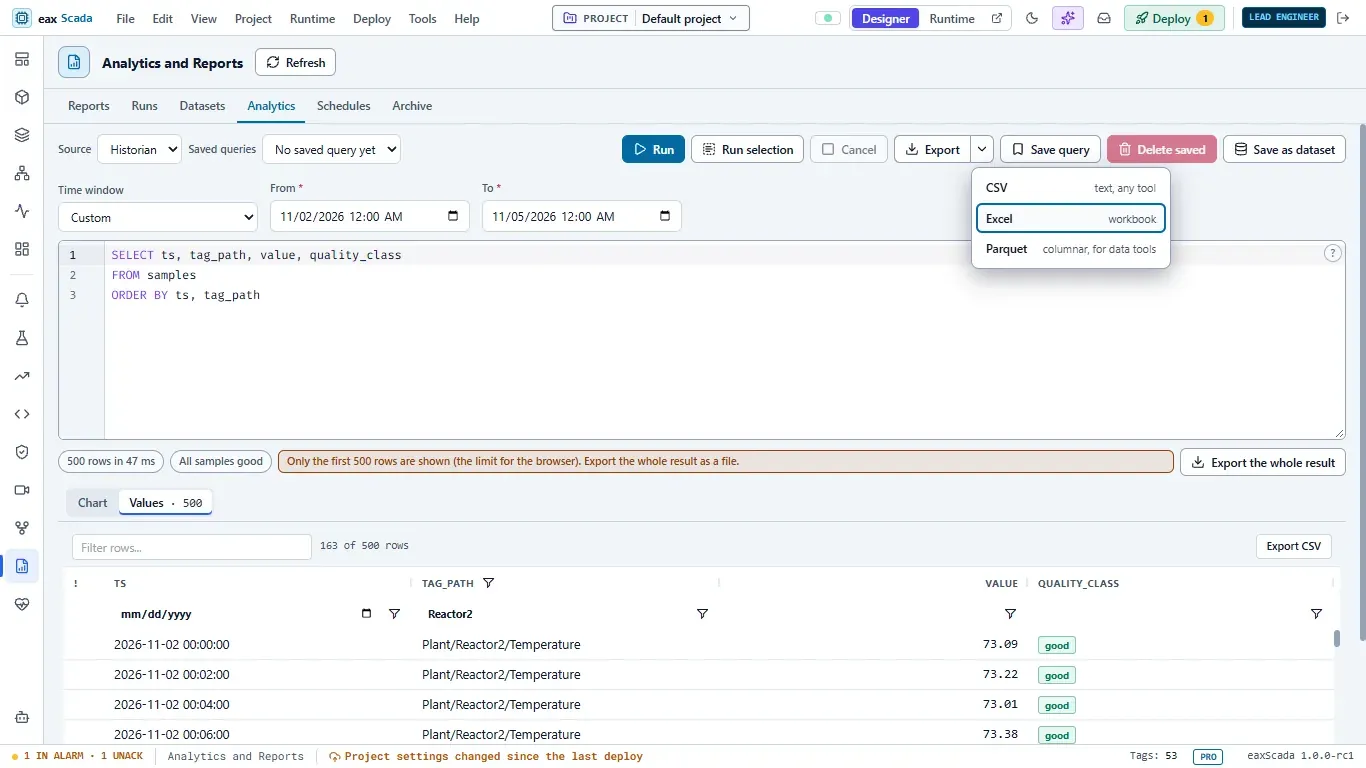
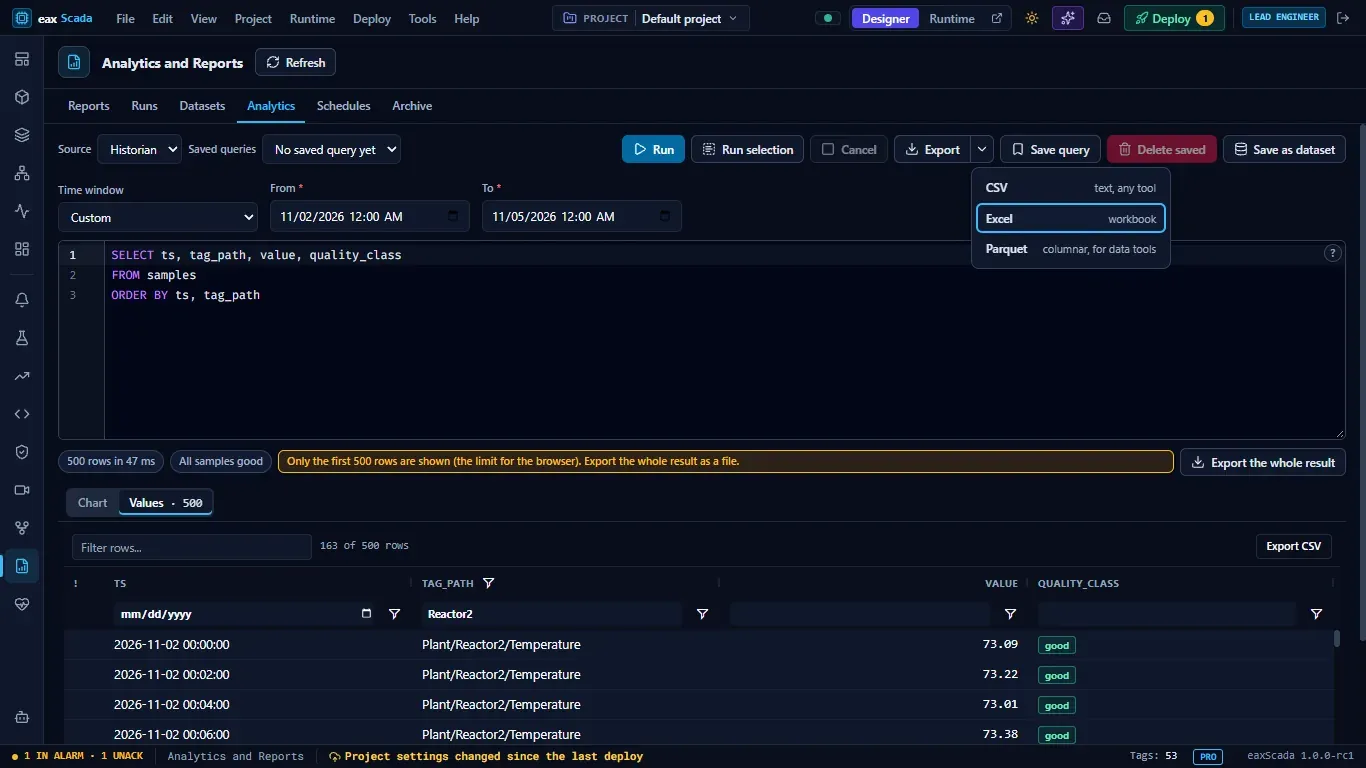
The query is checked before the export starts: an error in the SQL, a refused relation, a tag parameter outside your rights or a missing time window is answered at once, under the editor, as for Run.
2. Export a saved dataset
Section titled “2. Export a saved dataset”- Open Analytics and Reports > Datasets.
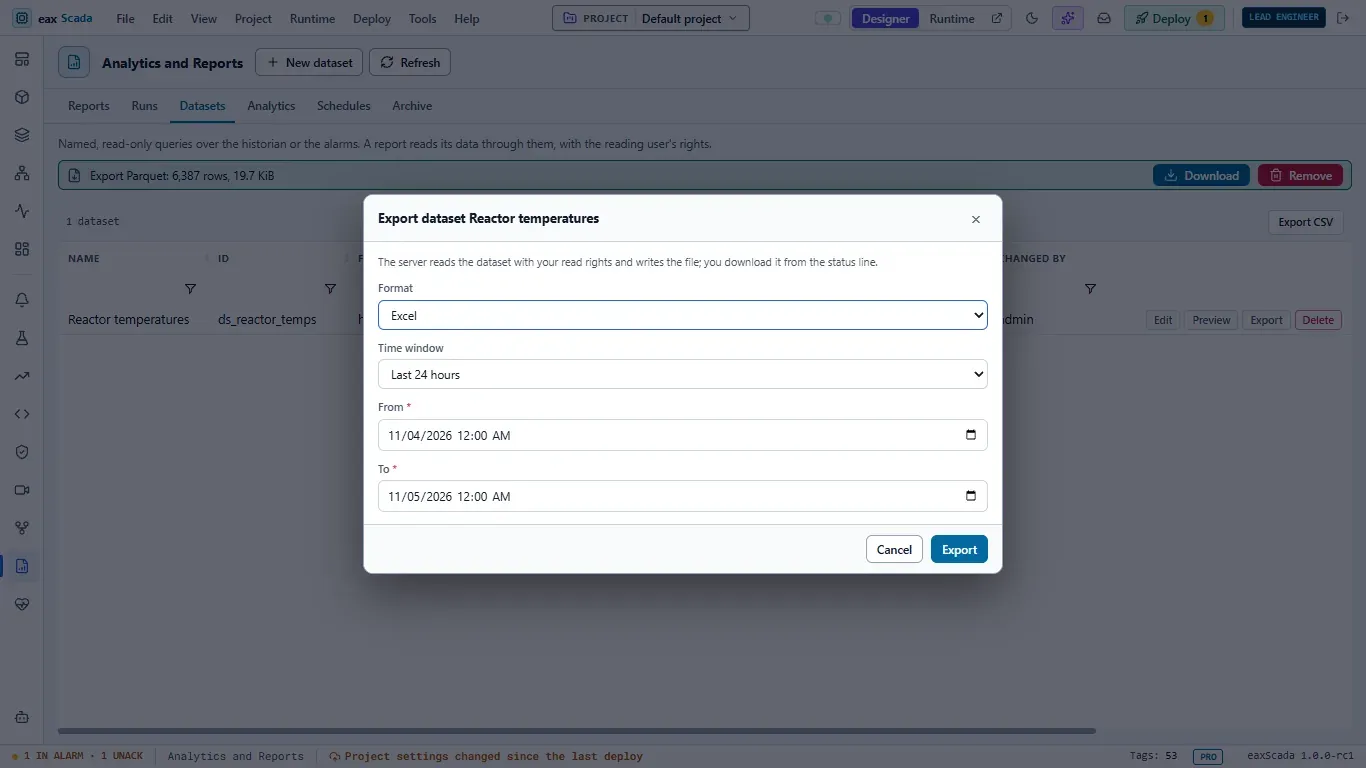
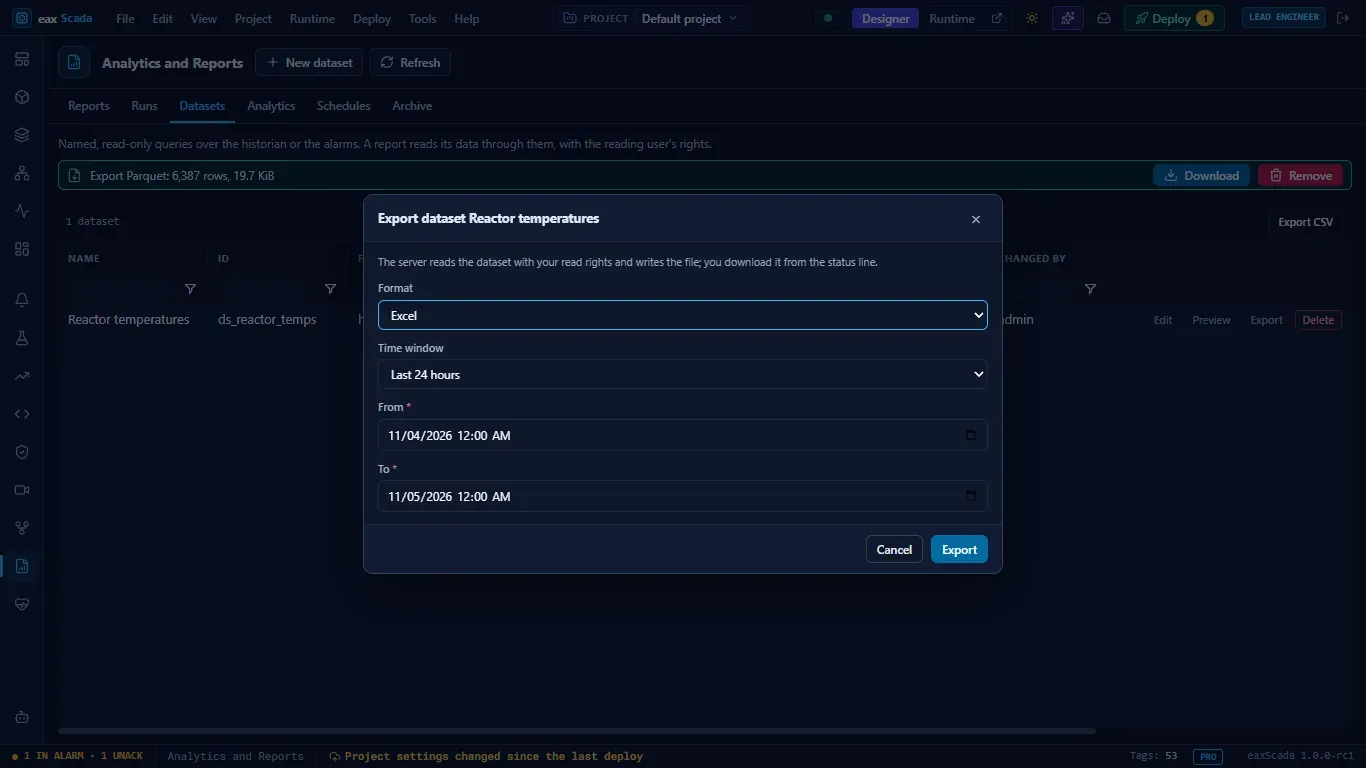
- In the dataset’s row, click Export.
- Choose the Format and the Time window (From and To), then Export. The dataset’s other parameters take their defaults, as in a report run.
3. Download the file
Section titled “3. Download the file”A one-line status under the toolbar (and above the Datasets grid) follows the export: “Export Parquet: waiting for a free slot…”, “writing the file…”, then “Export Parquet: 6,387 rows, 19.7 KiB” with Download and Remove. The grid below keeps its height.
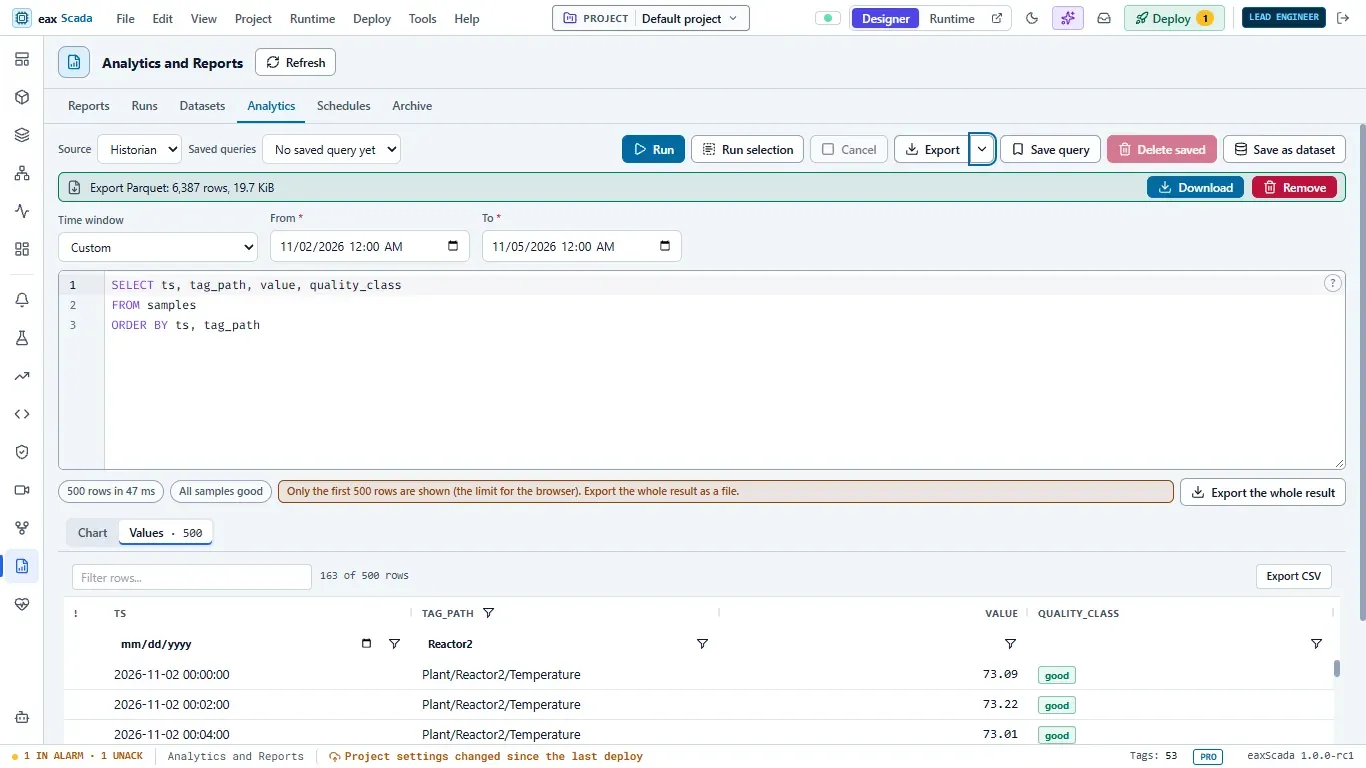
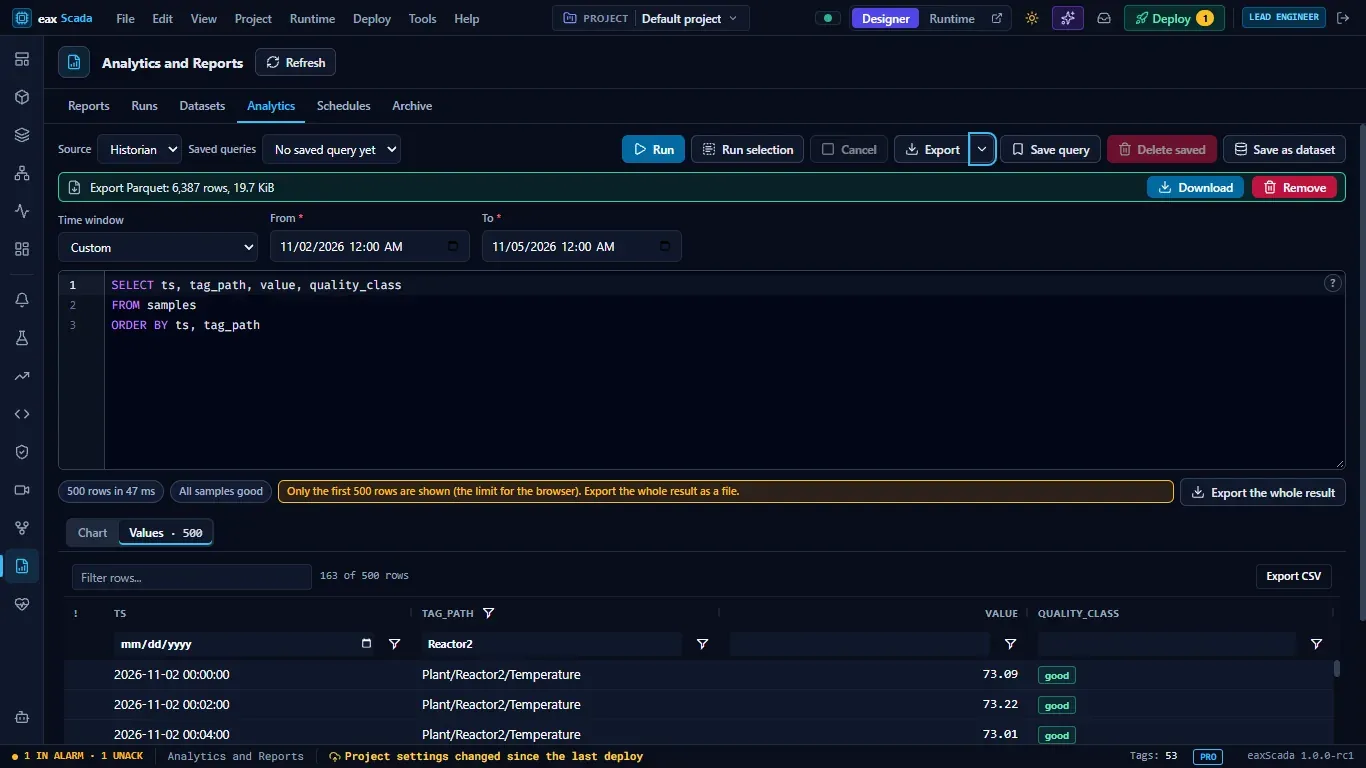
- Download saves the file:
<name>_<export id>.<csv|xlsx|parquet>(the dataset’s name, oranalytics_<source>for a query). - Remove asks first (“Remove this export? The file is deleted from the server. The data stays where it is.”), then deletes the file and the job.
- The file is kept on the server for
analytics.export.keep(24 hours by default). After that the status says “the file was removed (kept for a limited time). Export again.”
What the file holds:
- Every row of the result, never cut. An export over its limits is refused whole (step 4); it never gives you a shorter file.
- Quality as the server computed it. Quality and simulated columns travel as they are in the result. The Excel workbook writes each row’s class in its quality column (Good, Uncertain, Bad); its About sheet holds the export id, the parameters, the time zone, the data’s SHA-256 and the quality rule (“no value is blanked or dropped; rows of tags outside the exporting user’s read rights are not in the file”).
- CSV cells that a spreadsheet would run as a formula (starting with
=,+,@, a tab, or-before something that is not a number) are written with a leading'. - Parquet keeps the column types of the result.
4. When an export is refused
Section titled “4. When an export is refused”| Message | Why | What to do |
|---|---|---|
| “One export at a time: wait for the running one or remove it.” | You already have an export waiting or running (409 EXPORT_BUSY). |
Wait, or Remove it. |
| “Export … failed: the result is larger than the export limit: narrow the window or the query” | More than analytics.export.max_rows rows (1,000,000) or analytics.export.max_bytes (512 MiB). Nothing is cut; the partial file is deleted. |
Narrow the time window, the tag scope, or group the rows. |
| “waiting for a free slot…” | analytics.export.workers exports (1 by default) already run on the server. |
Nothing: yours starts when one ends. |
| “Export … failed: the audit trail could not be written, so no file was kept” | The analytics.export record could not be written. |
Ask the administrator to check the audit trail’s disk. |
An export takes at most five minutes.
Limits
Section titled “Limits”| Limit | Value |
|---|---|
| Rows per export | analytics.export.max_rows (default 1,000,000) |
| Size per export | analytics.export.max_bytes (default 512 MiB; more than 4 GiB is refused at start-up, because the result is held in the server’s memory while the file is written) |
| Exports per user | one waiting or running |
| Exports running on the server | analytics.export.workers (default 1); the others wait in turn |
| Time per export | 5 minutes |
| Files kept | analytics.export.keep (default 24 h), swept at start-up and every 10 minutes |
| Folder | analytics.export.dir (default data/analytics/exports, one folder per user; a relative folder must be inside data/, else give an absolute one) |
Who may export
Section titled “Who may export”- A person only: an API token (
403 REPORTS_TOKEN) and the AI co-pilot, whatever its rights (403 REPORTS_AI), are refused on every export route. - A query’s export needs
analytics, a dataset’s exportreports_view; the status, download and remove routes take either. An export is its owner’s only: another user’s export answers as one that does not exist (404). - Through eaxCloud remote access an export is an engineer action.
- Every export, done or refused, is recorded in the audit trail as
analytics.export(categoryanalytics): the format, rows, bytes, the file’s SHA-256, the SHA-256 of the SQL text (the full text goes to the server log), the window and parameters, the tag scope, and for a dataset its id and revision. An export whose record cannot be written fails and its file is deleted.
Over the HTTP API
Section titled “Over the HTTP API”As a signed-in person with analytics (a browser session):
POST /api/analytics/exportContent-Type: application/json
{"family": "historian", "sql": "SELECT ts, tag_path, value, quality_class FROM samples ORDER BY ts, tag_path", "parameters": [], "window": {"from": "2026-11-02T00:00:00Z", "to": "2026-11-05T00:00:00Z"}, "format": "parquet"}- The answer is
202with the job (id,status) and aLocationheader.familyishistorian,alarms, orextracts(over your extracts);formatiscsv,xlsxorparquet;tag_scopecan narrow;namenames the file. POST /api/reports/datasets/<id>/export{format, parameters?, window?, name?}exports a saved dataset (reports_view).GET /api/analytics/export/<id>gives the job:status(queued,running,done,failed,expired),rows,bytes,sha256,format,created,expires, andcodeanderrorwhen it failed.GET /api/analytics/export/<id>/filedownloads the file (an attachment,ETag= its SHA-256,Cache-Control: no-store);DELETE /api/analytics/export/<id>removes the job and its file.
The answers are listed in the reference.