

Schedule a report
Have a report run on its own, for example the daily production report every morning at 06:30, a shift report at the end of each shift, or a batch report when a batch ends, and keep its files in the archive (and send them, if you want).
You need:
- the right
reports_schedule(your own schedules) orreports_admin(any schedule) (Grant report rights); - a deployed report (Design a report);
- for a shift trigger, a shift calendar in the server configuration (step 3);
- for deliveries, the e-mail or folder settings (Set up e-mail and folder delivery).
Each run of the schedule runs as its owner, with the owner’s rights at that moment: their read rights decide which tags the report shows (Who a scheduled run runs as).
1. Create the schedule
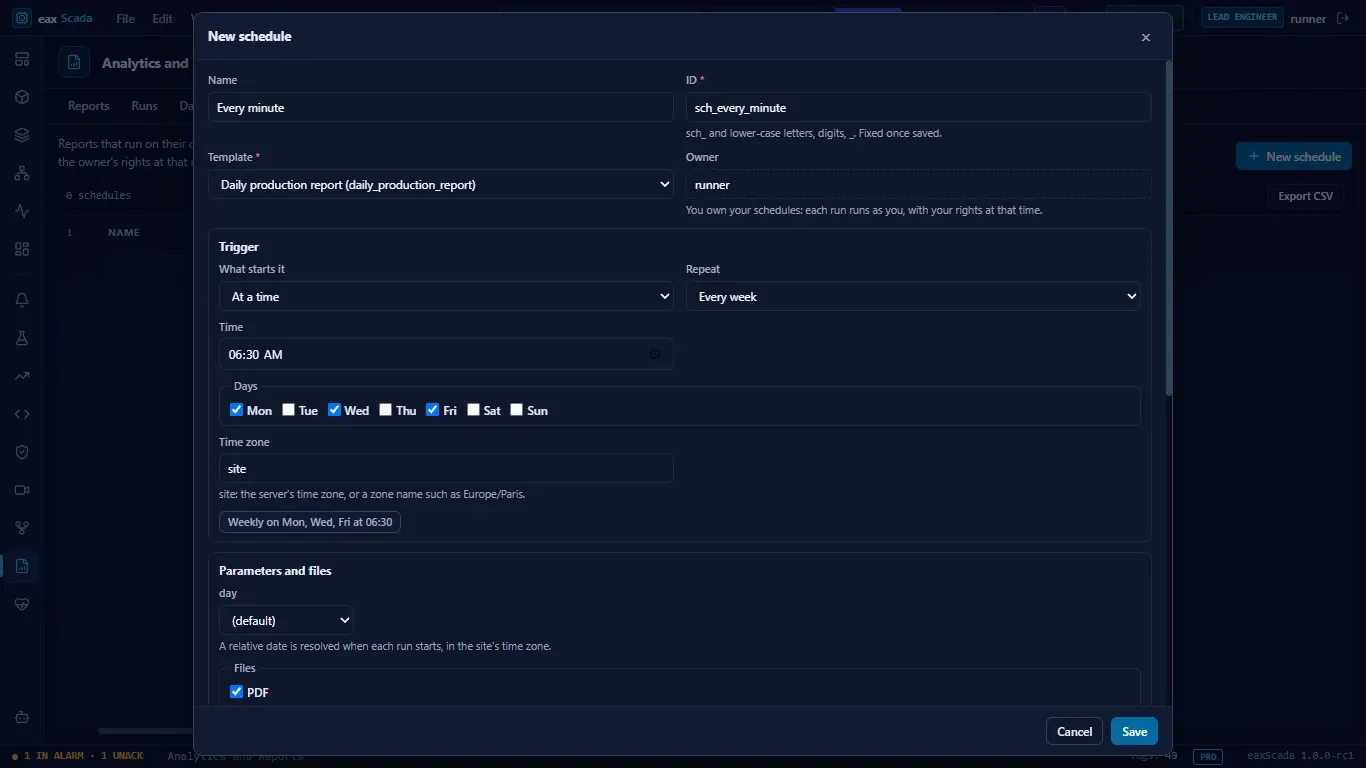
Section titled “1. Create the schedule”- Open Analytics and Reports > Schedules and click New schedule.
- Name: a name people recognise, for example “Daily production, 06:30”.
- ID:
sch_then lower-case letters, digits and_(sch_daily_production). It cannot change once saved. - Template: the report. Only deployed reports can be chosen.
- Owner: you. A reports administrator may name another user, who must hold
reports_viewandreports_schedule(the change is recorded in the audit trail).
2. Choose what starts it
Section titled “2. Choose what starts it”Under Trigger > What starts it:
| Choice | Fill in | Runs |
|---|---|---|
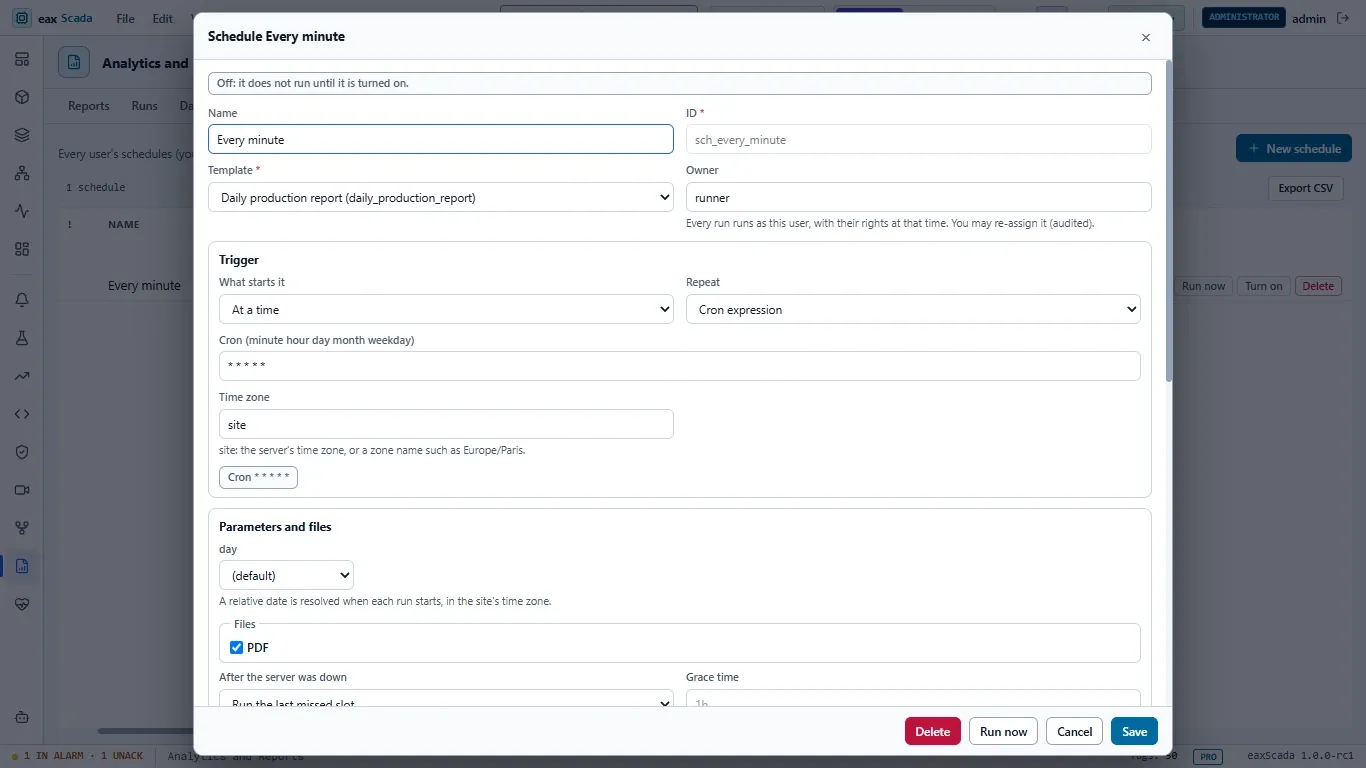
| At a time | Repeat: Every day (a time), Every week (days and a time), Every month (a day of the month and a time), Every hour (the minute past the hour), or Cron expression (five fields: minute hour day month weekday). Time zone: site (the site’s, site.time_zone) or a zone name such as Europe/Paris. |
At each slot. The summary under the fields says it in words: “Weekly on Mon, Wed, Fri at 06:30”. |
| At the end of a shift | Shift calendar: a calendar of reports.shifts (usually default). |
When each shift ends, that is when the next one starts. |
| When a batch ends | Master recipe: one recipe, or empty for every batch. | When a batch record of that recipe closes. The report must declare a parameter batch_id; it gets the batch id, and batch_start and batch_end (or batch.start, batch.end) when the report declares them. |
| When a tag turns on | Tag (boolean) and At most every (default 1 minute). | When the tag goes from off to on (both readings good). The tag is only read, never reset. |
| After each shift handover (Enterprise only) | Shift log: one of the logs you may read. | Once per shift of that log, on the log’s own shift calendar: when the handover is signed by both sides, or when the grace ends without one (recorded as missing), whichever comes first. The report’s parameter log is set to the log; the run also gets shift_name, shift_start and shift_end. Offered only when this server’s licence includes the shift log. See Add the shift report. |
A time slot skipped by the spring clock change runs once, right after the gap; a time repeated in autumn runs once, the first time (Daylight-saving changes).
3. Shift calendars (server configuration)
Section titled “3. Shift calendars (server configuration)”A shift trigger and the this_shift and last_shift defaults need the site’s shift calendar. Add it to the reports: section of config.yaml on every server (each HA node), then restart:
reports: shifts: default: - early 06:00 - late 14:00 - night 22:00Each line is a shift name and the time it starts every day on the site’s clock; a shift ends where the next one starts (night ends at 06:00 the next day). The short form default: early 06:00, late 14:00, night 22:00 is the same. A calendar has 1 to 24 shifts; names are letters, digits, spaces, _ and -. You may define more calendars (packaging: ...) and name one in a schedule. A refused value stops the server at start with the reason.
The run of a shift trigger gets the shift’s name, start and end in the parameters shift_name, shift_start, shift_end (or shift.name, shift.start, shift.end) when the report declares them.
4. Parameters, files and catch-up
Section titled “4. Parameters, files and catch-up”- Parameters and files: give each report parameter a value, or leave (default). A date can be Yesterday, Start of last week, Start of last month or another relative date. It is resolved at each run’s slot, in the site’s time zone: a run that starts late still reports on its own slot’s period.
- Files: PDF, XLSX or both (empty: the report’s own).
- After the server was down (catch-up): what runs of the slots missed while the server was stopped:
- Run the last missed slot (the default);
- Run every missed slot (at most 10);
- Skip missed slots.
- Grace time: how late a slot may still run normally (1m to 7d; default
1h). A slot later than that is a missed slot.
- Run
- Late run
- Waiting
- Slot
- Missed or skipped
Read as text
A schedule has slots on its clock. While no primary is running, its slots are missed. When a primary runs again, the newest missed slot runs late if it is still within its grace time; every older slot is missed, even one still within the grace, and follows the catch-up rule. Slots before the schedule was enabled are never run.
Time runs left to right: primary running, then no primary, then primary again. The lengths are not to scale.
The slots
- Before it was enabled: never counted (not run)
- On time: runs at its slot (slot)
- Older missed slots: missed, even inside the grace (slot; slot; slot). These slots follow the catch-up rule below.
- 1. Newest missed slot: within its grace: runs late (slot). It runs after the catch-up runs, marked late when it is more than 30 seconds behind. Beyond its grace it is missed like the older slots. Its relative dates are resolved at the slot, not at the late start.
Catch-up rule for the older slots
- Run the last missed slot: the default. The newest of the older missed slots runs, before the newest slot, with the note catch-up. The others are logged as missed.
- Run every missed slot: at most the 10 newest. Each missed slot runs in turn, oldest first, up to the 10 newest, each with the note catch-up.
- Skip missed slots: logged, never run (skipped). A skipped slot leaves a log line and an event; it has no run record and no audit record.
5. Deliveries (optional)
Section titled “5. Deliveries (optional)”Below the parameters, click Add e-mail or Add folder: eaxScada users by user name, addresses outside eaxScada (if you may send outside), the message mode (a link, or the file attached where the administrator allows it), and allowed folders by name. Up to 10 deliveries, 50 recipients each. A report with a signature plan is delivered only once fully signed, as its signed copy. The rules and settings are in Set up e-mail and folder delivery.
6. Save and turn it on
Section titled “6. Save and turn it on”- Tick On: start running once saved (or leave it off and turn it on later).
- Click Save. The schedule is in the Schedules grid with its trigger in words, its owner, On / off, Next due and Last run.
The schedule counts slots from the moment it is turned on, so the past does not run. To try it, click Run now: it runs once, as the owner, and the run is in Runs (trigger kind manual).
Turn off stops it; Turn on starts it again; Delete (rose, asks first) removes it. Runs it made stay in Runs and the Archive. Two people editing one schedule cannot overwrite each other: a save from an outdated copy is refused, and Reload shows the schedule as saved.
7. Watch it
Section titled “7. Watch it”- The grid’s warning marker and the chip above it show the schedules that need attention: The last run failed, The last run was refused, Off: restored from another server. Click the marker for the reason.
- A refused run means the owner no longer exists, is disabled, or lost
reports_vieworreports_schedule, or the report is no longer deployed. Fix it (an administrator can re-assign the owner) and the next run clears the problem. - The system alarm ALM-SYS-REPORTS is active while a schedule’s last attempt failed or was refused, or a slot is overdue; it clears with the next run that succeeds. System Health lists its reasons.
Restored schedules
Section titled “Restored schedules”A schedule that came with a checkpoint, a project archive or a copy from another server is Off (restored): it does not run on this server until a reports administrator checks its owner and deliveries and turns it on here. Its owner cannot. On an HA cluster the schedules belong to the cluster (nats.cluster.name, the same on every node), so a failover is not a restore and they keep running. Schedules and datasets are replicated to the standby and kept across a restart; after a failover the new primary also has every run, and delivers once a fully signed run whose delivery was still pending (High availability: run records and the archive).
When the licence no longer includes the module
Section titled “When the licence no longer includes the module”After a downgrade or a licence expiry every active schedule pauses: no slot runs, Run now is refused, event and batch-end triggers are skipped, and ALM-SYS-REPORTS says “paused by the licence” for each schedule (System Health lists them). The Schedules tab is not shown then; nothing about the schedules is lost. Pending deliveries wait.
When a licence with Analytics and Reports is back, the schedules resume without a burst: the slots missed meanwhile follow each schedule’s catch-up rule (the newest missed slot, none, or the newest 10), as after downtime, and the pending deliveries are made.
Over the HTTP API
Section titled “Over the HTTP API”As a signed-in person (API tokens and the AI co-pilot are refused):
POST /api/reports/schedulesIf-None-Match: *Content-Type: application/json
{"id": "sch_daily_production", "name": "Daily production, 06:30", "template": "rep_plant_daily", "enabled": true, "run_as": "jdoe", "trigger": {"kind": "time", "cron": "30 6 * * *", "time_zone": "site"}, "parameters": {"day": "yesterday"}, "outputs": ["pdf", "xlsx"], "delivery": [{"kind": "folder", "dir": "reports-out"}], "catch_up": "last_missed", "grace": "6h"}
The answer is 201 with the schedule, its revision (ETag) and whether it is active. GET /api/reports/schedules/<id> reads it; PUT and DELETE need If-Match with the revision you read (428 without it, 409 when it changed since); a PUT never turns the schedule on or off. POST .../<id>/enable {"enabled": true} (with If-Match) turns it on or off, POST .../<id>/run-now runs it once. GET /api/reports/schedules/status returns each schedule’s state, next slot and problem. Another user’s schedule answers 404 unless you are a reports administrator. The fields and answers are in the reference.