

Reusable screens with parameters
Migrated page, not yet verified against the current code. Treat values, paths and examples as indicative until this notice is removed.
A plant has twenty pump stations with the same tags under different folders (Plant/Processing/Pumps/P101/Start, Plant/Processing/Pumps/P102/Start…). You draw one faceplate screen with {Pump}/Start, {Pump}/Running and {Label}, add one parameter set per station, and open the screen with a set. The server enforces each station’s confirmation, interlocks and limits on that station’s own tags.
The full syntax and rules are in the Screen parameters reference.
Before you start
Section titled “Before you start”- Every station’s tags exist and follow the same layout: one folder per station, the same tag names under it.
- You can edit screens (Engineer role).
1. Draw the faceplate with {Name}
Section titled “1. Draw the faceplate with {Name}”- Create a screen, for example Pump faceplate (
pump_fp). - Wherever a station’s tag goes, write the parameter instead of the folder:
- a text:
{Label}; - a value display bound to
{Pump}/Running; - a START button: action Set tag to 1 on
{Pump}/Start, confirmation Variable on{Pump}/Local, disabled condition{Pump}/Fault == 1; - a STOP button: Set tag to 0 on
{Pump}/Start.
- a text:
- A parameter name has no
/.{Plant/Processing/Mode}is still a tag reference: it is never replaced.
In the designer the objects show a violet {Pump} chip while no values are previewed: that is a placeholder, not a broken binding.
2. Declare the parameters
Section titled “2. Declare the parameters”-
Open Display Settings > Parameters.
-
Add parameter:
Name Type Required Default Allowed folders PumptagFolder yes Plant/Processing/Pumps/*Labeltext no Pump
The allowed folders matter: the screen refuses to open with a pump outside Plant/Processing/Pumps/, and the server enforces the write targets no wider than that. A parameter in a write target without allowed values or folders is reported by the lint (param-target-unbounded).
3. Import the twenty stations
Section titled “3. Import the twenty stations”-
In a spreadsheet, make one row per station:
set,description,Pump,LabelP-101,Feed,Plant/Processing/Pumps/P101,Feed pump P-101P-102,Transfer,Plant/Processing/Pumps/P102,Transfer pump P-102P-120,Return,Plant/Processing/Pumps/P120,Return pump P-120 -
Save it as CSV and click Import CSV under Parameter sets. Sets with the same name are updated; new ones are added.
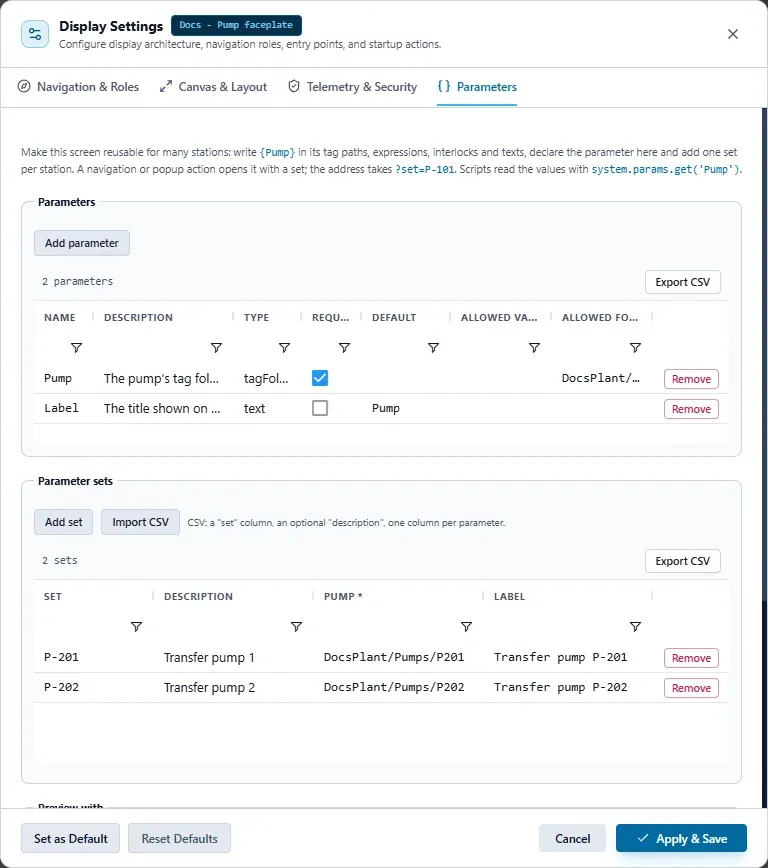
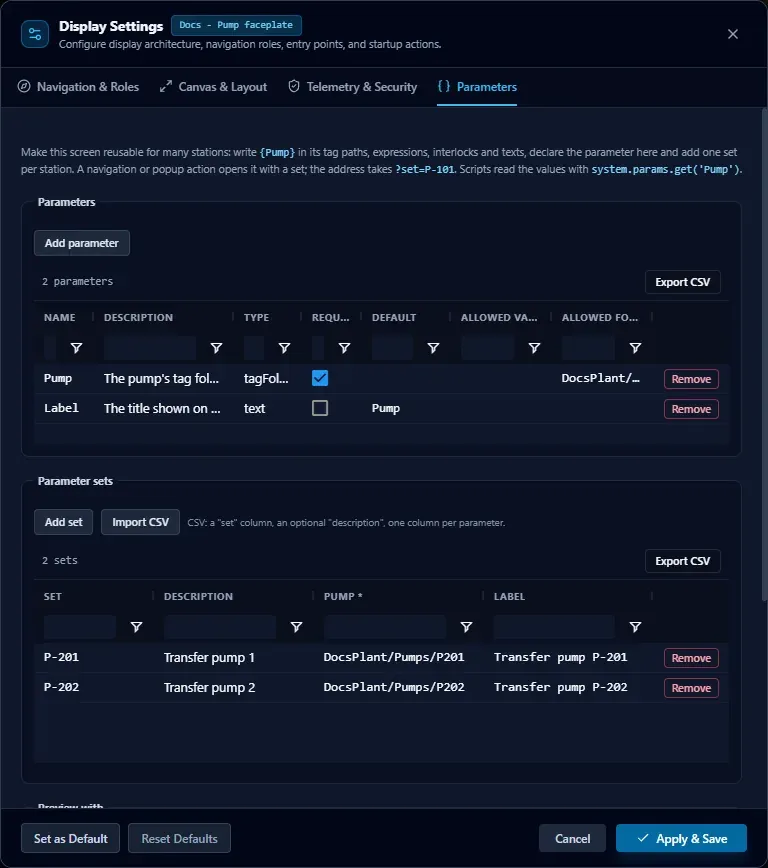
- Every set is checked as the runtime will check it. A set it would refuse (a folder outside
Plant/Processing/Pumps/*, a missing pump) is listed in red under the grid with the reason. - Click Apply & Save.
Export CSV on the grid gives the sets back as a spreadsheet.
4. Check it with “Preview with”
Section titled “4. Check it with “Preview with””At the bottom of the Parameters tab, choose Set P-101 in Preview with. The designer’s bindings show P-101’s live values, and the grid lists every {Name} reference with what it resolves to and its live value. A violet pill on the canvas says what you preview; its ✕ stops the preview. Open in the runtime opens the screen with that set.
5. A navigation button per station
Section titled “5. A navigation button per station”On the overview screen, for each station add a button with action Navigate (or Open popup):
- Target screen:
pump_fp; - Parameter set of the target screen:
P-101.
The Parameters field below it can give values beside the set (they win), and can pass the current screen’s own {Name} down to the screen it opens.
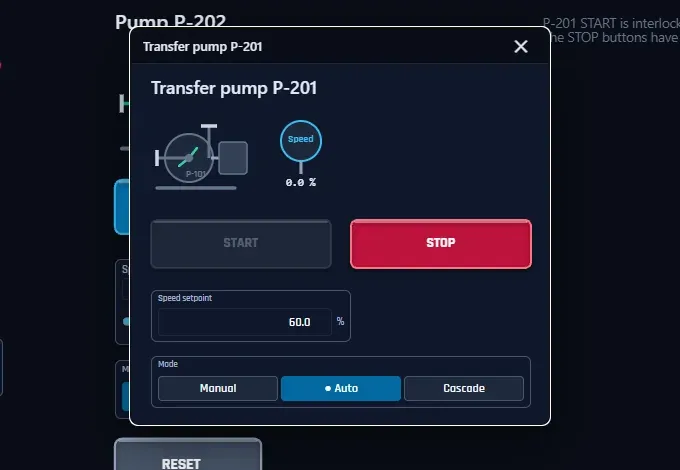
The runtime address works too: /runtime/pump_fp?set=P-101, or /runtime?screen=pump_fp&set=P-101. A link with explicit values (?Pump=Plant/Processing/Pumps/P101) is checked like an action’s values, with a stricter character set.
6. Check what the server enforces
Section titled “6. Check what the server enforces”The server derives the write policy of pump_fp once per set, with that set’s values:
Plant/Processing/Pumps/P101/Startneeds P-101’s confirmation whenPlant/Processing/Pumps/P101/Localis not 0;- a START to
Plant/Processing/Pumps/P102/Startis refused (409 interlocked) whilePlant/Processing/Pumps/P102/Faultis 1, whatever P-101’s fault reads.
Find where used on Plant/Processing/Pumps/P101/Start lists pump_fp “through parameter set P-101”.
Result
Section titled “Result”One screen, twenty stations. Changing the faceplate changes every station. A station that does not exist, or a folder outside the allowed one, is never opened: the operator sees why, and the buttons of the sets to open instead.
Related
Section titled “Related”- Screen parameters reference
- Screen scripting API:
system.params,system.nav.openPopup(screen, {set}) - Find where a tag is used
- New to screens? Start with Build your first 2D screen.