

Checkpoints: FAT, SAT and reverting
Migrated page, not yet verified against the current code. Treat values, paths and examples as indicative until this notice is removed.
Keep the project exactly as it was signed off at FAT, at SAT, or at any step you choose, see what changed since, and put the project back to that state with your signature when you need to.
Before you start
Section titled “Before you start”| Edition | Starter, Pro and Enterprise. On Free the page shows “Not in this edition” and the edition the server runs. |
| List, compare, take a checkpoint, lock | Lead_Engineer or Administrator. |
| Revert | Lead_Engineer or Administrator, always with your own e-signature (password) and a reason. This is not configurable. |
| Unlock, delete | Administrator. Deleting is e-signed; a locked checkpoint cannot be deleted. |
| Export, import an archive | Lead_Engineer or Administrator, on the HA primary. |
| Backup settings, recovery key, Run now | Administrator; settings and the key are e-signed. Lead_Engineer sees the Backups tab read-only. |
| Never | API tokens and the AI co-pilot account may list and compare, never change a checkpoint. On an HA standby every change is refused: work on the primary. |
| Where | Project → Checkpoints… and Project → Backups… in the Studio. |
What a checkpoint holds, and what it never holds, and the backup strategy are described in How project checkpoints work.
1. Take a checkpoint at FAT
Section titled “1. Take a checkpoint at FAT”- Open Project → Checkpoints…. The list shows every checkpoint, newest first: the ones you named, and the automatic ones (Before deploy, Before revert, Reverted, Daily).
- Select New checkpoint.
- Type a name, or pick FAT, SAT or Commissioning. The name is required (at most 100 characters, one line).
- Add a note: who signed it off and what was tested (optional, at most 2000 characters).
- Tick Lock it to protect it from deletion until an Administrator unlocks it (optional; you can lock it later).
- Select Create checkpoint. The list gains the row and a message says how many documents it holds.
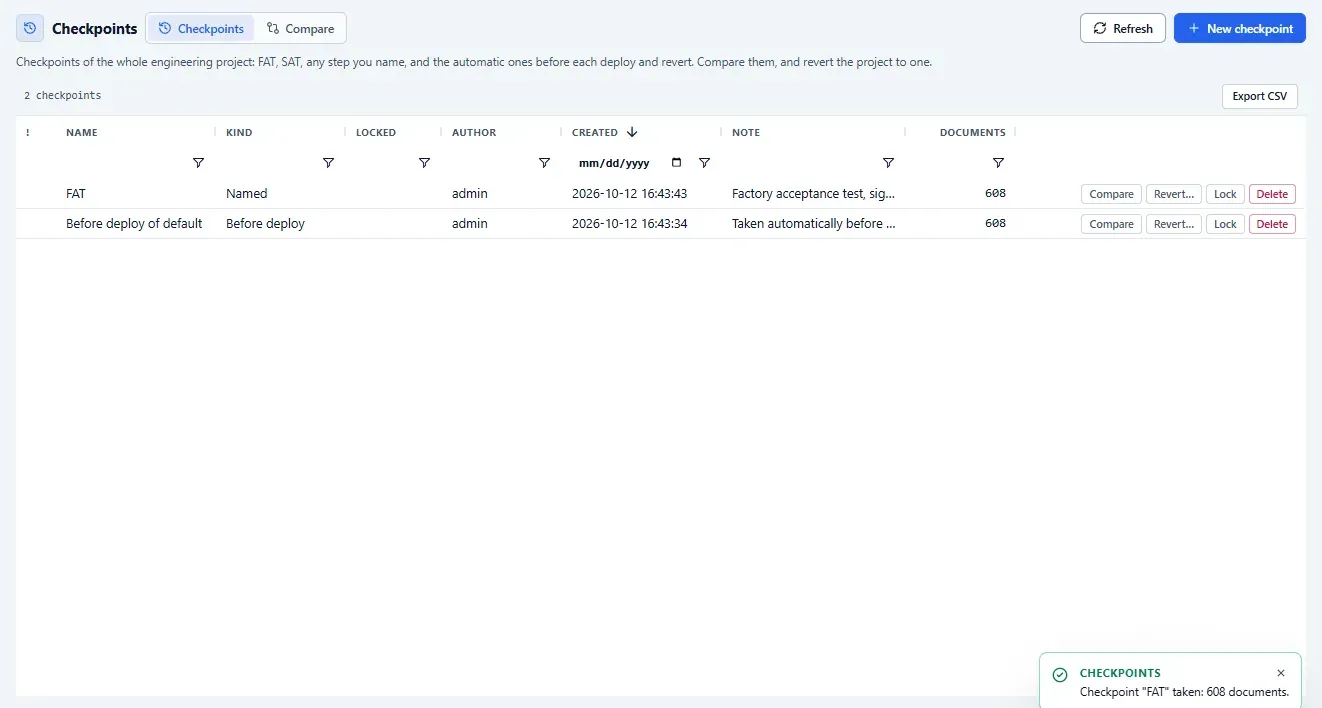
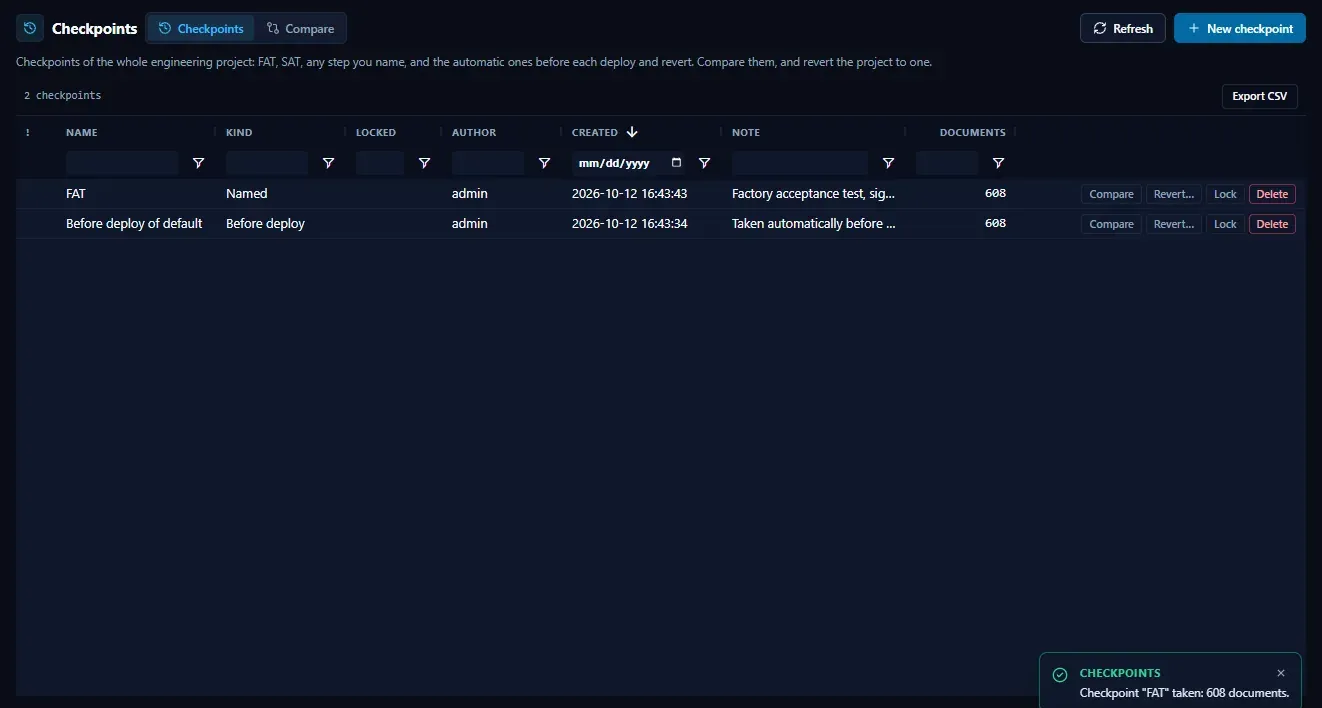
The list has a filter on every column, sorting, a quick filter when it is long, and Export CSV. A checkpoint whose stored files fail their check carries a rose marker in its row; select the marker for the server’s message. Such a checkpoint can be neither compared nor reverted to.
2. Compare a checkpoint with the current project
Section titled “2. Compare a checkpoint with the current project”-
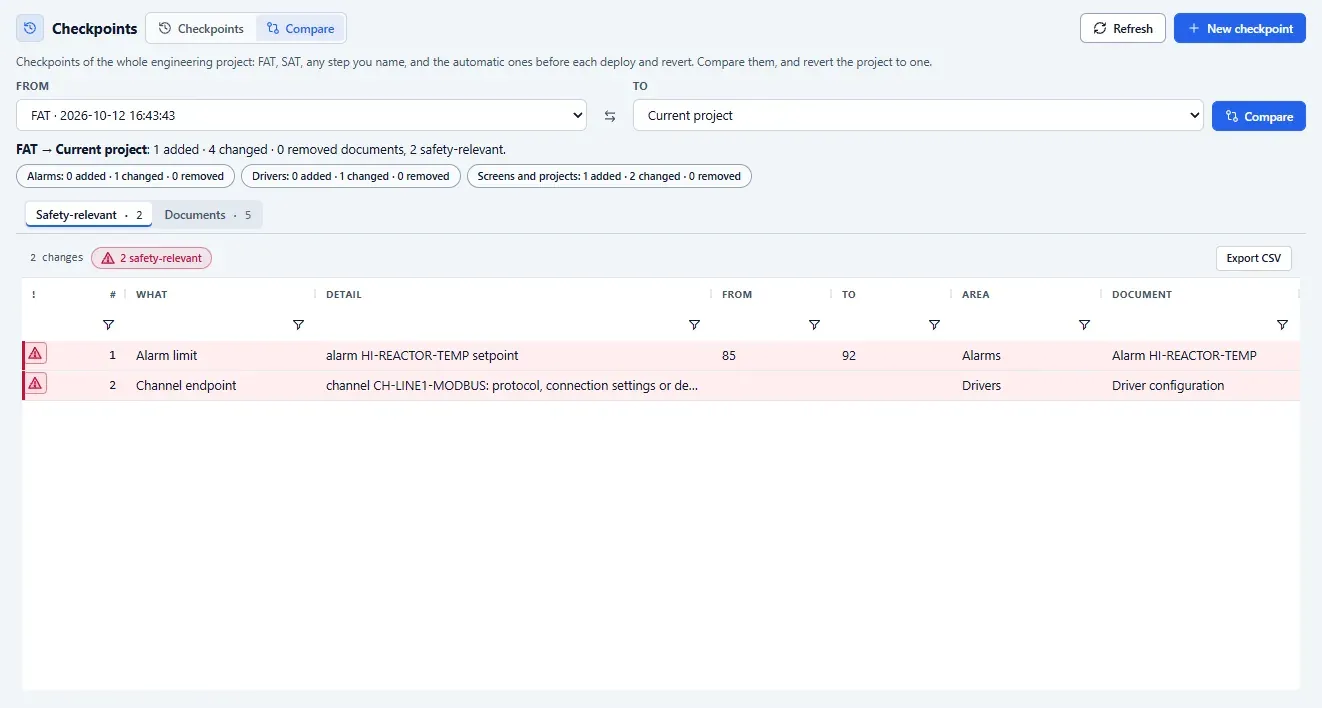
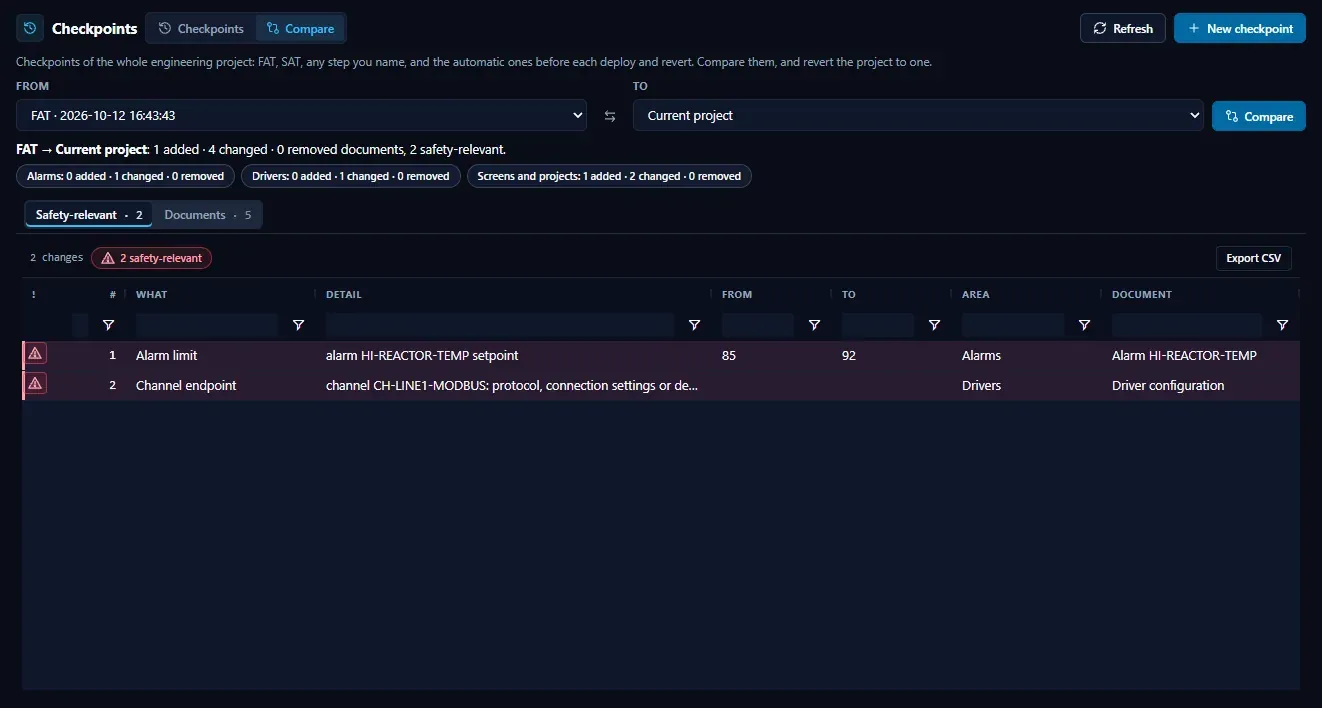
In the checkpoint’s row, select Compare (on a narrower window: More → Compare with current). The Compare view opens with From set to the checkpoint and To set to Current project.
-
Read the summary line: documents added, changed and removed, and how many changes are safety-relevant. One chip per area (screens and projects, drivers, alarms, eaxTags…) gives its counts; select a chip to filter the documents to that area.
-
The Safety-relevant tab comes first. Each row is one change the server flags, rose or amber, with the before and after values where the server gives them:
Flag What changed Alarm limit, priority, condition, delay; alarm added or removed; alarm classes An alarm definition Channel endpoint, added, removed, enabled A driver channel: protocol, connection settings or a device station, or its enabled state Mapping address, scaling, target, write access, write range, e-signature A tag mapping on a driver channel Tag write access, write range, e-signature An eaxTags tag Screen commands and interlocks, screen access A screen’s command objects, interlocks or access level Project safety setting Require e-signature to deploy, live editing, review before deploy and similar Plant e-stop tag The tag of the plant e-stop signal Server file roots The folders server scripts may use -
The Documents tab lists every document that differs. A document with safety-relevant changes carries a marker; select it for the details.
-
To compare two checkpoints, pick them in From and To. Current project can only be the To side.
3. Revert the project to a checkpoint
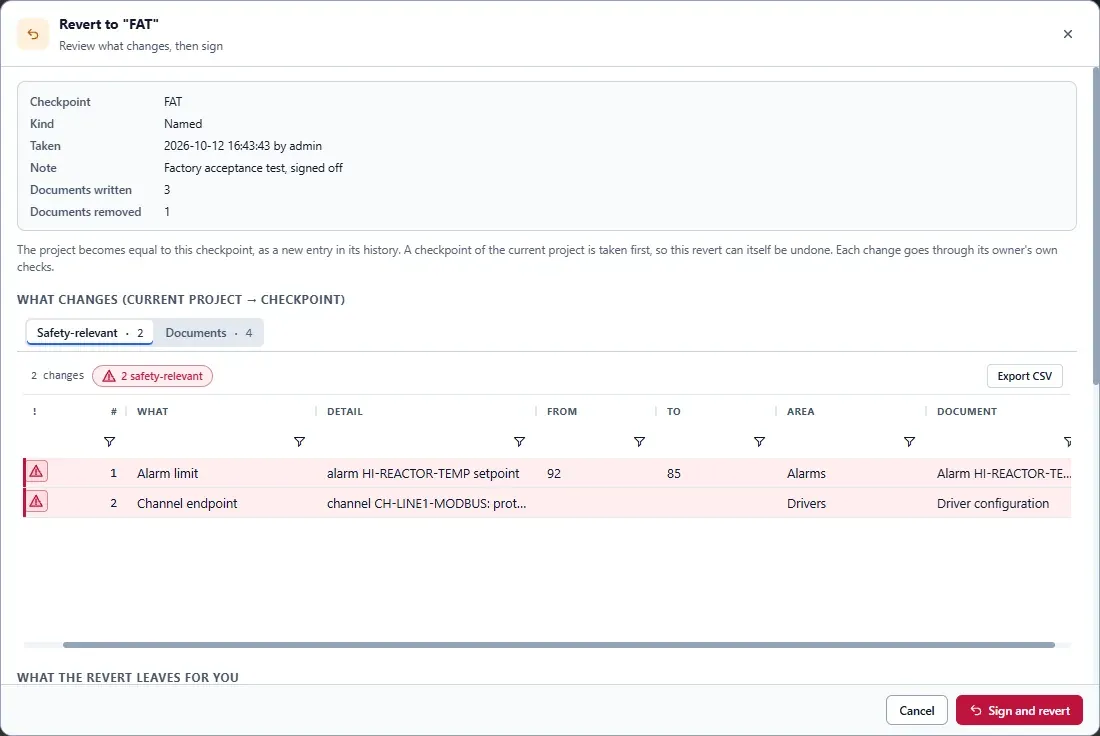
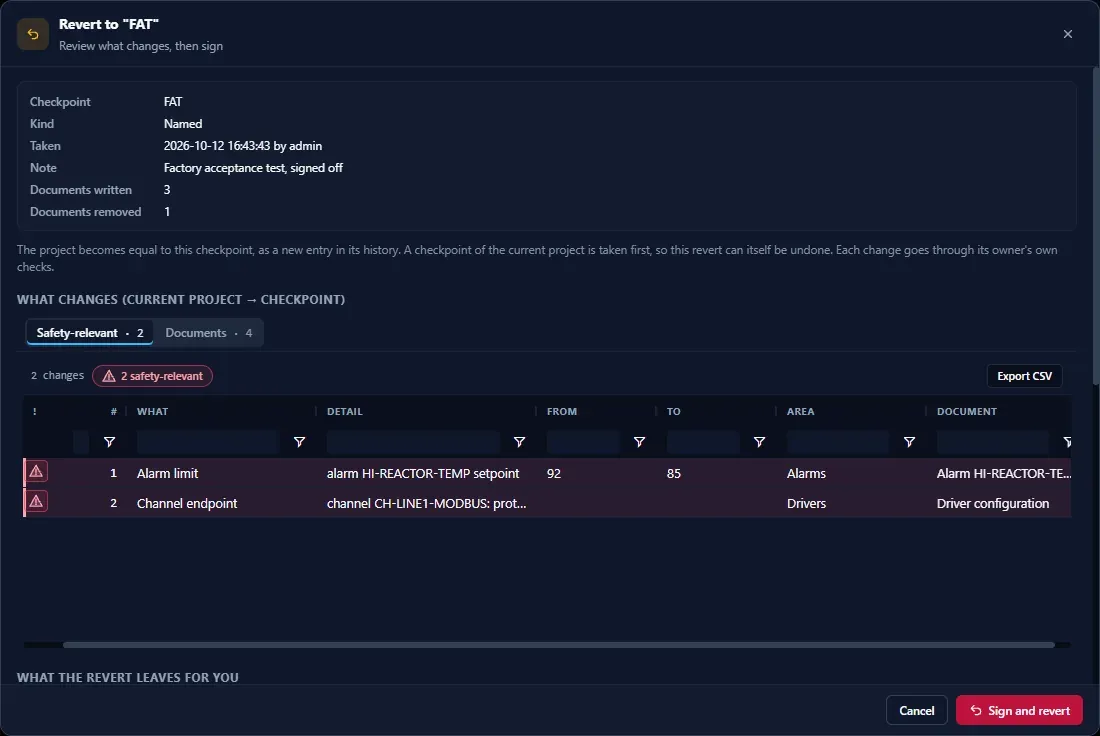
Section titled “3. Revert the project to a checkpoint”- In the checkpoint’s row, select Revert…. The dialog reads what the revert would do now:
- the checkpoint, and how many documents the revert writes and removes;
- What changes (current project → checkpoint): the same two tabs as Compare, in the direction of the revert;
- What the revert leaves for you: driver channels that will be left disabled, screens and projects that will wait for an explicit Deploy, safety settings that will be kept, notes from the server, and areas the checkpoint does not hold (left as they are).
- If the plant e-stop signal would move or cannot move, it says so; a refused move disables Sign and revert.
- Review it. In Electronic signature, the signer is you, the signed-in user, read-only. You sign shows the exact meaning the server records.
- Type a reason (required, one line, at most 500 characters) and your password. Neither is ever pre-filled.
- Select Sign and revert.
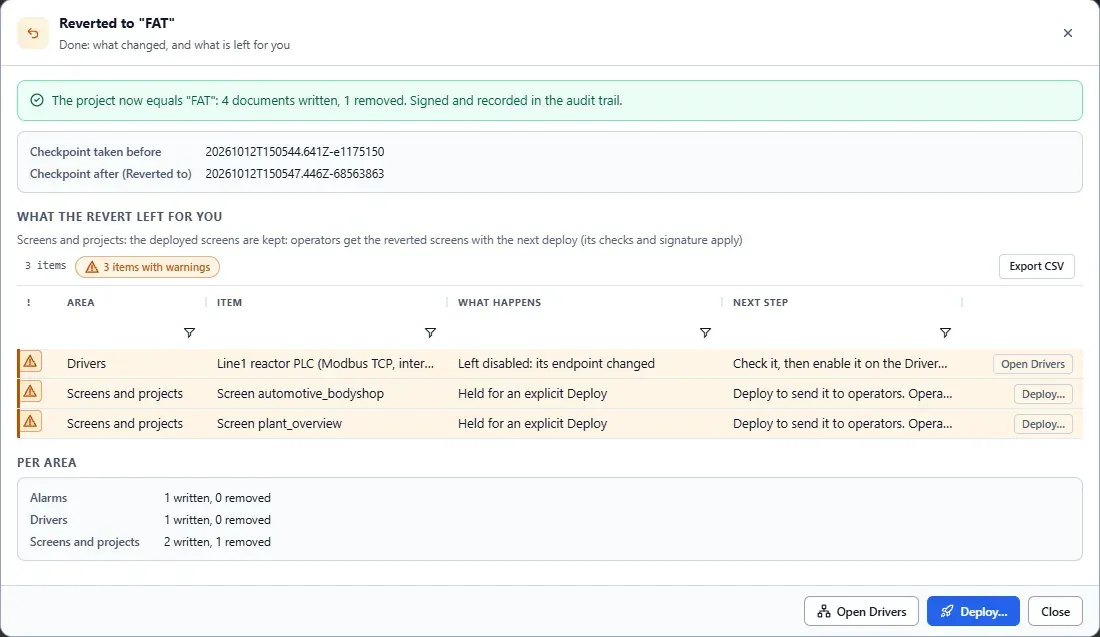
When the revert is done the dialog shows its report:
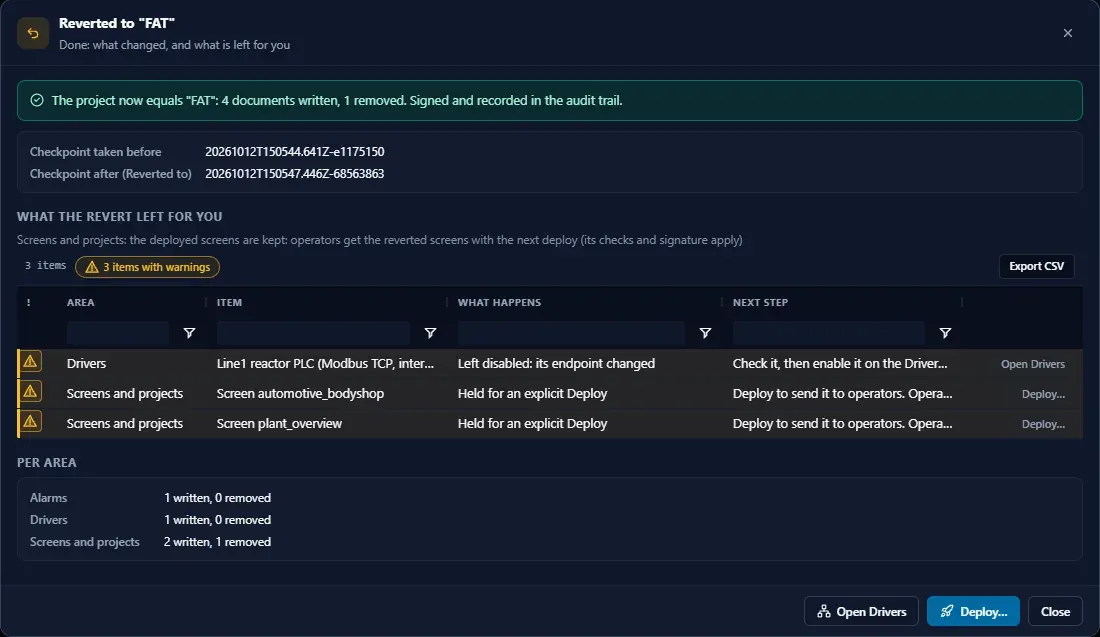
- the documents written and removed, the automatic checkpoint taken before (the way back), and the Reverted to … checkpoint taken after;
- the driver channels left disabled, each with Open Drivers: check each one, then enable it there;
- the screens and projects held for an explicit Deploy, each with Deploy…: operators keep the last deployed version until you deploy;
- the safety settings kept, and the server’s notes about a whole area as lines under the grid title.
Each row that needs you carries a warning marker; select it for why it happened and the fix, with Open Drivers or Deploy… in the card.
- Select Deploy… and deploy the project as usual (with its checks, review and signature when the project requires them). Operators then get the reverted screens.
- In Drivers, check each channel the report lists and enable it when it is right.
Every Studio open on this server refreshes its checkpoint list when a revert is done.
- Service or process
- Check or decision
- Refusal
Read as text
A revert passes four checks in order: who asks and on which node; the reason and the person's signature over the checkpoint, the project state and the reason; the plan of the revert with its validation and guards; the audit records of the safety-relevant changes and the automatic "Before revert to" checkpoint. Any failure refuses the revert with nothing changed. Then the documents are applied; a failure midway is put back from the automatic checkpoint.
Parts
- Who and where (check or decision): Starter or higher, signed in, Lead_Engineer level, no token or AI account, primary with quorum
- Reason, signature (check or decision): a one-line reason; the person's own signature over checkpoint, project state and reason
- Plan of the revert (check or decision): every document validates, the guards, the project unchanged, e-stop and script rules
- Refused (outcome): nothing changed; from the reason on, journaled
- Records, way back (check or decision): audit records of alarm and e-stop changes, then "Before revert to …"
- Apply (service or process): screens held for Deploy; cluster first, then each document
- Reverted (outcome): "Reverted to …", PROJECT_REVERTED
- Failed, put back (outcome): _FAILED records, 500 revert_failed
Connections
- Start → Who and where (next step)
- Who and where → Reason, signature (next step)
- Reason, signature → Plan of the revert (next step)
- Who and where → Refused (refusal): no. Refused with 403 edition_required on Free, 401 when not signed in, 403 below Lead_Engineer or for an API token or the AI co-pilot account, and refused on an HA standby or without quorum. These refusals are not journaled.
- Reason, signature → Refused (refusal): no. From here on every refusal is journaled as CHECKPOINT_REVERT_REFUSED. Refused with 400 reason_required, 403 signature_required or signature_refused, or 503 AUDIT_NOT_WRITTEN. A project that changed after the person signed no longer matches the signature and is refused here.
- Plan of the revert → Refused (refusal): no. Refused with 422 refused when a document does not validate or the checkpoint holds an area this server does not have, 409 state_changed when the project changed meanwhile, 403 when a remote session would move the plant e-stop signal or a script needs the screen script right, 409 estop_signal_active, or 422 estop_tag_invalid.
- Plan of the revert → Records, way back (next step): yes. The guards are part of the plan: a channel the revert creates or whose endpoint changes is written disabled, project safety settings and server file roots are kept when the checkpoint has weaker ones, built-in alarms are never changed.
- Records, way back → Refused (refusal): no. A record that cannot be written refuses the revert with 503 AUDIT_NOT_WRITTEN; without the automatic checkpoint, or when the screens cannot be held for Deploy, the revert is refused too, and the records already written are followed by their _FAILED records. Nothing is applied.
- Records, way back → Apply (next step): yes
- Apply → Reverted (next step). On success the "Reverted to" checkpoint is taken (a failure to take it is only reported), the automatic checkpoints are thinned, CHECKPOINT_REVERTED is journaled and every Studio is told with PROJECT_REVERTED.
- Apply → Failed, put back (next step): fails midway. The documents already applied are put back, the records are followed by their _FAILED records, CHECKPOINT_REVERT_FAILED is journaled and the answer is 500 revert_failed with the report. The report counts rollback errors: the rollback can be incomplete. On HA, a cluster that refuses the commit applies nothing and also answers revert_failed.
4. Lock, unlock and delete
Section titled “4. Lock, unlock and delete”- Lock (Lead_Engineer or Administrator): protects a checkpoint from deletion and from the automatic clean-up.
- Unlock (Administrator).
- Delete (Administrator, unlocked checkpoints only): the dialog shows the checkpoint, then the e-signature (you, read-only; a reason; your password). Sign and delete removes the checkpoint from the history for good. The current project does not change. Documents other checkpoints share are kept.
On a narrow window, Compare, Lock and Delete move into the row’s More menu; on a phone-wide window Revert… joins them.
5. Export the project to a file
Section titled “5. Export the project to a file”A project archive (.eaxproject) is the project in one file, to keep elsewhere or to move to another server. Lead_Engineer or Administrator, on the HA primary.
- On the Checkpoints page, select Export project… (on a narrow window: the toolbar’s More menu).
- Choose The current project (a checkpoint of the project as it is now: the smallest file) or The current project and its full checkpoint history (every checkpoint of this server: FAT, SAT and the automatic ones).
- Select Export. The browser downloads the file; the dialog shows its name, size, SHA-256 and head checkpoint. Keep the SHA-256 with the file.
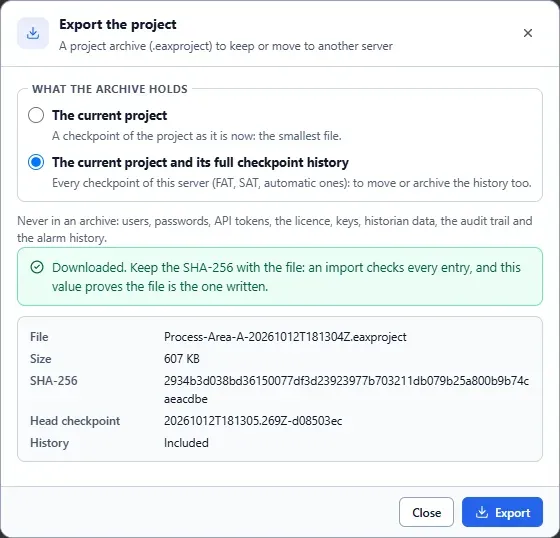
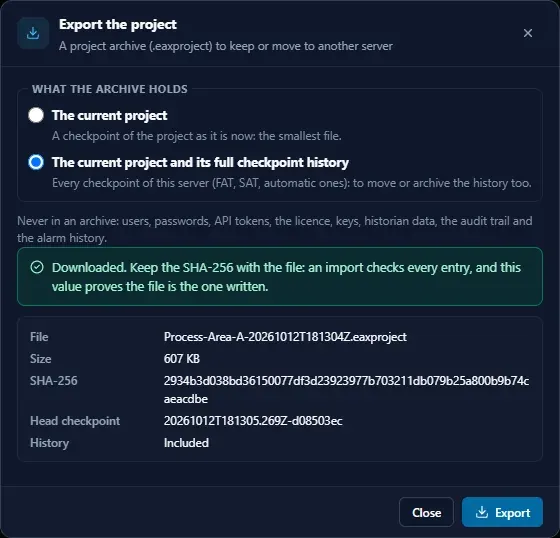
Never in an archive: users, passwords, API tokens, the licence, keys, historian data, the audit trail and the alarm history.
6. Import an archive, then revert to it
Section titled “6. Import an archive, then revert to it”An import adds the archive’s checkpoints to this server’s history. It never changes the project by itself.
- Select Import archive… and choose the
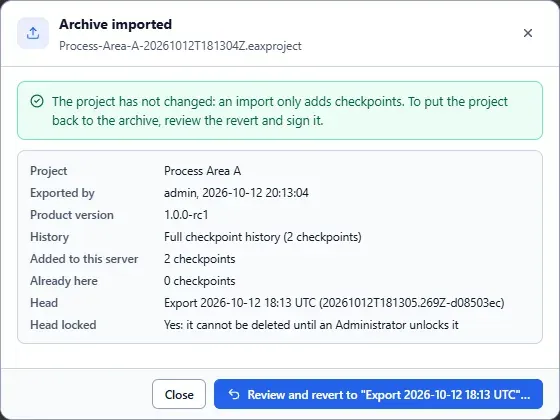
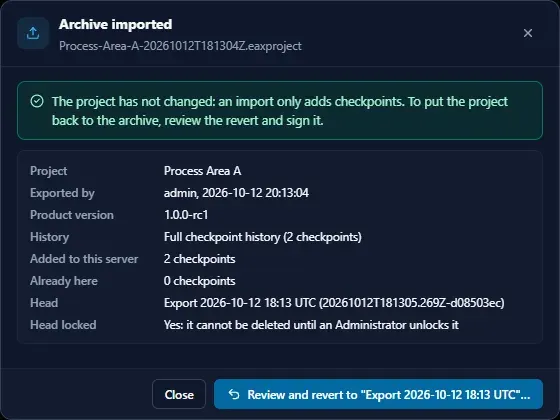
.eaxprojectfile (at most 2 GiB). Every entry is checked against its SHA-256 before anything is stored. - The result shows the project, who exported it and when, the product version, whether the history is included, how many checkpoints were added and how many were already here, and the head checkpoint. The imported head is locked: it cannot be deleted until an Administrator unlocks it.
- To put the project back to the archive, select Review and revert to “…”. This opens the same revert preview and e-signature as in step 3: nothing changes until you sign.
| Message | Meaning |
|---|---|
| “The file is not a valid project archive (the entry “…” failed its check)” | The file is damaged or altered. Nothing was imported. Export it again. |
| “This server already has a checkpoint with the same identity but different content” | The archive does not belong to this project’s history, or it was altered. Nothing was imported. |
| “The file is larger than 2 GiB” | Export without the history. |
7. Set up backups
Section titled “7. Set up backups”Open Project → Backups… (the Backups tab of the same page). Engineers see it read-only; an Administrator changes it.
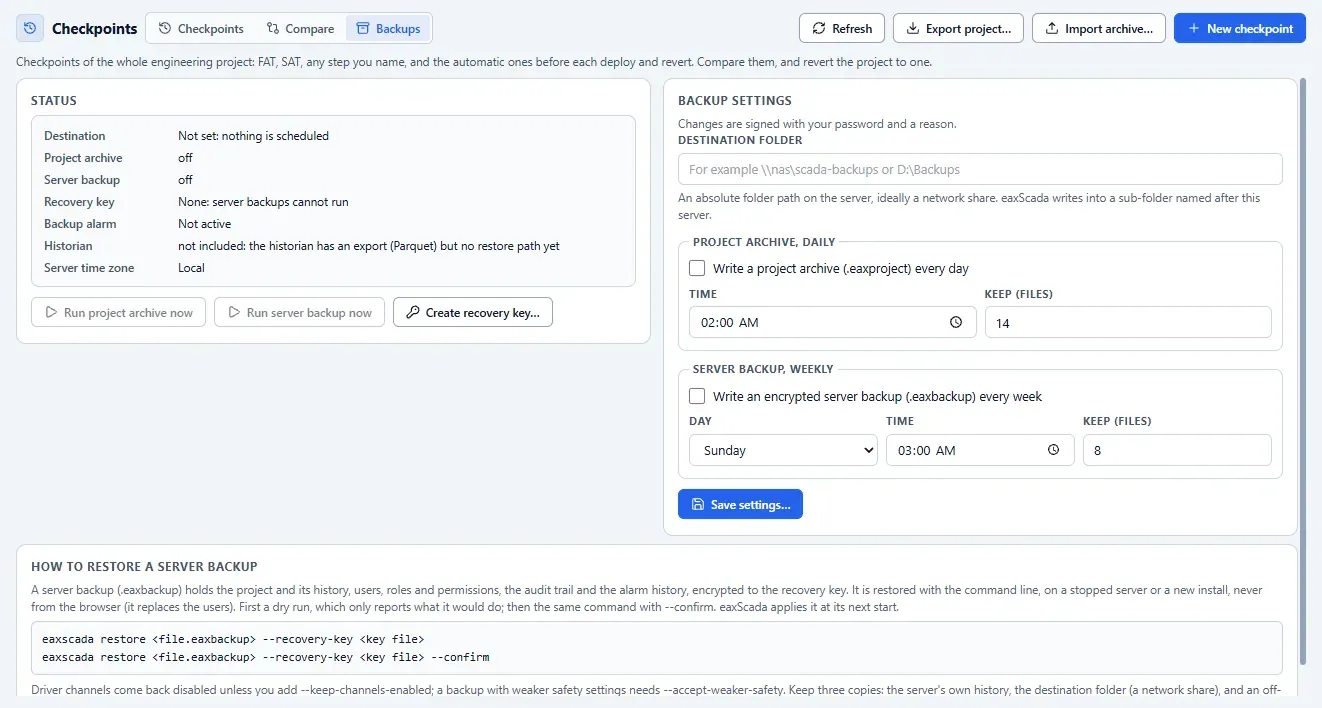
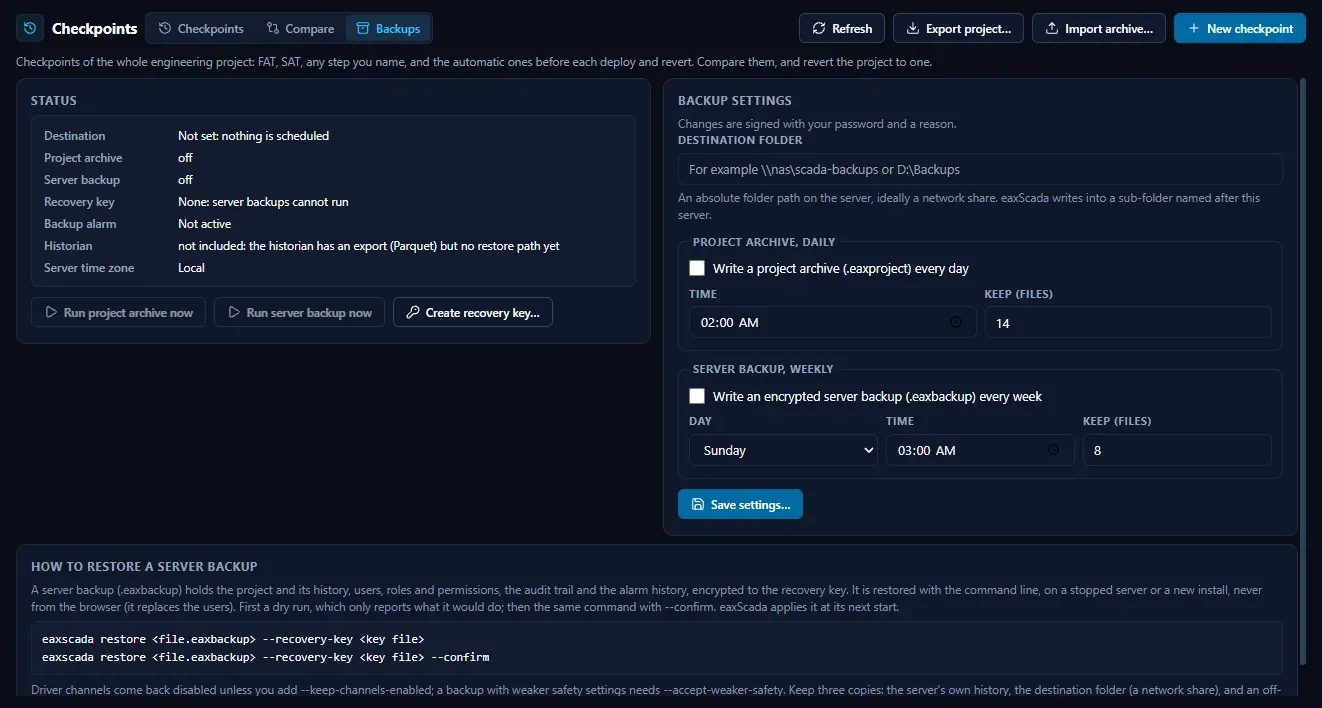
- Destination. Type an absolute folder path on the server, ideally a network share. eaxScada writes into a sub-folder named after this server.
- Schedules. Tick Write a project archive every day (time, how many files to keep; default 02:00, keep 14) and Write an encrypted server backup every week (day, time, keep; default Sunday 03:00, keep 8). Times are the server’s local time (shown in the status card).
- Select Save settings…, type a reason and your password, and Sign and save. The signer is you, read-only.
- Recovery key. Select Create recovery key…, sign, then Download the recovery key. The file is offered once: the server keeps only the public key and cannot show the file again. Store it offline, away from the server and its backups, then tick I stored the recovery key away from this server: the dialog does not close before. Rotate recovery key… makes a new pair; backups made before stay readable only with the previous file.
- Run now. Run each kind once to check the destination: the result shows the file, its size and SHA-256. Run server backup now stays disabled until a recovery key exists.
The status card shows the destination and its free space, each kind’s last success, last failure and next run, the recovery key’s fingerprint, and the backup alarm, the system alarm ALM-SYS-BACKUP (“Scheduled backup failed or overdue”): it is active while a scheduled backup’s last run failed, or none succeeded for one and a half periods. When a restore waits for the next start, the tab says so.
8. Restore a server backup
Section titled “8. Restore a server backup”A server backup (.eaxbackup) holds the project with its checkpoints, the users, roles and permissions, the audit trails, the alarm history, the master recipes with their approvals (data/recipes/scada_recipes.json, see below) and the batch store (data/recipes/batches: the batch records, their phase logs, the *.chain.jsonl record chains, the *.lateaudit.jsonl journals and the *.chainpending.jsonl journals of chain entries not yet written). *.lateaudit.jsonl and *.chainpending.jsonl files in data/recipes/batches are part of the batch store; back them up with the chain files and do not delete them. Backups made before this release do not hold the *.chainpending.jsonl journals. A restore replaces the batch store with the backup’s, after copying the current one to data/restore-before-<time>/; a backup made by an earlier release has no batch store, so a restore from it leaves the current one as it is. A backup is refused when the batch store cannot be copied. The audit trail is in it as a checked copy of its database, audit.duckdb (Starter, Pro and Enterprise; a Free server’s backup has none). It replaces users and authorization, so it is restored only with the command line, on a stopped server.
You need:
- the backup file;
- the recovery key file that was downloaded when the backup key was made. The server never keeps it, and without it no backup can be read. After a key rotation, backups made before it need the previous key file.
Steps:
-
Stop eaxScada. While it runs it holds
data/eaxscada.lock, and the command refuses to start: “eaxScada is running: stop it before a restore”. -
Run a dry run first. Without
--confirmthe command writes nothing:eaxscada restore server-20261012T030000Z.eaxbackup --recovery-key eaxscada-recovery-key.txtIt decrypts the backup and checks everything, then lists what a restore would replace: the folders, how many users, roles, groups and permissions, and the driver channels. It ends with “Nothing was written. Run again with –confirm to restore.”
-
Read the warnings.
- Driver channels. By default every channel that was enabled in the backup comes back disabled, so a replacement or test machine never starts talking to equipment by itself. Add
--keep-channels-enabledonly on the machine that really replaces the old one, when nothing else talks to the same equipment. - Safety settings. If the backup’s project has weaker safety settings than this server (Require e-signature to deploy, Live editing off, Review before deploy, Block deploy on lint errors), the restore is refused. The message lists each setting as current → backup. Add
--accept-weaker-safetyonly if the backup’s settings are the ones you want; the audit trail records who accepted them.
- Driver channels. By default every channel that was enabled in the backup comes back disabled, so a replacement or test machine never starts talking to equipment by itself. Add
-
Run it again with
--confirmand the flags you chose:eaxscada restore server-20261012T030000Z.eaxbackup --recovery-key eaxscada-recovery-key.txt --confirmBefore writing, the command copies everything it replaces to
data/restore-before-<time>/; nothing is deleted. The summary lists what was restored and the channels left disabled.The audit trail is put back only after its copy checks out: the copy is staged in the audit folder, and its SHA-256, chain, record count and last record are compared with the backup’s record; then it replaces
audit.duckdb. A copy that does not check out stops the restore and leaves the current trail in place. In Starter, Pro and Enterprise the restore is recorded in the restored trail asAUDIT_TRAIL_RESTORED(who, the backup file, the copy’s SHA-256 and record count), and the trail’s tip anchor is set to its last record, so the next start does not take the older trail for a cut one. On a Free server the trail is restored read-only, with nothing written into it. -
Start eaxScada. Before it applies the restored project, it records each alarm definition, the alarm classes and each plant e-stop setting the restore changes in the audit trail (records written first). It then applies the project and records
PROJECT_RESTORED, with the channels left disabled and any safety setting lowered. If the audit trail cannot be written, nothing is applied: the restore waits and is tried again every few seconds, and the server log says “restored project waiting to be applied” until the trail is back. -
Sign in with an account from the backup. In Drivers, check each channel the summary listed, then enable it.
- Data store
- File or document
- Check or decision
- Refusal
Read as text
The restore command runs on a stopped server. A dry run decrypts the backup with the recovery key and checks everything; if a check fails the restore is refused and nothing is written. Run again with --confirm, the command first copies everything it replaces to a restore-before folder. The audit trail copy from the backup is staged and checked; only a copy that checks out replaces audit.duckdb, and the restore is recorded in it as AUDIT_TRAIL_RESTORED. When eaxScada starts, it first writes the audit records of the alarm and plant e-stop changes, then applies the project and records PROJECT_RESTORED. The driver channels that were enabled in the backup come back disabled.
Parts
- Dry run of eaxscada restore (check or decision): server stopped, backup opens with the recovery key, every check passes?. Without --confirm the command writes nothing. It lists what a restore would replace.
- Refused (outcome): nothing written. eaxScada is running, the recovery key does not open the backup, the backup is damaged, a checkpoint differs from the one stored under the same id, or the safety settings of the backup are weaker than the server's and --accept-weaker-safety is not given.
- data/restore-before-<time>/ (file or document): copy of everything the restore replaces. The user store, the audit trails, the alarm history, the checkpoints and the driver configuration. Nothing is deleted.
- Audit trail copy, staged (check or decision): SHA-256, chain, record count, last record match?. Each is compared with the record of the backup.
- Restore stops (outcome): current trail kept. The checkpoints, the driver configuration and the user store were written before this check. The previous data is in the restore-before folder.
- audit.duckdb (data store): replaced by the checked copy; AUDIT_TRAIL_RESTORED. The record names who restored, the backup file, the SHA-256 of the copy and its record count. A Free server restores the trail read-only and writes nothing into it.
- eaxScada starts (check or decision): alarm and e-stop change records written?. One record for each alarm definition, the alarm classes and each plant e-stop setting the restore changes, before anything is applied.
- Project applied (outcome): PROJECT_RESTORED; channels disabled. With --keep-channels-enabled the channels stay enabled as in the backup. A project that cannot be applied is recorded as PROJECT_RESTORE_FAILED.
Connections
- Start → Dry run of eaxscada restore (next step)
- Dry run of eaxscada restore → Refused (refusal): no
- Dry run of eaxscada restore → data/restore-before-<time>/ (next step): yes: run again with --confirm. The same checks run again before the first write.
- data/restore-before-<time>/ → Audit trail copy, staged (next step). The checkpoints, the driver configuration with its channels disabled and the user store are written, then the audit trail.
- Audit trail copy, staged → Restore stops (refusal): no
- Audit trail copy, staged → audit.duckdb (next step): yes
- audit.duckdb → eaxScada starts (next step). The alarm history is restored too. The command ends; start eaxScada.
- eaxScada starts → eaxScada starts (refusal): no: waits, tried again. Nothing is applied. The server tries again every few seconds until the audit trail can be written.
- eaxScada starts → Project applied (next step): yes
Not in a backup: the licence, keys (driver secrets, the assistant’s key, NKeys, TLS keys), API tokens and sessions. Channels whose credentials were encrypted with another server’s key need them entered again; API tokens are issued again.
Master recipes in the server backup
Section titled “Master recipes in the server backup”A recipe’s approval is bound to the recipe’s content and revision, and each batch record names the recipe and the approval it ran with. So the master recipes are backed up with the batch store and the audit trail:
- One moment. A backup from the Backup tab copies the master recipes and the batch store in one hold of the recipe store’s lock, before it copies the audit trail. The recipes, the record chains and the audit records they name belong together.
- Checked. The recipes are an entry of the backup with its own SHA-256, like every other entry. A backup whose recipes entry was changed, replaced or taken away is refused, and nothing is restored. A recipe file that cannot be read stops the backup (
BACKUP_FAILED). - Restored. A restore replaces
data/recipes/scada_recipes.jsonwith the backup’s, after copying the current file todata/restore-before-<time>/recipes/. The dry run says “replace the master recipes: N recipes, with their approvals”; the summary says “master recipes: N, with their approvals”. - Earlier backups. A backup made by an earlier release has no recipes; a restore from it leaves the current recipes as they are. Make a new server backup after the upgrade.
- The file is the record. At start eaxScada reads the master recipes from
scada_recipes.jsonand rebuilds the recipe rows ofdata/recipes/scada_recipes.duckdb(a copy for SQL queries) from it. The database file is not in the backup, and you do not need to copy it.
After the restore and the next start, open the batch list: every batch record restored with its audit trail reads valid, and every approved recipe can run. A batch record or a recipe changed after the backup reads invalid (the recipe’s approval no longer holds: approve it again).
Verify
Section titled “Verify”- The list shows Before revert to FAT (the automatic checkpoint taken first) and Reverted to FAT.
- Compare FAT with Current project: “identical”, or only what the revert keeps on purpose: the deployed manifests (they change with your next deploy), a safety setting the checkpoint had weaker, a channel’s enabled state.
- The audit trail (Security → Operations audit) has
CHECKPOINT_REVERTEDwith your signature, the counts, the automatic checkpoint, the channels left disabled, the settings kept and the documents held for Deploy.
Troubleshooting
Section titled “Troubleshooting”| Symptom | Cause | Fix |
|---|---|---|
| “The project changed since this preview was shown” | Someone (or a save of yours) changed the project between the preview and your signature. The signature is bound to the project state you were shown. | The dialog has read the preview again. Review it and sign again; your reason is kept, the password is not. |
| “Not signed: …” with your password | Wrong password (403 signature_refused), or the account is locked after five failed attempts (429, for 15 minutes). The dialog stays open and you stay signed in. |
Type the password again; wait 15 minutes, or an Administrator unlocks a locked account. |
| “This revert is refused: …” about the plant e-stop | The e-stop signal is active, or the tag the checkpoint names would be mapped to a driver channel. Nothing changed. | Clear the e-stop condition, or choose an internal tag for the e-stop signal, then preview again. |
The revert is refused with 503 and the code AUDIT_NOT_WRITTEN |
The revert’s records of its alarm definition, alarm class or e-stop changes could not be written (often a full disk). Nothing changed; CHECKPOINT_REVERT_REFUSED is journaled. |
Free disk space or fix the audit folder, then sign and revert again. |
| “The revert failed: … Everything it had applied was put back” | A document’s own check failed midway. | The project is as it was before. The automatic checkpoint is named in the dialog; read the message, fix the cause, preview again. |
| Delete is greyed out | The checkpoint is locked, or you are not an Administrator. | An Administrator unlocks it, then deletes it. |
| “Not in this edition” | The server runs Free. | Checkpoints are part of Starter, Pro and Enterprise. |
| “API tokens may list and compare checkpoints, never change them” | The request came with an API token. | Sign in as a person; changes and signatures need a login session. |