

Work on a screen with other engineers
Several engineers work on the same project without overwriting each other. Each Studio tab shows who else has the screen open, and only one person edits a screen at a time: the first to start editing holds the screen’s editing lock, and the others see it read-only. When the holder is away from their desk, someone with the right can take over, with a confirmation recorded in the audit trail.
Before you start
Section titled “Before you start”| What | Who | Edition |
|---|---|---|
| See who else is on a screen | anyone signed in to the Studio who may read that screen | every edition, Free included |
| Take the editing lock, take over | Lead_Engineer or Administrator, with the screen’s write permission and its read right | every edition, Free included |
- The AI co-pilot account and API tokens take no part: they never appear on a screen and never hold a lock. Their saves are checked as before (see The lock is advisory).
- Who may read or write a screen: the screen’s permissions and its Required Access Level. See Restrict screens by access level.
1. See who else is on a screen
Section titled “1. See who else is on a screen”Open the project in the Studio. Every few seconds each Studio tab tells the server which screen it has open, so:
- The project tree shows the initials of the other people on each screen. Hover the initials for their names and what each one is doing.
- The designer’s top bar shows who else has this screen open.
Each person is shown in one of three states:
| State | Meaning |
|---|---|
| editing | has unsaved changes on the screen, or holds its editing lock |
| viewing | has the screen open |
| idle | has the screen open but has done nothing for 2 minutes |
A tab that stops reporting (closed, computer asleep, network lost) disappears after 60 seconds. A person with the screen open in several tabs counts once, in their busiest state.
You only see the screens you may read. A screen you may not read is never named to you, and neither is who is on it. Operators and supervisors who open a screen in the Studio appear as viewing; they never hold the lock.
2. Start editing: the editing lock
Section titled “2. Start editing: the editing lock”You do not take the lock by hand. Your first unsaved change to a screen takes its editing lock, and the others on the screen then see you as editing.
The lock ends when you:
- open another screen or leave the screen;
- close the tab;
- are gone (60 seconds without your tab reporting);
- do nothing for 10 minutes. The Studio then tells you: “Your editing lock ended after 10 minutes without activity.”
- Refusal
Read as text
A screen's editing lock is free until someone makes the first unsaved change, which gives that person the lock; everyone else then sees the screen read-only. The lock ends when its holder opens another screen, closes the tab, stops reporting for 60 seconds or does nothing for 10 minutes. Someone with the right to edit the screen can take over after a confirmation: the take-over is written to the audit trail first, and refused if that record cannot be written. The previous holder turns read-only and can save their changes as a copy or discard them.
States
- Free (state): nobody is editing
- Held by A (state): everyone else: read-only, "A is editing"
- Held by B (state): A: read-only, Save as copy or Discard
Transitions
- Start → Free (transition)
- Free → Held by A (transition): A's first unsaved change. Only someone with the right to edit the screen takes the lock. Another tab that asks while A holds it is answered "A is editing" and opens the screen read-only.
- Held by A → Free (transition): lock ends. A opens another screen or leaves it, closes the tab, is gone (60 seconds without reports), or does nothing for 10 minutes.
- Held by A → Held by B (transition): B: Take over, confirmed; SCREEN_EDIT_TAKEOVER first. B needs Lead_Engineer or above, the screen's write permission and its read right. The audit record is written before the lock moves. A is told and keeps the unsaved changes in the browser.
- Held by A → Held by A (refusal): take-over refused: no right, or no record. Without the right to edit the screen, or when the audit record cannot be written (or on an HA standby), the take-over is refused and the lock stays with A.
- Held by B → Free (transition): lock ends. As for A.
3. Open a screen someone else is editing
Section titled “3. Open a screen someone else is editing”When someone else holds the lock, the screen opens read-only and the top bar says Viewing · M. Keller is editing, with Take over.
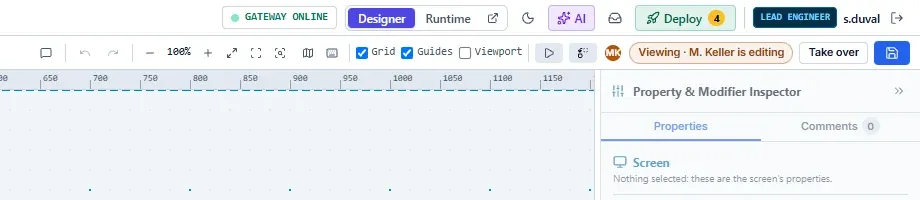
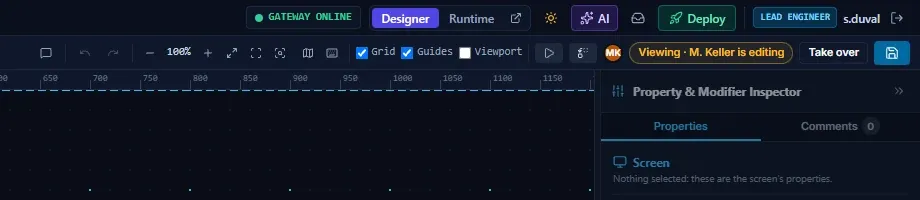
While the screen is read-only:
- the canvas takes no edits; zoom and scroll still work;
- the properties panel is inert;
- Save and auto-save do nothing, and a short notice says why: take over to save, or save your changes as a copy.
If you started changing the screen at the same moment as someone else and they were first, the Studio says “M. Keller started editing this screen first” and keeps your changes in this browser (see step 5).
4. Take over editing
Section titled “4. Take over editing”Take over when the holder is away and the change cannot wait. You need the right to edit the screen (Lead_Engineer or above, the screen’s write permission and its read right); without it the Studio does not offer Take over, and the server refuses a take-over anyway (“You may not edit this screen.”).
- Choose Take over in the top bar.
- Read the confirmation and choose Take over.
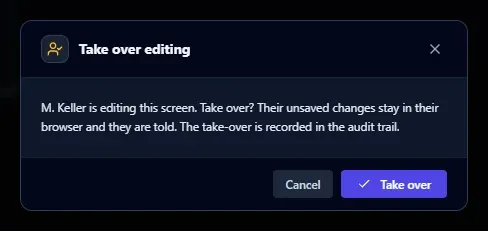
The server records the take-over in the audit trail before it moves the lock: category SCREEN, action SCREEN_EDIT_TAKEOVER, the screen, the previous holder and you. When the record cannot be written, the take-over is refused, the lock stays where it was, and the Studio shows the reason.
After the take-over the Studio reloads the screen as it is saved and you edit it. The take-over never changes the stored screen.
5. When someone takes over from you
Section titled “5. When someone takes over from you”Your Studio says, for example: “S. Duval took over editing; your unsaved changes are kept in this browser: save them as a copy or discard them.” The screen turns read-only for you. Choose:
- Save as copy: your changes are saved as a new screen, with the id
<screen id>_copy(or_copy_2,_copy_3when that id is taken) and the name “<screen name> (copy)”. Compare it with the original and move what you need across later. - Discard: after a confirmation, your unsaved changes are deleted from this browser and the saved screen is reloaded.
Nothing you had saved before the take-over is lost: the take-over only moves the lock.
The lock is advisory
Section titled “The lock is advisory”The lock tells people who is editing; it is not what protects a screen against lost changes. Saving works exactly as before:
- every save still carries the revision it was based on, and a save from an older revision is refused (
409 stale), whoever holds the lock; - a save is not refused just because the tab does not hold the lock: the Studio itself stops saving while a screen is read-only;
- the AI co-pilot and API tokens never hold a lock, and their saves go through the same revision check.
Not covered
Section titled “Not covered”- One server, in memory. Who is on a screen and the locks are kept in the server’s memory and are not replicated. After a restart, or an HA failover to the other node, they are rebuilt from the tabs’ next reports (within 15 seconds).
- HA standby. The Studio edits on the HA primary. On a standby, or on a primary that cannot reach the other cluster nodes, taking the lock and taking over are refused, like other Studio changes.
- Remote sessions through eaxCloud. A view session sees who is on the screens; it does not appear itself. Reporting presence, the lock and take-over belong to engineer sessions. See Allow remote access from eaxCloud.
Through the API
Section titled “Through the API”The Studio uses GET and POST /api/studio/presence and POST /api/studio/presence/{lock,takeover,release}. Fields, rights and refusals: Studio presence API.
Result
Section titled “Result”Each engineer sees who else is on a screen, one person edits it at a time, a take-over is confirmed and recorded, and nobody’s unsaved changes are lost silently.