

Connect objects with pipes and lines
In the 2D designer a pipe or a line can be a connector: its ends are glued to ports of the objects it joins, and its route is made for you. Move, resize or turn a tank and the pipes on it follow; the route goes around the objects in its way. The operator runtime draws the route exactly as you saved it.
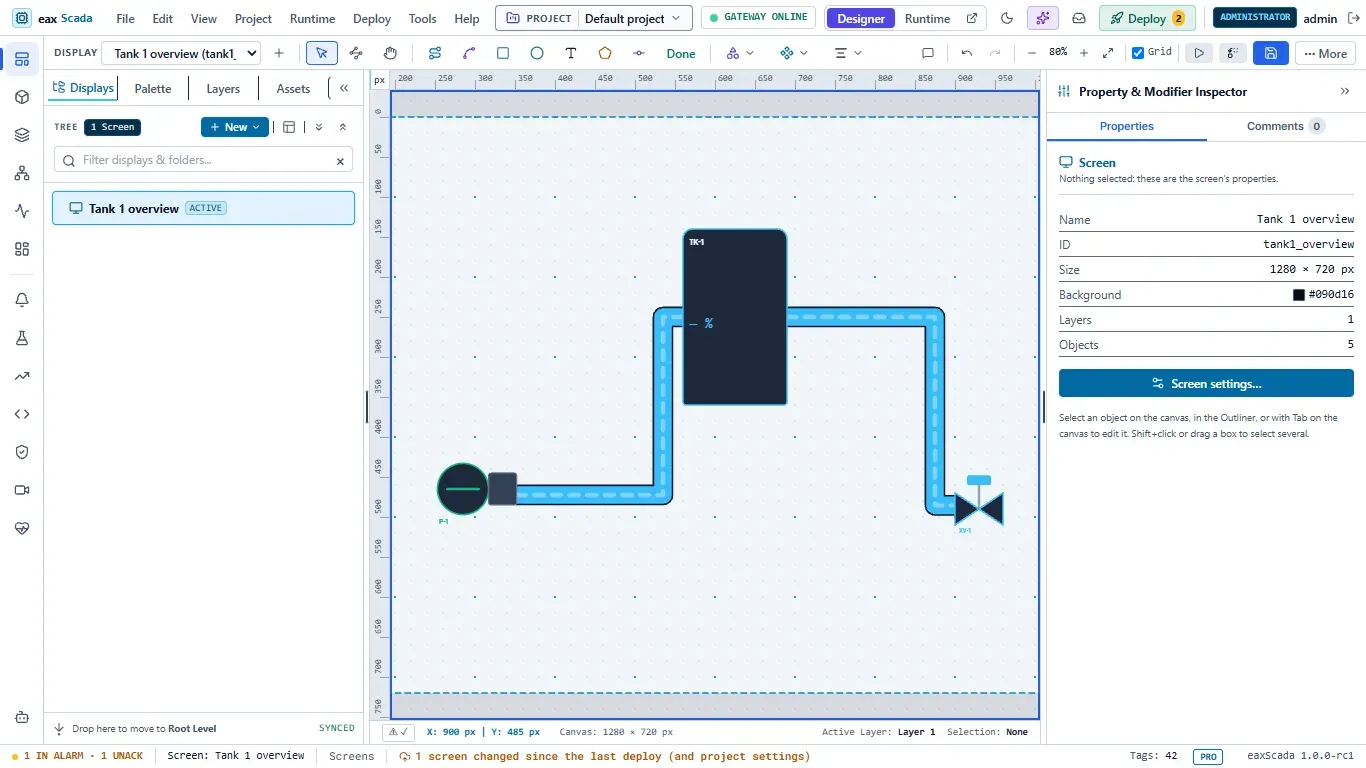
Draw a connector from an object
Section titled “Draw a connector from an object”- Select one object with the Select tool. A blue + appears outside each of its four sides.
- Drag a + onto the object you want to join. While you drag, the object under the pointer shows its outline and its ports as white dots; the port the end will glue to turns green.
- Release. The new pipe is selected, joined at both ends.
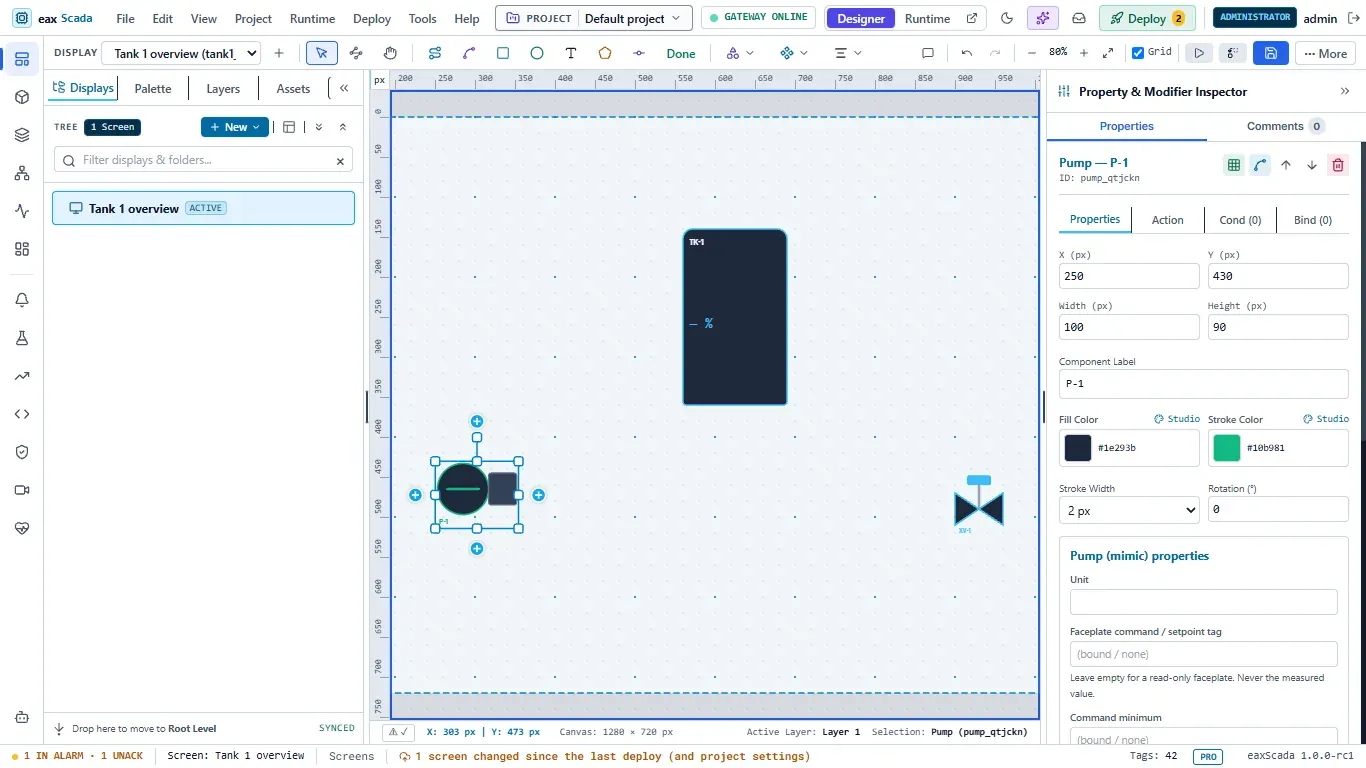
The connector starts at the object’s own port on that side (the one closest to the side’s middle), or at the middle of the side. A + draws a pipe, or a line if the Line tool was the last connector tool you used.
Release on the empty canvas instead and the connector ends there, as a free end. Release on the same port it started from and nothing is drawn.
Draw with the Pipe and Line tools
Section titled “Draw with the Pipe and Line tools”The Pipe (P) and Line (L) tools, in the toolbar and in the palette’s Basic group, draw connectors too.
- Drag: press on an object (or anywhere), drag to a port and release.
- Click by click: click where it starts, then click on the canvas to add bends. Click on an object to end there; double-click, Enter or the toolbar’s Done ends at the last point; Esc cancels.
While a tool is armed, the bar above the canvas shows New pipe route (or New line route): the routing of the next connector. Your choice and the last tool are kept in this browser.
A new pipe has the pipe tool’s look and flow animation and goes under the objects it joins, so its ends hide under their nozzles. A new line stays on top with an arrowhead at its end.
Where an end snaps
Section titled “Where an end snaps”An end glues to the nearest port within 12 screen pixels of the pointer (24 with a finger), whatever the zoom. Over an object, but away from its ports, it glues to:
| Object | Ports |
|---|---|
| Equipment drawings with nozzles (pumps, compressors, blowers, valves, tanks, silos, hoppers, mixers, reactors, heat exchangers, coolers, screw conveyors, cyclones, flow meters, gauges, transmitters, pipe fittings, filters) | Their nozzles and flanges, for example a centrifugal pump’s suction and discharge, or a heat exchanger’s shell and tube connections: the nearest one. |
| ISA symbols with ports | Their own ports. |
| Any other object | The middle of each side (top, right, bottom, left), or the point of its outline in the direction of the pointer. |
Pipes and lines themselves are not targets: a connector joins objects, not other pipes.
Choose the route
Section titled “Choose the route”Select a connector: the bar above the canvas shows its settings.
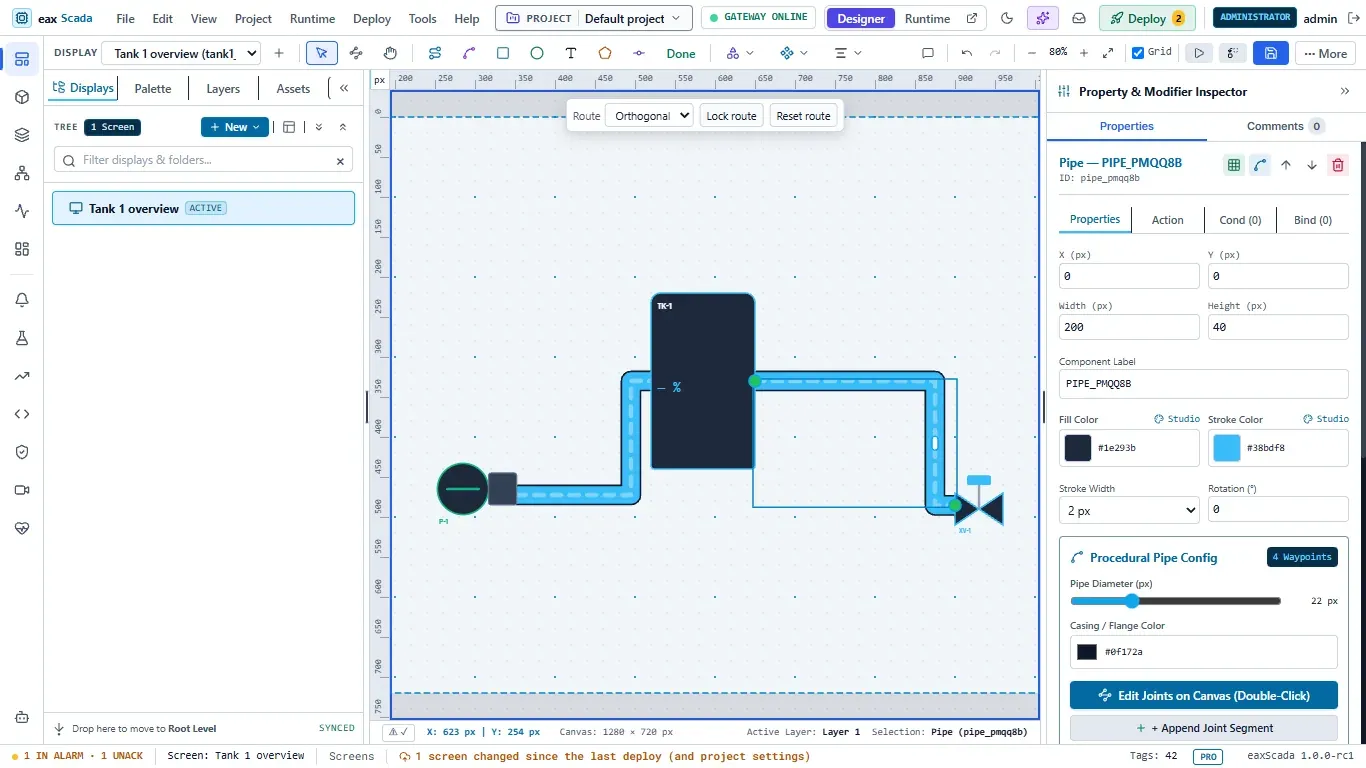
| Setting | Does |
|---|---|
| Route | Orthogonal (the default): horizontal and vertical runs, as few bends as it can, around the objects in the way, leaving and entering each port square to the object’s side. Straight: straight segments from end to end through the bends you set. Curved: a smooth curve leaving each port in its direction. |
| Arrows (lines only) | None, At end, At start or Both. The arrowheads take the line’s colour and grow with its width. |
| Lock route | Keeps the route as it is; when an object moves, only the runs at the ends stretch to follow (an orthogonal route stays square). The button reads Route locked while it is on; click it again to unlock. |
| Reset route | Drops the bends you set and the lock, and routes again around the objects. |
Each change is one step of Undo.
Shape the route
Section titled “Shape the route”A selected connector has no resize or rotation handles. It has its own:
- End handles (circles at its ends): drag one onto another port to reconnect it, or onto the empty canvas to free it.
- Segment handles (small white bars): drag one to move the route there. On an orthogonal route the segment moves across itself and the other bends stay; on a straight or curved route the drag adds a bend where you grabbed. The bends you set are kept the next time the route is made. Dragging a segment unlocks a locked route.
Shape a connector with these handles only. Its joints are made again whenever its objects move, so joints changed with the vertex editor, or with the inspector’s Edit Joints on Canvas and Append Joint Segment (meant for plain pipes), are replaced the next time the route is made.
Objects move, the connectors follow
Section titled “Objects move, the connectors follow”Drag, resize or turn an object and every connector glued to it is routed again while you drag, in the same undo step as the move.
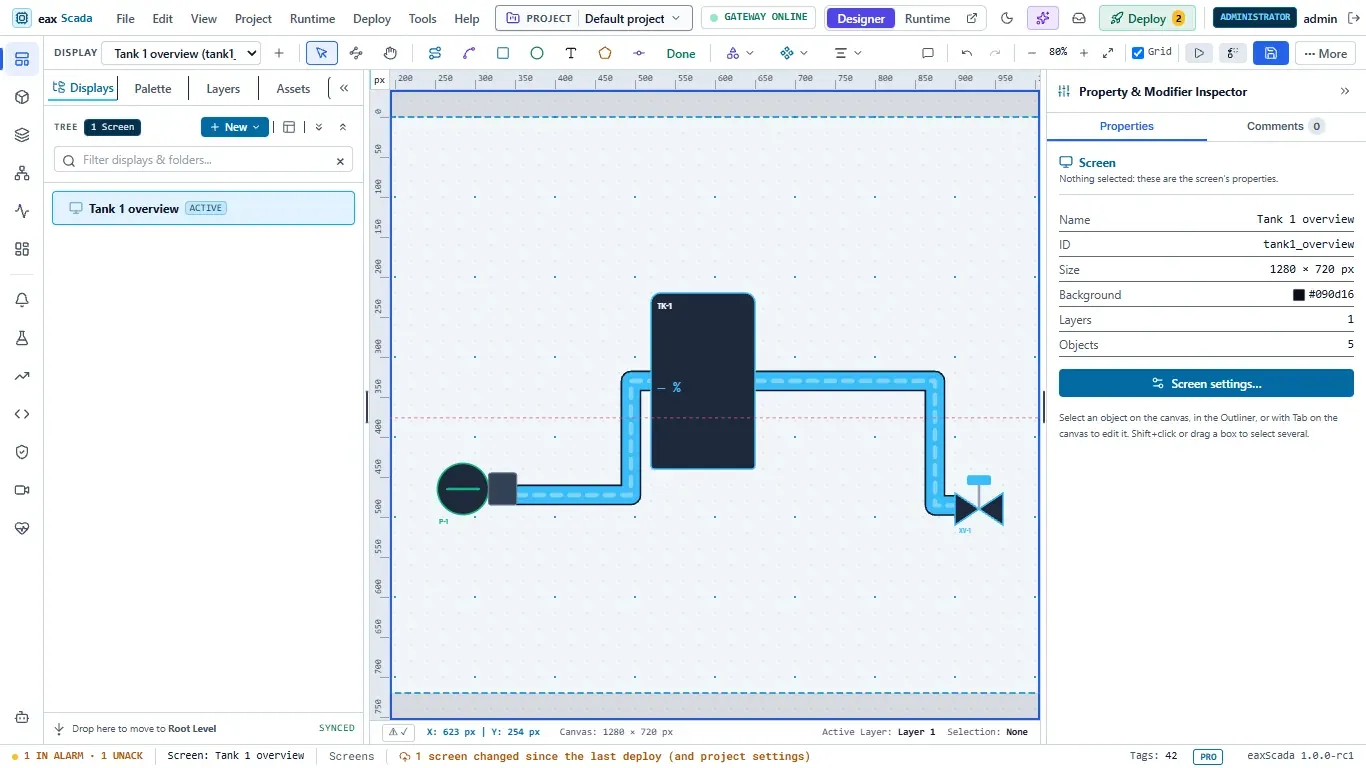
- A connector glued at both ends moves only with its objects. One with a free end can be dragged itself: the free end and its bends go with it, a glued end stays on its port.
- Objects and connectors moved together (a group, a selection, a paste, a duplicate) keep their route as it was, moved.
- Delete an object and the connectors on it keep a free end where the object’s port was. Undo brings back the object and the glue.
- Copy and paste: a pasted connector stays glued to the objects pasted with it; an end glued to an object that was not copied becomes free.
Older pipes and lines: Connect ends
Section titled “Older pipes and lines: Connect ends”Pipes and lines drawn before connectors (including pipes that earlier versions placed from the palette’s Pipe item) are drawn as they are and never move by themselves. To glue one:
- Select it. The bar above the canvas shows Connect ends.
- Click Connect ends. Each end that lies on an object, or close to one, is glued to the nearest port.
A message says how many ends were connected. The pipe keeps its bends: one made only of horizontal and vertical runs becomes a locked orthogonal route, any other a straight route through its points. If no end touches an object, nothing is glued: drag the ends onto objects instead.
On a phone or a tablet
Section titled “On a phone or a tablet”The + handles are drawn larger once the screen is touched, and every connector handle (a +, an end, a segment) can be hit over 34 px. A finger on a handle draws or reshapes the connector; it never pans the view. Drag a + onto the other object and lift the finger to connect.
Drawing never runs an object’s command
Section titled “Drawing never runs an object’s command”While the Pipe or Line tool is armed, and while a connector is drawn or reshaped, the objects on the screen do not react to the pointer at all: a press on a command button starts or ends a connector there, it never selects, moves or runs the button, not even with Alt+click, a mouse click with Animate on, or a tap. A connector itself carries no action and no write binding. Commands are tried in Live preview or the operator runtime (see Edit screens).
Limits
Section titled “Limits”- Only orthogonal routes go around objects. A straight or curved connector goes through the bends you set and may cross objects on the way.
- Routes avoid the objects’ boxes, not their exact outlines, and keep a small clearance (about 12 px plus half the pipe’s width).
- A pipe does not glue to another pipe: to branch, place a tee or another fitting from the palette and connect to its ports.
- The operator runtime does not route: it draws the points saved with the screen. Save the screen after moving objects.