

Put alarms on a screen and choose their colours
Migrated page, not yet verified against the current code. Treat values, paths and examples as indicative until this notice is removed.
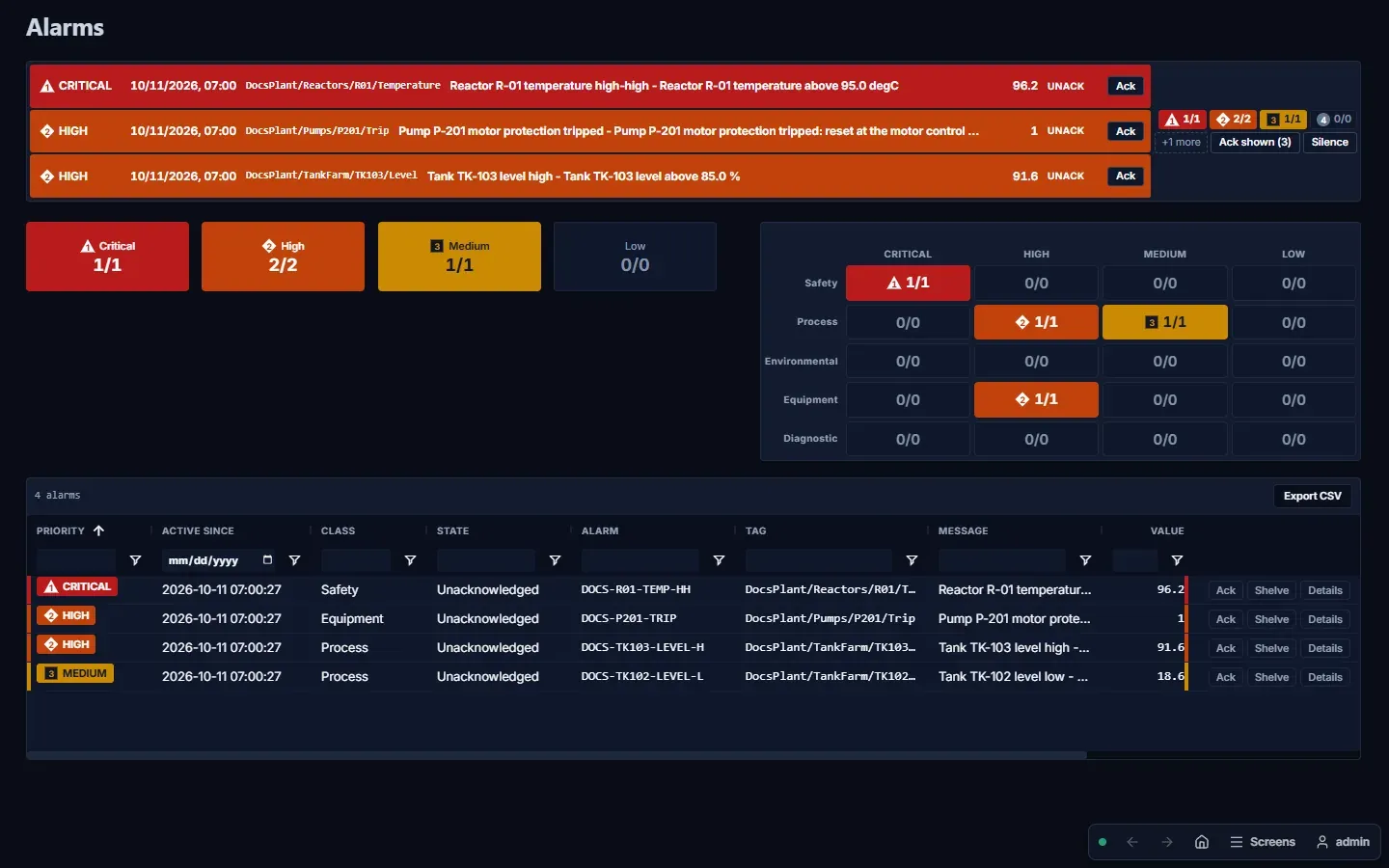
Operators see the alarms that matter on every screen, in colours that tell the priority and the state at a glance, hear the right sound, and can acknowledge or shelve from where they are. You choose how each class and priority looks once, for the whole project.
The objects:
| Object | What it shows |
|---|---|
| Alarm banner | The most important standing alarms, one per line (1 to 10 lines), with counters by priority and the Acknowledge, Shelve and Silence commands. |
| Alarm summary | Every standing alarm in a table that updates live. |
| Alarm history | The alarm journal (trips, acknowledgements, returns, shelves) in a table paged by the server, with time ranges, filters and CSV export. |
| Alarm counter | One tile: unacknowledged / total alarms of a class, a priority or an area. |
| Annunciator panel | A grid of counter tiles, class by priority. |
All of them take their colours, blink and sound from the alarm classes.
Before you start
Section titled “Before you start”- Sign in to the Studio as Lead_Engineer or Administrator to change the alarm classes. Any engineer can add the objects to a screen.
- Define your alarms first (Alarms > Alarm Definitions Studio). The class of an alarm is its category.
Add an alarm object to a screen
Section titled “Add an alarm object to a screen”- Open the screen in the Designer.
- In the Palette, open the Alarms group and click an object: Alarm banner (3 lines), Alarm banner (1 line), Alarm summary, Alarm history, Alarm counter or Annunciator panel.
- Place it, then size it with its handles.
- Set its properties in the Inspector (below), and save the screen.
The objects show live alarms in the Designer too. Their commands work only in the operator runtime.
Set up the alarm banner
Section titled “Set up the alarm banner”In the Inspector, under Alarm banner:
| Property | Effect |
|---|---|
| Lines | 1 to 10 alarms shown at once. |
| Order | Most urgent first (a standing alarm before one that returned to normal, then the priority, then the newest), Newest first, or First out (the oldest first: the alarm that started a cascade). |
| Columns | Priority, time, area, tag, message, value, setpoint, state and class. Tick the ones to show; the arrows set their order. |
| Priorities, Classes | Show only these. None ticked: all of them. |
| Area (tag folder) | Only the alarms of tags under this folder. Plant/Line1 matches Plant/Line1/..., not Plant/Line10. |
| Only unacknowledged alarms | Hide the acknowledged ones. |
| Click on a line | Alarm details (a card with Acknowledge, Shelve and Open screen), Open the screen (the Screen to open), or Nothing. |
| Rotate (one line), seconds | With one line, step through the listed alarms every N seconds. 0: always the first. |
| Counters by priority, “Ack shown” button, Silence button | Show or hide the right-hand side. |
The built-in safety alarms (the plant emergency stop and the PLC fault alarms) are always shown, first, whatever the filters, and the banner never rotates away from them.
At runtime:
- Ack on a line opens the acknowledgement dialog for that alarm. The dialog records the signed-in user and asks for a reason.
- Ack shown acknowledges the unacknowledged alarms on the lines you can see, and only those. The dialog names them.
- Right-click a line (or use Shelve in its details) to shelve it, with a reason and a duration.
- Silence stops the sound on this console. It does not acknowledge anything. A new unacknowledged alarm sounds again.
- A counter opens the standing alarms of that priority. +N more opens all of the banner’s alarms.
Screens made with the first alarm banner keep working: their severity, category, area and role filters are read as before, on one line.
Set up the alarm summary
Section titled “Set up the alarm summary”The summary lists the standing alarms (not shelved, not back to normal) with the same filters as the banner: priorities, classes, area and only unacknowledged. Its rows change in place as alarms change: filters, sorting and scrolling stay as they are. Each row has Ack, Shelve and Details on the right; the class colour is the bar on the left of the row.
Set up the alarm history
Section titled “Set up the alarm history”In the Inspector, under Alarm history:
| Property | Effect |
|---|---|
| Time range | The last 15 minutes, 1, 8 or 24 hours, 7 or 30 days, or From / to. |
| Columns | Time, priority, class, event, state, previous state, alarm, tag, area, message, value, setpoint, user, comment or reason, acknowledgement user and comment, shelve user, reason and end, duration, event id. |
| Priorities, Classes, Events, Area, Text | The starting filters. |
| Rows per page | How many rows each page asks the server for (20 to 1000). |
| Live | New events appear as they happen. |
| Saved filters | Name the current filters and save them with the object. Operators pick them above the table. |
At runtime, operators change the range, search the text and use the column filters; every filter runs on the server, so the count is the number of matching events in the whole journal, not in the loaded page. The table loads more rows as you scroll. Each person’s column widths and order are remembered in their browser.
Export CSV downloads every event that matches, not only the loaded rows, in the table’s sort order, with the visible columns. An export holds at most 100 000 rows; when more match, nothing is exported and you are asked to narrow the range or the filters.
Set up counters and the annunciator panel
Section titled “Set up counters and the annunciator panel”An alarm counter counts the standing alarms of its Class and Priority (each can be every), under its Area. It shows unacknowledged / total, unacknowledged or total. It takes the colours of its most urgent alarm and blinks while one is unacknowledged; with no alarm it is grey.
An annunciator panel is a grid of counters: its rows are the Classes you tick, its columns the Priorities.
A click opens the counted alarms in a dialog, opens the Screen to open, or does nothing (Click).
The counts are the server’s: each operator counts only the alarms they may see.
Choose the colours, blink and sound
Section titled “Choose the colours, blink and sound”- Open Alarms > Alarm classes in the Studio.
- Choose the Base profile: ISA-101 colours (red, orange, amber, blue and slate by priority) or Former banner colours. Everything else overrides it.
- Under Editing, choose Priority styles (every class) to change a priority for all classes, or a class to change only that class.
- Click a cell of the matrix (priority by state). Each cell previews the alarm as it will look and blink.
- Set the text, background, border and blink colours, the blink (none, slow 0.5 Hz, fast 2 Hz), bold, italic, the icon and the short label. Inherit goes back to the layer below. Applies to writes the change for this cell, for every state of the priority, or (for a class) for every priority.
- In the Sound column, choose the sound, its repeat and its volume for each priority. Test plays it.
- Check the warnings:
!on a cell is a low contrast,!!a cell the server refuses. - Click Save.
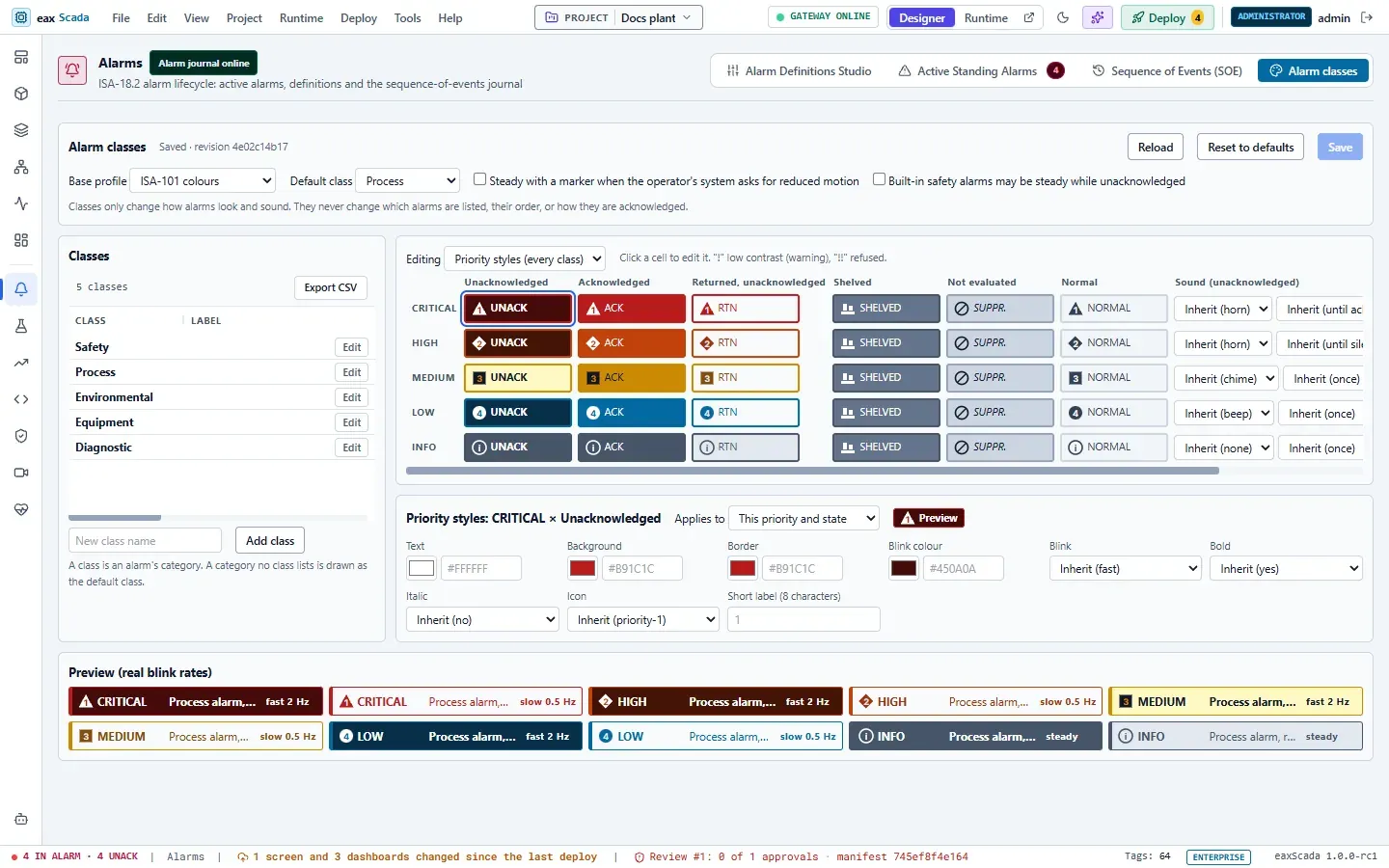
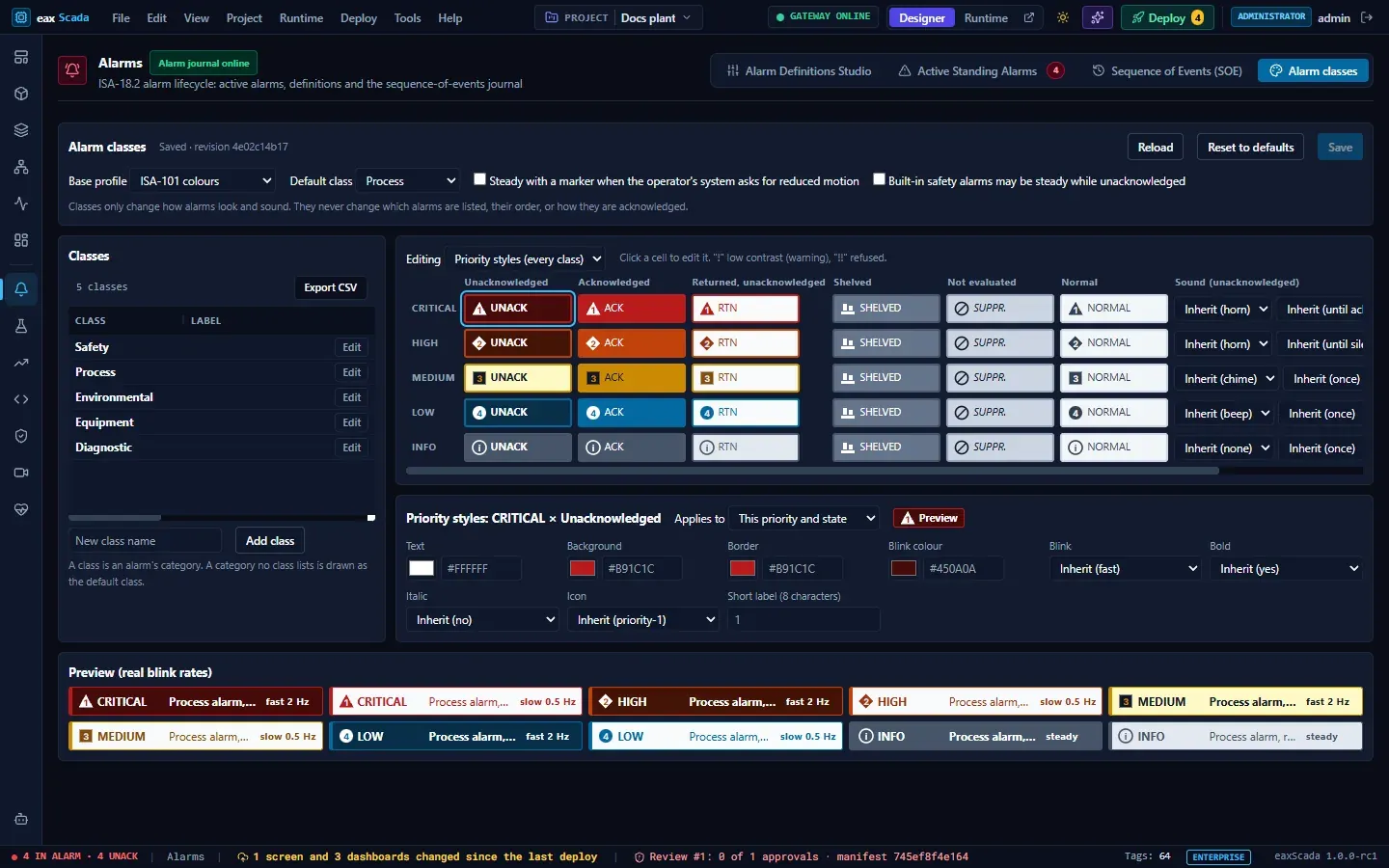
Every alarm object on every open screen follows within seconds, without a reload.
Classes only change how alarms look and sound. They never change which alarms are listed, their order, or how they are acknowledged.
Sound rules
Section titled “Sound rules”- Only unacknowledged alarms sound, and only when their definition has sound alert on.
- The most urgent unacknowledged alarm decides the sound.
- Once plays once per new alarm; until silenced repeats until Silence or Acknowledge; until acknowledged repeats until the alarm is acknowledged. Silence stops it for two minutes, then it sounds again.
- Browsers play sound only after the operator has clicked or pressed a key on the page once.
Built-in safety alarms
Section titled “Built-in safety alarms”The plant emergency stop and the PLC fault alarms (class Safety, priority CRITICAL) cannot be made invisible:
- a document that makes their text contrast below 3:1 is refused;
- they blink while unacknowledged, unless you tick Built-in safety alarms may be steady while unacknowledged (you are asked first);
- the screens apply the same rule again when they draw them.
Reduced motion
Section titled “Reduced motion”Steady with a marker when the operator’s system asks for reduced motion shows blinking alarms steady, with a heavy outline and a !, on computers set to reduce motion. The built-in safety alarms keep blinking unless steady is allowed for them.
Verify
Section titled “Verify”- Trip a test alarm: it appears on the banner within a second, blinking fast; the counters and the summary count it.
- Acknowledge it from the banner: the dialog asks for a reason; the line stops blinking; the history shows the ACK event with your name and reason.
- In the alarm classes, change a colour and save: the banner changes colour without a reload.
Troubleshooting
Section titled “Troubleshooting”| Symptom | Cause and fix |
|---|---|
| Someone saved the alarm classes since you opened them | Another engineer saved first. Nothing was saved; your edits are still on screen. Reload (your edits are dropped) and make them again. |
| The server refused the classes with a list | Each line names the class, priority and state and the rule. Fix those cells and save again. |
| Changing the alarm classes requires Lead_Engineer or Administrator | Sign in with one of those roles. |
| No sound | Click once on the page (browsers block sound before a gesture); check sound alert on the alarm definition and the class sound; check that the console is not silenced. |
| An alarm does not appear on a banner | Check the banner’s priorities, classes, area and only unacknowledged. Shelved alarms are never on the banner. |
| The CSV export says too many events match | Narrow the time range or the filters (at most 100 000 rows). |
See also
Section titled “See also”- Alarm classes, history and counts API
- Find where a tag, screen or alarm is used: the alarm objects’ areas and screens are listed there.