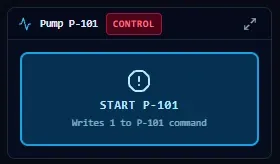
Push button card
A button on a card that writes 1 to its output tag when pressed, with a line of text under it that says what pressing it does. It has its own confirmation (none, a confirmation dialog or an electronic signature) and an optional interlock tag, as a screen button. A button without an output tag is drawn disabled and sends nothing.
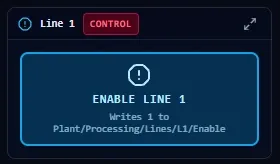
| Card palette | Display Widgets › Push Button |
| Card kind | push_button (body.widget) |
| Default size | 3 × 2 grid cells |
Settings
Section titled “Settings”Double-click the card (or select it and press Enter) to open its settings. The settings are stored in the card’s body.params.
| Shown as | Key (body.params) |
Type | Unit | Default | Allowed values | What it does |
|---|---|---|---|---|---|---|
| Output tag (pressing writes 1) | targetTag |
Tag path (read) | — | The tag written (1) when the button is pressed. Settings hint: Writes go through the server’s permission and e-signature checks like any other control write. | ||
| Button text | label |
Text | "OPERATOR COMMAND" |
The button’s text. The palette places OPERATOR COMMAND: change it to the command. | ||
| Line under the text | hint |
Text | — | A line under the button that says what pressing it does. Settings hint: Say what pressing it does. | ||
| Colour | btnType |
Choice | "danger" |
dangerprimary |
danger: red; primary: blue. | |
| Confirmation | confirmation |
Choice | "none" |
nonerequireesignature |
What a press asks before it writes: none; require, a confirmation dialog; esignature, the signed-in user’s password (the signer is shown read-only, the password field starts empty). The server requires the same confirmation or signature for the output tag from every client. Settings hint: none: the command is sent when pressed; require: a confirmation dialog first; esignature: the signed-in user signs with their password. The server requires the same for these tags from every client. | |
| Interlock tag (optional) | interlockTag |
Tag path (read) | "" |
A tag that disables the button while it is not 0, has no value or a Bad value (an INTERLOCKED chip is shown). The server refuses the write while the interlock is active, from every client. Empty: no interlock. Settings hint: While this tag is not 0, or has no value or a Bad value, the card’s commands are disabled and the server refuses them. Empty: no interlock. |
Actions
Section titled “Actions”A press writes 1 to the output tag, only in the live operator view (never in Edit layout or the screen designer), through the guarded write path: the card’s confirmation or electronic signature is asked first when one is set, nothing is sent while its interlock is active, and the server checks the user’s rights, the tag’s write range and the tag’s write policy (the strictest of the card’s and the policy’s requirement wins).
Commands. The card writes to tags only in the live operator view, never in Edit layout, and only through the guarded write path: the server checks the user’s rights, the tag’s write range and the confirmation or electronic signature the tag requires, and the card reports the server’s answer (a refused write is never shown as done). A card without its tag cannot send anything.
Quality and parameters
Section titled “Quality and parameters”Values come with their quality: a Bad or Uncertain value is marked on the card, and a value not yet received shows a dash, never an invented number. A card on a screen with parameters takes {Name} in its tag paths.
Examples
Section titled “Examples”A start signal for pump P-101
Section titled “A start signal for pump P-101”A blue button that writes 1 to pump P-101’s command tag, with a line saying so.
- Click Push Button in the dashboard palette.
- Double-click it: Output tag
Plant/Processing/Pumps/P101/Cmd, Button textSTART P-101, Line under the textWrites 1 to P-101 command, Colourprimary.