

Fonts and text styles
Migrated page, not yet verified against the current code. Treat values, paths and examples as indicative until this notice is removed.
Every text on a screen is drawn with a font family. eaxScada gives you three kinds, from lightest to heaviest:
| Kind | What it is | Download for the client |
|---|---|---|
| System fonts | System sans, System serif, System mono and System rounded. Each one is a list of the fonts operating systems install (for example Segoe UI on Windows, Roboto on Android, the San Francisco family on Apple devices). | None |
| Bundled | Inter, a font eaxScada serves itself: weights 100 to 900, Latin and Latin Extended. | About 130 KB, only when a screen uses it |
| Project fonts | Font files you upload to the project. | The file, only when a screen uses it |
A screen only loads the fonts it uses. A project that uses system fonts only downloads no font file at all.
System fonts also cover scripts that the bundled font does not, such as Chinese, Japanese, Korean, Arabic, Hebrew, Thai and Devanagari. The client’s own fonts draw those characters. If a character is missing from the chosen font, the next font in the list draws it, so it never shows as an empty box.
Open the fonts and text styles
Section titled “Open the fonts and text styles”In the studio, open Project > Fonts & Text Styles…. The dialog has two tabs:
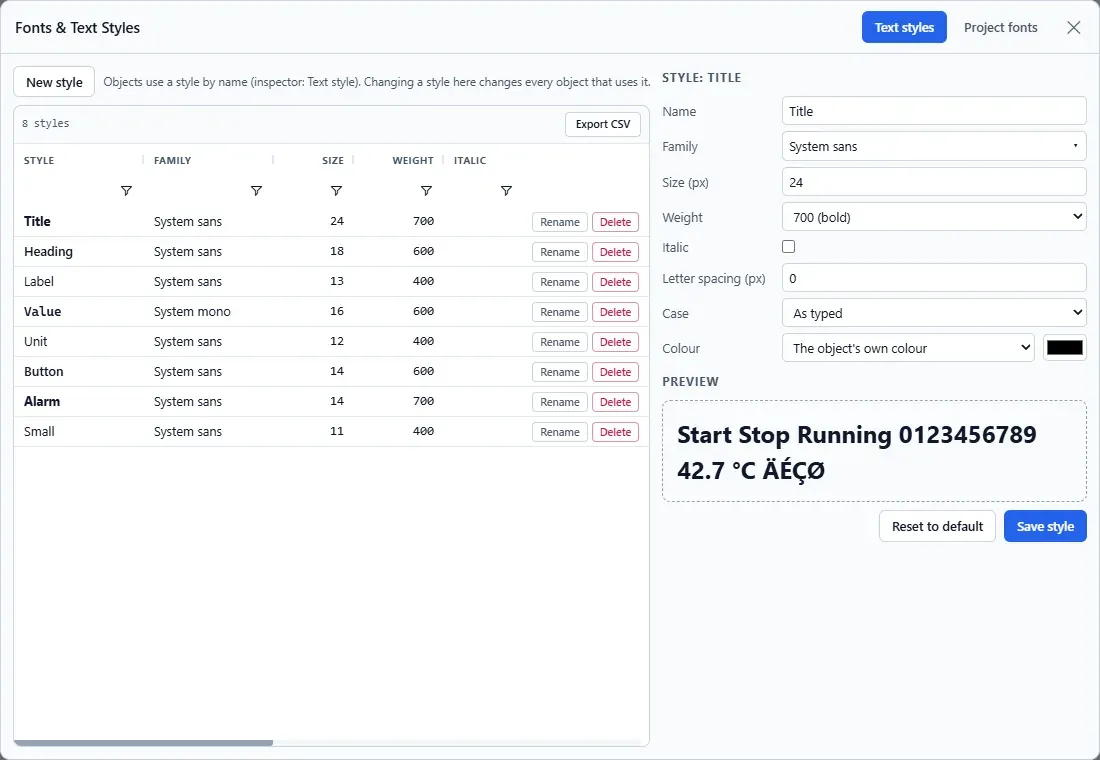
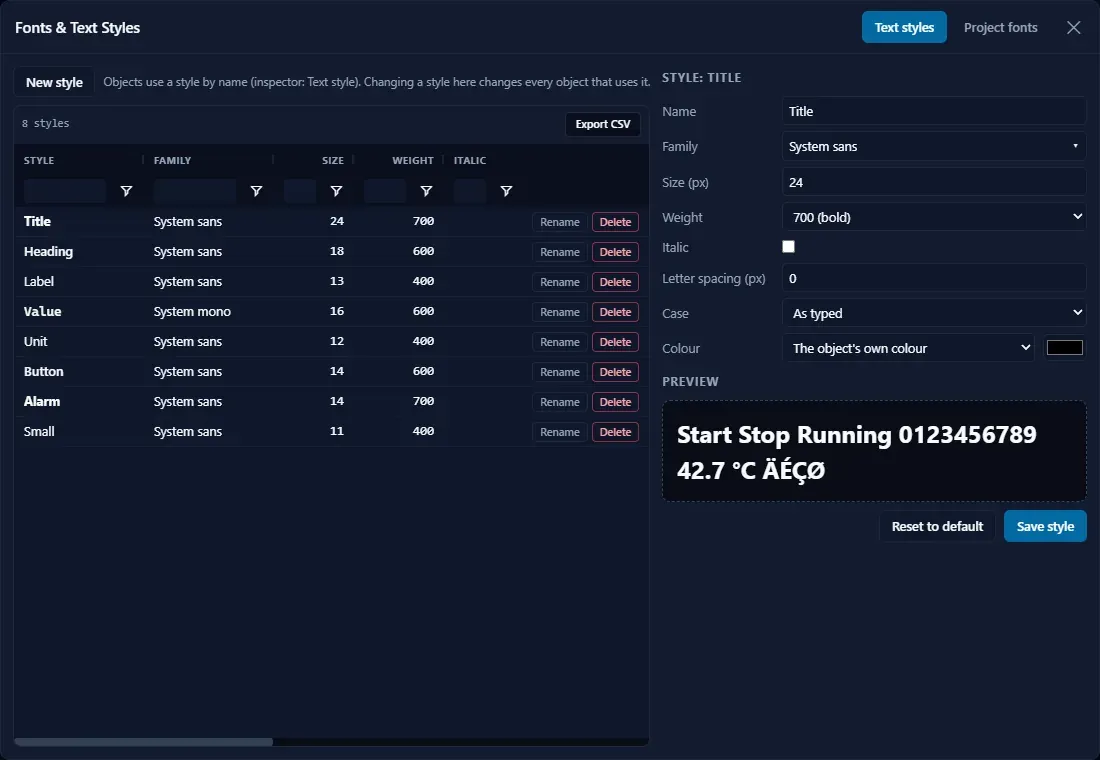
- Text styles: the named styles of the project.
- Project fonts: the font files uploaded to the project, and the fonts the project uses that are not portable.
Changing them requires the Lead_Engineer or Administrator role. Every signed-in role can read them, because the operator runtime draws with them. Fonts and text styles are in every edition.
Edit a text style
Section titled “Edit a text style”A text style is a named set of text settings that objects use by name, so you can change the look of every title, value or button in one place. eaxScada comes with eight editable styles:
| Style | Family | Size | Weight |
|---|---|---|---|
| Title | System sans | 24 | 700 |
| Heading | System sans | 18 | 600 |
| Label | System sans | 13 | 400 |
| Value | System mono | 16 | 600 |
| Unit | System sans | 12 | 400 |
| Button | System sans | 14 | 600 |
| Alarm | System sans | 14 | 700 |
| Small | System sans | 11 | 400 |
- On the Text styles tab, click a style in the list.
- Set its family (with the font picker), size, weight (100 to 900), italic, letter spacing, case (as typed, UPPER, lower) and colour. The colour is either the object’s own colour, a colour token of the project, or a custom colour. A token follows the theme (dark, light, ISA-101).
- Watch the Preview. If the family is not portable, a warning says so.
- Click Save style.
The style is saved in the project styles document (/api/dev/styles). Every screen in the studio and the runtime that uses it redraws with the new settings, without a reload. If someone else saved the styles meanwhile, the dialog reloads them and asks you to apply your change again: nothing is overwritten silently.
New style adds a style of your own. Reset to default puts a product style back to the values above.
Rename or delete a style
Section titled “Rename or delete a style”A style that an object or a state style uses cannot be renamed or deleted. The dialog lists where it is used: the screen or component, the object and the field. Change those objects to another style first.
Deleting one of the eight product styles removes your changes to it. The style stays available with its default values.
Use a style on an object
Section titled “Use a style on an object”Select a text, button, input or alarm object. In the inspector, choose the style under Text style. Font settings you set on the object itself still apply on top of the style, and the inspector marks them as overridden. For the colour the order is: the object’s own colour, then its state’s, then the text style’s, then the type’s default. A Text whose Text colour is still the type’s default takes the style’s colour; the inspector’s swatch shows that colour with the note From text style and the style’s name. Picking a colour makes it the object’s own, and it wins over the style. See How texts, fonts, states and languages are resolved.
Choose a font with the picker
Section titled “Choose a font with the picker”The font picker appears in the text style editor and in the inspector’s text sections. It:
- shows each family in its own font;
- groups the families into system fonts, bundled and project fonts;
- has a search box;
- can be used with the keyboard: arrow keys, Enter, and Escape to close.
In Chrome and Edge, Show fonts installed on this computer lists the fonts installed on your engineering PC. The browser asks for your permission first. Such a font is marked system font: it looks the same only on the clients that have it installed, and the others fall back to System sans.
To make an installed font portable, click Make it portable next to it. This uploads the font’s file to the project (see below). In other browsers, type the family name in the search box and choose Use “name”.
Upload a project font
Section titled “Upload a project font”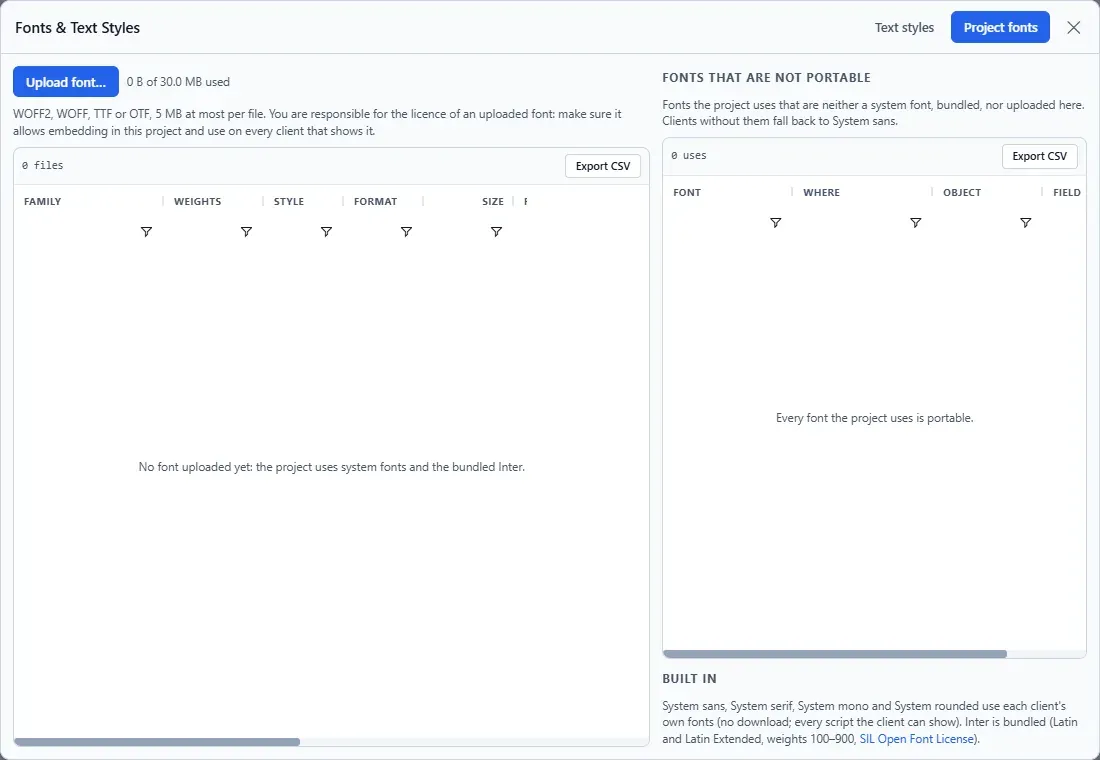
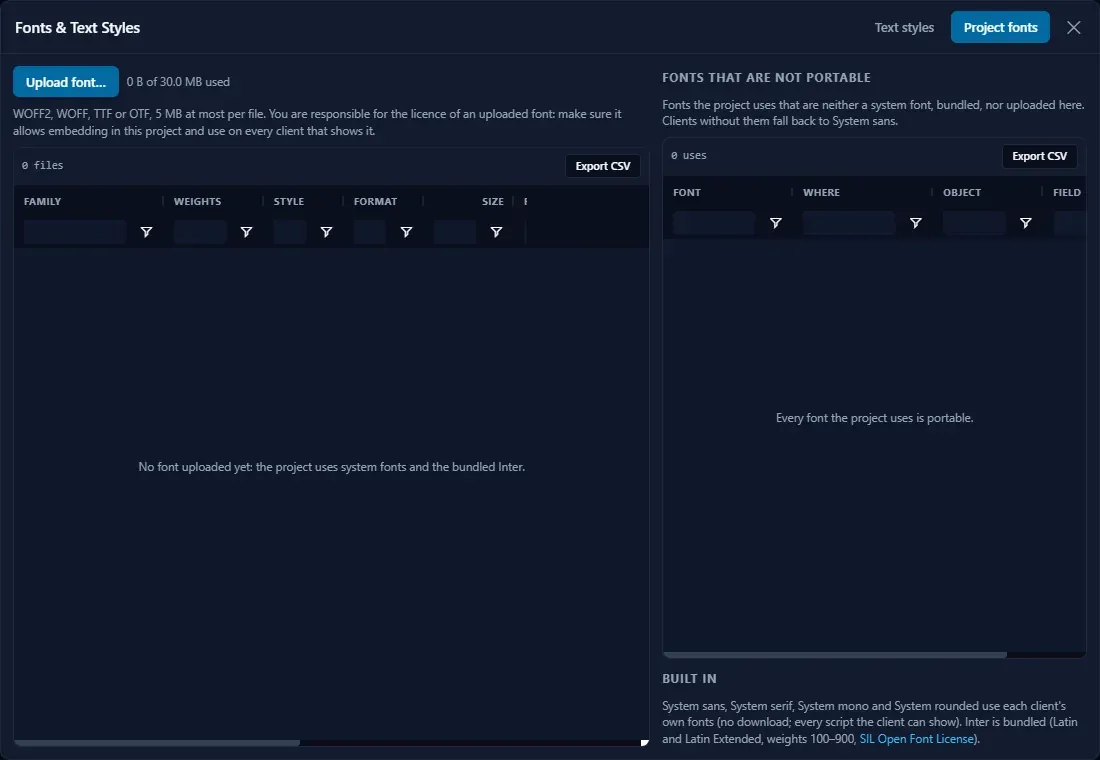
- On the Project fonts tab, click Upload font… and choose a WOFF2, WOFF, TTF or OTF file.
- eaxScada reads the family name, the weight and the style from the file. Check them and change them if needed. A variable font gets its weight range, for example 100–900.
- Confirm that the font’s licence allows this use, then click Upload.
The server keeps a file only when it really is a font. It checks the file’s signature, its table directory, the compressed data, and the tables a browser needs to draw it. Anything else is refused, whatever its file name.
- Size limits: a file can be at most 5 MB, and a project can hold at most 30 MB of fonts.
- Font collections (
.ttc) are refused: upload each face as its own file. - Bold and italic: upload each weight or style of a family as its own file under the same family name (for example a Regular and a Bold file). A variable font covers its whole weight range in one file.
- Family names use letters, digits, spaces,
.,_and-. They cannot reuse a built-in name (the system fonts, Inter, or a generic name such asmonospace). If the file’s own name is one of those, eaxScada suggests another, for example Inter Project.
Each upload, change and deletion is recorded in the audit trail (category FONT), with the file’s SHA-256. On a high-availability pair, the font files are replicated with the rest of the engineering configuration.
Change or delete a project font
Section titled “Change or delete a project font”- Edit changes the family name, the weights or the style of an uploaded file. You cannot rename a family that the project uses while this is its last file: the dialog lists where it is used.
- Delete removes a file. If this is the last file of a family that a screen, a component or a text style uses, the deletion is refused and the dialog lists where it is used. Another file of the same family (say the Bold file, while the Regular one stays) can always be deleted.
Keep fonts portable
Section titled “Keep fonts portable”A font is portable when it looks the same on every client: a system font, the bundled Inter, or a project font. Any other font, such as one installed only on your engineering PC, is drawn with System sans on clients that don’t have it.
The Project fonts tab lists, under Fonts that are not portable, every place in the project that uses such a font. The editor’s lint (the Problems panel and the deploy check) reports each one as the warning font-not-portable. It checks the object’s own font, the font of each of its states, and the font of the text style it uses.
To fix a warning, either upload the font’s file to the project, or choose a system or bundled font.
| Method and path | Role | What it does |
|---|---|---|
GET /api/dev/fonts |
any signed-in role | The project fonts, the bundled and system families, and the limits and space used. |
POST /api/dev/fonts/inspect |
engineer | Reads what a font file says about itself (multipart file), without storing it. |
POST /api/dev/fonts |
engineer | Uploads a font (multipart file; optional family, weights such as 400 or 100,900, and style). |
PUT /api/dev/fonts?id= |
engineer | Changes family, weights and styles. |
DELETE /api/dev/fonts?id= |
engineer | Deletes a file. Answers 409 with used_by while the family is in use. |
GET /api/dev/fonts/file/<id>.<ext> |
any signed-in role | The font file, with its font media type. |
GET /api/dev/fonts/usage?family= or ?textStyle= |
any signed-in role | Where a family or a text style is used. |
GET /api/dev/fonts/portability |
any signed-in role | The places that use a font that is not portable. |
The text styles themselves are part of the project styles document, GET and PUT /api/dev/styles (with If-Match).