

Script a screen
A button on the pump station screen saves the current values of both pumps as a CSV in the server’s shift-reports folder, and another opens the faceplate of the pump the operator chose. You write them as Run script actions, with completion and error markers in the code editor.
The full list of functions is in the Screen scripting API.
Where scripts run
Section titled “Where scripts run”| Script | Runs | Gets |
|---|---|---|
| Run script action of an object | when the operator presses it, in the operator’s browser, in the screen’s sandbox | system |
| Screen or popup startup script (Display Settings → Navigation & Roles) | when the screen or popup opens, in its sandbox | system |
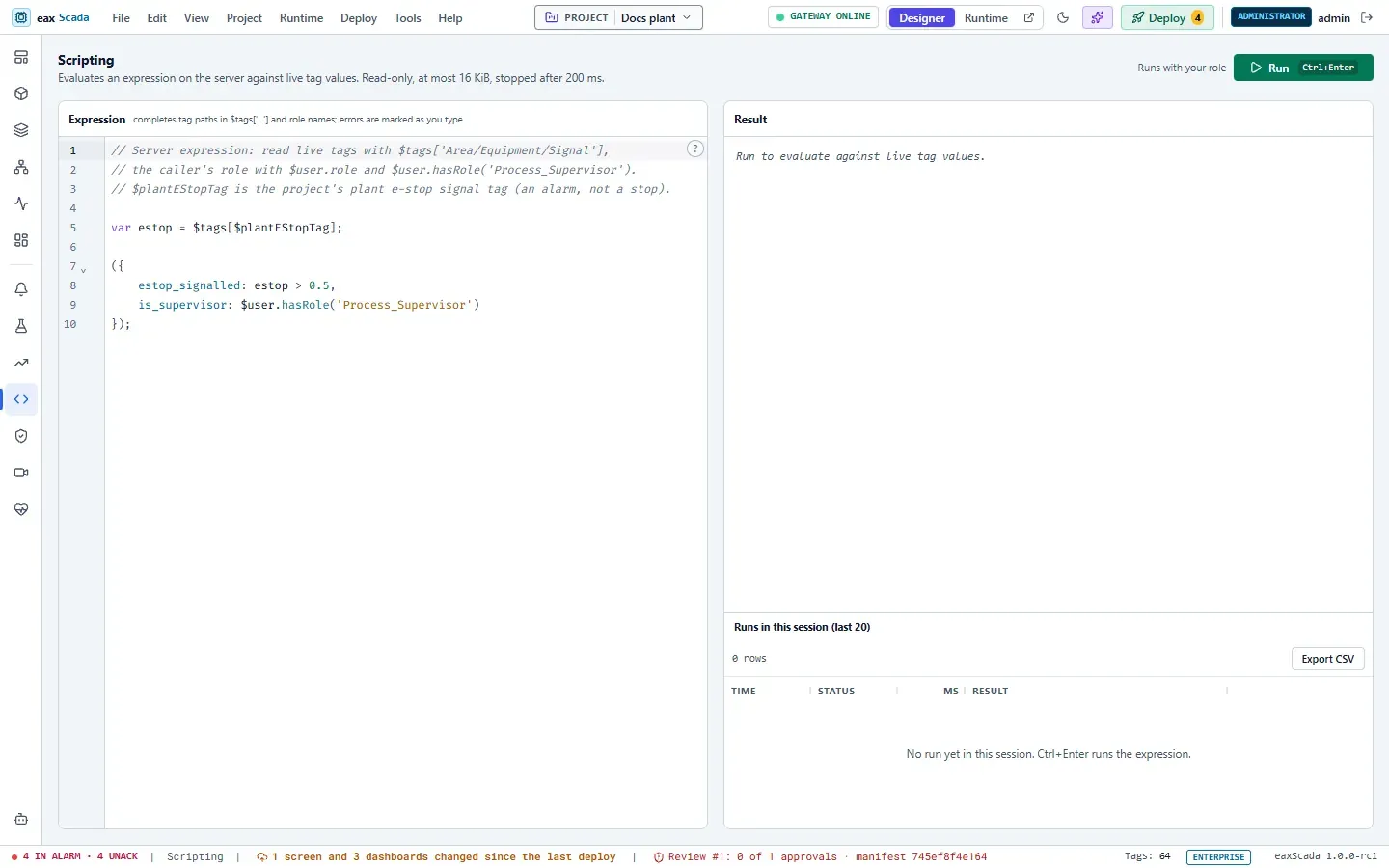
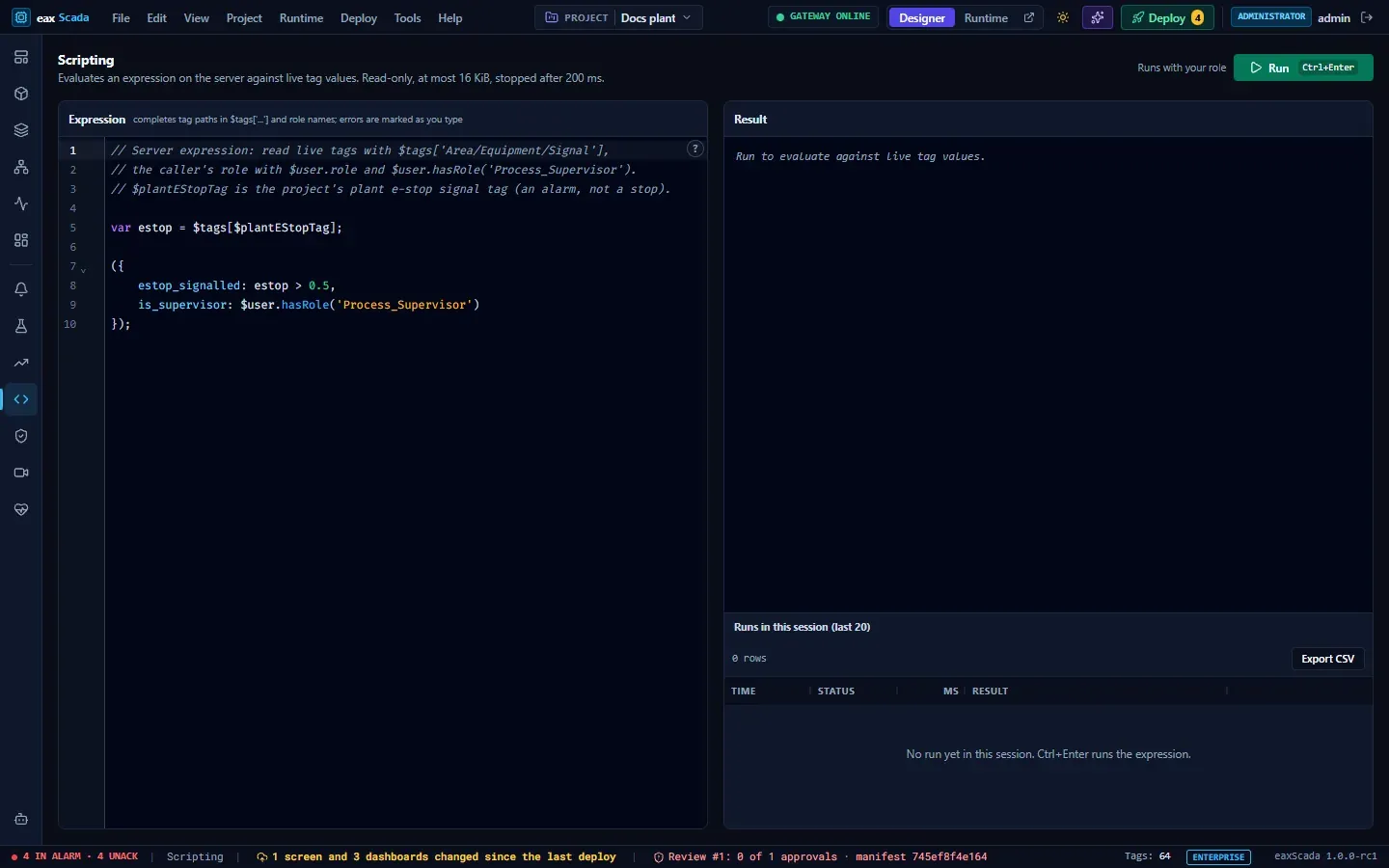
| The Scripting workspace | on the server, read-only, when you press Run (Ctrl+Enter), at most 16 KiB and 200 ms | $tags, $user, $plantEStopTag |
| eaxTags scripts | on the server, on their schedule | the eaxTags API |
Screen scripts run in a sandbox. A script in the operator’s browser cannot see the page: no player, no this, no window, document, fetch or storage. It acts only through system.*, as the operator, and every call is checked. Each system.* call that reaches the page returns a Promise: write await. A script that runs longer than 5 seconds without pausing is stopped. Scripts written for earlier versions: Migrate screen scripts to the sandbox.
Writing a script needs the right screens.script (Administrator, Lead_Engineer and roles of level 80 or more; never the AI co-pilot). Saving a screen whose scripts you did not change needs no right. See Grant the right to write screen scripts.
Every field that takes code uses the same editor: highlighting, bracket matching, search and replace, undo, completion of tag paths and of system. (Ctrl+Space, with a short description of each function), and errors from the server’s own parser marked at the line as you type. Checking a script with the parser never runs it.
1. Save a shift report to the server
Section titled “1. Save a shift report to the server”A script is the body of an async function: write await directly. (Scripts that wrap their code in return (async () => { ... })();, as earlier versions needed, keep working.)
On a button, set the action Run script:
// Values of both pumps, one row eachconst pumps = ['P201', 'P202'];const rows = [];for (const p of pumps) { const v = await system.tag.readMany([ `DocsPlant/Pumps/${p}/Running`, `DocsPlant/Pumps/${p}/Speed`, `DocsPlant/Pumps/${p}/SpeedSetpoint`, ]); rows.push({ pump: p, running: v[`DocsPlant/Pumps/${p}/Running`], speed: v[`DocsPlant/Pumps/${p}/Speed`], setpoint: v[`DocsPlant/Pumps/${p}/SpeedSetpoint`] });}const csv = ['pump,running,speed,setpoint'] .concat(rows.map(r => [r.pump, r.running, r.speed, r.setpoint].join(','))).join('\n');const name = 'pumps-' + system.util.formatDate(new Date(), 'yyyy-MM-dd-HHmm') + '.csv';await system.file.server.write('shift-reports', name, csv);await system.notify.toast('Saved ' + name, 'success');The server checks the root shift-reports (its roles, file types, size and quota) and records the write in the audit trail with the file’s SHA-256. See Use server files. To give the operator the file instead, use system.export.csv(rows, ['pump', 'running', 'speed', 'setpoint'], 'pumps.csv').
2. Open the faceplate of a chosen pump
Section titled “2. Open the faceplate of a chosen pump”const ok = await system.ui.confirm({ title: 'Faceplate', message: 'Open the faceplate of P-202?' });if (ok) await system.nav.openPopup('docs_pump_faceplate', { set: 'P-202', position: 'object' });A value a script gives may only hold letters, digits, spaces and _ . - / : ,; the faceplate also refuses a pump outside its allowed folders. A script can never widen the tag a popup’s buttons write.
3. Write a value
Section titled “3. Write a value”const sent = await system.tag.write('DocsPlant/Pumps/P202/SpeedSetpoint', 70, { reason: 'Shift start' });if (!sent) await system.notify.toast('Not written', 'warning');This is the same guarded write as a button: the server checks the permission, the limits and write range, the interlocks, and asks for the confirmation or e-signature the tag needs (the dialog opens). It resolves false when the operator cancels or the server refuses. A script has no other way to write a tag, and no function runs a program on the operator’s computer or the server.
4. React to a tag
Section titled “4. React to a tag”In a startup script:
const stop = system.tag.subscribe('DocsPlant/Pumps/P201/Trip', (t) => { if (t.value === 1 && t.good) system.notify.toast('P-201 tripped', 'warning');});// subscriptions and timers end by themselves when the screen or popup closesWhen a script fails
Section titled “When a script fails”A script that throws shows a message to the operator and is recorded on the server as a script_error client event (the server log and the audit trail), with the screen. Rejections carry an EaxError with code (denied, not_found, invalid, cancelled, refused_policy, out_of_range, signature_required, unavailable, offline, and busy, no_gesture or rate_limited from system.shiftlog.add), message and detail.
A script that reaches for the page fails with code sandbox_refused, and one that keeps its sandbox busy for 5 seconds is stopped with code timeout. Neither shows an error toast: the object is marked Script refused or Script stopped (a startup script: a chip at the top left of the screen), clicking the mark says why, and the client event is script_refused or script_timeout. See Test on the operator’s screen.