

Compare and merge versions
See exactly what differs between two versions of the program, for example what runs on the PLC and what the project holds, and bring chosen changes into your draft, a POU, a rung or a declaration block at a time.
Before you start
Section titled “Before you start”- The PLC keeps a project (the Studio shows the Changes view).
- Anyone signed in can compare. To take changes you are an engineer (Lead_Engineer or Administrator) and check the POU out; operators and the AI co-pilot are refused.
1. Open the compare
Section titled “1. Open the compare”In the Changes view, click Compare and merge in the toolbar, or Compare on a POU’s row. The Compare and merge window opens.
Pick the Left and Right sides (the ⇄ button swaps them):
| Side | What it holds |
|---|---|
| Running on the PLC | The program the PLC runs now. |
| Project (saved) | The saved POUs. |
| My draft | Your own drafts, over the saved POUs. Where you have no draft of a POU, it shows the saved text and says so. |
| Git revision… | A revision from the PLC’s program history, picked in a second list. A PLC that keeps no program history has none. |
The default is Running on the PLC against Project (saved). Reload reads both sides again.
2. Read the differences
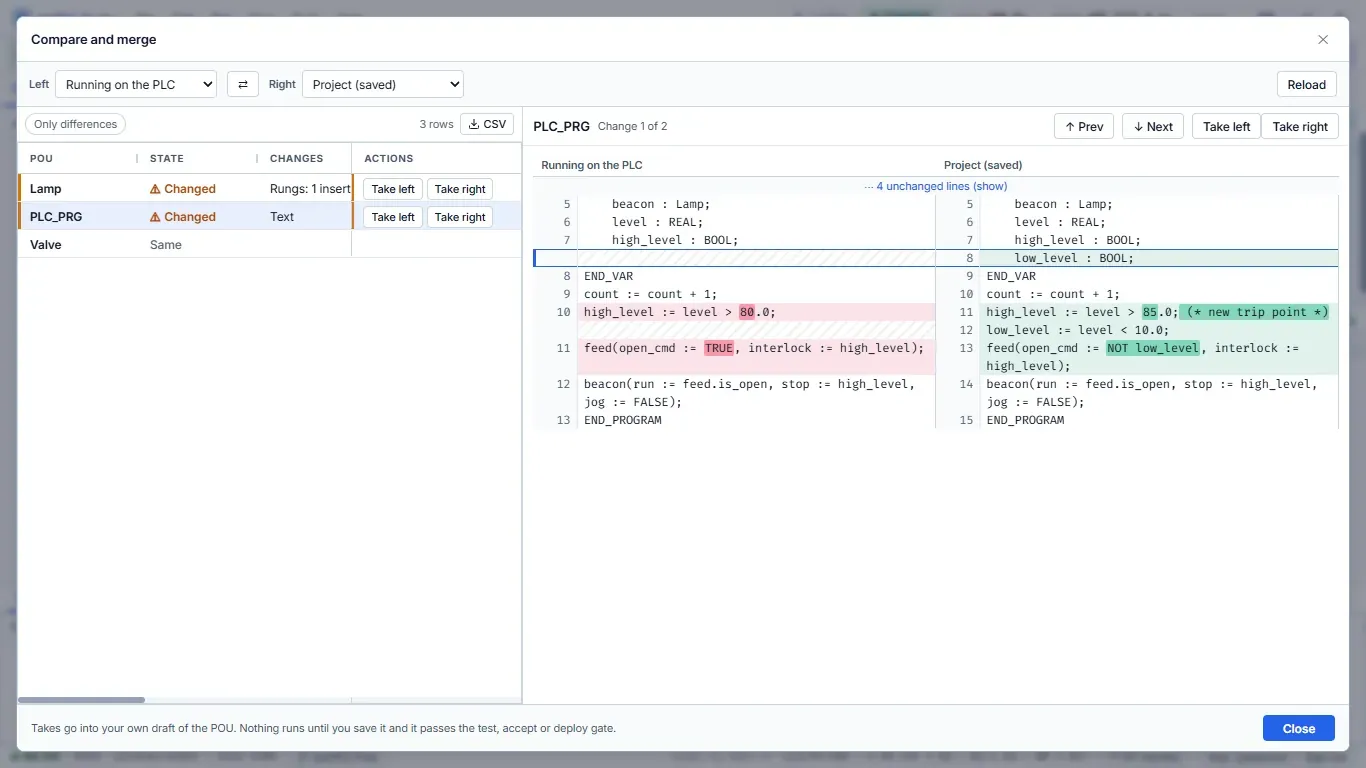
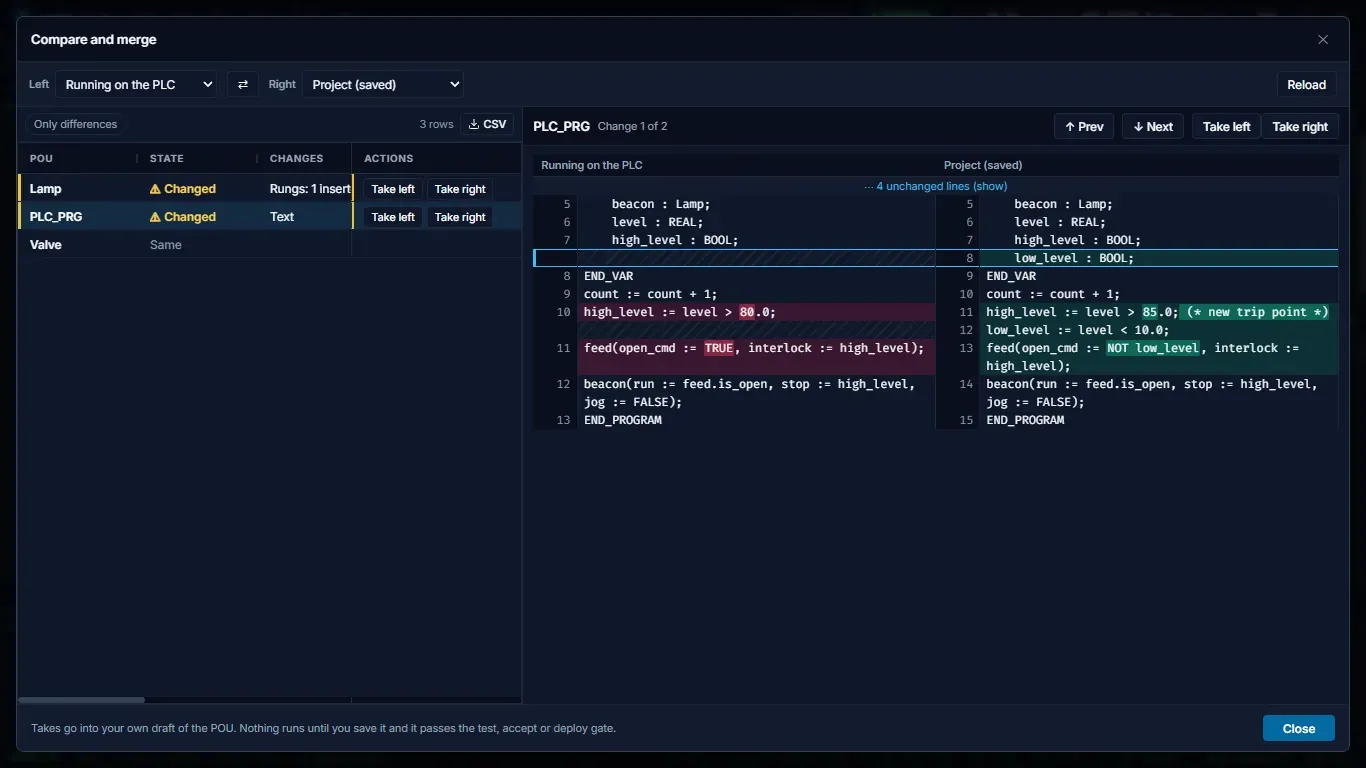
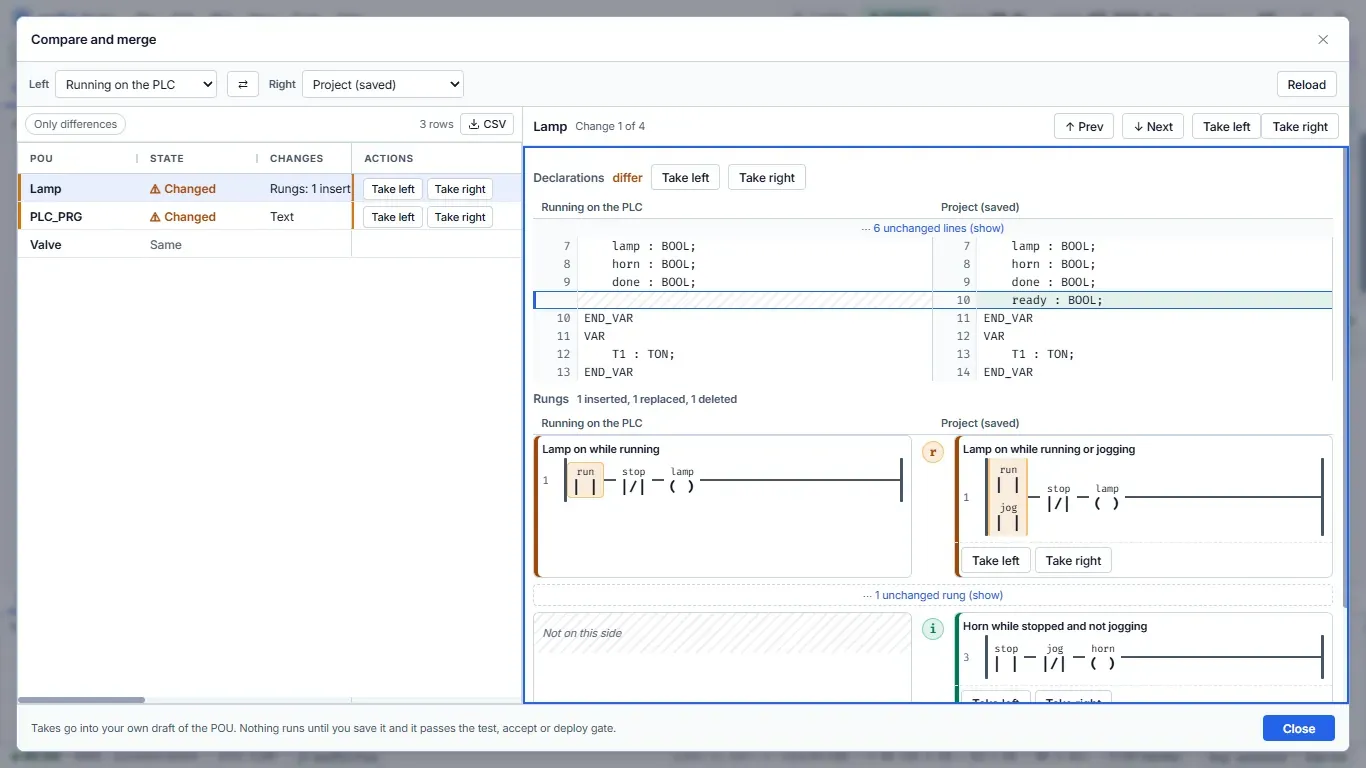
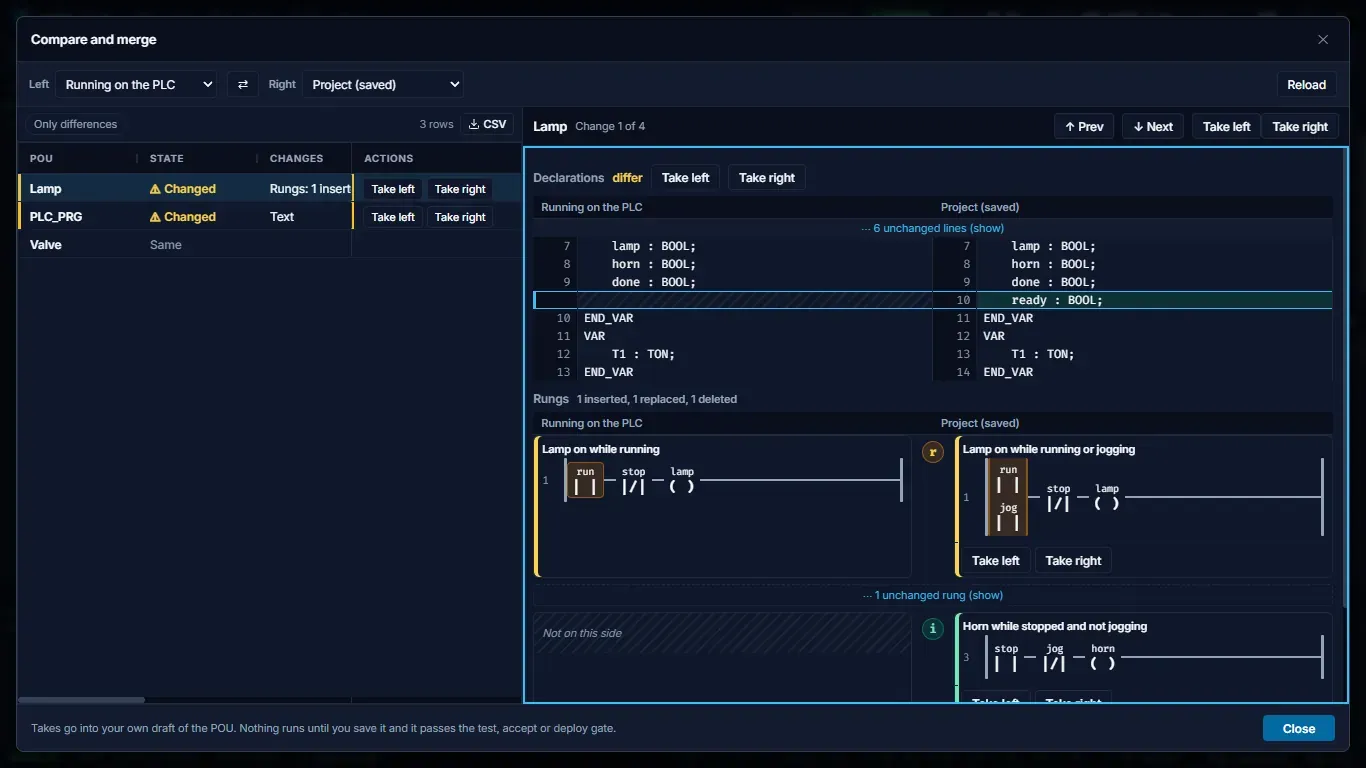
Section titled “2. Read the differences”The left pane lists the POUs in a grid: State (Same, Changed, Only left, Only right, Not known), Changes (for example Text or Rungs: 1 inserted), Merge (what you did), kind, language and the hash of each side. It has a quick filter, CSV and an Only differences chip.
Select a POU to see its diff on the right:
- ST POUs: the two texts side by side, aligned line by line. A changed line is paired with the line most like it, and the changed parts are marked. Unchanged runs are folded (show unfolds them).
- Ladder POUs: the declarations first (as text), then the rungs side by side, matched by rung id, not by number. Markers say i (inserted), r (replaced) or d (deleted), and the changed elements are outlined. A rung only one side holds shows Not on this side.
Keyboard
Section titled “Keyboard”| Keys | Action |
|---|---|
| Alt+Down or F7 | Next change (Next) |
| Alt+Up or Shift+F7 | Previous change (Prev) |
| Alt+PageDown / Alt+PageUp | Next / previous POU that differs |
| Escape | Close |
3. Take changes into your draft
Section titled “3. Take changes into your draft”When one side is My draft, the other side is “theirs”: each POU, rung and declaration block offers Take theirs and Keep mine. When neither side is your draft, they offer Take left and Take right.
- Take copies that side’s whole POU (ST and ladder), one rung (ladder: replaced in place, inserted after the rung before it, or deleted), or the declarations (ladder) into your draft of the POU. A draft is started from the saved POU if you have none. An ST POU is taken whole.
- Keep mine leaves your draft as it is and marks the change as looked at in the Merge column.
The Studio asks for the POU’s check-out first, as typing in it does, and sends your pending edit as the draft before taking. It asks to confirm: Your draft is replaced by it. Nothing runs until you save the draft and it passes the test, accept or deploy gate. The editor then reloads your draft. For a ladder POU, the PLC generates the merged diagram’s ST.
A take is refused, and nothing is written, when:
| Refusal | Why |
|---|---|
423 |
You do not hold the POU’s lock. |
409, changed since you opened it |
The POU was saved since: reload it. |
409, belongs to library … and is read-only |
A library POU. |
409, is sealed |
Unseal it (signed, with a reason) first. |
409, other |
The side has no such POU, holds it as another kind or language, holds only a ladder POU’s generated text (no rungs to take), or could not be cut into POUs (use Import running program). |
Then save the POU and use Test edits or Build & Deploy as usual (Make online edits).
When the running program is not a project revision
Section titled “When the running program is not a project revision”After a deploy from outside the project (from eaxScada, over MCP or over NATS) or a rollback to another text, the PLC runs a program that is not the project’s last deploy. The window then shows the chip Running program is not a project revision, and the running side is the running text itself, cut into its units: a POU it lacks is Only left or Only right, and a text that cannot be cut into units is Not known, never Same.
What it never does
Section titled “What it never does”- It never changes the running program, the saved POUs or the project revision. Only your own draft of the POU is written.
- It never deploys. The draft reaches the PLC only through Save, then the normal test, accept or deploy gate.