

Style object states and "why disabled" tooltips
Migrated page, not yet verified against the current code. Treat values, paths and examples as indicative until this notice is removed.
An operator sees at a glance that a command is disabled, and hovering it says why: “Disabled by interlock: tag(‘DocsPlant/Pumps/P201/Trip’) == 1”, “Locked: requires the Process_Supervisor role”, “Bad quality”, “Not configured (no tag)”. You choose the look once for the whole project, and adjust single objects where needed.
The eight states
Section titled “The eight states”| State | When an object is in it |
|---|---|
| Normal | nothing below applies |
| Hover | the pointer is over it |
| Pressed | it is being pressed |
| On | its bound feedback is on (a running motor), or it is the navigation button of the page shown |
| Disabled | an interlock (disabled condition) is active |
| Bad quality | the value it shows, or its interlock, reads a Bad value |
| Locked | the signed-in user lacks the role it requires |
| Not configured | its action is incomplete (a write without a tag or value, a popup without a screen): pressing it does nothing |
When several apply, the first in this order wins: not configured, locked, disabled, bad, pressed, hover, on, normal.
1. Set the project’s look
Section titled “1. Set the project’s look”- Open Project → Open / Switch Project… → Operator runtime → State styles… (or Project state styles… in an object’s States section).
- Choose the Objects: Buttons, Inputs, Toggles, Selectors, Faceplate buttons, or All other objects.
- Click a state, for example Disabled, and set what changes: fill, border, border width, text colour, text style, opacity, pattern (hatched is visible even in grey-scale), cursor and, for Disabled and Locked, a fixed tooltip (empty: the tooltip says why).
- Check the preview row: it draws a sample in all eight states with your values.
- Save.
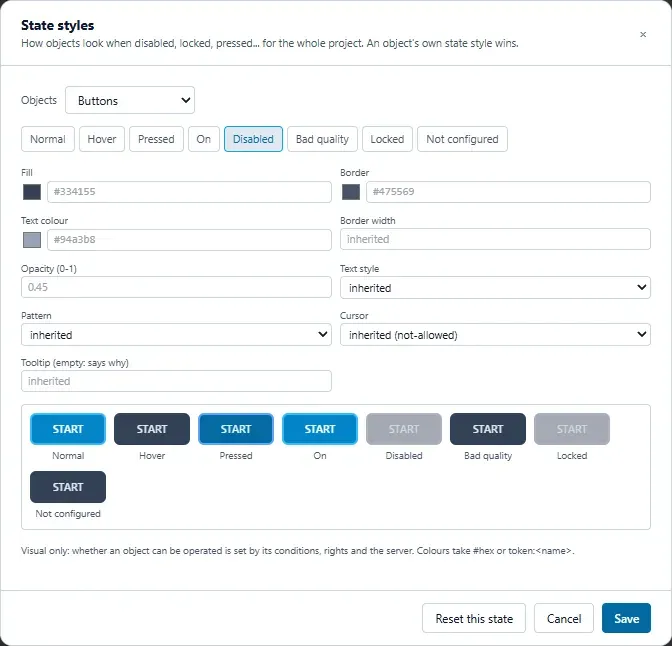
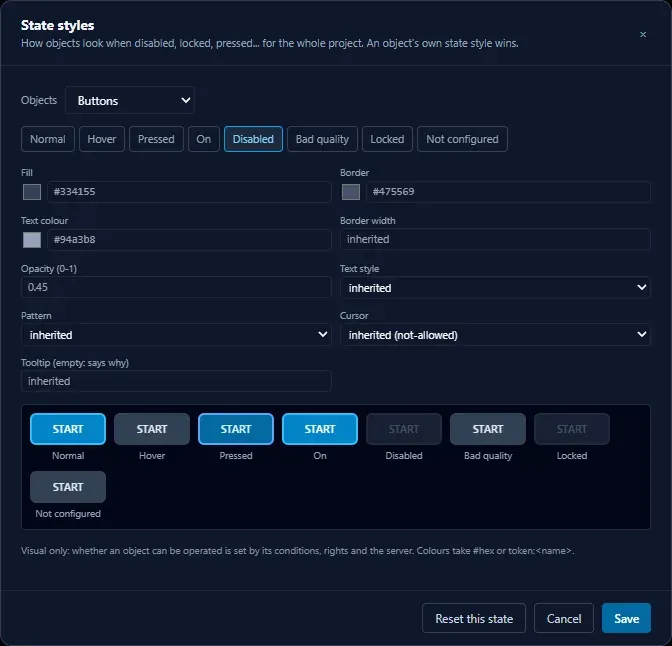
Every open screen, in the studio and the runtime, redraws at once. Colours take #hex or token:<name>, a project colour token that follows the theme. Without any project style, objects look as before: a disabled or locked one dims to 0.45 and uses its own disabled colours.
A conflicting save (someone else saved the styles since you opened them) is refused; the editor reloads and asks you to make your change again.
2. Adjust one object
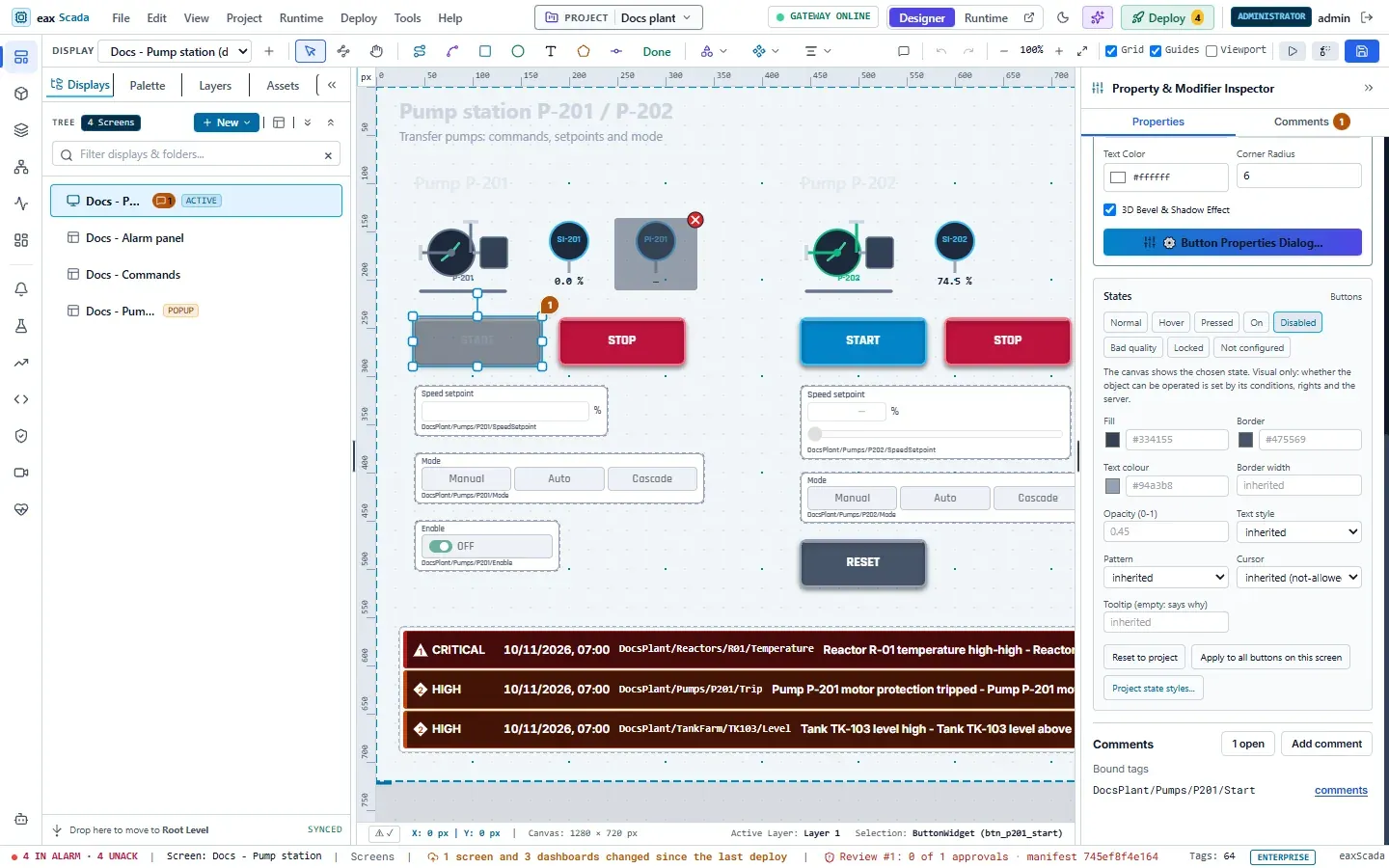
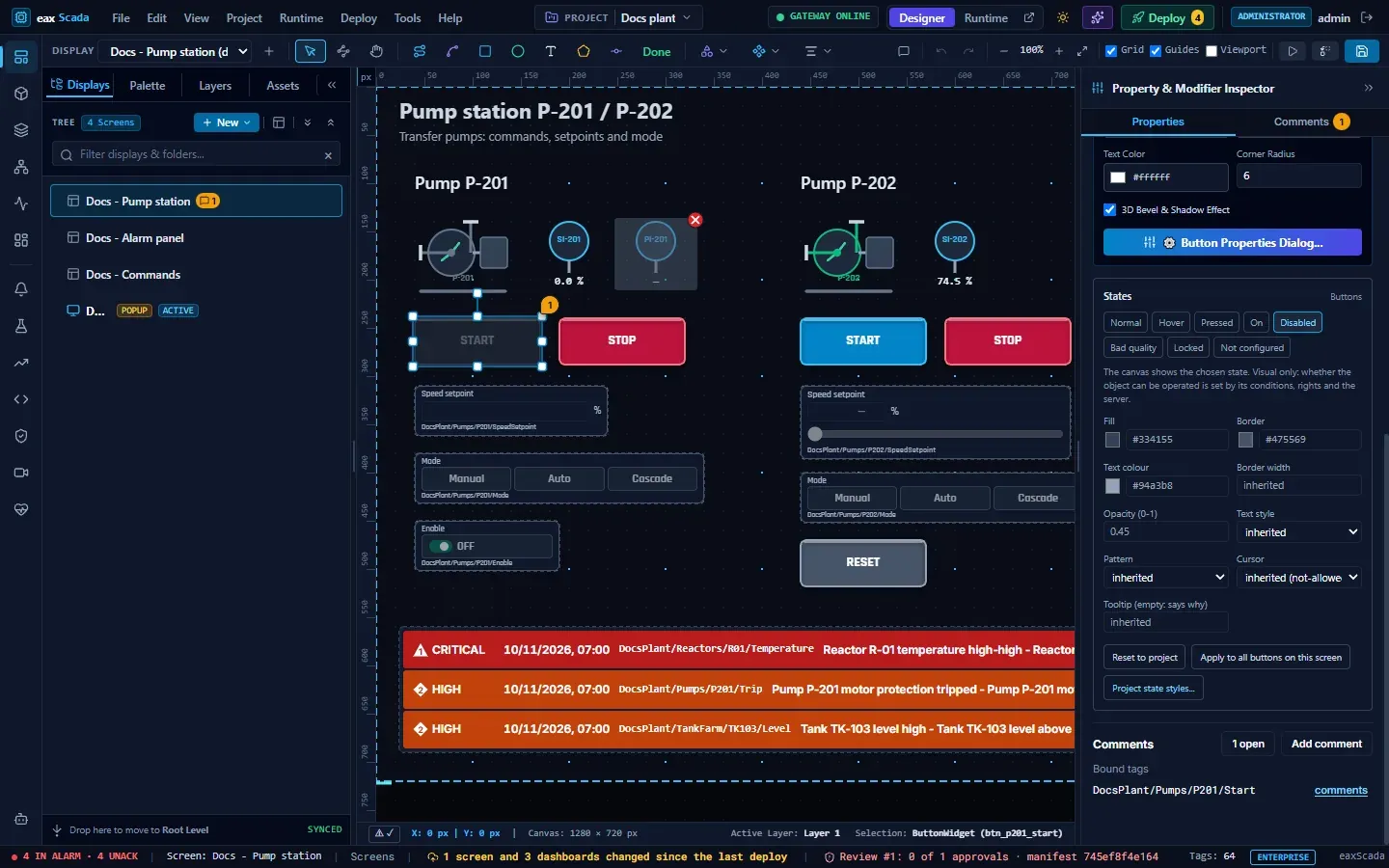
Section titled “2. Adjust one object”- Select the object in the designer. Its States section is in the inspector’s Properties.
- Click a state chip: the canvas shows the object in that state.
- Set the fields you want to differ from the project. A field set here is marked ●; the placeholder shows what applies without it.
- Reset to project removes this object’s style for the state. Apply to all buttons on this screen copies this object’s state styles to every object of its family on the screen (it asks first).
The order is fixed: the theme, then the project (All other objects, then the family), then the object’s own colours (a button’s up, down, active and disabled colours, when you changed them), then the object’s own state style.
3. Let the tooltip say why
Section titled “3. Let the tooltip say why”Leave the tooltip of Disabled and Locked empty. The runtime then writes it from what actually disables the object:
| Cause | Tooltip |
|---|---|
| An interlock | Disabled by interlock: the condition |
| An interlock that reads a Bad value | Disabled: the interlock cannot be read (Bad value): the condition |
| A missing role | Locked: requires the role role. You are signed in as role. |
| A Bad value | Bad quality: the value shown is not reliable, with each tag, its quality and age |
| An incomplete action | Not configured (what is missing): pressing it does nothing. |

The tooltip texts follow the operator’s language. A fixed tooltip can be a translation key (t:pump.locked|Ask the shift lead).
4. Check it
Section titled “4. Check it”The Problems panel warns with state-disabled-indistinguishable when the disabled look is the same as the normal look (same fill and text colour, less than 0.25 difference in opacity, no hatching): operators could not see that a command is disabled. The States section and the editor show the same warning.
How it works
Section titled “How it works”Every text and every state colour goes through one resolver: the language, then the text style, then the state, then the object’s own settings. A new object type gets states, fonts and languages without code of its own. See How texts, fonts, states and languages are resolved.
Related
Section titled “Related”- Project settings: State styles
- Enforce interlocks on the server
- Fonts and text styles
- A first state style in context: Build your first 2D screen. Isometric blocks take their state colours from the map’s palette and State colours (project)… instead.