

Sign a report (review and approve)
Have archived reports reviewed, and if you want approved, with an electronic signature that names the person, the date and time and the meaning of the signature, while the archived original stays exactly as it was made.
You need:
- to set up the plan: the rights to design and deploy reports (
reports_design); - to sign: the right
reports_sign(withreports_view), one of the step’s roles, and to be allowed to open the run (your own runs, runs whose tags you may all read, or every run for a reports administrator). New installations givereports_signto no role: give it to your QA role (Grant report rights).
How signatures work, and what the signed copy holds: Signed reports (Part 11).
1. Give the report a signature plan
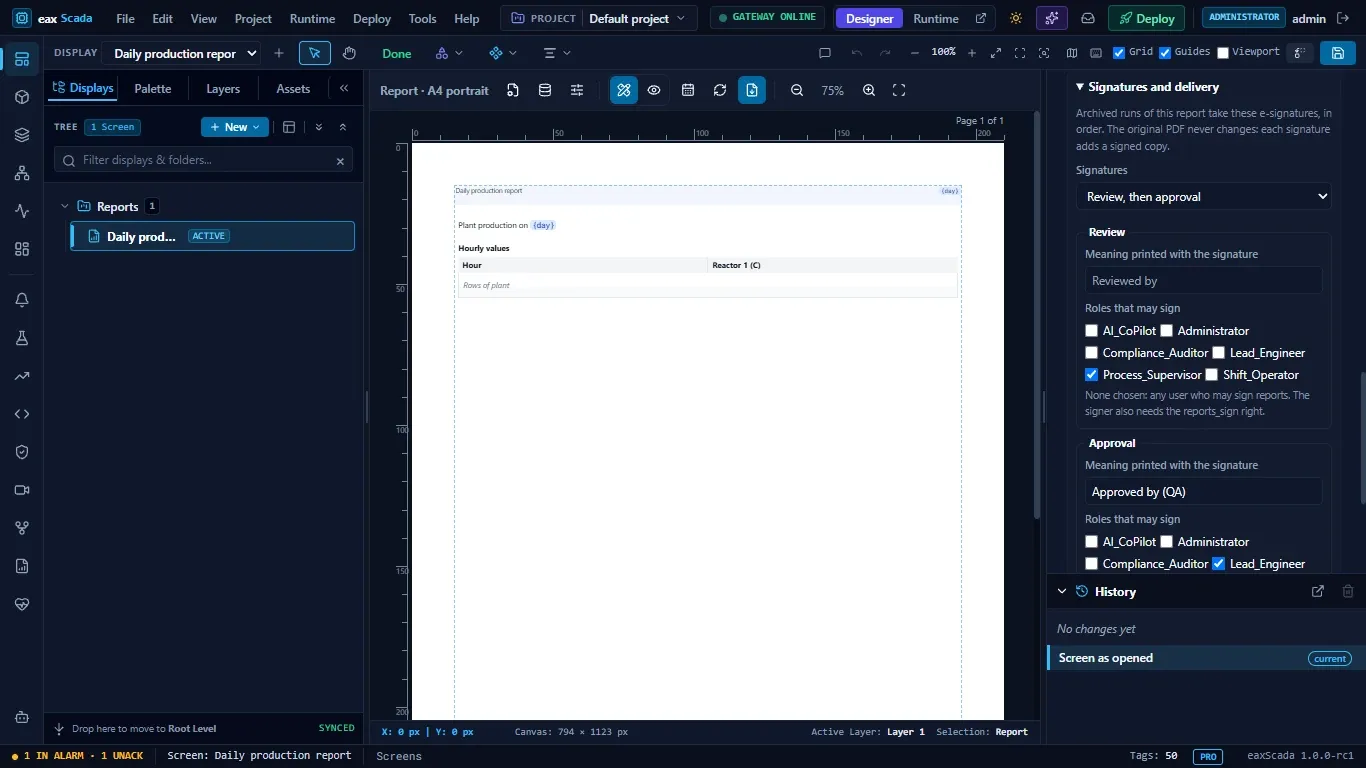
Section titled “1. Give the report a signature plan”- Open the report in the designer and find the Signatures and delivery panel of the report’s properties.
- Signatures: Review, or Review, then approval (None is the default).
- For each step:
- Meaning printed with the signature: for example “Reviewed by” or “Approved by (QA)”. One line, at most 120 characters, no braces. Empty: “Reviewed by” or “Approved by”.
- Roles that may sign: tick the roles. None ticked: any user who holds
reports_sign.
- For the approval, keep The approver is not the person who reviewed and The approver is not the person who ran the report ticked unless your procedure says otherwise. Both are on by default.
- Keep PDF in the report’s outputs: the signatures are over the archived PDF.
- Save and deploy the report. Runs made from now on take this plan; runs made before keep the plan they were made with.
The same panel holds May be sent outside, which only a reports administrator can change (Set up e-mail and folder delivery).
2. Review a run
Section titled “2. Review a run”- Open Analytics and Reports > Runs (or Archive). The Signature column says where each run stands: Unsigned, waits for review, Reviewed, waits for approval, Approved, or No signature when the report has no plan.
- Open the PDF and read it.
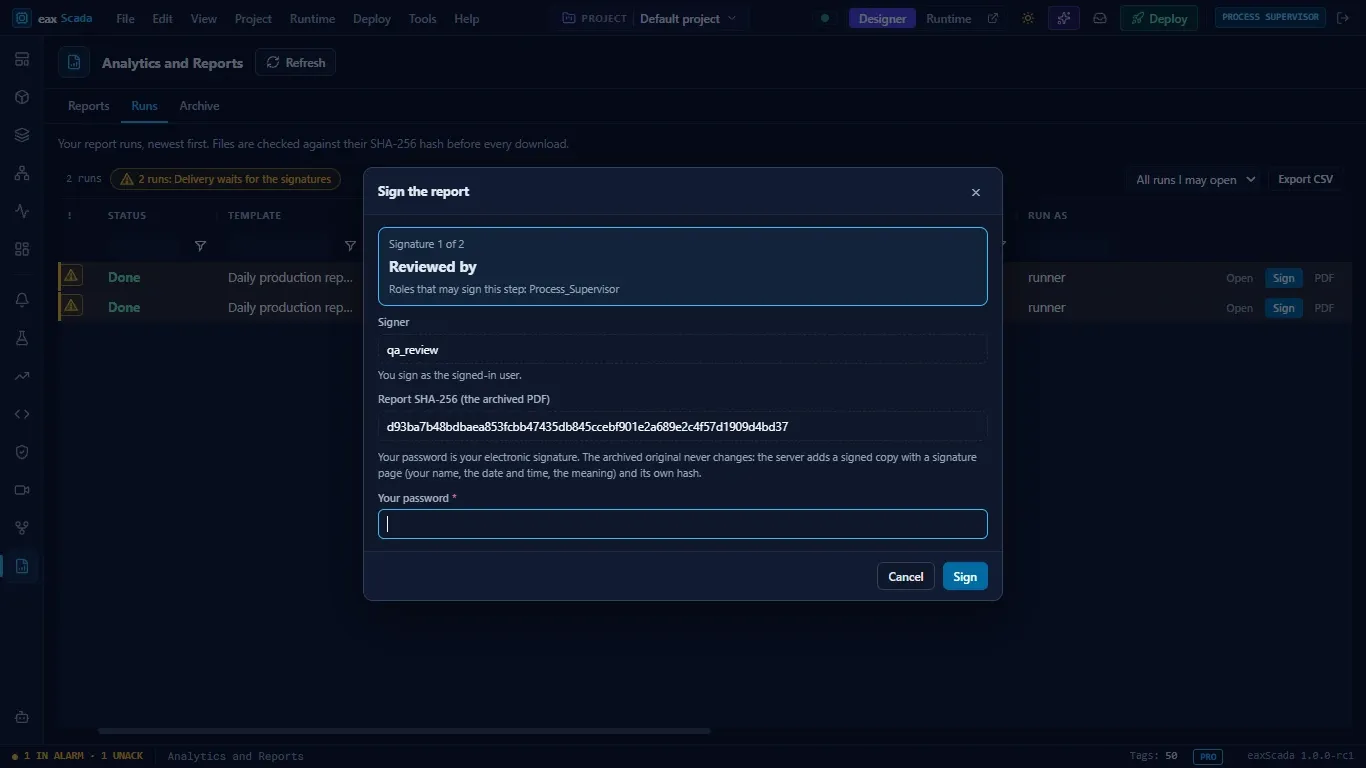
- Click Sign on the run’s row. The dialog shows:
- Signature 1 of 2 and the meaning you sign, for example Reviewed by;
- the roles that may sign this step;
- Signer: you, the signed-in user (read only: nobody signs for someone else);
- the archived PDF’s SHA-256: what your signature covers.
- Type Your password and click Sign.
The dialog says Signed: Reviewed by, <your name>, <time> (the time in UTC) and the run’s new state.
A wrong password signs nothing: the dialog stays open with its message and an empty password field, and you stay signed in. Type the password again. Each wrong password counts toward the lockout, as for every e-signature: the fifth locks your account for 15 minutes, and during that time even the right password is refused.
- Authentication
- Refusal
Read as text
A run of a report without a signature plan has no signature. A run with a plan waits for review; the review signature makes it reviewed, and with a review-only plan it is then fully signed. With an approval step it waits for approval, and the approval signature, by another person than the reviewer and the person who ran it, makes it approved. Each signature adds a signed copy beside the archived original, which never changes. A refused signature leaves the run as it was.
States
- Unsigned (state): waits for review
- No signature (state): the report has no plan
- Reviewed (state): then approval, if any
- Approved (state): fully signed
Transitions
- Start → Unsigned (transition). A finished run of a report with a signature plan.
- Start → No signature (transition). A run of a report without a signature plan: nothing to sign.
- Unsigned → Reviewed (authentication): Review. Signature 1: reports_sign, one of the step's roles, the password. Recorded as sign.review in the audit trail before the signed copy is written.
- Reviewed → Approved (authentication): Approve. Signature 2: one of the step's roles, and with the default rules neither the reviewer nor the person who ran or requested the run. Recorded as sign.approve first.
- Unsigned → Unsigned (refusal): refused: nothing signed. A wrong password, no reports_sign right, none of the step's roles, an API token or the AI co-pilot, an HA standby, a changed PDF, or an audit record that cannot be written.
- Reviewed → Reviewed (refusal): refused: the reviewer or who ran it. Separation of duties at the approval, and every refusal of the review step.
- Reviewed → End (transition): plan: review only
- Approved → End (transition)
3. Approve it
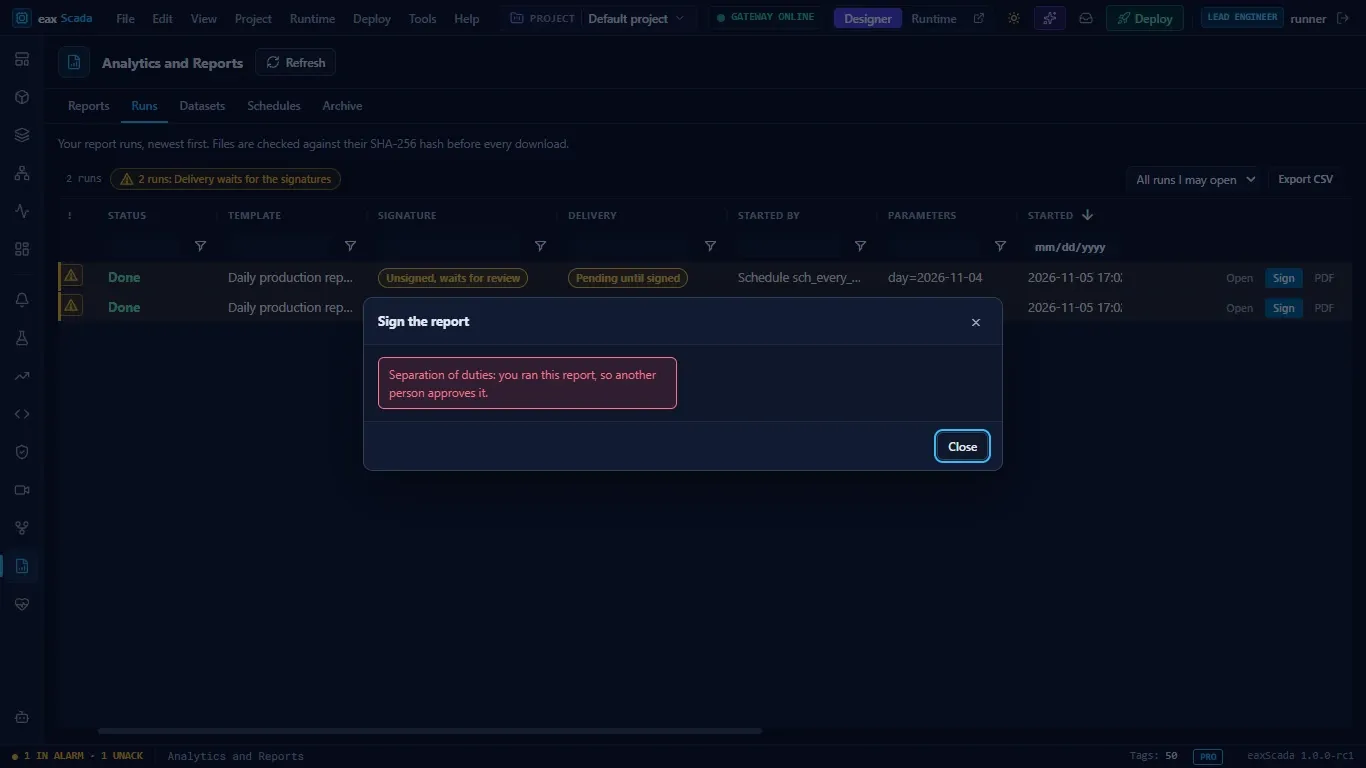
Section titled “3. Approve it”The approver does the same on the run that shows Reviewed, waits for approval (Signature 2 of 2, Approved by …). With the default rules the approver is neither the reviewer nor the person who ran the report: for a scheduled run that is the schedule’s owner, and for Run now also the person who clicked it.
4. Download the signed copy
Section titled “4. Download the signed copy”Each signature adds a signed copy next to the archived original: the original’s pages, unchanged, then a page that lists every signature so far (printed name, user id, date and time in UTC and in the site’s time, meaning), and on every page the footer “Signed rendition n of run …, original SHA-256 …”. It is about the size of the original plus that page, and PDF/A-3b when the original is (the default). In the run’s dialog the signatures grid shows Signed (UTC) in UTC and Site time in the site’s zone, as the server recorded it. In the run’s dialog or the Archive tab, click Signed copy n (the last one holds every signature). PDF still downloads the original, which never changes.
Verify checks the whole chain: the original, its run record and each signed copy (Verify and purge the report archive).
A schedule’s deliveries wait for the last signature, then send the last signed copy (Signed reports wait).
When the server refuses
Section titled “When the server refuses”The dialog says why before you type a password, whenever it can:
| Message | Means | Do |
|---|---|---|
| The review step needs one of these roles: … (or the approval step) | You hold none of the step’s roles. | Ask someone who holds one, or change the plan (for the next runs). |
| Separation of duties: you ran this report / you reviewed this report, so another person approves it. | The approval rules. | Another person approves. |
| Your account may not sign reports (reports_sign). | The right is missing. | Ask your administrator. |
| This report has no signature plan. / This report is fully signed. | Nothing to sign. | |
| This server is the standby of a redundant pair: sign on the primary server. | Reports are signed on the HA primary only. | Open the primary. |
| Someone else signed this step a moment ago. | Two people signed the same step: exactly one signature is kept. | Reload the run. |
| The archived PDF does not match its run record, so it is not signed. | The file changed on disk. | Run Verify and tell your administrator. |
| A signature is given by a signed-in person, never with an API token. / The AI co-pilot never signs. |
A signature is also refused when the audit record cannot be written (nothing is signed), for a run that is not finished, for a draft, and for a run without an archived PDF.
After a downgrade or a licence expiry signing is refused (403 EDITION): the workspace is read-only and has no Sign button. The signatures already given stay in the run, its signed copies download and Verify checks them; once a licence with Analytics and Reports is back, the next step can be signed.
Over the HTTP API
Section titled “Over the HTTP API”As a signed-in person, in a browser session (API tokens and the AI co-pilot are refused):
GET /api/reports/runs/<run id>/sign: the run’s signature state, its signatures, and what your signature would sign now (the step, its meaning, the PDF’s hash), or why you cannot sign.POST /api/reports/runs/<run id>/sign/ticketwith{"password": "..."}: your password, checked as for every e-signature. The answer holds a single-use ticket for exactly this run, this PDF hash, this step and you.POST /api/reports/runs/<run id>/signwith{"ticket": "..."}: the signature. The answer holds the run record, the new signature and the run’s signature state.
At step 2 a wrong password, an unknown or disabled signer answer 403 with "status": "signature_refused", a locked account 429, a missing password 400; 401 only means you are not signed in.
Refusals: 403 REPORTS_SIGN_REFUSED (rights, roles, separation of duties, the ticket), 403 EDITION (after a downgrade), 409 REPORTS_SIGNATURE_TAKEN (another signature took the step first), 409 REPORTS_INTEGRITY (the archived PDF no longer matches), 409 REPORTS_STANDBY (not the HA primary), 503 AUDIT_NOT_WRITTEN. The signed copy downloads as GET /api/reports/runs/<run id>/files/signed-<n>. Through eaxCloud remote access every signature route is refused, the status included.