

Set up touch panels and kiosks
Migrated page, not yet verified against the current code. Treat values, paths and examples as indicative until this notice is removed.
On a 15-inch panel PC without a keyboard, operators enter setpoints on a large numeric keypad that shows the range, and sign in with an on-screen keyboard. On the control room’s desktops nothing changes.
1. Set the project’s keyboard
Section titled “1. Set the project’s keyboard”-
Open Project → Open / Switch Project… and scroll to On-screen keyboard (touch panels and kiosks).
-
Choose:
Setting For panel PCs Show it Automatic: on touch screens (opens when the field was tapped, or the device has no mouse), or Always for a kiosk Keyboard layout the panel’s language: English (QWERTY), Français (AZERTY), Deutsch (QWERTZ) Also offer these layouts others the operator may switch to Position Automatic: next to the field on wide screens, docked at the bottom below 1024 px Key size Large (72 px keys) for gloves; Medium (56 px) otherwise Show the allowed range / the current value and the change on Also on the sign-in page (kiosks) on, for a panel without a keyboard -
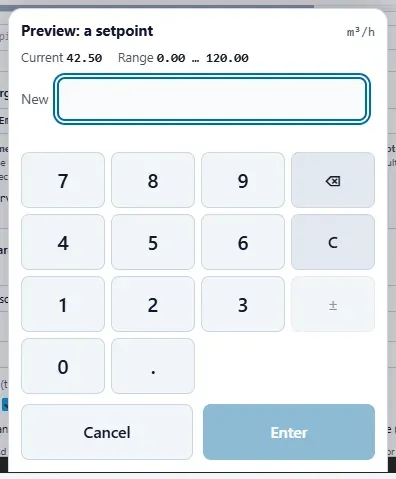
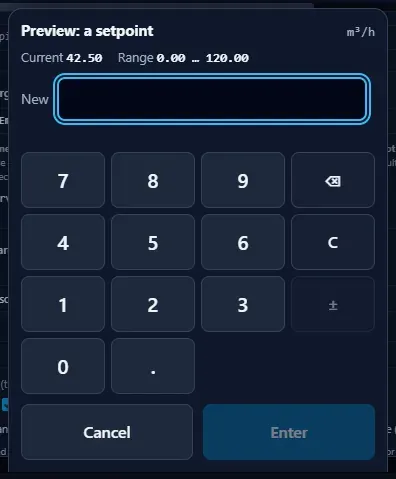
Try the keypad and Try the keyboard show the result with your values; they write nothing.
-
Save keyboard setting, then deploy.
2. Override it for a screen or an object
Section titled “2. Override it for a screen or an object”| Level | Where | Values |
|---|---|---|
| An object (input) | inspector, On-screen keyboard | Inherit (screen, then project), Automatic: on touch, Numeric keypad, Text keyboard, Numeric keypad with letters, None (system keyboard) |
| A screen | Display Settings → Canvas & Layout → On-screen keyboard on this screen | As the project says, Automatic (on touch), Always, Never |
| The project | Project manager | Automatic, Always, Never |
| The operator | runtime session menu: On-screen keyboard (Auto, On, Off) | only while the project and screen say Automatic |
The first level that sets something wins. A project or screen set to Never is never turned on by an operator.
What the operator gets
Section titled “What the operator gets”- Numeric keypad: large digits, sign, decimal separator of the operator’s language, backspace, clear, step keys; the label, tag, unit, range, current value with its quality and the change in %. An out-of-range, off-step or malformed number disables Enter with the reason. A change of more than 25 % asks first.
- Full keyboard: the layouts above, shift and caps lock, symbols, accents on a long press (not in password fields, which stay masked).
- The keypad never writes on each key or when the field loses focus, and never fills in a password or a signer. It writes through the same guarded path as the input, with its confirmation or signature; the server enforces the limits.
system.ui.promptin a screen script uses the keypad too.
Touch protection
Section titled “Touch protection”On a touch screen, a command fires only on a deliberate tap. A swipe, a pinch, a long press or a scroll that crosses a button, a switch, an option or a Set button sends nothing; a slider never sends on release, only with Set. Gestures are timed by the events’ own time stamps, so a slow panel cannot turn a scroll into a tap.
This protection is the operator runtime’s (and the live preview’s, which is the runtime). The screen designer has none, because it needs none: on a touch screen, a tap on an object in the designer only selects it and never runs its command, not even with the animation preview on. Test a command on a touch panel in the live preview or the runtime. See Edit screens on a phone or a tablet.