

Review what a deploy changes
Before a deploy reaches the operators, you see what it changes for them, and above all which tags their buttons, inputs and scripts will write. When a deploy changes what operators can command, you acknowledge exactly those changes, with a reason, under your name in the audit trail.
Before you start
Section titled “Before you start”- Reading the preview and deploying need Lead_Engineer or Administrator. An operator or a supervisor is refused (
403). - The preview compares the project’s saved state with the deploy operators run now. Save the screen you are editing first; the Deploy dialog saves the open screen or dashboard for you and reads the preview again when that changed it.
1. Open the Deploy dialog
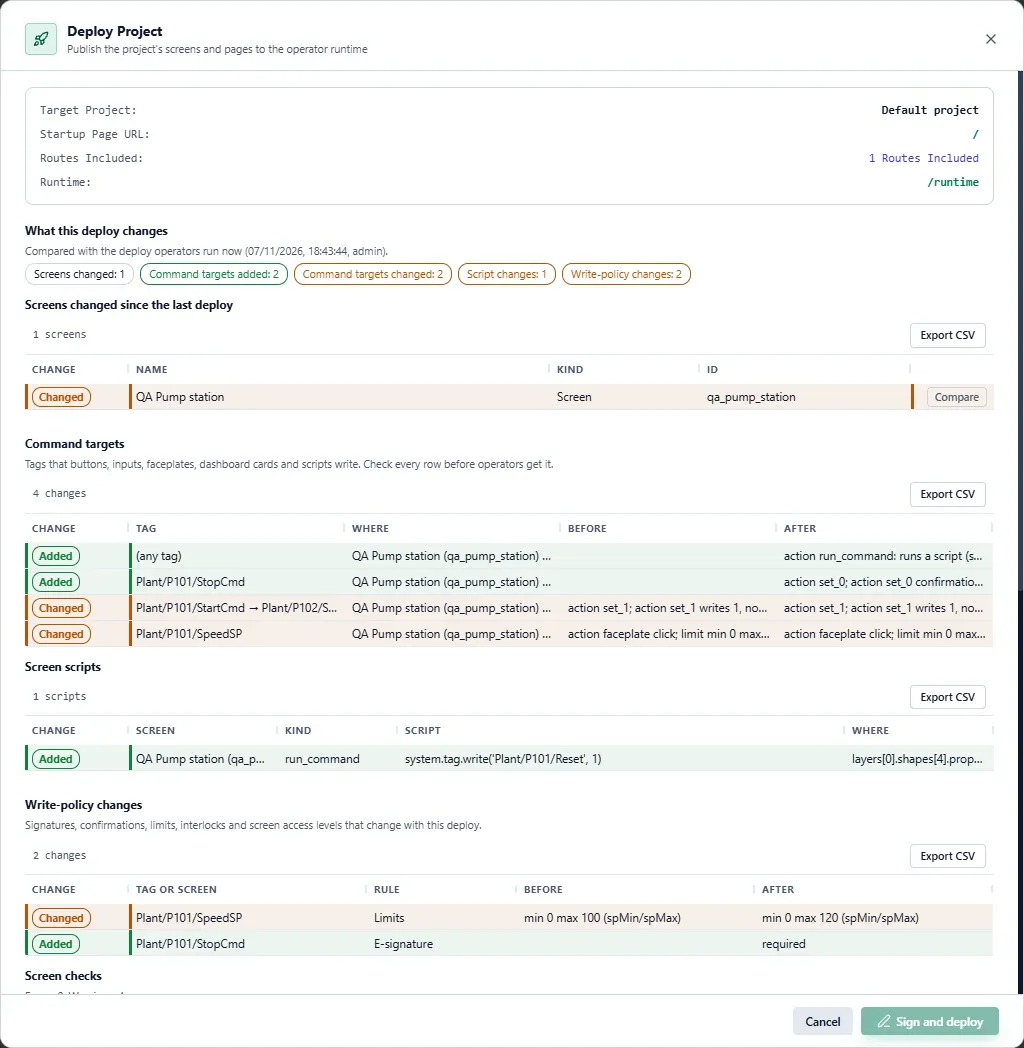
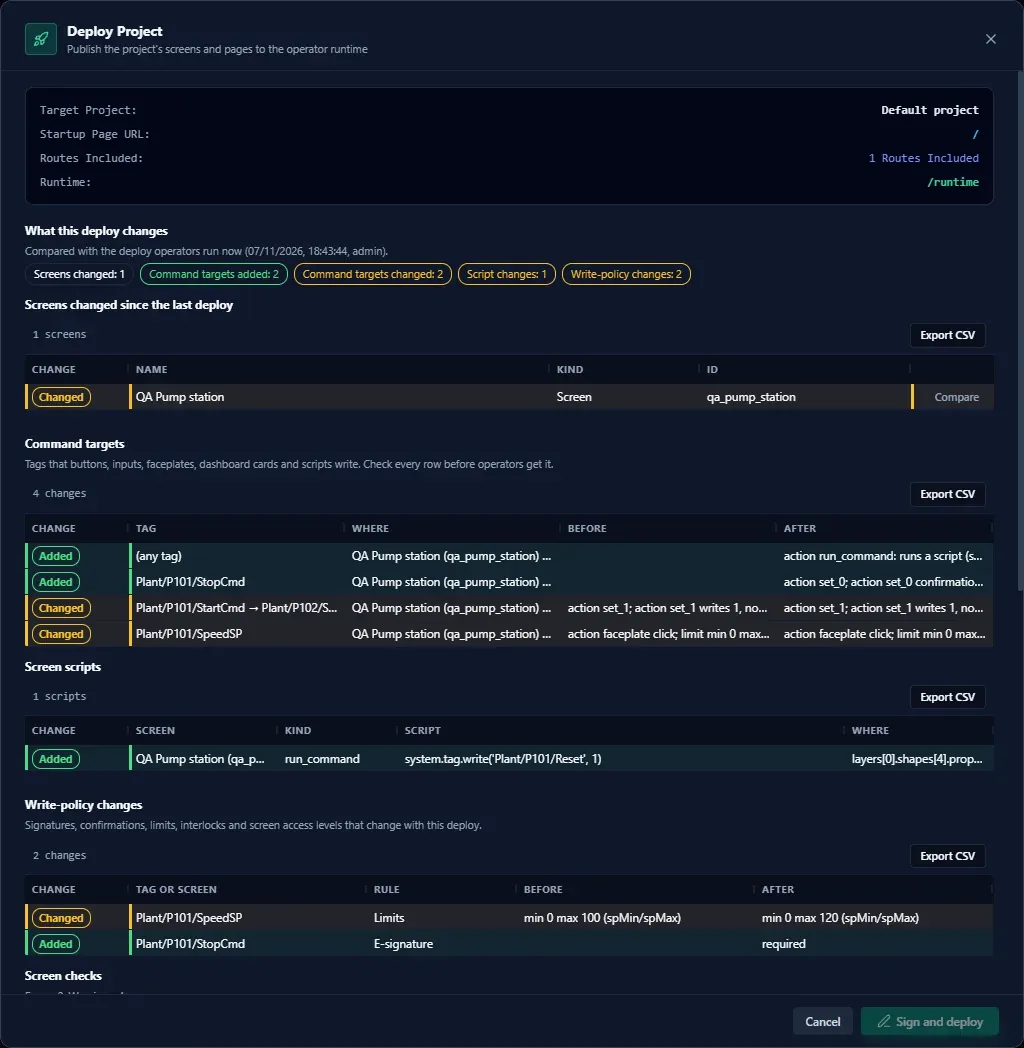
Section titled “1. Open the Deploy dialog”Click Deploy. Under the project summary, What this deploy changes lists, compared with the deploy operators run now (its date and who made it; First deploy of this project: everything is new for the operators. when there is none):
- a row of chips with the counts: Screens changed, Command targets added, Command targets removed, Command targets changed, Script changes, Write-policy changes;
- one grid per kind of change, below. Each grid has column filters, sorting and Export CSV. The dialog widens when there is something to list.
2. Read the lists
Section titled “2. Read the lists”| Grid | What it lists |
|---|---|
| Screens changed since the last deploy | Screens, popups, reports, 3D scenes, isometric screens, dashboards and the project’s own pages and navigation (Pages and navigation) added, removed or changed. A screen saved without a change is not listed. |
| Command targets | Every tag a screen object or a dashboard card can write, added, removed or changed, with Where (the screen and the object) and Before / After (what the write does). |
| Screen scripts | The scripts added or removed, with their kind, an excerpt and where they are. |
| Write-policy changes | Per tag: E-signature, Confirmation, Limits, Interlock; per screen: Screen access level (above “anyone”). Before and after. |
| Screen checks | The Problems panel’s errors and warnings for the saved project. See Check screens before deploying. |
Command targets are the writes the write policy derives from the screens: buttons, momentary buttons, write-value actions, toggles, input objects, faceplates and faceplate clicks, condition actions, dashboard cards and the reactor card’s E-STOP. Two kinds of rows have no single tag:
- (any tag): a write the server cannot derive, such as a Run script action or a display startup script;
- (code that can write): an expression or script that can reach a write.
A row is Changed when, on the same object:
- the object now writes another tag (one row,
old tag → new tag): a button moved from one pump to the other is never shown as an unrelated add and remove; - or, on the same tag, the action type, the value written, a limit, the confirmation, an interlock or the screen’s level changed.
Any difference is listed. The preview never decides that a change is harmless.
Compare a changed screen
Section titled “Compare a changed screen”On a changed 2D screen, popup or isometric screen, Compare opens the visual comparison of the deployed copy with the saved one, with the command changes flagged. See Compare two versions of a screen.
What is not in the preview
Section titled “What is not in the preview”- Components are not part of the deployed bundle: the runtime reads the component library. Both sides are derived with the current components, so a component change shows only through screens that change with it.
- A tag’s own write range and e-signature attribute (driver mapping, eaxTags) are tag settings, not deploy content.
3. Give the reason
Section titled “3. Give the reason”When the deploy adds, removes or changes a command target, a screen script or the write policy, Acknowledge the changes appears under the lists with Reason (required). Type why these changes go to the operators (at most 1000 characters). Deploy (or Sign and deploy) stays disabled until the preview is read and the reason is typed.
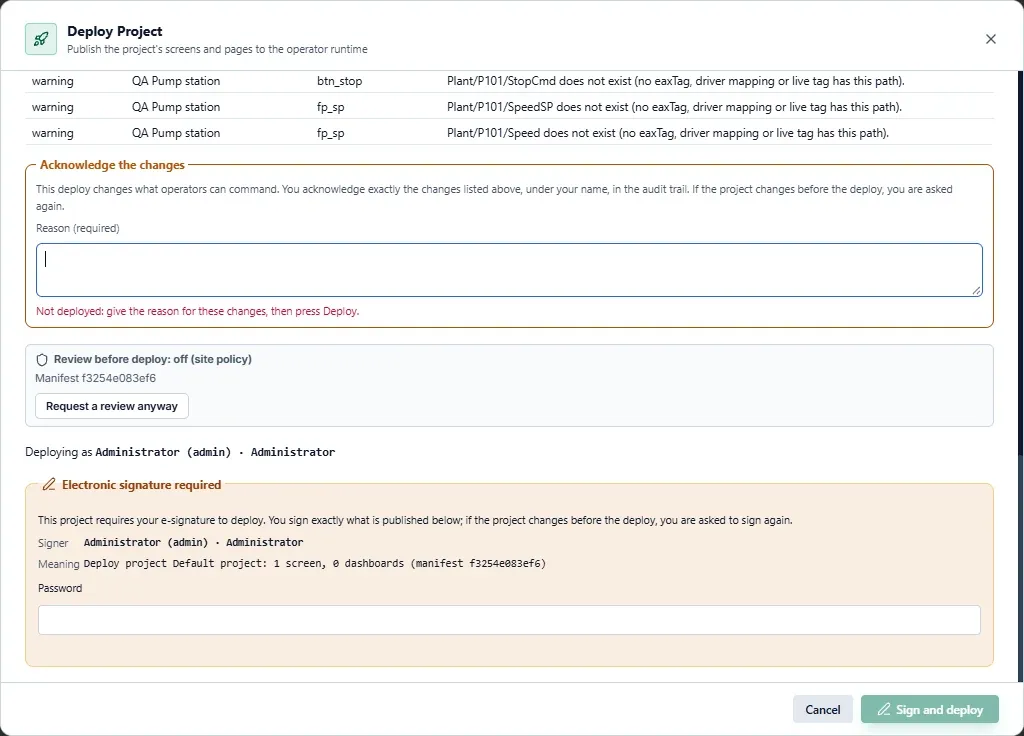
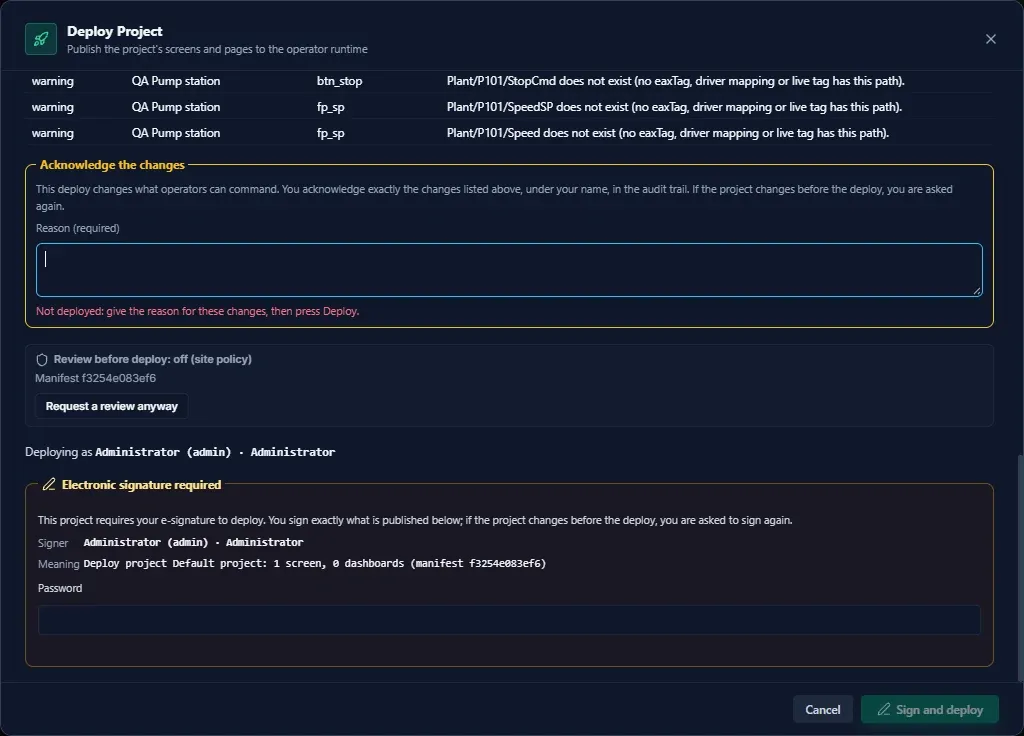
The field is never pre-filled and is cleared when the dialog closes. When nothing needs an acknowledgement, the dialog says No command target, script or write-policy change: no acknowledgement is needed. and Deploy works as before.
The first deploy of a project with buttons always needs the acknowledgement: every command target is “added”.
4. Deploy
Section titled “4. Deploy”Press Deploy. The server computes the preview again and checks your acknowledgement against it, right after the review gate and before the e-signature. The checks run in this order: review, acknowledgement, e-signature, plant e-stop setting, screen errors. See Deploy screens to operators.
The deploy then publishes exactly the manifest its preview compared. The DEPLOY record in the audit trail ends with the preview:
...; deploy preview 3f1c...e9 acknowledged by lead.engineer, reason: "Pump P-102 start moved to the new starter"; 1 screen(s) changed; command targets 2 added, 0 removed, 2 changed; scripts 1 added, 0 removed; 2 write-policy change(s)Without changes to acknowledge it holds the hash, the counts and “no command target, script or write-policy change, no acknowledgement needed”.
If the deploy is refused
Section titled “If the deploy is refused”Nothing is deployed, operators keep the previous version, and the refusal is recorded as DEPLOY_PREVIEW_REFUSED in the access audit and the operations audit.
| Message in the dialog | Why | What to do |
|---|---|---|
| Not deployed: give the reason for these changes, then press Deploy. | No reason, a blank one, or one over 1000 characters. | Type the reason and press Deploy again. |
| The project changed after these changes were shown. Nothing was deployed: check the list again, then press Deploy. | Someone (or you, in another tab) saved after the preview was read. The dialog now shows the new preview; your reason stays. | Read the lists again: they are what will be published. Then press Deploy. |
| Not deployed: a person acknowledges these changes. | The deploy came from the AI co-pilot’s account. | A person deploys it from the Studio. |
| What the deploy changes could not be read (…) | The preview could not be computed, or the server refused it (your role). | Close the dialog and open it again; check your role. |
Live editing is recorded, not blocked
Section titled “Live editing is recorded, not blocked”With Live editing on, a save is deployed automatically at the runtime’s next load. Nobody is there to acknowledge it, so the preview never blocks it; its other checks are unchanged. When the automatic deploy’s preview changes command targets, scripts or the write policy, DEPLOY_AUTO_PREVIEW records its summary (preview hash, counts, the new manifest and the previous one) once per preview, before the deploy is made.
To have every command change acknowledged by a person, turn live editing off for the project. See Deploy screens to operators, and live editing.
API clients and scripts
Section titled “API clients and scripts”A script or integration that deploys must read the preview and acknowledge it, as the dialog does:
GET /api/dev/projects/{id}/deploy-preview.- When the answer has
"ack_required": true, send itspreview_hashwith a reason:POST /api/dev/projects/{id}/deploywith{"ack": {"preview_hash": "<hash>", "reason": "<why>"}}(plussignature_ticketwhen the project requires an e-signature). - On
409deploy_preview_stale, read the preview again (step 1) and decide again. Do not resend the hash from the refusal without looking at what changed.
With <token> the session token POST /api/auth/login answered for a Lead_Engineer or Administrator account:
# 1. What would change: read ack_required, counts and the listscurl -s -H 'Authorization: Bearer <token>' \  https://scada.example/api/dev/projects/default/deploy-preview
# 2. Deploy, acknowledging exactly that preview (its preview_hash)curl -s -X POST -H 'Authorization: Bearer <token>' -H 'Content-Type: application/json' \  https://scada.example/api/dev/projects/default/deploy \  -d '{"ack": {"preview_hash": "<preview_hash>", "reason": "Line 2 start buttons, change request 1432"}}'
The routes, the answer and every refusal code are in Deploy preview API.
Result
Section titled “Result”Every explicit deploy that changes what operators can command carries a person’s acknowledgement of exactly those changes, with a reason, in the audit trail; and the deploy publishes exactly what was shown.