

Add setpoint inputs
Migrated page, not yet verified against the current code. Treat values, paths and examples as indicative until this notice is removed.
Operators change setpoints, modes and switches from the screen. Every value they send is checked twice: on the screen, so they see at once what is wrong, and by the server, which refuses a value outside the limits from any client (a script, an API caller, a NATS command, an approved assistant setpoint). Before you deploy, the Problems panel lists what would not work on the operator’s screen.
- Service or process
- Device or controller
- Field equipment
- Person or role
- External system
- Command to equipment
Read as text
A write is protected in three places: on the screen, in the eaxScada server and in the PLC. An operator passes all three. Other writers that go through eaxScada skip the screen. An unsigned NATS command names no user, so it passes without the permission check. A writer outside eaxScada reaches the PLC directly, so only the PLC can stop it.
Parts
- The screen (layer 1): Stops a command that should not be pressed now, and says why.
- The eaxScada server (layer 2): Checks every write that arrives through eaxScada, whatever sent it.
- The PLC (layer 3): Stops everything, whoever sends the command. Safety belongs here.
- On the screen (service or process): disabled buttons, input limits, confirmation dialog
- Write policy, in order (service or process): 0 the user's permission 1 the tag exists 2 the screen: access level, parameters 3 the limits 4 the engineering range 5 screen interlocks 6 confirmation and e-signature. The first check that fails refuses the write; nothing is sent to the device.
- Control program (device or controller): and the hardwired safety circuit
- Equipment (field equipment)
- Operator (person or role)
- Other writers (service or process): screen scripts, API clients, NATS command, assistant setpoint
- Outside eaxScada (external system): a PLC program, an engineering tool
Connections
- Operator → On the screen (command to equipment)
- Other writers → Write policy, in order (command to equipment). A NATS command carries no screen and names no user: the two screen checks never apply to it, and the permission check is made only for the person who signed it. An unsigned command is refused for a tag that needs a signature or a confirmation.
- Outside eaxScada → Control program (command to equipment). These writes reach the device without eaxScada: the server cannot stop them.
- On the screen → Write policy, in order (command to equipment)
- Write policy, in order → Control program (command to equipment)
- Control program → Equipment (command to equipment)
| Object | What the operator does |
|---|---|
| Numeric entry | Types a value (or enters it on the touch keypad) and presses Enter. Shows the live value with its unit and quality. |
| Slider | Drags to a value, then presses Set. Dragging alone sends nothing. |
| Spinner | Presses − and + to choose a value, then Set. |
| Text entry | Types text for a String tag and presses Enter. |
| Toggle switch | Taps it: it writes the other state. It shows the feedback, and is disabled while the state is unknown. |
| Selector | Taps an option (Manual, Auto, Cascade…): it writes that option’s value. |
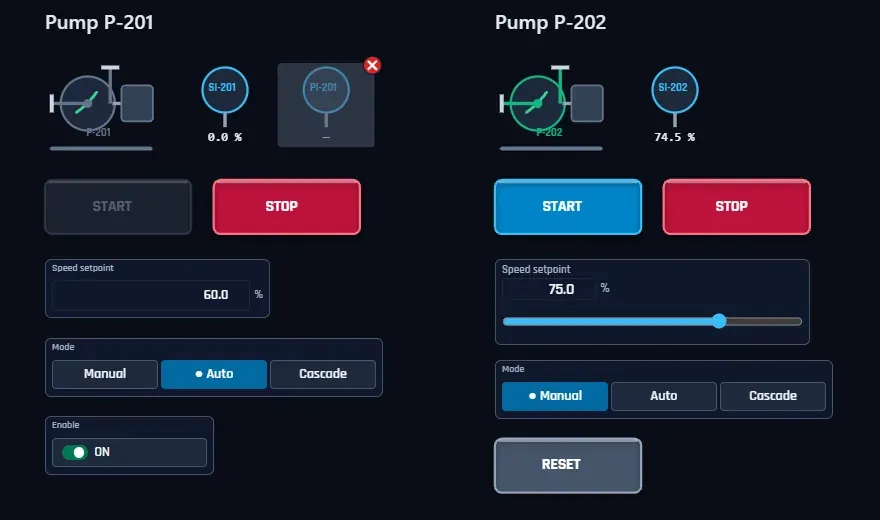
Worked example: a speed setpoint
Section titled “Worked example: a speed setpoint”Pump P-201’s speed setpoint DocsPlant/Pumps/P201/SpeedSetpoint (a writable eaxTag) may be set from 20 to 95 % in steps of 0.5, after a confirmation:
| Inspector field | Value |
|---|---|
| Tag written | DocsPlant/Pumps/P201/SpeedSetpoint |
| Caption | Speed setpoint |
| Minimum / Maximum / Step | 20 / 95 / 0.5 |
| Decimals / Unit | 1 / % |
| Confirmation | Confirm (dialog) |
Once the screen is saved, the server refuses 96, 19.9 and 20.25 from every writer of the tag, and asks every writer for the confirmation. Give the tag the same write range so that writers outside the screens are held to it too.
Before you start
Section titled “Before you start”- Sign in to the Studio as an engineer.
- The tag an input writes must be writable: an eaxTag marked Writable, a driver tag mapping, or a PLC variable.
- A Text entry writes text, which only a driver tag mapping whose data type is String takes. The tag engine holds numbers, so after a text write the field shows Sent with the text it sent; the written text is not read back.
Add an input
Section titled “Add an input”- Open the screen in the Designer.
- In the palette, open Operator inputs and drag the object onto the screen.
- In the Inspector, set Tag written. Without a tag the object is disabled on the operator’s screen (a dashed frame, “Not configured: no tag”).
- For a numeric entry, slider or spinner, set the limits:
- Minimum, Maximum and Step. A value must be minimum + n × step (n × step from 0 without a minimum).
- Or bind them: Minimum from tag, Maximum from tag. The stricter of the fixed and the bound limit applies. The bound tag is read when the value is sent: if it is missing or its quality is not Good, every write is refused (fail closed) and the object says why.
- Decimals and Unit, for the display and the keypad.
- Choose the Confirmation:
- None: sent at once. A change larger than Ask above a change of (%) (25 % by default) still asks.
- Confirm (dialog): the dialog shows the tag, the current value, the new value, the unit and the change in %.
- Electronic signature: the signed-in user’s password, entered every time, never pre-filled.
- When the interlock tag is not 0: confirmation is required unless the interlock tag reads exactly 0 with Good quality.
- Optionally set a Feedback tag (the value shown; empty: the tag written). After a write, if the feedback does not show the value within the Feedback timeout, the object says “Not confirmed”.
- Save the screen.
The server derives the limits and the confirmation from the screen, both as deployed and as saved. The strictest of the two applies: a limit you add is enforced as soon as you save, and a limit you remove stays enforced until you deploy (Deploy screens to operators). The tag then needs that confirmation or signature from every writer, and every limit set on it applies: when two screens limit the same tag differently, the strictest wins (the highest minimum, the lowest maximum).
Touch panels and kiosks
Section titled “Touch panels and kiosks”- On-screen keyboard chooses the keypad: As the screen / project (default), Numeric keypad, Full keyboard, or Never. The keypad shows the tag, unit, range and current value, and refuses an out-of-range value before anything is sent.
- On a touch screen only a deliberate tap sends: a swipe or a pinch across a switch, an option or a Set button sends nothing.
- A slider never sends on release on a touch screen, even with Send on release: press Set.
- On a phone, each input is a card row with its value and an Open button: the keypad for numbers and text, the option list for a selector, the same confirmation for a switch.
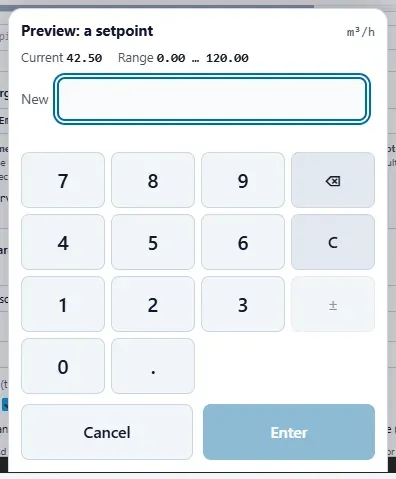
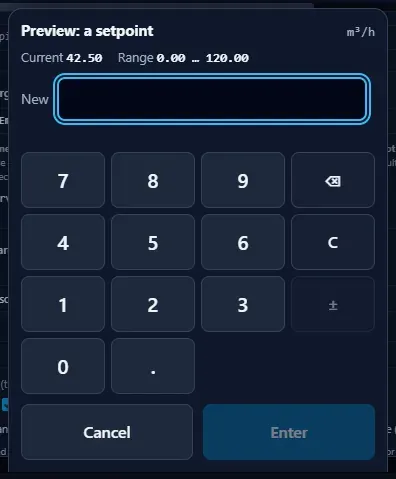
The project’s keyboard settings are in Set up touch panels and kiosks.
Read-only objects
Section titled “Read-only objects”- Read-only shows the value and sends nothing.
- To make it read-only by condition (a role, a mode), use the inspector’s Cond tab, section Security & Touch: Disable Condition or Required role. While the condition holds, the object is read-only.
What the operator sees when a value is refused
Section titled “What the operator sees when a value is refused”- On the screen, before sending: the reason (“Above the maximum 90”, “Not on the step of 0.5”, “At most 1 decimals”). Nothing is sent.
- By the server: “Refused by the server (allowed 0 … 90): …” with the server’s reason. The field returns to the live value.
| Refusal | HTTP status | When |
|---|---|---|
out_of_range |
400, with min and max |
outside a screen limit or the tag’s write range |
refused |
422, with min and max |
outside the tag’s engineering range |
confirmation_required |
403 | the confirmation was not given |
signature_required |
403 | the electronic signature was not given |
The engineering range applies to every writer: HTTP, a NATS command (uns.command.write) and an approved assistant setpoint. Before, only HTTP writes were checked.
Check the screens before deploying
Section titled “Check the screens before deploying”The Problems panel (Ctrl+Shift+M) lists inputs without a tag, conflicting limits, inputs without limits, text inputs on numeric tags and the other problems that would show on the operator’s screen. The full list of rules, and how to block deploys while errors remain, are in Check screens before deploying. The rules that concern inputs:
| Rule | Severity | What it means |
|---|---|---|
unbound-input |
Error | An input has no tag: it is disabled on the operator’s screen. |
unbound-command |
Error | A button or action that writes has no tag. |
limits-conflict |
Error | Minimum above maximum (every write is refused), a step of 0 or less, or a limit that is not a number. |
no-options |
Error | A selector without options, or a toggle whose two values are the same. |
text-type-mismatch |
Error | A text entry on a numeric tag, or a numeric input on a String tag: the server refuses the write. |
broken-tag |
Warning | A tag that no eaxTag, driver mapping or live tag has. A missing limit tag refuses every write. |
plc-spelling |
Warning | The input names an eaxPLC variable in the PLC’s own spelling (Recipes[1].Temp_SP after the PLC’s prefix) instead of its tag path (.../Recipes/1/Temp_SP): it shows no value. Save the screen again (the save stores the tag path, for the same variable), or pick the tag from the tag tree. See PLC spellings are stored as tag paths. |
input-no-limits |
Warning | A numeric input without a minimum or a maximum. |
write-no-confirmation |
Warning | An input writes a critical tag (watched by a CRITICAL or HIGH alarm, or the e-stop signal) without confirmation. |
signature-unprotected |
Warning | The tag needs an electronic signature (another object asks for one) but this object does not say so. |
Behaviour changes
Section titled “Behaviour changes”- A tag field typed in an eaxPLC’s own spelling is now stored as the variable’s tag path by every save: the editor, the assistant’s screen tools, Find and replace, Make translatable and starter templates. It writes the same variable as before, and now shows its value.
- An input object’s confirmation (confirm, e-signature, interlock) is now required by the server for every writer of its tag, like a button’s.
- Spinner limits, and the setpoint limits of PID faceplate tiles on dashboards (spMin / spMax, on a screen or in a dashboard), are now enforced by the server.
- A value outside a tag’s engineering range is now refused over NATS and for an approved assistant setpoint too (journaled as
WRITE_DENIED_OUT_OF_ENG_RANGE); over HTTP it is still refused with 422, now before a signature is checked, and the refusal body hasminandmax.