

Migrate screen scripts to the sandbox
Your screens keep working after the upgrade. Every screen script (a Run script action, a screen’s or a popup’s startup script, an object’s event script) now runs in a sandbox: it reaches the plant only through system.*, and it cannot touch the page. A script that used the page, the player or this fails on the operator’s screen until you rewrite it. This page finds those scripts and shows how to rewrite them.
Why scripts run in a sandbox: Screen scripts run in a sandbox.
What changes for a script
Section titled “What changes for a script”| Before | Now | |
|---|---|---|
| Where it runs | in the operator’s page | in a sandboxed frame without access to the page, inside a worker |
| What it gets | system, player, this, and every global of the page |
system only, plus the language’s own objects (Math, JSON, Date, Promise, setTimeout…) |
system.* calls |
most returned a Promise; a few answered at once (system.nav.current(), system.popup.list()) |
every call that reaches the page returns a Promise: use await |
| Calls that stay immediate | system.util.*, system.params.*, system.timer.*, and system.tag.subscribe (it returns unsubscribe() at once) |
|
| Which functions | every function of the page’s system |
the functions of the Screen scripting API only (an allow-list, checked on every call) |
await at the top level |
needed an async wrapper |
works directly: a script is the body of an async function. Scripts with the wrapper keep working. |
| A script that loops forever | froze the operator’s page | is stopped after 5 seconds; the screen stays usable |
system.nav.navigate(...) |
opened any address | opens only this server’s pages, for every script (sandboxed or legacy). Other sites: system.nav.openWindow and the project’s allowed external addresses. |
The security checks on the server are unchanged: a system.tag.write from a sandboxed script asks for the confirmation and the e-signature the tag needs, and the server checks the permission, the limits and the interlocks, exactly as for a button.
- Product
- Service or process
- Device or controller
- Check or decision
- Trust boundary
- Data or telemetry
- Command to equipment
- Refusal
Read as text
A screen script runs in a worker inside a sandboxed frame of the operator's page: it has no network, no page and no session. Its only way out is a system call, which the page checks before its own scripting API runs it as the operator. A tag write then goes to the eaxScada server, which checks it as any write and asks for a confirmation or a signature when the tag needs one.
Parts
- Operator's page (trust boundary)
- Script frame (trust boundary)
- Worker (service or process, inside Script frame): runs the script
- Page checks (check or decision, inside Operator's page): source frame, token, type, call id, allow-list, kinds, sizes, 64 waiting calls
- Scripting API (service or process, inside Operator's page): the page's system.*, as the operator
- eaxScada server (product): permission, policy, limits, interlocks, then record first
- Equipment (device or controller)
Connections
- Worker → Page checks (data or telemetry): system.* call. The only way out of the frame is a call message to the page.
- Page checks → Worker (refusal): refused. A call from another frame, with a wrong token, of an unknown type or with a bad id is dropped. A function not on the allow-list, wrong arguments, markup or too much data answers "invalid"; more than 64 waiting calls answers "unavailable". A sandbox silent for 5 seconds is stopped.
- Page checks → Scripting API (next step): admitted
- Scripting API → eaxScada server (command to equipment): POST /api/tags/write. The script sends the path, the value and a reason only; it cannot send a confirmation or a signature. After the operator confirms or signs, the write is sent again.
- eaxScada server → Scripting API (refusal): refused, or: confirm or sign first. A write refused by the permission, the limits, the range or an interlock is refused before any dialog. A tag that needs a confirmation or a signature is answered so, and only then does the page ask the operator.
- eaxScada server → Equipment (command to equipment): written after the record. The server records the write in the audit trail first; a write it cannot record is refused.
- Worker → Equipment (command to equipment, not active): no network, no page. The frame has no network and the page's objects throw in the worker: a script cannot write past the page's checks.
Legacy screen scripts run in the page itself: off unless an Administrator turns them on for the project, with a reason, journaled first.
1. Find the scripts that use the page
Section titled “1. Find the scripts that use the page”Open the Problems panel (Ctrl+Shift+M) and choose Saved project (as deployed). Two warnings list the scripts that would fail:
| Rule | Severity | What it means |
|---|---|---|
script-not-sandboxed |
Warning | An object’s script (a Run script action, or another script of the object) uses something a sandboxed script does not have. The message names it: “The Run script action uses document, player, which a sandboxed script does not have: it fails on the operator’s screen.” |
startup-script-not-sandboxed |
Warning | The screen’s startup script (Display Settings, on-startup action Script) does. |
Click a row to select the object. The rules read the script’s text: they report every name the script uses without declaring it that is not system or one of the language’s own globals, and this. A name built while the script runs (self['fet' + 'ch']) is not seen by the check, but the sandbox still refuses it. These are warnings: the deploy gate (Block deploy while screens have errors) does not stop a deploy for them. See Check screens before deploying.
To change a script you need the right screens.script (Lead_Engineer and Administrator have it by default): Grant the right to write screen scripts.
2. Rewrite each script with system.* and await
Section titled “2. Rewrite each script with system.* and await”Open the object’s Action (or the screen’s Display Settings for a startup script) and replace each use of the page by its system.* function. Write await before each system.* call that returns a Promise.
Read a value: player, sync read -> await system.tag.read
Section titled “Read a value: player, sync read -> await system.tag.read”Before:
// read the value the runtime holds in the page, at onceconst level = player.tagValues.get('Plant/Line1/Tank101/Level');if (level && level.value > 90) alert('Tank 101 nearly full');Now:
const t = await system.tag.read('Plant/Line1/Tank101/Level');if (t.good && t.value > 90) await system.ui.alert('Tank 101 nearly full');system.tag.read asks the server, with the operator’s read rights, and gives the quality too: test good before you trust the value. For several tags at once, await system.tag.readMany([...]).
Navigate: location.href -> system.nav.navigate
Section titled “Navigate: location.href -> system.nav.navigate”Before:
window.location.href = '/runtime/line-2';Now:
await system.nav.navigate('/line-2');To open another site, add its https:// prefix to the project’s allowed external addresses and use system.nav.openWindow('https://...').
Messages and questions: alert, confirm -> system.ui
Section titled “Messages and questions: alert, confirm -> system.ui”Before:
if (confirm('Start pump P-201?')) { system.tag.write('Plant/Pumps/P201/Start', 1);}Now:
const ok = await system.ui.confirm({ title: 'Pump P-201', message: 'Start pump P-201?' });if (ok) await system.tag.write('Plant/Pumps/P201/Start', 1);alert(...) becomes await system.ui.alert(...), a short notice system.notify.toast(message, 'info'), and console.log for your own debugging system.log.info(message) (it reaches the server log).
Calls that used to answer at once
Section titled “Calls that used to answer at once”Before:
const here = system.nav.current();if (system.popup.list().length === 0) { system.nav.openPopup('reactor_detail', { set: here.params.Reactor });}Now:
const here = await system.nav.current();if ((await system.popup.list()).length === 0) { await system.nav.openPopup('reactor_detail', { set: here.params.Reactor });}Without await, here is a Promise and here.params is undefined. The same mistake with a question is worse: if (system.ui.confirm(...)) without await is always true, because a Promise is truthy. Look for every system. call whose result is used.
this, and the object pressed
Section titled “this, and the object pressed”this is undefined in a sandboxed script (a Run script action used to get the editor’s internal object as this). Remove every use of this. A value the script needs from its screen comes from the screen’s parameters, system.params.get('Pump'), or from a tag.
Values from the page, cookies, storage, your own HTTP calls
Section titled “Values from the page, cookies, storage, your own HTTP calls”document.cookie, localStorage, fetch, XMLHttpRequest and WebSocket are not available, and there is no replacement on purpose: a script acts only through system.*, as the operator, and every call is checked. Keep data in tags (eaxTags), in server files (system.file.server.*), or in the screen’s parameters. A server API a script needs is a feature request, not a workaround.
What a script may pass to the page
Section titled “What a script may pass to the page”Arguments must be plain data: numbers, booleans, strings, arrays and plain objects (a function only to system.timer and system.tag.subscribe). A tag path, a screen name or another text the page uses may not hold <, >, " or a backtick: the call is refused with code invalid. The texts of dialogs, toasts, notifications and log lines are shown as text, never as markup. See Limits of a call.
3. Test on the operator’s screen
Section titled “3. Test on the operator’s screen”- Deploy (or save, with live editing) and open the screen in the Runtime.
- Press each object that has a script, and open each popup with a startup script.
- A script that still reaches for the page is marked on its object: a rose dashed outline and a small Script refused label (for a startup script, a chip at the top left of the screen). Click the label for the reason, for example “This script tried to use the page directly (document).”
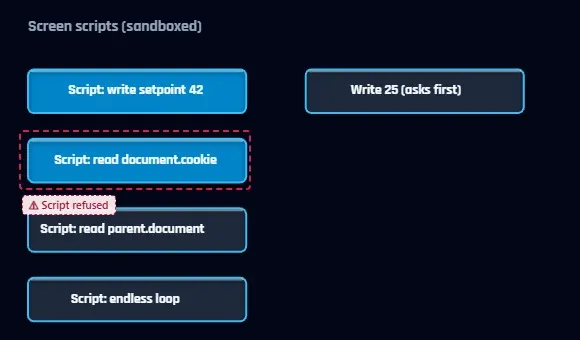
A script that keeps its sandbox busy for 5 seconds (an endless loop) is stopped: the object is marked Script stopped, and the screen stays usable. The marker goes away after a minute or when the screen closes.
Each refusal and each stop is also recorded on the server as a client event, script_refused or script_timeout (the server log and the audit trail, with the screen), so you can find them after a shift: filter the audit trail on SCRIPT_REFUSED and SCRIPT_TIMEOUT.
One sandbox per screen
Section titled “One sandbox per screen”Every screen and every popup has its own sandbox, made when its first script runs and closed with the screen or popup (its timers and subscriptions end with it). When a script is stopped for running too long, its whole sandbox is closed: the timers and subscriptions that other scripts of the same screen had started, such as the startup script’s, stop too. The next script gets a new sandbox. Reopen the screen to run its startup script again, and fix the loop.
4. Stop-gap: legacy screen scripts for one project
Section titled “4. Stop-gap: legacy screen scripts for one project”When a project’s scripts cannot be rewritten in time, an Administrator can let that project run its scripts as before, unsandboxed in the operator’s page. Use it for as short a time as you can: such a script can do everything the operator’s page can, with the operator’s session.
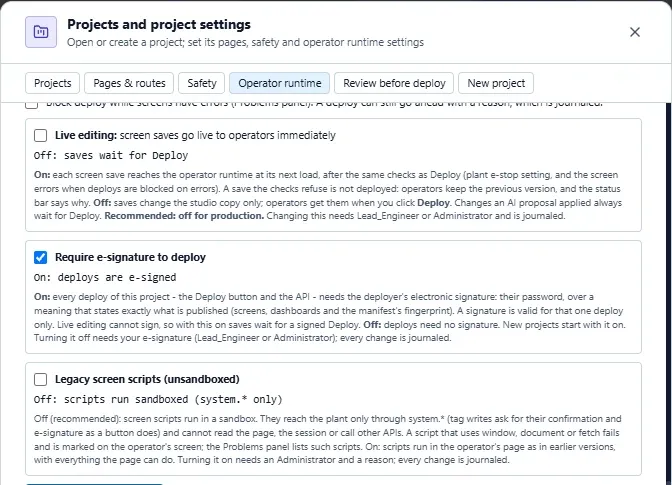
- Open Project > Project manager > Operator runtime.
- Tick Legacy screen scripts (unsandboxed).
- Type the reason (it is required and journaled, never filled in for you) and confirm. The setting is saved at once; Save runtime settings does not carry it.
| Default | Off for every project, new and existing. |
| Turning it on | An Administrator, with a reason. Anyone else gets “only an Administrator turns legacy scripts on” (403 LEGACY_SCRIPTS_ADMIN); no reason, 400. Never the AI co-pilot. |
| Turning it off | Lead_Engineer or Administrator. |
| Record | Every change is journaled before it is made, as PROJECT_LEGACY_SCRIPTS_CHANGED with the old and new value and the reason; without the record nothing changes (503 AUDIT_NOT_WRITTEN). |
| Kept | A project save keeps the stored value. A checkpoint revert that would turn it on is refused unless an Administrator reverts. It is never changed through eaxCloud remote access. |
| Takes effect | For the active project. An operator’s open page reads the setting again within 30 seconds; if it cannot read it, scripts run sandboxed. |
| Applies to | Screen scripts only. With it on, system.nav.navigate still opens only this server’s pages. |
Turn it off again as soon as the Problems panel shows no script-not-sandboxed and startup-script-not-sandboxed warnings.
HTTP API
Section titled “HTTP API”| Route | Who | |
|---|---|---|
GET /api/runtime/script-policy |
any signed-in user | {"project", "legacy_scripts", "timeout_ms"}: how the browser runs scripts (the active project’s setting, the sandbox’s time limit, 5000 ms). |
GET /api/dev/projects/{id}/legacy-scripts |
any signed-in user | {"project", "legacy_scripts"} |
PUT /api/dev/projects/{id}/legacy-scripts |
on: Administrator; off: Lead_Engineer or Administrator | Body {"legacy_scripts": true, "reason": "..."} (reason required for on, at most 500 characters kept). Takes If-Match with the project’s revision (409 when it changed). Answers {"project", "legacy_scripts"}. Not over eaxCloud remote access (GET only, engineer). |