

Connect Claude or another MCP client to eaxScada
Migrated page, not yet verified against the current code. Treat values, paths and examples as indicative until this notice is removed.
An AI assistant running on an engineer’s computer reads the project (tags, alarms, screens), proposes screens and configuration, and proposes setpoint changes. Every proposal waits until a person applies or approves it with an electronic signature. The assistant works with the rights of its own account, and the audit trail records every change under that account.
This guide uses Claude Code as the example client. Any client that supports MCP servers over HTTP works the same way.
Before you start
Section titled “Before you start”- You are an Administrator of the eaxScada server.
- The machine running the assistant can reach the eaxScada web port (8080 by default). Use HTTPS when the connection leaves the machine: the token travels in a header.
1. Create an account for the assistant
Section titled “1. Create an account for the assistant”Never give the assistant a person’s account. In Security → Users, create an account for it, for example assistant, with a strong password. Choose its roles:
| What the assistant should do | Roles |
|---|---|
| Read tags, alarms, history and screens; propose values for approval | AI_CoPilot |
| The above, and propose screens, alarms, driver channels, tag mappings and dashboards | AI_CoPilot and Lead_Engineer |
Add Lead_Engineer only if the assistant proposes screens or configuration. AI_CoPilot marks the account as a machine agent, whatever other roles it holds.
The account can only use the MCP endpoint. With its token, the server answers only:
/api/mcpand the routes under it, except approving or rejecting a proposal;GET /api/auth/me(who the token belongs to) and/api/auth/logout.
Signing in (/api/auth/login) needs no token. Every other request answers 403 (“an AI co-pilot account may use only the MCP gateway”), and the audit trail records it as AI_ACCOUNT_REFUSED (once a minute per route). That includes the rest of the HTTP API, the pages, the live WebSocket, the PLC token and the in-product assistant. Lead_Engineer therefore lets the assistant make proposals through the MCP tools, and nothing more: it cannot change alarm definitions, driver channels or security settings through the HTTP API, and it cannot apply its own proposals.
Such an account also never:
- writes a tag, signs, or approves a proposed value;
- starts, stops, deploys to, rolls back or forces the PLC. The MCP endpoint does not offer those tools to it, and eaxPLC refuses them to a token flagged as the AI co-pilot’s;
- reads or writes server files;
- manages users, roles or permissions.
Limit what the account may read with its subscribe rules (Security → Permissions). The MCP tools and resources show only the tags the account may read.
2. Create an API token
Section titled “2. Create an API token”An API token lets the client connect as the account without signing in. It starts with eaxt_, and it lasts up to 90 days.
- In Security → API tokens, select New token.
- Enter a name that says which client holds it, for example
Claude Code on the engineering laptop. - Choose the account, for example
assistant. If the account has Administrator rights, the dialog warns you: the MCP tools act with those rights. Choose an AI co-pilot account or a dedicated integration account instead. - Choose when it expires: 7, 30 or 90 days.
- Select Create token.
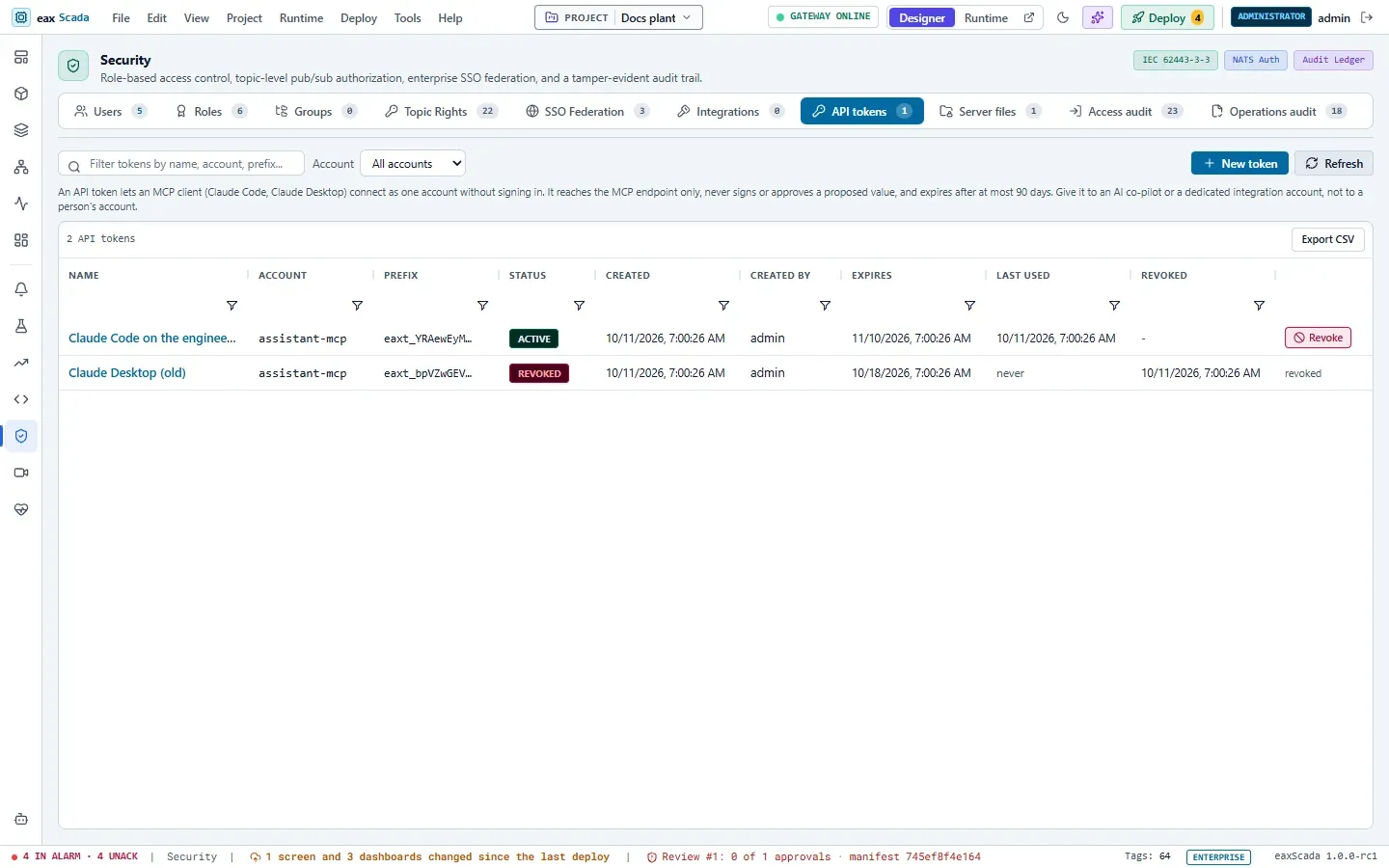
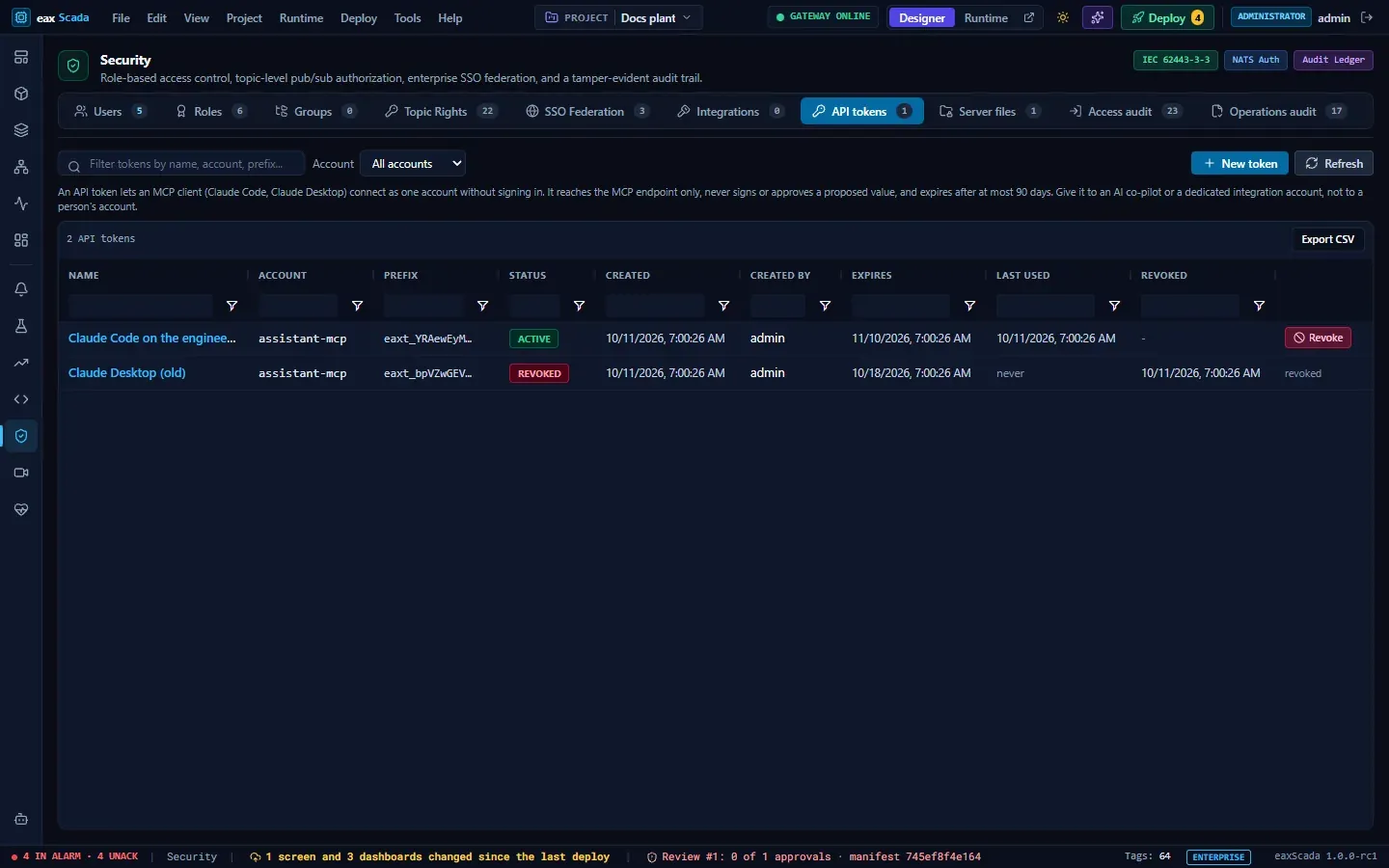
The dialog shows the token once, with a ready-to-paste Claude Code command and a JSON configuration. Copy them now. The token cannot be shown again: eaxScada keeps only a fingerprint of it (its SHA-256) and its first 8 characters, to tell tokens apart in the list. The token never appears in the audit trail or the logs.
An administrator can also create a token with the API:
curl -s -X POST https://scada.example.com/api/auth/api-tokens \ -H "Authorization: Bearer <administrator session token>" \ -H "Content-Type: application/json" \ -d '{"username":"assistant","name":"Claude Code on the engineering laptop","expires_days":30}'The answer holds "token" (shown once) and the token’s record (id, prefix, expires_at).
What an API token can do
Section titled “What an API token can do”Whatever the account’s roles, an API token reaches only:
/api/mcpand the routes under it, except approving or rejecting a proposal;GET /api/auth/me, which also names the token (api_token: its id, name, prefix and expiry).
Every other request answers 403 with "code":"token_scope". The audit trail records it as API_TOKEN_SCOPE_REFUSED, once a minute per token and route. An API token also:
- never signs.
/api/auth/signaturerefuses it, and so does any electronic signature asked for in a request made with it, whoever the signer named in it is; - never gets a PLC token. The MCP PLC tools reach eaxPLC without a credential, and eaxPLC refuses them;
- opens no session, so it cannot sign out or open the live WebSocket;
- is accepted in the
Authorizationheader only, never in a cookie or a URL.
The AI co-pilot rules in step 1 apply on top.
Revoke, expiry and account changes
Section titled “Revoke, expiry and account changes”- Revoke a token in Security → API tokens (it asks first). The client is refused from its next request. The audit trail records
API_TOKEN_CREATEDandAPI_TOKEN_REVOKED. - A token stops working when it expires. Create the next one before then, update the client, and revoke the old one.
- Disabling or deleting the account revokes its tokens.
- A locked account’s tokens are refused until the account is unlocked.
- A password change does not revoke the account’s tokens. A token is a separate credential that an administrator issued and can revoke on its own, so a scheduled password change does not disconnect the clients that use the account. To cut a client off, revoke its token.
The list shows each token’s account, prefix, status (active, expired, revoked, or blocked when its account is not active), creation, expiry and last use. Last use is updated at most once a minute. A user who is not an administrator can list their own tokens (GET /api/auth/api-tokens), but cannot create or revoke one.
In a high-availability pair, tokens are kept in each node’s security store, like users and passwords, and are not replicated. A token works on the node that issued it only.
3. Add the server to the client
Section titled “3. Add the server to the client”The endpoint is https://<server>/api/mcp. It uses the MCP Streamable HTTP transport: JSON-RPC requests in an HTTP POST, answered with JSON, with protocol versions 2025-06-18, 2025-03-26 and 2024-11-05.
For Claude Code, add it from a terminal:
claude mcp add --transport http eaxscada https://scada.example.com/api/mcp \ --header "Authorization: Bearer eaxt_..."Or put it in an MCP configuration file:
{ "mcpServers": { "eaxscada": { "type": "http", "url": "https://scada.example.com/api/mcp", "headers": { "Authorization": "Bearer eaxt_..." } } }}The token must be sent in the Authorization header. Keep the configuration file private: anyone who reads it can use the token until it expires or you revoke it.
A client that can only start local (stdio) servers needs a local bridge that forwards to an HTTP MCP server and adds the header. See the client’s documentation.
4. Check the connection
Section titled “4. Check the connection”Ask the assistant: “List the project’s screens, tags and alarms.” It should call scada_list_screens, scada_list_tags and scada_list_alarms, and answer with your project’s real tag paths.
What the assistant can do
Section titled “What the assistant can do”| Ask | What happens |
|---|---|
| List screens, tags, alarms, history | Read tools and resources, filtered by the account’s read rights. |
| Create, change or delete a screen | The assistant proposes; a person applies, then deploys (see below). scada_propose_screen checks the screen as a save would and returns the objects it adds, removes or changes, every change in what the screen commands, and the Problems panel’s findings. The assistant reads the screen format from resource://scada/screens/schema; a shape type the designer does not have is refused. Setpoints are input objects (numeric entry, slider, spinner) whose limits and confirmation the server then enforces for every writer. scada_create_screen and scada_update_screen, which save at once, are not offered to an AI_CoPilot account or to any client that signs in with an API token, and are refused if called. |
| Write a value | scada_stage_tag_write only proposes it. A value outside the limits that apply to the tag (a screen input’s or faceplate’s limits, the tag’s write range, its engineering range) is refused at once and never queued. Otherwise the proposal waits in the human-in-the-loop queue (Studio → MCP workspace). Another person with Process_Supervisor or above, allowed to write the tag, approves it with an electronic signature. The tag’s write policy applies again at approval, with the limits in force then. |
| Add or change alarms, driver channels, tag mappings or dashboards | The assistant proposes; a person applies (see below). scada_propose_alarm, scada_propose_driver_channel, scada_propose_tag_mapping and scada_propose_dashboard check the change with the server’s own validation and return what it would change, field by field. Nothing is changed until a person applies it. |
| Start, stop or deploy to the PLC | Refused for an AI_CoPilot account. |
Every change appears in the audit trail under the assistant’s account name and roles, and every proposal records the account that staged it.
Dashboards the assistant may propose
Section titled “Dashboards the assistant may propose”scada_propose_dashboard takes a new dashboard or a change to one. Its cards can be:
- built-in panel cards (
body.type"panel") with their queries: Time series, State timeline, Status history, Heatmap, Stat, Gauge, Bar gauge, Histogram, XY chart, Min / max, Table, Alarm list, Bar / pie, Pareto, OEE and Text. That is every built-in panel card except the Custom chart. These cards are read-only; - the classic cards: trend, gauges, sparkline, KPI, alarm summary, display, push button and the four faceplates. A push button or a faceplate writes to equipment, so the proposal is flagged safety-relevant, as before;
- dashboard variables. A variable used in a tag path must be of the type Fixed choices (
type: "custom", withchoicesand adefault), see below.
The assistant reads the card format from resource://scada/dashboards/schema. It describes the panel kinds, the query sources, the limits and the no-code rule. A person still applies the proposal with an electronic signature.
The assistant never proposes card code. A proposal is refused, with “the AI co-pilot never proposes card code”, when it holds:
- a Custom chart card;
- a custom card (its HTML, CSS and JS are code). Earlier, a custom card could be proposed;
- a
panel.codefield on any card, or any other code the dashboard save checks for.
An update to a dashboard that already holds a custom chart or a custom card is refused too, whatever the update changes. A person with the dashboards.code right changes such a dashboard in the Studio.
Every tag a proposed card shows must be readable by the assistant’s account. The server checks a classic card’s tags, every query of a panel card, and the tag named in an alarm query’s filter. One tag the account may not read refuses the whole proposal (“… shows tag …, which you may not read”).
- A
${variable}in a tag path is checked for every value of the variable: each of its choices and its default. - A tag path whose variable has no listed values is refused: a variable of another type (children of a tag folder, dataset column values, shift) or a variable the dashboard does not define. The server cannot tell which tags it would reach. Use a variable with fixed choices, or name the tags.
- A tag path with variables may reach at most 2,000 tag paths.
The proposal is also checked when it is made, as a save checks it: the limits (cards, queries, tags), the queries, links to this server only, colours, and no variable in a command field (rule D1). Before, rule D1 was checked only when the proposal was applied. A panel card cannot name a faceplate, and only a panel card carries a panel.
- Product
- Data store
- Device or controller
- Person or role
- External system
- Data or telemetry
- Command to equipment
- Authentication
- Refusal
Read as text
The AI client stages a tag write through the MCP gateway. The eaxScada server checks it, records it in the audit trail and queues it as PENDING; nothing is sent. A reviewer is told and either rejects it with a reason or approves it with an electronic signature. An approval passes its own checks and is recorded before the server writes the value through the driver.
Participants
- AI client (external system)
- eaxScada (product): MCP gateway
- Audit trail (data store)
- Reviewer (person or role)
- Equipment (device or controller)
Steps, in order
- AI client → eaxScada (data or telemetry): scada_stage_tag_write. tag path, value, reason
- eaxScada: Staging checks: runtime running, primary node; a role that may stage; read access to the tag; an audit trail (not Free); not a safety write target; the write policy's limits; the tag exists
- A check fails:
- eaxScada → AI client (refusal): Refused, isError: true. nothing is staged
- eaxScada → Audit trail (data or telemetry): Records STAGE_ACTION first
- eaxScada → AI client (reply): Staged: ACT-…, PENDING. nothing is sent
- eaxScada → Reviewer (data or telemetry): HITL_STAGED. to people who may read the tag
- Rejected:
- Reviewer → eaxScada (data or telemetry): Rejects, with a reason. REJECTED, recorded, nothing written
- Approved:
- Reviewer → eaxScada (authentication): Approves, with e-signature
- eaxScada: Approval checks: tag not a safety target, else REFUSED; not the AI co-pilot account; not the account that staged it; publish permission on the tag; write policy and signature; runtime running, still PENDING
- eaxScada → Reviewer (refusal): A check fails: refused. stays PENDING (safety target: REFUSED)
- eaxScada → Audit trail (data or telemetry): Records HITL_APPROVE_AI_ACTION. not written: stays PENDING, 503
- eaxScada → Equipment (command to equipment): Writes the value, APPROVED. through the driver of the tag
Review and apply the assistant’s proposals
Section titled “Review and apply the assistant’s proposals”Proposing a screen, an alarm, a driver channel, a tag mapping or a dashboard needs Lead_Engineer on the assistant’s account. A proposal changes nothing. It waits in Studio → AI gateway → Proposals from AI clients, with its kind, target, author, age and status.
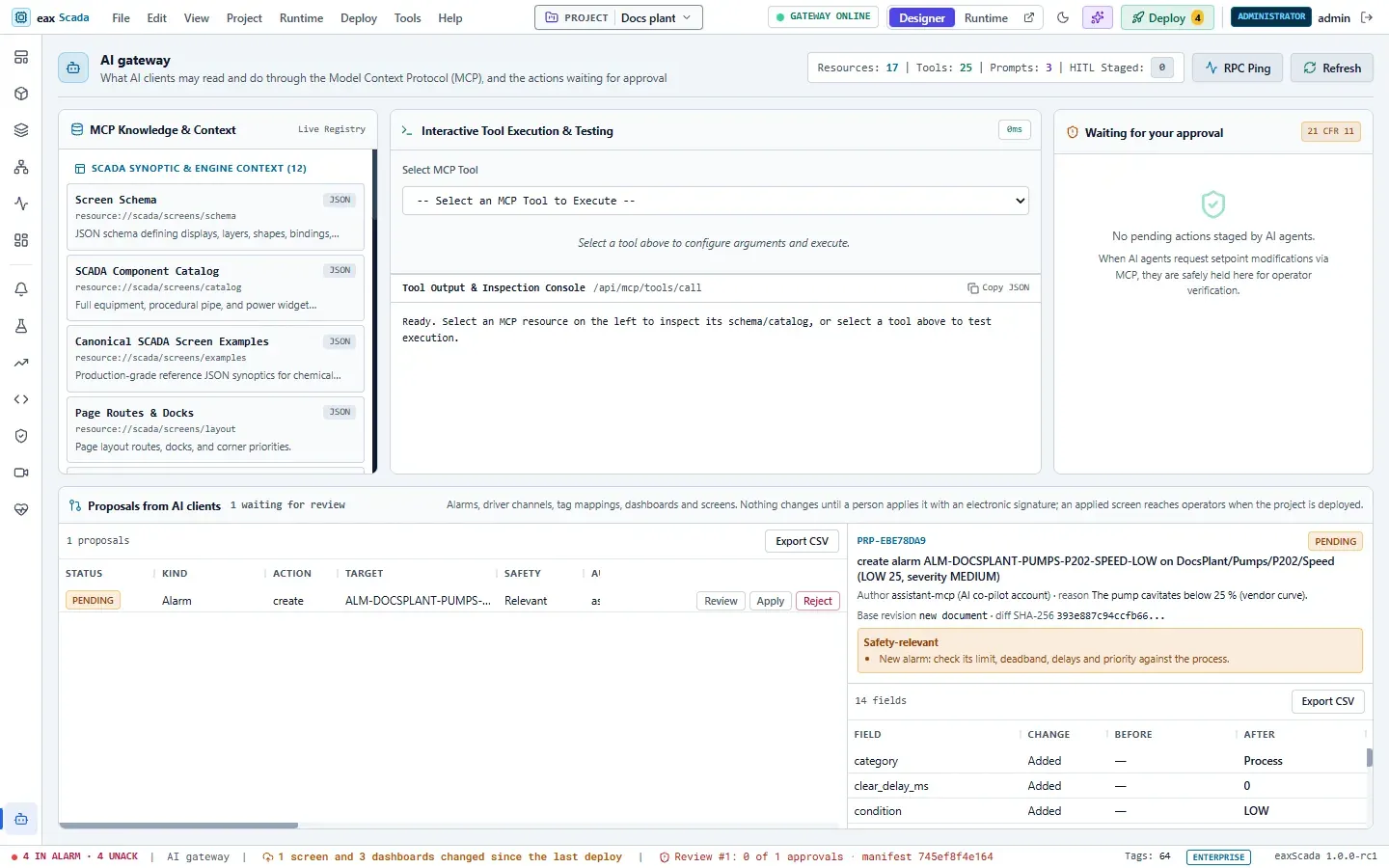
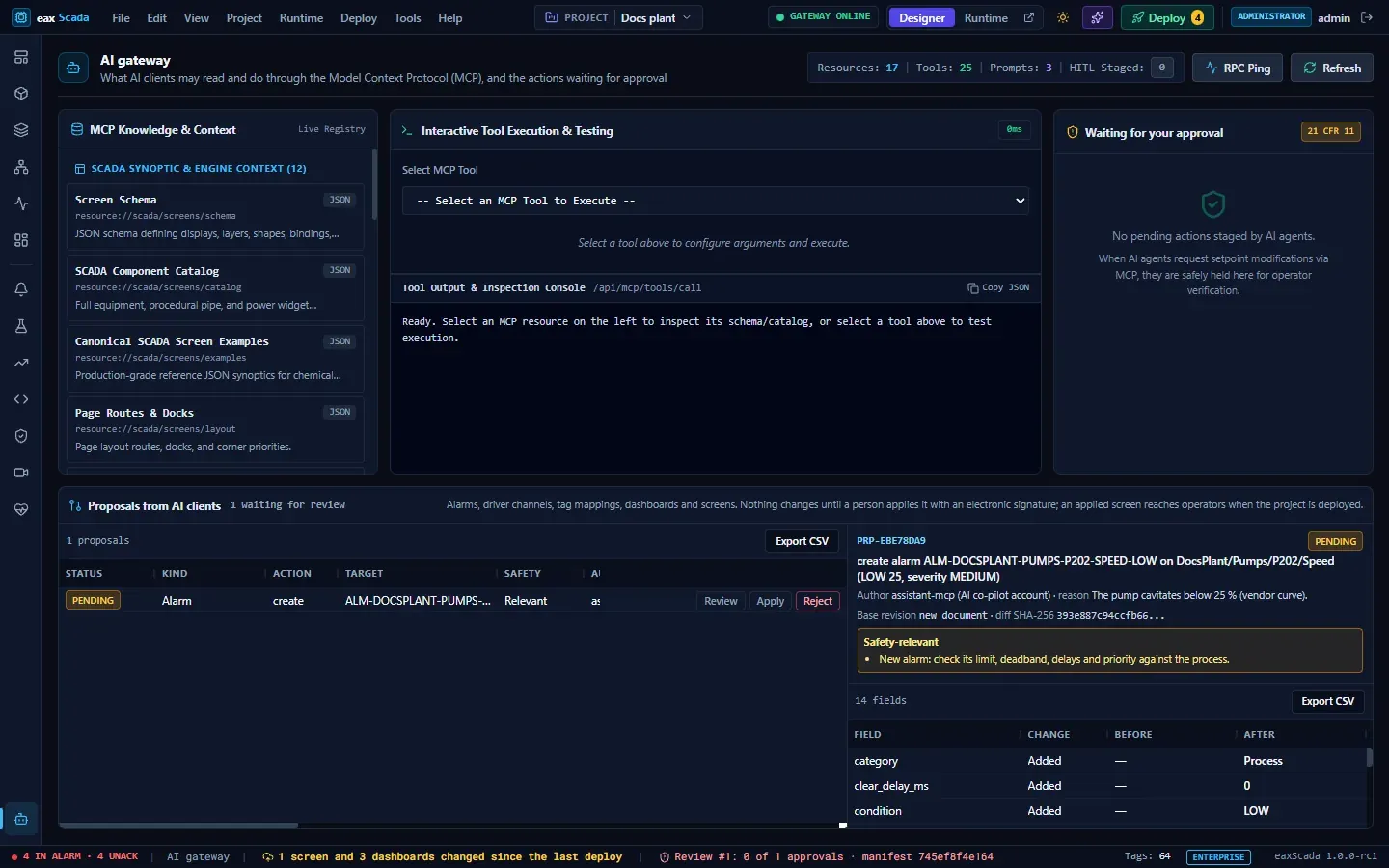
The review icon in the Studio top bar, next to Deploy, shows how many items wait for your decision: proposals you may apply or reject, and staged tag writes you may approve. It counts only what you may decide, never your own items. It is updated every 30 seconds and right after you decide something. Choose it to open the AI gateway with the open proposals filtered. While something waits, the browser tab title starts with the count, for example “(2)”. The icon is not shown to roles below Process_Supervisor, to AI_CoPilot accounts or to clients that use an API token.
-
Select a proposal and choose Review. The review pane lists every field that changes, with its value before and after, and:
- the assistant’s reason;
- the safety notes, in amber, when the proposal is safety-relevant;
- other notes, for example a tag that does not exist yet.
For a screen, the pane lists the objects added, removed or changed, one row per changed property. Above them, in amber, Command changes lists every object whose commands change, with what it sent before and after: the tags it writes and the values, its confirmation or e-signature, its interlocks (
disabledCondition, the interaction’s disable condition, what happens on bad quality) and its limits. These come from the same derivation the server uses to enforce the screen’s write policy. A preview of the screen is not shown yet: open the screen in the Studio after applying it, before you deploy. -
Choose Apply. The dialog shows the meaning of your signature: “Apply AI proposal PRP-… : …”. If the proposal is safety-relevant, tick the confirmation that you checked it. Enter your password and choose Sign and apply. The applied change shows in the Studio at once: a screen under Displays, an alarm in the alarm definitions, a channel or mapping in Drivers, a dashboard in the dashboards list. A wrong password applies nothing: the dialog stays open, says why under the password field and empties it, the proposal is unchanged, and you stay signed in (
POST /api/mcp/approve/proposalanswers403with"status": "signature_refused"; a locked account429; no password403 signature_required). The fifth wrong password locks the account for 15 minutes. On any other refusal (stale, expired, a missing confirmation) the dialog closes, as before. -
Or choose Reject and give a reason. The assistant sees the reason when it asks for the proposal’s status.
- Authentication
- Refusal
Read as text
A proposal starts pending and changes nothing. A Lead_Engineer or Administrator who did not make it signs and applies it; the change then goes through the same API and checks as the Studio. A proposal whose target changed becomes stale until someone refreshes it and reviews it again. One that needs another proposal applied first goes back to pending. One that would add a command on a safety write target, or that the API refuses, ends as failed. A proposal not decided within 7 days expires, and one can be rejected with a reason.
States
- Pending (state): changes nothing
- Rejected (state): AI_PROPOSAL_REJECTED
- Expired (state): AI_PROPOSAL_EXPIRED
- Applying (state): checked again now
- Stale (state): the target changed
- Applied (state): a screen: "Held: AI proposal" until Deploy
- Failed (state): never applied
Transitions
- Start → Pending (transition)
- Pending → Rejected (refusal): Reject. A person rejects it with a reason; the assistant reads the reason. A stale proposal can be rejected too. The author's own reject withdraws it (withdrawn, AI_PROPOSAL_WITHDRAWN).
- Pending → Expired (transition): 7 days, no decision. A pending or stale proposal not decided within its validity (7 days unless EAX_MCP_PROPOSAL_TTL sets another) expires.
- Pending → Applying (authentication): Sign and apply. Lead_Engineer or Administrator, not the account that made it and never an AI co-pilot account; the safety confirmation when it is safety-relevant; the password. A wrong password applies nothing and the proposal stays pending.
- Applying → Pending (refusal): needs another proposal first. A mapping on a device that a channel proposal adds waits until that proposal is applied: the apply is refused (409) and the proposal is pending again.
- Applying → Stale (refusal): target changed (409). Nothing changes. AI_PROPOSAL_STALE.
- Stale → Pending (transition): Refresh: review again. Rebuilt on the current target with a new diff; a person reviews it again before applying it.
- Applying → Applied (transition): saved through the Studio's API. Under the name of the person who applied it; AI_PROPOSAL_APPLIED with the diff hash, and the signature.
- Applying → Failed (refusal): refused. It would add or change a command on the plant emergency-stop signal or on a tag watched by a safety alarm, as things are now; or the target's API refused it (AI_PROPOSAL_APPLY_FAILED).
Who may apply:
- applying needs
Lead_EngineerorAdministrator, the role that may make the same change in the Studio. Rejecting needsProcess_Supervisoror above; - the account that made the proposal cannot apply it;
- an
AI_CoPilotaccount can neither apply nor reject (HTTP 403).
The change goes through the same API and checks as the Studio, under your name. The audit trail records AI_PROPOSAL_APPLIED or AI_PROPOSAL_REJECTED, with the proposal’s SHA-256 diff hash, and the signature as ESIG_VERIFIED.
What the server enforces:
| Rule | Effect |
|---|---|
| A driver channel is never enabled by a proposal | A proposed channel is created disabled, and a proposal with enabled: true is refused. A change to an existing channel keeps it as it is. Enable the channel yourself in Drivers after review. Credentials are never part of a proposal: enter them in the Studio. |
| A NATS bridge on this server’s broker | A NATS bridge proposal (NATS_CORE: broker_url, inbound_prefix, own_broker) with own_broker: true reads this server’s own broker: no broker_url and no credentials, an inbound_prefix under uns.telemetry., read only (it publishes nothing and writes to its tags are refused). The proposal names its endpoint “this server’s broker (in process)”. |
| A mapping cannot change a channel | A tag mapping proposal names a device and an address. It cannot carry an endpoint field (host, port) or move a mapping to another device. A new mapping is read-only (RO) unless the proposal asks for RW or WO. |
| Built-in safety alarms | A proposal that changes or deletes the plant emergency-stop alarm, a PLC fault alarm or a server resource alarm (ALM-SYS-…) is refused when it is made. |
| Commands on safety tags, checked again at apply | When you apply, the server checks the proposal again against the alarms and the plant emergency-stop setting as they are then. A proposal that adds or changes a command on the plant emergency-stop signal or on a tag watched by a safety alarm is never applied: it is closed as failed with the reason (HTTP 409). A proposal that the target’s API refuses is closed as failed too (AI_PROPOSAL_APPLY_FAILED). |
| Safety-relevant changes | A proposal is flagged safety-relevant, and needs your confirmation, when it creates or deletes an alarm, touches an alarm’s limits or priority (setpoint, deadband, condition, severity, delays) or what it watches and who is alerted (tag, target roles, horn, class), changes a running channel or where a channel connects, makes a tag writable or changes its address, scaling or ranges, adds dashboard cards that write to equipment, or adds, removes or changes a screen command (a button’s action, target or value, an input object, a confirmation or e-signature setting, an interlock or a limit), or deletes a screen that has commands. |
| An applied screen is not live until deployed | Applying a screen proposal saves the screen, with its version history and audit entry, and records last_change_source: ai_proposal and the proposal id on it. Operators still see the screen as it was last deployed (or not at all, for a new screen) until a person deploys the project (Deploy, with its checks). This holds whatever the project’s Live editing setting. Editing the screen in the Studio before you deploy does not release it: the deploy does. The Studio status bar lists the screen as Held: AI proposal. |
| The target changed since the proposal | The apply is refused (HTTP 409, “the target changed since the proposal”) and nothing changes. Choose Refresh: the proposal is rebuilt on the current target, and you review the new diff before applying it. |
| No card code from the assistant | A dashboard proposal with a custom chart, a custom card or any code field is refused when it is made, and so is an update to a dashboard that already holds one. See Dashboards the assistant may propose. |
| Dependencies | A mapping on a device that a channel proposal adds waits until that channel proposal is applied. |
| Expiry | A proposal not decided within 7 days expires. Set another validity with the environment variable EAX_MCP_PROPOSAL_TTL (a duration such as 72h) on the eaxScada server. |
A person signed in to the Studio keeps scada_create_screen and scada_update_screen in the AI gateway’s tool console. A screen saved that way is treated like any screen you save in the Studio. With the project’s Live editing off (the default for new projects), it reaches the operators when you deploy. With live editing on, it is deployed the next time the runtime loads the project, after the deploy checks. See Deploy screens to operators.
Troubleshooting
Section titled “Troubleshooting”| Symptom | Cause |
|---|---|
The client cannot connect, HTTP 401 token_invalid |
The token is missing or mistyped, expired or revoked, or its account is disabled, locked or deleted. The message says which. Create a new token (step 2) if needed. |
| HTTP 401 “an API token is accepted in the Authorization header only” | The client sent the token in a cookie or a URL. |
HTTP 403 token_scope |
The token is used outside /api/mcp, or for a signature: point the client at the MCP endpoint. |
| HTTP 403 “an AI co-pilot account may use only the MCP gateway” | The AI co-pilot account is used outside /api/mcp. |
| A PLC tool answers that eaxPLC refused the call | API tokens never get a PLC token. Start, stop and deploy from the eaxPLC IDE. |
| A proposed value is refused as out of range | It is outside the tag’s limits. The error gives the allowed minimum and maximum. |
| “screen ‘…’ already exists” | A screen proposal with action create names an existing screen: ask for an update. |
| “scada_update_screen does not save screens for an AI account or an API-token client” | The assistant called a direct screen tool. It proposes the screen with scada_propose_screen instead. |
| An applied screen does not appear in the runtime | It waits for a deploy. Deploy the project from the Studio. |
| “the studio has no shape type for …” | The assistant invented a shape type. Ask it to read resource://scada/screens/schema and use the listed types. |
| Claude Code does not read the screen schema or other resources | Claude Code reads MCP resources with its ListMcpResourcesTool and ReadMcpResourceTool tools. Allow them in its permission settings (or approve them when asked), so the assistant can read resource://scada/screens/schema before it proposes a screen. |
| A proposed value is never written | It is still pending, or the approver’s signature or the tag’s write policy refused it. See the human-in-the-loop queue and the audit trail. |
| “refused: a proposal never enables a driver channel” | The assistant asked for an enabled channel. It proposes it disabled; you enable it after review. |
| Apply answers “the target changed since the proposal” | Someone changed the screen, alarm, channel, mapping or dashboard after the proposal was made. Choose Refresh, review the new diff, then apply. |
| Apply answers “apply the proposal this one depends on first” | The mapping is on a device that a channel proposal adds. Apply the channel proposal first. |
See also
Section titled “See also”- MCP AI gateway: the resources, tools and the approval flow.
- Add setpoint inputs: the input objects and the limits the server enforces.
- Security and 21 CFR Part 11: roles, read permissions and electronic signatures.