

Compare two versions of a screen
Before you deploy a screen, or when you look into what someone changed, see the two versions next to each other and get the list of every change, with the changes to commands flagged. Nothing in the compare view can be operated: it only reads.
Open the comparison
Section titled “Open the comparison”- Open the screen in the designer.
- Choose File → Revision History…. The screen’s saved revisions are listed, newest first.
- Click the revision you want as the before side (optional), then click Compare….
The Compare versions window opens. If you picked no revision, it compares the screen open in the designer with its latest saved revision (or, with no unsaved changes, the latest revision with the one before it).
Choose the two sides
Section titled “Choose the two sides”The Before and After lists at the top each take one of:
| Side | What it is |
|---|---|
| A revision | A saved version from the version history: short id, date, author and save message. The newest one says (latest). |
| Deployed (running) | The copy operators see now. “This screen is not deployed.” when it has never been deployed. |
| Open in the designer | The screen as it is in the designer, with your unsaved changes if any (“Open in the designer (unsaved changes)”). |
The button between them swaps before and after.
Read the drawings
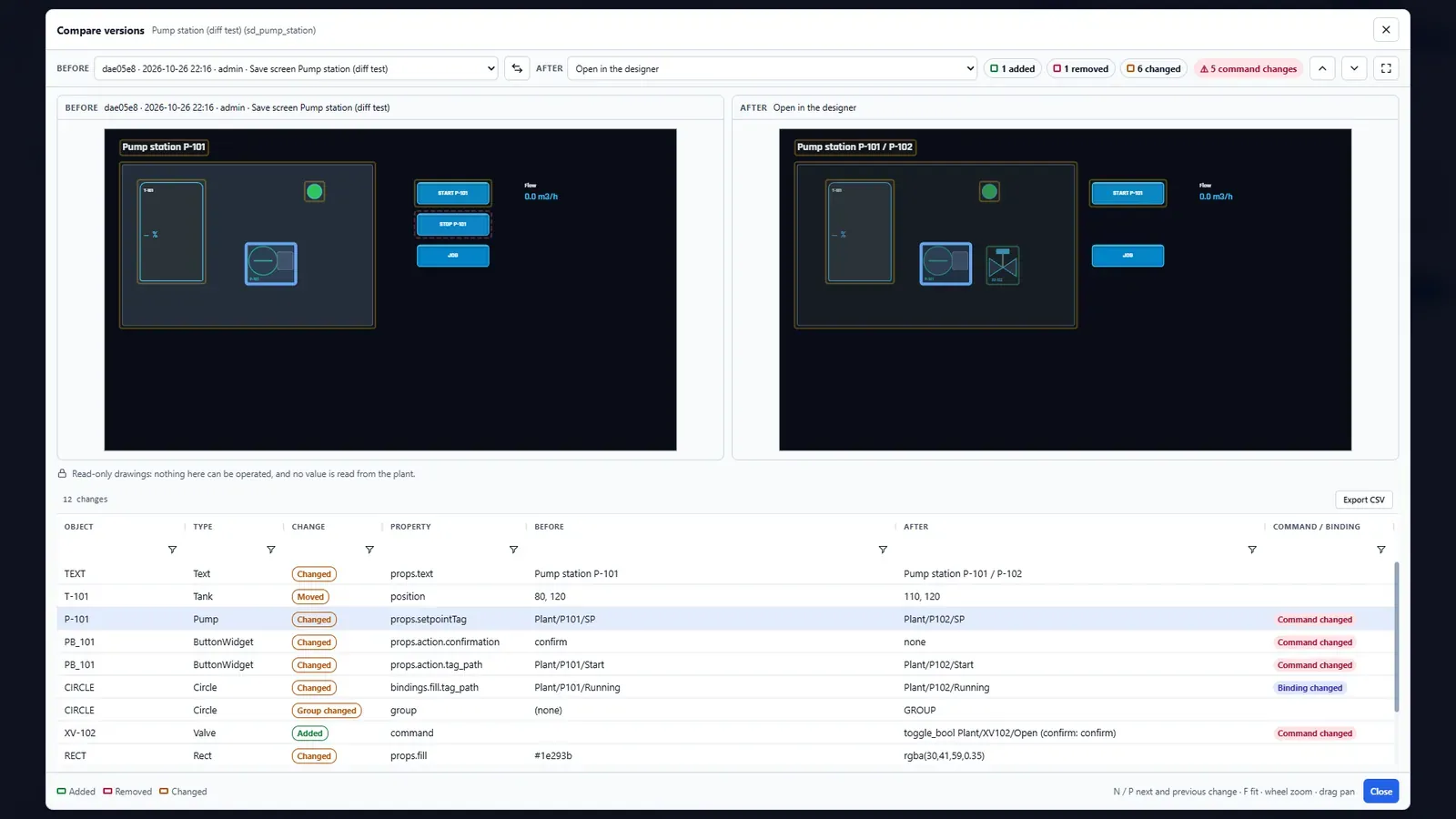
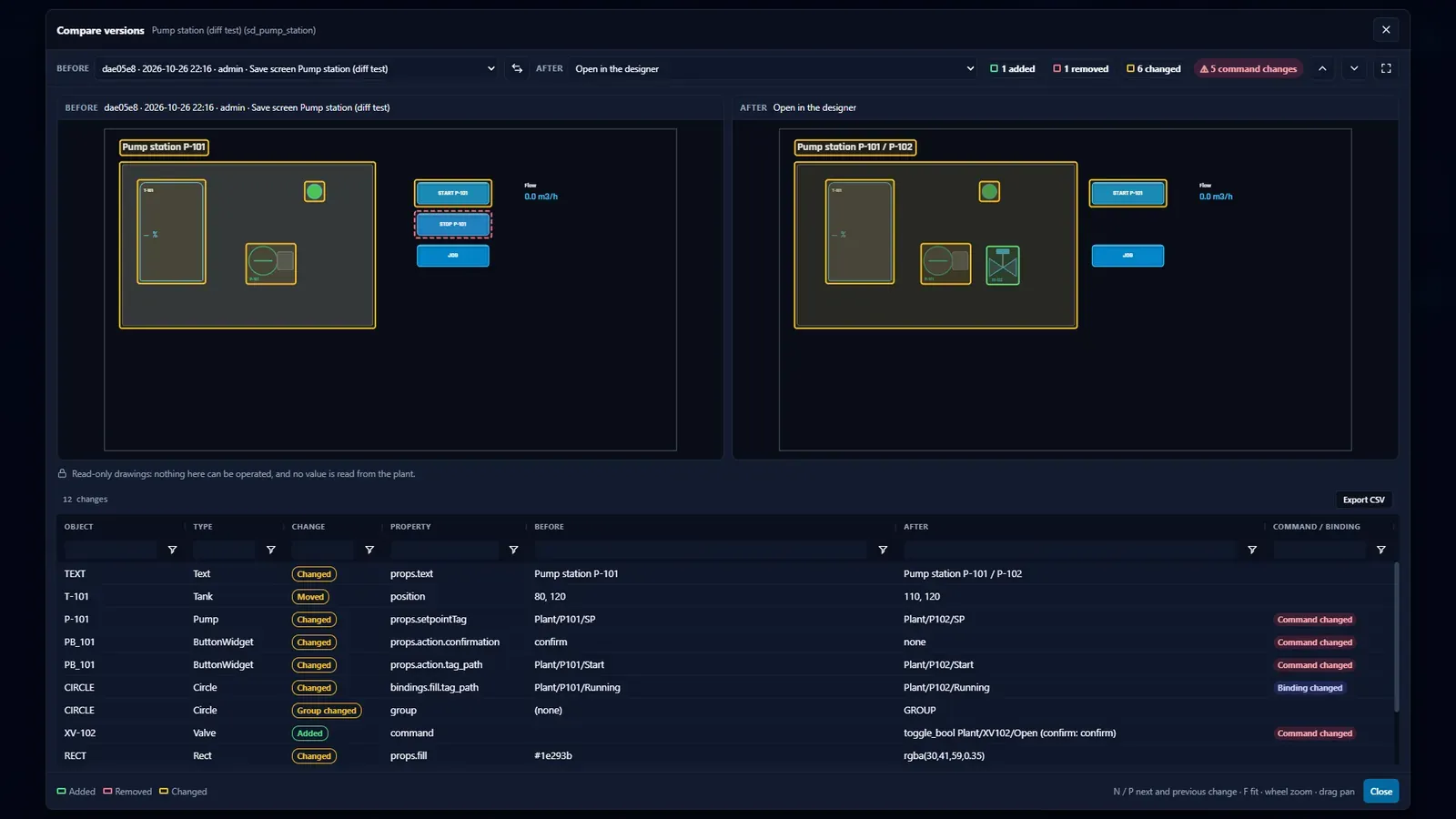
Section titled “Read the drawings”Both versions are drawn side by side, 2D screens and isometric maps alike. Outlines mark the objects that differ:
| Colour | Means |
|---|---|
| Green | Added: only in the after version. |
| Rose | Removed: only in the before version. |
| Amber | Changed: in both, with a difference. |
The chips at the top count them (“1 added”, “1 removed”, “6 changed”). Pointing at an object, or clicking it, highlights it on both sides. The mouse wheel zooms and a drag pans both drawings together; Fit both drawings (or F) shows them whole.
Go through the list of changes
Section titled “Go through the list of changes”Below the drawings, one row per property that changed: Object, Type, Change, Property, Before, After and Command / binding. Each column has a filter and sorts; Export CSV saves the rows as shown.
The Change column says:
| Change | Means |
|---|---|
| Added, Removed | The object is in one version only. |
| Moved | Its position changed (an isometric block: its tile or elevation). |
| Resized | Its width, height, radius or scale changed. |
| Changed | Any other property, binding or action. |
| Group changed | It moved into, out of or between groups. |
| Layer changed | It moved to another layer. |
| Drawing order | It moved in front of or behind its neighbours (only the objects that really moved in the stack). |
The screen itself (size, background, display settings, parameters, the isometric map) and each layer (name, visible, locked) are compared too.
N or the down button goes to the next change, P or the up button to the previous one; a click on a row goes to that row’s object. The object is highlighted on both drawings, which zoom to it when it is out of view or very small. Escape closes the window.
Check the command changes first
Section titled “Check the command changes first”The Command / binding column flags:
-
Command changed: the change alters what an operator’s press sends, or what may stop it:
- an object’s action;
- a tag it writes: a setpoint tag, a target or write tag, a command tag, and the tag of an operator input (numeric entry, slider, spinner, text entry, toggle switch, selector);
- a written value, including a toggle’s on and off values and “write on change”;
- a confirmation or its message, or an e-signature reason;
- an interlock (interlock tag or disable condition);
- a momentary (hold-to-run) setting.
An object that was added or removed and carries a command is flagged too, with the command as its before or after value.
-
Binding changed: the change alters what the screen reads: a tag binding, an expression, a condition, an animation, trend pens, alarm sources.
The red chip (“5 command changes”) filters the list to the command changes only; click it again to see every row. Read each of them before you deploy.
What the compare view never does
Section titled “What the compare view never does”“Read-only drawings: nothing here can be operated, and no value is read from the plant.”
- A click, a press or a touch on a drawing does nothing: buttons, inputs, faceplates and navigation are disabled, and the drawings subscribe to no tag.
- The view only reads: the revision list, a revision, the deployed copy and the screen open in the designer. It saves, restores and deploys nothing. To go back to a revision, use Restore in the revision history, which asks first.
Limits
Section titled “Limits”- A 3D scene is compared in the list only: no drawing (“A 3D scene is compared in the list only.”).
- Values longer than 300 characters are cut in the list.
- A size written in only one version is not reported. The designer writes the measured size of an object sized by its content (a text, a circle by its radius) when it saves, so it is not a change you made.
- The designer’s default values, filled in when a screen is first saved, are not reported either.
- If one side cannot be loaded, the window says so (“One side could not be loaded: nothing to compare.”).