What's new in eaxScada and eaxPLC
The features added in October and November 2026, in early access now. Each one links to its page in the docs, which describes exactly what it does. The editions shown are the planned editions that include it; eaxScada Free lets you evaluate them all, except 3D design and the 3D model packs, Analytics and Reports, OEE and downtime, the shift log, project checkpoints and the alarm controller handshake.
Every change, with the upgrade notes, is in the docs: What's new in eaxScada and What's new in eaxPLC.
Dashboards and live values
- eaxScada Free · Starter · Pro · Enterprise
A failed dashboard query never shows old values
When a card cannot read its data, it shows a dash with BAD, never the last values as if they were current.
A dashboard card whose query fails now shows its values as Bad until the query answers again, at most 30 s later. The time series draws its samples as Bad, the state timeline draws Bad stretches, and the table, bar / pie card and alarm list leave the failed rows out. An old text value such as RUNNING is never shown or exported as current. The gauge card takes its PV, SP and OUT from their own queries, so the setpoint is never drawn in place of a missing PV. Before, a failed query kept its last good values on the card. The cards are still read only.
- eaxScada Free · Starter · Pro · Enterprise
A missing read right shows a lock, not a fault
Operators can tell a value they may not read from a device that has failed.
A value the signed-in account may not read now shows a blue lock with “Not readable for this account”, instead of the red ✕ of a device fault. Gauges and dashboard cards show a dash, a padlock and NOT READABLE. The value is never shown as a number or as good, and a device fault is never hidden behind the lock. A gauge bound to an expression now shows the quality of the tags the expression reads, so a Bad input gives a dash and BAD QUALITY instead of the last number. Markers that would overlap merge into one, and they are redrawn at once when a hidden browser tab is shown again.
- eaxScada Free · Starter · Pro · Enterprise
New dashboard cards
Build a plant dashboard from trends, gauges, tables, alarm lists and Pareto charts, without code.
Add a card from the card picker: Time series, State timeline, Stat, Gauge, Bar gauge, Table, Alarm list, Bar / pie, Pareto, Text and the Custom chart, each set up with a live Chart | Values preview. The cards share the dashboard’s time range, refresh and variables. Every new card is read only: none writes a tag, acknowledges an alarm or sends a command. A Bad sample is a gap and a Bad stretch is hatched, never the last state carried on; reduced values use Good samples only, and a value with no Good sample shows “—” with BAD, never 0. The Custom chart is always drawn in an isolated sandbox without network access, and saving its script needs a right of its own. Earlier cards stay as they are until you convert them.
- eaxScada Free · Starter · Pro · Enterprise
Alarm limits on dashboard cards, always in view
See how close a value runs to its HH, H, L and LL limits, taken from the alarm definitions themselves.
Show alarm limits draws the tags’ own alarm limits on the Time series, Stat, Gauge and Bar gauge cards, read-only, as labelled lines (“HH 95”). The limits come from the server, from the alarm definitions the viewer may read, never from the dashboard file; if one tag of the card is not readable, the card shows no limit at all. An automatic axis widens to the outermost limit; beyond a fixed axis or a gauge’s scale, the limit is marked at the edge, for example “↑ HH 9.5 off scale”. Close limits share one label, and every line is drawn at its exact value, never rounded. A card never raises, acknowledges or hides an alarm.
- eaxScada Free · Starter · Pro · Enterprise
Only the tags on screen reach the browser
Large control rooms cost the server a fraction of the processor time they used to.
Each page, popup, dock, grid and trend subscribes the tags it shows. The server checks the read right when a tag is subscribed and sends the changes in one batch every 100 ms. A control room of 20 screens of 300 tags, over a project of 100,000 tags, costs the server about 0.07 cores instead of 2.4.
Sign-in, sessions and view-only stations
- eaxScada Free · Starter · Pro · Enterprise
View-only stations
A wall screen or lobby display shows live screens without anyone signed in, and can never operate.
Pair a browser as a station in Security > Stations with a one-time code. The station shows only its own screens, with read rights of its own, and alarms only when you allow them. Every write from a station is refused with “sign in to operate”. A person can sign in there to operate with their own rights, and the screen returns to viewing only afterwards. When the signed-in user changes, buttons and shapes that depend on a role stay hidden or disabled until the new user is read. A disabled or deleted station stops within 3 seconds.
- eaxScada Free · Starter · Pro · Enterprise
Idle sign-out and session limits per group
A screen left signed in signs its user out after the idle time you set for their group.
Set an idle time and a session maximum per group, with defaults for everyone else; of several groups, the shortest applies. Only real input and accepted commands count as activity, not live values or polling. Before the end, the screen asks “Still there?”. The session ends on the server, its live connection closes within seconds, and open command dialogs close without sending. New installations sign a person out after 30 minutes without input; upgraded ones keep idle time off until you set it. Disabling an account, or changing its roles or groups, signs it out at once.
- eaxScada Free · Starter · Pro · Enterprise
Lockouts per address
Someone mistyping on a shared screen no longer locks the account for everyone.
Five wrong passwords from one address lock the account from that address only, for 15 minutes, for sign-in and e-signature alike. Twenty wrong passwords from all addresses within 15 minutes lock the account everywhere. An administrator’s unlock or password reset lifts every lock of the account.
- eaxScada Free · Starter · Pro · Enterprise
Sessions another site cannot use
A page from another site can no longer send commands with an operator’s session.
A request that changes something, sent with the session cookie, must come from eaxScada’s own address or from one you allow; anything else is refused and recorded. A sign-in from another site is refused too. The browser keeps the session only in a cookie that page scripts cannot read, never in its storage. After the sign-in page, only a link within the site is followed. API tokens, eaxPLC and eaxCloud remote access work as before.
- eaxScada Free · Starter · Pro · Enterprise
A change of rights reaches open NATS connections at once
A broker client never keeps rights an administrator has just taken away.
Changing a topic rule, a role or a group closes the open NATS connections of every user whose rights change; the client connects again with its current rights. If a user’s rights cannot be read, their connections close and new ones are refused. Each close is recorded with its reason. A permission rule saved right after another one no longer replaces it.
- eaxScada Enterprise
Stations and lockouts across an HA cluster
Paired wall screens keep working after a failover, and a locked account is locked on every node.
View-only stations are replicated: a station paired, changed or deleted on one node is the same on every node. A viewer identity can be created from Security > Stations, and a station change on a node without it is refused with a plain explanation. Wrong passwords count across the cluster, and an unlock on one node applies on all of them. When the shared store does not answer, each node falls back to its own checks; it never unlocks anything or refuses every sign-in. The HA panel in System Health lists every replicated store, sign-in lockouts and view-only stations included.
OEE, downtime and the shift log
- eaxScada Pro · Enterprise
OEE and downtime
Availability, performance, quality and OEE for any machine on any PLC, worked out from what the historian logged.
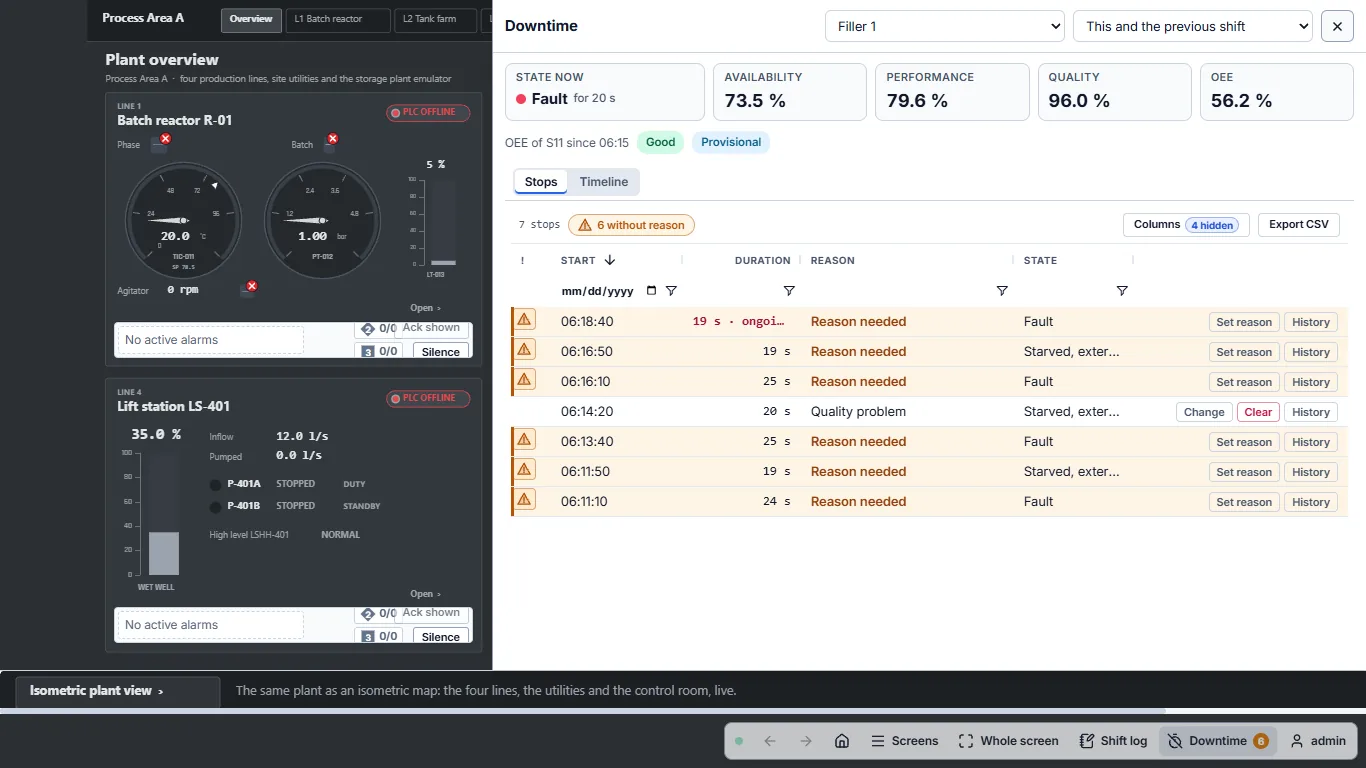
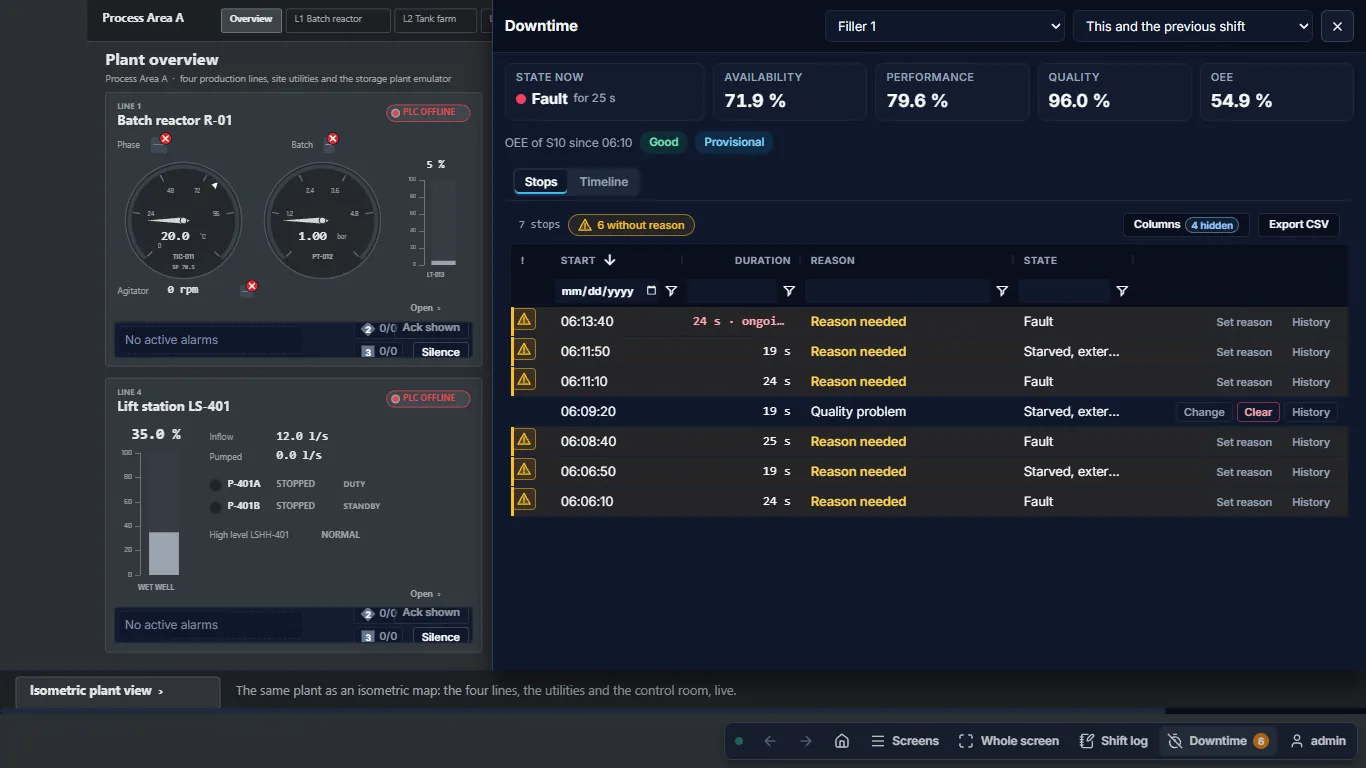
Set up machines in Analytics and Reports > Production: the state from a state code map, PackML or conditions on tags, two of the total, good and reject counts, fault codes, reason codes, production plans with breaks, and ideal cycles per product. In the Downtime panel operators see the state now, the shift’s OEE with its data quality and the stops marked Reason needed; they pick a reason, with the machine’s suggestion never pre-selected, and sign a change made after the shift has closed. A Bad sample is never counted as running or as good units, and a ratio that cannot be computed shows No data, never 0 % or 100 %. The module only reads: it never writes a tag or sends a command to a machine. Reports and dashboards read the results as datasets. Off by default.
- eaxScada Enterprise
The signed shift log
Each line keeps its own log of notes, deviations and safety items, and both operators sign every handover.
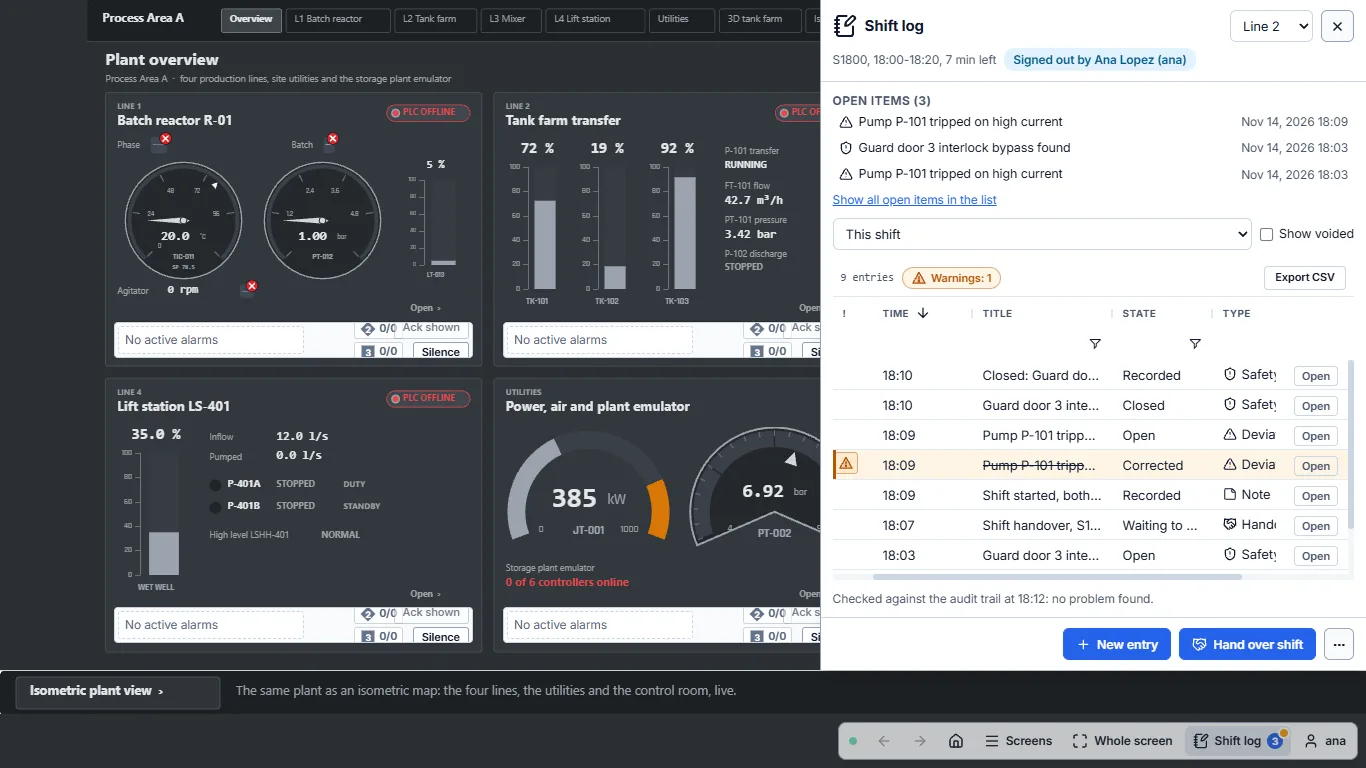
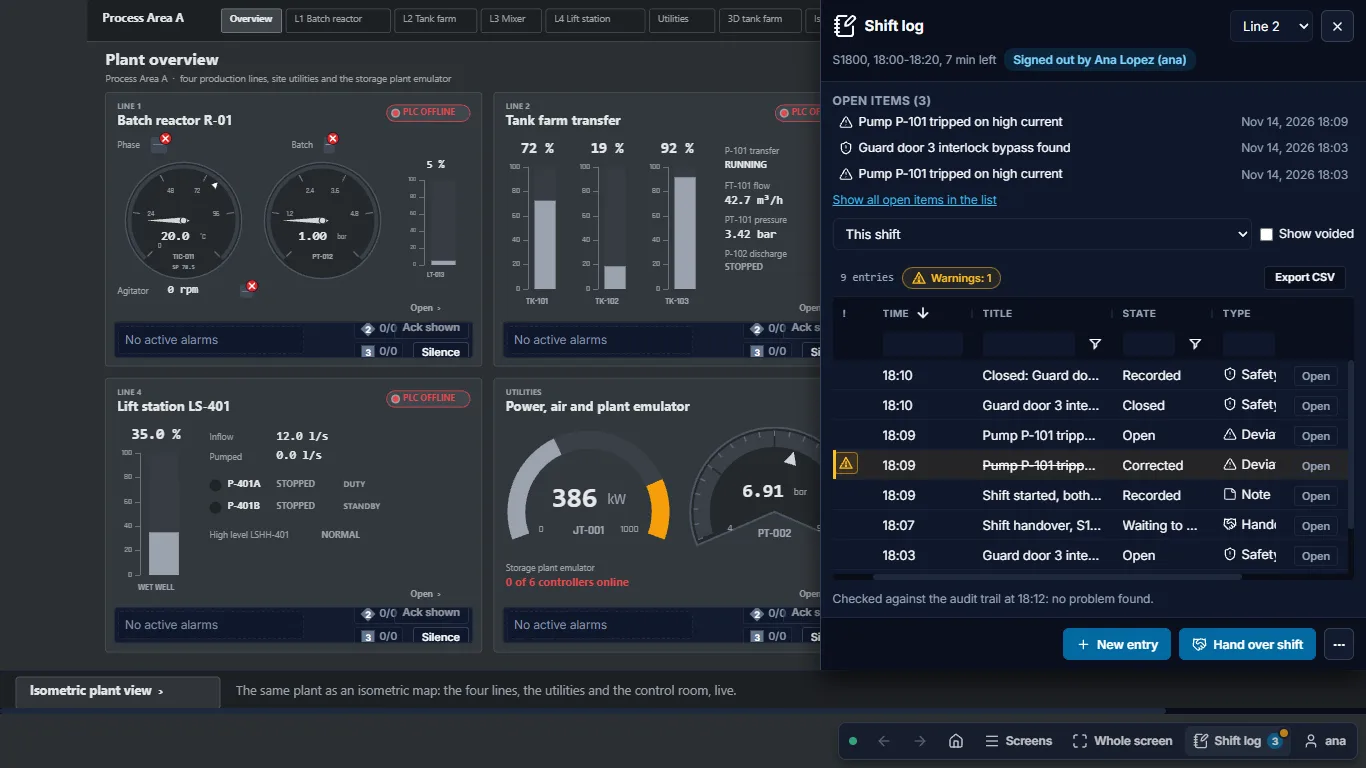
A Shift log panel in the operator runtime records notes, deviations, maintenance, safety items and standing instructions, with references to tags, alarms, batches and screens and what they showed at that moment. Every entry is a record in the audit trail; deviations, safety items and instructions are password-signed. Entries are never edited or deleted: corrections, voids and closures are new entries, and open items carry over from shift to shift. The outgoing operator signs a summary and a status line per open item, and the incoming operator co-signs the same content; a shift without a completed handover is recorded as missing. A log administrator exports a period as a ZIP file with the SHA-256 of each file, and every reader of the log can verify an export against the audit trail.
Analytics and Reports
- eaxScada Pro · Enterprise
Result hashes you can check again
The same data gives the same hash on every run, whatever order the database reads it in.
The SHA-256 hash of a dataset or a query result now covers its rows as a set, with its columns, its row count and whether it was cut at its limit. DuckDB reads in parallel, so the same rows could come back in another order and give another hash; now they give the same one, and any changed, added or removed value gives another. Each run record and audit record names the hash encoding it used. Hashes recorded before stay as they are, and the values in reports and exports are unchanged.
- eaxScada Pro · Enterprise
Export whole results as CSV, Excel or Parquet
Take every row of an answer to a spreadsheet or a data tool, not only what the browser shows.
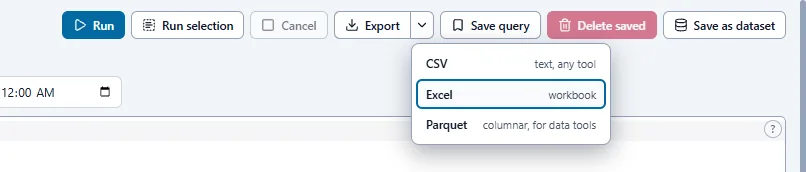
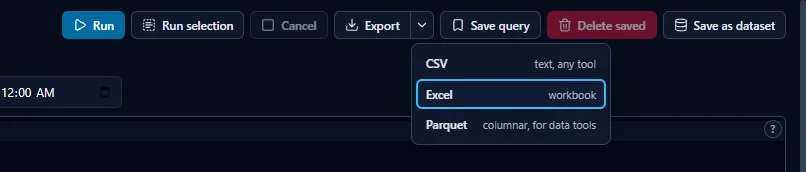
The Export button writes the whole result of a query, and the Datasets tab exports a saved dataset, as CSV, an Excel workbook with an About sheet, or Parquet for data tools. The server reads the rows again with your read rights and writes the file itself; a CSV cell that a spreadsheet would run as a formula is defused. An export over its limit is refused, never cut. The file is yours only, is recorded in the audit trail with its SHA-256 hash, and is deleted after 24 hours.
- eaxScada Pro · Enterprise
Extracts across sources, and a pivot on the server
Ask one question of the history and the alarms together, and group results too large for the browser.
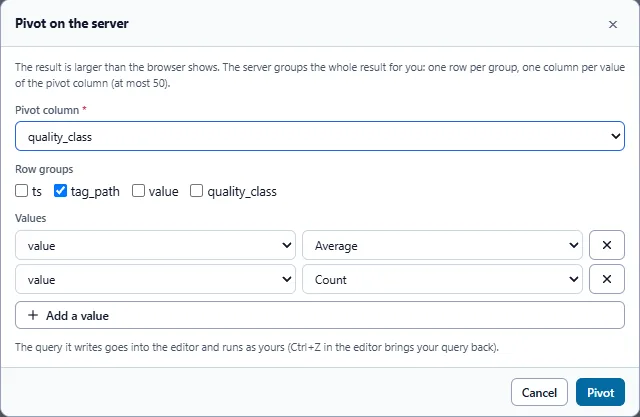
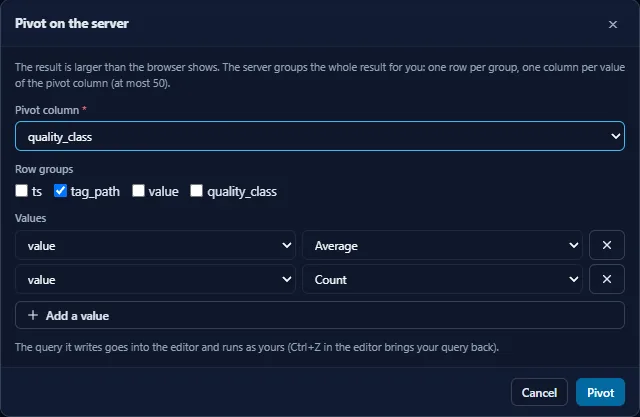
Read the history and the alarm journal into extracts of your own session on the server, each with your read rights and its own time window, then join them in one query: for example the samples of each alarm’s tag against its setpoint, with the quality kept through the join. Other users never see your extracts, and the session is dropped when unused. When a result is larger than the browser shows, Pivot on the server groups the whole of it into row groups and a pivot column, through the same checks as any query. Sessions are bounded per user and server-wide, so the operators’ screens keep their memory.
- eaxScada Pro · Enterprise
The analytics workspace
Answer the questions no report answers yet, without saving anything to the project.
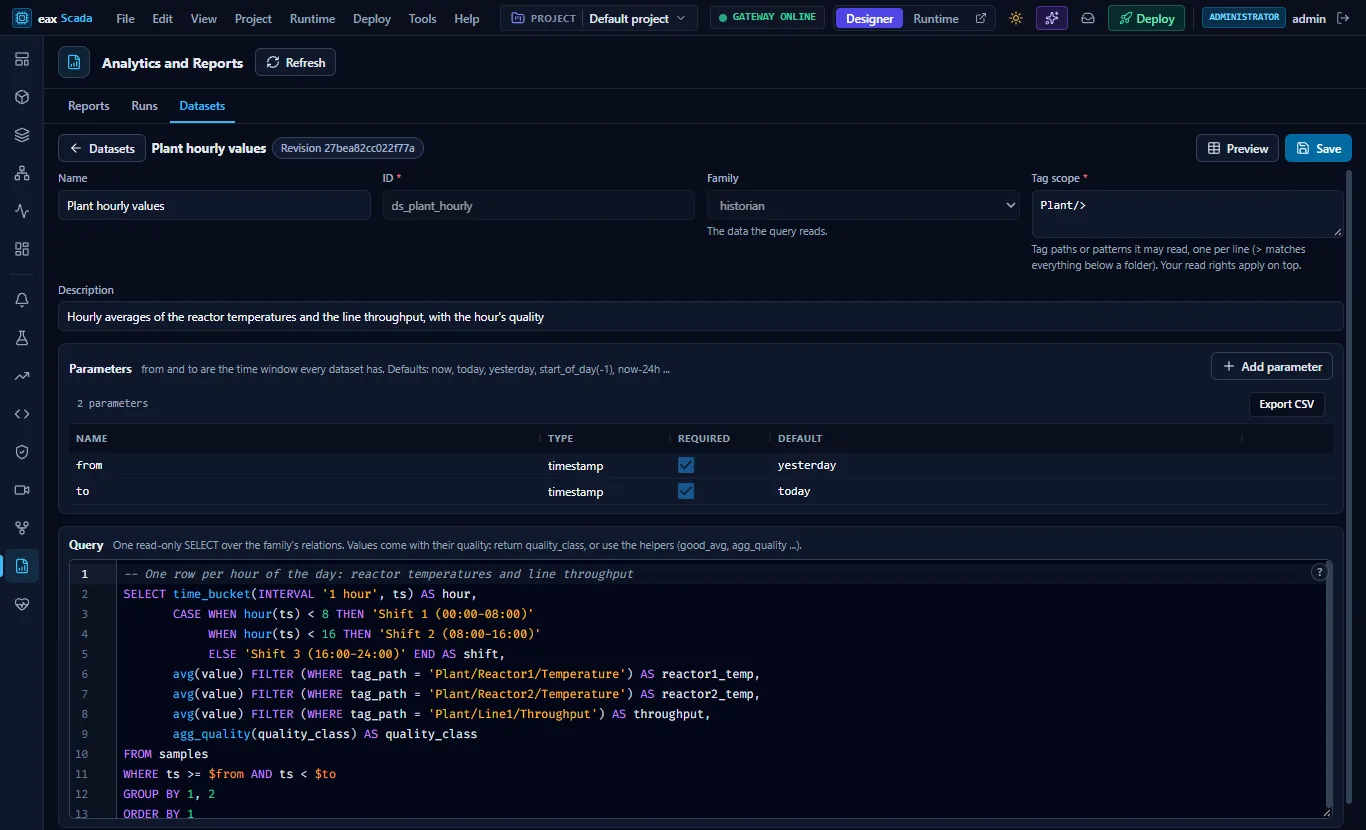
Write your own SQL over the history or the alarms in the code editor, with a time window and parameters. A query runs as you, with your read rights: a tag you may not read never enters a count or an average. Every row carries its quality, and a query that reads values without their quality is flagged with the fix. Draw the result as a line, bar, scatter, pie or heatmap chart, keep your own saved queries, or turn a query into a dataset for reports.
- eaxScada Pro · Enterprise
Scheduled reports, delivered
Reports run on their own and reach the people and folders that need them.
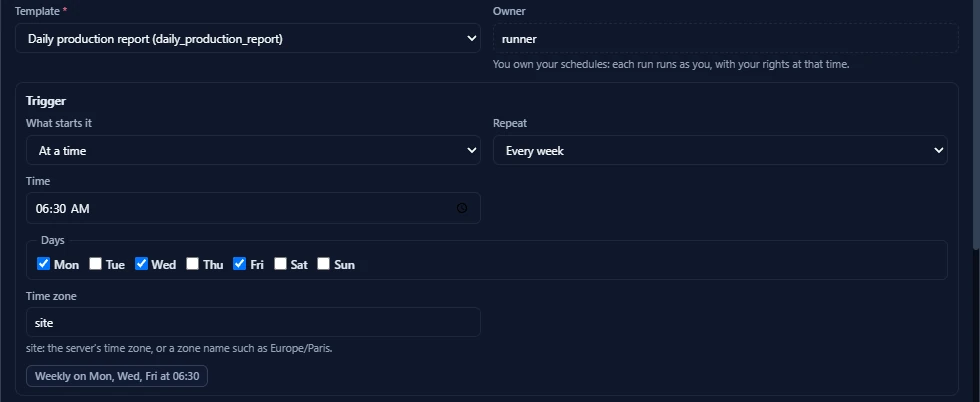
A schedule runs a report at a set time (daily, weekly, monthly or a cron expression), at the end of each shift, when a batch ends or when a tag turns on. Each run runs as the schedule’s owner, with their read rights at that moment. A slot skipped or repeated by a daylight-saving change runs once, and after the server was down the catch-up rule decides which missed slots run. E-mail sends a link to the report by default, attachments only where the administrator allows them, and addresses outside eaxScada only in approved domains; files can also be written to an allowed folder on the server. A report that needs signatures is delivered only once it is fully signed.
- eaxScada Pro · Enterprise
Signed reports (Part 11)
Review and approve archived reports with an e-signature, without ever changing the original.
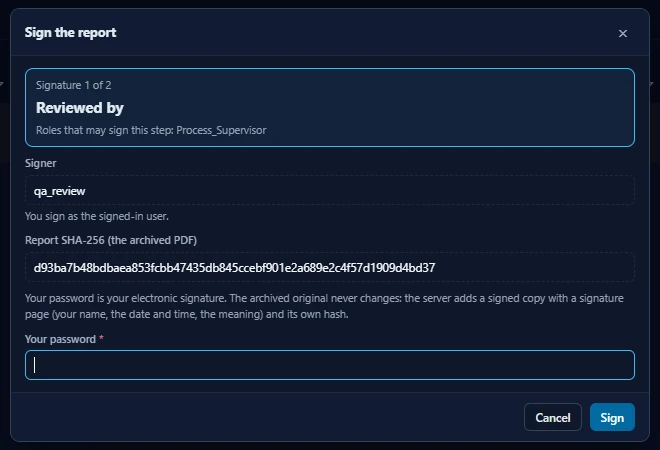
A report can require a review, or a review then an approval, each step limited to the roles you choose and printed with its meaning. By default the approver is neither the person who reviewed nor the person who ran the report. Each signature, given with the signer’s password, adds a signed copy of the report with a signature page (name, date and time, meaning) and its own SHA-256 hash; the archived original never changes. Signed reports are never purged.
- eaxScada Pro · Enterprise
Archive verification and a signed purge
Prove that every archived report is exactly as it was written, and clear old ones only on purpose.
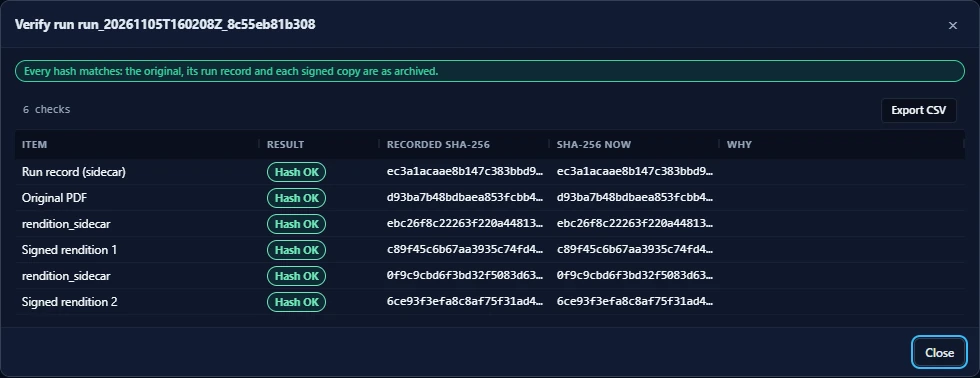
Verify recomputes the SHA-256 of a run’s original files, its run record and each signed copy, and repairs nothing. Unsigned reports are kept at least 3 years by default, and nothing is purged automatically: a reports administrator reviews a dry run of the purge, signs exactly that plan, and only then are the files deleted. Signed reports and reports still waiting for a signature are always kept. The archive has a quota and leaves free disk for the historian; it never deletes a report to make room.
- eaxScada Pro · Enterprise
Analytics and Reports
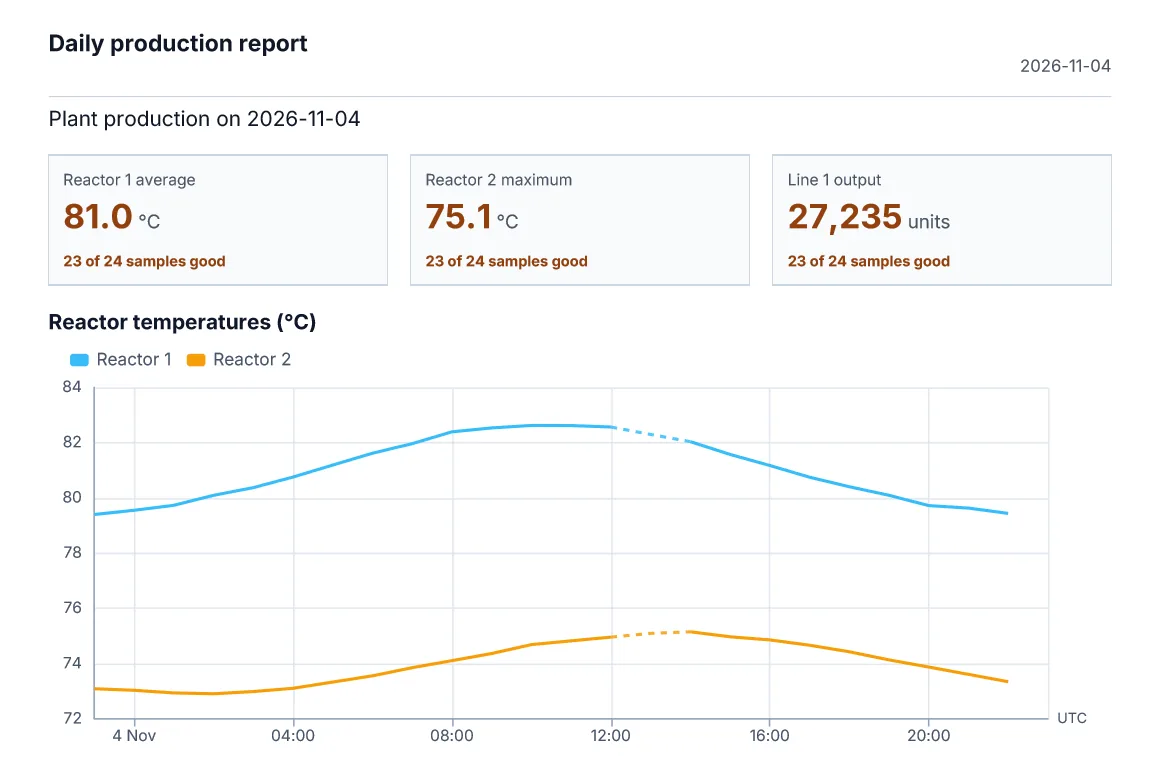
Turn what eaxScada recorded into daily production reports, as PDF and Excel files.
Describe the data once as a dataset, lay out the pages once in the screen designer, and anyone allowed to can run the report for a day or a period. Bad and uncertain values are always marked, simulated values are flagged, and nothing in a report writes to the plant.
- eaxScada Pro · Enterprise
Datasets that respect read rights
A report shows only what the person who runs it may read.
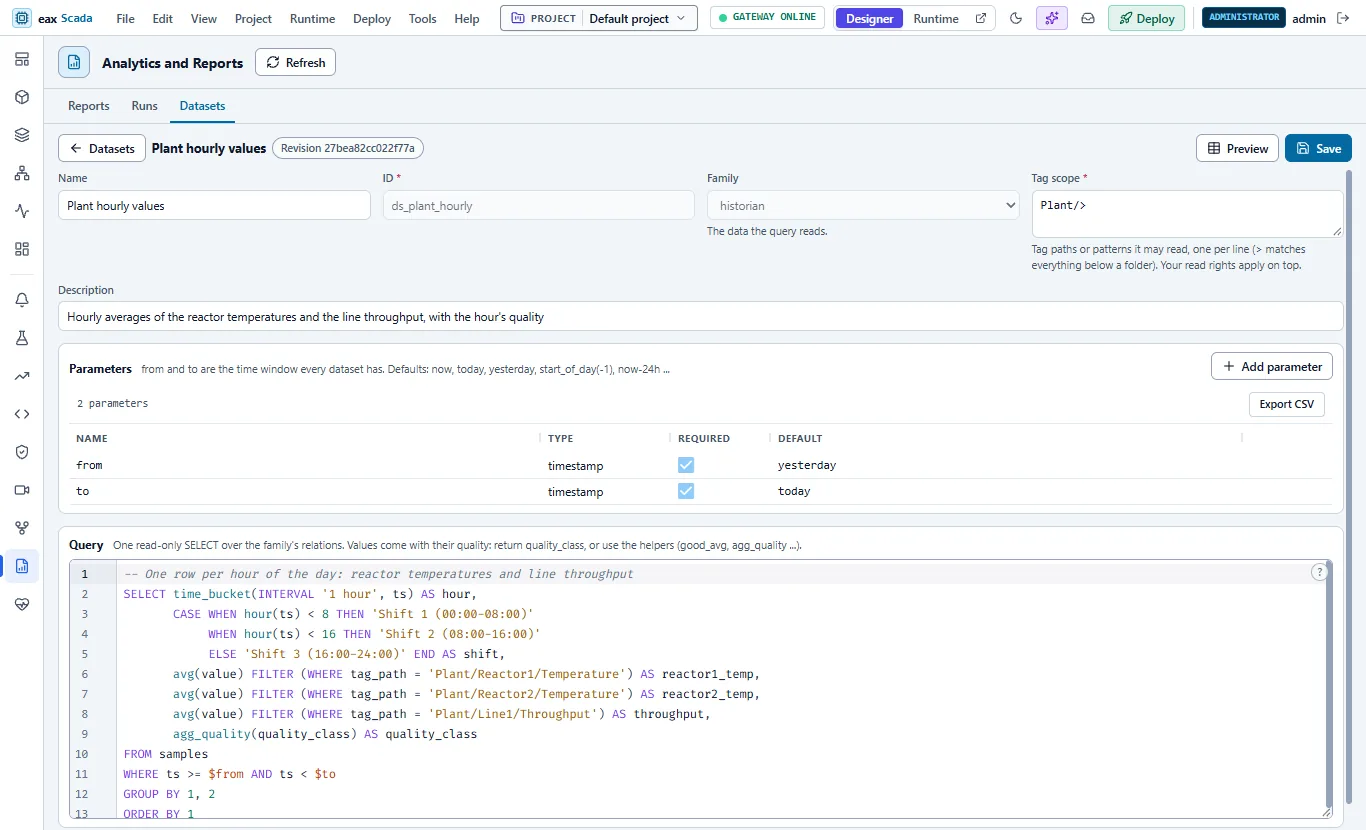
A dataset is one read-only query over the history or the alarm journal, with a tag scope and parameters such as yesterday. The user’s read rights are applied below the query, so a hidden tag never enters a total, and the report says how many tags were hidden. A query over the history must return the quality of its values, or it is not saved.
- eaxScada Pro · Enterprise
Reports designed like screens
Lay out the pages in the designer you already use for your screens.
Report mode gives the paper and margins, a header and footer, KPI tiles, tables with groups, subtotals and totals, charts and repeat groups, a preview with real rows and a PDF draft. A subtotal, a total or a KPI is good only if every value in it is good. Reports are versioned and deployed with the project.
- eaxScada Pro · Enterprise
Runs, files and a checked archive
Run a report for any day and download the PDF and the workbook.
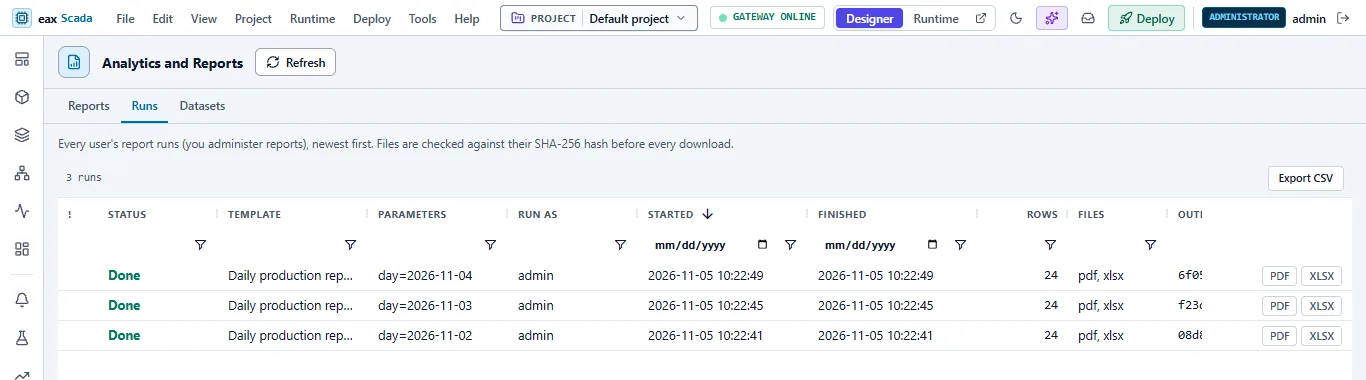
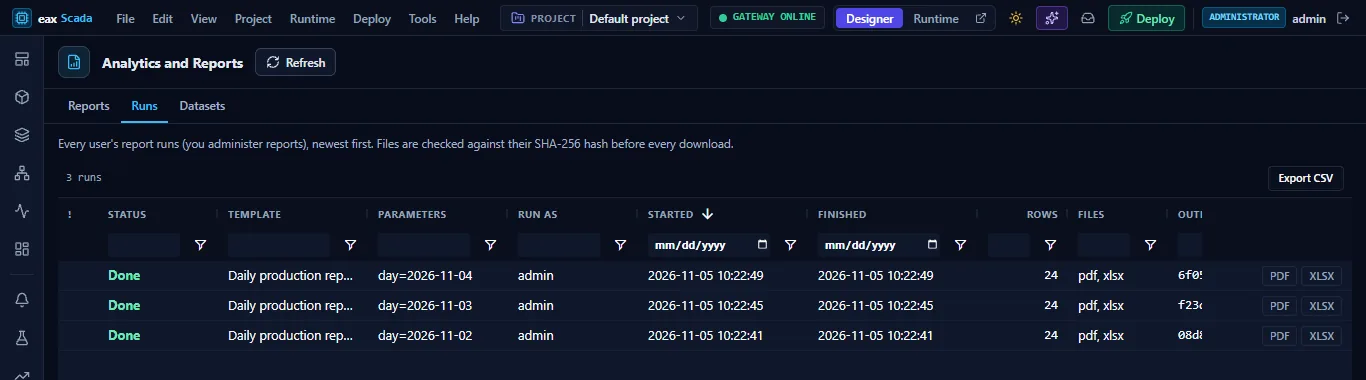
Follow each run in the Runs tab. The PDF marks a bad value with † and an uncertain one with ‡ as well as colour; the workbook keeps a quality column next to each value. Every file is archived with its SHA-256 hash, checked before every download: a file that no longer matches is never served.
Values you can trust
- eaxScada Free · Starter · Pro · Enterprise
A lost link is never shown as live
When the browser loses the server, trends, gauges and quality marks say so, also when the connection stays open with nothing coming through.
A live trend now stops where the live link to the server goes down and draws no line across the outage: a grey band covers the span, with a “Live link down” chip while it lasts, and the Studio’s Trends draws the history logged meanwhile inside the band. The server sends a heartbeat every 5 seconds, so a link that stays open while nothing reaches it (a pulled cable, a connection a router or firewall forgot) counts as down within 20 to 24 seconds: GATEWAY OFFLINE shows, values are marked stale and the page reconnects. Before, such a link read as live. A reconnected link shows online only when its first data arrives, not when the connection opens. Gauges and the quality marks on screen objects follow the same link state, so none of them shows a value as live before the link is confirmed.
- eaxScada Free · Starter · Pro · Enterprise
Trends show a Bad tag as Bad, up to now
A tag that went Bad stays Bad on the trend until its next reading, and a steady value is drawn instead of left blank.
A tag logged on change has one sample when it changes, then none until it changes again. Trends now draw each sample until the next one. A Bad sample’s shaded band runs to the next sample, or to now when it is the last one; before, it had no width, so a tag Bad now showed nothing at the right edge. A Bad reading without a value is drawn as Bad, never joined over as if good. A good or uncertain value that no line joins to the next sample holds as a lighter flat line, dashed when uncertain, never across a Bad span or past now. Each recorded sample has a dot, and a live trend is redrawn every 5 seconds while it is visible, so the band and the held value follow now.
- eaxScada Free · Starter · Pro · Enterprise
Values tables and the History page say what they hold
A Bad reading reads “Bad”, a simulated sample reads SIM, and a missing value is never printed as 0.
The Values table beside a trend says Bad in rose where it showed a dash, and inside a Bad span the rows of the other pens show when it began, for example “Bad · 10:42:05”. Uncertain values are marked, and the CSV export writes the same words. The History page now shows simulated samples with the violet SIM band and a Source column (plant or simulated), and a sample without a value shows a dash instead of 0.000. Its trend runs to the end of the range it read, and the trends in reports (Pro and Enterprise) to the end of the report’s range, never past now.
- eaxScada Free · Starter · Pro · Enterprise
Script values follow the quality of their inputs
A value a local tag script computes from a failed or simulated input shows Bad or SIM, never as a good reading.
On eaxScada, a value a local tag script writes now takes the worst quality of the tags it read in that run: good from good inputs, uncertain or Bad otherwise, with its last value kept when Bad. A value computed from a simulated input is marked SIM. When a script keeps failing, or is disabled or deleted, the tags it wrote go Bad. Alarms on such a tag are held and raise “Signal unreadable”, and an interlock that reads it blocks its command unless it is set to allow a Bad value. A script that computes unrelated values can name the inputs of each one, so one failed input marks only its own figures. Tags operators write are never marked.
- eaxScada Free · Starter · Pro · Enterprise
Scripts that feed each other are flagged
Where used, tag handover and the script status now see every way a script reads or marks a tag.
Where used now lists a script that only marks a tag Bad or only checks its quality, so such a tag is never reported unused. Handing a local tag over to a driver is refused while a script still marks it Bad, as it already was while a script writes it. When two scripts read each other’s values, both show an amber warning naming them and the tags: once one value goes Bad, the two would keep each other Bad after the cause is gone. The warning says how to break the loop; the scripts are saved and run as before. The AI assistant is told how script values take their inputs’ quality when it writes a script.
- eaxScada Starter · Pro · Enterprise
History records the moment a tag goes Bad
A logging rule logs a change of quality at once, so history, trends and reports show the Bad or Uncertain period instead of the last Good sample.
When a tag’s quality class (Good, Uncertain or Bad) or its simulated marker changes, its logging rule now logs one point at once, whatever its deadband: under on-change and triggered rules, and under a periodic rule inside its sample interval. The point has the time of the update, the value the tag holds and its new quality. Before, a tag that went Bad with its value unchanged logged nothing under a rule with a deadband, so its history kept showing the last Good sample. Repeated updates of the same quality go through the deadband as before, and a change of code inside one class is not a change. A triggered rule whose trigger is off still logs nothing. After a restart, each tag’s first update under a rule is logged once, whatever the deadband.
- eaxScada Starter · Pro · Enterprise
Local tags fed by an eaxPLC go Bad when it stops reporting
A frozen number from a silent PLC is no longer shown or alarmed on as a reading.
When an eaxPLC that runs a local tag script sends neither status nor values for 20 s, the tags that script wrote go Bad, with their last value kept. The same happens when the script stops or crashes on the PLC, and within 5 s when it is disabled, unpinned or deleted. The tag carries the reason of its Bad quality. Alarms are held and the tag raises its “Signal unreadable” alarm; an interlock that reads it blocks its command unless its Bad-value setting allows it. A value an operator wrote since the PLC’s last write is not touched, and the PLC’s next value makes the tag Good again.
- eaxScada Starter · Pro · Enterprise
Simulated values are marked simulated everywhere
A simulated local tag or driver channel never passes for a plant reading, on screen, in history or in an interlock.
A local tag marked simulated, and every tag of a driver channel in simulated mode, now carry the simulated mark from the server itself: SIM on screens and trends, history samples and alarm events stored as simulated. An interlock that reads a simulated value stays active, and its command is blocked, unless the interlock is allowed in commissioning. A simulated tag is never accepted as a write limit or as the plant e-stop signal. Alarms still trip and clear on the value. Samples recorded before keep no mark.
- eaxScada Free · Starter · Pro · Enterprise
Every store closed cleanly at shutdown
A stop never cuts a database write short, and a Windows service waits until every store is closed.
The recipe and batch store and the design review archive are now closed at shutdown like the other stores, so their DuckDB files are checkpointed and the next start has no log to replay. As a Windows service, a stop now reports its progress and reports Stopped only once every store is closed, at most 5 minutes later; before, it reported Stopped after 30 s. A start that is refused after the stores were opened closes them too. No data was lost before: the stores replay their log.
- eaxScada Free · Starter · Pro · Enterprise
Starter templates without made-up readings
A freshly applied template shows no value until a driver, a script or an operator writes one, and raises no false alarm.
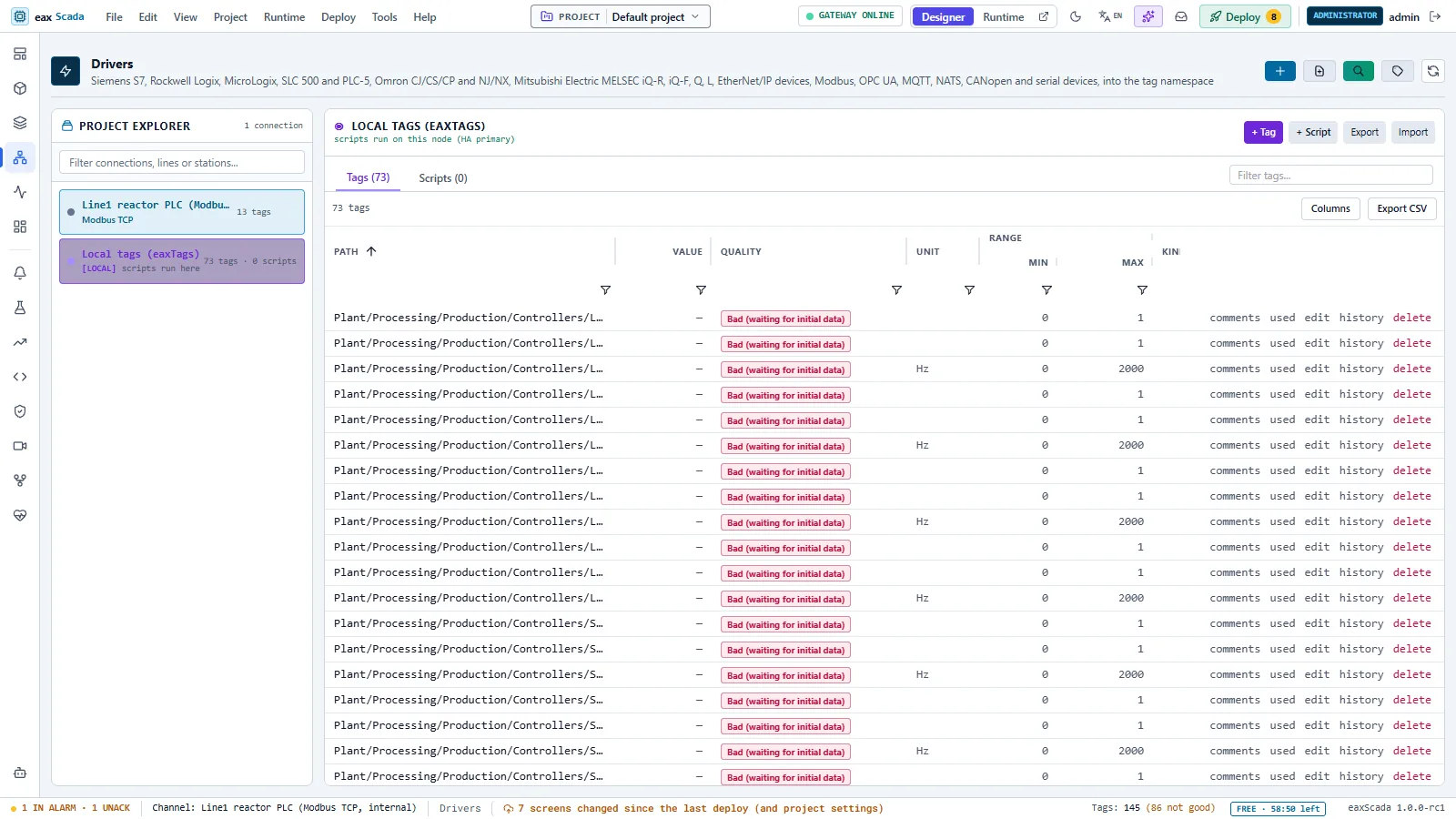
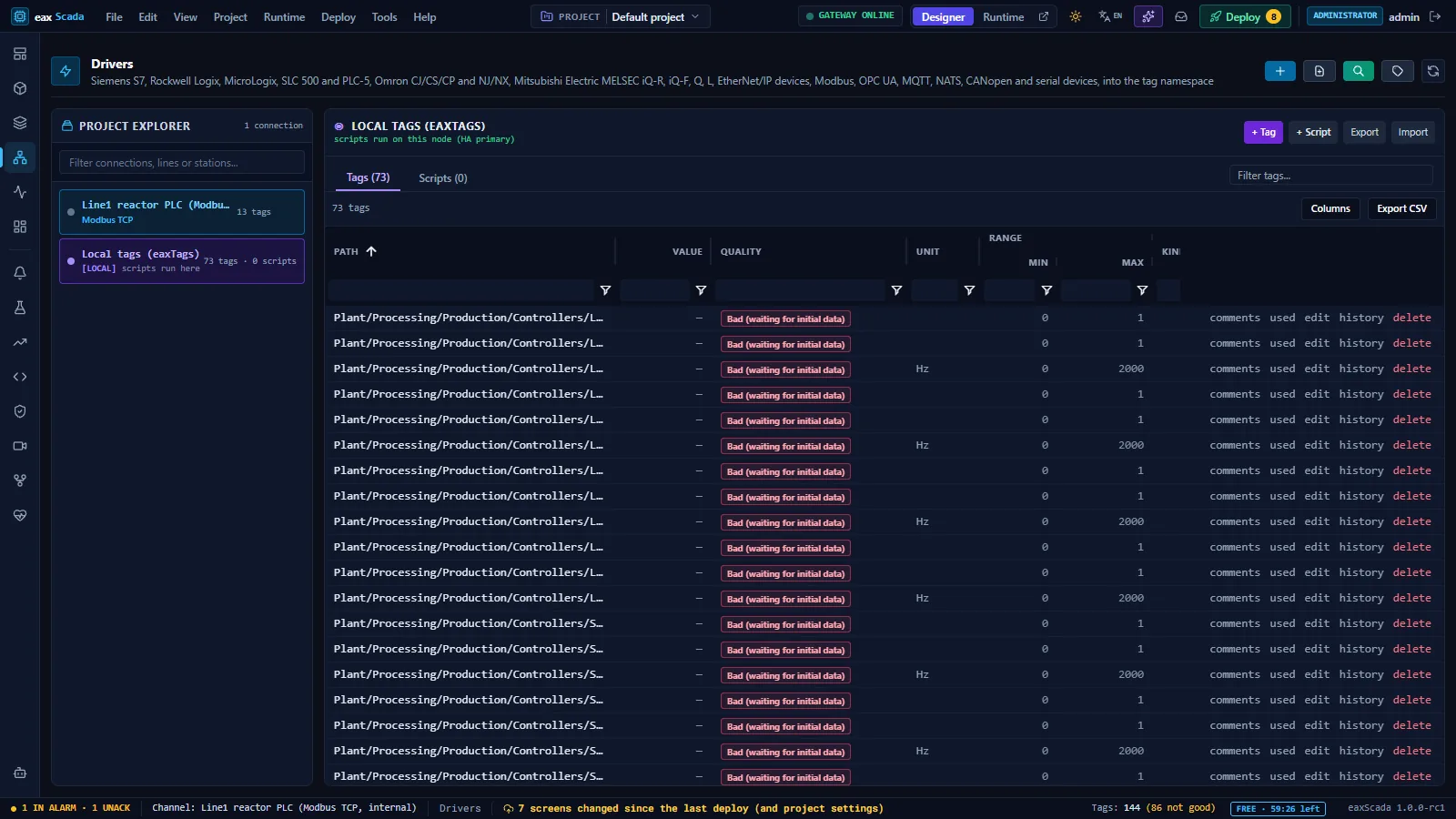
Every measured value of the twelve starter templates (558 tags) now shows “waiting for initial data” instead of an invented reading; before, a freshly applied Process plant raised four alarms, one of them HIGH on a fake 92 % tank level. Alarms hold on a waiting value and raise no quality alarm. Template tags are no longer marked simulated, and two setpoints keep their defaults. The new local tag option No value until written gives your own tags the same behaviour. On Free and Starter, templates skip their 3D pages and the links to them. Plants that applied a template earlier keep their tags unchanged.
- eaxScada Free · Starter · Pro · Enterprise
Safer defaults for new local tags, and a More menu
A new tag no longer claims to be simulated or starts from a value nobody measured.
The New local tag dialog now starts with Simulated off, Writable off and No value until written on, and says so under the options. Ticking Writable by operators turns No value until written off, so a setpoint starts with its initial value. The editor keeps the option on every save; before, a save from the editor cleared it and the tag read a Good 0 from the next start. The tags grid shows a waiting tag as a muted dash, never 0, with a Quality column you can filter and export. When the grid is too narrow for every action, each row keeps edit and a “⋯” menu with comments, where used, history and delete, which works from the keyboard. Existing tags keep their flags.
- eaxScada Free · Starter · Pro · Enterprise
The embedded database is DuckDB 2.0
A newer engine under the historian, the audit trail and the other stores, with no file converted.
eaxScada now embeds DuckDB 2.0.1 (2.0.0 from 17 November, its patch release 2.0.1 from 29 November). Files stay in the v1.0.0 storage format: existing files are opened in place and never converted, and the previous release still opens every file, snapshot and audit copy a 2.0 server wrote, so going back works. A file in a format newer than 2.0’s is refused and left untouched. Historian ingest is the same or faster. Saved analytics queries and report datasets follow DuckDB 2.0’s SQL rules: check the forms the docs list before you upgrade.
- eaxScada Starter · Pro · Enterprise · eaxPLC Standard · Performance
A warning before a licence ends
No server or PLC falls back to the Free edition by surprise.
In eaxScada, a licence with an end date raises a system alarm from 30 days before it ends, from low at 30 days to critical on the last day, and a critical alarm once it has ended and the server runs as the Free edition. System Health has a Licence card with the days left, and administrators see a status bar chip from 14 days before the end; a renewed licence clears both alarms. eaxPLC shows the days left under Licence & edition and raises diagnostic events at 30, 14, 7 and 1 day(s) left, naming what the next configuration change and the next start would lose; the program, the scan and the outputs keep running. Perpetual licences raise nothing.
- eaxScada Free · Starter · Pro · Enterprise
History that never looks better than the plant
A device that was down shows as down in every trend, report and export.
Periodic samples keep the tag’s own quality instead of being stored as good, long trends show operator-entered values as uncertain, and the AI assistant averages good samples only and says when a period was not good. Points that arrive while the historian is busy wait and are stored in order; any point that is lost is counted and raises a system alarm.
- eaxScada Free · Starter · Pro · Enterprise
Alarms on a signal that cannot be read
A broken sensor raises its own alarm instead of tripping or clearing the process alarm.
A Bad value holds every alarm of its tag in the state it had, and a "Signal unreadable" alarm is raised for the tag, at the priority of its highest alarm. An unreadable plant emergency-stop signal raises a critical alarm of its own, and e-stop buttons show a fault label.
- eaxScada Free · Starter · Pro · Enterprise
Simulated PLCs never pass for the plant
Virtual commissioning and production can share a server without mixing up their values.
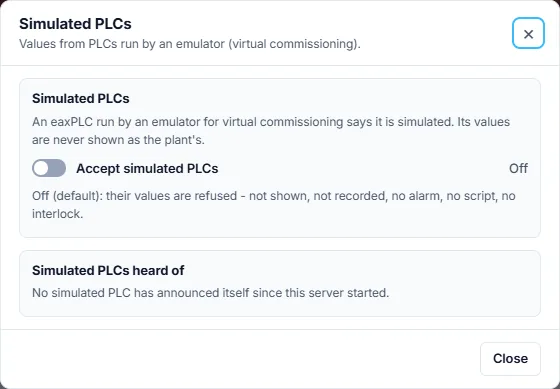
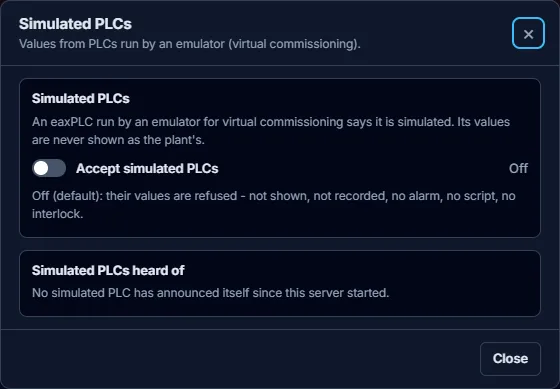
An eaxPLC run by the plant emulator says it is simulated, and eaxScada refuses its values by default. An administrator can accept them for commissioning, with a recorded reason: every value, alarm, trend and history sample from that PLC is then marked SIM.
- eaxScada Free · Starter · Pro · Enterprise
AI never touches the emergency stop
An AI assistant cannot add or change a command on the e-stop signal or on a tag a safety alarm watches.
Such a change is refused when the assistant proposes it and again when a person applies it, with the reason shown and recorded. A script the assistant made is also stopped at run time if it tries to write one of these tags. A person still places these commands in the Studio.
- eaxScada Free · Starter · Pro · Enterprise
Screen scripts run in a sandbox
A script on a screen acts only through the checked scripting functions, never through the operator’s page.
Run script actions and startup scripts run isolated from the operator’s page, session and network, and reach the plant only through the documented scripting functions, each call checked. A tag write from a script still asks for its confirmation and e-signature, and the server checks it as for a button. A script stuck in a loop is stopped and the screen stays usable. Writing a script is a right of its own, held by engineers and administrators, never by the AI co-pilot. Scripts that used the page must be rewritten; the Problems panel lists them.
- eaxScada Free · Starter · Pro · Enterprise
See what a deploy changes before operators get it
Before a deploy, you see every tag its buttons, inputs and scripts will write that changed, and you give the reason.
The Deploy dialog compares the project with what operators run now: the screens changed, each with Compare; the command targets added, removed or changed, with what each write does before and after; the screen scripts; the confirmations, e-signatures, limits, interlocks and screen access levels that change; and the screen checks. A deploy that changes what operators can command needs a reason, recorded with the deploy under your name, and publishes exactly what you were shown. Live editing is recorded, never blocked; turn it off to have every command change acknowledged. Scripts that deploy through the API must now send the acknowledgement.
- eaxScada Pro · Enterprise
The AI assistant as a second pair of eyes on a deploy
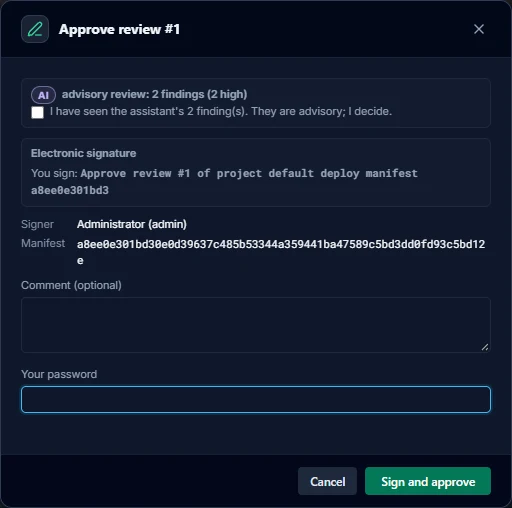
Before people approve a deploy, the AI assistant points out what deserves a second look. It never approves.
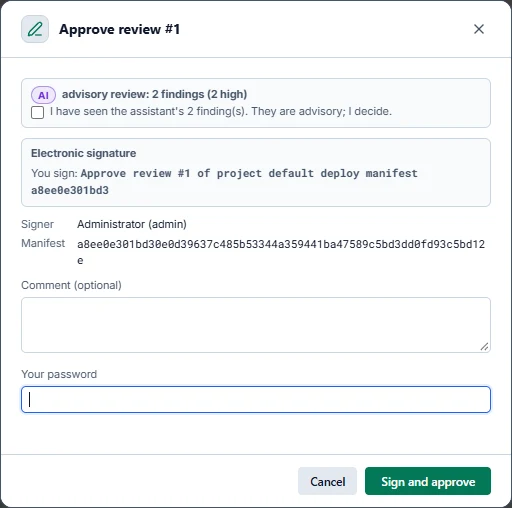
Ask for the assistant’s check when you request a review. It reads what the deploy changes, the command targets first, with read access only, and lists its findings on the review page and as comments on the screen elements, marked AI · advisory. Findings never block a deploy by themselves: the approvers confirm they saw them before they sign. A project can require the check to have run on exactly what is deployed. Projects kept on local models are checked by a local model.
- eaxScada Pro · Enterprise
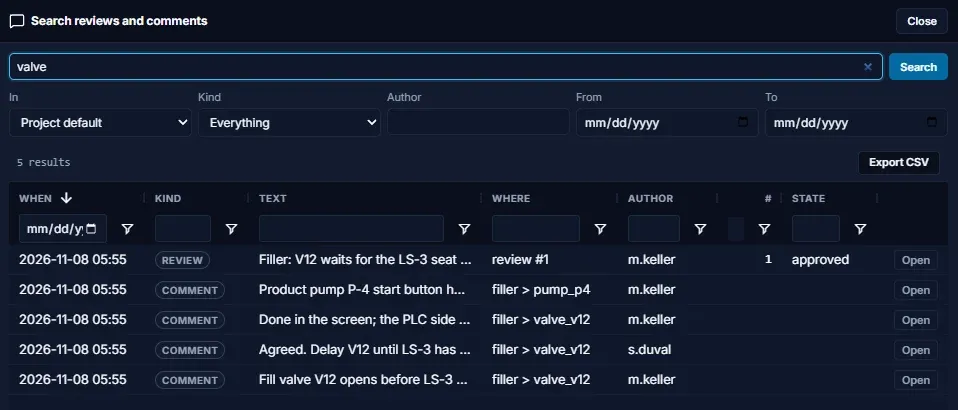
Search past reviews and comments
Find why a change was made and who approved it, in one search over a project’s reviews and comments.
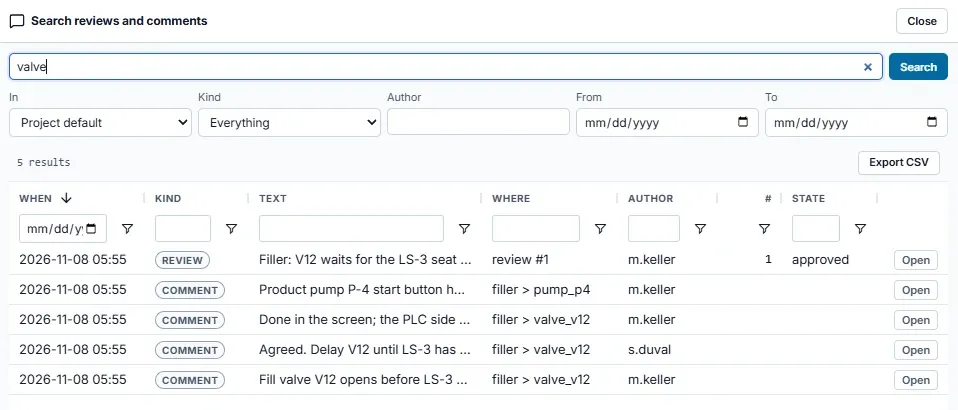
From the Deploy menu, search a project or a PLC by words, kind, author and dates: reviews, signed decisions, comments on screens and PLC programs, and the AI assistant’s checks, newest first in a grid with CSV export. A result opens its comment thread or its review. Each person finds only what they may already read: a comment on a screen needs that screen’s read right. The AI co-pilot account cannot search. When the search is unavailable, reviews and comments go on unaffected.
- eaxScada Free · Starter · Pro · Enterprise
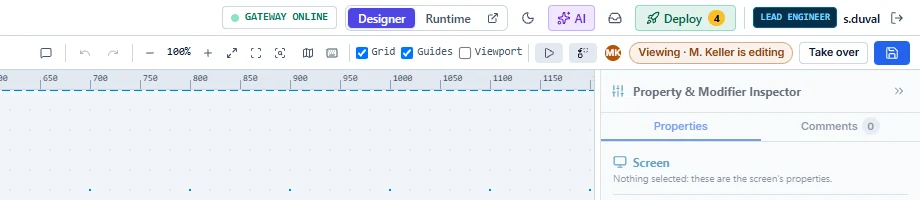
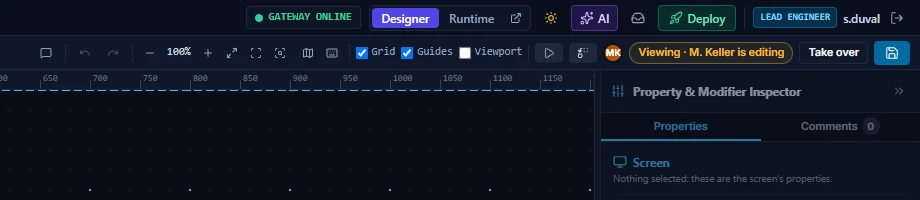
See who else is on a screen, and edit it one at a time
Two engineers never overwrite each other’s work on the same screen without knowing it.
The Studio shows who else has each screen open, viewing, editing or idle, only to people who may read that screen. The first change takes the screen’s editing lock and the others see it read-only. When the editor has stepped away, a lead engineer with the right to edit the screen can take over: the Studio asks first and the take-over is recorded in the audit trail before it happens. The previous editor keeps their unsaved changes and can save them as a copy or discard them. Saving keeps its revision check, so nothing is lost even without the lock. The AI co-pilot and API tokens take no part.
- eaxScada Free · Starter · Pro · Enterprise
Less memory, faster trends
1,000 tag changes per second in about 450 MB of RAM; a trend of the last 10 minutes in a fifth of a second with 50 viewers.
The live-data replay buffer now holds at most 64 MB, each change goes on it once, and points already in the historian’s store are read from it instead of being kept in memory; trend reads no longer wait for the historian’s writes. Measured on a workstation at 1,000 tag changes per second: the server’s memory went from about 1,075 MB to about 445 MB, and a 10-tag trend of the last 10 minutes from 1.87 s to 0.13 s with one viewer and from 4.87 s to 0.20 s with 50 viewers. Values, quality and the simulated mark are exactly as stored. History kept as CSV files is read in one query per trend, and tags with quoted paths such as OPC UA "DB1"."Speed" now show their history.
- eaxScada Free · Starter · Pro · Enterprise
Nightly backups and daily Parquet copies, verified
The history is never kept in one copy only, and a trend never shows less history than there is without saying so.
Every night at 01:30 eaxScada copies its historian store and checks the copy day by day against the store before it counts; the last two are kept, and a low disk skips the copy with an alarm instead of filling the disk. In Pro and Enterprise each closed day is also written to Parquet at 02:00 and kept for the historian’s retention. Both restore offline with a dry run first: a snapshot replaces the store, and an import from the Parquet days adds only the points the store lacks, so running it twice changes nothing. When the history store does not answer, trends keep their live samples under a “History unavailable” notice with Retry, and the history API and the AI assistant report an error instead of a shorter history.
- eaxScada Free · Starter · Pro · Enterprise
One historian store, and a spool when it stops
No point is lost when the history store stops taking writes, as long as the spool has room.
Every edition now keeps the history in the columnar store alone: the CSV copy is no longer written, which saves disk and write time. When the store refuses writes or does not open, new points wait in an on-disk spool, in order, and are written as soon as it takes writes again; the spool holds 2 GB by default, and an alarm stays on until the store is back. Under encryption at rest the spool is encrypted too. A history read the store cannot answer says “History unavailable” instead of showing part of the series. The nightly snapshot and the daily export now skip only when the disk is close to its critical line. CSV history from before the upgrade is still read; for files other tools can open, Pro and Enterprise export each closed day to Parquet.
- eaxScada Free · Starter · Pro · Enterprise
Your CSV history, moved into the store and checked
History from before the upgrade joins the store, and no day is deleted before it reads back exactly.
From System Health, an administrator reviews the plan (days, size, disk needed, estimated time) and starts the import with an e-signature, while the server runs, on a desktop or a tablet. With the server stopped, one command does the same. The start is recorded in the audit trail before anything is imported, newest day first. Each day is checked in the store before its CSV files are deleted, and where the store already holds a value it keeps it, with the CSV value recorded as a conflict. Points the store refused in earlier releases now show on trends. A day that fails a check stays as CSV and stays readable, and a signed retry plans it again once it is fixed. A stop in the middle resumes without importing a day twice.
- eaxScada Free · Starter · Pro · Enterprise
If the store file breaks, nothing is lost silently
A damaged history file is kept, the new points keep flowing, and the history before it comes back from the snapshot.
When the history store file does not open at start, the points wait on disk and the store is tried every minute. A file that is only in use by another program is told apart from a damaged one and never touched. A damaged file is set aside from System Health by an administrator with an e-signature: it is renamed and kept, never deleted, and a new store takes the waiting points. System Health then names the snapshot to restore and the command, which brings the older history back and keeps the points written since. For stores without encryption at rest.
- eaxScada Starter · Pro · Enterprise
The audit trail in its own database
No setpoint, deploy or alarm change happens without its record on disk, and a damaged trail never goes unnoticed.
The audit trail is its own DuckDB database, separate from the history. Each record is one committed transaction, on disk before the action goes ahead; actions that change the plant or a safety setting are refused if their record cannot be written. If the trail cannot be written, or its disk is a network share, a RAM disk or under 10 GB free, an alarm says so and those actions wait, while monitoring, alarms and trends go on. A damaged file is never replaced by itself: an administrator sets it aside with an e-signature and keeps it. Backups carry a verified copy of the trail. System Health, the licence dialog and the audit view show whether the trail is recording, down or read-only, with its size and how long each record takes, and a second alarm warns while its disk is under 10 GB free, before any action is refused. The Free edition has no audit trail and says so; the record of sign-ins stays in every edition. A licence installed later continues a trail kept from a paid period and records the gap.
- eaxScada Free · Starter · Pro · Enterprise
Each role sees only its own tags
Read permissions now decide which tags each person can see, live and in history.
Tag values, alarms, history, audit records and the AI gateway follow the read rules of each user’s roles; a change of permissions applies to open screens within seconds. A new install lets every system role read every tag until you narrow it.
Change control
- eaxScada Starter · Pro · Enterprise
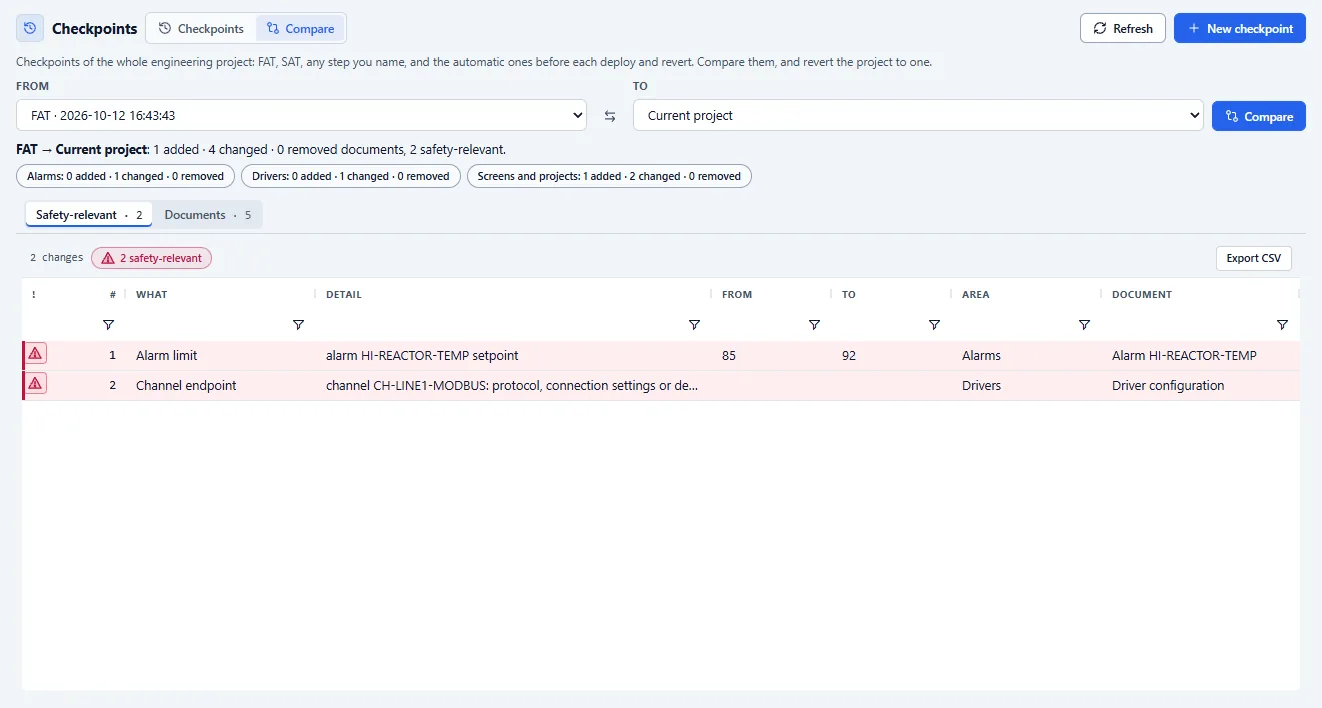
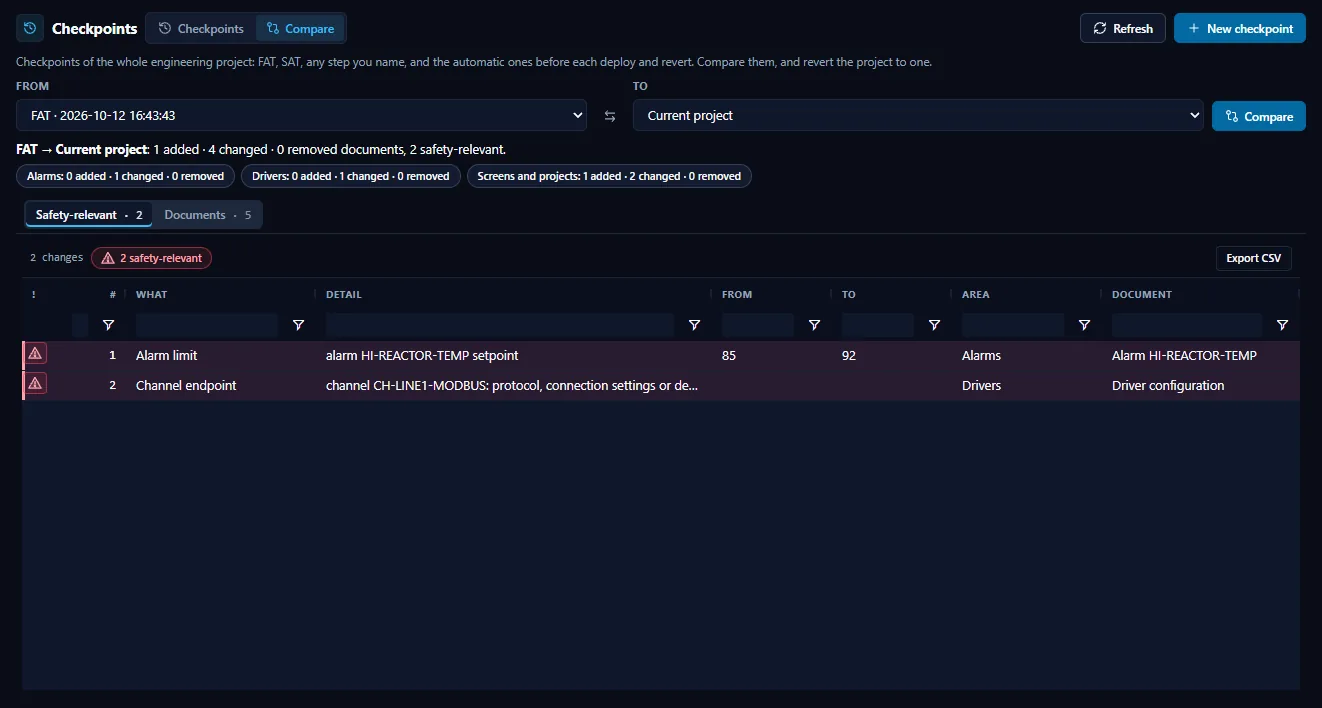
Project checkpoints: FAT, SAT and back
Freeze the project at each milestone, see what changed since, and go back with a signature.
Named checkpoints of the whole engineering project, automatic ones before every deploy, a compare that flags safety-relevant changes, and an e-signed revert that never starts a driver connection or lowers a safety setting. Project archives and scheduled, encrypted server backups complete it.
- eaxScada Pro · Enterprise
Remote changes, approved on site
An engineer working remotely can make a change that acts on the plant, once a colleague on site approves it.
The change is stored exactly as sent, shown to the approver as a diff, approved with a signature by another site user, and applied once by the person who asked, within an hour, only if nothing changed in that area meanwhile.
- eaxScada Starter · Pro · Enterprise
Live editing is a choice
Operators see a screen change only when someone deploys it.
New projects serve the last deploy only; a project can turn live editing on, and its automatic deploys then pass the same e-stop and screen checks as Deploy. The operator runtime shows deployed screens only.
Production records
- eaxScada Pro · Enterprise
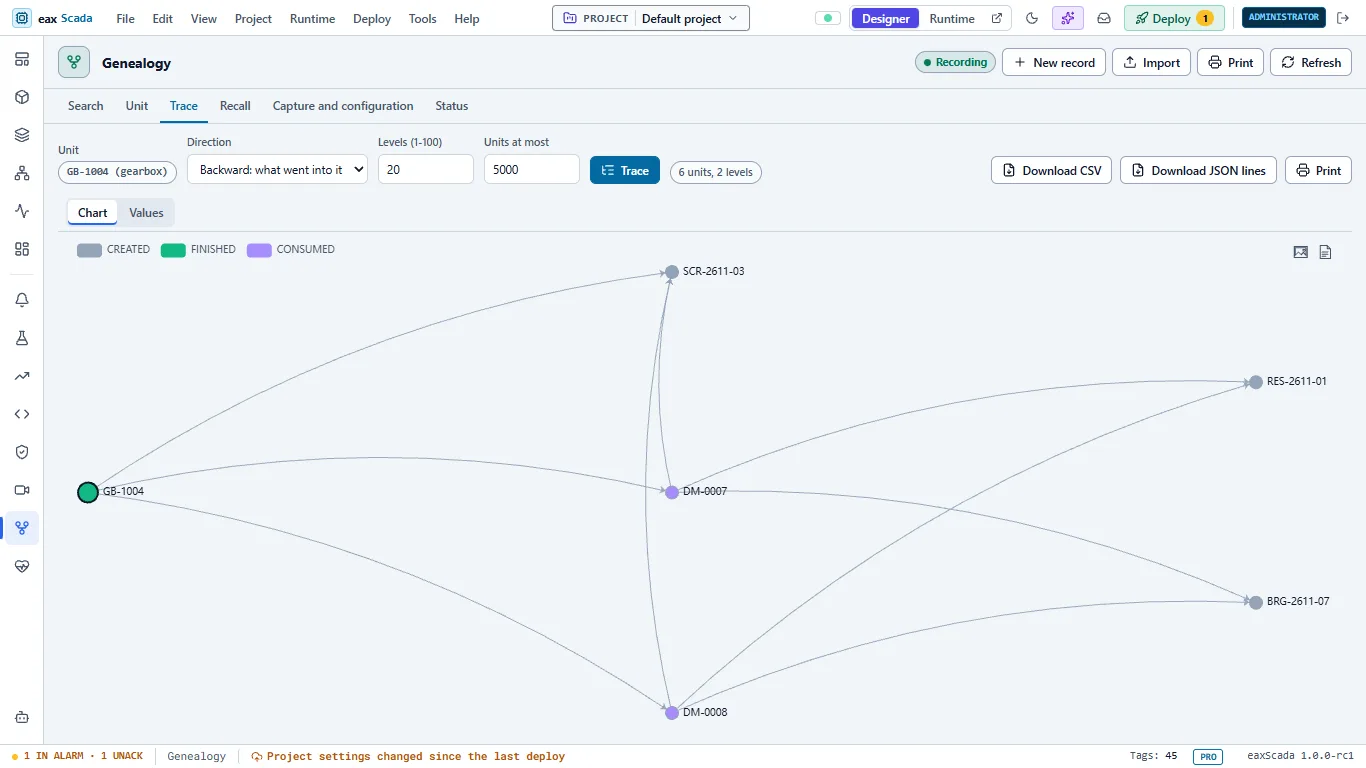
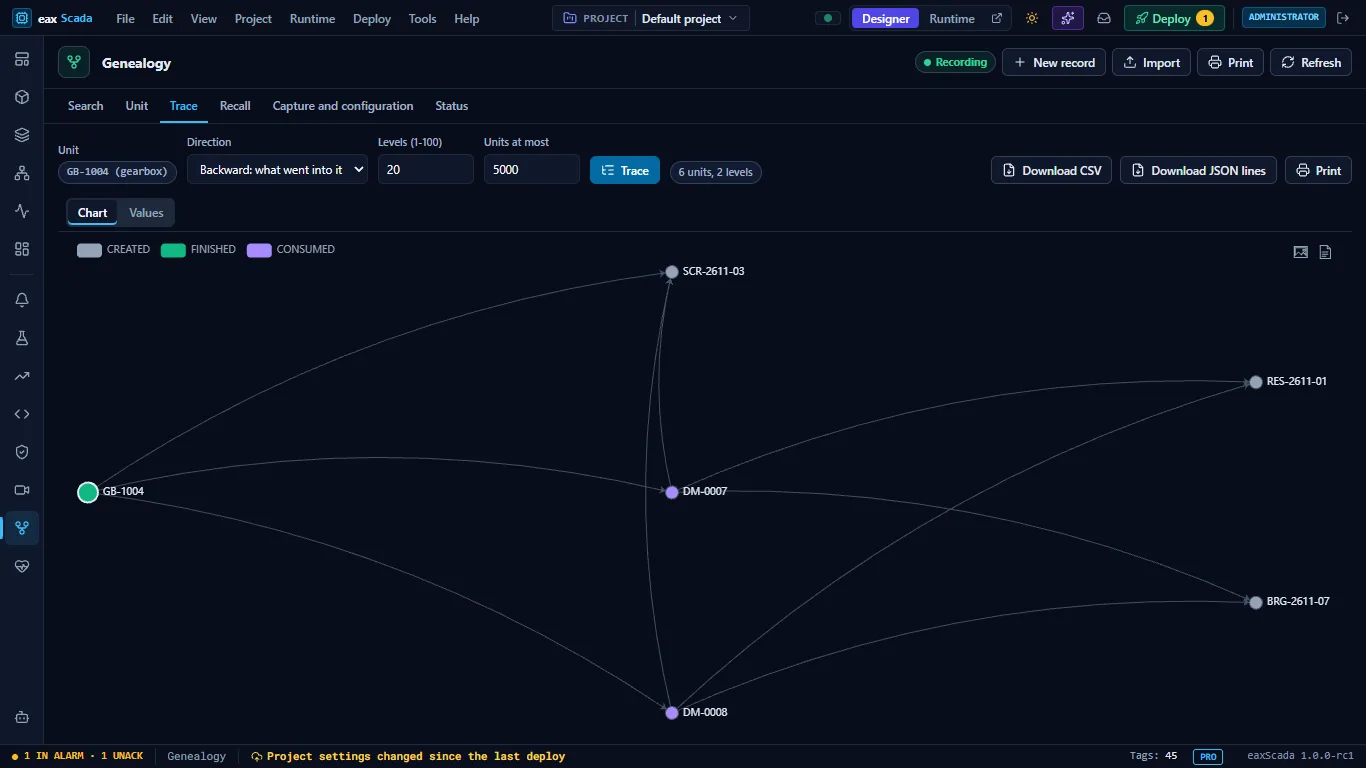
Part and lot genealogy
Answer "what went into this unit?" and "where did this lot go?" in seconds.
Units, components and lots recorded from the PLC through a handshake, with corrections and voids signed. Trace backward and forward as a chart or a table, recall from a lot, export, and print. Records are kept forever unless you set a retention; a purge writes an encrypted archive first. Replicated to the standby on Enterprise.
- eaxScada Starter · Pro · Enterprise
Batch records with real lots and measured amounts
A batch record holds only what was entered or measured.
A lot-tracked ingredient needs its lot, checked against its pattern. The amount dosed is read from the tag that measures it, with its quality, and judged against the tolerance band; anything not measured says so. Recipe and batch actions are recorded before they happen.
Build screens faster
- eaxScada Free · Starter · Pro · Enterprise
The Studio draws texts and backgrounds as operators see them
What you design is what the operator screen shows, in every theme.
A text style’s colour now shows on a Text that keeps the default colour, in the Studio and in the operator runtime alike, and the inspector’s swatch says when the colour comes from the style. The Studio canvas shows the screen’s own background in the light theme, and readings drawn on it follow that background. The Studio top bar never scrolls the page sideways, in any language.
- eaxScada Starter · Pro · Enterprise
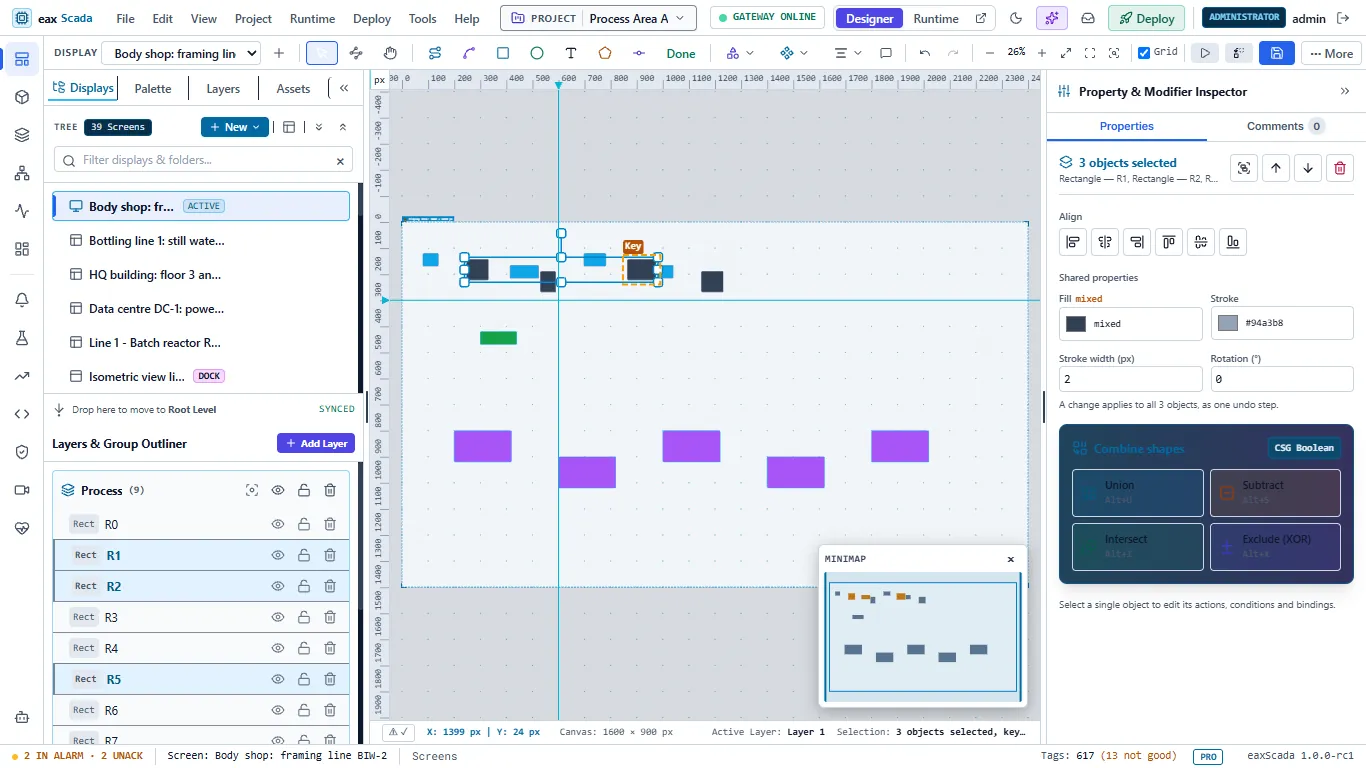
Arrange objects precisely
Tidy, aligned screens in seconds, even on large plant overviews.
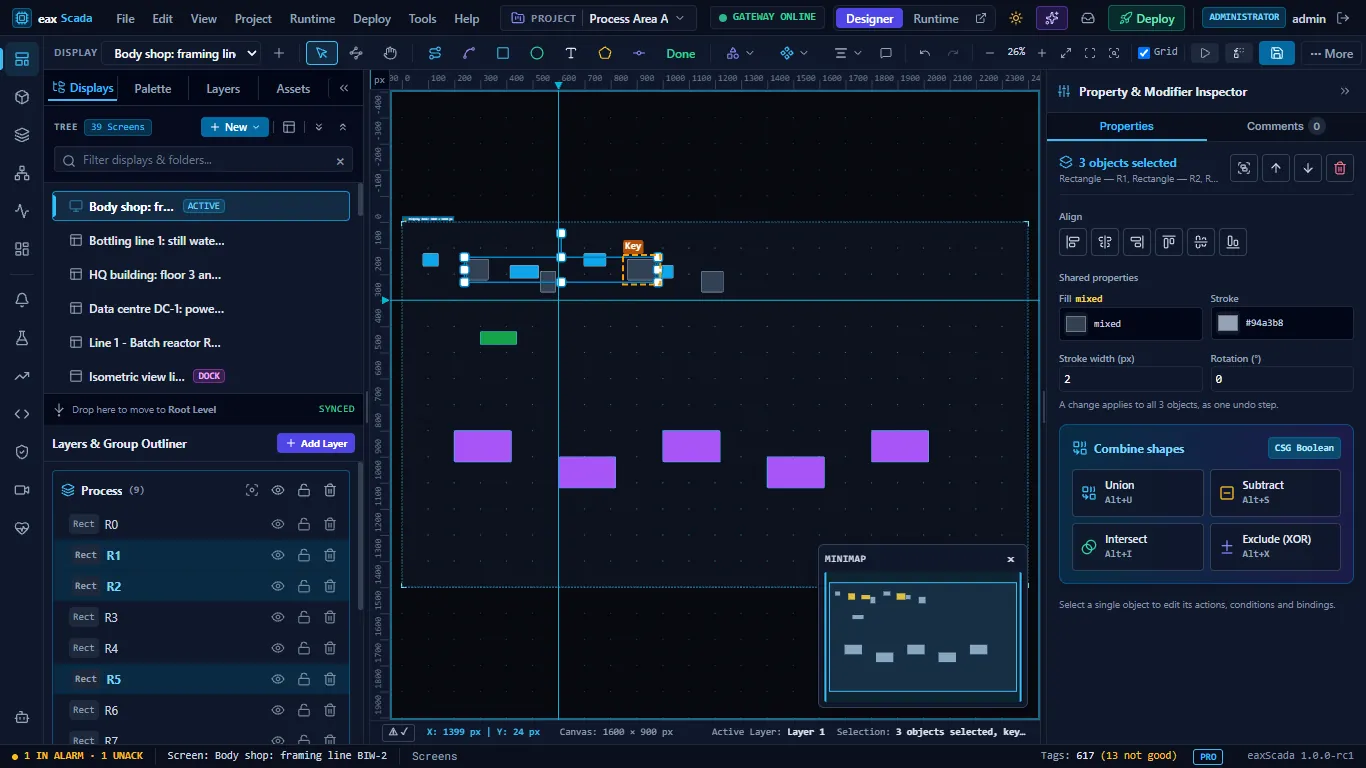
Align to a key object, match width and height, space evenly or by a fixed gap, zoom to the selection or to fit, a minimap, layer solo, ruler guides saved with the screen, and keyboard shortcuts you can change.
- eaxScada Starter · Pro · Enterprise
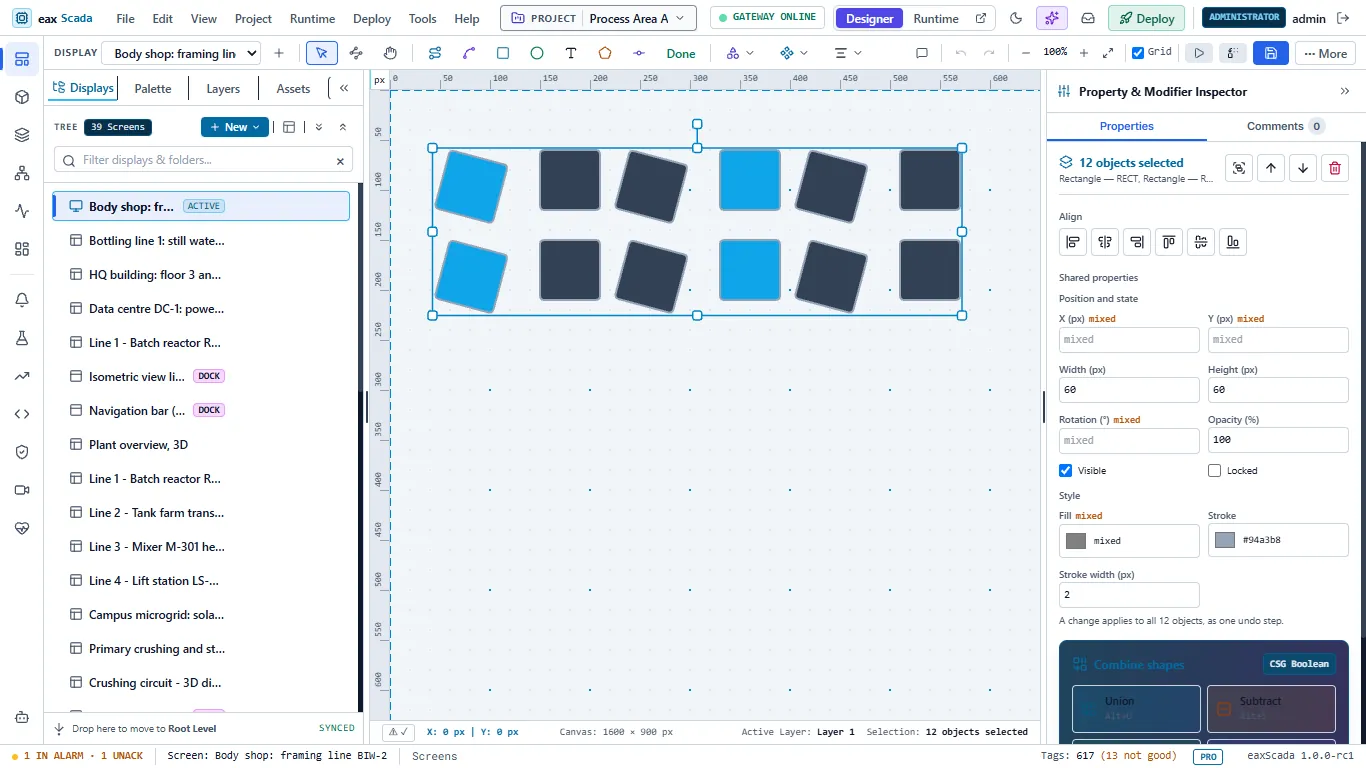
Edit many objects at once, bind by drag and drop
Change twenty pumps in one step, and bind a tag by dropping it on an object.
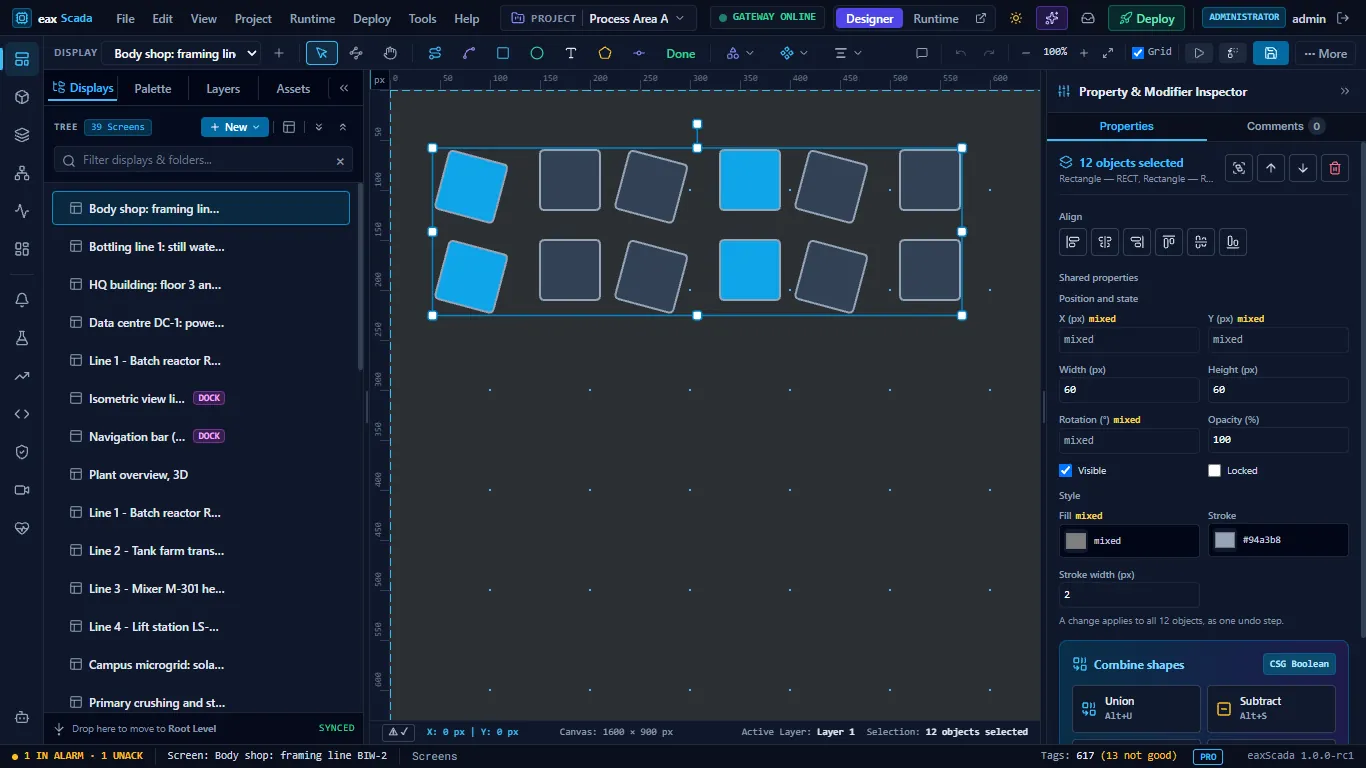
Every shared property is edited on a selection in one undo step, with "mixed" shown for values that differ. A tag dropped on an object binds what it displays, never what it writes. A History panel jumps to any step.
- eaxScada Starter · Pro · Enterprise
Style classes
Change the look of a whole project from one place.
Named looks for shapes (fill, border, corners, shadow, font) with theme colours, per-object overrides, a class created from an object, and rename or delete with a list of where the class is used. A class only changes how objects look.
- eaxScada Starter · Pro · Enterprise
Screen version history and compare
See exactly what changed on a screen before you deploy it, and go back if needed.
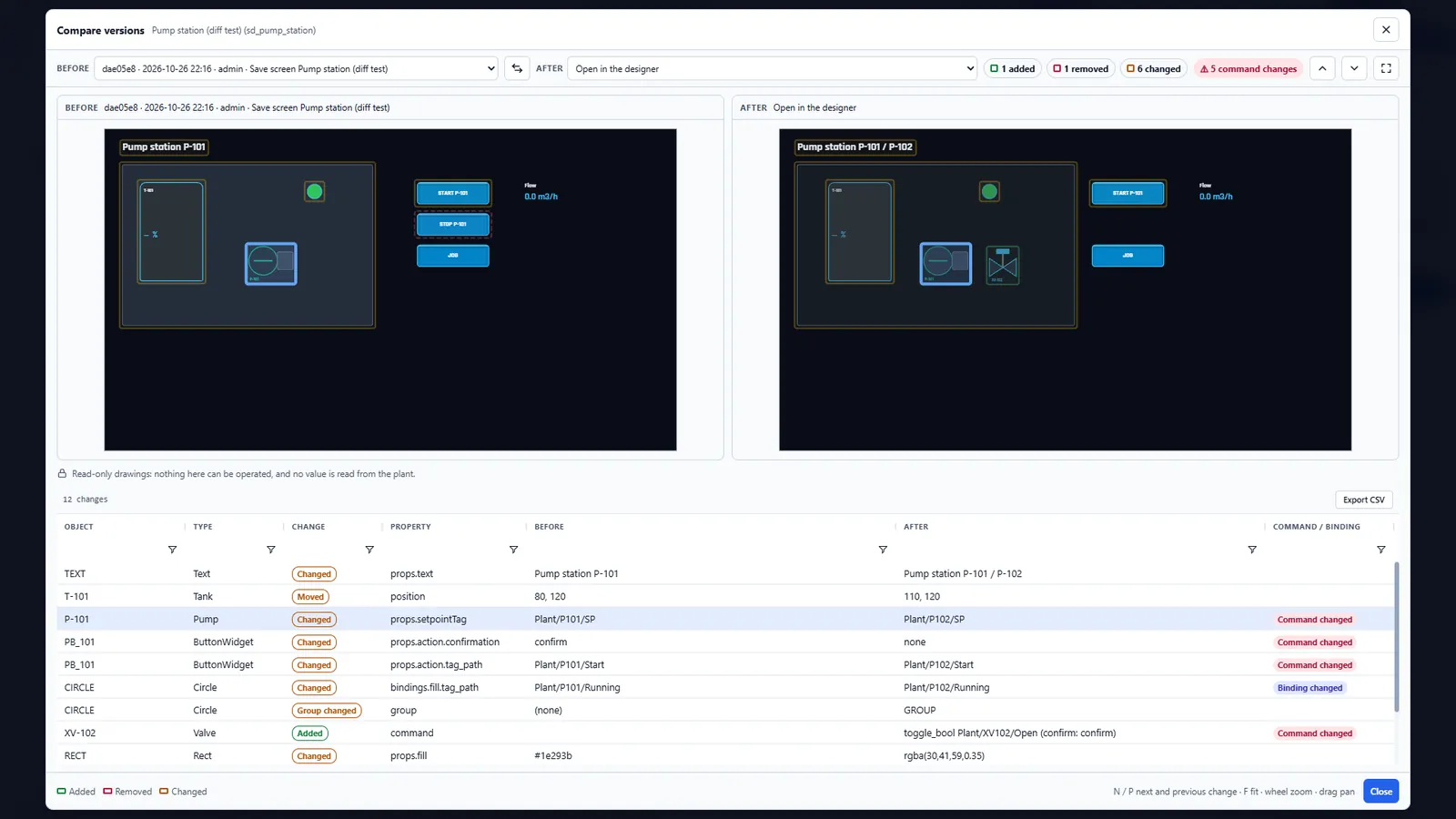
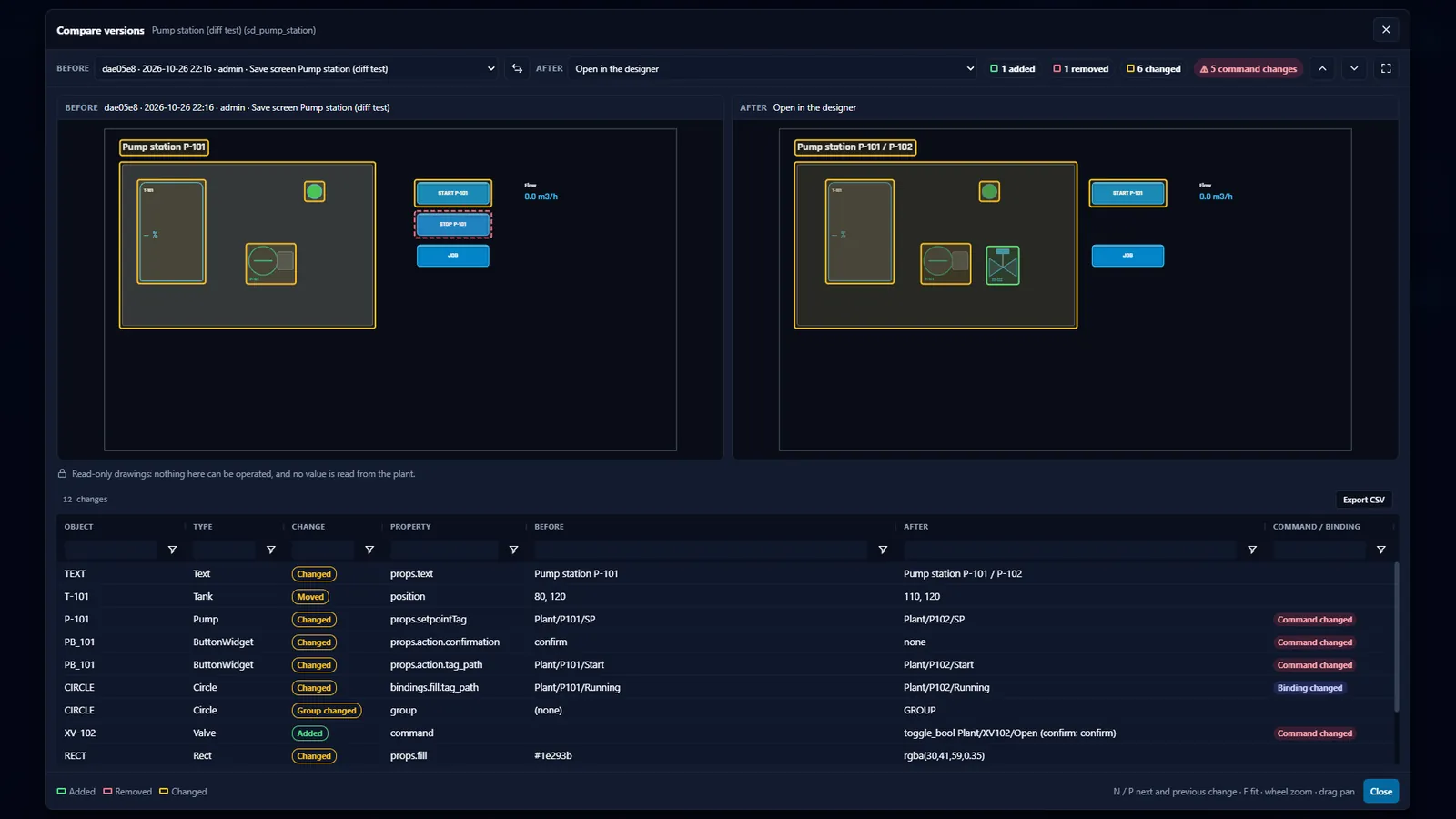
Every saved screen is kept as a revision you can restore. Put two versions side by side (a revision, the deployed copy or the open screen), with the list of changes and the ones that alter a command flagged. Read-only.
Displays operators can read at a glance
- eaxScada Free · Starter · Pro · Enterprise
One SIMULATED chip on a fully simulated screen
A screen that shows only simulated values says so once, clearly, instead of a SIM badge on every object.
When every value on the screen, its docks and its open popups is simulated, one white-on-violet SIMULATED chip appears and each object keeps a small violet dot. The mark is never dropped. As soon as one real value appears, the full SIM badges come back at once and the chip goes, so a screen that mixes real and simulated values always shows which is which. On a phone the chip sits in the top bar.
- eaxScada Free · Starter · Pro · Enterprise
Operator screens open fast on a phone
In our phone measurement, the first screen appeared in 1.6 s instead of 22 s.
The 3D engine now loads only when a 3D view opens, and the other large scripts no longer hold back the first screen. In our measurement on a phone, the first screen fell from 22 s to 1.6 s on a cold start, and from 2.7 s to 0.5 s with a warm cache. A 3D view shows that it is loading, and says so plainly if the engine cannot load. Values, commands and the deliberate-tap gate are unchanged.
- eaxScada Free · Starter · Pro · Enterprise
Phone cards name each value by its own label
On a phone, a reading or a lamp is never shown under a neighbour’s name.
Phone cards now name a value or a lamp only by its own label, the nearest one on its row or just above. A number, a scale tick, a limit mark or a pipe caption never names a value, and a card is never titled by a reading. A value with no label of its own is listed under its tag name or its phone label. Every bound lamp keeps a row, and a status lamp drawn on a value’s readout colours that value’s dot. Before, a tank level could appear under the flow transmitter label next to it.
- eaxScada Starter · Pro · Enterprise
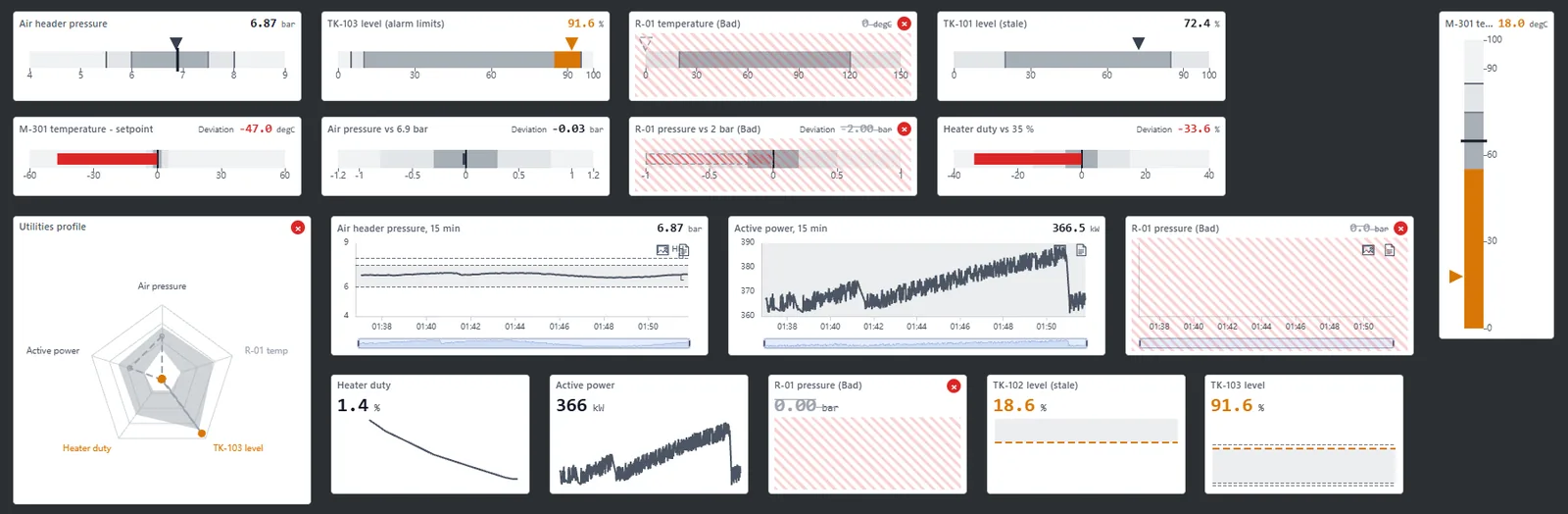
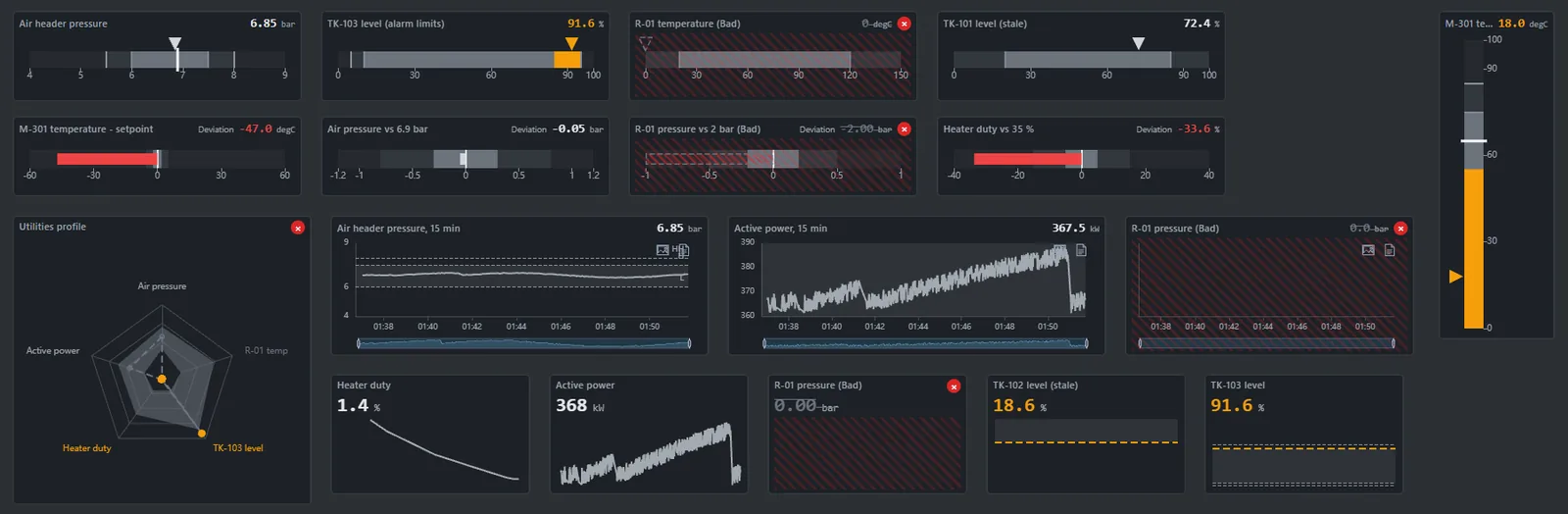
High-performance display objects
Abnormal values stand out because everything normal stays grey.
A moving analog indicator, a deviation bar, a KPI star, a sparkline with limits and a mini-trend tile. They take a colour only when a value is abnormal, and never draw a Bad, Uncertain or stale value as good.
- eaxScada Starter · Pro · Enterprise
Isometric (2.5D) plant views
A plant map operators understand at once, on a desk screen or a phone.
Draw the plant on a tile grid with equipment blocks and pipes, bind it to tags and commands, and give operators a map they can turn, a phone view and a keyboard path.
Connect more of the plant
- eaxScada Free · Starter · Pro · Enterprise
Hand a local tag over to a driver, and back
Move a template’s placeholder tag to a real device in one step, without two writers on the same tag.
Mapping a device address on a path a local tag already produces now offers Hand over to driver. After a second confirmation that lists what moves, the path goes from the local tag to the mapping in one step, with its unit, ranges, e-signature setting and description, and shows Bad, waiting for initial data, until the device’s first good read. Alarms keep the same path. Writability is carried, never widened: a tag operators cannot write becomes a read-only mapping. A handover is refused, with nothing changed, when a script writes the tag or the units or ranges differ. Return to local tag gives the path back. Both actions are recorded before they run, and run on site only, never through remote access.
- eaxScada Starter · Pro · Enterprise
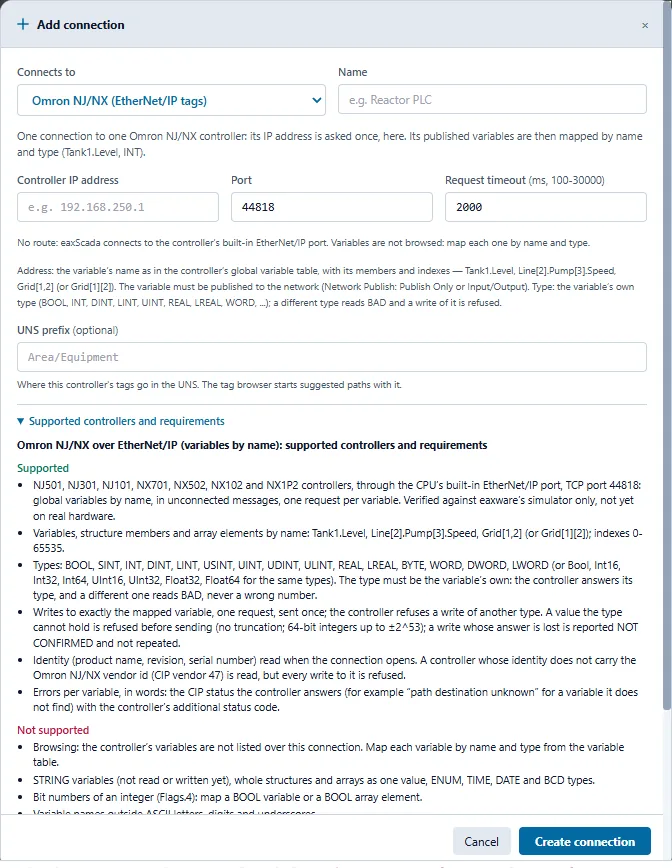
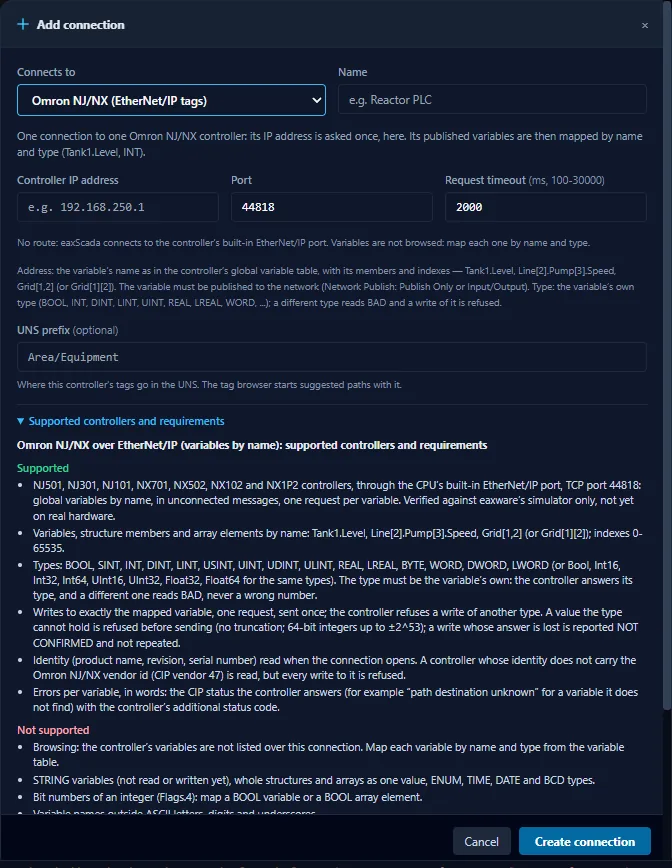
Omron NJ/NX variables by name over EtherNet/IP
Read and write NJ and NX controllers by the variable names your programmers use.
Omron NJ501, NJ301, NJ101, NX701, NX502, NX102 and NX1P2 through the CPU’s built-in EtherNet/IP port: published global variables, structure members and array elements (Tank1.Level, Line[2].Pump[3].Speed), from BOOL to LREAL. The mapped type must be the variable’s own; a write goes to exactly that variable, once. Verified against eaxware’s simulator only so far.
- eaxScada Starter · Pro · Enterprise
Sparkplug B by the specification
An edge node that goes offline shows offline, and a command reaches exactly the node you meant.
A metric’s own quality is applied, a node or device death makes its values Bad, a gap in the sequence makes them Uncertain until the next birth, and command messages are never read as values. Browse offers each metric by its full address, and a write goes to that node or device only.
- eaxScada Starter · Pro · Enterprise
Modbus TCP writes the integer you type
A setpoint written to a 32-bit integer register now reaches the device as that integer.
The Modbus TCP driver now shares the register codec of the serial Modbus driver: register counts follow the data type, the channel’s byte order applies to reads and writes, and a value that does not fit the type is refused instead of being truncated or wrapped. Check your Modbus TCP channels when you upgrade.
- eaxScada Starter · Pro · Enterprise
Omron FINS driver for CJ2, CS1, CP1 and NJ/NX
Read and write CJ, CS, CP and NJ/NX controllers directly, by the addresses your programmers already use.
Omron CJ2M, CJ2H, CS1, CP1E, CP1L, CP1H and NJ/NX controllers over FINS/UDP or FINS/TCP: D100, CIO 0.00, W10.03, EM banks, timers and counters, from BOOL to LREAL, and STRING text read and written. A BOOL write changes that bit only; a write is sent once and reported NOT CONFIRMED when its answer is missing, never repeated. Tested against a simulator so far; real-hardware benches pending.
- eaxScada Starter · Pro · Enterprise
Mitsubishi MC protocol / SLMP driver for MELSEC iQ-R, iQ-F, Q and L
Bring MELSEC controllers into the same SCADA, with no gateway.
Mitsubishi Electric MELSEC iQ-R, iQ-F (FX5U, FX5UC, FX5UJ), Q with built-in Ethernet and L, binary 3E or 4E frames over TCP or UDP: D, W, R, ZR, M, X, Y, B, timers and counters, X and Y in octal on iQ-F, from Bool to Float64, and String text read and written. Inputs, special relays and one bit of a word are never written. Tested against a simulator so far; real-hardware benches pending.
- eaxScada Starter · Pro · Enterprise
Each device at its own scan rate
Fast values stay fast, and a slow serial line is no longer flooded.
Every device is polled at the scan rate you set for it (250 ms for a new connection), independently of the other devices on its channel, so one slow or silent device does not hold the others back. The link diagnostics show each device’s set and measured rate.
- eaxScada Starter · Pro · Enterprise
Text tags on controllers
Write a recipe name or a batch id straight into the controller.
String tags write text to Omron FINS, Mitsubishi MC protocol and OPC UA devices, and FINS and MC protocol read it back with its quality. The text is checked against the tag’s write range (length, allowed texts) by the server, for every writer.
- eaxScada Free · Starter · Pro · Enterprise
Go security update
The server ships with the latest security fixes of its platform.
eaxScada is now built with Go 1.27.3, which brings TLS certificate and standard library security fixes; the build refuses an older toolchain. The SAML sign-in component is updated to close a signature-check bypass.
- eaxScada Starter · Pro · Enterprise
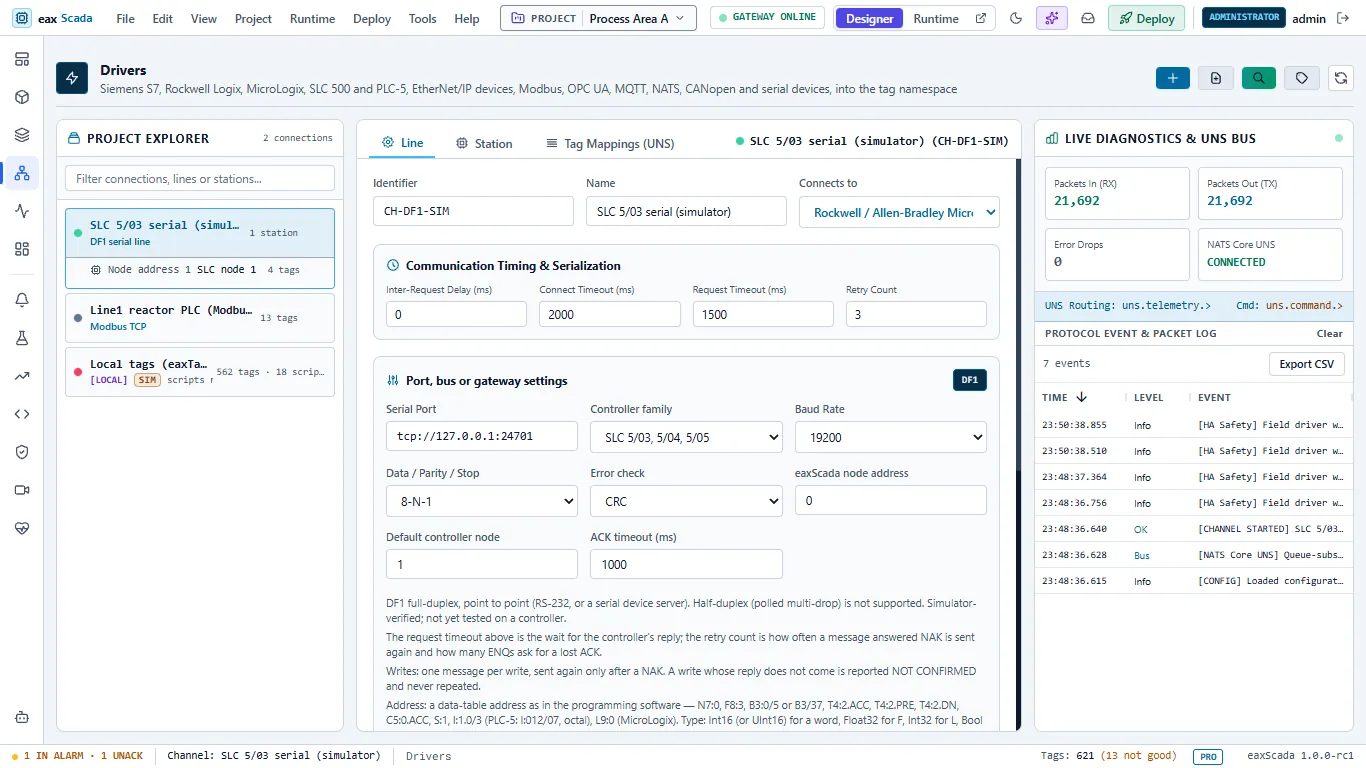
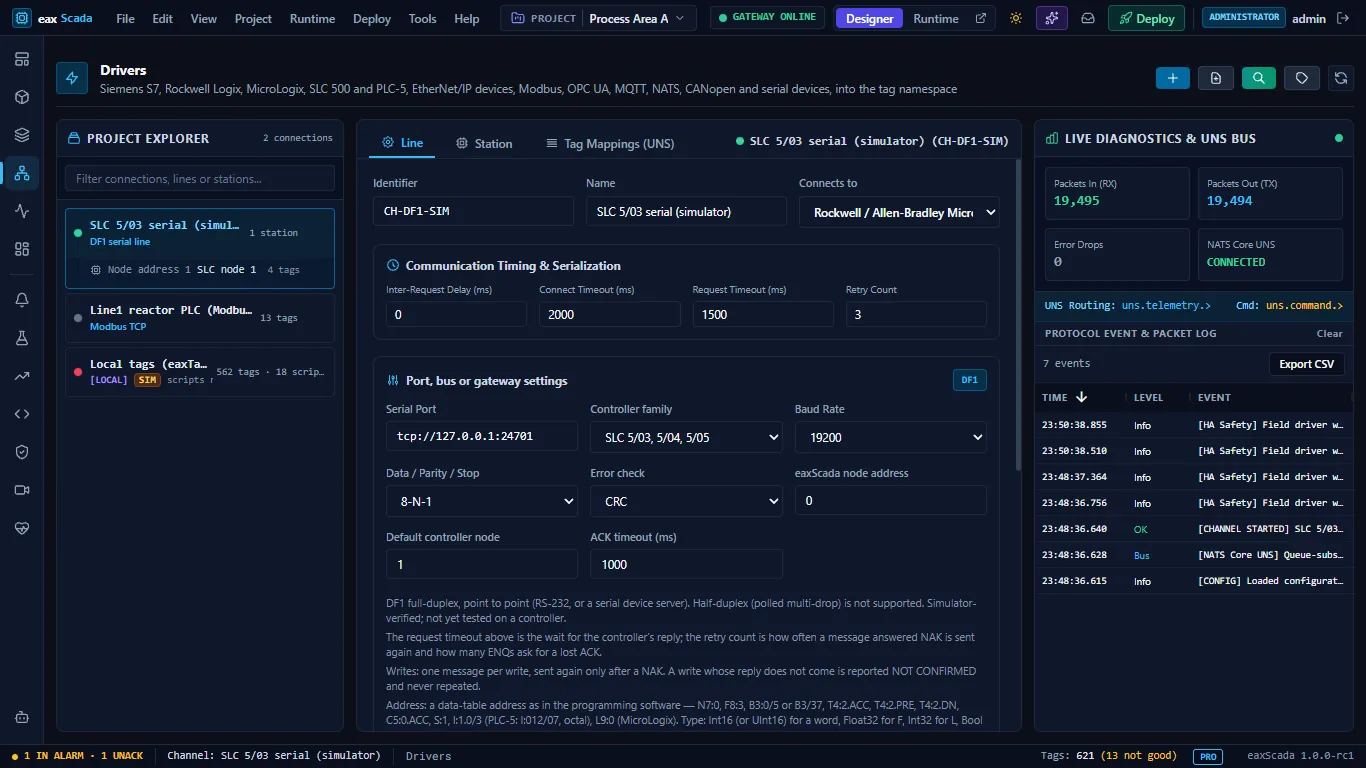
DF1 serial driver for Allen-Bradley MicroLogix, SLC 500 and PLC-5
Bring MicroLogix, SLC 500 and PLC-5 controllers into the same SCADA, over their serial port.
Rockwell / Allen-Bradley MicroLogix 1000 to 1500, SLC 5/03 to 5/05 and PLC-5 over DF1 full-duplex, on a COM port or a serial device server. A write is sent once and reported NOT CONFIRMED when its reply is missing, never repeated. Tested against a simulator so far.
- eaxScada Starter · Pro · Enterprise
Alarm handshake with the controller
The PLC knows when an alarm was shown and acknowledged, and a field pushbutton can acknowledge it.
eaxScada writes a shown signal and an acknowledged signal to tags the controller reads, accepts an acknowledgement from the controller, and supports alarms that need no acknowledgement. Not in Free.
- eaxScada Starter · Pro · Enterprise
Historian: late and repeated samples
History stays complete after a network outage.
Samples a driver or edge device forwards late, after an outage, are kept and shown in trends, history and exports at their own timestamp. A timestamp written twice is kept once, with the later value.
3D digital twins
- eaxScada Pro · Enterprise
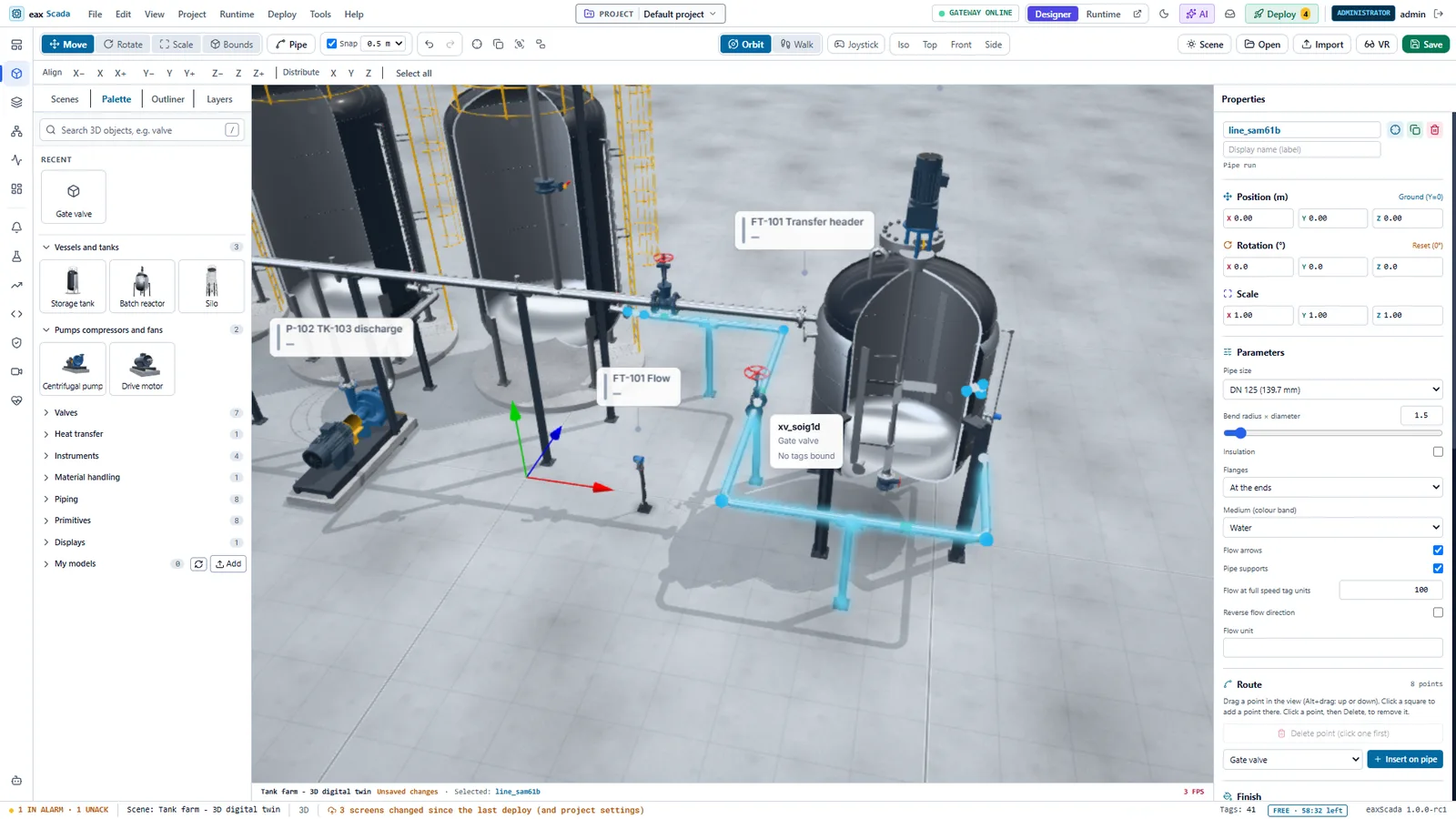
3D designer: equipment, pipes, finishes and lighting
Build a believable 3D plant in an afternoon.
A grouped palette of about 85 items (vessels, pumps, heat exchangers, cabinets, platforms, stairs, pipe racks), a Pipe tool with real bends that snaps to equipment connections, fittings, inline valves and instruments, 18 surface finishes and six lighting presets. Display only: a bad or uncertain value never animates.
- eaxScada Pro · Enterprise
3D model packs and My models
Ready-made equipment for your 3D scenes, installed in one step.
Download a model pack from eaxware.com and install it with Install model pack… in the 3D model library; the checksum is verified. The models you added sit under My models in the palette. In a high availability pair, the pack is copied to the standby.
eaxPLC engineering tools
- eaxPLC Free · Standard · Performance
The right quality after a short PLC stop or start
A stop or start shorter than a quarter of a second no longer leaves values on the broker with the wrong quality.
The MQTT, Sparkplug B and NATS publishers look at the PLC’s quality every 250 ms, while each changed value goes out with the quality of its own sample. A stop between two looks could leave values uncertain on a running PLC until they changed, or good on a stopped PLC after a short start. Now a value sent with another quality makes the next look republish every value with the current quality. Subscribers see one extra burst of messages after such a stop or start.
- eaxPLC Free · Standard · Performance
Watchdog trips explained in plain words
When the overrun watchdog stops the PLC, the operator sees which rule tripped and why.
The fault message names the rule and its limit first, for example “one cycle took 21.56 ms, over the 20.00 ms maximum”, then the cause: the program itself ran too long, or the cycle started late, held back by the operating system or I/O. The Studio header reads WATCHDOG - STOP, and a trip banner gives the reason, the state of the outputs and the measured times. An amber “No real-time setup” chip warns when a fast scan runs with the watchdog on but without real-time scheduling, and names the fixes. The trip decision is unchanged: same thresholds, same moment, same safe outputs. The Studio’s data grids, dates and times also follow the Studio’s language now, without a reload.
- eaxPLC Standard · Performance
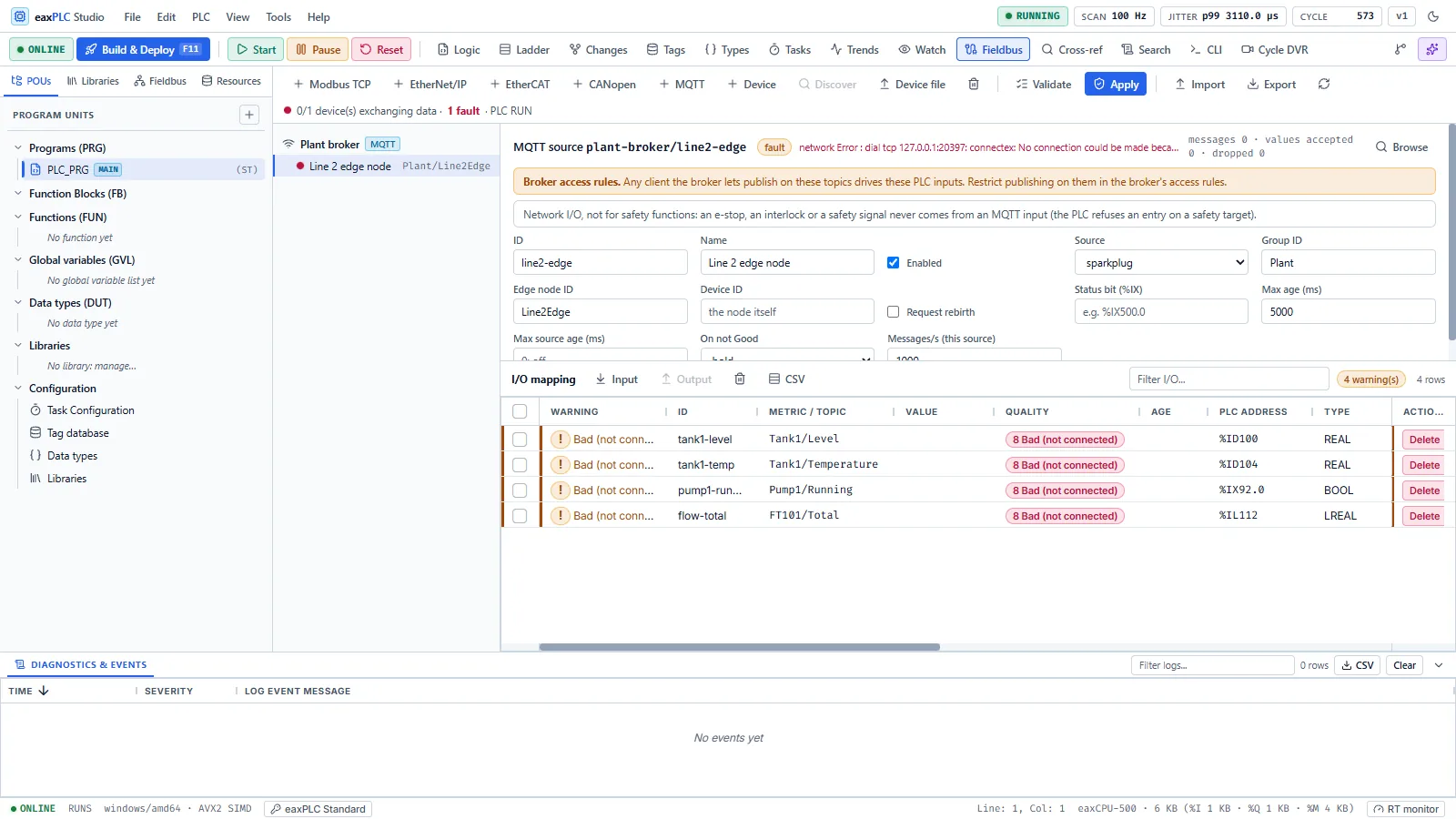
MQTT and Sparkplug B inputs
Bring values from edge devices and brokers straight into the PLC program.
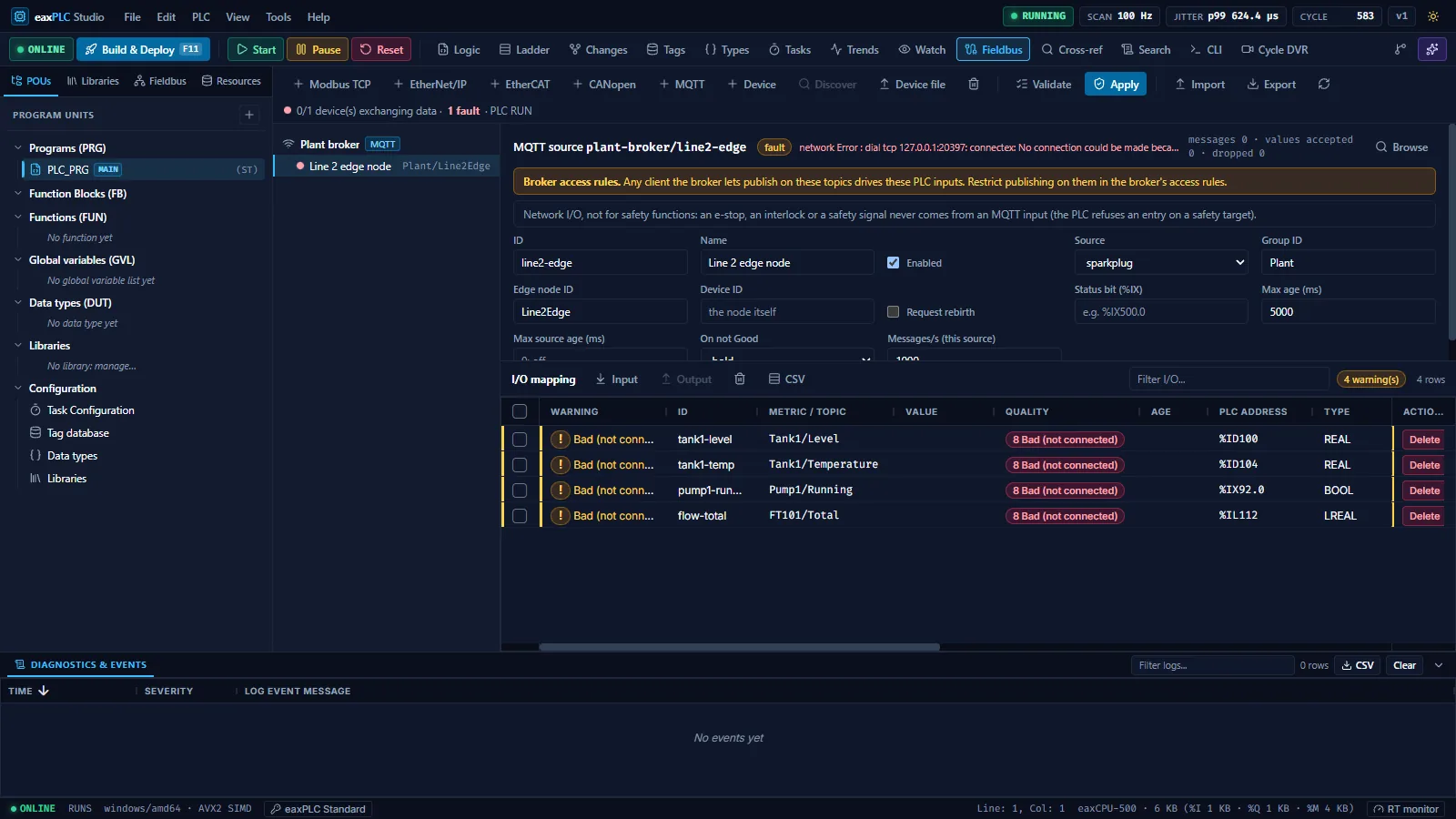
Map Sparkplug B metrics or JSON topics onto PLC inputs. Every entry has a quality bit the program reads (true only while the value is good), a value that does not convert exactly is refused, and the values of one message reach the program in the same scan. Network I/O, never for safety functions: an entry on a safety target is refused.
- eaxPLC Free · Standard · Performance
Reviewed deploys and rollbacks
When a review is required, the Studio gets it, attaches it, or asks for it.
The deploy dialog attaches eaxScada’s signed approval of exactly the program being deployed or the stored version being rolled back to. When there is none, it requests the review in eaxScada for you, naming the project revision or the version, never retyping the program.
- eaxPLC Free · Standard · Performance
Inputs only the field can write
A value a device sends cannot be overwritten from outside for a cycle.
An input a fieldbus, an MQTT source or a plant simulator drives is shown read-only, and every outside write onto it is refused and audited, on every path. A force stays the deliberate way to override a device.
- eaxPLC Free · Standard · Performance
Fieldbus changes without stopping the rest
Change one device while the PLC runs; the devices you did not touch keep exchanging I/O.
An Apply compares the new fieldbus configuration with the running one and restarts only what changed: a Modbus TCP or EtherNet/IP device alone, an EtherCAT line, a CANopen bus or an MQTT connection as a whole. Unchanged devices keep their connection and their I/O, without a gap. Last Apply shows, device by device, what was kept, restarted, started or stopped, and why.
- eaxPLC Performance
Steadier 1 ms scans on Linux
A pinned real-time scan keeps its cycle while eaxScada works hard on the same box.
On Linux, a scan pinned to its own CPU no longer leaves the rest of the PLC squeezed onto one CPU, its CPU stays awake between cycles, and the scan thread is restored when it stops. In a 24-hour run at 1 ms on a two-core thin client, with eaxScada polling 1,000 tags a second beside it, 0.40 % of cycles overran, the worst cycle took 10.2 ms and the watchdog never tripped; before the change, the same load gave 2.1 % and 18.7 ms. Windows is unchanged.
- eaxPLC Free · Standard · Performance
eaxCloud link from the Studio
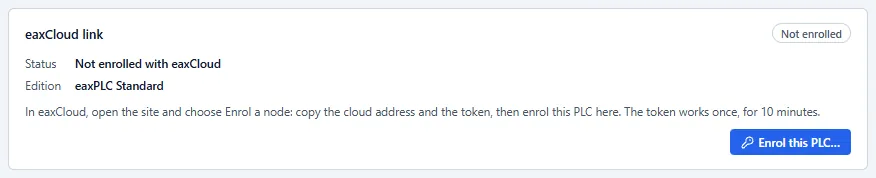
Enrol a PLC with eaxCloud, or disconnect it, from its own Studio.
File > Cloud shows the link’s state and lets an administrator enrol the PLC with a one-time token or disconnect it with a reason. The link is outbound and read-only: nothing from the cloud reaches the PLC.
- eaxPLC Free · Standard · Performance
Search and replace across the project
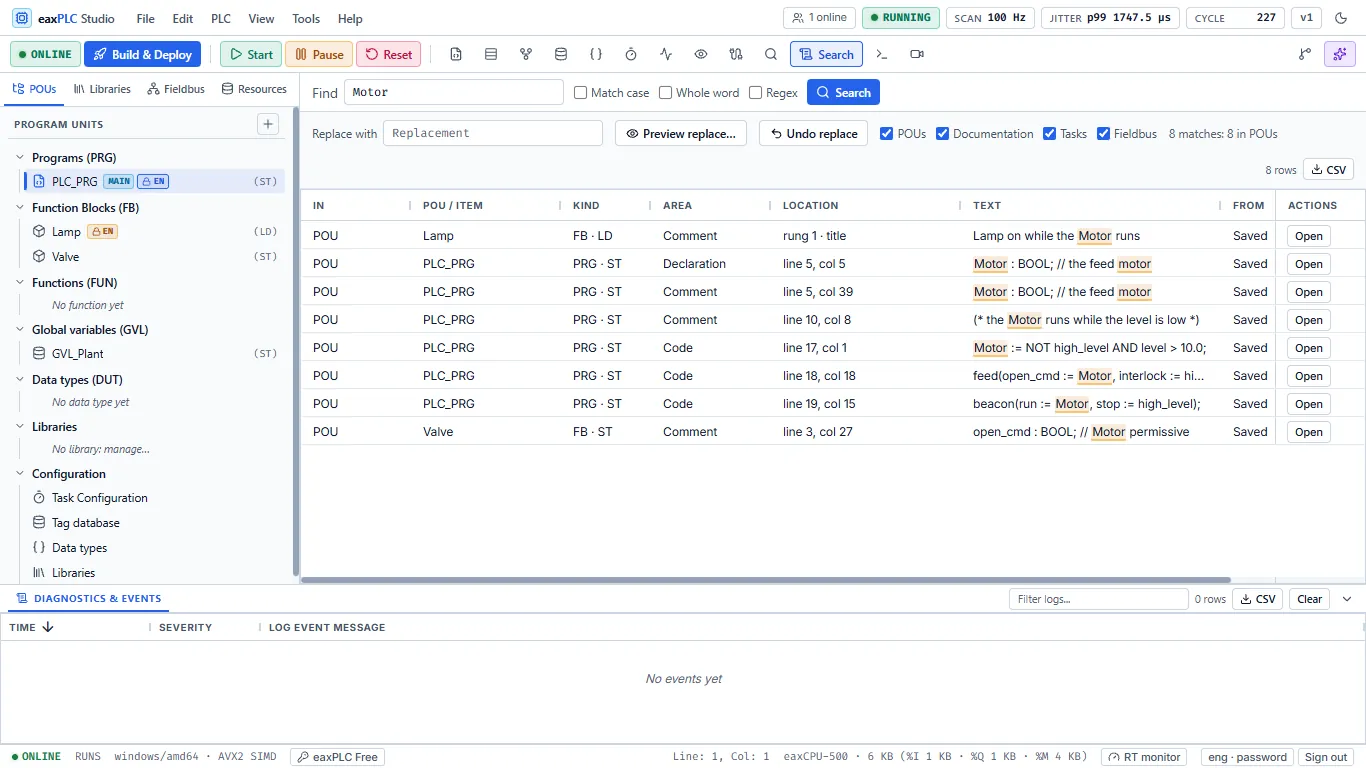
Rename a signal everywhere it is used, safely.
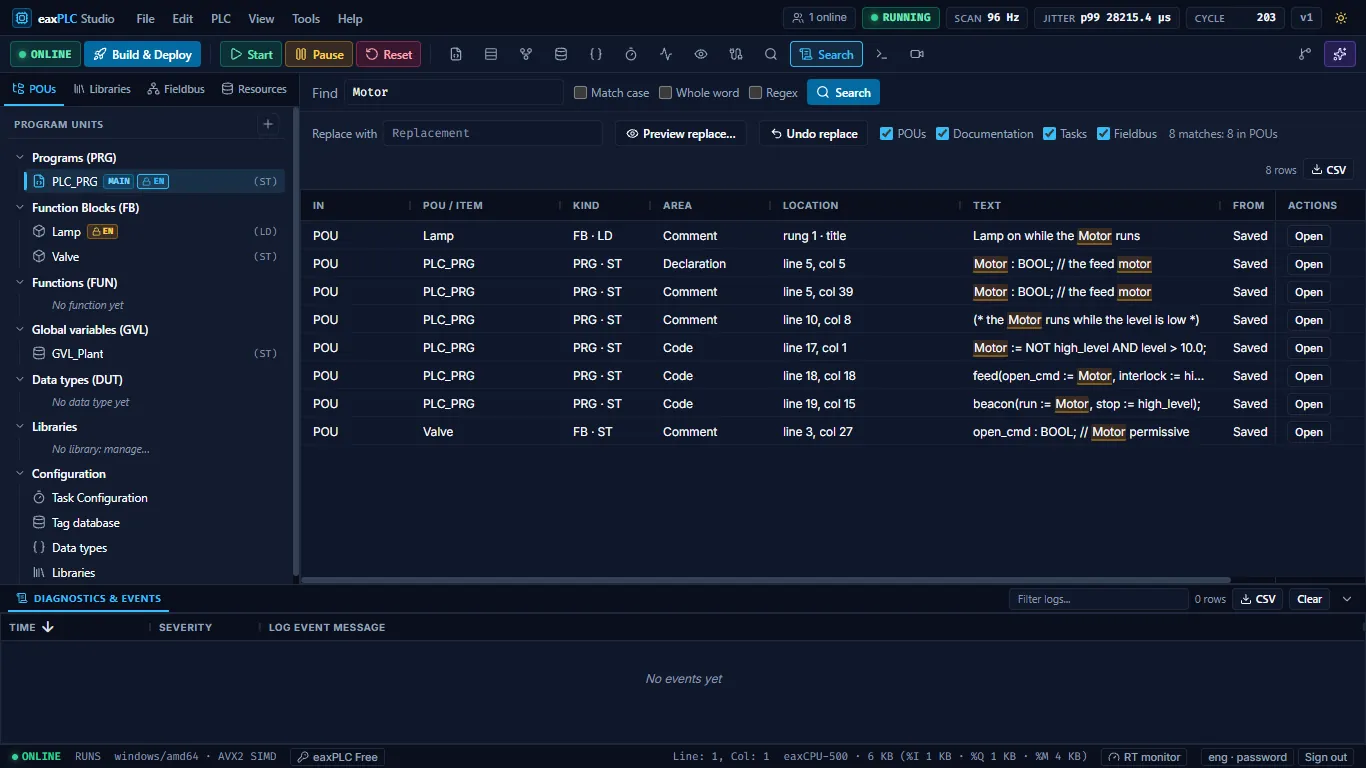
Search every POU, ladder diagram, variable documentation, task and fieldbus entry, with match case, whole word and regular expressions. Replace writes only the drafts you have checked out, after a preview, with one undo; it never deploys.
- eaxPLC Free · Standard · Performance
Quick-watch on hover
See a live value without leaving the code.
Hover a variable in the ST editor or the ladder to see its value, type, quality and force state, then add it to the watch list or a trend. Read-only.
- eaxPLC Free · Standard · Performance
Trend sets
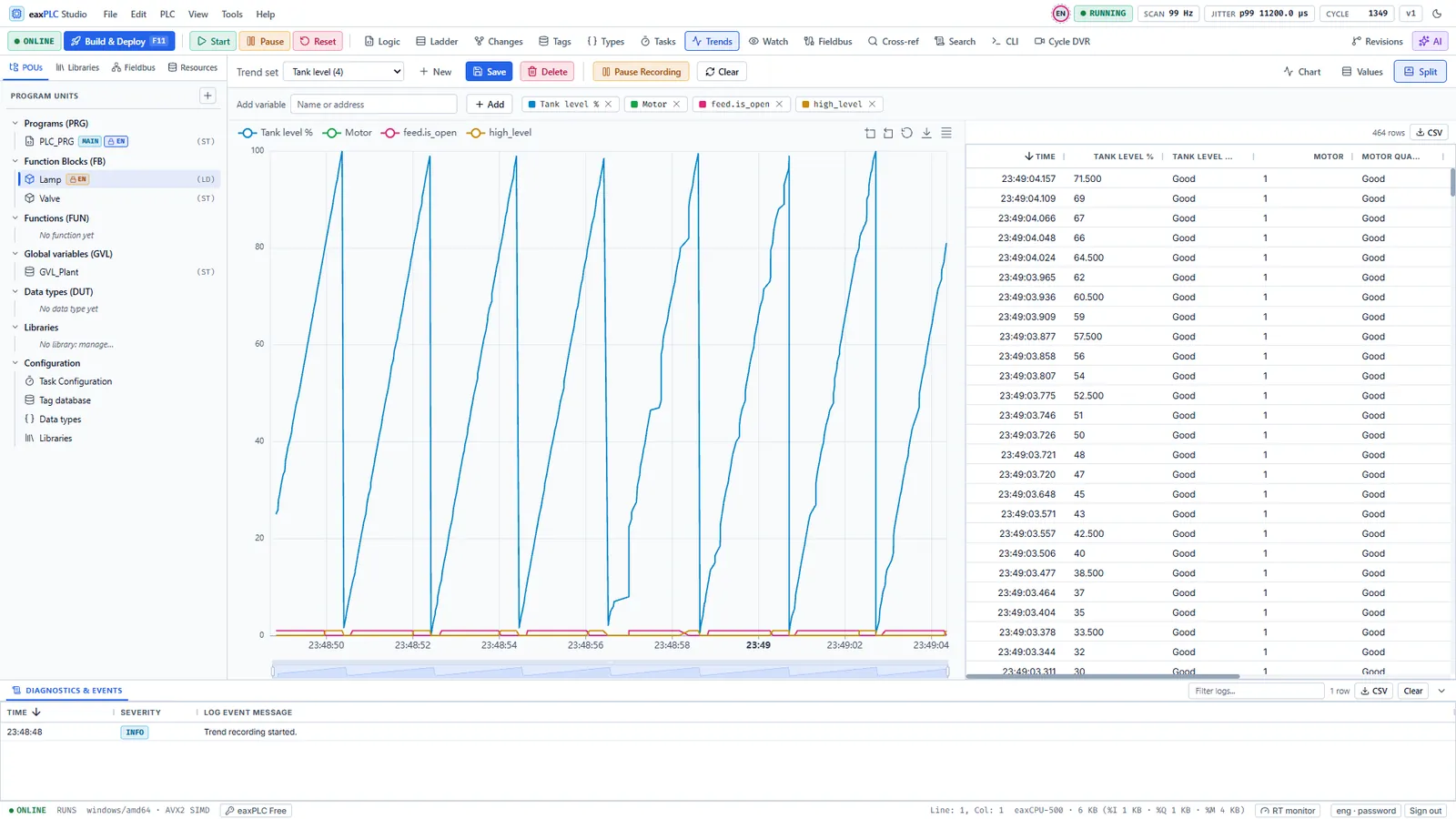
The signals you watch during commissioning, saved with the project.
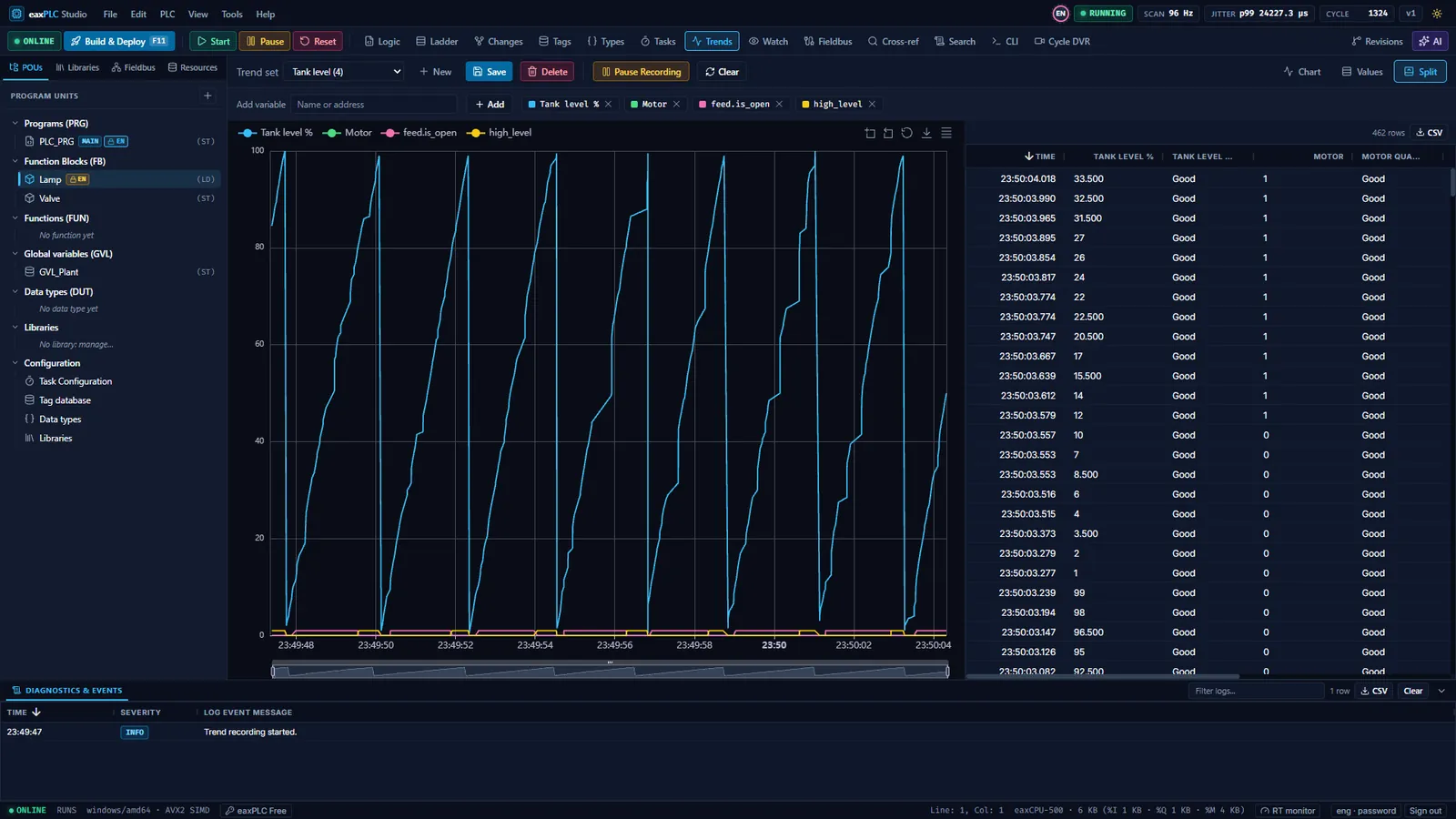
Named lists of variables, versioned with the project, with Chart, Values and Split tabs, bad samples drawn as gaps, and PNG and CSV export.
- eaxPLC Free · Standard · Performance
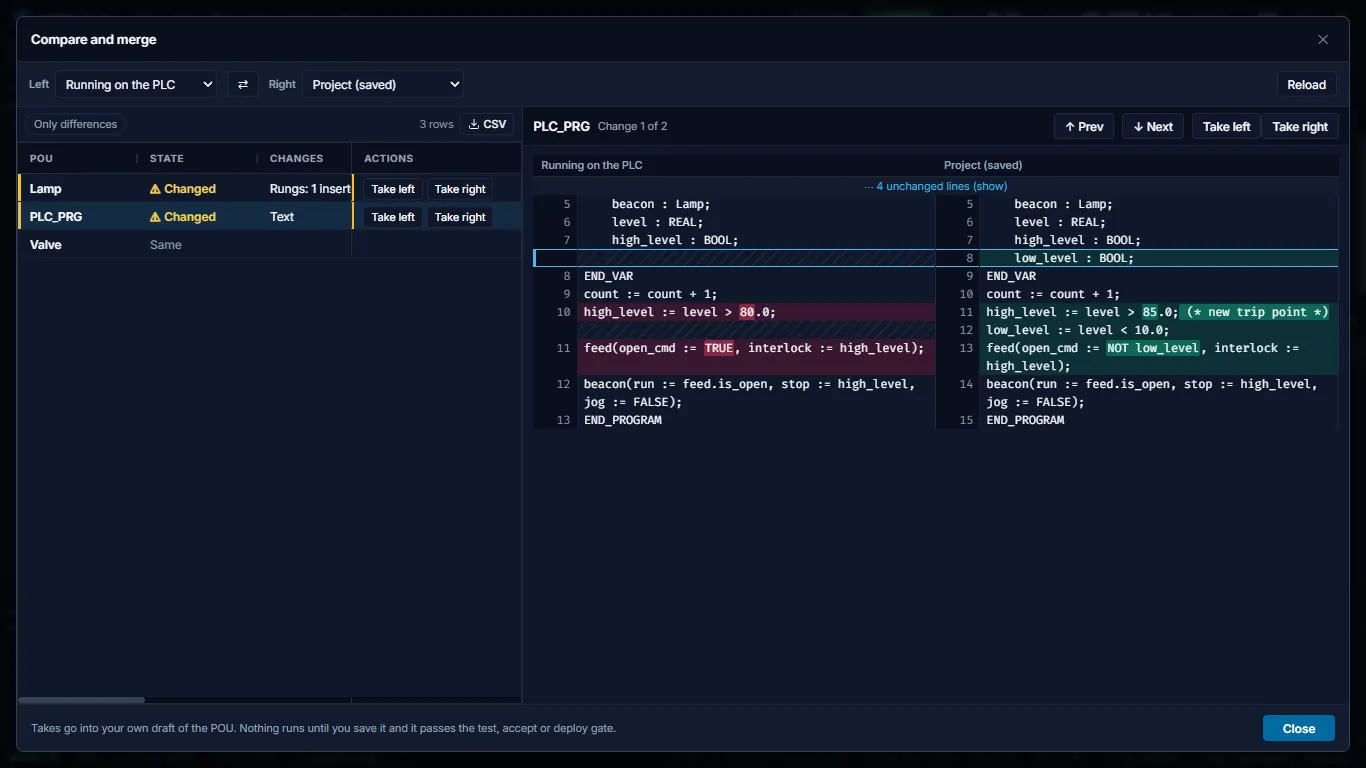
Compare and merge
Know what differs between the running program and your edits before you deploy.
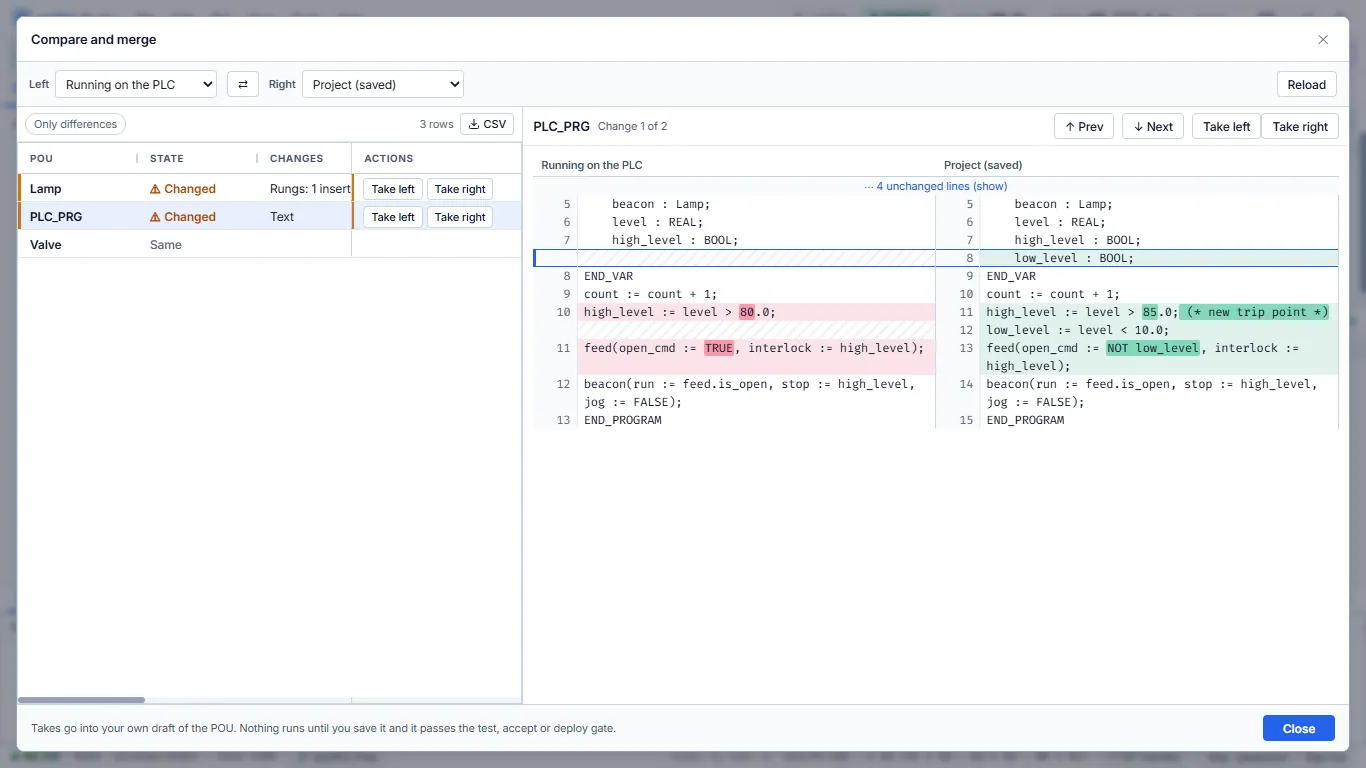
Compare any two of the running program, the saved project, your drafts and a revision, with an ST line diff and a ladder rung diff, and take a POU, rungs or declarations into your own draft. The running program is never changed.

eaxCloud
- eaxCloud Developer · Fleet · Enterprise (planned)
eaxCloud status, capability by capability
Know exactly what you can use today and what is still being built.
The eaxCloud portal (accounts, organisations, sign-in, licences, a shop in test mode) is in early access, invite only. Fleet management, remote access, cloud history, change tracking and signed updates are in development, with early access in 2027. Virtual commissioning is lab-tested, with pilots on request. Remote access is designed read-only unless the site turns on remote control locally, and signed updates are applied by a person at the site, never automatically.
- eaxCloud virtual commissioning (lab-tested)
Pass or fail checks for virtual commissioning
Test PLC programs against a simulated plant in your build pipeline.
A plant scenario can carry checks (a level stays below its limit, an alarm variable turns on within 30 s of an injected fault) that are evaluated in simulated time, the same at any speed. eaxsimctl test runs them on one computer and its exit code is the verdict; cloud runs give the same verdict and report. Cloud-hosted virtual commissioning is lab-tested, with pilots on request.
Want to try them on your own plant? eaxware is in early access; licences go on sale in 2027.
Join early access